


3 Post Moderation Rule for New Boarders (25 Jan 2021)
New boarders will have their posts moderated - Don't worry if you cannot see your post immediately.
Audio sync problem. I suspect this is a sample rate problem? (i am still learning)
- TripleX808
-
 Topic Author
- Offline
- Senior Member
-

- Alright?
My exported movie is 40.63Gb and is perfectly in sync!!!!!!
Thank you SO MUCH Ronny for all your help!!!
BUT! Do I now put this 40.63Gb file into something called compressor in Applications?? Never used that before.
My usb sticks are 8Gb capacity that this Documentary has to go on. 40Gb won't fit on obviously. lol
Should i go ahead with this Maverick thing and the further steps re trail version? As I said in my pm to you Ronny it will all be sorted on the 28th cash wise.
I am also investing in Logic Pro X (I am a Music Production Degree Student after all). Can't believe I paid £350 for Logic Pro 9 a few years ago and Logic Pro X is only £199 in the App store now!
Please Log in to join the conversation.
- ronny courtens
-

- Offline
- Moderator
-

- Posts: 4455
- Thank you received: 962
Good to hear you have been able to export your program in sync now. So at this time there is no need to upgrade to Mavericks OS and the latest version of FCP X, you can safely do this in a few weeks.
The next step is to convert this 40 GB master file to something you can put on your 8 GB sticks.
I'm looking for an older version of Compressor now, so I can guide you through this with some screenshots. Hold on, will be back in a minute.
-Ronny
Please Log in to join the conversation.
- ronny courtens
-
- Offline
- Moderator
-
- Posts: 4455
- Thank you received: 962
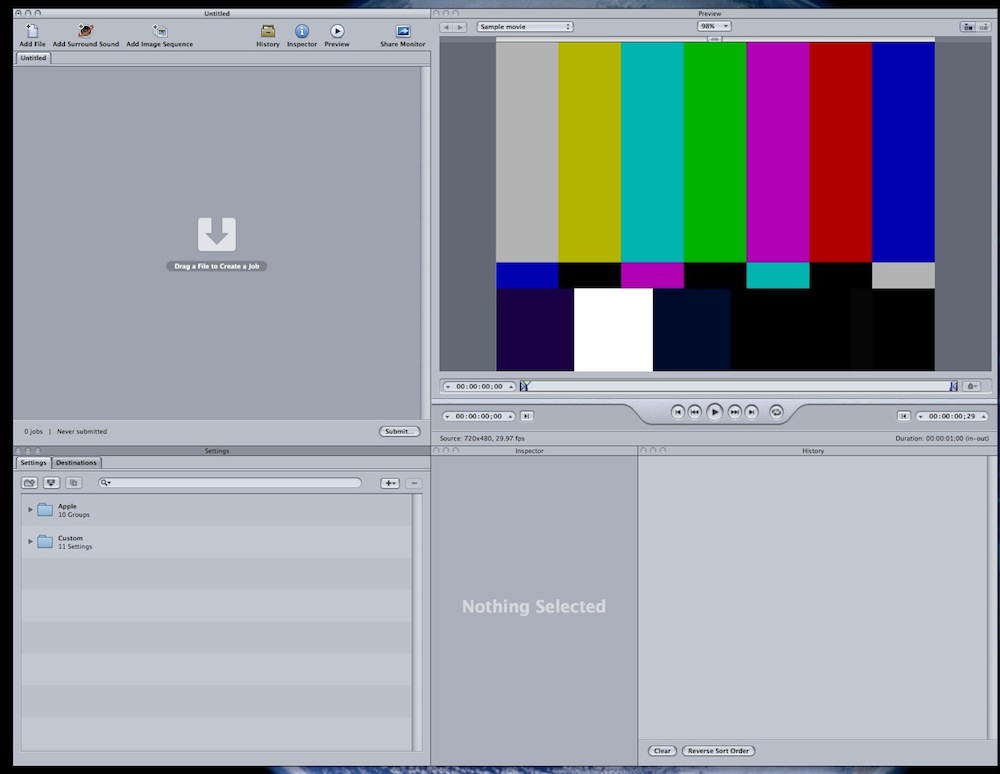
If the window layout looks different, never mind. The window layout can be changed. But you should see the same windows as in the screenshot. The window with the different icons on top is called the Batch Window:
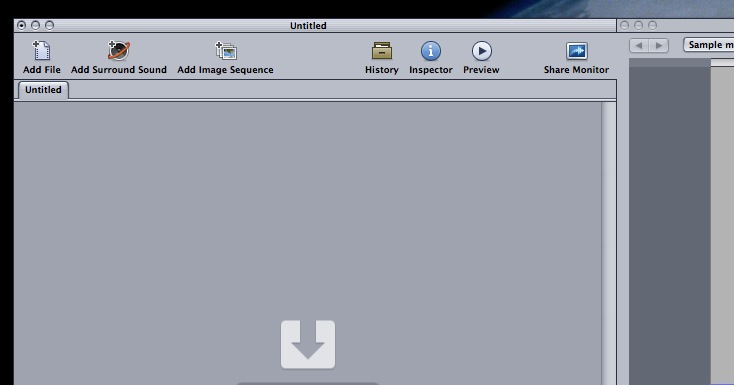
In the Batch window click on the upper left icon ("Add File") or just press CMD+I. A Finder window will open. In this window select your freshly created master file and click the Open button. Your master file will now show up in the batch window and your video will play in the Preview window:
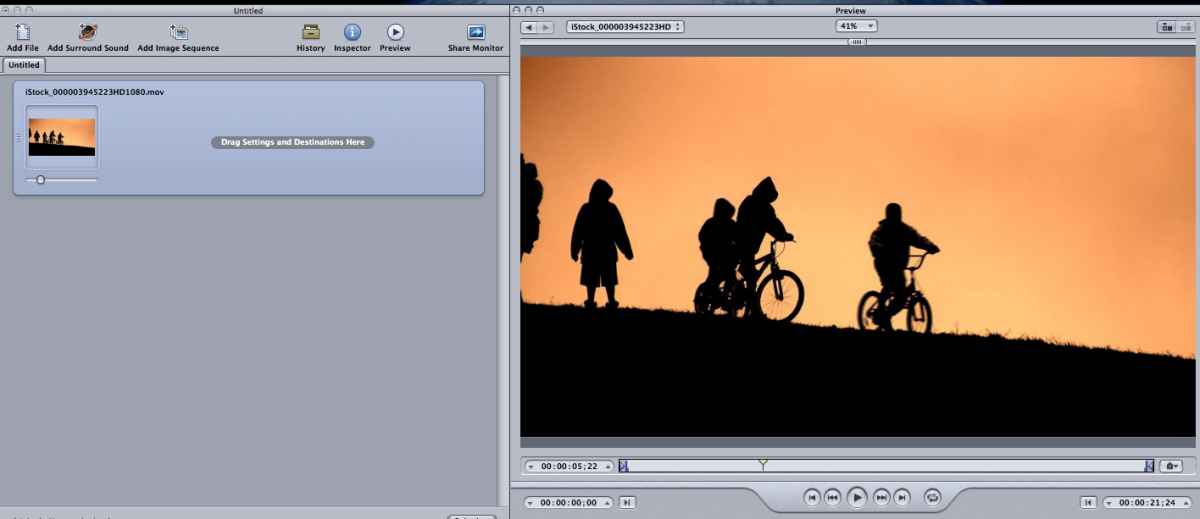
First thing you need to do now is to save your Compressor job. So when something goes wrong yu can always open the job again and continue. To do this choose File > Save As, enter a name and a destination and press Save.
Now you need to add an encoding preset to your job. This preset will convert your 40 GB file to a format that can be read on different computers and that should be smaller than 8 GB. H.264 is a suitable format for this. To add this preset to your job go to the Settings window and open the Video Sharing Devices folder:
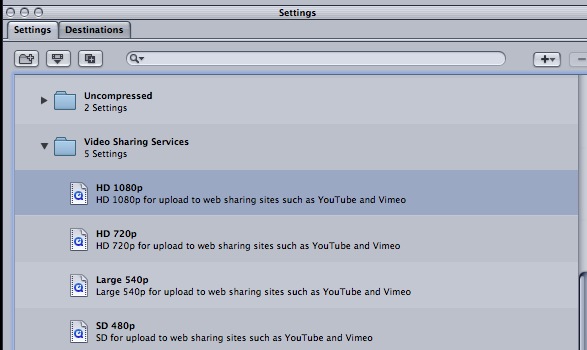
Drag the HD 1080p preset onto the Batch window:
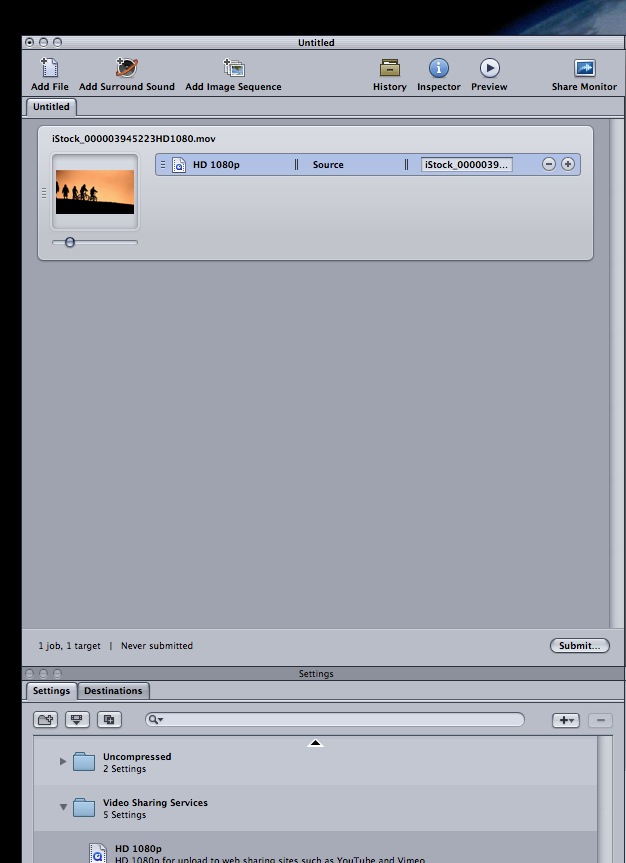
Now select the preset in the Batch window and go to the Inspector. In the Inspector you will see an estimate for the file size of the exported H.264 video:
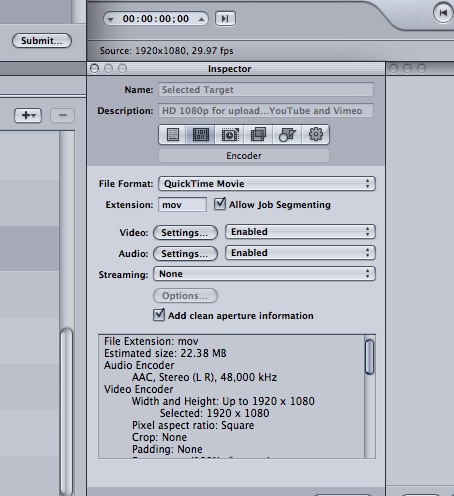
What is the estimated file size for your movie now?
-Ronny
Please Log in to join the conversation.
- TripleX808
-
Topic Author
- Offline
- Senior Member
-
- Alright?
In settings, I have Apple (4 Groups) and Custom (0 settings).
In the Apple disclosure triangle there is:
1. Apple Devices - 4 settings (all these say with audio at 44.1 so I assume NOT them).
2. DVD - 10 groups
3. Formats - 5 groups
4. Other Workflows - 5 groups. which has audio (9 settings), MPEG-1, MPEG-2, MPEG-4, Quicktime (9 settings).
I feel stupid now.
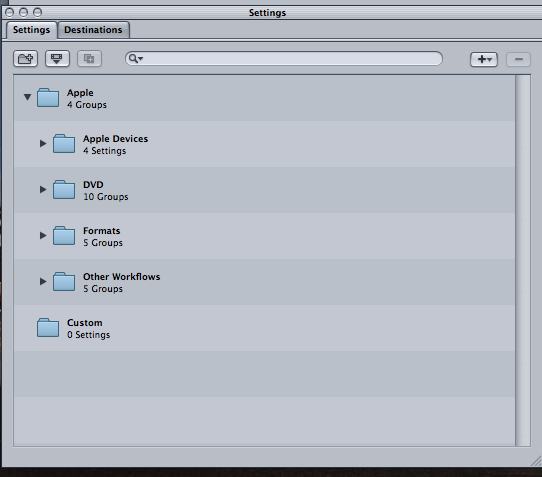
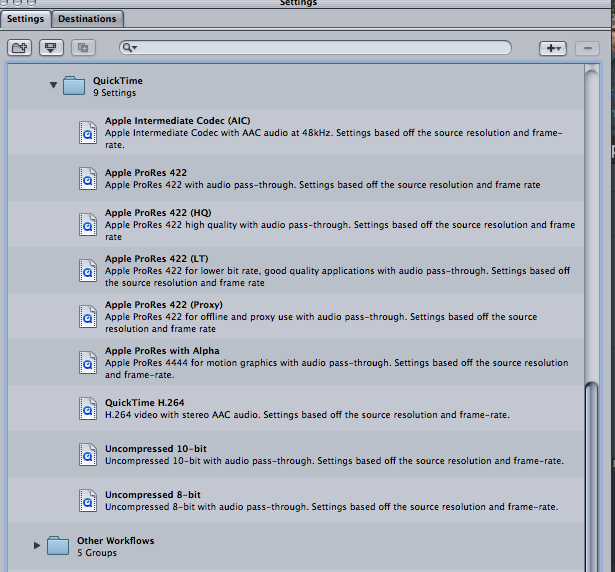
Sorry to keep bothering you Ronny.
Please Log in to join the conversation.
- ronny courtens
-
- Offline
- Moderator
-
- Posts: 4455
- Thank you received: 962
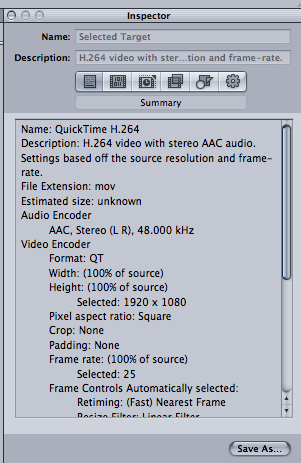
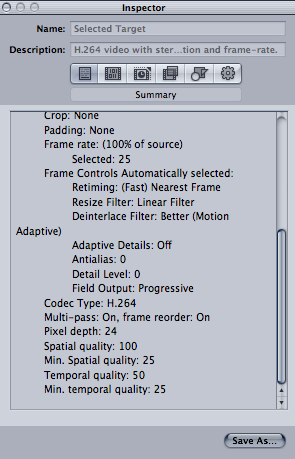
Go to Apple > Formats > QuickTime and in the Quicktime settings select the "H.264" setting.
Drag this setting onto your batch window and make sure it is selected.
Then got to the Inspector, click the Summary tab (that's the first tab in the row) and post a screenshot if the information.
-Ronny
Please Log in to join the conversation.
- TripleX808
-
Topic Author
- Offline
- Senior Member
-
- Alright?
Please Log in to join the conversation.
- TripleX808
-
Topic Author
- Offline
- Senior Member
-
- Alright?
Please Log in to join the conversation.
- ronny courtens
-
- Offline
- Moderator
-
- Posts: 4455
- Thank you received: 962
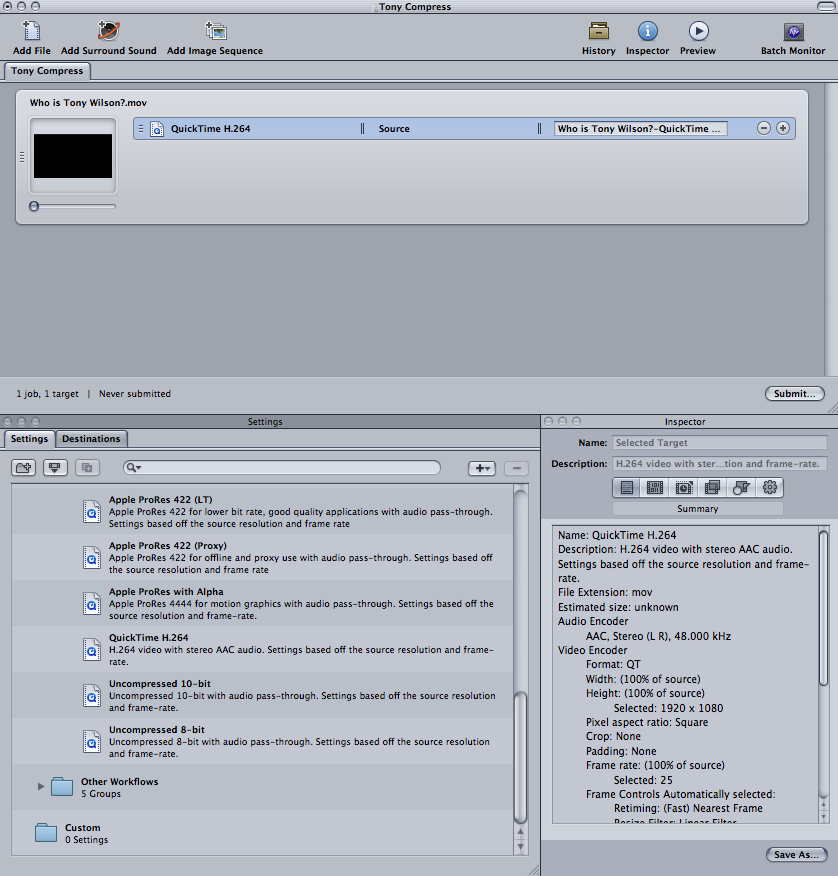
I see the File Size estimation is "unknown". Are you sure you have selected the setting that you have dragged from the Settings window onto your Batch window?
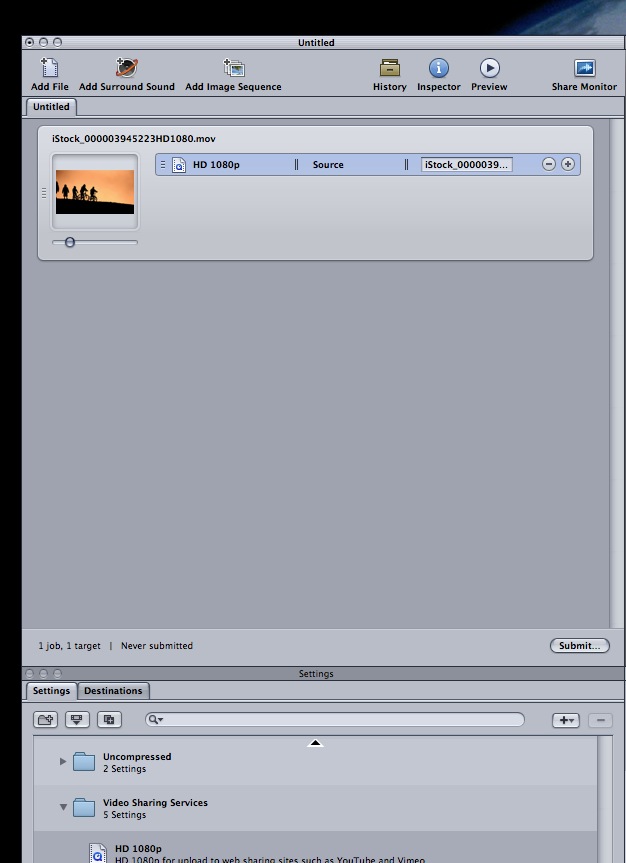
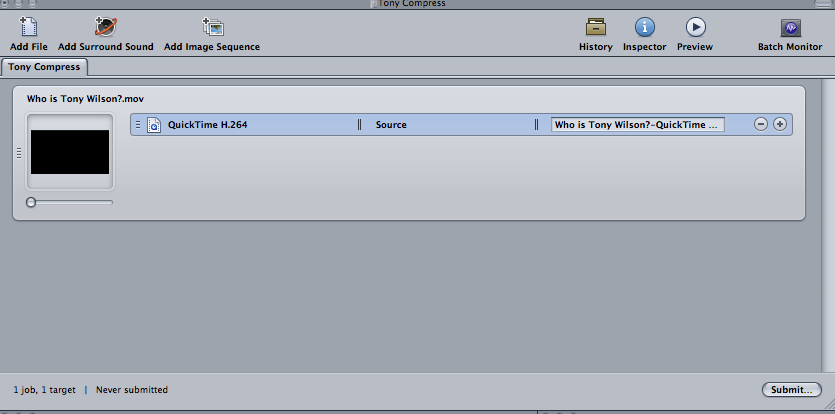
Post a screenshot of your Batch window. It should look somewhat like this with the Setting showing in blue, meaning the setting is selected.
-Ronny
Please Log in to join the conversation.
- TripleX808
-
Topic Author
- Offline
- Senior Member
-
- Alright?
Christ!!! Can I do ANYTHING right? lol
It WAS like that.
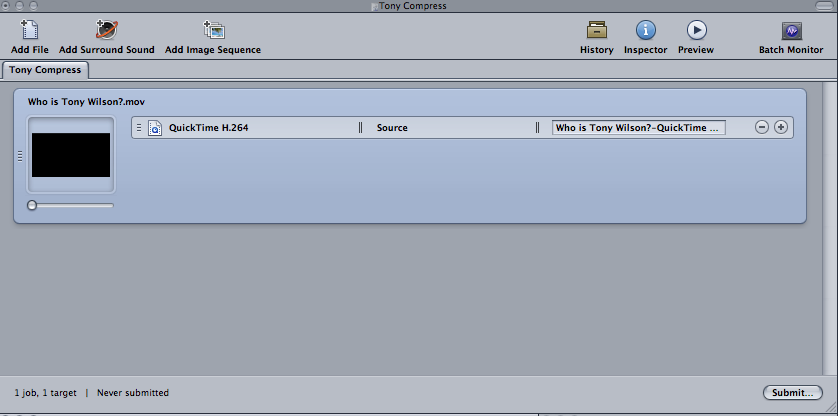
I've clicked the job in the batch window, so it now looks like this.
Please Log in to join the conversation.
- ronny courtens
-
- Offline
- Moderator
-
- Posts: 4455
- Thank you received: 962
Now that second screenshot looks better (-:
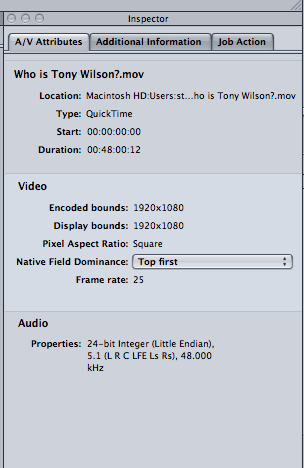
Go to the Inspector and post a new screenshot of the Summarize tab. I think you will see a number now next to "Estimated Size"?
-Ronny
Please Log in to join the conversation.
- TripleX808
-
Topic Author
- Offline
- Senior Member
-
- Alright?
I am pretty slick with Logic and Pro Tools ya know..... Honest! lol
Just right clicked clear setting on the job and dropped it back in (thought that might sort it).
Still unknown???
Please Log in to join the conversation.
- ronny courtens
-
- Offline
- Moderator
-
- Posts: 4455
- Thank you received: 962
So there is no way of knowing how big your exported file will be. Of course you could start converting your video, check the file size of the exported H.264 file, modify the settings in Compressor if the file size is not good and then convert again. But I'm afraid this will take a very, very long time because H.264 conversion in Compressor is rather slow. I think we should try Plan B

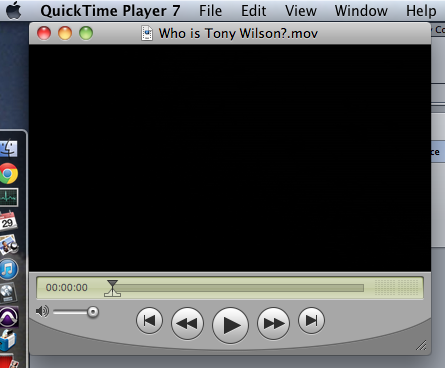
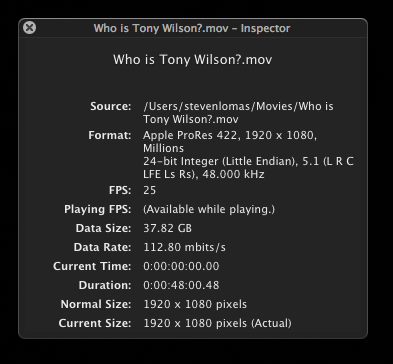
Question: do you have QuickTime 7 on your system?
Easiest way to know this: R-click on your master file and choose "Open with...". If you see "QuickTime player 7" in the list, select it and open the video in QT7. We can go on from there.
-Ronny
Please Log in to join the conversation.
- TripleX808
-
Topic Author
- Offline
- Senior Member
-
- Alright?
Please Log in to join the conversation.
- ronny courtens
-
- Offline
- Moderator
-
- Posts: 4455
- Thank you received: 962
-Ronny
Please Log in to join the conversation.
- TripleX808
-
Topic Author
- Offline
- Senior Member
-
- Alright?
Please Log in to join the conversation.
- ronny courtens
-
- Offline
- Moderator
-
- Posts: 4455
- Thank you received: 962
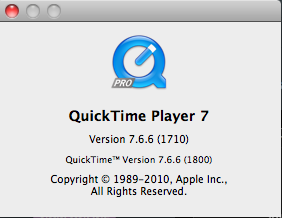
Now go to your main menu bar. Next to the Apple logo you see "QuickTime Player 7". Click on it and select About QuickTime Player 7. The QT7 version window will open. Do you see the word "PRO" in the blue Q logo?
-Ronny
Please Log in to join the conversation.
- TripleX808
-
Topic Author
- Offline
- Senior Member
-
- Alright?
Please Log in to join the conversation.
- ronny courtens
-
- Offline
- Moderator
-
- Posts: 4455
- Thank you received: 962
In QT7 choose File > Export. The export window will open.
In the Export window click on the Export pop up and select "Movie to MPEG-4" from the list:
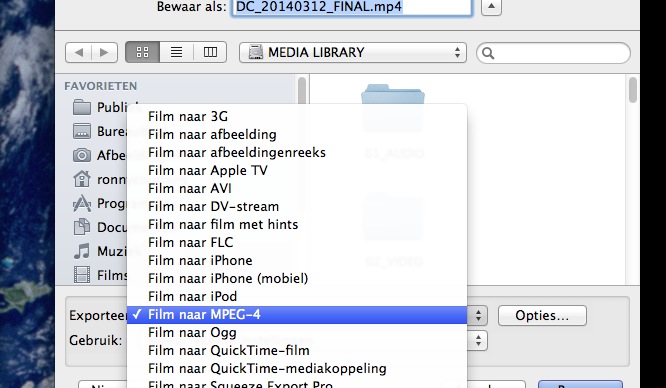
Then press the Options button. The MPEG-4 export settings window will open. Modify the settings so they match exactly the ones you see in this screenshot:
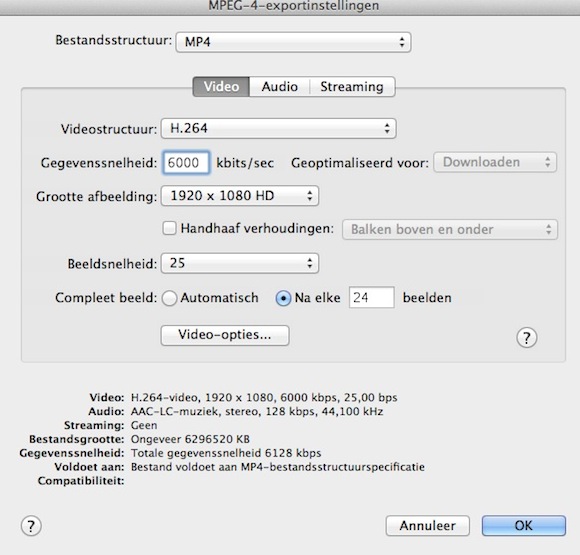
Now post a screenshot of your MPEG-4 export settings window for a final verification. I think we are getting there

-Ronny
Please Log in to join the conversation.
- TripleX808
-
Topic Author
- Offline
- Senior Member
-
- Alright?
Please Log in to join the conversation.
- ronny courtens
-
- Offline
- Moderator
-
- Posts: 4455
- Thank you received: 962
Please Log in to join the conversation.
