


3 Post Moderation Rule for New Boarders (25 Jan 2021)
New boarders will have their posts moderated - Don't worry if you cannot see your post immediately.
Video/Image very small after export
- Starfox
-
 Topic Author
- Offline
- Senior Member
-

- Music, Djing, Music production, fitness. ◄◄ rewind ► play ▌▌pause ■ Stop ►► fast forward
I would be grateful if someone can help me, its a newby thing. I am trying to export a video with audio (music mix) for youtube in HD. But when i export everything the video at the start and the image file through out is very small, it does not fit to the whole screen as per the picture

Im not sure if its how i rendered the video and image in timeline or if its how i exported it, but if someone can advise me how to go about this i would be very grateful
thanks
Please Log in to join the conversation.

the video at the start and the image file through out is very small, it does not fit to the whole screen as per the picture
I'm not entirely sure what you mean by this, could you perhaps clarify?
Please Log in to join the conversation.
- Scrubelicious
-

- Offline
- Platinum Member
-

- Posts: 1228
- Thank you received: 114

Please Log in to join the conversation.
My first attempt of uploading one of these ended up like this you tube
As you can see the video at the start and the still image does not fit the full screen and when you switch from 360p to 720p the image gets even smaller, this is presumably a simple issue to you guys but im lost

So if anyone could help me id be very grateful, o and here are the screen shots of the settings im using


Please Log in to join the conversation.
Since compressor seems to be doing its job (the final output is recognized as 720p by YouTube), you might want to try this and see if it works:
1) Take any 720p video that you have and place it into an event in FCPX
2) Start a new project and drag the 720p video into your timeline to set your projects settings.
3) Remove the video from the timeline and add your image and intro sequence. The image may not be 16:9 so you might want to crop/transform the dimensions as you see fit.
4) Add your audio (your mix) to the timeline as well.
5) Export using the same settings you've been using and that SHOULD solve the problem.
Please let me know if this helps.
-Athan
Please Log in to join the conversation.
- Lee Patterson
-
- Offline
- Elite Member
-

- Posts: 239
- Thank you received: 20
Am i right in saying that this is a still image running the entire course of the music bed?
Thats what i see when i play it. Did you prepare the image in photoshop?
Open a new PS document and select the output image size from the drop down menu in the Video category. Export and use that in FCP
Please Log in to join the conversation.
Lee Patterson wrote: Thats a sequence setting dialogue box from the older FCP set up.
Am i right in saying that this is a still image running the entire course of the music bed?
Thats what i see when i play it. Did you prepare the image in photoshop?
Open a new PS document and select the output image size from the drop down menu in the Video category. Export and use that in FCP
Thanks, so basically I just have to resize the still image then? Anyone know another program I can do this in as I don't have ps
Please Log in to join the conversation.
- Scrubelicious
-
- Offline
- Platinum Member
-
- Posts: 1228
- Thank you received: 114
Please Log in to join the conversation.
Scrubelicious wrote: You could just scale it up in Final Cut Pro... or shoot me the image (PM me first) and I will hook you up.
I have about 10 pictures mate i wouldnt want to annoy you with them all
i did try scale it up in fcp though, i made the image cover the whole screen but as you see in the above video it did not work 
Please Log in to join the conversation.
- Scrubelicious
-
- Offline
- Platinum Member
-
- Posts: 1228
- Thank you received: 114
Please Log in to join the conversation.
- ronny courtens
-

- Offline
- Moderator
-

- Posts: 4455
- Thank you received: 962
Let's start with changing the settings of your FCP sequence, they are completely wrong.
Let me explain:
Your Frame Size and your Aspect Ratio are set to 1280x720 and HDTV 720p, which is correct for outputting an HD 720p video to Youtube.
However, your Pixel Aspect Ratio is set to NTSC/DV - anamorphic which is a non-square aspect ratio. For a correct display of 720p on a computer your Pixel Aspect Ratio should be Square and NOT anamorphic.
Furthermore your Field Dominance is set to Lower, which is inconsistent with 720p (Progressive).
And finally your editing base is set to 25 fps (PAL), while your Pixel Aspect Ratio is set to NTSC.
All these inconsistencies can cause your video to export with a wrong pixel ratio, which can cause the borders you see in your Youtube video.
So do the following: Open your sequence in FCP, select Sequence > Settings and enter the settings exactly as you see them in the attached picture.
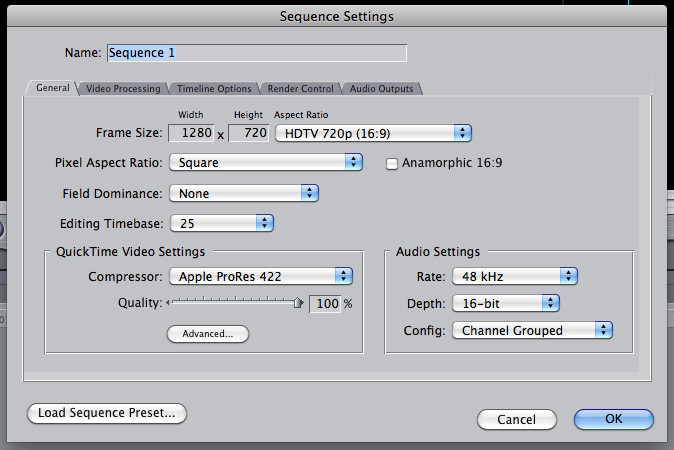
You may have to re-scale your still in FCP after having changed the settings because all these inconsistencies can cause your image to display improperly. Once your settings are changed and your still fits the entire Canvas, Share to Youtube and see if the video displays correctly now.
Best wishes,
Ronny
Please Log in to join the conversation.
ronny courtens wrote: Hi Starfox,
Let's start with changing the settings of your FCP sequence, they are completely wrong.
Let me explain:
Your Frame Size and your Aspect Ratio are set to 1280x720 and HDTV 720p, which is correct for outputting an HD 720p video to Youtube.
However, your Pixel Aspect Ratio is set to NTSC/DV - anamorphic which is a non-square aspect ratio. For a correct display of 720p on a computer your Pixel Aspect Ratio should be Square and NOT anamorphic.
Furthermore your Field Dominance is set to Lower, which is inconsistent with 720p (Progressive).
And finally your editing base is set to 25 fps (PAL), while your Pixel Aspect Ratio is set to NTSC.
All these inconsistencies can cause your video to export with a wrong pixel ratio, which can cause the borders you see in your Youtube video.
So do the following: Open your sequence in FCP, select Sequence > Settings and enter the settings exactly as you see them in the attached picture.
You may have to re-scale your still in FCP after having changed the settings because all these inconsistencies can cause your image to display improperly. Once your settings are changed and your still fits the entire Canvas, Share to Youtube and see if the video displays correctly now.
Best wishes,
Ronny
Thanks Roony
so i will use your settings and if i still need to scale the still image it will be fine on you tube? Please Log in to join the conversation.
- Scrubelicious
-
- Offline
- Platinum Member
-
- Posts: 1228
- Thank you received: 114
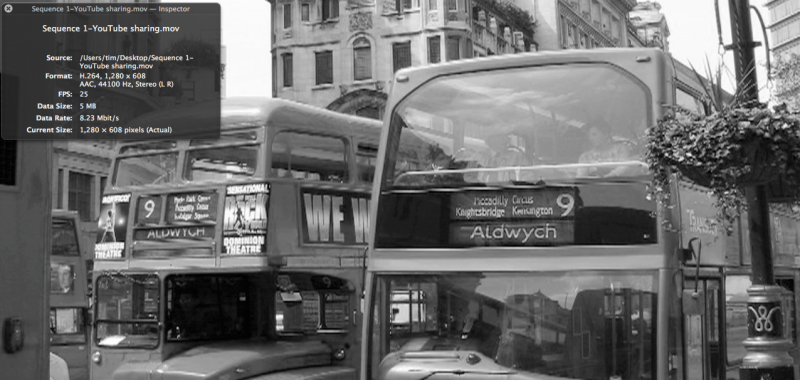
Sequence 1 are the settings you are using
Sequence 2 are the settings ronny courtens posted.
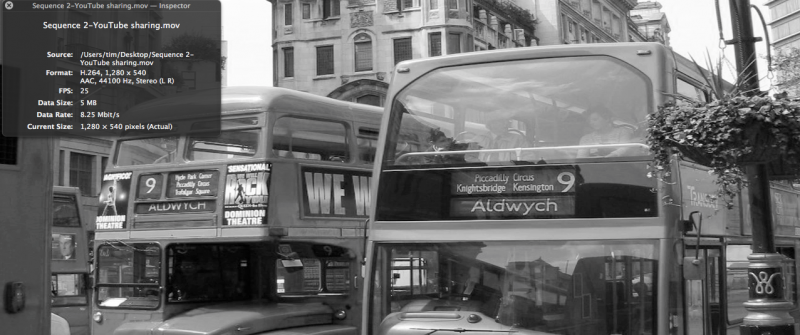
as you can see there is bit quality and distortion in the settings you are using also the export was much faster in the ProRes Compressor.
Out of curiosity what is view percentage set at in your canvas?
Please Log in to join the conversation.
Scrubelicious wrote: That is not causing the issue, but he is right you want your sequence to match your wanted format.
Sequence 1 are the settings you are using
Sequence 2 are the settings ronny courtens posted.
as you can see there is bit quality and distortion in the settings you are using also the export was much faster in the ProRes Compressor.
Out of curiosity what is view percentage set at in your canvas?
100%
Please Log in to join the conversation.
Whats the best size to resize my still images so the will scale even on 720p
Thanks!
Please Log in to join the conversation.
- ronny courtens
-
- Offline
- Moderator
-
- Posts: 4455
- Thank you received: 962
Having set your sequence settings correctly is the first step. When your picture looks okay in FCP using the settings I posted, the next step is to export it correctly for YouTube. There are different ways you can do this in FCP7.
When you use the Share to Youtube option your H.264 file is exported straight from the timeline. And YES this can cause unexpected display results if your sequence Pixel Aspect Ratio is not set correctly (especially when your sequence is set to Anamorphic like you did in your original settings). So the first thing I would do is export your video from the new sequence (using the appropriate settings) and see if this solves your problem. If this does not solve your problem we can give you some other methods for exporting to Youtube. But please try this first so we can find out where the problem is.
Best wishes,
Ronny
Please Log in to join the conversation.
ronny courtens wrote: Resizing your stills before bringing them in FCP will in no way solve the problem you are having (black borders on both sides in Youtube video). You can easily scale any still up or down right inside FCP anyway.
Having set your sequence settings correctly is the first step. When your picture looks okay in FCP using the settings I posted, the next step is to export it correctly for YouTube. There are different ways you can do this in FCP7.
When you use the Share to Youtube option your H.264 file is exported straight from the timeline. And YES this can cause unexpected display results if your sequence Pixel Aspect Ratio is not set correctly (especially when your sequence is set to Anamorphic like you did in your original settings). So the first thing I would do is export your video from the new sequence (using the appropriate settings) and see if this solves your problem. If this does not solve your problem we can give you some other methods for exporting to Youtube. But please try this first so we can find out where the problem is.
Best wishes,
Ronny
Hi Ronny, i will do that now, and get back to you, it will take a few hours big projects
I came across this video explaining still images and importing them
you tube
Please Log in to join the conversation.
ronny courtens wrote: Resizing your stills before bringing them in FCP will in no way solve the problem you are having (black borders on both sides in Youtube video). You can easily scale any still up or down right inside FCP anyway.
Having set your sequence settings correctly is the first step. When your picture looks okay in FCP using the settings I posted, the next step is to export it correctly for YouTube. There are different ways you can do this in FCP7.
When you use the Share to Youtube option your H.264 file is exported straight from the timeline. And YES this can cause unexpected display results if your sequence Pixel Aspect Ratio is not set correctly (especially when your sequence is set to Anamorphic like you did in your original settings). So the first thing I would do is export your video from the new sequence (using the appropriate settings) and see if this solves your problem. If this does not solve your problem we can give you some other methods for exporting to Youtube. But please try this first so we can find out where the problem is.
Best wishes,
Ronny
Success
It works perfect, full screen image, thanks so much for your help, and anybody else 
Please Log in to join the conversation.
- ronny courtens
-
- Offline
- Moderator
-
- Posts: 4455
- Thank you received: 962
Best wishes,
Ronny
Please Log in to join the conversation.
