


- Posts: 45
- Thank you received: 5
3 Post Moderation Rule for New Boarders (25 Jan 2021)
New boarders will have their posts moderated - Don't worry if you cannot see your post immediately.
Confusing Buttons: Browser-Timeline-Inspector
- EdgarRothermich
-
 Topic Author
- Offline
- Senior Member
-

Less
More
01 Nov 2016 06:07 #81809
by EdgarRothermich
Confusing Buttons: Browser-Timeline-Inspector was created by EdgarRothermich
Is it me or is the logic behind the three buttons in the upper right corner that toggle the Browser-Timeline-Inspector completely messed up and as confusing as it possibly can be?
I tried to decipher those three buttons and their color code in a graphic (see below).
Here is what I don't get:
Am I missing something here or do other users also have a problem with that interface.
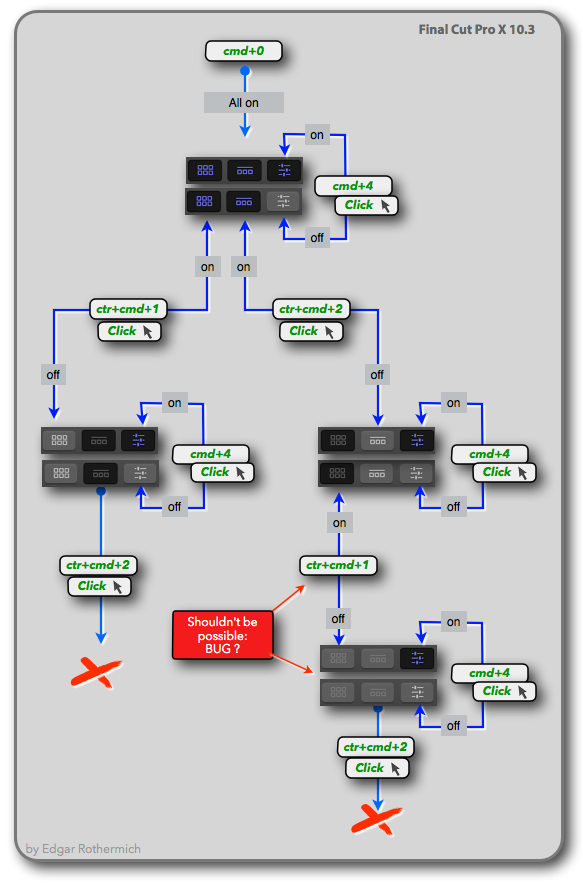
I tried to decipher those three buttons and their color code in a graphic (see below).
Here is what I don't get:
- The Inspector is the only button that makes sense. The button has two states (appearance). Purple button for on and gray button for off. Click on it or cmd+4 to toggle that state.
- The Browser and Timeline buttons can have four (!) different states: Purple-on-black, white-on-black, white-on-gray, and gray-on-gray.
- However, the Browser and Timeline can only be on (shown) or off (hidden), so why the other two confusing states?
- Browser and Timeline buttons are only purple when they are both on.
- If one of the two is off, then the button that is on is displayed as gray-on-black and the button that is off is displayed as white-on-gray. For me, the white-on-gray sticks out visually more and my brain interprets that as on.
- If both, Browser and Timeline buttons, are off, then they have another appearance, now gray-on-gray which looks like dimmed.
- If that is not confusing enough, here is some bonus (maybe a bug?). If the Timeline is off, then you can click on the Browser button (or use the Key Command) to turn the Browser off too (now both are off). However, if the Browser button is off, then clicking on the Timeline button (or using the Key Command) doesn't work, it results in an error beep.
Am I missing something here or do other users also have a problem with that interface.
Please Log in to join the conversation.
- Karsten Schlüter
-

- Offline
- Moderator
-

Less
More
- Posts: 3790
- Thank you received: 718
01 Nov 2016 08:51 #81813
by Karsten Schlüter
Replied by Karsten Schlüter on topic Confusing Buttons: Browser-Timeline-Inspector
sorry, actually too busy with 'real life' to test my own assumption, but:
Could the color-coding/functionality relate to in which WORKSPACE you're in?
Could the color-coding/functionality relate to in which WORKSPACE you're in?
Please Log in to join the conversation.
- nils.dettmann
-
- Offline
- Elite Member
-

Less
More
- Posts: 161
- Thank you received: 13
01 Nov 2016 09:31 #81817
by nils.dettmann
Replied by nils.dettmann on topic Confusing Buttons: Browser-Timeline-Inspector
I can´t totally recreate what you are experiencing.
For me I can only turn off Browser OR Timeline
I tried with all the available Workspace options - 1 Monitor and 2 Monitors (Browser, Viewer, Timeline)
I think I tested all the possibilities, but perhaps I missed something. Could you state how exactly your setup is when this happens.
So for me it´s quite consistent:
Purple means: both are on, one can be switched off.
dark background -> button pressed
light grey background -> button up
white icons -> button can be toggled
grey icons -> button fixed
White on black happens for pressed buttons, when an element ist ON and FCPX looses focus.
The only inconsistency I found:
When the timeline is on the second monitor only the timeline button gets purple and pressing it turns off 2-monitor mode. Pressing the button again shows the timeline in the first monitor.
I agree that it will probably take some time to decode the button state on first sight...
For me I can only turn off Browser OR Timeline
I tried with all the available Workspace options - 1 Monitor and 2 Monitors (Browser, Viewer, Timeline)
I think I tested all the possibilities, but perhaps I missed something. Could you state how exactly your setup is when this happens.
So for me it´s quite consistent:
Purple means: both are on, one can be switched off.
dark background -> button pressed
light grey background -> button up
white icons -> button can be toggled
grey icons -> button fixed
White on black happens for pressed buttons, when an element ist ON and FCPX looses focus.
The only inconsistency I found:
When the timeline is on the second monitor only the timeline button gets purple and pressing it turns off 2-monitor mode. Pressing the button again shows the timeline in the first monitor.
I agree that it will probably take some time to decode the button state on first sight...
Please Log in to join the conversation.
- nils.dettmann
-
- Offline
- Elite Member
-
Less
More
- Posts: 161
- Thank you received: 13
01 Nov 2016 09:39 #81820
by nils.dettmann
Ok, I got it! (Used the wrong keyboard shortcut, sorry)
I can switch the browser and timeline off, (timeline fisrt by button, browser second by keyboard shortcut)
But it only works with the keyboard shortcut not by pressing the browser button
This is most certainly a bug.
I think somebody forgot to disable the keyboard shortcut when the menu option is grayed out.
Especially as when both are off I can´t turn them back on with the buttons...
Replied by nils.dettmann on topic Confusing Buttons: Browser-Timeline-Inspector
EdgarRothermich wrote:
If that is not confusing enough, here is some bonus (maybe a bug?). If the Timeline is off, then you can click on the Browser button (or use the Key Command) to turn the Browser off too (now both are off). However, if the Browser button is off, then clicking on the Timeline button (or using the Key Command) doesn't work, it results in an error beep.
Ok, I got it! (Used the wrong keyboard shortcut, sorry)
I can switch the browser and timeline off, (timeline fisrt by button, browser second by keyboard shortcut)
But it only works with the keyboard shortcut not by pressing the browser button
This is most certainly a bug.
I think somebody forgot to disable the keyboard shortcut when the menu option is grayed out.
Especially as when both are off I can´t turn them back on with the buttons...
Please Log in to join the conversation.

01 Nov 2016 09:52 - 02 Nov 2016 10:59 #81821
by JoeEditor
Replied by JoeEditor on topic Confusing Buttons: Browser-Timeline-Inspector
Mountains out of mole hills.
This is what I am calling the "3/3 Workspace Guide" in the 10.3 class I'm teaching today.
FCPX has four workspaces: Browser, Viewer, Inspector, Timeline.
1- The Viewer is ALWAYS opened, can NEVER be closed.
2- You must, at all times, have at least TWO workspaces opened at any given time.
3- At ALL times, either the Browser or Timeline MUST be open (no other way to access clips, duh).
1- When a button is black, that means in your current configuration it can NOT be opened.
2- When a button is gray, that means in your current configuration it CAN be opened.
3- When a button icon is purple, that means in your current configuration it IS opened.
Very simple, what's the confusion?
This is what I am calling the "3/3 Workspace Guide" in the 10.3 class I'm teaching today.
FCPX has four workspaces: Browser, Viewer, Inspector, Timeline.
1- The Viewer is ALWAYS opened, can NEVER be closed.
2- You must, at all times, have at least TWO workspaces opened at any given time.
3- At ALL times, either the Browser or Timeline MUST be open (no other way to access clips, duh).
1- When a button is black, that means in your current configuration it can NOT be opened.
2- When a button is gray, that means in your current configuration it CAN be opened.
3- When a button icon is purple, that means in your current configuration it IS opened.
Very simple, what's the confusion?
Last edit: 02 Nov 2016 10:59 by JoeEditor.
Please Log in to join the conversation.
- nils.dettmann
-
- Offline
- Elite Member
-
Less
More
- Posts: 161
- Thank you received: 13
01 Nov 2016 20:31 #81864
by nils.dettmann
Replied by nils.dettmann on topic Confusing Buttons: Browser-Timeline-Inspector
1. Did you read our posts?
2. When the background of a button is black it means that the corresponding element is open.
You could argue that it can´be opened when it´s already open but that´s what I would call confusion.
Background black -> element open / visible
Background gray -> element not open / invisible
As simple as that.
3. Icon purple -> elements visible, can be disabled.
4. Timeline or browser should be open at all times. But as Edgar found out and I could recreate it´s possible to disable both -> bug
Not a big problem but still possibly a bug.
Why I think this is important?
Sometimes there are hidden gems in things which seem to be wrong at first sight.
And I would expect some bugs in an update as big as this one. So it´s good to figure them out and they will probably be fixed soon.
I like the button for enabling/disabling the second monitor.
I use it often enough to justify a button but not often enough to justify a shortcut.
2. When the background of a button is black it means that the corresponding element is open.
You could argue that it can´be opened when it´s already open but that´s what I would call confusion.
Background black -> element open / visible
Background gray -> element not open / invisible
As simple as that.
3. Icon purple -> elements visible, can be disabled.
4. Timeline or browser should be open at all times. But as Edgar found out and I could recreate it´s possible to disable both -> bug
Not a big problem but still possibly a bug.
Why I think this is important?
Sometimes there are hidden gems in things which seem to be wrong at first sight.
And I would expect some bugs in an update as big as this one. So it´s good to figure them out and they will probably be fixed soon.
I like the button for enabling/disabling the second monitor.
I use it often enough to justify a button but not often enough to justify a shortcut.
Please Log in to join the conversation.
- EdgarRothermich
-
Topic Author
- Offline
- Senior Member
-
Less
More
- Posts: 45
- Thank you received: 5
02 Nov 2016 06:43 #81919
by EdgarRothermich
First of all, are you sure you want to use the terminology "Workspace". I guess you mean with workspace one of the three window panes (Browser, Timeline, Viewer)
However, "Workspaces" has a different meaning in v10.3. So when you say that two Workspaces must be open, then that is wrong, because you always have only one workspace open, the one you select under "Window ➤ Workspaces ➤"
Are you sure about the statements in your 3/3 guide?
About 1 - That is correct, the Viewer is ALWAYS open.
About 2 - You say "two other", but besides the the Viewer, you only have to have "one other" window pane open (either the the Browser or the Timeline)
About 3 - That seems to be what should happen, but as I pointed out, there is a way to hide Browser and Timeline (which could be a bug a t the moment)
About the other three statements:
About 1 - This statement is wrong. If a button is black, that means that pane is visible
About 2 - This statement is correct. In other words, a gray button means that this pane is hidden
About 3 - This statement is correct, but I would point out the following When we talk about button as its background, then it can only be black or gray (and not purple). On the other hand, the symbol on the button can be purple or white.
The reason why I find that whole colored-button scheme messed up is that there is no reason why a button should have four appearances. Look at the Inspector button, two two appearances that tells you if the Inspector pane is shown or hidden. That's it
Why do I need a different color scheme to indicate that Browser is shown AND Timeline is shown (purple icon on black), and when either one is shown then the icon is white on black. BTW the big window pane is right there in front of your eyes, so it is not something to point out (maybe if you work on multiple screens?)
It seems that FCPx also uses the color purple as the key focus color, but obviously that has nothing to to with the purple color on those buttons.
Replied by EdgarRothermich on topic Confusing Buttons: Browser-Timeline-Inspector
FCPX.guru wrote: Mountains out of mole hills.
This is what I am calling the "3/3 Workspace Guide" in the 10.3 class I'm teaching today.
FCPX has four workspaces: Browser, Viewer, Inspector, Timeline.
1- The Viewer is ALWAYS opened, can NEVER be closed.
2- You must, at all times, have at least TWO other workspaces opened at any given time.
3- At ALL times, either the Browser or Timeline MUST be open (no other way to access clips, duh).
1- When a button is black, that means in your current configuration it can NOT be opened.
2- When a button is gray, that means in your current configuration it CAN be opened.
3- When a button is purple, that means in your current configuration it IS opened.
Very simple, what's the confusion?
First of all, are you sure you want to use the terminology "Workspace". I guess you mean with workspace one of the three window panes (Browser, Timeline, Viewer)
However, "Workspaces" has a different meaning in v10.3. So when you say that two Workspaces must be open, then that is wrong, because you always have only one workspace open, the one you select under "Window ➤ Workspaces ➤"
Are you sure about the statements in your 3/3 guide?
About 1 - That is correct, the Viewer is ALWAYS open.
About 2 - You say "two other", but besides the the Viewer, you only have to have "one other" window pane open (either the the Browser or the Timeline)
About 3 - That seems to be what should happen, but as I pointed out, there is a way to hide Browser and Timeline (which could be a bug a t the moment)
About the other three statements:
About 1 - This statement is wrong. If a button is black, that means that pane is visible
About 2 - This statement is correct. In other words, a gray button means that this pane is hidden
About 3 - This statement is correct, but I would point out the following When we talk about button as its background, then it can only be black or gray (and not purple). On the other hand, the symbol on the button can be purple or white.
The reason why I find that whole colored-button scheme messed up is that there is no reason why a button should have four appearances. Look at the Inspector button, two two appearances that tells you if the Inspector pane is shown or hidden. That's it
Why do I need a different color scheme to indicate that Browser is shown AND Timeline is shown (purple icon on black), and when either one is shown then the icon is white on black. BTW the big window pane is right there in front of your eyes, so it is not something to point out (maybe if you work on multiple screens?)
It seems that FCPx also uses the color purple as the key focus color, but obviously that has nothing to to with the purple color on those buttons.
Please Log in to join the conversation.
02 Nov 2016 10:59 - 02 Nov 2016 11:02 #81942
by JoeEditor
Replied by JoeEditor on topic Confusing Buttons: Browser-Timeline-Inspector
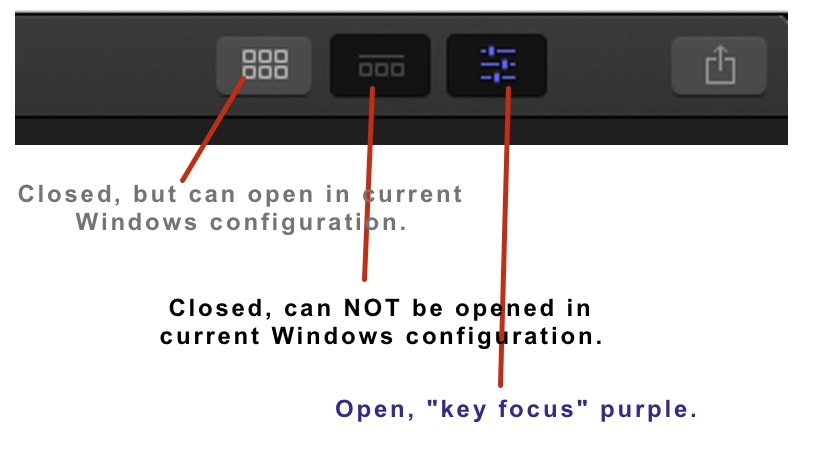
I stand by my statements, and icon colors are as I stated them. The icons in the buttons only have three states. Open, closed, or unable to open. Purple are active windows, so yes, key focus. Just offering factual information. My typo was "two other" and it should have just been "two". I am unable to duplicate a couple of the configurations in your chart.
Last edit: 02 Nov 2016 11:02 by JoeEditor.
Please Log in to join the conversation.
- nils.dettmann
-
- Offline
- Elite Member
-
Less
More
- Posts: 161
- Thank you received: 13
02 Nov 2016 16:51 #81995
by nils.dettmann
In your picture the middle button shows that the timeline is visible/opened.
What you´re writing is not factual but just partly plain wrong.
purple icon -> active, can be deactivated
grey icon - > active, can not be deactivated
white icon -> inactive, can be activated
Black button background -> active
Grey button background -> inactive
Replied by nils.dettmann on topic Confusing Buttons: Browser-Timeline-Inspector
Sorry, this is nonsense. I can´t understand why are you posting this?FCPX.guru wrote: I stand by my statements, and icon colors are as I stated them. The icons in the buttons only have three states. Open, closed, or unable to open. Purple are active windows, so yes, key focus. Just offering factual information. My typo was "two other" and it should have just been "two". I am unable to duplicate a couple of the configurations in your chart.
In your picture the middle button shows that the timeline is visible/opened.
What you´re writing is not factual but just partly plain wrong.
purple icon -> active, can be deactivated
grey icon - > active, can not be deactivated
white icon -> inactive, can be activated
Black button background -> active
Grey button background -> inactive
Please Log in to join the conversation.
- EdgarRothermich
-
Topic Author
- Offline
- Senior Member
-
Less
More
- Posts: 45
- Thank you received: 5
02 Nov 2016 23:47 #82035
by EdgarRothermich
Replied by EdgarRothermich on topic Confusing Buttons: Browser-Timeline-Inspector
I think I finally have figured it out. The appearance of the buttons contains two information:
Information 1, the color of the button, its background
It indicates if a window pane is shown or hidden
Information 2, the color of the symbol (or icon, depending on what you call it)
It indicates what happens when clicking on the button
About key focus:
The color purple for the symbols on the button has nothing to do with key focus. First of all, all three buttons have purple symbols would mean all three window panes have key focus at the same time. If that wouldn't be enough to prove it, just look at the actual purple frame of the window panes to see what window pane has the actual key focus.
Dimmed Button:
Those buttons are still a mystery. At the moment it looks like a bug, because Browser and Timeline shouldn't be hidden at the same time (except for full screen mode). However, if that is just a bug, why did someone actually create those buttons? Maybe they were created by the design team and the actual FCPx team later decided that they are not needed.
I think we have to wait for the 10.3.1 version to find out.
(BTW, I updated the graphics on my initial post)
Information 1, the color of the button, its background
It indicates if a window pane is shown or hidden
- Black: The window pane is shown
- Gray: The window pane is hidden
Information 2, the color of the symbol (or icon, depending on what you call it)
It indicates what happens when clicking on the button
- Purple Symbol: Click on it to hide the window pane
- White Symbol: Click on it to show the window pane
- Gray Symbol: Click action is disabled
- 1 - Purple symbol on black button: The window pane is shown and you can click on the button to hide it
- 2 - Gray Symbol on black button: The window pane is shown but you can't click on the button to hide it (one exception which seems a bug)
- 3 - White Symbol on gray Button: The window pane is hidden but you can click the button to show it
- 4 - Dimmed Buttons: Browser pane and Timeline pane are hidden and both buttons can't be clicked (only ctrl+cmd+1 is possible)
About key focus:
The color purple for the symbols on the button has nothing to do with key focus. First of all, all three buttons have purple symbols would mean all three window panes have key focus at the same time. If that wouldn't be enough to prove it, just look at the actual purple frame of the window panes to see what window pane has the actual key focus.
Dimmed Button:
Those buttons are still a mystery. At the moment it looks like a bug, because Browser and Timeline shouldn't be hidden at the same time (except for full screen mode). However, if that is just a bug, why did someone actually create those buttons? Maybe they were created by the design team and the actual FCPx team later decided that they are not needed.
I think we have to wait for the 10.3.1 version to find out.
(BTW, I updated the graphics on my initial post)
Please Log in to join the conversation.
- Karsten Schlüter
-
- Offline
- Moderator
-
Less
More
- Posts: 3790
- Thank you received: 718
03 Nov 2016 06:03 - 03 Nov 2016 06:11 #82049
by Karsten Schlüter
you think …
may I direct your focus to the opposite of the screen?
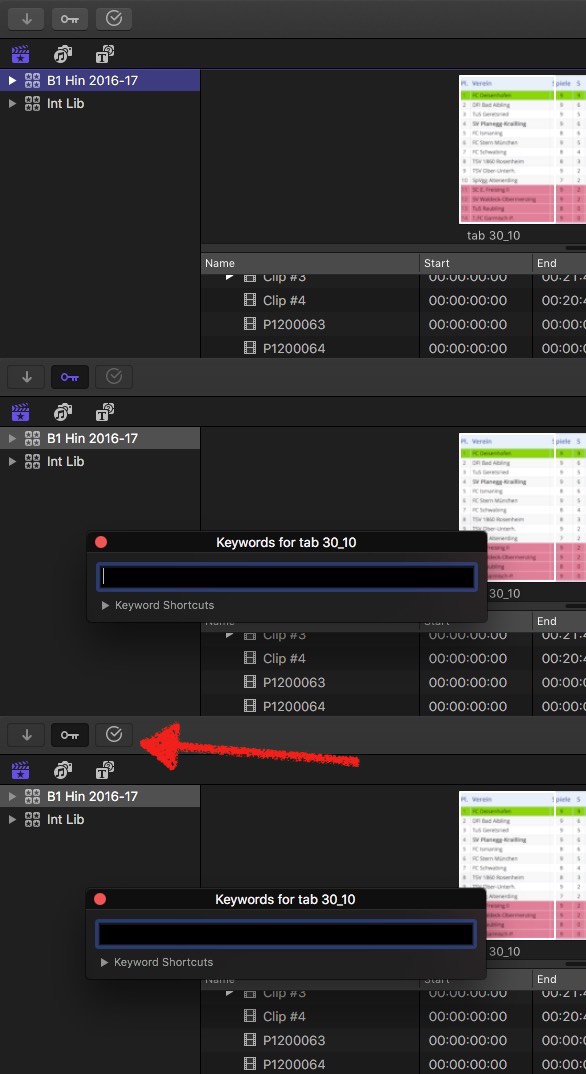
so, buttons for keyword and background task are 'off' => white on grey
switching ON the keyword editor => purple on black
but …
just hovering with mouse over bg-task icon switches from grey to white !
(screen grabs don't include cursors…)
oh, and forgot to mention:
back your assumption, this has to be a bug: cmd-ctrl-2 AND cmd-ctrl-1-mode is completely useless, isn't it? semi-fullscreen without any controls ... ??
……… or, no 2nd screen at hand, maybe for multi-screen mode …?
Replied by Karsten Schlüter on topic Confusing Buttons: Browser-Timeline-Inspector
I think I finally have figured it out. The appearance of the buttons contains two information:
you think …
may I direct your focus to the opposite of the screen?
so, buttons for keyword and background task are 'off' => white on grey
switching ON the keyword editor => purple on black
but …
just hovering with mouse over bg-task icon switches from grey to white !
(screen grabs don't include cursors…)
oh, and forgot to mention:
back your assumption, this has to be a bug: cmd-ctrl-2 AND cmd-ctrl-1-mode is completely useless, isn't it? semi-fullscreen without any controls ... ??
……… or, no 2nd screen at hand, maybe for multi-screen mode …?
Last edit: 03 Nov 2016 06:11 by Karsten Schlüter.
Please Log in to join the conversation.
- EdgarRothermich
-
Topic Author
- Offline
- Senior Member
-
Less
More
- Posts: 45
- Thank you received: 5
03 Nov 2016 06:34 #82052
by EdgarRothermich
Replied by EdgarRothermich on topic Confusing Buttons: Browser-Timeline-Inspector
Wow, that means that the whole button switcher gets even more confusing (thanks Karsten for "adjusting" my focus).
How about that:
Who is at the FCPx team is dreaming up that logic. Of course it helps that nothing of that is mentioned, let alone explained, in the user guide.
Did anybody come across any official statements about those buttons and what their different appearance suppose to mean?
How about that:
- Clicking the Background Task button has no affect on the appearance of the other buttons. Interestingly, the button itself can have all four appearances, plus the changing of appearance when hovering over it (in a special situation).
- The Keyword Editor button has an affect on all three buttons on the right (Browser, Timeline, Inspector) and the Background Task button. The way it changes those buttons now is even more confusing, because it doesn't follow the rules that I thought I've figured out previously.
- Dimmed Button: Now this dimmed button appearance makes more sense. Any button that was white-symbol-on-gray-button turns to dimmed button when you enable the Keyword Editor button.
- Hovering Mouse action: Once a button is turned dimmed (by enabling the Keyword Editor button, you can move over with the mouse and it changes it appearance to white-symbol-on-gray-button.
Who is at the FCPx team is dreaming up that logic. Of course it helps that nothing of that is mentioned, let alone explained, in the user guide.
Did anybody come across any official statements about those buttons and what their different appearance suppose to mean?
Please Log in to join the conversation.
- Karsten Schlüter
-
- Offline
- Moderator
-
Less
More
- Posts: 3790
- Thank you received: 718
03 Nov 2016 06:48 - 03 Nov 2016 06:50 #82053
by Karsten Schlüter
hahaha I knew you would 'love' it! :silly:
… but, although being an evangelist myself of "An arrow a day wipes your words away", I dare to say, only the complete overview makes it complicated. …
ok, wish to be the fly on the wall, when THAT flow-chart was built in Cupertino!! LOL
In daily use, I hammer on the buttons, "show me tis, switch off tat!", ignoring colours, and that Dead End, showing no work-panes at all …hum, well, hit key-combo again, all fine.
Sooo, perhaps, perhaps it confuses just you, in your attempt to create a 100% correct chart (?) … :evil:
buttons toggle btw on off. period. sometimes. key combo action may vary.
:silly: :silly: :silly:
Replied by Karsten Schlüter on topic Confusing Buttons: Browser-Timeline-Inspector
EdgarRothermich wrote: Wow, that means that the whole button switcher gets even more confusing (thanks Karsten for "adjusting" my focus).…
hahaha I knew you would 'love' it! :silly:
… but, although being an evangelist myself of "An arrow a day wipes your words away", I dare to say, only the complete overview makes it complicated. …
ok, wish to be the fly on the wall, when THAT flow-chart was built in Cupertino!! LOL
In daily use, I hammer on the buttons, "show me tis, switch off tat!", ignoring colours, and that Dead End, showing no work-panes at all …hum, well, hit key-combo again, all fine.
Sooo, perhaps, perhaps it confuses just you, in your attempt to create a 100% correct chart (?) … :evil:
buttons toggle btw on off. period. sometimes. key combo action may vary.
:silly: :silly: :silly:
Last edit: 03 Nov 2016 06:50 by Karsten Schlüter.
Please Log in to join the conversation.
- nils.dettmann
-
- Offline
- Elite Member
-
Less
More
- Posts: 161
- Thank you received: 13
03 Nov 2016 07:42 - 03 Nov 2016 07:42 #82057
by nils.dettmann
Replied by nils.dettmann on topic Confusing Buttons: Browser-Timeline-Inspector
I´m feeling a little bit invisible but I´ll post anyway 
@Karsten
It´s the same in 2 screen mode.
And as Edgar stated it´s only possible if I deactivate the browser first, then the timeline.
It gives a nice viewer only window though.
If I want to return Browser and Timeline it has to be Browser first.
I´ll post a bug report but haven´t yet figured out how to put it in few (understandable) words.
@Edgar
When the keyword editor is activated, the main window looses focus.
That´s what why the buttons change. Same happens when you switch apps.
For me personally that´s not too confusing but the appearances of the buttons and their states are really very similar to each other and not (yet) very intuitive.
Slowly fading away,
Nils
@Karsten
It´s the same in 2 screen mode.
And as Edgar stated it´s only possible if I deactivate the browser first, then the timeline.
It gives a nice viewer only window though.
If I want to return Browser and Timeline it has to be Browser first.
I´ll post a bug report but haven´t yet figured out how to put it in few (understandable) words.
@Edgar
When the keyword editor is activated, the main window looses focus.
That´s what why the buttons change. Same happens when you switch apps.
For me personally that´s not too confusing but the appearances of the buttons and their states are really very similar to each other and not (yet) very intuitive.
Slowly fading away,
Nils
Last edit: 03 Nov 2016 07:42 by nils.dettmann.
Please Log in to join the conversation.
- Karsten Schlüter
-
- Offline
- Moderator
-
Less
More
- Posts: 3790
- Thank you received: 718
03 Nov 2016 08:58 #82063
by Karsten Schlüter
"Can you hear me?" Yes, "Can you see me?" No, "That are walls aren't they?" - Old Real Estate Gag…
No, I read what you wrote, but even when the keyword-editor changes the focus (although we are in the same app!), why does the bg-task manager-button changes its color?
… I'm a friend of simplicity, if I want options, I'd use Linux… :evil:
That '2 diff. backgrounds/4 diff. colours/in dependency what 'window' is in front' is way too much of 'info', no, is no useful info at all, esp. not at this position! (I DO see when the timeline is open…)
"click me!" or "I'm clicked already!" is - imho! and with >25y of experience using MacOs - 'info' enough. <cough> HIG anyone?
I could imagine these are coding-leftovers…
Replied by Karsten Schlüter on topic Confusing Buttons: Browser-Timeline-Inspector
nils.dettmann wrote: I´m feeling a little bit invisible but I´ll post anyway
"Can you hear me?" Yes, "Can you see me?" No, "That are walls aren't they?" - Old Real Estate Gag…
No, I read what you wrote, but even when the keyword-editor changes the focus (although we are in the same app!), why does the bg-task manager-button changes its color?
… I'm a friend of simplicity, if I want options, I'd use Linux… :evil:
That '2 diff. backgrounds/4 diff. colours/in dependency what 'window' is in front' is way too much of 'info', no, is no useful info at all, esp. not at this position! (I DO see when the timeline is open…)
"click me!" or "I'm clicked already!" is - imho! and with >25y of experience using MacOs - 'info' enough. <cough> HIG anyone?
I could imagine these are coding-leftovers…
Please Log in to join the conversation.
- Scott Markowitz
-
- Offline
- Elite Member
-
Less
More
- Posts: 161
- Thank you received: 31
03 Nov 2016 16:25 - 03 Nov 2016 16:27 #82083
by Scott Markowitz
Replied by Scott Markowitz on topic Confusing Buttons: Browser-Timeline-Inspector
Until you guys mentioned it, I didn't even notice the different colors.
(That's another discussion. I can't see a damn thing on my 5K iMAc.)
(That's another discussion. I can't see a damn thing on my 5K iMAc.)
Last edit: 03 Nov 2016 16:27 by Scott Markowitz.
Please Log in to join the conversation.
- Scott Markowitz
-
- Offline
- Elite Member
-
Less
More
- Posts: 161
- Thank you received: 31
03 Nov 2016 16:26 - 03 Nov 2016 16:26 #82084
by Scott Markowitz
Replied by Scott Markowitz on topic Confusing Buttons: Browser-Timeline-Inspector
I've been using the keyboard shortcuts to much effect, however!
For example, I turn off the Timeline AND the Browser at the same time to go into "Gigundo Effects Viewer Mode"
Perfect for working with masks, and CoreMelt Trackers, etc.
LOVE IT!
- Now, can we agree that we should send requests to Apple to allow us to pan into the pasteboard area of our Display when zoomed in beyond "Fit" It would be very nice to manipulate bezier points or transform points, etc that are outside of the raster.
For example, I turn off the Timeline AND the Browser at the same time to go into "Gigundo Effects Viewer Mode"
Perfect for working with masks, and CoreMelt Trackers, etc.
LOVE IT!
- Now, can we agree that we should send requests to Apple to allow us to pan into the pasteboard area of our Display when zoomed in beyond "Fit" It would be very nice to manipulate bezier points or transform points, etc that are outside of the raster.
Last edit: 03 Nov 2016 16:26 by Scott Markowitz.
Please Log in to join the conversation.
- Jonathan Levin
-

- Offline
- Platinum Member
-

Less
More
- Posts: 786
- Thank you received: 21
04 Nov 2016 17:44 #82199
by Jonathan Levin
Replied by Jonathan Levin on topic Confusing Buttons: Browser-Timeline-Inspector
This has me stumped:
try this, click on the background tasks button. This brings up the background task window as expected and the button icon highlights blue. Click on the background task window button again, and the wind closes and the button goes back to white/normal state, for lack of a better term.
Click on the button again to bring up background task window, and this time close that window using the red close button on the actual background task window. On my machine, the background task button below the menu bar stays highlighted blue even though it is closed. Clicking on the BT button makes the BT window appear again. Click BT button again, window closes and BT button returns to normal state.
So I'm guessing that there shouldn't be a red close button on the actual BT window. No big deal, but just sort of odd.
try this, click on the background tasks button. This brings up the background task window as expected and the button icon highlights blue. Click on the background task window button again, and the wind closes and the button goes back to white/normal state, for lack of a better term.
Click on the button again to bring up background task window, and this time close that window using the red close button on the actual background task window. On my machine, the background task button below the menu bar stays highlighted blue even though it is closed. Clicking on the BT button makes the BT window appear again. Click BT button again, window closes and BT button returns to normal state.
So I'm guessing that there shouldn't be a red close button on the actual BT window. No big deal, but just sort of odd.
Please Log in to join the conversation.
- EdgarRothermich
-
Topic Author
- Offline
- Senior Member
-
Less
More
- Posts: 45
- Thank you received: 5
04 Nov 2016 19:08 #82205
by EdgarRothermich
Replied by EdgarRothermich on topic Confusing Buttons: Browser-Timeline-Inspector
Good catch, yet another example of the messed up button appearances.
BTW, if you use the Key Command cmd+9 or the Menu Command "Window ➤ Background Tasks", then the Background Tasks button appearance doesn't change at all regardless if the window is open or not.
BTW, if you use the Key Command cmd+9 or the Menu Command "Window ➤ Background Tasks", then the Background Tasks button appearance doesn't change at all regardless if the window is open or not.
Please Log in to join the conversation.
04 Nov 2016 19:14 #82207
by Gabba84
Replied by Gabba84 on topic Confusing Buttons: Browser-Timeline-Inspector
I guess I'm off topic but you are talking about buttons... Anyone noticed that big design mistake in placing the "magic wand" and retime buttons at the bottom of the viewer? I work with two monitors and now I have to move the pointer from the timeline to the bottom left angle of the other monitor in order to access to those menus. I bet they will change the position of these buttons on the next update...
Please Log in to join the conversation.
