



- Posts: 215
- Thank you received: 2
3 Post Moderation Rule for New Boarders (25 Jan 2021)
New boarders will have their posts moderated - Don't worry if you cannot see your post immediately.
Any Clever Way for a "Clean" Non-Magnetic Delete?
14 Apr 2016 08:32 #75347
by Shane M
Any Clever Way for a "Clean" Non-Magnetic Delete? was created by Shane M
Anyone know if there is a way to delete a clip between two clips, and just have the third clip fill in that gap (with its front handle) instead of the whole timeline sliding over (out of place with the music) ?
Here is a couple of screenshots attached of what I mean...first one has all 3 clips with (arbitrary) alignment markers, then second one has center clip deleted, and you can see how the alignment markers I put on there go way out of sync...obviously...
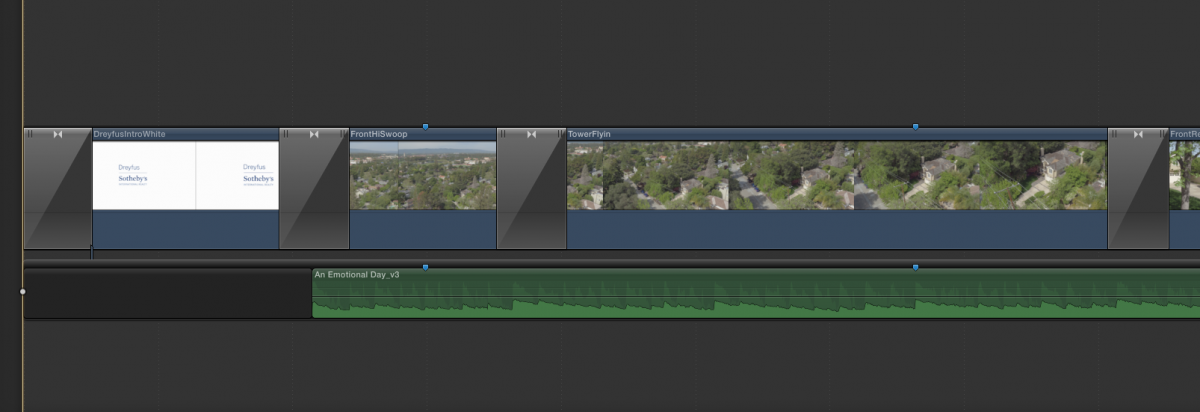
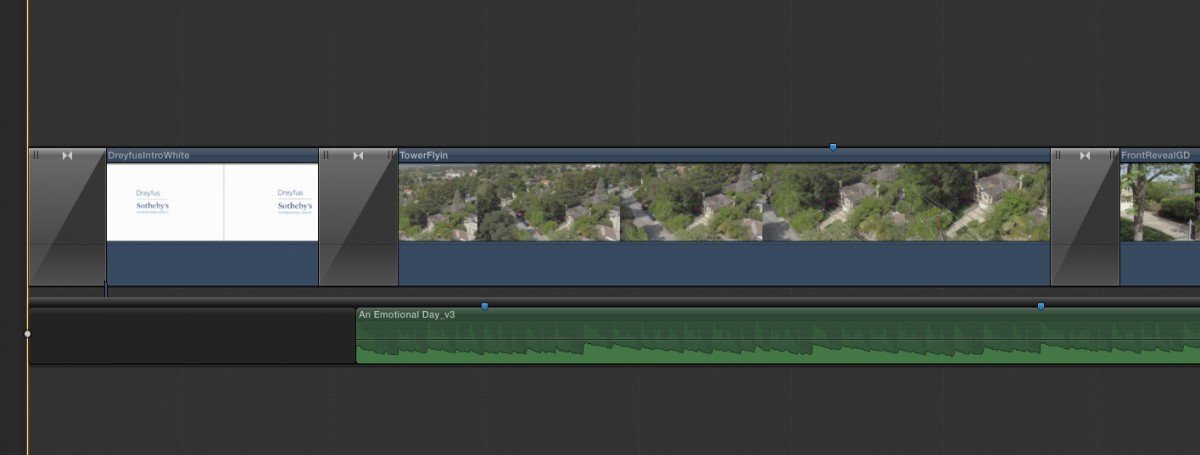
Just wondering if three is some clever way of accomplishing this without having to re-align stuff after the deletion of the middle clip.
Here is a couple of screenshots attached of what I mean...first one has all 3 clips with (arbitrary) alignment markers, then second one has center clip deleted, and you can see how the alignment markers I put on there go way out of sync...obviously...
Just wondering if three is some clever way of accomplishing this without having to re-align stuff after the deletion of the middle clip.
Please Log in to join the conversation.

Less
More
- Posts: 971
- Thank you received: 46
14 Apr 2016 08:39 #75348
by MsJustine
Replied by MsJustine on topic Any Clever Way for a "Clean" Non-Magnetic Delete?
Function+delete is delete and replace with gap clip..
Would that not help?
Would that not help?
Please Log in to join the conversation.
14 Apr 2016 08:42 #75349
by Overturf
Replied by Overturf on topic Any Clever Way for a "Clean" Non-Magnetic Delete?
Not sure if there's a real shortcut for this but my approach would be:
Lasso clip 3 and hit CMD-OPT-UPARROW to make it a connected clip. Mark left edge of connected clip and either drag it out to beginning of clip 2 or use shortcut (I am on German keyboard so don't know exactly which one this is for you) to trim the in-point of clip 3. Press CMD-OPT-DOWNARROW to bring it back into primary. Delete whats left in audio if there is any.
Let's see if there's a better way but this works quickly and reliably for me.
Lasso clip 3 and hit CMD-OPT-UPARROW to make it a connected clip. Mark left edge of connected clip and either drag it out to beginning of clip 2 or use shortcut (I am on German keyboard so don't know exactly which one this is for you) to trim the in-point of clip 3. Press CMD-OPT-DOWNARROW to bring it back into primary. Delete whats left in audio if there is any.
Let's see if there's a better way but this works quickly and reliably for me.
Please Log in to join the conversation.
14 Apr 2016 08:43 #75350
by Shane M
Replied by Shane M on topic Any Clever Way for a "Clean" Non-Magnetic Delete?
It come close, but then you are still left with the gap...and having to delete the gap to get the 1st and 3rd clip to "marry" with the crossfade...thus stuff still shifts around a bit.
It basically comes from clients saying "okay, lets leave everything EXACTLY as we have it, but just delete that middle clip and extend the third clip into that gap to take up that space."
Sure you can just delete it and then slide everything back out and line it up with the music again and be pretty close to "exactly" as it was before...but takes a bit of fiddling...
It basically comes from clients saying "okay, lets leave everything EXACTLY as we have it, but just delete that middle clip and extend the third clip into that gap to take up that space."
Sure you can just delete it and then slide everything back out and line it up with the music again and be pretty close to "exactly" as it was before...but takes a bit of fiddling...
Please Log in to join the conversation.
Less
More
- Posts: 971
- Thank you received: 46
14 Apr 2016 08:47 #75351
by MsJustine
Replied by MsJustine on topic Any Clever Way for a "Clean" Non-Magnetic Delete?
I see 2 issues, 1-the audio is in the primary storyline, and 2-no clip connection.
1-Drop the audio 1 level down, below the primary storyline..
2- Use a clip connection to link this to a clip in the primary story line
To quote the manual "Adjust the connection point of a connected clip
By default, connected clips and storylines are connected to the primary storyline at their first frame, but you can move the “connection point” of a connected clip or storyline. This is useful when you want to connect a specific frame or audio sample in the connected clip or storyline with a specific frame or audio sample in the primary storyline.
Hold down the Command and Option keys, and click the connected clip (or the gray border of the storyline) at the point where you want to position the connection point.
The connection point is moved to the point where you clicked."
1-Drop the audio 1 level down, below the primary storyline..
2- Use a clip connection to link this to a clip in the primary story line
To quote the manual "Adjust the connection point of a connected clip
By default, connected clips and storylines are connected to the primary storyline at their first frame, but you can move the “connection point” of a connected clip or storyline. This is useful when you want to connect a specific frame or audio sample in the connected clip or storyline with a specific frame or audio sample in the primary storyline.
Hold down the Command and Option keys, and click the connected clip (or the gray border of the storyline) at the point where you want to position the connection point.
The connection point is moved to the point where you clicked."
Please Log in to join the conversation.
Less
More
- Posts: 971
- Thank you received: 46
14 Apr 2016 08:55 #75352
by MsJustine
Replied by MsJustine on topic Any Clever Way for a "Clean" Non-Magnetic Delete?
On the video clips, there are no connection links to the audio track, with the magnetic timeline, the links will stay connected if you delete a clip, as in your example, if you link each of the clips to a point on the audio primary storyline, then delete the second clip as you have shown, a blank NON GAP clip is created.
I think that is what you want, a blank space, not a gap clip, I tried with linked clips to the primary storyline and the space was created!
I think that is what you want, a blank space, not a gap clip, I tried with linked clips to the primary storyline and the space was created!
Please Log in to join the conversation.
14 Apr 2016 09:02 #75353
by Overturf
Replied by Overturf on topic Any Clever Way for a "Clean" Non-Magnetic Delete?
Shane, in your reply I assume you are referring to Justine's answer, not mine? Anyway, instead of crossfading you could just leave clip 3 as a connected clip and adjust its opacity (CTRL-V). Things don't necessarily have to be in primary all the time.
Please Log in to join the conversation.
Less
More
- Posts: 971
- Thank you received: 46
14 Apr 2016 09:17 #75354
by MsJustine
Replied by MsJustine on topic Any Clever Way for a "Clean" Non-Magnetic Delete?
How is the 2nd, 3rd and 4th clips in the sequence attached to the primary storyline? I can only see 1 clip connection at the head of the 1st clip, I cannot see any other clip connections.
Clip connections help maintain sync, not sure how you added the clips to the timeline without clip connections..that would help my understanding of the problem.
Clip connections help maintain sync, not sure how you added the clips to the timeline without clip connections..that would help my understanding of the problem.
Please Log in to join the conversation.
14 Apr 2016 09:24 #75355
by Shane M
Yeah that seems likes hat method actually would have the desired effect more or less...im not on my computer right now but when I get to it I will definitely give this a shot and report back.
Thanks!
Replied by Shane M on topic Any Clever Way for a "Clean" Non-Magnetic Delete?
Overturf wrote: Not sure if there's a real shortcut for this but my approach would be:
Lasso clip 3 and hit CMD-OPT-UPARROW to make it a connected clip. Mark left edge of connected clip and either drag it out to beginning of clip 2 or use shortcut (I am on German keyboard so don't know exactly which one this is for you) to trim the in-point of clip 3. Press CMD-OPT-DOWNARROW to bring it back into primary. Delete whats left in audio if there is any.
Let's see if there's a better way but this works quickly and reliably for me.
Yeah that seems likes hat method actually would have the desired effect more or less...im not on my computer right now but when I get to it I will definitely give this a shot and report back.
Thanks!
Please Log in to join the conversation.
- nils.dettmann
-

- Offline
- Elite Member
-

Less
More
- Posts: 161
- Thank you received: 13
14 Apr 2016 09:37 #75357
by nils.dettmann
Replied by nils.dettmann on topic Any Clever Way for a "Clean" Non-Magnetic Delete?
I would normally do it Overturfs way.
You have to be careful to extend the clip to the middle of the transition otherwise you will have a short piece of clip 2 left.
Another possibility is:
Delete the transition between 2 and 3
CMD-X the transition between 1 and 2
Hit T(rim) and move the second cut to the first cut, effectiveley deleting the second clip
CMD-V the transition back to the first cut
If I count right this would be one mouse move less...
You have to be careful to extend the clip to the middle of the transition otherwise you will have a short piece of clip 2 left.
Another possibility is:
Delete the transition between 2 and 3
CMD-X the transition between 1 and 2
Hit T(rim) and move the second cut to the first cut, effectiveley deleting the second clip
CMD-V the transition back to the first cut
If I count right this would be one mouse move less...
Please Log in to join the conversation.
Less
More
- Posts: 971
- Thank you received: 46
14 Apr 2016 09:37 #75358
by MsJustine
Replied by MsJustine on topic Any Clever Way for a "Clean" Non-Magnetic Delete?
Ah, mystery solved, the clips are in the primary storyline, solution lift up from primary storyline, in essence creating a 2nd storyline above, the primary storyline is a giant gap clip.
That was before I thought I had the answer, then I had a rethink..
Let me rethink your answer, I suspect the video clips are NOT in the primary storyline, the evidence is the clip connection, clips in the primary storyline do not have clip connections.
I see a tiny blue line, I suspect that is the problem, something is not right, my suggestion would be to NOT use the primary storyline, as you have to connect the clips to something, and the 1st video clip is connected to something, that has to be the primary storyline, FCPX only connects clips to the primary storyline.
What I am confused about is how you added clips to the timeline without clip connections, I cannot find a way to add clips above the primary storyline without automatic clip connections.
If I knew how you did that, I might be a step closer to solving the mystery!!
That was before I thought I had the answer, then I had a rethink..
Let me rethink your answer, I suspect the video clips are NOT in the primary storyline, the evidence is the clip connection, clips in the primary storyline do not have clip connections.
I see a tiny blue line, I suspect that is the problem, something is not right, my suggestion would be to NOT use the primary storyline, as you have to connect the clips to something, and the 1st video clip is connected to something, that has to be the primary storyline, FCPX only connects clips to the primary storyline.
What I am confused about is how you added clips to the timeline without clip connections, I cannot find a way to add clips above the primary storyline without automatic clip connections.
If I knew how you did that, I might be a step closer to solving the mystery!!
Please Log in to join the conversation.
- ronny courtens
-

- Offline
- Moderator
-

Less
More
- Posts: 4455
- Thank you received: 962
14 Apr 2016 09:48 - 14 Apr 2016 09:49 #75359
by ronny courtens
Replied by ronny courtens on topic Any Clever Way for a "Clean" Non-Magnetic Delete?
Hi Shane,
Actually, this is quite simple. Try this:
1. Select the Position tool ("P") and Shift-Delete the middle clip:
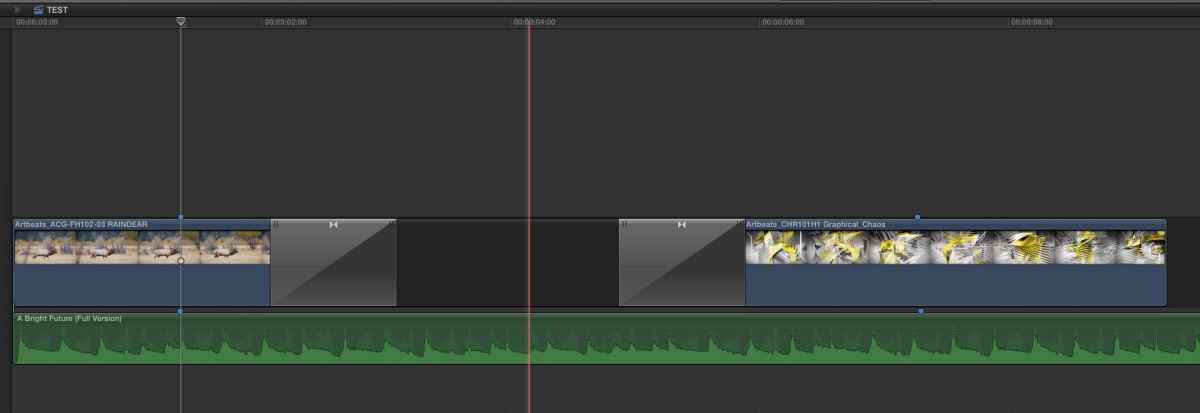
2. Delete the transition from the first clip and just drag the end of the first clip under the transition:
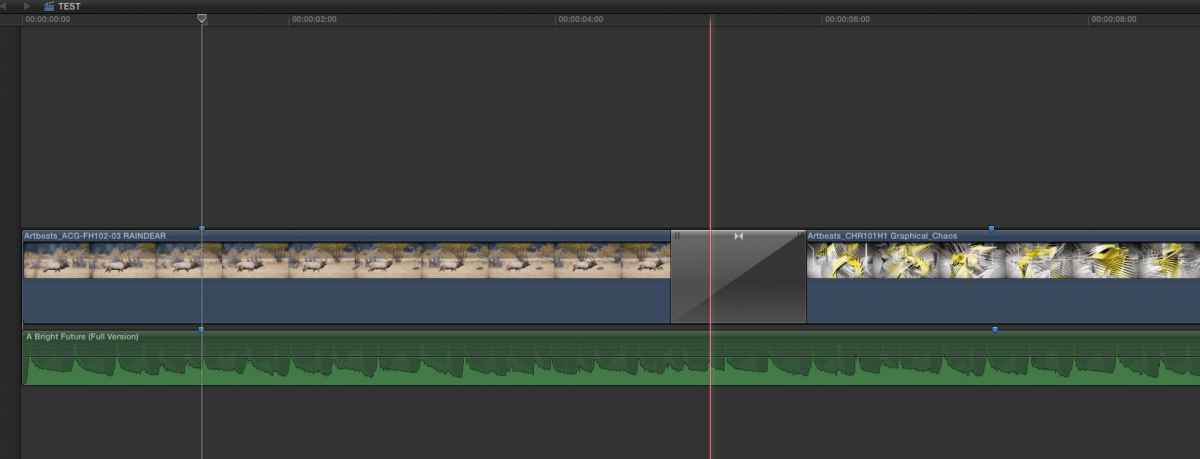
As you can see, the score markers haven't moved. This takes 3 seconds to do.
- Ronny
Actually, this is quite simple. Try this:
1. Select the Position tool ("P") and Shift-Delete the middle clip:
2. Delete the transition from the first clip and just drag the end of the first clip under the transition:
As you can see, the score markers haven't moved. This takes 3 seconds to do.
- Ronny
Last edit: 14 Apr 2016 09:49 by ronny courtens.
Please Log in to join the conversation.
Less
More
- Posts: 971
- Thank you received: 46
14 Apr 2016 09:54 #75360
by MsJustine
Replied by MsJustine on topic Any Clever Way for a "Clean" Non-Magnetic Delete?
Hi Ronny,
Did you extend the length of the first clip to fill in the gap? I am trying to follow and I am somewhat confused? Thanks, great answer!!!
Did you extend the length of the first clip to fill in the gap? I am trying to follow and I am somewhat confused? Thanks, great answer!!!
Please Log in to join the conversation.
- ronny courtens
-
- Offline
- Moderator
-
Less
More
- Posts: 4455
- Thank you received: 962
14 Apr 2016 09:56 #75361
by ronny courtens
Replied by ronny courtens on topic Any Clever Way for a "Clean" Non-Magnetic Delete?
Yep, just extend it until under the dissolve using the P tool.
- Ronny
- Ronny
Please Log in to join the conversation.
Less
More
- Posts: 971
- Thank you received: 46
14 Apr 2016 10:03 - 14 Apr 2016 10:04 #75362
by MsJustine
Replied by MsJustine on topic Any Clever Way for a "Clean" Non-Magnetic Delete?
Yes, that would be obvious, and I am not sure the OP was looking for that solution, I was thinking of well I am not sure it was not that.
I was thinking more along the lines of what if the in and out points of the 1st or 3rd clip cannot be extended, that was what I was trying to find a way of solving, not extending the clip duration.
Although I cannot see how you could realign the markers without extending the edit, that is the obvious solution, add more frames..To quote Jeremy Clarkson "more is better".
Is adding more frames the only solution?
I was thinking more along the lines of what if the in and out points of the 1st or 3rd clip cannot be extended, that was what I was trying to find a way of solving, not extending the clip duration.
Although I cannot see how you could realign the markers without extending the edit, that is the obvious solution, add more frames..To quote Jeremy Clarkson "more is better".
Is adding more frames the only solution?
Last edit: 14 Apr 2016 10:04 by MsJustine.
Please Log in to join the conversation.
- ronny courtens
-
- Offline
- Moderator
-
Less
More
- Posts: 4455
- Thank you received: 962
14 Apr 2016 10:15 - 14 Apr 2016 10:17 #75364
by ronny courtens
Replied by ronny courtens on topic Any Clever Way for a "Clean" Non-Magnetic Delete?
You are correct, Shane asked how he could make the third clip fill the gap with its front handle, without getting out of sync with the music score. But that is exactly the same workflow:
1. Select the Position tool ("P") and Shift-Delete the middle clip:
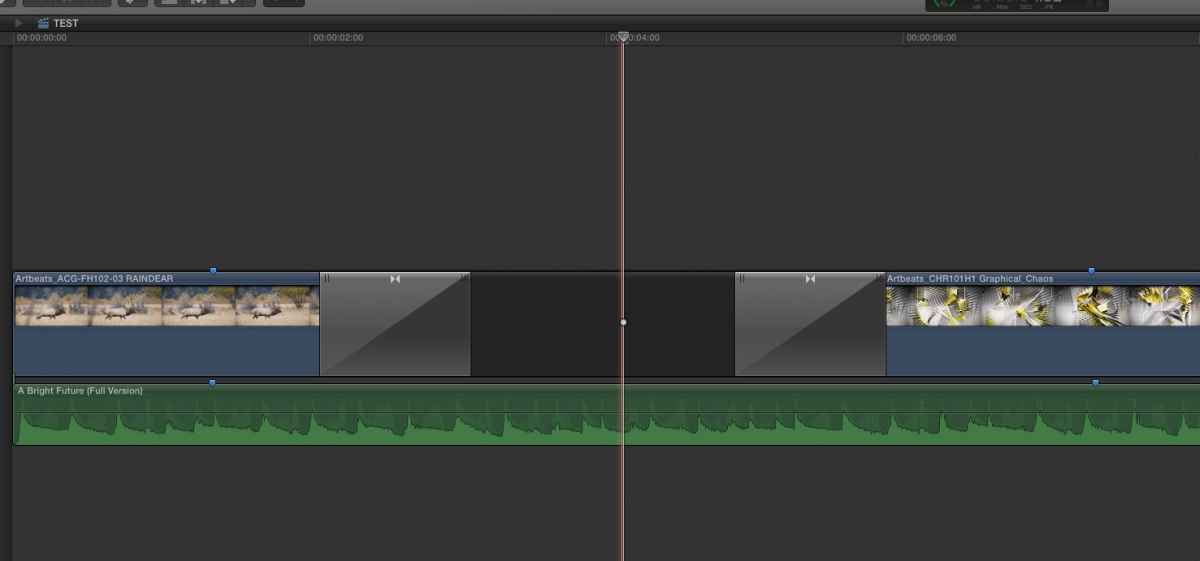
2. Delete the transition from the third clip and just drag (extend) the start of the third clip under the transition:
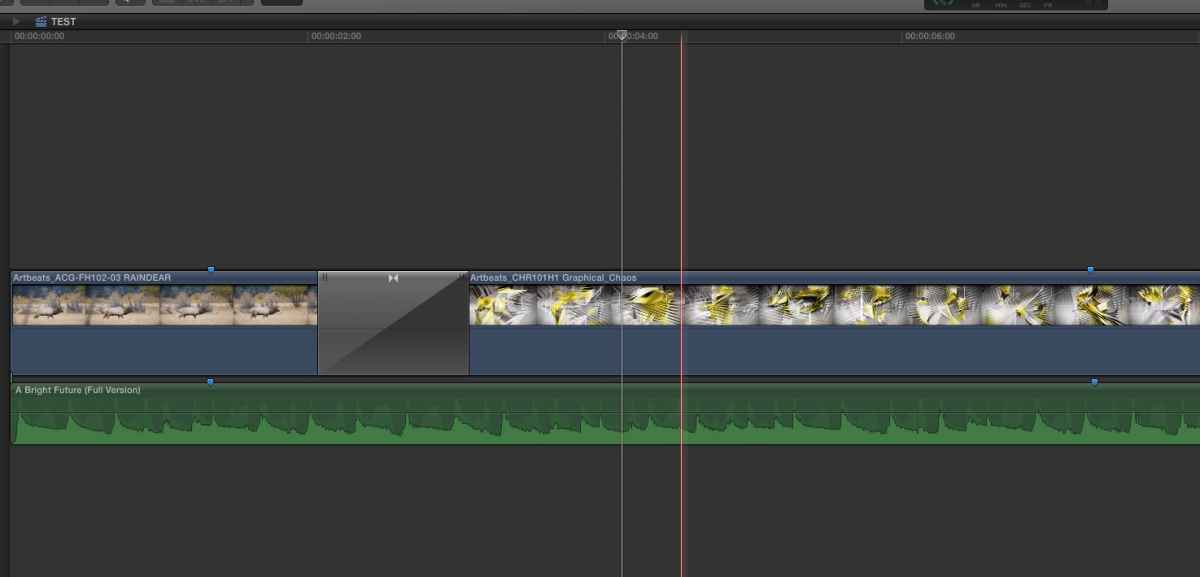
Ronny
1. Select the Position tool ("P") and Shift-Delete the middle clip:
2. Delete the transition from the third clip and just drag (extend) the start of the third clip under the transition:
Ronny
Last edit: 14 Apr 2016 10:17 by ronny courtens.
Please Log in to join the conversation.
- Carsten Orlt
-

- Offline
- Platinum Member
-

Less
More
- Posts: 422
- Thank you received: 82
14 Apr 2016 10:18 #75365
by Carsten Orlt
Replied by Carsten Orlt on topic Any Clever Way for a "Clean" Non-Magnetic Delete?
Another way to do this quickly is to delete the dissolves, select the trim tool, highlight edit you want to move, place the playhead on the edit you want to extend to and press shift-x, re-apply the dissolve.
This will delete the clip in the middle automatically.
Happy editing
Carsten
This will delete the clip in the middle automatically.
Happy editing
Carsten
Please Log in to join the conversation.
- nils.dettmann
-
- Offline
- Elite Member
-
Less
More
- Posts: 161
- Thank you received: 13
14 Apr 2016 10:30 #75366
by nils.dettmann
Replied by nils.dettmann on topic Any Clever Way for a "Clean" Non-Magnetic Delete?
@Ronny
I didn´t know that with the Position tool you can extend a cut into a transition.
Thank you, that will certainly save me some time in the future...
I didn´t know that with the Position tool you can extend a cut into a transition.
Thank you, that will certainly save me some time in the future...
Please Log in to join the conversation.
- ronny courtens
-
- Offline
- Moderator
-
Less
More
- Posts: 4455
- Thank you received: 962
14 Apr 2016 10:32 #75367
by ronny courtens
Replied by ronny courtens on topic Any Clever Way for a "Clean" Non-Magnetic Delete?
Yep, it's a functionality that is unique to FCP X and it's the fastest way to achieve this kind of action.
- Ronny
- Ronny
Please Log in to join the conversation.
- Karsten Schlüter
-

- Offline
- Moderator
-
Less
More
- Posts: 3790
- Thank you received: 718
14 Apr 2016 11:12 #75372
by Karsten Schlüter
didn't know that either, smart 'trick', thanks Ronny for sharing!
just as an addendum:
I'd like to mention, when doing such operations, it's handy to move the 'connector-finger' to some save/non involved clip:
hold cmd-alt and click into the audio clip at any position you like the connector to be ....
in case the audio is connected to the to be erased clip, it would be poof gone too ....
Replied by Karsten Schlüter on topic Any Clever Way for a "Clean" Non-Magnetic Delete?
ronny courtens wrote: Yep, it's a functionality that is unique to FCP X ...
didn't know that either, smart 'trick', thanks Ronny for sharing!
just as an addendum:
I'd like to mention, when doing such operations, it's handy to move the 'connector-finger' to some save/non involved clip:
hold cmd-alt and click into the audio clip at any position you like the connector to be ....
in case the audio is connected to the to be erased clip, it would be poof gone too ....
Please Log in to join the conversation.
