


- Posts: 170
- Thank you received: 4
3 Post Moderation Rule for New Boarders (25 Jan 2021)
New boarders will have their posts moderated - Don't worry if you cannot see your post immediately.
10.1 - How to hide projects and events with Libraries?
22 Dec 2013 08:49 - 22 Dec 2013 09:13 #36919
by scotopia
10.1 - How to hide projects and events with Libraries? was created by scotopia
Hello All,
Previously I had been hiding some of my currently unneeded events and projects by taking them out of the Final Cut Events and Final Cut Projects folders, as required. Can I do a similar thing once I convert to a library (only loading needed projects and events I mean), and if so I'm assuming I should put all my projects and events back into the Final Cut Events and Final Cut Projects folders before I do the update?
For some context I have a gaming youTube channel: www.youtube.com/user/Retromancers
and I currently have 1 Event for each game we have done, and a corresponding project. So typically I will only want the current project and event visible to FCP, although sometimes I might wanna pull in some stuff from earlier games so I would then move those events and/or projects from my hidden folders to the "live" folders. This is the kind of behavior I am hoping Libraries still allow.
I am currently mid project, and didn't realize this update was going to be a paradigm shift like this, so I am a bit scared. Backing up my files to another drive now... Thanks!
Previously I had been hiding some of my currently unneeded events and projects by taking them out of the Final Cut Events and Final Cut Projects folders, as required. Can I do a similar thing once I convert to a library (only loading needed projects and events I mean), and if so I'm assuming I should put all my projects and events back into the Final Cut Events and Final Cut Projects folders before I do the update?
For some context I have a gaming youTube channel: www.youtube.com/user/Retromancers
and I currently have 1 Event for each game we have done, and a corresponding project. So typically I will only want the current project and event visible to FCP, although sometimes I might wanna pull in some stuff from earlier games so I would then move those events and/or projects from my hidden folders to the "live" folders. This is the kind of behavior I am hoping Libraries still allow.
I am currently mid project, and didn't realize this update was going to be a paradigm shift like this, so I am a bit scared. Backing up my files to another drive now... Thanks!
Last edit: 22 Dec 2013 09:13 by scotopia.
Please Log in to join the conversation.
- Tom Wolsky
-

- Offline
- Moderator
-

22 Dec 2013 09:11 #36922
by Tom Wolsky
Replied by Tom Wolsky on topic 10.1 - How to hide projects and events with Libraries?
You can't close some events and projects in a library but you can close a library from the File menu.
Please Log in to join the conversation.
22 Dec 2013 09:16 #36923
by scotopia
Replied by scotopia on topic 10.1 - How to hide projects and events with Libraries?
Thanks for the reply Tom; I edited my original post before your reply I think.
So, how would you recommend I proceed based on the additional info I added? Should I aim to make one library for each of my previous game projects (so a game X's library would have game X's project and game X's event)?
So, how would you recommend I proceed based on the additional info I added? Should I aim to make one library for each of my previous game projects (so a game X's library would have game X's project and game X's event)?
Please Log in to join the conversation.
22 Dec 2013 09:22 - 22 Dec 2013 09:23 #36924
by scotopia
Replied by scotopia on topic 10.1 - How to hide projects and events with Libraries?
To clarify - based on what I said above I have many projects that use content from multiple events. Is that still okay with the plan I detailed above? (with the understanding that if a project in library X had used some content from an event in library Y, that part of of project X won't show up unless project Y is unhidden).
Also; is it possible that it is not necessary to jump through all these hoops and I'd really be fine with one big library? I noticed the old FCP would take a lot of time to load all my projects and events, which is why I was doing my hiding/unhiding dance...but maybe 10.1 with this library stuff is smarter now and will only load stuff on an as needed basis?
Also; is it possible that it is not necessary to jump through all these hoops and I'd really be fine with one big library? I noticed the old FCP would take a lot of time to load all my projects and events, which is why I was doing my hiding/unhiding dance...but maybe 10.1 with this library stuff is smarter now and will only load stuff on an as needed basis?
Last edit: 22 Dec 2013 09:23 by scotopia.
Please Log in to join the conversation.
- ronny courtens
-

- Offline
- Moderator
-
Less
More
- Posts: 4455
- Thank you received: 962
22 Dec 2013 09:35 #36925
by ronny courtens
Replied by ronny courtens on topic 10.1 - How to hide projects and events with Libraries?
It's never a wise thing to update mid-project, so I would definitely wait until this project is finished.
"Hiding" Events or Projects is not an issue anymore in 10.1. You can create a new Library for every job and inside this Library you will only see the Events and Projects related to this job. If you want to work on a job, just open its Library and FCPX will only see the Events and Projects related to this particular job. Much easier than dragging folders outside folders in the Finder
- Ronny
"Hiding" Events or Projects is not an issue anymore in 10.1. You can create a new Library for every job and inside this Library you will only see the Events and Projects related to this job. If you want to work on a job, just open its Library and FCPX will only see the Events and Projects related to this particular job. Much easier than dragging folders outside folders in the Finder
- Ronny
Please Log in to join the conversation.
- ronny courtens
-
- Offline
- Moderator
-
Less
More
- Posts: 4455
- Thank you received: 962
22 Dec 2013 09:45 #36926
by ronny courtens
Replied by ronny courtens on topic 10.1 - How to hide projects and events with Libraries?
As to your other question (creating one single Library): it all depends on your system's resources and on the size of your Events wether FCPX will be able to open all the Events inside one huge Library. 10.1 certainly loads Events faster and it handles larger Events much better.
For very large media pools with Projects taking media from multiple Events anywhere in the pool I think having all your media stored externally is the best way to go. Doing this you can create as many Libraries as you wish and open or close them as you wish. When you use media from one Library inside another one and all your media is external FCPX only copies the simlinks between Libraries and no duplicate media is created.
- Ronny
For very large media pools with Projects taking media from multiple Events anywhere in the pool I think having all your media stored externally is the best way to go. Doing this you can create as many Libraries as you wish and open or close them as you wish. When you use media from one Library inside another one and all your media is external FCPX only copies the simlinks between Libraries and no duplicate media is created.
- Ronny
Please Log in to join the conversation.
22 Dec 2013 09:45 #36927
by scotopia
Replied by scotopia on topic 10.1 - How to hide projects and events with Libraries?
Hi Ronny,
I'm still a little confused. So based on what I've written above what I would want to do is to not have FCP update my whole external drive (where my current Final Cut Projects and Final Cut Events folder is), but make each Project and corresponding event its own library? If so, will the "X" and "Y" situation I described above play out the way I stated?
Also, can I just allow FCP to make my whole drive into one Library, and then split out the content into multiple libraries later easily form inside FCP?
Though I haven't done the update yet, I did update my FCP to 10.1, so I think I may be stuck going forward mid project. Unless there is a way for me to somehow downgrade to 10.9 or download it (searching now, somewhat frantically).
I'm still a little confused. So based on what I've written above what I would want to do is to not have FCP update my whole external drive (where my current Final Cut Projects and Final Cut Events folder is), but make each Project and corresponding event its own library? If so, will the "X" and "Y" situation I described above play out the way I stated?
Also, can I just allow FCP to make my whole drive into one Library, and then split out the content into multiple libraries later easily form inside FCP?
Though I haven't done the update yet, I did update my FCP to 10.1, so I think I may be stuck going forward mid project. Unless there is a way for me to somehow downgrade to 10.9 or download it (searching now, somewhat frantically).
Please Log in to join the conversation.
22 Dec 2013 09:47 #36928
by scotopia
Replied by scotopia on topic 10.1 - How to hide projects and events with Libraries?
I just saw your later post. Basically right now all my content is stored on an external drive, and it currently totals about 500 gigs (about 15 gigs for each project/event that I'm not actively working on, and about 250 gigs for whichever project I am working on with transcoded media). I'm working off a 1 year old powerful Mac Book Pro and an OWC 7200 RPM external drive via USB 3.0.
Please Log in to join the conversation.
- Tom Wolsky
-
- Offline
- Moderator
-
22 Dec 2013 09:51 #36929
by Tom Wolsky
Replied by Tom Wolsky on topic 10.1 - How to hide projects and events with Libraries?
You could have one big library but then you can't close and hide events and projects except with the disclosure triangle. Unfortunately you can't group events into a folder.
If you use a separate library for each game, then you can't use media from other libraries without duplicating the media or with a symlink/alias if the media isn't actually in the library. There are many of the school that it's always best to keep your media out of the libraries and simply import links to the media files. This might be a better procedure for you. If your media is actually in your library in events you can use the Consolidate library function to move the clips out of the library to another folder and replace them with symlinks inside the library. That will make importing media between libraries less cumbersome.
If you use a separate library for each game, then you can't use media from other libraries without duplicating the media or with a symlink/alias if the media isn't actually in the library. There are many of the school that it's always best to keep your media out of the libraries and simply import links to the media files. This might be a better procedure for you. If your media is actually in your library in events you can use the Consolidate library function to move the clips out of the library to another folder and replace them with symlinks inside the library. That will make importing media between libraries less cumbersome.
Please Log in to join the conversation.
- ronny courtens
-
- Offline
- Moderator
-
Less
More
- Posts: 4455
- Thank you received: 962
22 Dec 2013 09:55 #36930
by ronny courtens
Replied by ronny courtens on topic 10.1 - How to hide projects and events with Libraries?
If your project works well since the update you don't need to go back to 10.0.9. The beauty of the new workflow is that you can change it at any point you like, you are never stuck with the organization you have now. What I would suggest: keep working on your current project until it is finished and then decide on how your future organization will be.
As to how you should organize your specific workflow in the future: while I was writing this I see Tom has replied with the exact answer I would have given
- Ronny
As to how you should organize your specific workflow in the future: while I was writing this I see Tom has replied with the exact answer I would have given
- Ronny
Please Log in to join the conversation.
22 Dec 2013 10:01 #36932
by scotopia
Replied by scotopia on topic 10.1 - How to hide projects and events with Libraries?
Thanks guys. So just to make sure I have things straight, would you agree that this is a good plan for right now.
1. Back up all my files (currently not updated yet) for safety
2. Put all my currently hidden content back into Final Cut Projects and Events
3. Let FCP do the update, creating one big library for my external drive (knowing that I can change this later to something akin to what Tom suggested after my current project is finished.)
That sound about right? Thanks again. It's currently 5am and thus panic mode is easier to trigger; you've both been a big help.
1. Back up all my files (currently not updated yet) for safety
2. Put all my currently hidden content back into Final Cut Projects and Events
3. Let FCP do the update, creating one big library for my external drive (knowing that I can change this later to something akin to what Tom suggested after my current project is finished.)
That sound about right? Thanks again. It's currently 5am and thus panic mode is easier to trigger; you've both been a big help.
Please Log in to join the conversation.
22 Dec 2013 10:03 #36933
by scotopia
Replied by scotopia on topic 10.1 - How to hide projects and events with Libraries?
Oh, and Tom; it's not really visually showing and hiding I care about - it's just that I don't want FCP to grind to a halt because its loading everything into active memory. If it is smart enough to not do that anymore; then it's much less of an issue for me.
Please Log in to join the conversation.
- ronny courtens
-
- Offline
- Moderator
-
Less
More
- Posts: 4455
- Thank you received: 962
22 Dec 2013 10:15 #36934
by ronny courtens
Replied by ronny courtens on topic 10.1 - How to hide projects and events with Libraries?
I wouldn't do that at this time: you have a project to finish and you don't want to take the risk that, by letting FCPX put all the Events and Projects you have inside one huge Library, your system won't be able to easily open this huge Library. It might, but you cannot be sure.
My suggestion would be: just put everything you need for the current project you are working on inside your current Final Cut Events and Final Cut Projects folders, then let FCPX update to 10.1. Any hidden Events or Projects will not be included in the update. This will give you a Library with only the things you need for this job, and I'm sure your system will be able to deal with this so you can finish your work.
When your work is done you can then re-organize everything as you wish keeping in mind what Tom has suggested. I think this would be the safest way to proceed at this time.
Backing up all your files for safety is always an excellent idea.
- Ronny
My suggestion would be: just put everything you need for the current project you are working on inside your current Final Cut Events and Final Cut Projects folders, then let FCPX update to 10.1. Any hidden Events or Projects will not be included in the update. This will give you a Library with only the things you need for this job, and I'm sure your system will be able to deal with this so you can finish your work.
When your work is done you can then re-organize everything as you wish keeping in mind what Tom has suggested. I think this would be the safest way to proceed at this time.
Backing up all your files for safety is always an excellent idea.
- Ronny
Please Log in to join the conversation.
22 Dec 2013 10:30 #36936
by scotopia
Replied by scotopia on topic 10.1 - How to hide projects and events with Libraries?
Okay that makes sense. So I'm assuming that after I finish my current project, I can add in the other projects / events to that same library if I want (rather than spawning another library for those), and/or break that library up into smaller ones? (basically I'm asking if it is possible to move stuff from one library to another easily).
I'll look up the docs on it too as soon as I wake up. My backups just completed so I think I'm going to crash
I'll look up the docs on it too as soon as I wake up. My backups just completed so I think I'm going to crash
Please Log in to join the conversation.
- ronny courtens
-
- Offline
- Moderator
-
Less
More
- Posts: 4455
- Thank you received: 962
22 Dec 2013 10:43 #36938
by ronny courtens
Replied by ronny courtens on topic 10.1 - How to hide projects and events with Libraries?
Yes, it is very easy to move stuff from one Library into another any time you wish. So take a good rest, knowing that updating to 10.1 will not be as scary as it might seem
- Ronny
- Ronny
Please Log in to join the conversation.

22 Dec 2013 11:58 #36942
by stewpid
Replied by stewpid on topic 10.1 - How to hide projects and events with Libraries?
And another great thing, you can copy whole libraries, as long as you have the original media within the library. You can copy them to anywhere and this is a great way to back up stuff.
I'm hopless at staying organised (it's because I'm so incredible creative, obviously...) and this new way or doung things is brilliant for someone as sloppy as me. I work in my library on one external hard drive then simply erase the backup library and copy the one I worked on to the back external drive. I've been looking for an option to just copy changes made to the back up library but can't see one. I should add I do it this way because the backup library also is my original media backup.
Hope that makes sense.
I'm hopless at staying organised (it's because I'm so incredible creative, obviously...) and this new way or doung things is brilliant for someone as sloppy as me. I work in my library on one external hard drive then simply erase the backup library and copy the one I worked on to the back external drive. I've been looking for an option to just copy changes made to the back up library but can't see one. I should add I do it this way because the backup library also is my original media backup.
Hope that makes sense.
Please Log in to join the conversation.
22 Dec 2013 18:27 - 22 Dec 2013 18:27 #36966
by scotopia
Replied by scotopia on topic 10.1 - How to hide projects and events with Libraries?
Thanks again guys; just waking up now, lol.
So Ronny, based on that - would then it be possible to basically do the same process I was doing before by having one Library called Active Stuff, and another called Inactive Stuff, and specify the Inactive Stuff library to be hidden (or however you tell it not to be loaded), and then just move things between the two similar to what I was doing with my folders before?
I know this might not be necessary in light of Tom's earlier suggestion; just curious.
So Ronny, based on that - would then it be possible to basically do the same process I was doing before by having one Library called Active Stuff, and another called Inactive Stuff, and specify the Inactive Stuff library to be hidden (or however you tell it not to be loaded), and then just move things between the two similar to what I was doing with my folders before?
I know this might not be necessary in light of Tom's earlier suggestion; just curious.
Last edit: 22 Dec 2013 18:27 by scotopia.
Please Log in to join the conversation.
- ronny courtens
-
- Offline
- Moderator
-
Less
More
- Posts: 4455
- Thank you received: 962
22 Dec 2013 18:37 #36967
by ronny courtens
Replied by ronny courtens on topic 10.1 - How to hide projects and events with Libraries?
Hope you had a good rest 
Theoretically you could do this, but I don't think this is necessary. You can create as many Libraries as you wish and open or close them whenever you wish. When you need to use media from a particular Library in a new Project that is in a different Library, just open the Library you need and copy the clips into the new Library or drag them onto your new timeline. Once you have all the clips you need can close that Library again. Couldn't be easier.
Most important when you want to do this is that you should put ALL your media on one or more external drives and you never copy actual media into your Events (always work with linked media). This way when you copy media between different Libraries you will only copy the links and no actual footage.
- Ronny
Theoretically you could do this, but I don't think this is necessary. You can create as many Libraries as you wish and open or close them whenever you wish. When you need to use media from a particular Library in a new Project that is in a different Library, just open the Library you need and copy the clips into the new Library or drag them onto your new timeline. Once you have all the clips you need can close that Library again. Couldn't be easier.
Most important when you want to do this is that you should put ALL your media on one or more external drives and you never copy actual media into your Events (always work with linked media). This way when you copy media between different Libraries you will only copy the links and no actual footage.
- Ronny
Please Log in to join the conversation.
22 Dec 2013 19:06 - 22 Dec 2013 19:07 #36974
by scotopia
Replied by scotopia on topic 10.1 - How to hide projects and events with Libraries?
Okay; so I could still have my libraries and media on the same external drive, my media would just exist in a different folder (outside of the libraries) called media or some such? If so I just have a few more follow up questions (sorry!):
1) When you are in a library project and transcode a given piece of media; does the "Optimized Media" get created in the external media folder, or as part of your project?
2) What then is the purpose of Events now? I asked this because it seemed to me that they were previously just containers for media used by projects. If we make the media external and linked like you say...isn't it really just projects pointing to media and Events are kind of a needless middleman?
I ask this because one particular scenario I want to avoid goes like this. I'm working on a given game project, but in there I show a few clips, a few seconds long, of maybe 5 other games. What I've had to do up till now is load in all those games Events, as will as the Event for the game I'm working. It'd be nice if I didn't have to do that any more.
I guess what I'm really looking for is kind of a map of my ideal folder structure on my drive. You know like something like
-Main Library
--Project A
---Event A
--Project B
----Event B
-Media Folder
etc. I know that Projects and Events don't have to be in 1-1 correspondence and I've read people doing things that sound unusual to me (in my currently limited understanding), such as creating a separate library for just their projects and having events in a different library etc.
So based on my particular scenario (the way I work with the game project specified above), it would be helpful to know what library / media overall structure would be best to use to ensure that I'm loading the least amount of assets in memory while working on Game X (which may use a little bit of Game A, B, and C).
Hope this makes sense; and thanks again!
1) When you are in a library project and transcode a given piece of media; does the "Optimized Media" get created in the external media folder, or as part of your project?
2) What then is the purpose of Events now? I asked this because it seemed to me that they were previously just containers for media used by projects. If we make the media external and linked like you say...isn't it really just projects pointing to media and Events are kind of a needless middleman?
I ask this because one particular scenario I want to avoid goes like this. I'm working on a given game project, but in there I show a few clips, a few seconds long, of maybe 5 other games. What I've had to do up till now is load in all those games Events, as will as the Event for the game I'm working. It'd be nice if I didn't have to do that any more.
I guess what I'm really looking for is kind of a map of my ideal folder structure on my drive. You know like something like
-Main Library
--Project A
---Event A
--Project B
----Event B
-Media Folder
etc. I know that Projects and Events don't have to be in 1-1 correspondence and I've read people doing things that sound unusual to me (in my currently limited understanding), such as creating a separate library for just their projects and having events in a different library etc.
So based on my particular scenario (the way I work with the game project specified above), it would be helpful to know what library / media overall structure would be best to use to ensure that I'm loading the least amount of assets in memory while working on Game X (which may use a little bit of Game A, B, and C).
Hope this makes sense; and thanks again!
Last edit: 22 Dec 2013 19:07 by scotopia.
Please Log in to join the conversation.
- ronny courtens
-
- Offline
- Moderator
-
Less
More
- Posts: 4455
- Thank you received: 962
23 Dec 2013 00:41 - 23 Dec 2013 08:12 #37006
by ronny courtens
Replied by ronny courtens on topic 10.1 - How to hide projects and events with Libraries?
This is going to be a very long reply. First let's go through your questions.
1. Nope. Optimized media and Proxy media reside in the Event where they were created, even if the original media is located outside this Event.
2. Events have a very distinct function, they contain several folders that are essential for your work:
the CurrentVersion file, the Original Media folder, the Transcoded Media folder (Optimized and Proxy files), and the Event Render folder that contains your clip thumbnails.
The Original Media folder in an Event can contain:
- actual original media you have imported inside the Event (called managed media)
- links to original media you have left at their original place when importing (called external media)
- links to original media you have stored in a dedicated media folder on a drive when importing (called external media.
Projects are ALWAYS associated to an Event.
- You can associate a Project to a specific Event that has all the managed or external media you use in your Project
- Or you can create an empty Event without importing media into it, create one or more Projects in that empty Event and use any media from any Event in the Projects.
Now what happens when you use clips from one Library in a Project in another Library?
When you use media from an Event in Library 1 in a Project in Lib 2 the media are copied into Library 2.
- If you use managed media (files that are physically stored into the Libraries) this means you will have duplicate files in Library 1 and Library 2 which will increase the total size of your Libraries.
- If you use external media (files are physically stored outside the Libraries) only the simlinks will be copied from Lib 1 to Lib 2 and you won't have duplicate physical media.
When you use media from an Event in Library 1 in a Project in Library 2 and you are using optimized media the situation is different.
Optimized media are stored inside the Library and cannot be stored (yet) outside of it. This means that when you use an optimized clip from Library 1 in a Project in Library 2 the optimized media will be copied over from Lib 1 to Lib 2 and the size of your Lib 2 will drastically increase. Fortunately there is a way to avoid this. It all depends on HOW you copy the clip from one Library into the other.
I will explain this with an example.
I have created two Libraries, GAME 1 and GAME 2.
In the GAME 1 Library I have created an Event called GAME 1 MEDIA, and in this Event I have created a Project called GAME 1 PROJECT. I have also imported 4 clips in the Event.
In the GAME 2 Library I have created an Event called GAME 2 MEDIA, and in this Event I have created a Project called GAME 2 PROJECT. I have imported 3 clips in the Event.
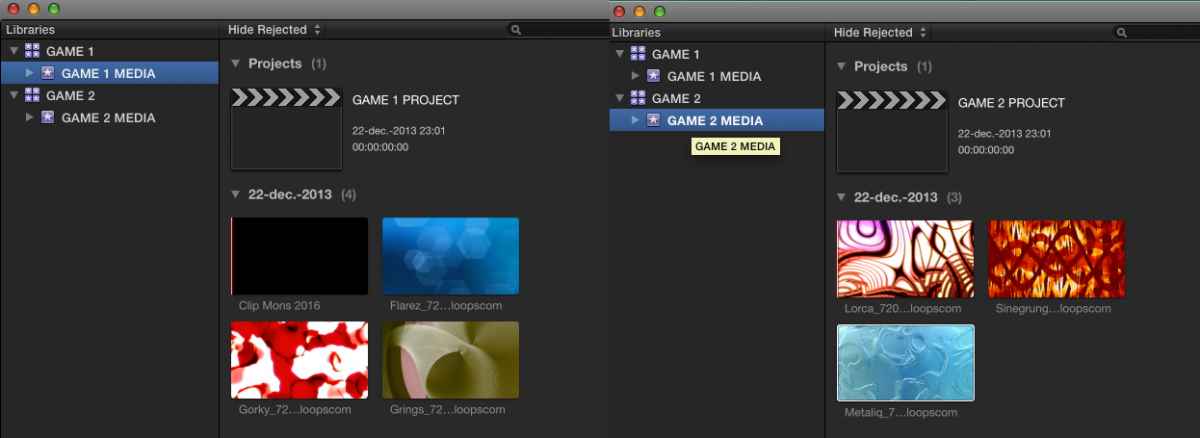
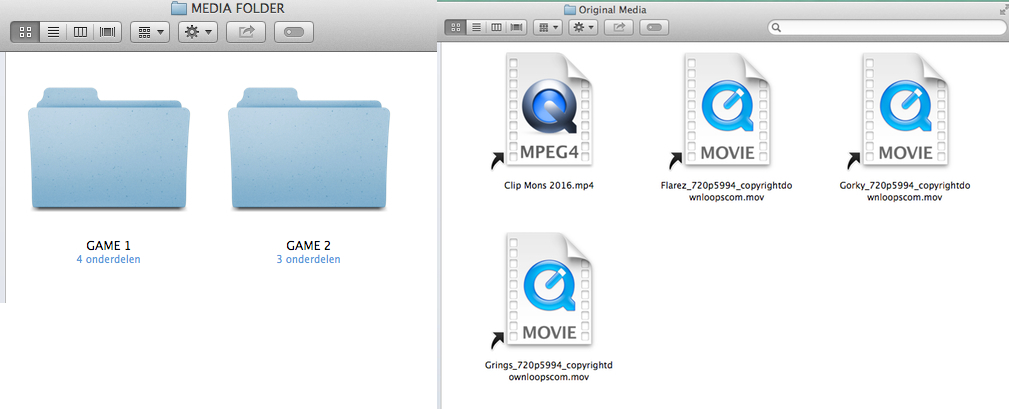
When importing I chose to store the media files outside of the Libraries, in a dedicated media folder called... MEDIA FOLDER This means the Libraries only contain symbolic links to the files inside this media folder, and not actual media.
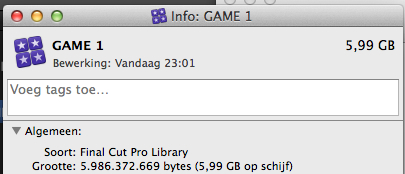
Then I created optimized media for the clips in the GAME 1 Library. After optimizing the size of this Library was 5.99 GB:
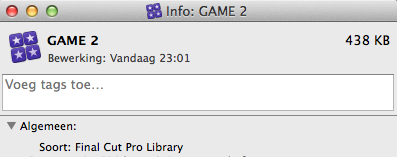
I did not optimize the clips in the GAME 2 Library. As this Library only contains simlinks to the original media in the Media Folder and no optimized media the size of this Library is much smaller, only 438 KB:
Next I opened the GAME 2 PROJECT and I dragged the first clip from the GAME 1 MEDIA Event of the GAME 1 Library into the GAME 2 MEDIA Event of the GAME 2 Library. When you drag clips from an Event in one Library into an Event in another Library you get the option to copy the optimized and proxy media or not. I chose not to do this:
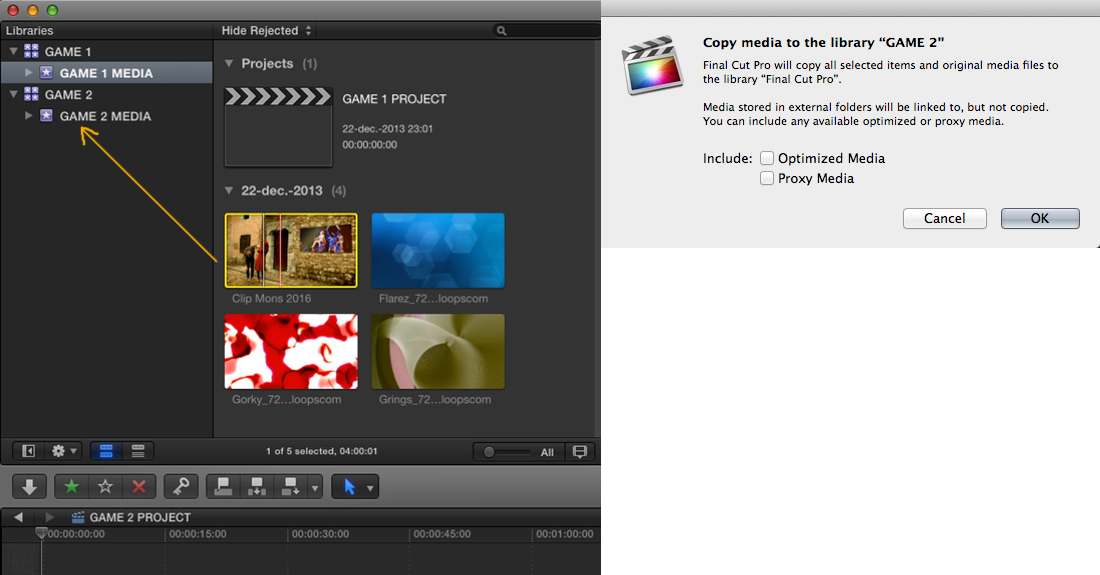
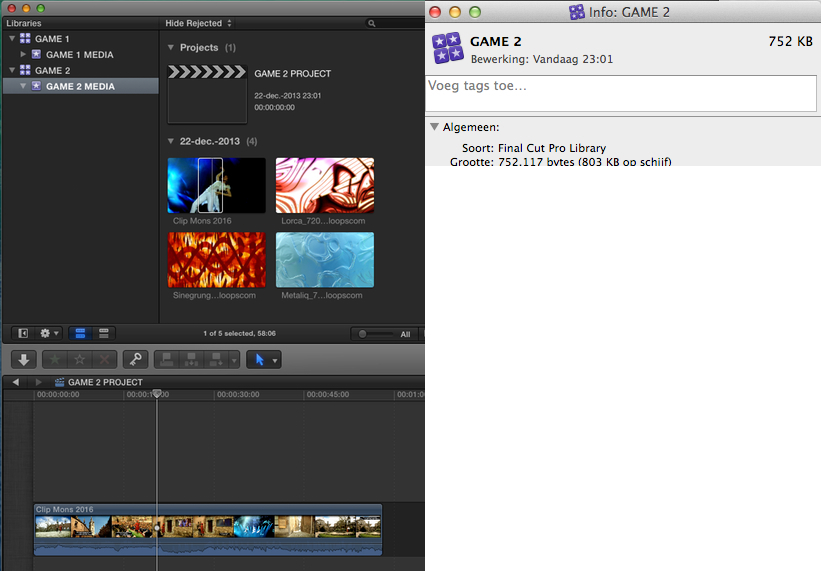
The clip was copied over to my GAME 2 MEDIA Event and I used part if the clip in my GAME 2 PROJECT timeline. As only the symlink for this clip was copied over, and no optimized media, this did not make my GAME 2 Library much larger:
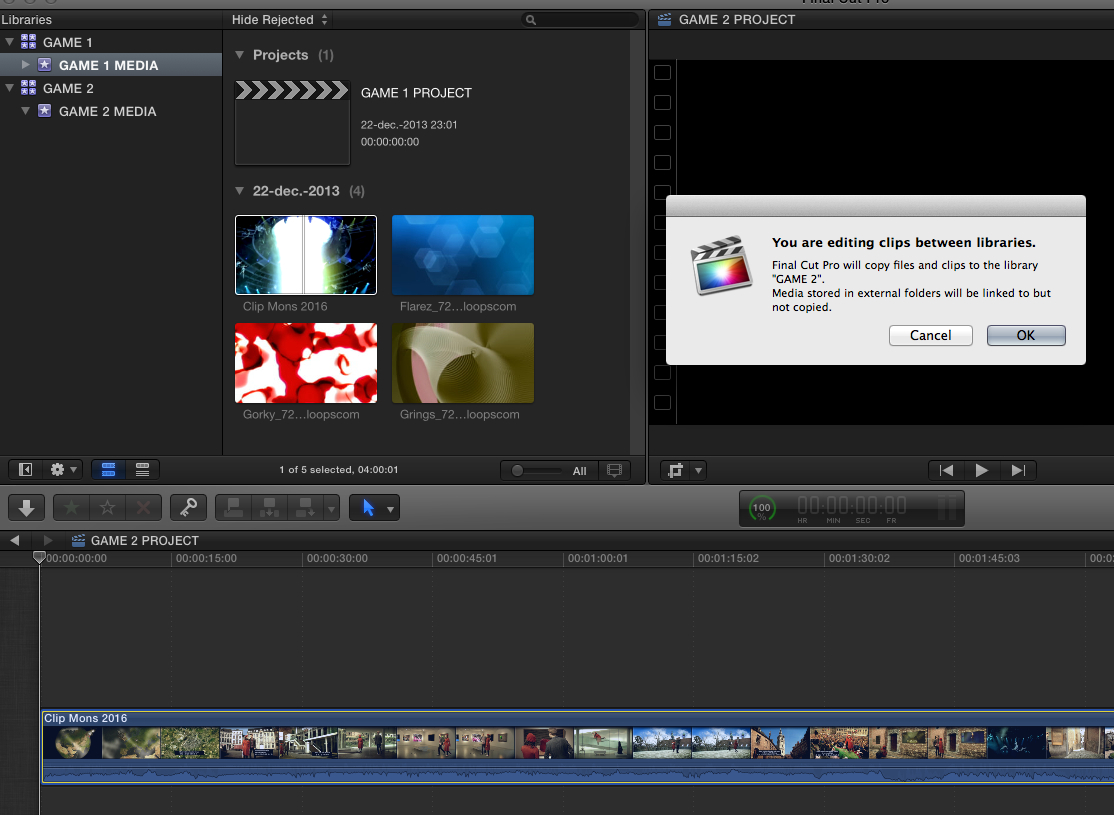
I undid the last actions and now instead of dragging the clip from the GAME 1 Library into the GAME 2 Library I dragged it straight onto my GAME 2 PROJECT timeline. I got a message that the file was going to get copied over, but no option to not include optimized media:
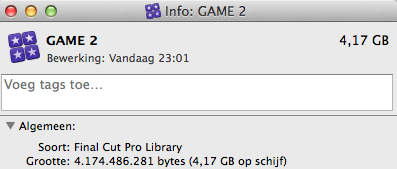
The result of this action was that the optimized media were copied into my GAME 2 Library and that now its file size was considerably bigger:
So if you are working with optimized media and you want to use a clip from a Library in a Project of different Library it is better to drag the clip from one Library onto the other and not drag it directly onto the Project timeline. This gives you the option to copy over the optimized media or not. If you only need a small part of a larger clip in the new Project not copying the optimized media will prevent your Library from drastically growing in size.
Now how does this all apply to your specific workflow?
1. The easiest way for you to work would indeed be to create one single Main Library and inside this Library create an Event for every Game. Then you just import the media for Game 1 in the Game 1 Event and you create one or more Game 1 Projects in the same Event.
As all your Game Events and Projects will always be in the same Main Library you will never have to copy files from one Library to another, which means that you even don't need to store your media externally. You can easily store all media for Game 1 in the Game 1 Event, and all media for Game 2 in the Game 2 Event. Or you can still decide to keep the media for all your Events stored in a separate media folder outside the Libraries. It does not make much difference.
The most important thing you should consider is how much this Main Library will grow over time and if your system will still be able to open the entire Library as it grows. When you keep one Main Library there is no way to hide any individual Events or Projects that reside in this Library. FCPX 10.1 seems to handle huge databases much better then before, but if you doubt this will work there is the second option.
2. Create a new Library for each Game. In this case you will need to use clips across different Libraries, so you absolutely must make sure that all your media is external i.e. that your actual media resides in a separate Media Folder outside of your Libraries. In this case you also must be careful with optimized media and only copy them over if you really need to in order to get smooth playback.
The advantage of this workflow is that you are absolutely sure that any Library will always open smoothly and that you can close any Library you don't need.
- Ronny
1. Nope. Optimized media and Proxy media reside in the Event where they were created, even if the original media is located outside this Event.
2. Events have a very distinct function, they contain several folders that are essential for your work:
the CurrentVersion file, the Original Media folder, the Transcoded Media folder (Optimized and Proxy files), and the Event Render folder that contains your clip thumbnails.
The Original Media folder in an Event can contain:
- actual original media you have imported inside the Event (called managed media)
- links to original media you have left at their original place when importing (called external media)
- links to original media you have stored in a dedicated media folder on a drive when importing (called external media.
Projects are ALWAYS associated to an Event.
- You can associate a Project to a specific Event that has all the managed or external media you use in your Project
- Or you can create an empty Event without importing media into it, create one or more Projects in that empty Event and use any media from any Event in the Projects.
Now what happens when you use clips from one Library in a Project in another Library?
When you use media from an Event in Library 1 in a Project in Lib 2 the media are copied into Library 2.
- If you use managed media (files that are physically stored into the Libraries) this means you will have duplicate files in Library 1 and Library 2 which will increase the total size of your Libraries.
- If you use external media (files are physically stored outside the Libraries) only the simlinks will be copied from Lib 1 to Lib 2 and you won't have duplicate physical media.
When you use media from an Event in Library 1 in a Project in Library 2 and you are using optimized media the situation is different.
Optimized media are stored inside the Library and cannot be stored (yet) outside of it. This means that when you use an optimized clip from Library 1 in a Project in Library 2 the optimized media will be copied over from Lib 1 to Lib 2 and the size of your Lib 2 will drastically increase. Fortunately there is a way to avoid this. It all depends on HOW you copy the clip from one Library into the other.
I will explain this with an example.
I have created two Libraries, GAME 1 and GAME 2.
In the GAME 1 Library I have created an Event called GAME 1 MEDIA, and in this Event I have created a Project called GAME 1 PROJECT. I have also imported 4 clips in the Event.
In the GAME 2 Library I have created an Event called GAME 2 MEDIA, and in this Event I have created a Project called GAME 2 PROJECT. I have imported 3 clips in the Event.
When importing I chose to store the media files outside of the Libraries, in a dedicated media folder called... MEDIA FOLDER
This means the Libraries only contain symbolic links to the files inside this media folder, and not actual media.
Then I created optimized media for the clips in the GAME 1 Library. After optimizing the size of this Library was 5.99 GB:
I did not optimize the clips in the GAME 2 Library. As this Library only contains simlinks to the original media in the Media Folder and no optimized media the size of this Library is much smaller, only 438 KB:
Next I opened the GAME 2 PROJECT and I dragged the first clip from the GAME 1 MEDIA Event of the GAME 1 Library into the GAME 2 MEDIA Event of the GAME 2 Library. When you drag clips from an Event in one Library into an Event in another Library you get the option to copy the optimized and proxy media or not. I chose not to do this:
The clip was copied over to my GAME 2 MEDIA Event and I used part if the clip in my GAME 2 PROJECT timeline. As only the symlink for this clip was copied over, and no optimized media, this did not make my GAME 2 Library much larger:
I undid the last actions and now instead of dragging the clip from the GAME 1 Library into the GAME 2 Library I dragged it straight onto my GAME 2 PROJECT timeline. I got a message that the file was going to get copied over, but no option to not include optimized media:
The result of this action was that the optimized media were copied into my GAME 2 Library and that now its file size was considerably bigger:
So if you are working with optimized media and you want to use a clip from a Library in a Project of different Library it is better to drag the clip from one Library onto the other and not drag it directly onto the Project timeline. This gives you the option to copy over the optimized media or not. If you only need a small part of a larger clip in the new Project not copying the optimized media will prevent your Library from drastically growing in size.
Now how does this all apply to your specific workflow?
1. The easiest way for you to work would indeed be to create one single Main Library and inside this Library create an Event for every Game. Then you just import the media for Game 1 in the Game 1 Event and you create one or more Game 1 Projects in the same Event.
As all your Game Events and Projects will always be in the same Main Library you will never have to copy files from one Library to another, which means that you even don't need to store your media externally. You can easily store all media for Game 1 in the Game 1 Event, and all media for Game 2 in the Game 2 Event. Or you can still decide to keep the media for all your Events stored in a separate media folder outside the Libraries. It does not make much difference.
The most important thing you should consider is how much this Main Library will grow over time and if your system will still be able to open the entire Library as it grows. When you keep one Main Library there is no way to hide any individual Events or Projects that reside in this Library. FCPX 10.1 seems to handle huge databases much better then before, but if you doubt this will work there is the second option.
2. Create a new Library for each Game. In this case you will need to use clips across different Libraries, so you absolutely must make sure that all your media is external i.e. that your actual media resides in a separate Media Folder outside of your Libraries. In this case you also must be careful with optimized media and only copy them over if you really need to in order to get smooth playback.
The advantage of this workflow is that you are absolutely sure that any Library will always open smoothly and that you can close any Library you don't need.
- Ronny
Last edit: 23 Dec 2013 08:12 by ronny courtens.
Please Log in to join the conversation.
