


- Posts: 971
- Thank you received: 46
3 Post Moderation Rule for New Boarders (25 Jan 2021)
New boarders will have their posts moderated - Don't worry if you cannot see your post immediately.
Multicam Issues, serious problems
Less
More
10 Dec 2013 19:26 #35577
by MsJustine
Replied by MsJustine on topic Multicam Issues, serious problems
Hi Daniel
When I select a clip between [ and ], after having gone through the process of multi-cam clip playback with the angle viewer, I notice I am a few frames out on a section of video, I would like to move the video a few frames to the left, ie have a start frame a few frames later, when I do this the audio directly under is "slipped" by the same number of frames.
The video was not clear enough to see if he used multi-cam clips or plain clips.
I suspect my lack of explaining correctly is leading to misunderstandings, I hope I can explain what I mean, I have an audio track from a wide camera angle, I use this as the monitoring angle for audio in the multi-cam clip set up, and a number of video only cameras, when it comes to final editing, on the primary storyline, as I slip the video 5 frames, the audio slips 5 frames in sympathy, there seems no method to disable the audio as I can see.
The issue I guess is the lack of "Break Apart" or finalize Multi-cam clip. If this was possible then locking the audio clips as was the case in FCP 6 with the mesh over the track, NOT DISABLE, would maybe be what I need.
When I select a clip between [ and ], after having gone through the process of multi-cam clip playback with the angle viewer, I notice I am a few frames out on a section of video, I would like to move the video a few frames to the left, ie have a start frame a few frames later, when I do this the audio directly under is "slipped" by the same number of frames.
The video was not clear enough to see if he used multi-cam clips or plain clips.
I suspect my lack of explaining correctly is leading to misunderstandings, I hope I can explain what I mean, I have an audio track from a wide camera angle, I use this as the monitoring angle for audio in the multi-cam clip set up, and a number of video only cameras, when it comes to final editing, on the primary storyline, as I slip the video 5 frames, the audio slips 5 frames in sympathy, there seems no method to disable the audio as I can see.
The issue I guess is the lack of "Break Apart" or finalize Multi-cam clip. If this was possible then locking the audio clips as was the case in FCP 6 with the mesh over the track, NOT DISABLE, would maybe be what I need.
Please Log in to join the conversation.
- Daniel Rutledge
-

- Offline
- Premium Member
-

- Those that know don't tell, and those that tell don't know.
10 Dec 2013 19:36 #35579
by Daniel Rutledge
Replied by Daniel Rutledge on topic Multicam Issues, serious problems
To do this kind of Slip edit, you have to make a copy of the clip and connect it to the original (alt drag). Select the copy and go to the inspector, select the audio tab, and uncheck all audio tracks (or what I usually do is just grab the audio level bar on the clip and pull it down to -96 db). Then when you slip the connected clip, the audio in the original stays in place and the video slips. This may not be the way you are used to doing it, but it works fine and does not require that much work.
Please Log in to join the conversation.
Less
More
- Posts: 971
- Thank you received: 46
10 Dec 2013 19:55 #35586
by MsJustine
Replied by MsJustine on topic Multicam Issues, serious problems
Not ideal, the use of wallpaper over the messy bits, but yes I get what you mean. FCP X is a work in progress, hopefully in the next few months the fine folks at Apple Inc sort out the issue with FCP X.
I had hoped I was doing it wrong, I was not, a pity as it ends up being a painfully cumbersome way of working.
Thanks for the advice, still frustrated at the inability to work effectively.
I tried what you suggested, with the alt-drag, left with the video on the right start frame for the clip, at least for now I have some sort of work around, it gets me the visuals I need.
Multi-cam clips is a work in progress, thank you for helping, I can work on the insert now!!
Justine
I had hoped I was doing it wrong, I was not, a pity as it ends up being a painfully cumbersome way of working.
Thanks for the advice, still frustrated at the inability to work effectively.
I tried what you suggested, with the alt-drag, left with the video on the right start frame for the clip, at least for now I have some sort of work around, it gets me the visuals I need.
Multi-cam clips is a work in progress, thank you for helping, I can work on the insert now!!
Justine
Please Log in to join the conversation.
- Daniel Rutledge
-
- Offline
- Premium Member
-
- Those that know don't tell, and those that tell don't know.
10 Dec 2013 20:18 #35594
by Daniel Rutledge
Replied by Daniel Rutledge on topic Multicam Issues, serious problems
Not everyone sees it that way. In a 20 min project, I have to do what we are talking about maybe a dozen times. Each time takes maybe a second. In other NLE you have separate V and A tracks that you constantly have to babysit. Something I do a lot more often is add something to the middle of a sequence. In a track based NLE I then spend all my time selecting everything after my clip and moving it around and niggling around keeping things in sync. To me the cost benefit ratio falls heavily in favor of how things work in FCPX. The way this works is that instead of having multiple tracks for the entire sequence that benefit you in a few places, but then are a burden for the rest of the project, You have layers just in the places where you need them. You want to slip edit and not effect the audio, then you create an extra layer for that one spot and forget it. I just felt like you were saying that you were paraphrasing me when you said:
but yes I get what you mean. FCP X is a work in progress,
I just want to be clear that was not my point. And by the way, all NLEs are a work in progress; that is why they have updates and new versions. If you really liked FCP 6 or 7, then you should try Premiere Pro CC. It is exactly like you would think FCP 8 would be. It has a pretty good Multicam tool now, too.
but yes I get what you mean. FCP X is a work in progress,
I just want to be clear that was not my point. And by the way, all NLEs are a work in progress; that is why they have updates and new versions. If you really liked FCP 6 or 7, then you should try Premiere Pro CC. It is exactly like you would think FCP 8 would be. It has a pretty good Multicam tool now, too.
Please Log in to join the conversation.
- jjsanderson
-
- Offline
- Elite Member
-

10 Dec 2013 21:01 #35596
by jjsanderson
If you mean that, in your particular sequence, the video and audio are out of sync and you need to slip the video to re-sync with the audio: yes, that's going to be a problem. FCPX's multicam works hard to keep audio and video locked together, with the assumption that they're in sync throughout (as is usually the case). If you need to slip video and not audio... yeah, that's going to be a connected clip.
But if you're talking about moving the video edit point a few frames either way without affecting the audio at all, and without changing sync anywhere - that's entirely possible. Ensure the audio is collapsed on both clips, then select the Trim tool, click the edit point (you'll get ][ brackets) and slip either way. I use the ,/. keys to do this. Absolutely standard practice.
(the other way of dealing with the 'multicam clip is out of sync' issue, by the way, is to head into the Angle Editor and make the corrections there - typically by blading a clip and slipping part of it back in sync. That change is then reflected in your project edit.)
Replied by jjsanderson on topic Multicam Issues, serious problems
MsJustine wrote: When I select a clip between [ and ], after having gone through the process of multi-cam clip playback with the angle viewer, I notice I am a few frames out on a section of video, I would like to move the video a few frames to the left, ie have a start frame a few frames later, when I do this the audio directly under is "slipped" by the same number of frames.
If you mean that, in your particular sequence, the video and audio are out of sync and you need to slip the video to re-sync with the audio: yes, that's going to be a problem. FCPX's multicam works hard to keep audio and video locked together, with the assumption that they're in sync throughout (as is usually the case). If you need to slip video and not audio... yeah, that's going to be a connected clip.
But if you're talking about moving the video edit point a few frames either way without affecting the audio at all, and without changing sync anywhere - that's entirely possible. Ensure the audio is collapsed on both clips, then select the Trim tool, click the edit point (you'll get ][ brackets) and slip either way. I use the ,/. keys to do this. Absolutely standard practice.
(the other way of dealing with the 'multicam clip is out of sync' issue, by the way, is to head into the Angle Editor and make the corrections there - typically by blading a clip and slipping part of it back in sync. That change is then reflected in your project edit.)
Please Log in to join the conversation.
- haysoos123
-
- Offline
- Platinum Member
-

Less
More
- Posts: 402
- Thank you received: 72
11 Dec 2013 01:03 #35619
by haysoos123
Replied by haysoos123 on topic Multicam Issues, serious problems
In your picture, you say "This is so wrong, to have to paste connected clips over the multi-cam clip," but I honestly don't understand why you consider this to be "wrong." This is how FCPX is supposed to work... you can connect clips and audio where you want them to be. In a typical edit, you might leave a bunch of clips underneath other clips, or have clips disabled but put there "just in case" ... or pretty much anything you want that makes the timeline not look elegant. Who cares as long as the cut plays how you want it play?
The only thing I can say is that I do agree that the 'detach audio' should work on multicam clips (it really should detach any currently active audio in the clip). For now, you can just alt-drag the clip to duplicate it, and even put attach it UNDER the primary storyline (so it kind of acts just like an audio clip). But 90% of the time in a multicam cut, you want the angles to be in sync. For those times where you can to use shots that aren't in sync, you most likely do want to connect them to 'patch' them in so you can slip, slide, do anything you want to it without affecting the audio. This is pretty similar to how you do it in all NLEs, except that you put them in a track above.
If you've ever cut a lot in Avid, you know that a typical edit looks like a HUGE mess of layers of tracks once it's done, unless you're the anal type that likes to clean up every single thing.
The only thing I can say is that I do agree that the 'detach audio' should work on multicam clips (it really should detach any currently active audio in the clip). For now, you can just alt-drag the clip to duplicate it, and even put attach it UNDER the primary storyline (so it kind of acts just like an audio clip). But 90% of the time in a multicam cut, you want the angles to be in sync. For those times where you can to use shots that aren't in sync, you most likely do want to connect them to 'patch' them in so you can slip, slide, do anything you want to it without affecting the audio. This is pretty similar to how you do it in all NLEs, except that you put them in a track above.
If you've ever cut a lot in Avid, you know that a typical edit looks like a HUGE mess of layers of tracks once it's done, unless you're the anal type that likes to clean up every single thing.
Please Log in to join the conversation.
11 Dec 2013 13:06 #35653
by BenB
Replied by BenB on topic Multicam Issues, serious problems
Is this a paid version of FCP X, or did you pirate this copy?
Please Log in to join the conversation.
Less
More
- Posts: 971
- Thank you received: 46
11 Dec 2013 14:01 #35658
by MsJustine
Replied by MsJustine on topic Multicam Issues, serious problems
100% Legit, bought in the USA off the App Store.
Please Log in to join the conversation.
Less
More
- Posts: 971
- Thank you received: 46
14 Dec 2013 16:51 #35905
by MsJustine
Replied by MsJustine on topic Multicam Issues, serious problems
So if I understand correctly, there is at this point in FCP X development, no way to adjust frames within a multi-cam clip without affecting the audio, the only way is to alt-drag up a duplicated clip, drop the attached audio on the duplicated clip, then hold the T key and make fine adjustments on the duplicated clip.
FCP X does not have the defined tracks as we came to love or loath in FCP 6, there are still tracks when you go into the expand audio components, then surely there has to be a way to lock the audio component, of the "tracks" as they display on the primary storyline.
FCP X does not have the defined tracks as we came to love or loath in FCP 6, there are still tracks when you go into the expand audio components, then surely there has to be a way to lock the audio component, of the "tracks" as they display on the primary storyline.
Please Log in to join the conversation.
14 Dec 2013 20:38 #35908
by BenB
Replied by BenB on topic Multicam Issues, serious problems
Angle Editor, allows a great deal of tweaking for multicam source clip angles.
And I'd not think of audio "channels" as "tracks".
In legacy FCP's Multicam, you had even less flexibility, and it was more awkward, because you didn't have the Angle Editor. The Angle Editor is really, really a great tool to have. You get everything worked out there first, before editing.
And I'd not think of audio "channels" as "tracks".
In legacy FCP's Multicam, you had even less flexibility, and it was more awkward, because you didn't have the Angle Editor. The Angle Editor is really, really a great tool to have. You get everything worked out there first, before editing.
Please Log in to join the conversation.
- jjsanderson
-
- Offline
- Elite Member
-
15 Dec 2013 11:27 #35947
by jjsanderson
Replied by jjsanderson on topic Multicam Issues, serious problems
I still don't really understand this argument. You say "there's […] no way to adjust frames within a multi-cam clip without affecting the audio"; I'd say that in FCPX, a multicam clip is one in which multiple tracks are locked in step with each other. "Multicam" == "synced tracks."
For FCPX, it makes no sense to offer you tools to break the thing multicam is for in the first place. If you want non-sync audio beyond J/L cuts, well, that's what connected clips are for. Mute the primary storyline audio, connect a clip for audio purposes only, and you can slip and slide as much as you like.
If you really want to set the non-sync bit in stone, you can do that in the Angle Editor, but unless you want sync-slipped material across large portions of your edit the connected clip approach feels like the more natural way to go.
FCPX's tools don't work the way other NLE's tools do, but they are consistent and rational. I've yet to encounter any situation where working with multicam in FCPX is harder or more convoluted than it was in FCP7.
For FCPX, it makes no sense to offer you tools to break the thing multicam is for in the first place. If you want non-sync audio beyond J/L cuts, well, that's what connected clips are for. Mute the primary storyline audio, connect a clip for audio purposes only, and you can slip and slide as much as you like.
If you really want to set the non-sync bit in stone, you can do that in the Angle Editor, but unless you want sync-slipped material across large portions of your edit the connected clip approach feels like the more natural way to go.
FCPX's tools don't work the way other NLE's tools do, but they are consistent and rational. I've yet to encounter any situation where working with multicam in FCPX is harder or more convoluted than it was in FCP7.
Please Log in to join the conversation.
Less
More
- Posts: 971
- Thank you received: 46
15 Dec 2013 11:39 #35948
by MsJustine
Replied by MsJustine on topic Multicam Issues, serious problems
The issue is not multi-cam clip per se, it is that there are in essence 2 primary storylines, and they are not equal. If you drag drop, append to the "primary storyline" a bunch of clips, you have free will in how you can "trim" the video within the storyline, where as when you create a multi-cam clip, and this is placed on the storyline, it is not treated the same way, yet it is on the very same storyline as the 1st example.
The very wording of certain functions is not consistent or rational, I know that FCP X is very very far from complete, 10.1 will not deliver any huge changes, as much as we want them.
If you have synced tracks, then why not non-synced tracks? Allow me as the user the choice to set what I want, when I want it, to have to go back and copy clips, reduce audio here and there on copied tracks is not ideal, when if I had not used multi-cam clips this would not be an issue.
I wait to see what 10.1 brings, I am expecting not much.
The very wording of certain functions is not consistent or rational, I know that FCP X is very very far from complete, 10.1 will not deliver any huge changes, as much as we want them.
If you have synced tracks, then why not non-synced tracks? Allow me as the user the choice to set what I want, when I want it, to have to go back and copy clips, reduce audio here and there on copied tracks is not ideal, when if I had not used multi-cam clips this would not be an issue.
I wait to see what 10.1 brings, I am expecting not much.
Please Log in to join the conversation.
- ronny courtens
-

- Offline
- Moderator
-

Less
More
- Posts: 4455
- Thank you received: 962
15 Dec 2013 16:34 - 15 Dec 2013 16:40 #35979
by ronny courtens
Replied by ronny courtens on topic Multicam Issues, serious problems
There are many different ways you can tweak video and audio on a finished multiclip on the timeline, and you are wrong in every point you make. But as you are obviously very new to FCPX I can accept that your statements about FCPX are based on lack of experience and not on facts.
1. Edit a multiclip with one audio angle
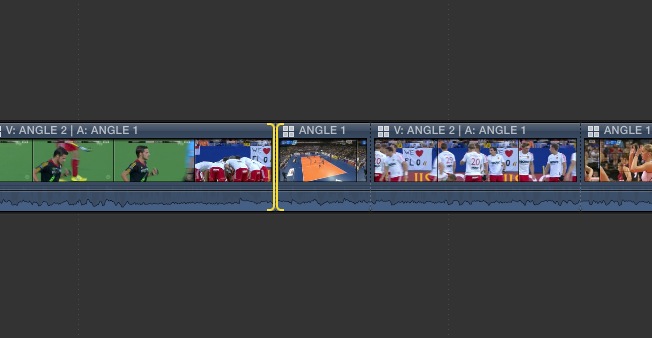
If your multiclip has different video angles but one audio angle throughout the multiclip you can edit the multiclip in its collapsed form. If you drag the through-edit points between the different angles in a collapsed multiclip you will roll the video and the audio points at the same time, just as you say. But as the audio is one single angle, rolling the audio will have no effect on it. So you will in fact just move the video in relation to the audio, creating J and L cuts. This couldn't be easier, and it's an ideal method for fine-tuning music videos. Here you see an example of a collapsed multiclip with one audio angle:
2. Edit a multiclip with different video and audio angles
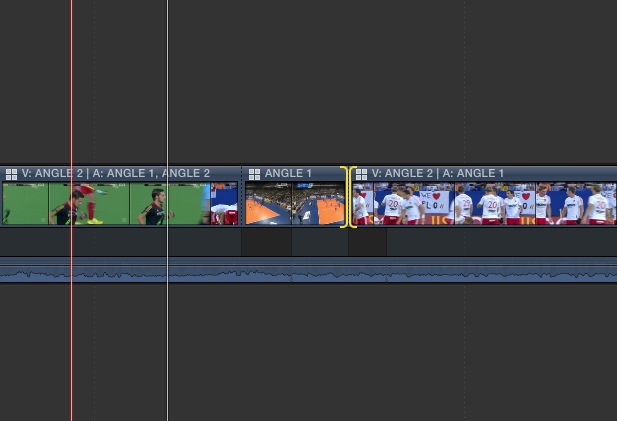
If your multiclip has different video and audio angles and you want to modify the video in- and out points without affecting the audio you can expand the audio and the video by pressing CTRL+S, then roll just the video to perform J and L cuts. Your video in and out points will move, the audio will remain unaffected. Here you see an example of a multiclip with 2 video angles and 2 different audio angles in which I have rolled the video without affecting the audio:
3. Edit a multiclip with different audio angles and multiple audio channels
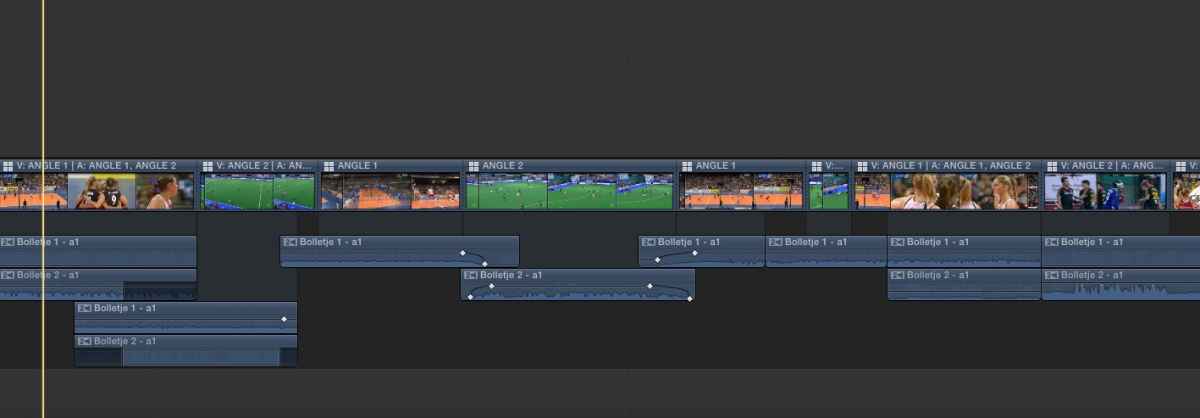
Even after you have cut video and audio in a multiclip you still can add audio angles to your multiclip and edit them. So your assumption that you only have one audio "track" in FCPX multicam is false. All you have to do is select your multiclips and choose "Expand Audio Components". This will reveal every audio channel for every video cut. If you want to add, remove or modify audio channels for any video angle just select the angle, go to the Inspector > Audio tab and select or deselect any audio channel you wish. In expanded mode you can have any number of audio "tracks" for every video clip in the timeline and you can trim, fade, adjust and roll them independently to your liking. Here's an example of a multiclip with different audio "tracks", video J and L cuts and cross-faded audio channels:
So I really do not understand what you could want more. FCPX has without any doubt the most sophisticated and powerful multicam feature that has ever existed on any platform. Compared to this FCP7 and Premiere multicam are just toys. Even if I would not like FCPX at all I would buy it for this feature alone.
- Ronny
1. Edit a multiclip with one audio angle
If your multiclip has different video angles but one audio angle throughout the multiclip you can edit the multiclip in its collapsed form. If you drag the through-edit points between the different angles in a collapsed multiclip you will roll the video and the audio points at the same time, just as you say. But as the audio is one single angle, rolling the audio will have no effect on it. So you will in fact just move the video in relation to the audio, creating J and L cuts. This couldn't be easier, and it's an ideal method for fine-tuning music videos. Here you see an example of a collapsed multiclip with one audio angle:
2. Edit a multiclip with different video and audio angles
If your multiclip has different video and audio angles and you want to modify the video in- and out points without affecting the audio you can expand the audio and the video by pressing CTRL+S, then roll just the video to perform J and L cuts. Your video in and out points will move, the audio will remain unaffected. Here you see an example of a multiclip with 2 video angles and 2 different audio angles in which I have rolled the video without affecting the audio:
3. Edit a multiclip with different audio angles and multiple audio channels
Even after you have cut video and audio in a multiclip you still can add audio angles to your multiclip and edit them. So your assumption that you only have one audio "track" in FCPX multicam is false. All you have to do is select your multiclips and choose "Expand Audio Components". This will reveal every audio channel for every video cut. If you want to add, remove or modify audio channels for any video angle just select the angle, go to the Inspector > Audio tab and select or deselect any audio channel you wish. In expanded mode you can have any number of audio "tracks" for every video clip in the timeline and you can trim, fade, adjust and roll them independently to your liking. Here's an example of a multiclip with different audio "tracks", video J and L cuts and cross-faded audio channels:
So I really do not understand what you could want more. FCPX has without any doubt the most sophisticated and powerful multicam feature that has ever existed on any platform. Compared to this FCP7 and Premiere multicam are just toys. Even if I would not like FCPX at all I would buy it for this feature alone.
- Ronny
Last edit: 15 Dec 2013 16:40 by ronny courtens.
Please Log in to join the conversation.
Less
More
- Posts: 971
- Thank you received: 46
15 Dec 2013 17:24 #35988
by MsJustine
Replied by MsJustine on topic Multicam Issues, serious problems
Hi Ronny,
Take the any of the screenshots above, for example the example 2 one, where is says ANGLE 1, you want to adjust the start point of the video 20 frames later, so you hold down the T key and you adjust the video, what happens, the associated audio moves in sympathy as it is linked, not what I want.
Yet when you ALT-DRAG the clip up a few inches, creating a duplicate frame, hold down the T key, move the clip left or right, the audio on the primary story line is unaffected, and you then have the correct video when you play as you are playing the connected clip, all I am asking is why this step to adjust the video?
Take the any of the screenshots above, for example the example 2 one, where is says ANGLE 1, you want to adjust the start point of the video 20 frames later, so you hold down the T key and you adjust the video, what happens, the associated audio moves in sympathy as it is linked, not what I want.
Yet when you ALT-DRAG the clip up a few inches, creating a duplicate frame, hold down the T key, move the clip left or right, the audio on the primary story line is unaffected, and you then have the correct video when you play as you are playing the connected clip, all I am asking is why this step to adjust the video?
Please Log in to join the conversation.
- Nervebroke
-
- Offline
- Elite Member
-
Less
More
- Posts: 177
- Thank you received: 12
15 Dec 2013 18:43 #35991
by Nervebroke
Replied by Nervebroke on topic Multicam Issues, serious problems
Ronny does not respond with an answer, he responds with a tutorial. God Love You Ronny!
Dave
Dave
Please Log in to join the conversation.
- Daniel Rutledge
-
- Offline
- Premium Member
-
- Those that know don't tell, and those that tell don't know.
15 Dec 2013 20:42 #35998
by Daniel Rutledge
Replied by Daniel Rutledge on topic Multicam Issues, serious problems
Guys its simple. She wants to slip the video and not have the audio move. You could do it in legacy because you had separate video and audio tracks. When you suggest making a connected clip (like an additional track), she says that it is "so wrong" and dismisses it. She is either a troll or as has ocd that allows her to only edit in one way. Nothing anyone says is going to satisfy her or convince her that she is mistaken
Please Log in to join the conversation.
- ronny courtens
-
- Offline
- Moderator
-
Less
More
- Posts: 4455
- Thank you received: 962
15 Dec 2013 22:58 - 15 Dec 2013 23:03 #36016
by ronny courtens
Replied by ronny courtens on topic Multicam Issues, serious problems
Hi Justine,
There is no need at all, ever, to duplicate clips and work with connected clips when trimming a multiclip. You can perform different trim modes in a multiclip and FCPX will ensure that your video and audio always stay in sync, as opposed to multicam in FCP7 where ripple trimming completely messes up your multiclip.
Let's take two examples, a roll edit and a ripple edit. A roll edit is the most frequently used trim mode in a multiclip as it does not affect the length of your multiclip but allows you to fine-tune the cuts you have made or to create J and L cuts. A ripple edit does make you entire multiclip longer or shorter.
1. Roll edit
Here you have a simple 2-angle multiclip:
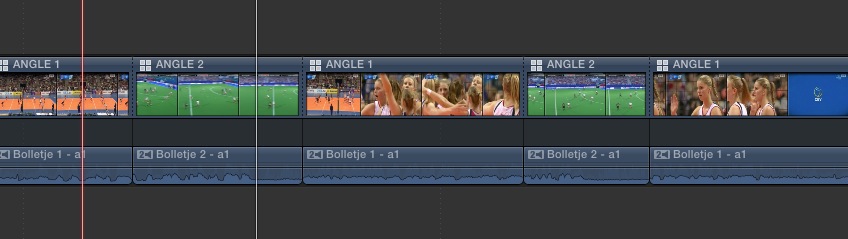
Click the centre of a cut between two clips to activate the Roll edit mode. This is indicated by a double yellow line:
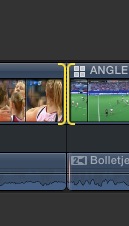
Then just drag on the double yellow line to roll the edit. As you can see I have adjusted the end point of Angle 2 and the start point of angle 1 by dragging the double yellow line to the right, and this has NOT affected any audio:
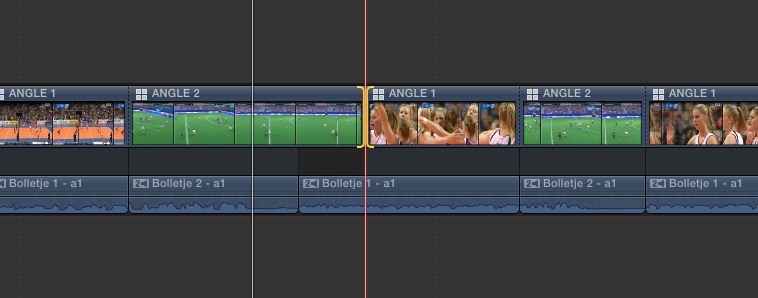
2. Ripple edit
To perform a ripple edit you just place the cursor on one side of the cut between two clips, when you click you will get a single yellow line indicating you are in ripple edit mode:
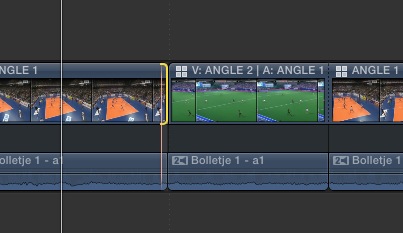
Now when you drag one side of the yellow line you will shorten or lengthen the clip and all the following clips including their audio will move accordingly, keeping all audio perfectly in sync. Here I have shortened the end of Angle 1, making the multiclip shorter. Notice how FCPX has moved all the following clips and their according audio to the left, keeping everything in sync:
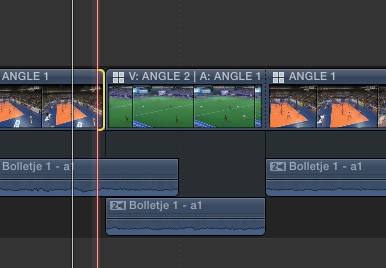
I now have any possible option available for fine-tuning my audio: I can keyframe the audio of Angle 1 and 2 to create a dissolve between them, I can create an L or a J cut , or I can shorten the audio of Angle 1 to make it have the same length as its corresponding video that I have shortened:
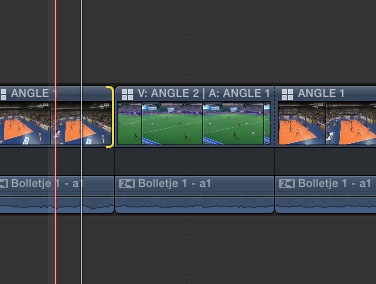
Whatever you do all clips in the multicam remain in sync even when you make individual angles longer or shorter. This is unique to FCPX and it makes it the very best multicam editor I have ever worked with. So with all due respect I really don't see what problem you can have with this.
- Ronny
There is no need at all, ever, to duplicate clips and work with connected clips when trimming a multiclip. You can perform different trim modes in a multiclip and FCPX will ensure that your video and audio always stay in sync, as opposed to multicam in FCP7 where ripple trimming completely messes up your multiclip.
Let's take two examples, a roll edit and a ripple edit. A roll edit is the most frequently used trim mode in a multiclip as it does not affect the length of your multiclip but allows you to fine-tune the cuts you have made or to create J and L cuts. A ripple edit does make you entire multiclip longer or shorter.
1. Roll edit
Here you have a simple 2-angle multiclip:
Click the centre of a cut between two clips to activate the Roll edit mode. This is indicated by a double yellow line:
Then just drag on the double yellow line to roll the edit. As you can see I have adjusted the end point of Angle 2 and the start point of angle 1 by dragging the double yellow line to the right, and this has NOT affected any audio:
2. Ripple edit
To perform a ripple edit you just place the cursor on one side of the cut between two clips, when you click you will get a single yellow line indicating you are in ripple edit mode:
Now when you drag one side of the yellow line you will shorten or lengthen the clip and all the following clips including their audio will move accordingly, keeping all audio perfectly in sync. Here I have shortened the end of Angle 1, making the multiclip shorter. Notice how FCPX has moved all the following clips and their according audio to the left, keeping everything in sync:
I now have any possible option available for fine-tuning my audio: I can keyframe the audio of Angle 1 and 2 to create a dissolve between them, I can create an L or a J cut , or I can shorten the audio of Angle 1 to make it have the same length as its corresponding video that I have shortened:
Whatever you do all clips in the multicam remain in sync even when you make individual angles longer or shorter. This is unique to FCPX and it makes it the very best multicam editor I have ever worked with. So with all due respect I really don't see what problem you can have with this.
- Ronny
Last edit: 15 Dec 2013 23:03 by ronny courtens.
Please Log in to join the conversation.
- jjsanderson
-
- Offline
- Elite Member
-
15 Dec 2013 23:27 #36019
by jjsanderson
Replied by jjsanderson on topic Multicam Issues, serious problems
As far as I can tell, Ronny, Justine wants to slip audio out of sync with video, when working with multi clips. :blink:
I think she's doing it wrong too. But then we all went through that phase with FCPX where we felt like somebody had removed our finely-honed surgical instruments and only returned them to us once they'd made us wear boxing gloves.
I think she's doing it wrong too. But then we all went through that phase with FCPX where we felt like somebody had removed our finely-honed surgical instruments and only returned them to us once they'd made us wear boxing gloves.
Please Log in to join the conversation.

- Daniel Rutledge
-
- Offline
- Premium Member
-
- Those that know don't tell, and those that tell don't know.
03 Feb 2014 12:29 #40438
by Daniel Rutledge
Replied by Daniel Rutledge on topic Multicam Issues, serious problems
You're going to have to do a better job describing your problem. I don't know what that means.
Please Log in to join the conversation.
