


- Posts: 6
- Thank you received: 0
3 Post Moderation Rule for New Boarders (25 Jan 2021)
New boarders will have their posts moderated - Don't worry if you cannot see your post immediately.
How to create this intro
- RedChalice
-
 Topic Author
- Offline
- New Member
-

Less
More
06 Dec 2013 20:57 #35254
by RedChalice
How to create this intro was created by RedChalice
Hey,
I was curious if anyone knew how to create this intro? (Please see included link)
vimeo.com/59303531
The walls open horizontally in this example. Would like to learn vertically as well.
I appreciate any input.
I was curious if anyone knew how to create this intro? (Please see included link)
vimeo.com/59303531
The walls open horizontally in this example. Would like to learn vertically as well.
I appreciate any input.
Please Log in to join the conversation.

07 Dec 2013 01:52 #35263
by BenB
Replied by BenB on topic How to create this intro
What "walls" are you referring to? Can you give a timecode the effect happens at?
Please Log in to join the conversation.

07 Dec 2013 02:10 - 07 Dec 2013 02:11 #35264
by ddixon
Replied by ddixon on topic How to create this intro
Does he mean the very opening effect? Looks like a Center Wipe transition to me.
Just apply that transition (under Wipes category)
change Edge Type popup to Solid Color (or not)
highlight the transition in the timeline and park the playhead over it
an arrow should show up in the Viewer that you can rotate to whatever angle you want for the wipe
Probably other ways to do it as well.
Just apply that transition (under Wipes category)
change Edge Type popup to Solid Color (or not)
highlight the transition in the timeline and park the playhead over it
an arrow should show up in the Viewer that you can rotate to whatever angle you want for the wipe
Probably other ways to do it as well.
Last edit: 07 Dec 2013 02:11 by ddixon.
Please Log in to join the conversation.
07 Dec 2013 03:31 - 07 Dec 2013 03:33 #35266
by BenB
Replied by BenB on topic How to create this intro
Or keyframe the Crop parameters. But the stock effect can be easier for some.
He said the "doors" were horizontal, the wipe lines are vertical, they move horizontally, a tad confused, but it looks like that must be what is being referred to.
He said the "doors" were horizontal, the wipe lines are vertical, they move horizontally, a tad confused, but it looks like that must be what is being referred to.
Last edit: 07 Dec 2013 03:33 by BenB.
Please Log in to join the conversation.
- RedChalice
-
Topic Author
- Offline
- New Member
-
Less
More
- Posts: 6
- Thank you received: 0
07 Dec 2013 19:22 #35277
by RedChalice
Replied by RedChalice on topic How to create this intro
Yeah i was referring to the very beginning of the video. The black bars open move to the right/left walls of the frame. Sry for the confusion.
Going to try the wipe transition mentioned. The keyframing is completely new to me. Any simple instructions on that?
Going to try the wipe transition mentioned. The keyframing is completely new to me. Any simple instructions on that?
Please Log in to join the conversation.
07 Dec 2013 21:13 - 07 Dec 2013 21:23 #35284
by BenB
Replied by BenB on topic How to create this intro
Here is how you would keyframe the closing wipe at the end. To create the opening wipe at the beginning, just reverse this. Keyframe the first frame totally cropped to the center, to being fully opened some time later. To make it open horizontally, use the top and bottom Trim handles instead. Pretty simple.
- While on the first frame of the effect, click to activate the Canvas controls for Trim. This is the icon at the bottom left of the Canvas.
- Click the Keyframe diamond at the top left to create the first keyframe. You only need to manually create the first keyframe. Changes to this parameter anywhere else in the clip will automatically create a new keyframe on that frame.
- Notice the Crop section of the Video section in the Inspector will correspond to these on-screen controls. You can jump between the two for more precise control in other situations.
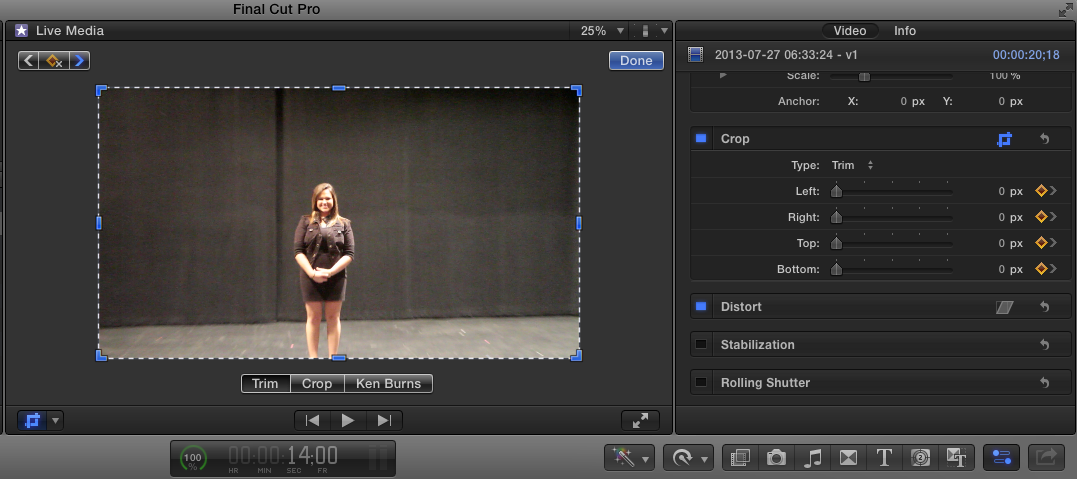
- Move the playhead in the Timeline down to where you want the image to be totally black.
- Drag the side handles to the middle, one at a time.
- A keyframe will be automatically created.
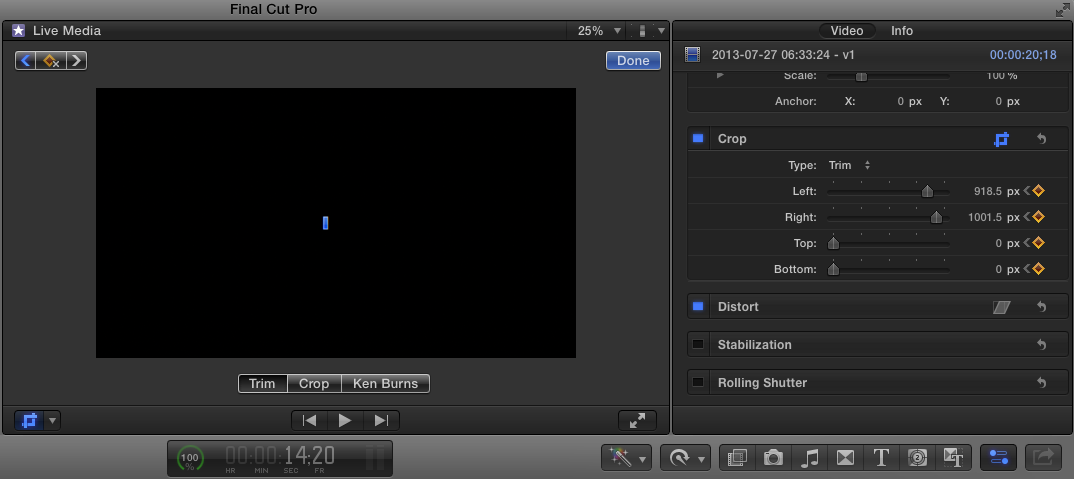
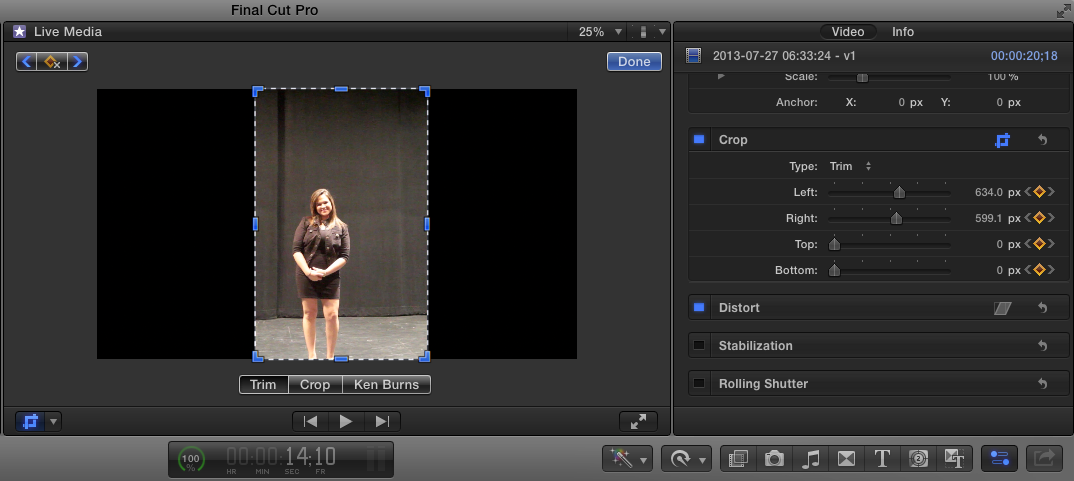
Here is an in between shot just for reference.
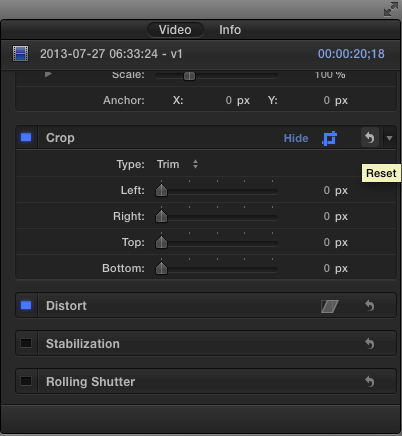
At the top right of the Crop section, in the Video controls of the Inspector, is the curled arrow "Reset" button if you get in trouble and need to start from scratch again.
- While on the first frame of the effect, click to activate the Canvas controls for Trim. This is the icon at the bottom left of the Canvas.
- Click the Keyframe diamond at the top left to create the first keyframe. You only need to manually create the first keyframe. Changes to this parameter anywhere else in the clip will automatically create a new keyframe on that frame.
- Notice the Crop section of the Video section in the Inspector will correspond to these on-screen controls. You can jump between the two for more precise control in other situations.
- Move the playhead in the Timeline down to where you want the image to be totally black.
- Drag the side handles to the middle, one at a time.
- A keyframe will be automatically created.
Here is an in between shot just for reference.
At the top right of the Crop section, in the Video controls of the Inspector, is the curled arrow "Reset" button if you get in trouble and need to start from scratch again.
Last edit: 07 Dec 2013 21:23 by BenB.
Please Log in to join the conversation.
