


- Posts: 2
- Thank you received: 0
3 Post Moderation Rule for New Boarders (25 Jan 2021)
New boarders will have their posts moderated - Don't worry if you cannot see your post immediately.
Importing Correctly FCPX
- FCPXmilwaukee
-
 Topic Author
- Offline
- New Member
-

Less
More
09 Nov 2013 15:45 #33899
by FCPXmilwaukee
Importing Correctly FCPX was created by FCPXmilwaukee
I am starting a big project with lots of interviews and b-roll. The final product will be primarily used on the web but I want the flexibility to export a high quality version if necessary. When I import do I have to select "create optimized video" and "create proxy" at the beginning? I have been only creating proxy media. If I do that can I later export the highest quality version or will I be limited because I did that?
Please Log in to join the conversation.
- ronny courtens
-

- Offline
- Moderator
-

Less
More
- Posts: 4455
- Thank you received: 962
09 Nov 2013 16:55 #33900
by ronny courtens
Replied by ronny courtens on topic Importing Correctly FCPX
When you create proxy media and you select "Use proxy media" in your Playback Preferences your proxy files are used for facilitating playback and editing in FCPX. This means you will be editing in a lower quality than your original video:
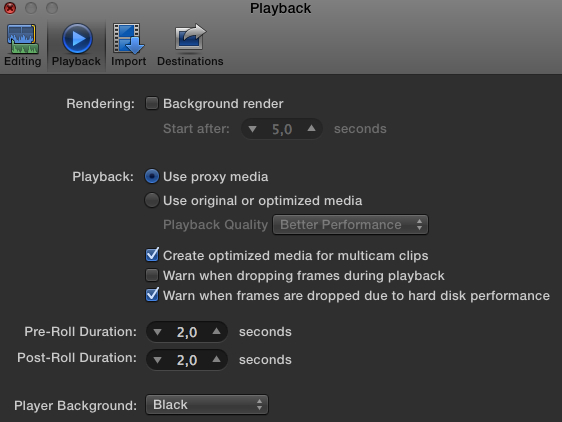
When your edit is finished and you want to view and export your edit in high quality all you have to do is set your Playback Preferences back to "Use original or optimized media "and you won't lose any quality:
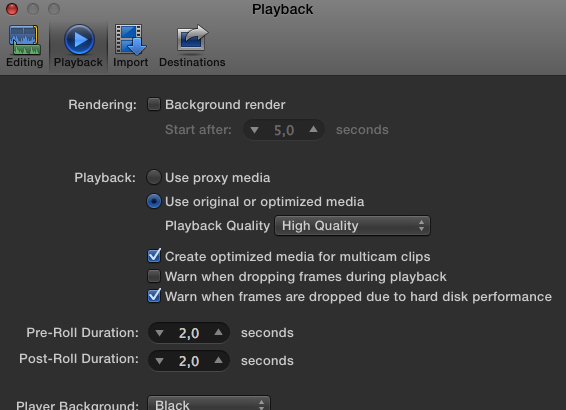
So the answer is: when you create proxy media you don't need to create optimized media as well. Just don't forget to switch your Playback Preferences back to "Original media" before you export and you will be able to export at the highest possible quality.
Note: to work in Proxy mode ALL your media files need to be converted to Proxy files. If by accident you have imported video without creating proxy media during the import you always can create proxy media from any clips in the Event Browser. To do this R-click any clip in the Event Browser and select "Transcode Media". The transcode window will open, in this window select "Proxy media" and a proxy version of the clip will be created.
- Ronny
When your edit is finished and you want to view and export your edit in high quality all you have to do is set your Playback Preferences back to "Use original or optimized media "and you won't lose any quality:
So the answer is: when you create proxy media you don't need to create optimized media as well. Just don't forget to switch your Playback Preferences back to "Original media" before you export and you will be able to export at the highest possible quality.
Note: to work in Proxy mode ALL your media files need to be converted to Proxy files. If by accident you have imported video without creating proxy media during the import you always can create proxy media from any clips in the Event Browser. To do this R-click any clip in the Event Browser and select "Transcode Media". The transcode window will open, in this window select "Proxy media" and a proxy version of the clip will be created.
- Ronny
Please Log in to join the conversation.
