


- Posts: 58
- Thank you received: 22
3 Post Moderation Rule for New Boarders (25 Jan 2021)
New boarders will have their posts moderated - Don't worry if you cannot see your post immediately.
SOLVED: Exporting objects with a background color for keying in FCP
08 Apr 2016 17:42 - 08 Apr 2016 19:52 #75062
by Norbz
In short: I'm trying to find the best way to export/render (not a plugin publish but actually render out a .mov) a 3d object that has no background, with a color so I can key it in fcp and remove it. It currently renders a black BG but there are black elements in the shot that will get keyed too. Adding a big flat object behind my model mimicking a green screen isn't giving me great results, I can't seem to choose a background color as it always renders black. Is there a better way? Should I be exporting the alpha layer separately and using it as a matte or?
Last edit: 08 Apr 2016 19:52 by Norbz.
Please Log in to join the conversation.
08 Apr 2016 17:57 #75063
by Pielle
Replied by Pielle on topic Exporting objects with a background color for keying in FCP
Norbz let me understand. Which is why you want to do this? If you build your model in Motion without a background and save it as a generator. When you open it in FCPX will appear without the background.
Please Log in to join the conversation.
08 Apr 2016 18:35 - 08 Apr 2016 18:49 #75064
by Norbz
Replied by Norbz on topic Exporting objects with a background color for keying in FCP
Hi Pielle.
Correct, that part of the equation is fine. My models are set and ready for FCP as a plugin.
What I'm referring to, is actually rendering out animations for those that don't have FCp/M5 but want to use the models as normal footage in other editors/systems or not have to use the CPU heavy models - so I'm creating x .mov files out of each model so anyone can simply dump them in their timeline and then key out the background.
EXAMPLE: I'm releasing my robot package in a few days and am aiming to give ppl 5 or so pre-rendered little 3-5second loopable animations of each robot in different actions (hover, flip, fly, left/right profile..) good for both previs and for those that again just want footage and not the models/source files.
So far I'm left with faking a greenscreen as the solution but that's not ideal.
I can change the background color in preferences of the project, but it doesn't seem to want to render the bg color out, just black, or I'm missing something (render options re RENDER COLOR vs RENDER ALPHA+COLOR etc I've tried messing with these as well and no go for me).
Correct, that part of the equation is fine. My models are set and ready for FCP as a plugin.
What I'm referring to, is actually rendering out animations for those that don't have FCp/M5 but want to use the models as normal footage in other editors/systems or not have to use the CPU heavy models - so I'm creating x .mov files out of each model so anyone can simply dump them in their timeline and then key out the background.
EXAMPLE: I'm releasing my robot package in a few days and am aiming to give ppl 5 or so pre-rendered little 3-5second loopable animations of each robot in different actions (hover, flip, fly, left/right profile..) good for both previs and for those that again just want footage and not the models/source files.
So far I'm left with faking a greenscreen as the solution but that's not ideal.
I can change the background color in preferences of the project, but it doesn't seem to want to render the bg color out, just black, or I'm missing something (render options re RENDER COLOR vs RENDER ALPHA+COLOR etc I've tried messing with these as well and no go for me).
Last edit: 08 Apr 2016 18:49 by Norbz.
Please Log in to join the conversation.

08 Apr 2016 19:16 - 08 Apr 2016 19:17 #75066
by rjvddoes
Replied by rjvddoes on topic Exporting objects with a background color for keying in FCP
Hi Norbz,
first of all, your 3D modelling is very impressive. Compliments!
If you want to export loops from your 3D model animation from FCPX you can place them in your primary storyline. In your viewer you can check if the alpha channel is present by opening the View dropdown in the upper right corner of the viewer and choosing Channels>Alpha.
You should see a B&W image in your viewer where your foreground (the 3D model) is white and everything that is 100% transparent will be black and all the semi transparent parts will be some shade of grey.
You can export this by choosing ProRes 4444 for your Master file. This will export the 3D foreground with its Alpha Channel.
Cheers,
Robbert-Jan
first of all, your 3D modelling is very impressive. Compliments!
If you want to export loops from your 3D model animation from FCPX you can place them in your primary storyline. In your viewer you can check if the alpha channel is present by opening the View dropdown in the upper right corner of the viewer and choosing Channels>Alpha.
You should see a B&W image in your viewer where your foreground (the 3D model) is white and everything that is 100% transparent will be black and all the semi transparent parts will be some shade of grey.
You can export this by choosing ProRes 4444 for your Master file. This will export the 3D foreground with its Alpha Channel.
Cheers,
Robbert-Jan
Last edit: 08 Apr 2016 19:17 by rjvddoes.
Please Log in to join the conversation.
- MarkNelsonMovies
-

- Offline
- Elite Member
-

Less
More
- Posts: 256
- Thank you received: 48
08 Apr 2016 19:28 #75067
by MarkNelsonMovies
Replied by MarkNelsonMovies on topic Exporting objects with a background color for keying in FCP
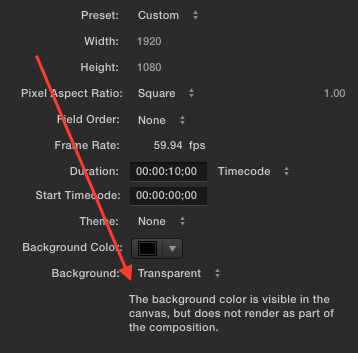
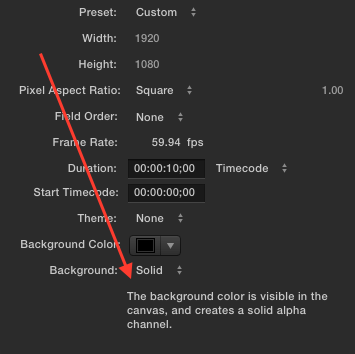
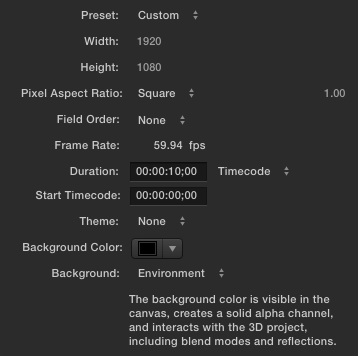
While I would probably export the file in either the animation codec, or ProRes 4444, If you want the background color as part of your export, check the 'Background' setting in the project properties.
Please Log in to join the conversation.
08 Apr 2016 19:41 - 08 Apr 2016 19:51 #75068
by Norbz
Replied by Norbz on topic Exporting objects with a background color for keying in FCP
^ Thank you both kindly gentlemen.
As I go explore this route - I should have specified, I'm exporting from Motion5 directly, not importing the plugin into FCP and exporting from FCP (although that now sounds like an option, however I'm finding direct exports from M5 much faster so it seems).
EDIT:
This was my solution:
Thank you again Mark!
As I go explore this route - I should have specified, I'm exporting from Motion5 directly, not importing the plugin into FCP and exporting from FCP (although that now sounds like an option, however I'm finding direct exports from M5 much faster so it seems).
EDIT:
This was my solution:
MarkNelsonMovies wrote:
Thank you again Mark!
Last edit: 08 Apr 2016 19:51 by Norbz.
Please Log in to join the conversation.
08 Apr 2016 19:49 - 08 Apr 2016 19:49 #75069
by rjvddoes
Replied by rjvddoes on topic Exporting objects with a background color for keying in FCP
Then indeed follow Marks instructions and share using ProRes 4444.
In the share dialog you can check under the Render tab if Color + Alpha is checked (it should be checked automatically).
In the share dialog you can check under the Render tab if Color + Alpha is checked (it should be checked automatically).
Last edit: 08 Apr 2016 19:49 by rjvddoes.
Please Log in to join the conversation.
08 Apr 2016 19:56 - 08 Apr 2016 19:58 #75070
by Norbz
Replied by Norbz on topic Exporting objects with a background color for keying in FCP
Thanks RJ.
I'm still not clear on the alpha channel stuff. I do include the alpha layer, and when I import into FCP and change my view to ALPHA it just goes all white, I'm putting the footage one layer above other footage to see results/x the background out and I thought including an alpha channel would give me my result of no BG but there's more to it I'm not seeing yet.
Actually if that IS the way I'm supposed to do it (have no BG by using the alpha channel somehow) I'd love to see/hear details of how.
I'm still not clear on the alpha channel stuff. I do include the alpha layer, and when I import into FCP and change my view to ALPHA it just goes all white, I'm putting the footage one layer above other footage to see results/x the background out and I thought including an alpha channel would give me my result of no BG but there's more to it I'm not seeing yet.
Actually if that IS the way I'm supposed to do it (have no BG by using the alpha channel somehow) I'd love to see/hear details of how.
Last edit: 08 Apr 2016 19:58 by Norbz.
Please Log in to join the conversation.
08 Apr 2016 20:18 - 08 Apr 2016 20:19 #75072
by rjvddoes
Replied by rjvddoes on topic Exporting objects with a background color for keying in FCP
Hi Norbz,
I'll try to produce the steps for you.
I assume you have your 3D model in your viewer in M5 and you have set the background pop-up menu to Transparent in the inspector for the Project properties.
Be aware that you don't have some solid black layer in your project or any other non transparent layer that is filling your screen, this will make the alpha channel white which means non-transparent.
You can check this in the viewer of M5 by selecting "Transparent" when you click the colored icon with the white dot, in the upper right corner of the viewer. You will see your 3D model against a grey checkerboard pattern. If this is the the case you are all set to select Share>Export Movie (Cmd E).
Select ProRes 4444 in the Options Tab and check in the Render Tab if Color+Alpha is selected.
That should be all there is to it.
I'll try to produce the steps for you.
I assume you have your 3D model in your viewer in M5 and you have set the background pop-up menu to Transparent in the inspector for the Project properties.
Be aware that you don't have some solid black layer in your project or any other non transparent layer that is filling your screen, this will make the alpha channel white which means non-transparent.
You can check this in the viewer of M5 by selecting "Transparent" when you click the colored icon with the white dot, in the upper right corner of the viewer. You will see your 3D model against a grey checkerboard pattern. If this is the the case you are all set to select Share>Export Movie (Cmd E).
Select ProRes 4444 in the Options Tab and check in the Render Tab if Color+Alpha is selected.
That should be all there is to it.
Last edit: 08 Apr 2016 20:19 by rjvddoes.
Please Log in to join the conversation.
08 Apr 2016 20:54 #75074
by Pielle
Replied by Pielle on topic Exporting objects with a background color for keying in FCP
I was away for dinner and I find that all is done, amazing real-time. The sequence described by Robert, is one that I use and usually works. in FCP using normal blending mode. I am attaching a piece of animation done that way. try it.
Please Log in to join the conversation.

08 Apr 2016 21:07 #75076
by BenB
Replied by BenB on topic SOLVED: Exporting objects with a background color for keying in FCP
Vital upon export that you set:
1- Background to transparent (Inspector)
2- ProRes 4444
3- Set to Color+Alpha
4- Check "Premultiply Alpha"
Do that, you'll have what you want. We do it almost daily here.
1- Background to transparent (Inspector)
2- ProRes 4444
3- Set to Color+Alpha
4- Check "Premultiply Alpha"
Do that, you'll have what you want. We do it almost daily here.
Please Log in to join the conversation.
08 Apr 2016 22:27 - 08 Apr 2016 22:38 #75077
by Norbz
Replied by Norbz on topic SOLVED: Exporting objects with a background color for keying in FCP
RJ/Ben/Pielle - Thank you, it worked  .
.
I have no clue why my previous renders would not activate the alpha layer (is there a difference if you export 422 vs 444 when it comes to alpha layers? That's really the only difference I set I think).
EDIT: Just did more tests, and yes, 422 vs 444 is the culprit! So strange, why does it let me even choose those option combinations or not put up a disclaimer if it's just going to break the result and confuse the user.
Talk about going about things the long way just to come full circle haha. Okay so no keying needed just have to re-render previous movies now with proper settings.
.I have no clue why my previous renders would not activate the alpha layer (is there a difference if you export 422 vs 444 when it comes to alpha layers? That's really the only difference I set I think).
EDIT: Just did more tests, and yes, 422 vs 444 is the culprit! So strange, why does it let me even choose those option combinations or not put up a disclaimer if it's just going to break the result and confuse the user.
Talk about going about things the long way just to come full circle haha. Okay so no keying needed just have to re-render previous movies now with proper settings.
Last edit: 08 Apr 2016 22:38 by Norbz.
Please Log in to join the conversation.
08 Apr 2016 23:57 - 09 Apr 2016 02:17 #75078
by BenB
Replied by BenB on topic SOLVED: Exporting objects with a background color for keying in FCP
Only ProRes 4444 (four 4's) carries an alpha channel, as does ProRes 4444 XQ. Other versions of ProRes do not. ProRes 4444; first three indicate your getting full sampling on all color channels. The fourth "4" stands for a fully sampled alpha channel.
Here's the ProRes guide, as there are several versions of ProRes.
support.apple.com/en-us/HT202410
And it is also in the Motion user manual.
help.apple.com/motion/mac/5.2/#/motn18cbcefb
Here's the ProRes guide, as there are several versions of ProRes.
support.apple.com/en-us/HT202410
And it is also in the Motion user manual.
help.apple.com/motion/mac/5.2/#/motn18cbcefb
Last edit: 09 Apr 2016 02:17 by BenB.
Please Log in to join the conversation.
