


3 Post Moderation Rule for New Boarders (25 Jan 2021)
New boarders will have their posts moderated - Don't worry if you cannot see your post immediately.
Using Optical Flow in Motion


26 Feb 2016 16:35 #73790
by canelson
--
Matias Canelson
www.canelson.us
Using Optical Flow in Motion was created by canelson
Hello everyone! I'm doing my first steps in Motion and I need some help…
Client want a particular shot for a video. I’m working on a 1080p 23,976 fps project in FCPx. I use the shot (4K clip recorded at 29,97 fps) in my FPCx timeline, speed set to 50% and optical flow activated. The FCPx render creates some weird artifacts. So, I took the shot to Motion, set speed to 50%, added optical flow and now the render has no artifacts but doesn’t move as smooth as the one made on FCPx.
Am I missing to activate/set an option?
I’m adding a link if you want to see the footage (54 MB): we.tl/NfO7wzCZtg
Wide_Original4k.mov > Is the original file.
Wide_OriginalDemo.mov > Scaled down demo of the original file.
Wide_DoneWithFCPX.mov > The render created using FCPx.
Wide_DoneWithMotion.mov > The render created using Motion.
Thank you very much guys!
Client want a particular shot for a video. I’m working on a 1080p 23,976 fps project in FCPx. I use the shot (4K clip recorded at 29,97 fps) in my FPCx timeline, speed set to 50% and optical flow activated. The FCPx render creates some weird artifacts. So, I took the shot to Motion, set speed to 50%, added optical flow and now the render has no artifacts but doesn’t move as smooth as the one made on FCPx.
Am I missing to activate/set an option?
I’m adding a link if you want to see the footage (54 MB): we.tl/NfO7wzCZtg
Wide_Original4k.mov > Is the original file.
Wide_OriginalDemo.mov > Scaled down demo of the original file.
Wide_DoneWithFCPX.mov > The render created using FCPx.
Wide_DoneWithMotion.mov > The render created using Motion.
Thank you very much guys!
--
Matias Canelson
www.canelson.us
Please Log in to join the conversation.

26 Feb 2016 18:45 #73796
by BenB
Replied by BenB on topic Using Optical Flow in Motion
Not every shot can be stabilized well. Retiming and stabilization are tricky to use together. I'd stabilize the shot, then export it (to "bake in" the stabilization). Then re-time that new clip. Some clips have way too much motion to stabilize no matter what software you use.
I'm downloading your zip file now to look at.
I'm downloading your zip file now to look at.
Please Log in to join the conversation.
26 Feb 2016 18:53 #73799
by BenB
Replied by BenB on topic Using Optical Flow in Motion
Wow, that's not a stabilization issue, but a timing issue. There's no real "shake", but the drone doesn't pan smoothly. That's not going to be easy to do in anything. Because you're trying to correct speed, and perspective, not "shake".
First, convert it to ProRes before doing anything to it. And you'll have to retime it in segments. I really don't see this as a stabilization, but the timing and perspective of the pan. Always pan via a gimbal on a drone, not by orbiting the drone itself.
First, convert it to ProRes before doing anything to it. And you'll have to retime it in segments. I really don't see this as a stabilization, but the timing and perspective of the pan. Always pan via a gimbal on a drone, not by orbiting the drone itself.
Please Log in to join the conversation.
26 Feb 2016 19:31 #73802
by canelson
--
Matias Canelson
www.canelson.us
Replied by canelson on topic Using Optical Flow in Motion
Thanks Ben! I don't want stabilization, I just need the image to run smoothly. The FCPX render does it except for the artifacts on the window, but I can't make the Motion render to run as smooth as the FCPx does. Does it have to do with anything I could change in motion project or export settings?
PS: BTW, footage was not recorded by me.
PS: BTW, footage was not recorded by me.
--
Matias Canelson
www.canelson.us
Please Log in to join the conversation.


28 Feb 2016 22:45 #73849
by sc_fox
Replied by sc_fox on topic Using Optical Flow in Motion
Motion should do a decent job of it but you have to be patient! Once you initiate Optical Flow in Motion you have to **not do anything** until it is finished! Motion doesn't give you much of an indicator, just a small animated wait icon under the left side of the canvas like:
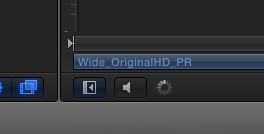 ( really hope you see an image here! I don't do well with this UI here.)
Here is a low-res example of what Motion can do:
(lowres because of restrictions on bandwidth set in place by YT—about 8Mbps)
Here is a downsampled HD ProRes LT version that I've already done if you want it:
sight-creations.com/prv/Wide_OriginalHD_PRLT_OptFl.mov
(right click and Save Link As or it is likely to load and play in your browser!)
[If you go slower than 50% timing, you might get smoother results.]
Using optical flow on just this 4.5 second clip can take several minutes to complete (and all you can do is watch the spinning wait icon or go fix some coffee, take a walk, a break, etc. You cannot do anything else with Motion - not even play the video.)
I also have some recommendations:
1) convert your original footage to ProRes (any flavor, but 422LT is probably good enough - if not 422 or above) before trying to use optical flow. Even with ProRes, this operation really *slams* the Mac's processor(s). I have a Quad-core i7 and all 8 (virtual) cores stayed nearly slammed the entire process. A compressed format like h.264 will make Motion work all the harder and longer.
2) convert down to HD unless you have to have ultraHD. It takes Motion quite awhile to work on large video sizes. (save yourself about 75% of the time of doing ultraHD.)
Advice for your friend:
When shooting video, do not use a high shutter rate. If the video is 29.97 or 30, the shutter speed should be no faster than 60fps (shutter angle should be no more than 2x the frame rate.) This video looks like it was shot with a shutter speed around 1/250th or faster. Each frame looks like an individual discreet image. Slowing down the shutter speed introduces a *natural* motion blur which helps blend the scene into something more comfortable for our eyes to look at (and you won't need optical flow!)
Here is a low-res example of what Motion can do:
(lowres because of restrictions on bandwidth set in place by YT—about 8Mbps)
Here is a downsampled HD ProRes LT version that I've already done if you want it:
sight-creations.com/prv/Wide_OriginalHD_PRLT_OptFl.mov
(right click and Save Link As or it is likely to load and play in your browser!)
[If you go slower than 50% timing, you might get smoother results.]
Using optical flow on just this 4.5 second clip can take several minutes to complete (and all you can do is watch the spinning wait icon or go fix some coffee, take a walk, a break, etc. You cannot do anything else with Motion - not even play the video.)
I also have some recommendations:
1) convert your original footage to ProRes (any flavor, but 422LT is probably good enough - if not 422 or above) before trying to use optical flow. Even with ProRes, this operation really *slams* the Mac's processor(s). I have a Quad-core i7 and all 8 (virtual) cores stayed nearly slammed the entire process. A compressed format like h.264 will make Motion work all the harder and longer.
2) convert down to HD unless you have to have ultraHD. It takes Motion quite awhile to work on large video sizes. (save yourself about 75% of the time of doing ultraHD.)
Advice for your friend:
When shooting video, do not use a high shutter rate. If the video is 29.97 or 30, the shutter speed should be no faster than 60fps (shutter angle should be no more than 2x the frame rate.) This video looks like it was shot with a shutter speed around 1/250th or faster. Each frame looks like an individual discreet image. Slowing down the shutter speed introduces a *natural* motion blur which helps blend the scene into something more comfortable for our eyes to look at (and you won't need optical flow!)
Please Log in to join the conversation.
01 Mar 2016 15:24 #73915
by canelson
--
Matias Canelson
www.canelson.us
Replied by canelson on topic Using Optical Flow in Motion
Thanks for your help SC_FOX! I tried many times yesterday... after 5 or 6 attempts it worked, I don't know why. I'll try to make it a few time again today and write down all the settings to compare. Each export.
--
Matias Canelson
www.canelson.us
Please Log in to join the conversation.

03 Mar 2016 19:27 #74019
by GFXZen
Replied by GFXZen on topic Using Optical Flow in Motion
FWIW, you can actually get some more control over the processing of your analysis than just the progress spinner. If you click it, or select the task list from the Window menu (F9) you can see what clips(s) are being analyzed, how complete they are (estimated time remaining), pause and re-order them. I use this all the time.
Depending the media you are working with and the hardware you are on, analysis may impact performance. Sometimes you may need to wait, other times you can keep chugging along. I frequently use the pause and restart when I need to.
My guess is one of two things may have happened.
1. Frame Blending got disabled on export. This is the only way I could reproduce the stutter you had in your example export.
2. You had a corrupt OF cache file Something I regularly do is clear the cache files. If I'm working on multiple projects I will use the "Remove Optical Flow Timing.." option in the file menu. This should clear the cache for clips in the current project and keep others. Then every once in a while I will clear the entire cache as these files can get to be pretty large, for example when I ran your full clip, it generated a 2.27 GB cache file, not outrageous for 4K. You can clear these in the preferences (Preferences>Cache>Optical Flow Retiming). IMO, this is just a good general practice. If motion doesn't find the cache, it will just create a new one when you launch the project. Worst case scenario you need to wait a few minutes for it to rebuild before you export again.
Depending the media you are working with and the hardware you are on, analysis may impact performance. Sometimes you may need to wait, other times you can keep chugging along. I frequently use the pause and restart when I need to.
My guess is one of two things may have happened.
1. Frame Blending got disabled on export. This is the only way I could reproduce the stutter you had in your example export.
2. You had a corrupt OF cache file Something I regularly do is clear the cache files. If I'm working on multiple projects I will use the "Remove Optical Flow Timing.." option in the file menu. This should clear the cache for clips in the current project and keep others. Then every once in a while I will clear the entire cache as these files can get to be pretty large, for example when I ran your full clip, it generated a 2.27 GB cache file, not outrageous for 4K. You can clear these in the preferences (Preferences>Cache>Optical Flow Retiming). IMO, this is just a good general practice. If motion doesn't find the cache, it will just create a new one when you launch the project. Worst case scenario you need to wait a few minutes for it to rebuild before you export again.
Please Log in to join the conversation.
