


- Posts: 3790
- Thank you received: 718
3 Post Moderation Rule for New Boarders (25 Jan 2021)
New boarders will have their posts moderated - Don't worry if you cannot see your post immediately.
Creating a moving and 'sticky' CallOut
- Karsten Schlüter
-
 Topic Author
- Offline
- Moderator
-

Less
More
25 Apr 2015 08:27 - 25 Apr 2015 08:38 #63607
by Karsten Schlüter
Creating a moving and 'sticky' CallOut was created by Karsten Schlüter
Lately I needed a 'sticky' Callout, to mark one of my soccer-kids.
I stumbled upon this tutorial from Mark Spencer
… but somehow, it didn't worked out very well, 'cause he's demoing with a 'rotate'-behaviour - I needed a custom, keyframeable one, following the player.
So, I came up with this:
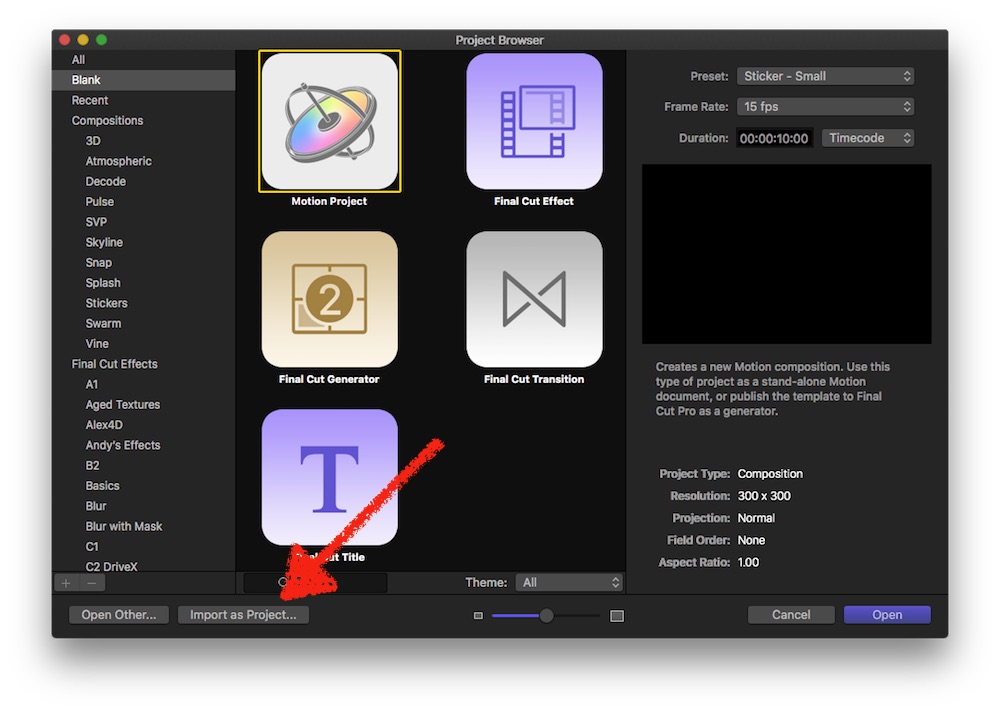
Step #1
One group is the video, the other the CallOut.
Following Mark's advice, the line is a bezier, the dots are images, not shapes.
Step #2
apply the Track Points behavior to the Bezier, add the Players Bubble into the dwell, and uncheck the points of the bezier which should not move
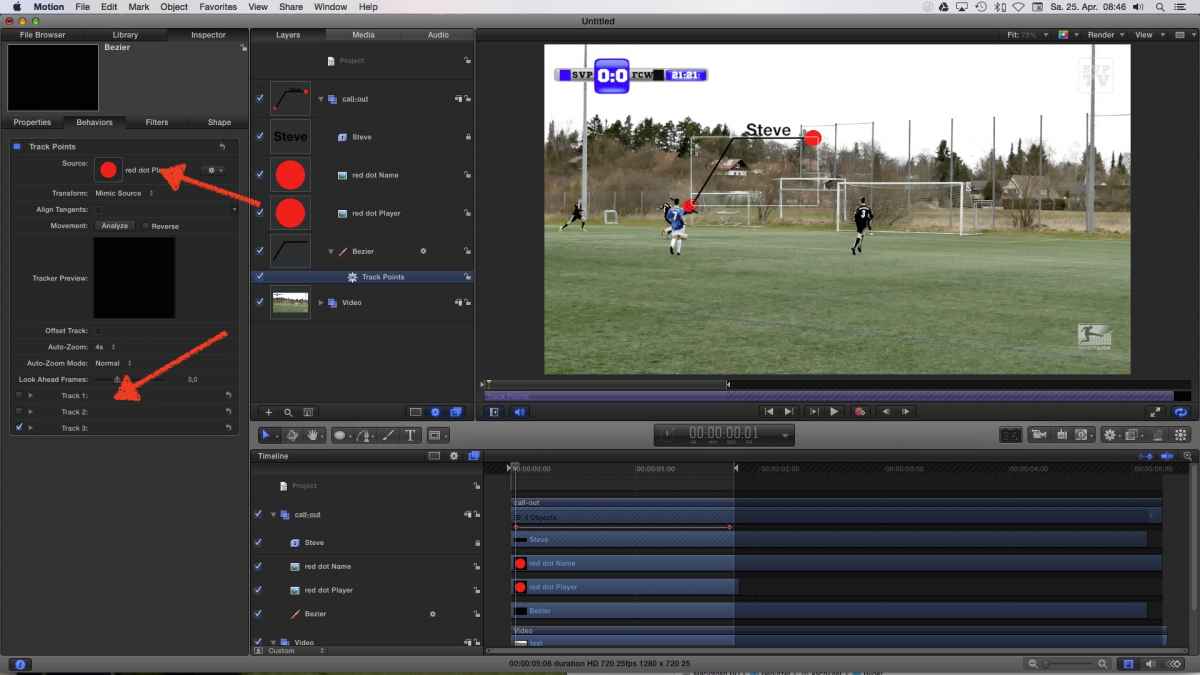
Step #3
If you want to move the whole CallOut, now is the time to apply keyframes to the whole group.
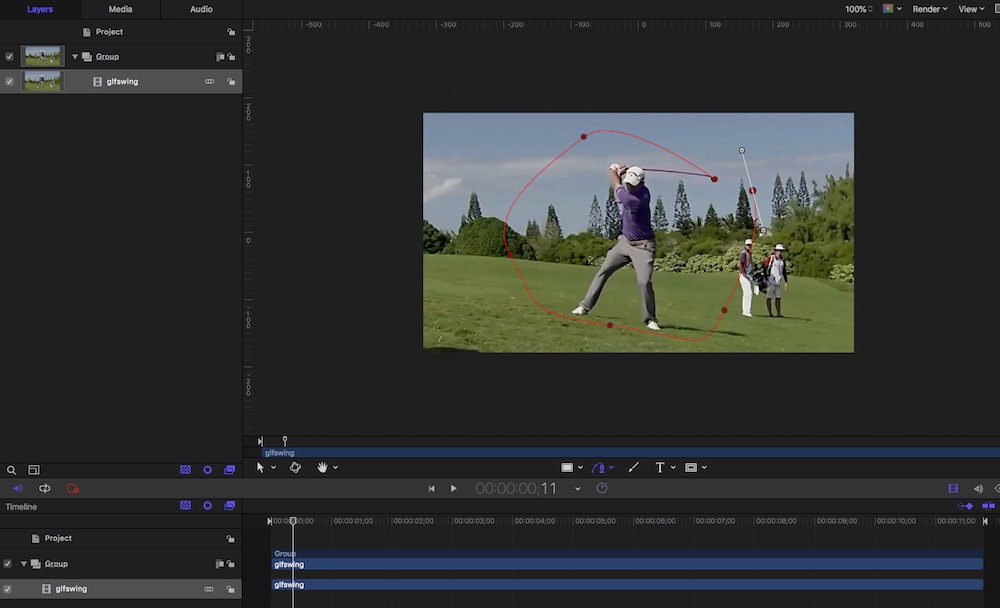
As Mark shows in his demo, moving the Red Dot by hand 'transforms' the line - nice; moving the Red Dot by keyframe, the whole group is affected - what we don't want.
Now, to stop that, I just lock the two Control Points of the bezier!
Now, I can keyframe the dot at the subject - without moving the whole construction! :silly:
not sooo convenient as a plug-in, but I need this 'effect' just twice a year...-
Have fun making call-outs!
I stumbled upon this tutorial from Mark Spencer
… but somehow, it didn't worked out very well, 'cause he's demoing with a 'rotate'-behaviour - I needed a custom, keyframeable one, following the player.
So, I came up with this:
Step #1
One group is the video, the other the CallOut.
Following Mark's advice, the line is a bezier, the dots are images, not shapes.
Step #2
apply the Track Points behavior to the Bezier, add the Players Bubble into the dwell, and uncheck the points of the bezier which should not move
Step #3
If you want to move the whole CallOut, now is the time to apply keyframes to the whole group.
As Mark shows in his demo, moving the Red Dot by hand 'transforms' the line - nice; moving the Red Dot by keyframe, the whole group is affected - what we don't want.
Now, to stop that, I just lock the two Control Points of the bezier!
Now, I can keyframe the dot at the subject - without moving the whole construction! :silly:
not sooo convenient as a plug-in, but I need this 'effect' just twice a year...-
Have fun making call-outs!
Last edit: 25 Apr 2015 08:38 by Karsten Schlüter.
Please Log in to join the conversation.
