


- Posts: 2
- Thank you received: 1
3 Post Moderation Rule for New Boarders (25 Jan 2021)
New boarders will have their posts moderated - Don't worry if you cannot see your post immediately.
How to create a Bouncing or Spring effect on a logo
15 Jan 2014 21:16 #39025
by ounay80
How to create a Bouncing or Spring effect on a logo was created by ounay80
Hi Guys!
To begin, i'd like to apologize for my english, i'm not really fluent for a long time…!
I'm looking for a way to make a "bouncing effect" i could apply to an image, a logo or anything else. Not "bouncing" in the way of a ball, but more like a "pop on" logo that will reveal and bounce on his scale at the end. I want it to appear in a cool and animated way! (i told you, my english is awful…! )
Here is the thing:
I want my logo to start at scale 0 and end at scale 100, 30 frames later, but with with the scale that "bounce" at the end between scale 90 and 110 (for example). And the bouncing effect would decrease in time.
I tried to animate my logo by applying the spring behavior (or the oscillate behavior) on the scale parameter of my logo. But the spring behavior must be attach to another object and it's quiet complex..I'm not sure that's the best way to do it and, most of all, the effect doesn't decrease in time…
I know there's a script in After Effect called "Duick" that propose this bouncing effect. You can apply it to scale, rotation, position or any other parameter and it give more "substance" to your animation.
i wonder if there's a behavior or a technic in Motion that would produce the same result.
Hope there's somebody who can (understand) help me!
Here's a few examples of what i'm talking about.
Thanks guys!
vimeo.com/17074979
To begin, i'd like to apologize for my english, i'm not really fluent for a long time…!
I'm looking for a way to make a "bouncing effect" i could apply to an image, a logo or anything else. Not "bouncing" in the way of a ball, but more like a "pop on" logo that will reveal and bounce on his scale at the end. I want it to appear in a cool and animated way! (i told you, my english is awful…! )
Here is the thing:
I want my logo to start at scale 0 and end at scale 100, 30 frames later, but with with the scale that "bounce" at the end between scale 90 and 110 (for example). And the bouncing effect would decrease in time.
I tried to animate my logo by applying the spring behavior (or the oscillate behavior) on the scale parameter of my logo. But the spring behavior must be attach to another object and it's quiet complex..I'm not sure that's the best way to do it and, most of all, the effect doesn't decrease in time…
I know there's a script in After Effect called "Duick" that propose this bouncing effect. You can apply it to scale, rotation, position or any other parameter and it give more "substance" to your animation.
i wonder if there's a behavior or a technic in Motion that would produce the same result.
Hope there's somebody who can (understand) help me!
Here's a few examples of what i'm talking about.
Thanks guys!
vimeo.com/17074979
Please Log in to join the conversation.


15 Jan 2014 23:34 - 16 Jan 2014 08:14 #39030
by rjvddoes
Replied by rjvddoes on topic How to create a Bouncing or Spring effect on a logo
Hi,
You can achieve this effect with Motion too.
Here is a link to an example file: Springy Scale
I did the following:
-Make a Group and rename it Null layers
- In this group you make a small rectangle (size doesn't matter), center it in the canvas by clicking the hooked arrow in the in the inspector>properties>transform. I called this layer "Springy Null"
- Duplicate this layer and rename it. I called this layer "Attracting Null". Go to the transform properties in the inspector and type 100 for position X and 100 for position Y.
- Add a Spring behavior to the first layer (Springy Null). Open the behaviors tab of this layer if it isn't open already and drag the "Attracting Null" layer from the layer pane in the source image well of the Spring behavior. I have set the Spring Tension to 100 and the Relaxed Length to 0.
- Add a Drag behavior to the Springy Null layer. I have set the Amount to 4.
If you play the timeline at this point you will see that the Springy Null rectangle starts in the middle of the canvas and moves with a springy motion towards the Attracting Null rectangle, passes it, moves back, passes again but not so far, moves up again, slowly dampens and finally lands on top of the Attracting Null. We are going to use this motion to drive the text animation.
- Uncheck the visibility checkbox for the Null layers group, to hide them in the canvas
- Make a new group for your text layer
- Select the type tool and type your text (or place your logo in this group)
- Center your text in the canvas by dragging it (text has its anchor point in the lower left corner of its bounding box, so we are going to scale the group that contains the text, rather than scaling the text itself because that would make the text scale up from the lower left corner).
- Select the group containing your text.
- In the inspector twirl open the Scale property of the group. Right click on the X scale property and add a Link behavior. Drag the Springy Null layer from the layer pane to the Source Object image well. Click on the Compatible Parameters for the Source parameter and change it from Properties.Transform.Scale.X to Properties.Transform.Position.X.
- In order to let your text scale up to the original size you have to change the scale slider (below the Custom Mix slider) to a value that is equal to your projects X dimension divided by 10. In my example the project is 1280x720, so the scale is 12.8
-Go to the properties tab of the group containing your text and right click on the Y scale property and add a Link behavior. Drag the Springy Null layer from the layer pane to the Source Object image well. Click on the Compatible Parameters for the Source parameter and change it from Properties.Transform.Scale.Y to Properties.Transform.Position.Y.
- Set the scale slider to 1/10th of your projects Y dimension (in my case 7.2)
That's it.
Playback, tweak and enjoy.
Robbert-Jan van der Does
You can achieve this effect with Motion too.
Here is a link to an example file: Springy Scale
I did the following:
-Make a Group and rename it Null layers
- In this group you make a small rectangle (size doesn't matter), center it in the canvas by clicking the hooked arrow in the in the inspector>properties>transform. I called this layer "Springy Null"
- Duplicate this layer and rename it. I called this layer "Attracting Null". Go to the transform properties in the inspector and type 100 for position X and 100 for position Y.
- Add a Spring behavior to the first layer (Springy Null). Open the behaviors tab of this layer if it isn't open already and drag the "Attracting Null" layer from the layer pane in the source image well of the Spring behavior. I have set the Spring Tension to 100 and the Relaxed Length to 0.
- Add a Drag behavior to the Springy Null layer. I have set the Amount to 4.
If you play the timeline at this point you will see that the Springy Null rectangle starts in the middle of the canvas and moves with a springy motion towards the Attracting Null rectangle, passes it, moves back, passes again but not so far, moves up again, slowly dampens and finally lands on top of the Attracting Null. We are going to use this motion to drive the text animation.
- Uncheck the visibility checkbox for the Null layers group, to hide them in the canvas
- Make a new group for your text layer
- Select the type tool and type your text (or place your logo in this group)
- Center your text in the canvas by dragging it (text has its anchor point in the lower left corner of its bounding box, so we are going to scale the group that contains the text, rather than scaling the text itself because that would make the text scale up from the lower left corner).
- Select the group containing your text.
- In the inspector twirl open the Scale property of the group. Right click on the X scale property and add a Link behavior. Drag the Springy Null layer from the layer pane to the Source Object image well. Click on the Compatible Parameters for the Source parameter and change it from Properties.Transform.Scale.X to Properties.Transform.Position.X.
- In order to let your text scale up to the original size you have to change the scale slider (below the Custom Mix slider) to a value that is equal to your projects X dimension divided by 10. In my example the project is 1280x720, so the scale is 12.8
-Go to the properties tab of the group containing your text and right click on the Y scale property and add a Link behavior. Drag the Springy Null layer from the layer pane to the Source Object image well. Click on the Compatible Parameters for the Source parameter and change it from Properties.Transform.Scale.Y to Properties.Transform.Position.Y.
- Set the scale slider to 1/10th of your projects Y dimension (in my case 7.2)
That's it.
Playback, tweak and enjoy.
Robbert-Jan van der Does
Last edit: 16 Jan 2014 08:14 by rjvddoes. Reason: Added video
Please Log in to join the conversation.

16 Jan 2014 17:32 - 16 Jan 2014 17:39 #39080
by BenB
Replied by BenB on topic How to create a Bouncing or Spring effect on a logo
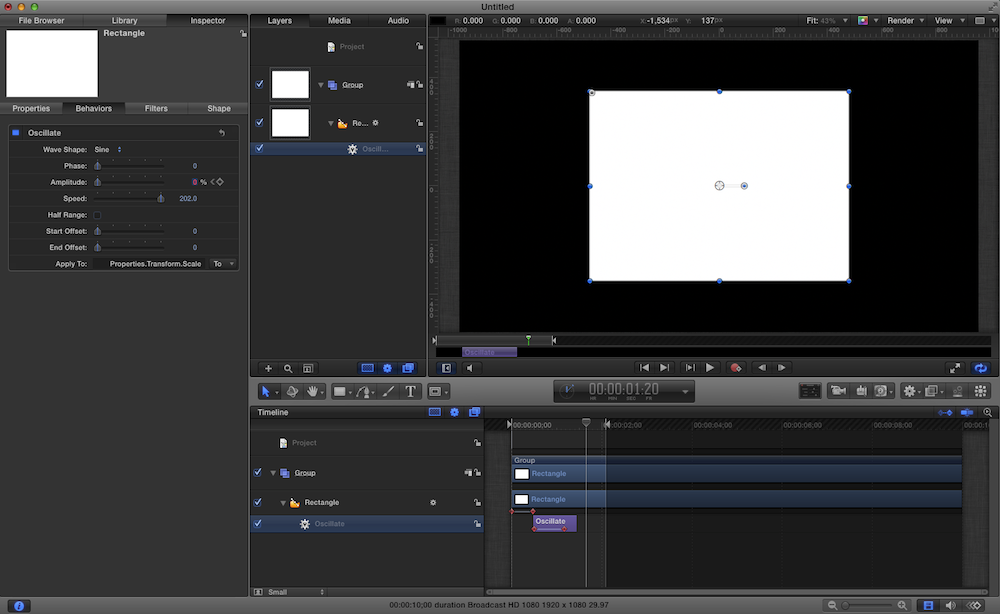
Here is a simple Oscillate behavior that does this trick super easily.
Apply to Scale.
Set speed to about 200.
Set the duration of the behavior to about 20 frames.
Key frame the Amplitude from about 10.0 down to 0.
It is that easy.
Apply to Scale.
Set speed to about 200.
Set the duration of the behavior to about 20 frames.
Key frame the Amplitude from about 10.0 down to 0.
It is that easy.
Last edit: 16 Jan 2014 17:39 by BenB.
Please Log in to join the conversation.
16 Jan 2014 18:03 #39089
by rjvddoes
Replied by rjvddoes on topic How to create a Bouncing or Spring effect on a logo
Hi Ben,
Thanks. Much simpler indeed.
I was so focussed on using the spring behavior that I didn't even think of other ways.
Cheers,
Robbert-Jan
Thanks. Much simpler indeed.
I was so focussed on using the spring behavior that I didn't even think of other ways.
Cheers,
Robbert-Jan
Please Log in to join the conversation.
16 Jan 2014 18:11 #39095
by BenB
Replied by BenB on topic How to create a Bouncing or Spring effect on a logo
Yeah, I originally used this for
a tutorial I wrote
about creating the unfolding boxes title effect.
Please Log in to join the conversation.
17 Jan 2014 10:33 #39167
by ounay80
Replied by ounay80 on topic How to create a Bouncing or Spring effect on a logo
Wow! Finally, that's very easy! Thank you so much BenB, that's exactly what i was looking for.
And you can apply this method to scale, position, rotation etc…That wonderful!
rjvddoes, obviously your method was a bit longer and complicated but it helps me to more understand the spring behavior and the null layer that you can link seems useful in many situations!
So thank you again guys for your time and explanations!
And you can apply this method to scale, position, rotation etc…That wonderful!
rjvddoes, obviously your method was a bit longer and complicated but it helps me to more understand the spring behavior and the null layer that you can link seems useful in many situations!
So thank you again guys for your time and explanations!
Please Log in to join the conversation.

15 Mar 2016 18:58 #74374
by Deyson
Replied by Deyson on topic How to create a Bouncing or Spring effect on a logo
Very nice. I have a question if we want to avoid the keyframe route can we use the ramp tool instead?
Please Log in to join the conversation.
16 Mar 2016 12:02 #74395
by BenB
Replied by BenB on topic How to create a Bouncing or Spring effect on a logo
I dunno, try it and let us know how it works.
Please Log in to join the conversation.

11 Oct 2016 09:14 #80637
by Ben G
Replied by Ben G on topic How to create a Bouncing or Spring effect on a logo
Heya Deyson, I just tried the Ramp with the Oscilate, works great! Thanks for all the tips everyone.
B
B
Please Log in to join the conversation.
11 Oct 2016 11:30 #80638
by Deyson
Replied by Deyson on topic How to create a Bouncing or Spring effect on a logo
I am glad it worked!!  Have an amazing day!
Have an amazing day! Please Log in to join the conversation.
- Karsten Schlüter
-

- Offline
- Moderator
-

Less
More
- Posts: 3790
- Thank you received: 718
11 Oct 2016 16:19 #80646
by Karsten Schlüter
Replied by Karsten Schlüter on topic How to create a Bouncing or Spring effect on a logo
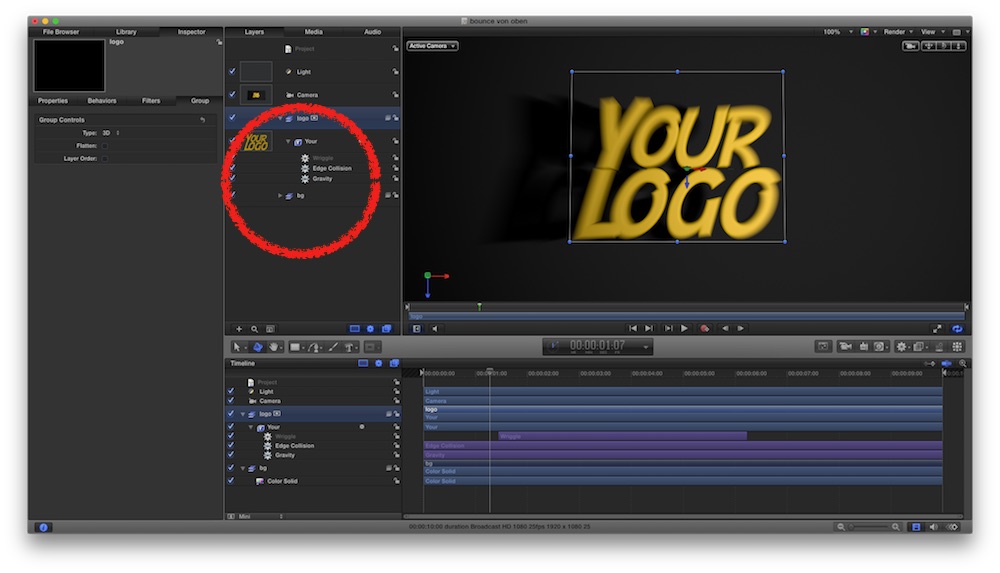
… strange, nobody came up using the Simulation tools of M5:
logo, camera, 90° rotated
gravity, edge detection - done
ok, light/shadow, motion blur and wriggle is … for personal swagging …
logo, camera, 90° rotated
gravity, edge detection - done
ok, light/shadow, motion blur and wriggle is … for personal swagging …
Please Log in to join the conversation.
11 Oct 2016 16:25 #80647
by Deyson
Replied by Deyson on topic How to create a Bouncing or Spring effect on a logo
What was turned 90 degrees? The camera?
Please Log in to join the conversation.
- Karsten Schlüter
-
- Offline
- Moderator
-
Less
More
- Posts: 3790
- Thank you received: 718
11 Oct 2016 16:31 - 11 Oct 2016 16:39 #80649
by Karsten Schlüter
Both.
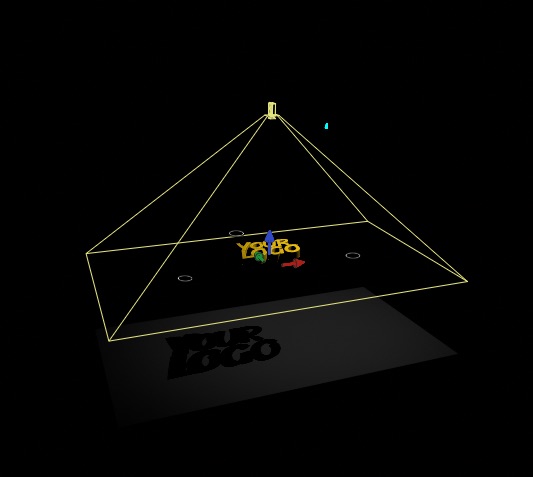
Gravity works only 'down'.
So, to create the wanted minimise effect, you have to look top to bottom, and turn the logo to cam.....
==edit==
added my Motion project, if you're interested how it's done …
Replied by Karsten Schlüter on topic How to create a Bouncing or Spring effect on a logo
Deyson wrote: What was turned 90 degrees? The camera?
Both.
Gravity works only 'down'.
So, to create the wanted minimise effect, you have to look top to bottom, and turn the logo to cam.....
==edit==
added my Motion project, if you're interested how it's done …
Last edit: 11 Oct 2016 16:39 by Karsten Schlüter.
Please Log in to join the conversation.
11 Oct 2016 16:42 #80650
by Deyson
Replied by Deyson on topic How to create a Bouncing or Spring effect on a logo
Ahhh thank you!
Please Log in to join the conversation.
- Karsten Schlüter
-
- Offline
- Moderator
-
Less
More
- Posts: 3790
- Thank you received: 718
11 Oct 2016 16:47 #80651
by Karsten Schlüter
You're Welcome!
… but realised, the OP wants it vice versa - from small to big.
So, turn the camera 180°, under the 0/0/0 plane (delete the color solid) and put the logo on a much 'higher' starting point. Asks for adjustment of the Gravity...
Luckily, such 'physics'-behaviours are done in real-time in M5, even on my tiny MacMini, so it's easy to adjust while the animation is done ....
Replied by Karsten Schlüter on topic How to create a Bouncing or Spring effect on a logo
Deyson wrote: Ahhh thank you!
You're Welcome!
… but realised, the OP wants it vice versa - from small to big.
So, turn the camera 180°, under the 0/0/0 plane (delete the color solid) and put the logo on a much 'higher' starting point. Asks for adjustment of the Gravity...
Luckily, such 'physics'-behaviours are done in real-time in M5, even on my tiny MacMini, so it's easy to adjust while the animation is done ....
Please Log in to join the conversation.
