


- Posts: 213
- Thank you received: 19
3 Post Moderation Rule for New Boarders (25 Jan 2021)
New boarders will have their posts moderated - Don't worry if you cannot see your post immediately.
Changing photos in Motion 5 project
02 Oct 2013 15:18 #31932
by bobmax48
Changing photos in Motion 5 project was created by bobmax48
I have been using the Clamper tutorial from MacBreak Studio (and also on this site) to make a series of photos being thrown. The problem I am having is that when I copy the photo and behaviors and try to change the photo in Reveal Source Media, the photo is changed in all of the other photos being thrown. How do I get around that problem?
Please Log in to join the conversation.
- ronny courtens
-

- Offline
- Moderator
-

Less
More
- Posts: 4455
- Thank you received: 962
03 Oct 2013 08:10 - 03 Oct 2013 08:13 #31963
by ronny courtens
Replied by ronny courtens on topic Changing photos in Motion 5 project
As you have duplicated the composition to create multiple moves, each duplicated animation references the same source media in the Media tab. So when you change the source media by using Reveal it will change the source media for every animation, that's logical.
Instead of using Reveal Source Media you should go into every individual Photo Group for each animation and replace the photo by dragging a new photo into the Image layer window:
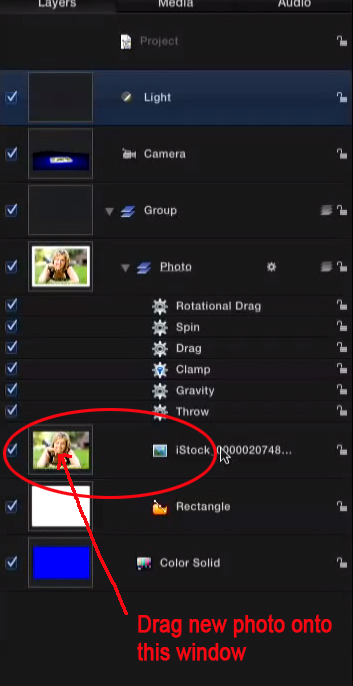
If your new photo has the same size as the existing one this will be a one-step process for each animation. If the new photo has a different size you will have to resize the new photo in the Inspector > Properties tab.
- Ronny
Instead of using Reveal Source Media you should go into every individual Photo Group for each animation and replace the photo by dragging a new photo into the Image layer window:
If your new photo has the same size as the existing one this will be a one-step process for each animation. If the new photo has a different size you will have to resize the new photo in the Inspector > Properties tab.
- Ronny
Last edit: 03 Oct 2013 08:13 by ronny courtens.
Please Log in to join the conversation.
03 Oct 2013 12:26 #31974
by bobmax48
Replied by bobmax48 on topic Changing photos in Motion 5 project
Thank you. I finally figured this out late last night. I think it is time I start buying the Ripple Training videos for Motion 5.
Please Log in to join the conversation.

03 Oct 2013 15:28 - 03 Oct 2013 15:54 #31976
by BenB
Replied by BenB on topic Changing photos in Motion 5 project
Yes, great training.
And there's a way to have them automatically staggered in the Timeline.
- In the File Browser, select the first photo, shift-click the last photo to select them all at once.
- Drag them to the TIMELINE (not the Layers pane), and hold your mouse there for a moment.
- A pop-up menu appears, select the second option, "Sequential". They'll be staggered in order.
I just find this gives me an easier starting place when working with a photo montage.
Then build the first one. Select all the behaviors, Option-drag those to the next, and the next, etc.
Very nice animation technique, BTW. I hope you post your results, I'd love to see it. Sounds like a nice montage.
And there's a way to have them automatically staggered in the Timeline.
- In the File Browser, select the first photo, shift-click the last photo to select them all at once.
- Drag them to the TIMELINE (not the Layers pane), and hold your mouse there for a moment.
- A pop-up menu appears, select the second option, "Sequential". They'll be staggered in order.
I just find this gives me an easier starting place when working with a photo montage.
Then build the first one. Select all the behaviors, Option-drag those to the next, and the next, etc.
Very nice animation technique, BTW. I hope you post your results, I'd love to see it. Sounds like a nice montage.
Last edit: 03 Oct 2013 15:54 by BenB.
Please Log in to join the conversation.
03 Oct 2013 15:44 #31979
by bobmax48
Replied by bobmax48 on topic Changing photos in Motion 5 project
Thank you for the info on how to do this faster then I am now doing it. One thing I am confused about is that you say "drag all of the photos into the Layers pane first". But the second item in your list " Drag them to the TIMELINE (not the Layers pane)".
Please Log in to join the conversation.
