


- Posts: 825
- Thank you received: 127
3 Post Moderation Rule for New Boarders (25 Jan 2021)
New boarders will have their posts moderated - Don't worry if you cannot see your post immediately.
Keyframing issue
22 Mar 2012 13:45 - 22 Mar 2012 13:47 #6039
by NocoDave
Replied by NocoDave on topic Re: Keyframing issue
Problem solved.
FCPX 100% definitely defaults position values to bezier. This can be seen, and changed, by following these steps.
1) Create your keyframes, right click in the viewer to bring up the short cut menu and select "Transform". This shows the motion path as seen in the image below, where the keyframe icon is an ""Ease" icon.
2) Right click on the keyframe icon and it will show the bezier handles, which can be adjusted, and a menu which will allow you to change it to linear to match the scale interpolation.
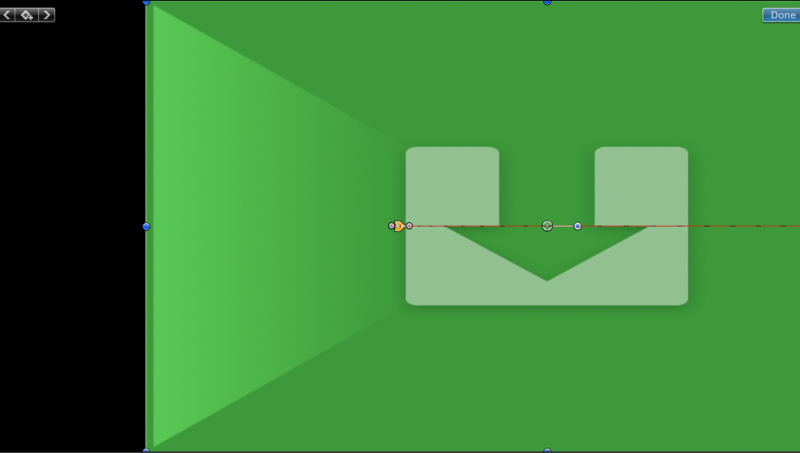
FCPX 100% definitely defaults position values to bezier. This can be seen, and changed, by following these steps.
1) Create your keyframes, right click in the viewer to bring up the short cut menu and select "Transform". This shows the motion path as seen in the image below, where the keyframe icon is an ""Ease" icon.
2) Right click on the keyframe icon and it will show the bezier handles, which can be adjusted, and a menu which will allow you to change it to linear to match the scale interpolation.
Last edit: 22 Mar 2012 13:47 by NocoDave. Reason: grammer
Please Log in to join the conversation.
22 Mar 2012 14:20 #6043
by NocoDave
Replied by NocoDave on topic Re: Keyframing issue
Actually, I spoke to soon. That just clarifies the problem. It doesn't fix it.
Changing keyframes to linear in FCPX is weird. The path still accelerates/decelerates from/to it's start/end points.
but I noticed something else, when setting the keyframes in the inspector then looking at the motion path it defaults to bezier, if you set the first, then move along the timeline and reposition in the viewer it "supposedly" defaults to linear, except it's not linear, it still eases in and out.
Changing keyframes to linear in FCPX is weird. The path still accelerates/decelerates from/to it's start/end points.
but I noticed something else, when setting the keyframes in the inspector then looking at the motion path it defaults to bezier, if you set the first, then move along the timeline and reposition in the viewer it "supposedly" defaults to linear, except it's not linear, it still eases in and out.
Please Log in to join the conversation.

22 Mar 2012 17:14 - 22 Mar 2012 17:16 #6047
by robertdee
Replied by robertdee on topic Re: Keyframing issue
Forgive me if I haven't fully got the issue here but it looks similar to something that was driving me batty a few months back. It seems (at the moment) zooming and positioning adds smoothing which gives you that annoying 's' movement. I tried changing keyframes from smooth, etc. but didn't work.
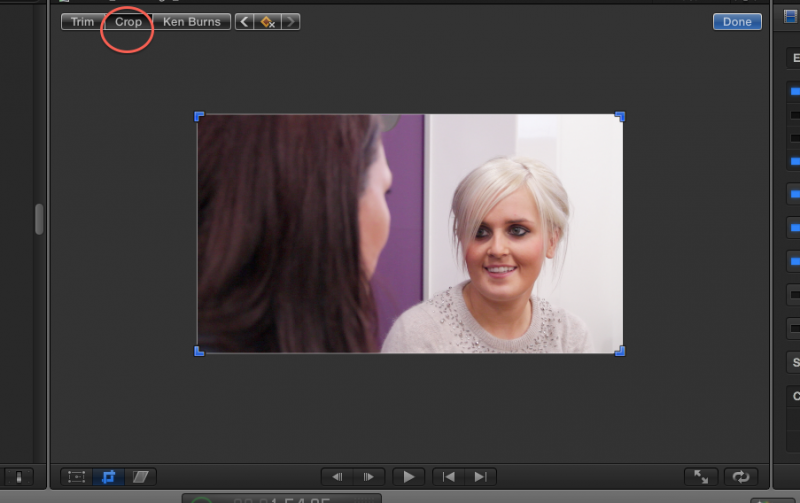
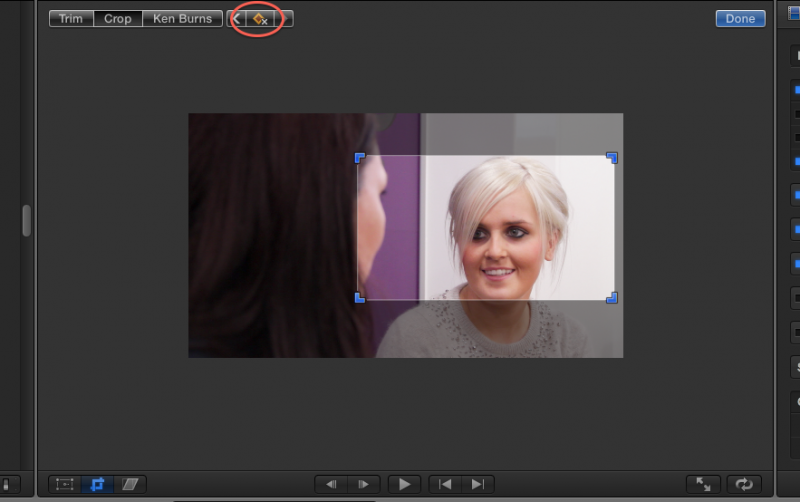
Here's what DID work and its an example of how FCPX is a different beast. Rather than animating scale and position keyframes, keyframe and animate the CROP which, when a clip is highlighted in the timline, is the middle icon on the bottom left of the viewer.
Three tools here - the one you want for this is the middle crop one. Keyframing is in the middle at the top. No 'S' movements. Hope this helps.
Here's some screenshots as attachments (can't work out how to upload images directly):
Here's what DID work and its an example of how FCPX is a different beast. Rather than animating scale and position keyframes, keyframe and animate the CROP which, when a clip is highlighted in the timline, is the middle icon on the bottom left of the viewer.
Three tools here - the one you want for this is the middle crop one. Keyframing is in the middle at the top. No 'S' movements. Hope this helps.
Here's some screenshots as attachments (can't work out how to upload images directly):

Last edit: 22 Mar 2012 17:16 by robertdee.
Please Log in to join the conversation.
22 Mar 2012 17:34 - 22 Mar 2012 17:35 #6049
by NocoDave
Replied by NocoDave on topic Re: Keyframing issue
I just looked a bit further in to that Robert.
When using the crop tool, the crop animation path is linear to match the scale animation path, hence it works correctly.
When using the Ken Burns tool, the position animation path is bezier, but so is the scale animation path, so this also works.
But when doing it manually, the position is always bezier, even if changed to linear, and the scale is linear, so it has a mismatch and doesn't work.
When using the crop tool, the crop animation path is linear to match the scale animation path, hence it works correctly.
When using the Ken Burns tool, the position animation path is bezier, but so is the scale animation path, so this also works.
But when doing it manually, the position is always bezier, even if changed to linear, and the scale is linear, so it has a mismatch and doesn't work.
Last edit: 22 Mar 2012 17:35 by NocoDave. Reason: correction
Please Log in to join the conversation.
22 Mar 2012 17:43 #6050
by robertdee
Replied by robertdee on topic Re: Keyframing issue
That's what I found. Managed to use the crop tool to solve my problems but I'd like them to fix this as manually keyframing and setting smooth/linear keyframes is important for a professional.
Please Log in to join the conversation.


24 Mar 2012 06:06 #6126
by mmorache
Replied by mmorache on topic Re: Keyframing issue
If you're trying to create a direct scale/position transform with no easing in or out, FCPX is deficient there.
However I figured out a workaround. It's quie simple, but you'd probably never think of it.
Jump to your first keyframe. Go forward one frame with the right arrow. Now with the tool in the viewer, add a keyframe, then hit the keyframe button again to delete that keyframe. You should see the position change when you add the keyframe. It shouldn't, but it does.
Do this 1-3 times until adding the keyframe no longer makes the position move.
Now jump to the next keyframe and go back one frame and repeat the add/delete keyframes. Now go one frame beyond your keyframe and do it again.
Do this for every keyframe, adding/deleting keyframes one frame on either side.
Now hit play, and you'll see your animation move directly between keyframes with no easing in or out.
link to video
However I figured out a workaround. It's quie simple, but you'd probably never think of it.
Jump to your first keyframe. Go forward one frame with the right arrow. Now with the tool in the viewer, add a keyframe, then hit the keyframe button again to delete that keyframe. You should see the position change when you add the keyframe. It shouldn't, but it does.
Do this 1-3 times until adding the keyframe no longer makes the position move.
Now jump to the next keyframe and go back one frame and repeat the add/delete keyframes. Now go one frame beyond your keyframe and do it again.
Do this for every keyframe, adding/deleting keyframes one frame on either side.
Now hit play, and you'll see your animation move directly between keyframes with no easing in or out.
link to video
Please Log in to join the conversation.
24 Mar 2012 13:28 #6128
by NocoDave
Replied by NocoDave on topic Re: Keyframing issue
How on earth did you discover that? It's a a great workaround until it gets fixed. I'm finding I consistently only need to add and delete the keyframe once to get the originals to set correctly to linear.
Please Log in to join the conversation.

16 Oct 2013 00:00 #32539
by Gretta
Replied by Gretta on topic Re: Keyframing issue
Is there an actual workflow as of v10.0.9 for getting linear keyframes? I am gone looney :S trying to do the simplest of animations seven times. Attached a clip of the drifting (easing). What I want is zero to -640 and back to zero. I've done it in the viewer, the inspector, cntrl-click the keyframes themselves.
What?
What?
Please Log in to join the conversation.
16 Oct 2013 00:00 #32540
by Gretta
Replied by Gretta on topic Re: Keyframing issue
Is there an actual workflow as of v10.0.9 for getting linear keyframes? I am gone looney :S trying to do the simplest of animations seven times. Attached a clip of the drifting (easing). What I want is zero to -640 and back to zero. I've done it in the viewer, the inspector, cntrl-click the keyframes themselves.
What?
What?
Please Log in to join the conversation.
- ronny courtens
-

- Offline
- Moderator
-

Less
More
- Posts: 4455
- Thank you received: 962
16 Oct 2013 06:07 #32552
by ronny courtens
Replied by ronny courtens on topic Re: Keyframing issue
Hi Gretta,
Keyframing hasn't changed in 10.0.9, so everything posted above still goes. Hopefully this will be improved very, very soon now.
If you need excellent keyframing, do it in Motion.
- Ronny
Keyframing hasn't changed in 10.0.9, so everything posted above still goes. Hopefully this will be improved very, very soon now.
If you need excellent keyframing, do it in Motion.
- Ronny
Please Log in to join the conversation.
