



- Posts: 3
- Thank you received: 1
3 Post Moderation Rule for New Boarders (25 Jan 2021)
New boarders will have their posts moderated - Don't worry if you cannot see your post immediately.
best way to raise quiet areas of a speaking recording without lowering the loude
16 Jul 2023 18:05 #126400
by donspark
best way to raise quiet areas of a speaking recording without lowering the loude was created by donspark
(I am running FCP 10.2.3 on an old mac and cannot upgrade.) I could not get much improvement with the Audio Enhancements section of the Audio Inspector.For a long speaking event of an author with the worst microphone technique, What is the best way to raise quiet areas of a speaking recording without lowering the louder parts?I expect that would use a built-in or plug-in audio effect with specific settings.In this recording, the speaker frequently turns away from the microphone sporadically 20% of the recording and the volume drops greatly. Another 20%, he speaks very low. The other 60% is acceptable and I don't need to change the level. I'm not expecting nice audio. I just need the quiet speaking to be more audible.Secondarily, This is recorded with a shotgun mic in a loud booming room. I don't have the new final cut with the "noise removal" or "voice isolation" but I could sure use them now. Is there a simple way for me to achieve that with fcp 10.2.3?
Please Log in to join the conversation.


16 Jul 2023 20:06 #126401
by cseeman
Replied by cseeman on topic best way to raise quiet areas of a speaking recording without lowering the loude
Basically, what needs to be done is to decrease the dynamic range between the quiet and loud parts.
Keep in mind that you're likely increasing the noise whenever you increase the quiet part. In other words, the noise will become louder.
Arguably, the methods to decrease the dynamic range will also reduce the loudness. But then one compensates by bringing back up the overall volume.
The typical methods are
Compression. Compress the louder parts bringing them closer to the quieter parts and then you bring up the overall level
Leveler filter (this might be closest to what you are looking for) in that a well-designed filter will increase the loudness in the quieter parts
At one time FXFactory had both Accusonus and Crumplepop audio Levelers.
Accusonus closed. Crumplepop is now part of BorisFX and you have to buy or subscribe to the entire filter collection so you can't get the Leveler separately.
FCP does have a very good Compressor Filter in the Effects area. There is no free audio Leveler filter though.
Keep in mind that you're likely increasing the noise whenever you increase the quiet part. In other words, the noise will become louder.
Arguably, the methods to decrease the dynamic range will also reduce the loudness. But then one compensates by bringing back up the overall volume.
The typical methods are
Compression. Compress the louder parts bringing them closer to the quieter parts and then you bring up the overall level
Leveler filter (this might be closest to what you are looking for) in that a well-designed filter will increase the loudness in the quieter parts
At one time FXFactory had both Accusonus and Crumplepop audio Levelers.
Accusonus closed. Crumplepop is now part of BorisFX and you have to buy or subscribe to the entire filter collection so you can't get the Leveler separately.
FCP does have a very good Compressor Filter in the Effects area. There is no free audio Leveler filter though.
Please Log in to join the conversation.


16 Jul 2023 21:00 #126403
by sc_fox
Replied by sc_fox on topic best way to raise quiet areas of a speaking recording without lowering the loude
You could give Adaptive Limiter a try. It's one of the more simple effects to use. There's basically only 3 controls: Gain, Out Ceiling and Lookahead.
Click the small icon on the right side of the title bar for the effect to open up its dialog. I would start by moving the Out Ceiling to -1dB and increase the Gain until the audio is easier to hear (all the way up if needed). Then, you can try adjusting the Volume. If the audio is mostly voice, the peak level should hover around -12dB. Let the user adjust the volume from there.
If the audio is still a little bit low... add *another* Adaptive Limiter and increase (adjust) the gain. [Reset Volume to 0 while adjusting Limiters.]
Multipressor can be useful, but it and Compressor are rather complicated plugins to deal with unless you have a good bit of practice using them.
HTH
Click the small icon on the right side of the title bar for the effect to open up its dialog. I would start by moving the Out Ceiling to -1dB and increase the Gain until the audio is easier to hear (all the way up if needed). Then, you can try adjusting the Volume. If the audio is mostly voice, the peak level should hover around -12dB. Let the user adjust the volume from there.
If the audio is still a little bit low... add *another* Adaptive Limiter and increase (adjust) the gain. [Reset Volume to 0 while adjusting Limiters.]
Multipressor can be useful, but it and Compressor are rather complicated plugins to deal with unless you have a good bit of practice using them.
HTH
Please Log in to join the conversation.

16 Jul 2023 21:11 - 16 Jul 2023 21:12 #126405
by Ian Brown
Replied by Ian Brown on topic best way to raise quiet areas of a speaking recording without lowering the loude
The free app Audacity has controls to compress the sound and also has an excellent noise reduction filter.
www.audacityteam.org/
www.audacityteam.org/
Last edit: 16 Jul 2023 21:12 by Ian Brown.
Please Log in to join the conversation.
16 Jul 2023 22:19 #126407
by donspark
Replied by donspark on topic best way to raise quiet areas of a speaking recording without lowering the loude
Thank you so much
cseeman
. I am learning.
SC_fox: I really appreciate the detailed of the instructions and trying to simplify this for me. Problem I'm running into is raising the gain and the volume raises the rest of the program and I was looking for a way to raise volume/gain(or some compression technique) on the entire program so that
the parts where the speaker speaks softly and turns away from the mic are louder without raising volume of entire program. The compressed parts sound better but raising the gain in the volume raises the entire program... I am a total audio amateur Trying to avoid spending hours adjusting levels manually throughout the program to make the audio program useful to many.
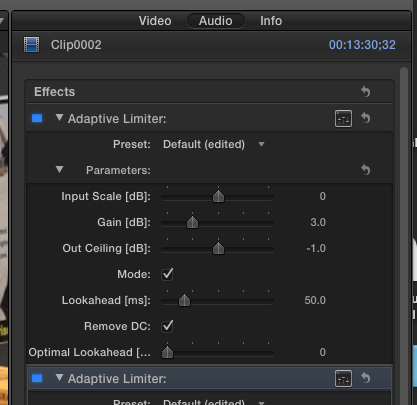
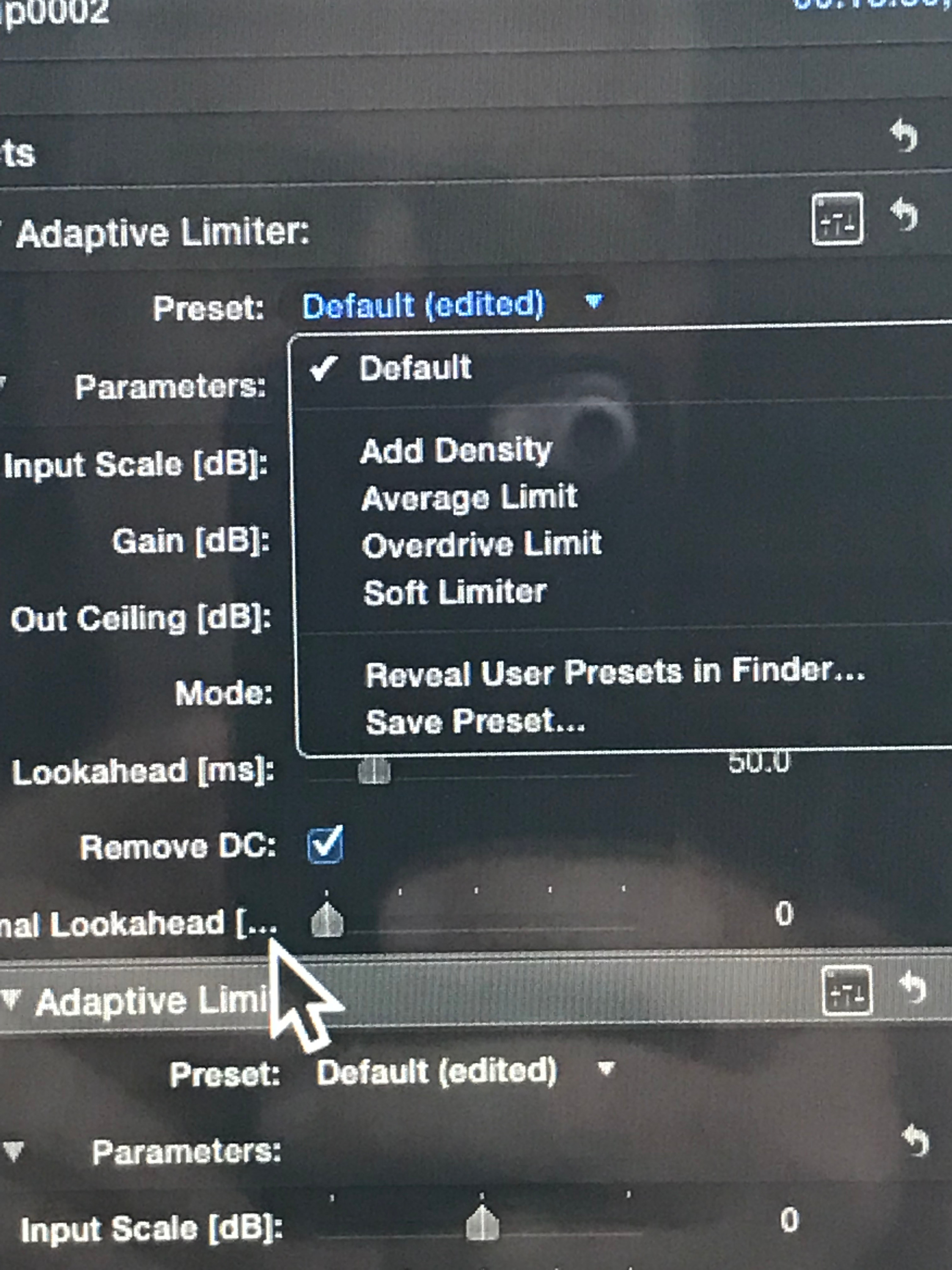
There are more settings In the adaptive limiter that maybe I should be doing something with? Here is an image of adaptive limiter and the presets drop down menu
docs.google.com/document/d/1q24Q4JZKfCKh...Qig/edit?usp=sharing
SC_fox: I really appreciate the detailed of the instructions and trying to simplify this for me. Problem I'm running into is raising the gain and the volume raises the rest of the program and I was looking for a way to raise volume/gain(or some compression technique) on the entire program so that
the parts where the speaker speaks softly and turns away from the mic are louder without raising volume of entire program. The compressed parts sound better but raising the gain in the volume raises the entire program... I am a total audio amateur Trying to avoid spending hours adjusting levels manually throughout the program to make the audio program useful to many.
There are more settings In the adaptive limiter that maybe I should be doing something with? Here is an image of adaptive limiter and the presets drop down menu
docs.google.com/document/d/1q24Q4JZKfCKh...Qig/edit?usp=sharing
Please Log in to join the conversation.


16 Jul 2023 23:52 #126409
by TerryB
Replied by TerryB on topic best way to raise quiet areas of a speaking recording without lowering the loude
Here's a pretty good tutorial on cleaning up audio in FCP.
Please Log in to join the conversation.
17 Jul 2023 05:43 #126411
by sc_fox
Replied by sc_fox on topic best way to raise quiet areas of a speaking recording without lowering the loude
If you're basically finished editing your video, you can make a compound clip of your entire project and apply a single audio plugin (or a combination of plugins) to control it all without having to go from clip to clip.
Alternately, you can edit the audio of one clip to your satisfaction, then Command-C to Copy and then select ALL other clips in your project and Paste Attributes (Command - Shift - V) — you'll get a dialog box where you can select the specific plugins you want to apply (from the Audio Attributes column) then click the Paste button. If you need to make minor edits in any given clip - the plugin is already applied — you just need to get into it and tweak it.
This is what I was talking about concerning Adaptive Limiter:
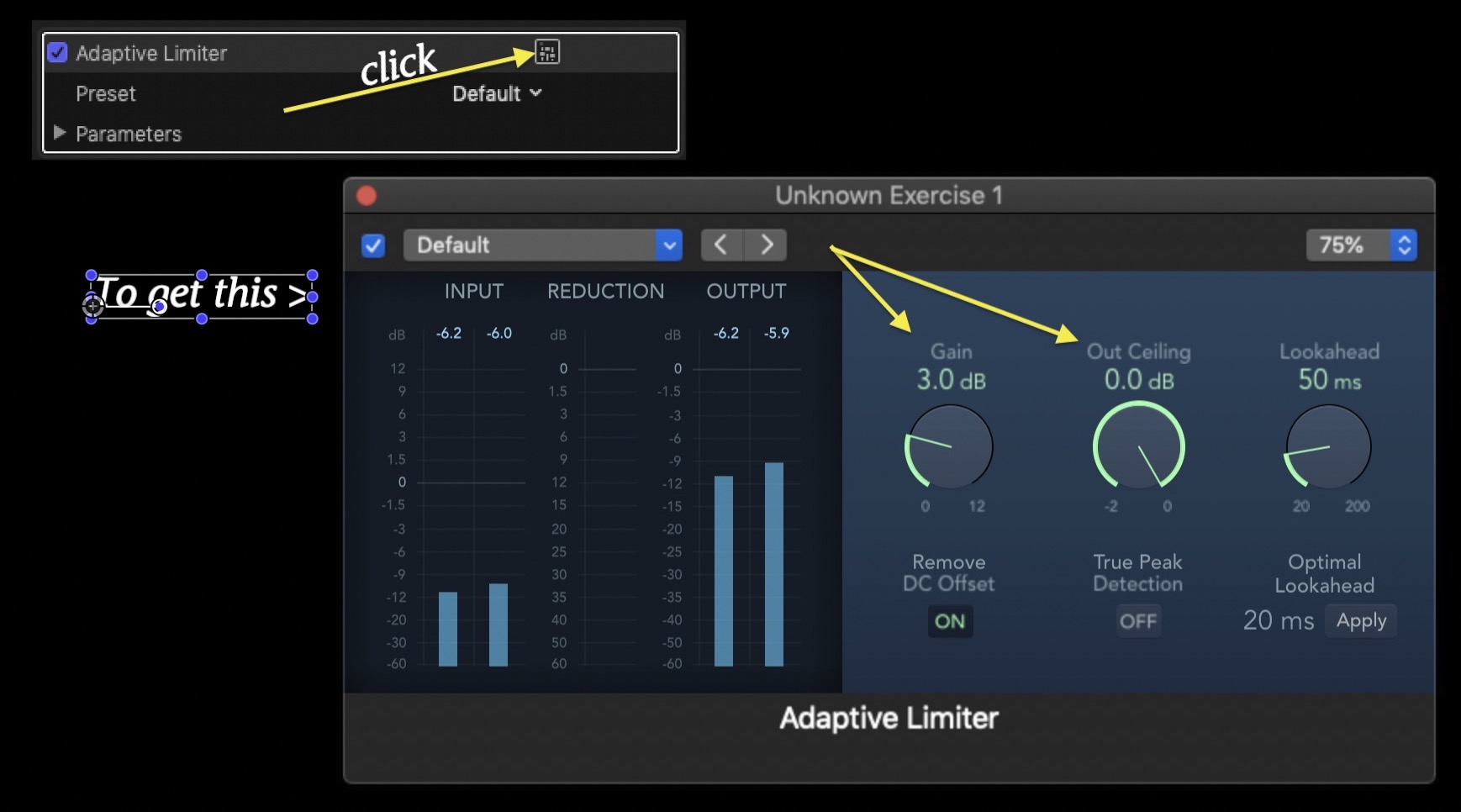
Your version may look slightly different (I'm using an older version of FCPX). There are basically just two controls to deal with (although you might want to consider setting the lookahead to the recommend best setting of 20ms by clicking the Apply button.) I think I would also recommend turning on True Peak Detection.
Remember that all you want to do is get the audio to be in the same relative range, then you can increase the Volume control. Make sure the meters are visible and make sure that the audio is around -10/-12dB for speech, -6dB (average) for (loud) music. 0dB is the absolute limit without introducing "clipping" (which is okay for very loud sounds like explosions, jet aircraft, etc...). Clipping is tricky because the audio in FCPX is 32-floating point sampling — you won't actually get clipping until exporting the audio to an integer format file (and then it will sound really terrible!) Final Cut will indicate clipping by placing red bars over the channel meters in which the clipping occurs.
Adaptive Limiter is really very good at keeping audio from going over its "bounds" without making the audio sound "altered". It's not as "strong" as compression. Compression can introduce "artifacts" into the audio and Noise reduction techniques often make audio sound like its in a "small hall" with very "reflective" walls. They're both tools you really have to know how to use because if you don't, you can really mess things up.
[There's an "anatomy" to audio — it's not just what you can hear!]
BTW - when you're working with Audio, you should be using headphones with your Mac's Volume set to 50%. If you can listen "comfortably" then you're on the right track. Too loud, then you're "blowing out" the audio and too soft, that is when you need to increase the Audio Output Volume — after all plugin work is done.
When you have some extra time and you're looking for something to do, you should check out tutorials on "Audio Mastering". Try to find tutorials that are "product neutral" and BASIC, although you can check out some that use Apple Logic as many of those plugins are available in Final Cut. Try to avoid "schools of thought"... stick with "traditional".
Alternately, you can edit the audio of one clip to your satisfaction, then Command-C to Copy and then select ALL other clips in your project and Paste Attributes (Command - Shift - V) — you'll get a dialog box where you can select the specific plugins you want to apply (from the Audio Attributes column) then click the Paste button. If you need to make minor edits in any given clip - the plugin is already applied — you just need to get into it and tweak it.
This is what I was talking about concerning Adaptive Limiter:
Your version may look slightly different (I'm using an older version of FCPX). There are basically just two controls to deal with (although you might want to consider setting the lookahead to the recommend best setting of 20ms by clicking the Apply button.) I think I would also recommend turning on True Peak Detection.
Remember that all you want to do is get the audio to be in the same relative range, then you can increase the Volume control. Make sure the meters are visible and make sure that the audio is around -10/-12dB for speech, -6dB (average) for (loud) music. 0dB is the absolute limit without introducing "clipping" (which is okay for very loud sounds like explosions, jet aircraft, etc...). Clipping is tricky because the audio in FCPX is 32-floating point sampling — you won't actually get clipping until exporting the audio to an integer format file (and then it will sound really terrible!) Final Cut will indicate clipping by placing red bars over the channel meters in which the clipping occurs.
Adaptive Limiter is really very good at keeping audio from going over its "bounds" without making the audio sound "altered". It's not as "strong" as compression. Compression can introduce "artifacts" into the audio and Noise reduction techniques often make audio sound like its in a "small hall" with very "reflective" walls. They're both tools you really have to know how to use because if you don't, you can really mess things up.
[There's an "anatomy" to audio — it's not just what you can hear!]
BTW - when you're working with Audio, you should be using headphones with your Mac's Volume set to 50%. If you can listen "comfortably" then you're on the right track. Too loud, then you're "blowing out" the audio and too soft, that is when you need to increase the Audio Output Volume — after all plugin work is done.
When you have some extra time and you're looking for something to do, you should check out tutorials on "Audio Mastering". Try to find tutorials that are "product neutral" and BASIC, although you can check out some that use Apple Logic as many of those plugins are available in Final Cut. Try to avoid "schools of thought"... stick with "traditional".
Please Log in to join the conversation.

17 Jul 2023 15:04 #126418
by VTC
Replied by VTC on topic best way to raise quiet areas of a speaking recording without lowering the loude
Here's the part where subtitles can rescue your video, giving the viewer an option other than moving on a less grating viewing experience.
I prefer reading over having to strain listening to decipher lousy audio or muting those annoying and useless music beds people drench their vids with. MacWhisper - free. Also irritating are the artifacts left behind by stripping out background noise or increasing noise levels while leveling less robust passages.
I prefer reading over having to strain listening to decipher lousy audio or muting those annoying and useless music beds people drench their vids with. MacWhisper - free. Also irritating are the artifacts left behind by stripping out background noise or increasing noise levels while leveling less robust passages.
Please Log in to join the conversation.
19 Jul 2023 19:01 #126442
by donspark
Replied by donspark on topic best way to raise quiet areas of a speaking recording without lowering the loude
I wanted to thank everyone and particularly sc_fox
fcp.co/profile/3335-sc-fox
for the really excellent explanation. Somebody hire that guy!
fcp.co/profile/3335-sc-fox
for the really excellent explanation. Somebody hire that guy!
Please Log in to join the conversation.


23 Sep 2023 16:55 #127264
by mattj
Replied by mattj on topic best way to raise quiet areas of a speaking recording without lowering the loude
Thanks for the awesome suggestion with this Adaptive Limiter! I'm messing around with it now too. I think this is really helping me. I do need to get some headphones to really get a good idea what I'm hearing too!
If you're basically finished editing your video, you can make a compound clip of your entire project and apply a single audio plugin (or a combination of plugins) to control it all without having to go from clip to clip.
Alternately, you can edit the audio of one clip to your satisfaction, then Command-C to Copy and then select ALL other clips in your project and Paste Attributes (Command - Shift - V) — you'll get a dialog box where you can select the specific plugins you want to apply (from the Audio Attributes column) then click the Paste button. If you need to make minor edits in any given clip - the plugin is already applied — you just need to get into it and tweak it.
This is what I was talking about concerning Adaptive Limiter:
Your version may look slightly different (I'm using an older version of FCPX). There are basically just two controls to deal with (although you might want to consider setting the lookahead to the recommend best setting of 20ms by clicking the Apply button.) I think I would also recommend turning on True Peak Detection.
Remember that all you want to do is get the audio to be in the same relative range, then you can increase the Volume control. Make sure the meters are visible and make sure that the audio is around -10/-12dB for speech, -6dB (average) for (loud) music. 0dB is the absolute limit without introducing "clipping" (which is okay for very loud sounds like explosions, jet aircraft, etc...). Clipping is tricky because the audio in FCPX is 32-floating point sampling — you won't actually get clipping until exporting the audio to an integer format file (and then it will sound really terrible!) Final Cut will indicate clipping by placing red bars over the channel meters in which the clipping occurs.
Adaptive Limiter is really very good at keeping audio from going over its "bounds" without making the audio sound "altered". It's not as "strong" as compression. Compression can introduce "artifacts" into the audio and Noise reduction techniques often make audio sound like its in a "small hall" with very "reflective" walls. They're both tools you really have to know how to use because if you don't, you can really mess things up.
[There's an "anatomy" to audio — it's not just what you can hear!]
BTW - when you're working with Audio, you should be using headphones with your Mac's Volume set to 50%. If you can listen "comfortably" then you're on the right track. Too loud, then you're "blowing out" the audio and too soft, that is when you need to increase the Audio Output Volume — after all plugin work is done.
When you have some extra time and you're looking for something to do, you should check out tutorials on "Audio Mastering". Try to find tutorials that are "product neutral" and BASIC, although you can check out some that use Apple Logic as many of those plugins are available in Final Cut. Try to avoid "schools of thought"... stick with "traditional".
Please Log in to join the conversation.
