




- Posts: 8
- Thank you received: 0
3 Post Moderation Rule for New Boarders (25 Jan 2021)
New boarders will have their posts moderated - Don't worry if you cannot see your post immediately.
FCP adding crackles and pops to audio of imported TikTok livestream videos
01 Feb 2023 23:02 #123942
by tomh
When I import those livestream videos downloaded from TikTok into Final Cut Pro (10.6.3) I am hearing frequent clicks and pops in the audio, like you'd hear on an old LP record that had scratches in it (if anyone remembers those). The audio artifacts aren't in the original audio, however, because if I play the video file outside of FCP (using QuickTime) the audio sounds fine. No clicks or pops at all. When I export the video, the audio noise is unfortunately included in the rendered video file.
I have tried re-exporting the video file from QuickTime and exporting only the audio track from QuickTime. While they both have clean audio, as soon as I bring them into FCP the crackles and pops appear in the audio.
The files downloaded from TikTok are MPEG-4 movie files. When I view the info for the downloaded file it says the codecs are MPEG-4 AAC, H.264. Audio channels: Stereo. When I import the video into the timeline, I choose Video based on first clip properties. Here is the file and audio info panels for the video in FCP:
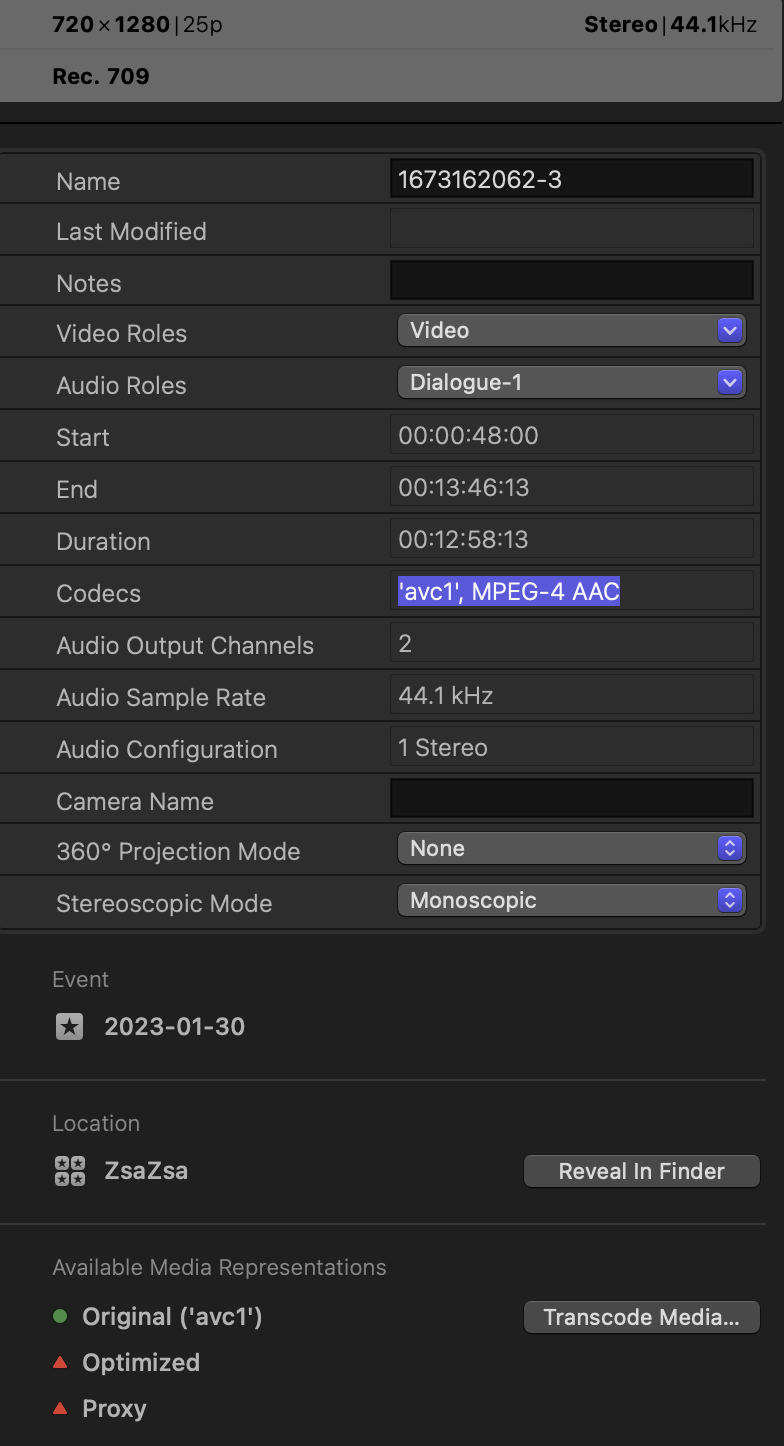
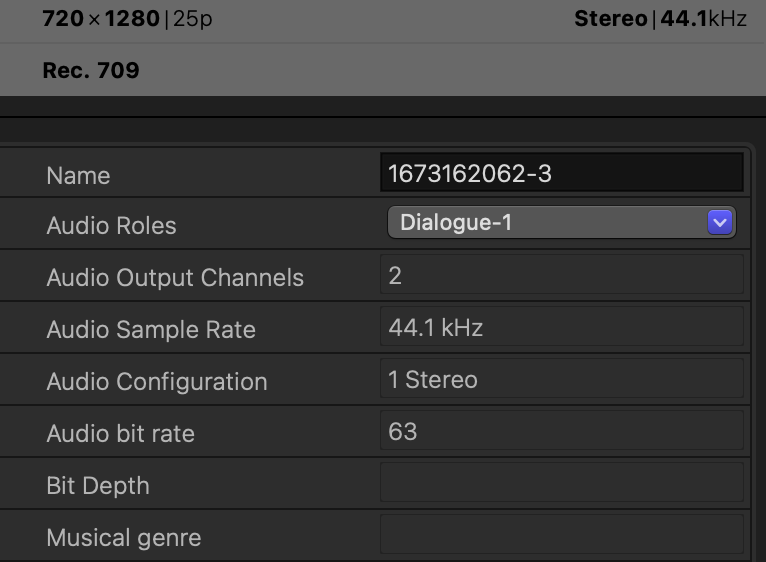
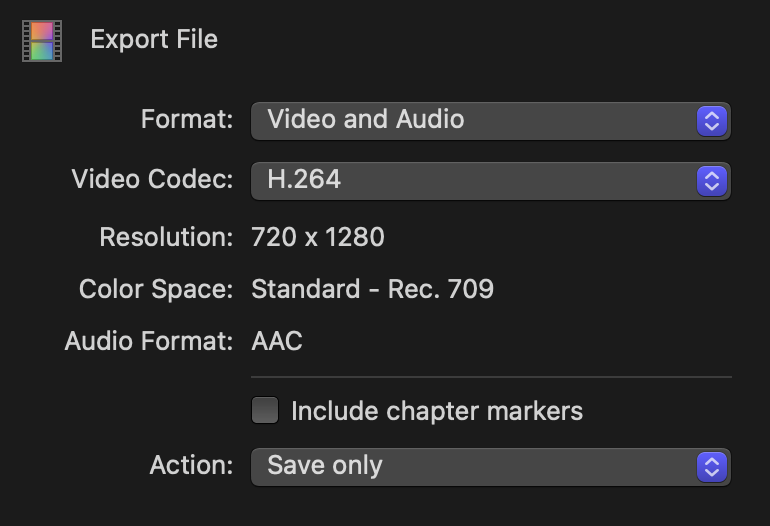
I've attached a Zip file that contains two, short sample clips taken from the video. The file titled Test Clip.mov is the clip taken directly from the original video (trimmed in QuickTime). When I watch that using QuickTime the audio sounds fine, no crackling or pops. When I import that file into FCP and then export it, the resulting file (titled Test Clip Export from FCP.mov) has some crackling and pops in the audio, which I also hear in the FCP timeline. These are the export settings I used:
If anyone can shed some light on why I'm getting all this audio noise in these video files, I'd be so grateful.
I have tried re-exporting the video file from QuickTime and exporting only the audio track from QuickTime. While they both have clean audio, as soon as I bring them into FCP the crackles and pops appear in the audio.
The files downloaded from TikTok are MPEG-4 movie files. When I view the info for the downloaded file it says the codecs are MPEG-4 AAC, H.264. Audio channels: Stereo. When I import the video into the timeline, I choose Video based on first clip properties. Here is the file and audio info panels for the video in FCP:
I've attached a Zip file that contains two, short sample clips taken from the video. The file titled Test Clip.mov is the clip taken directly from the original video (trimmed in QuickTime). When I watch that using QuickTime the audio sounds fine, no crackling or pops. When I import that file into FCP and then export it, the resulting file (titled Test Clip Export from FCP.mov) has some crackling and pops in the audio, which I also hear in the FCP timeline. These are the export settings I used:
If anyone can shed some light on why I'm getting all this audio noise in these video files, I'd be so grateful.
Please Log in to join the conversation.


02 Feb 2023 00:03 - 02 Feb 2023 03:20 #123943
by DaveM
Replied by DaveM on topic FCP adding crackles and pops to audio of imported TikTok livestream videos
A question for now... when you "export" or "save" the original A/V clip from TikTok, do you have the option to specify frame rate?
Last edit: 02 Feb 2023 03:20 by DaveM.
Please Log in to join the conversation.
02 Feb 2023 01:09 #123944
by tomh
Replied by tomh on topic FCP adding crackles and pops to audio of imported TikTok livestream videos
Hi Dave, thank you! So frustrating on the Apple forum.
There aren't any options for exporting the clips from TikTok, they provide a simple Download button and that's all. I've tried doing the download on the desktop and from my iPhone to see if there's a difference, but the audio problem exists on both files no matter where they are downloaded.
There aren't any options for exporting the clips from TikTok, they provide a simple Download button and that's all. I've tried doing the download on the desktop and from my iPhone to see if there's a difference, but the audio problem exists on both files no matter where they are downloaded.
Please Log in to join the conversation.
02 Feb 2023 01:19 - 02 Feb 2023 03:21 #123945
by DaveM
Replied by DaveM on topic FCP adding crackles and pops to audio of imported TikTok livestream videos
Tom, in the "Test Clip.mp4" file you made from QuickTime Player, I hear one or two minor "pops" when listening to it in FCP (which sound more like wireless microphone noise). The file info shows a frame rate of 25 fps, not 24.99 fps, which you had mentioned earlier (on Apple's Communities website). I wonder if you had exported the trimmed clip from QT Player rather than just saving it, as exporting would deal with the variable frame rate and transcodes the original file (thus possibly cleaning up the original issue). I don't hear more substantial "noise" like you'd hear from playing a record on a turntable.
I believe the issue originates in the way many applications save video recordings, such as zoom, OBS, and others. They often record and save videos with a variable frame rate, which usually sounds fine in a video player but which can cause issues in an editing application (which can affect how audio is played back).
Perhaps, my suggestion to use QT Player to trim the original file wasn't a good idea.
You could optimize the file when you import it (or afterwards) into FCP. That would help fix things (but as Terry said it creates a ProRes 422 version which may be a storage concern, or not). Compressor would basically do the same thing, giving you a few more options for output file codec, etc.
Shutter Encoder, a free application, can address things on a more granular level. You can re-wrap files, conform frame rate, or just convert the audio, just to name a few of its features. It also has a trim without re-encode function. I wonder if that would work better than QT Player for trimming the source file.
We need a sample file that has the variable frame rate like you mentioned previously...
P.S. - And just to be clear, I really doubt that FCP is creating the issue. FCP is more stringent about proper frame rates when video and audio are linked together (oversimplifying a bit).
I believe the issue originates in the way many applications save video recordings, such as zoom, OBS, and others. They often record and save videos with a variable frame rate, which usually sounds fine in a video player but which can cause issues in an editing application (which can affect how audio is played back).
Perhaps, my suggestion to use QT Player to trim the original file wasn't a good idea.
You could optimize the file when you import it (or afterwards) into FCP. That would help fix things (but as Terry said it creates a ProRes 422 version which may be a storage concern, or not). Compressor would basically do the same thing, giving you a few more options for output file codec, etc.
Shutter Encoder, a free application, can address things on a more granular level. You can re-wrap files, conform frame rate, or just convert the audio, just to name a few of its features. It also has a trim without re-encode function. I wonder if that would work better than QT Player for trimming the source file.
We need a sample file that has the variable frame rate like you mentioned previously...
P.S. - And just to be clear, I really doubt that FCP is creating the issue. FCP is more stringent about proper frame rates when video and audio are linked together (oversimplifying a bit).
Last edit: 02 Feb 2023 03:21 by DaveM.
Please Log in to join the conversation.
02 Feb 2023 02:49 #123946
by tomh
Replied by tomh on topic FCP adding crackles and pops to audio of imported TikTok livestream videos
Hi Dave, after trimming the video, I clicked on Save to create the Test Clip video file. I downloaded Shutter Encoder and re-did the trim without re-encoding, but not sure if I did it correctly. I've attached that file. I think it was Terry on the Apple forum who mentioned that TikTok livestream videos are 24.99 fps and that he used ffprobe to find that out. I've no idea if that's accurate or not.
I did try the Transcode Media: Optimize option that Terry also mentioned in his post, but, the crackling and pops were still in the audio. Did you see Tom Wolsky's reply to me on the Apple forum? This is what he said:
I did try the Transcode Media: Optimize option that Terry also mentioned in his post, but, the crackling and pops were still in the audio. Did you see Tom Wolsky's reply to me on the Apple forum? This is what he said:
I think I may just buy Compressor and try to duplicated what Tom described above. I'm hoping the interface might be a bit easier to figure out than Shutter Encoder, I had some difficultly making the trimmed video clip that I attached.I looked at the original file. I consistently get a little tick at 6:12 and there are others. I converted the file in Compressor to ProRes and set the sample rate to 48. That file is clean in FCP.
Please Log in to join the conversation.
02 Feb 2023 11:32 - 02 Feb 2023 11:37 #123949
by DaveM
Replied by DaveM on topic FCP adding crackles and pops to audio of imported TikTok livestream videos
Tom, I don't see the new test clip that you created in Shutter Encoder (yeah, it's interface takes a bit of exploring to figure out).
It seems that the variable frame rate is causing the issue in FCP. By transcoding the original file, the issue should get resolved.
It's just a matter of choosing how to resolve things. Convert the source to ProRes and 48 kHz sampling rate for audio, or choose something like H.264/AVC with 48 kHz audio sampling rate. Both should clean up the audio. The ProRes version suffers less visual degradation during the transcode (and the audio ends up as uncompressed/PCM as in a WAV/AIFF file). The H.264/AVC file version would have slightly more visual degradation (generational loss) but end up 3 to 5 times smaller in file size. It's a trade-off you'll need to consider, depending on your system resources (drive space).
I'd use Compressor (or EditReady, another great tool to have) to convert to ProRes 422 with 48 kHz audio*. Shutter Encoder, Compressor, or EditReady should do well for converting to an H.264/AVC file with 48 kHz audio.
Cheers.
* I'm not sure if ShutterEncoder uses Apple's ProRes implementation or the "simulated"/unofficial implementation in ffmpeg (upon which ShutterEncoder is built). Hence, the recommendation to use Compressor or EditReady.
P.S. - To see all the detailed info and (some) metadata contained in a media file, you can add the file to ShutterEncoder and then right-click-hold on the name to get a pop-up menu with "file information" being one of the choices. When chosen, a window with detailed info about the file will appear. Somewhat simpler tools to use to do the same thing would be Invisor or MediaInfo.
It seems that the variable frame rate is causing the issue in FCP. By transcoding the original file, the issue should get resolved.
It's just a matter of choosing how to resolve things. Convert the source to ProRes and 48 kHz sampling rate for audio, or choose something like H.264/AVC with 48 kHz audio sampling rate. Both should clean up the audio. The ProRes version suffers less visual degradation during the transcode (and the audio ends up as uncompressed/PCM as in a WAV/AIFF file). The H.264/AVC file version would have slightly more visual degradation (generational loss) but end up 3 to 5 times smaller in file size. It's a trade-off you'll need to consider, depending on your system resources (drive space).
I'd use Compressor (or EditReady, another great tool to have) to convert to ProRes 422 with 48 kHz audio*. Shutter Encoder, Compressor, or EditReady should do well for converting to an H.264/AVC file with 48 kHz audio.
Cheers.
* I'm not sure if ShutterEncoder uses Apple's ProRes implementation or the "simulated"/unofficial implementation in ffmpeg (upon which ShutterEncoder is built). Hence, the recommendation to use Compressor or EditReady.
P.S. - To see all the detailed info and (some) metadata contained in a media file, you can add the file to ShutterEncoder and then right-click-hold on the name to get a pop-up menu with "file information" being one of the choices. When chosen, a window with detailed info about the file will appear. Somewhat simpler tools to use to do the same thing would be Invisor or MediaInfo.
Last edit: 02 Feb 2023 11:37 by DaveM.
Please Log in to join the conversation.
02 Feb 2023 22:57 #123953
by tomh
Replied by tomh on topic FCP adding crackles and pops to audio of imported TikTok livestream videos
Hi Dave, I re-attached the audio clip, I forgot to zip it up, so I think that's why it didn't work last time.
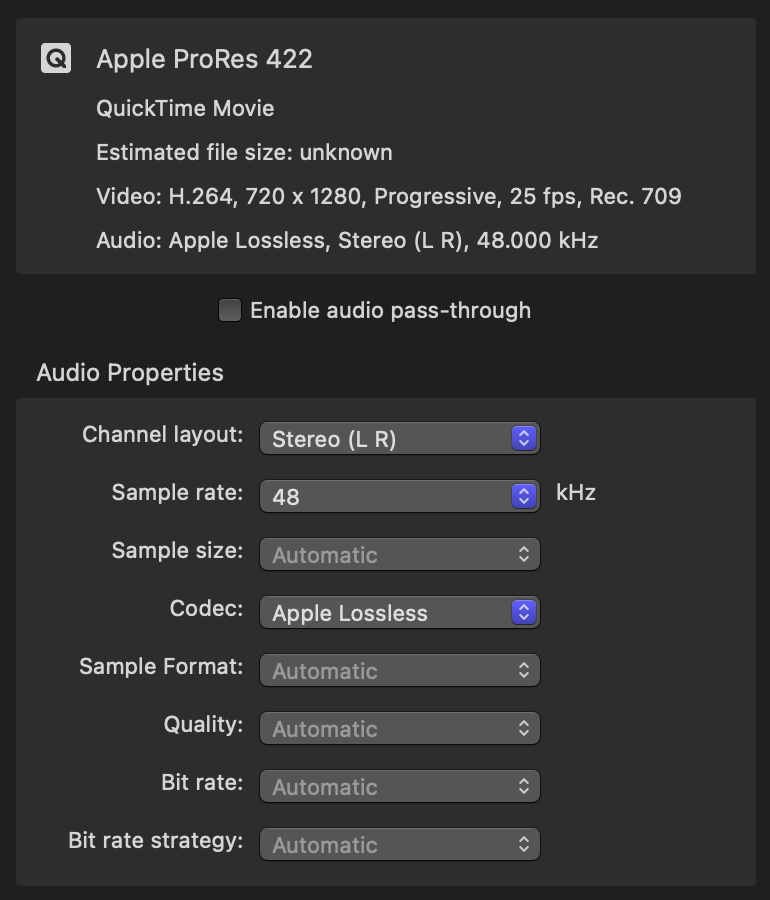
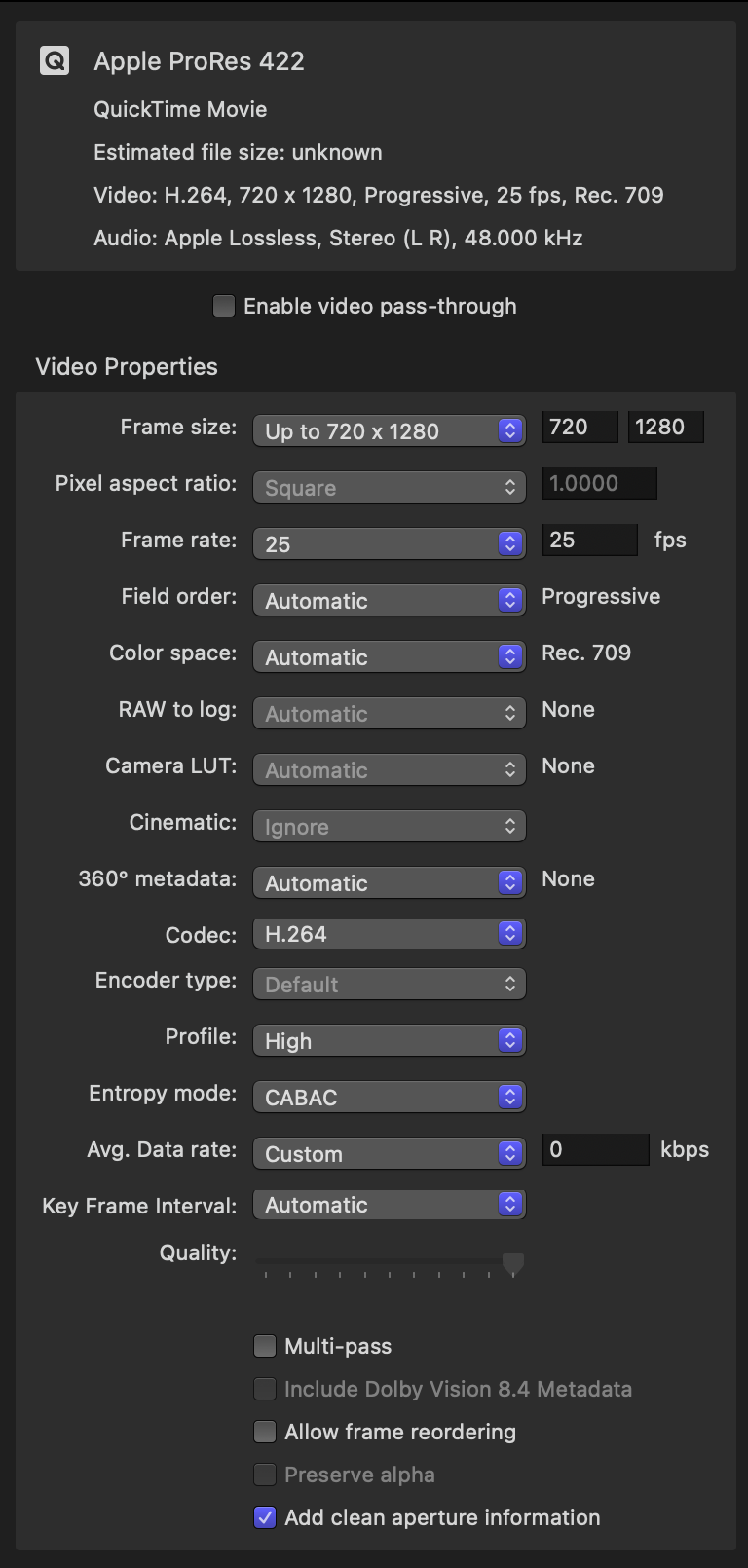
I transcoded the video using Compressor, but, had some issues with audio synching. It's a long video, about 2.5 hours long. So by the end the audio was quite out of synch with the video. Not sure why or how it happened. I remember on the Apple forum that Terry said that TikTok videos were encoded with 24.99 fps, so maybe that's why? Should I specify that frame rate for the output video instead of the 25fps I specified?
I've attached screen caps of the video and audio settings I used in Compressor in case that helps.
I transcoded the video using Compressor, but, had some issues with audio synching. It's a long video, about 2.5 hours long. So by the end the audio was quite out of synch with the video. Not sure why or how it happened. I remember on the Apple forum that Terry said that TikTok videos were encoded with 24.99 fps, so maybe that's why? Should I specify that frame rate for the output video instead of the 25fps I specified?
I've attached screen caps of the video and audio settings I used in Compressor in case that helps.
Please Log in to join the conversation.
02 Feb 2023 23:29 #123955
by tomh
Replied by tomh on topic FCP adding crackles and pops to audio of imported TikTok livestream videos
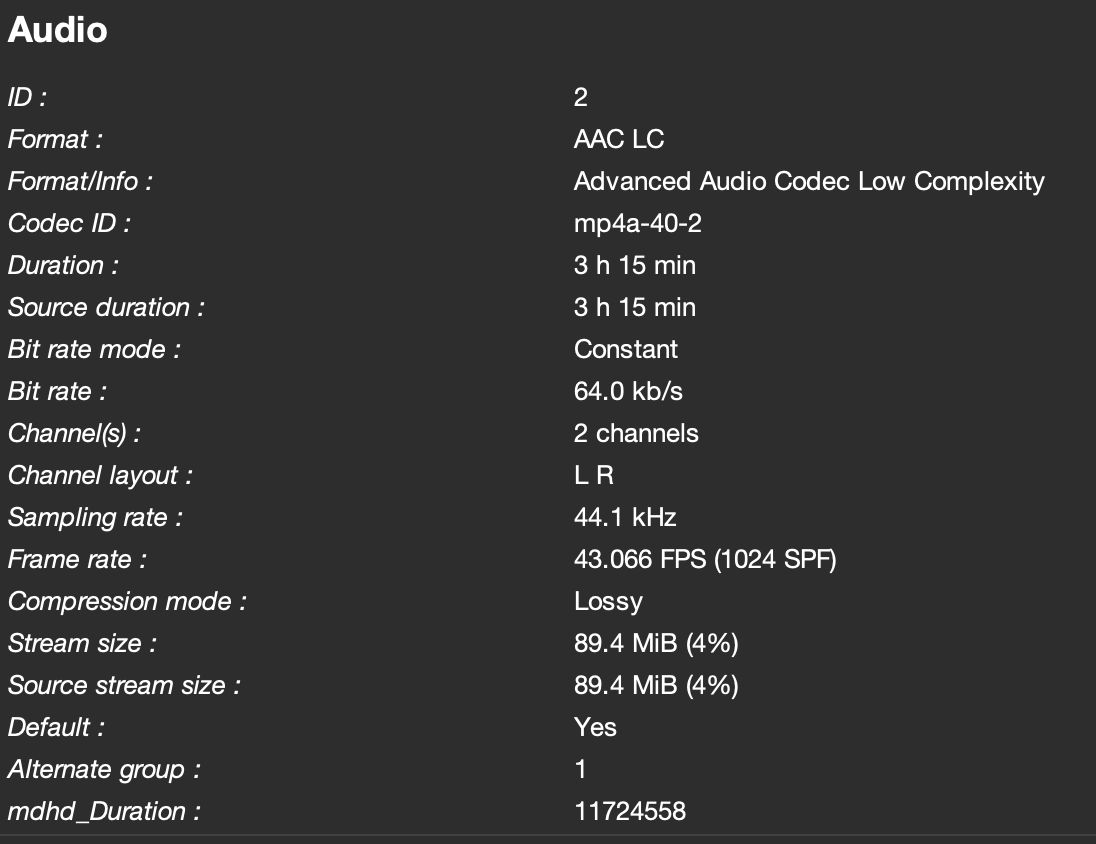
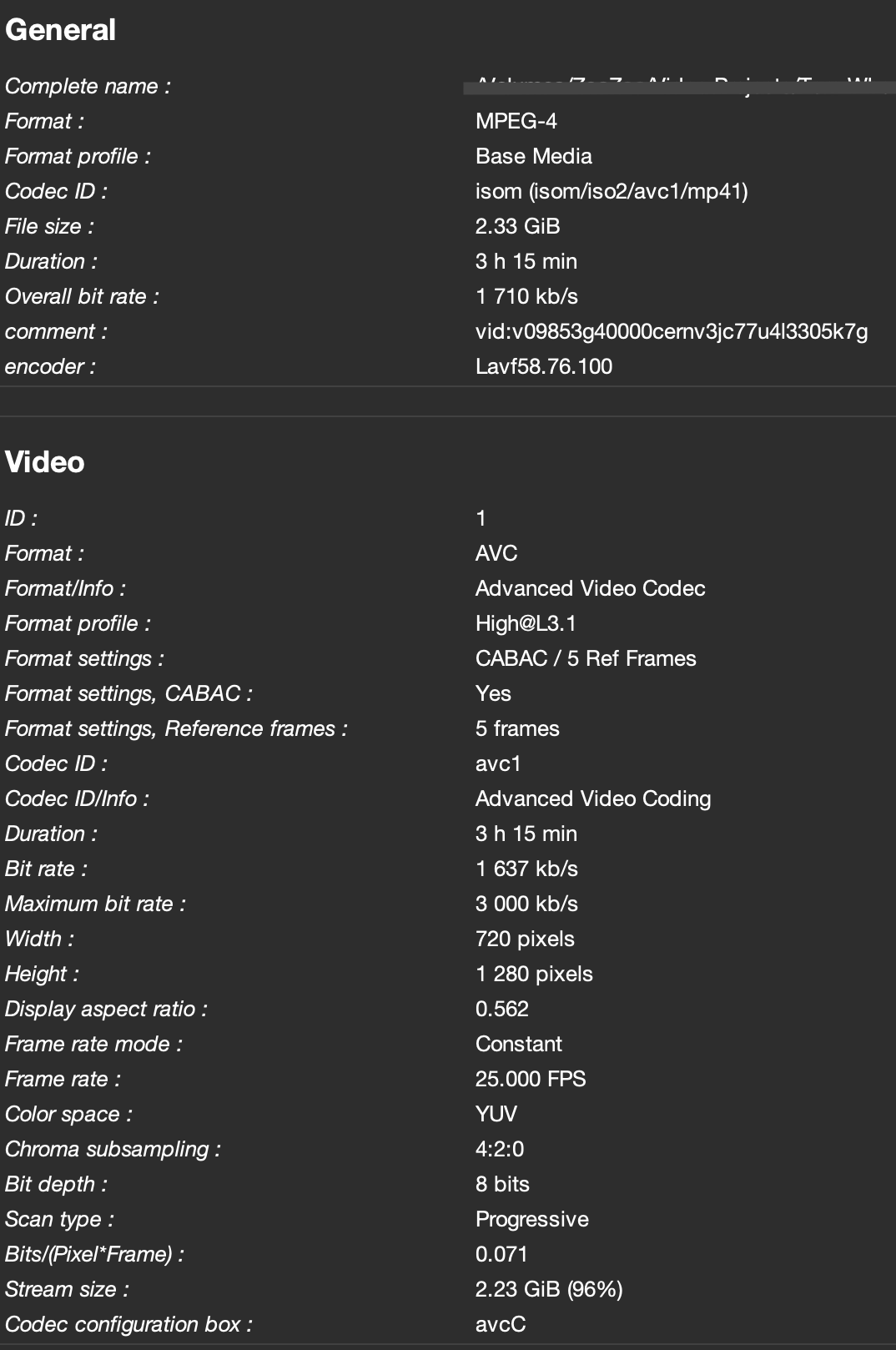
Hi Dave, I used Shutter Encoder to get the information for the original video file I downloaded from TikTok. I attached screen shots of the info below in case it's helpful.
Please Log in to join the conversation.
02 Feb 2023 23:50 - 03 Feb 2023 00:53 #123956
by DaveM
Replied by DaveM on topic FCP adding crackles and pops to audio of imported TikTok livestream videos
Tom, the "TestClip_Cut.mp4" seems to have been changed, as it has metadata showing a 25 fps frame rate though the audio sampling rate is 44.1 kHz. I notice at least a handful of clicks/pops when playing back the clip in FCP but not in QT Player. So, it seems that resampling the audio is what addresses the issue (for FCP).
I imported the same file into DaVinci Resolve Studio 18.1.2 and couldn't hear any clicks/pops. Hmm. I guess that FCP is more finicky or that Resolve is doing some processing I'm not aware of.
The real issue seems to stem from the handling of video and audio by TikTok or maybe the gear that was used to do the stream. I have no idea how things are being processed. I wonder if your stream settings could be affecting things. Is the recording you downloaded a result of your live camera and audio feed being processed on the TikTok servers?
As far as the audio drift goes, that could be due to your live stream settings and to your gear (or TikTok). I know that for some streaming devices, there are settings to help prevent synch/drift issues.
I'd suggest you do some more thorough testing of your HW-SW setup for the streaming. The cause could be due to your gear/setup, TikTok's processing of the stream, network issues, etc.
The noise issue is likely separate from the audio drift issue.
So, once you've transcoded things to remove the audio clicks/pops, you could import into FCP and start editing. There are many ways to address audio drift. One way would be to take an edited timeline clip with sync issues and choose "Clip -> Open Clip". This opens the selected clip in its own timeline and you can adjust A-V sync there. You'd click on "<" to the left of the Project name to exit the clip (or you could type command-[).
So, the audio could be out of sync, which can be fixed as I just described, or there may be actual drift (speeding up or slowing down). For cases where re-synching doesn't fix things, you might need to retime the audio...
Another "workaround" would be to re-record things locally.
In the future, you might consider recording your streams locally and not rely on downloading later on from TikTok. Some streaming HW-SW has this functionality built-in, so that you record locally at the same time you stream to the Internet.
I imported the same file into DaVinci Resolve Studio 18.1.2 and couldn't hear any clicks/pops. Hmm. I guess that FCP is more finicky or that Resolve is doing some processing I'm not aware of.
The real issue seems to stem from the handling of video and audio by TikTok or maybe the gear that was used to do the stream. I have no idea how things are being processed. I wonder if your stream settings could be affecting things. Is the recording you downloaded a result of your live camera and audio feed being processed on the TikTok servers?
As far as the audio drift goes, that could be due to your live stream settings and to your gear (or TikTok). I know that for some streaming devices, there are settings to help prevent synch/drift issues.
I'd suggest you do some more thorough testing of your HW-SW setup for the streaming. The cause could be due to your gear/setup, TikTok's processing of the stream, network issues, etc.
The noise issue is likely separate from the audio drift issue.
So, once you've transcoded things to remove the audio clicks/pops, you could import into FCP and start editing. There are many ways to address audio drift. One way would be to take an edited timeline clip with sync issues and choose "Clip -> Open Clip". This opens the selected clip in its own timeline and you can adjust A-V sync there. You'd click on "<" to the left of the Project name to exit the clip (or you could type command-[).
So, the audio could be out of sync, which can be fixed as I just described, or there may be actual drift (speeding up or slowing down). For cases where re-synching doesn't fix things, you might need to retime the audio...
Another "workaround" would be to re-record things locally.
In the future, you might consider recording your streams locally and not rely on downloading later on from TikTok. Some streaming HW-SW has this functionality built-in, so that you record locally at the same time you stream to the Internet.
Last edit: 03 Feb 2023 00:53 by DaveM.
Please Log in to join the conversation.
02 Feb 2023 23:54 #123958
by DaveM
Thanks for the info. In what you'ved posted, the frame rate for the video is listed as 25 fps, not 24.99 fps. I wonder why it has changed. And, it is listed as constant frame rate...
Replied by DaveM on topic FCP adding crackles and pops to audio of imported TikTok livestream videos
Hi Dave, I used Shutter Encoder to get the information for the original video file I downloaded from TikTok. I attached screen shots of the info below in case it's helpful.
Thanks for the info. In what you'ved posted, the frame rate for the video is listed as 25 fps, not 24.99 fps. I wonder why it has changed. And, it is listed as constant frame rate...
Please Log in to join the conversation.
09 Mar 2023 22:02 - 09 Mar 2023 22:04 #124521
by tomh
Replied by tomh on topic FCP adding crackles and pops to audio of imported TikTok livestream videos
Hi Dave, just following up on this. I used Compressor to transcode the video files downloaded from TikTok to ProRes 422 at 25fps using MPEG-4 AAC audio 48KHz. This removed the intermittent popping and crackling sounds that would show up when played back in FCP, but, the audio would gradually become out of synch by the end of the video. I tried all kinds of different settings for exporting in Compressor, but, the drift was always present.
What I did was simply open the clip in FCP and then drag the audio track just a little bit to slightly increase the audio track length. This will usually end up making the audio more in synch throughout. However, on some of the video files, the audio becomes out of synch in the middle of the video, then changes back to being in synch a bit later. So in that case, I have to slice up the audio track and then drag each piece a little to synch it up with the video. It's a huge PITA and is time-consuming, but, there's no other way around it, unfortunately. It seems TikTok does something to the encoding of the audio in their videos that is non-standard and screws up the synching by Compressor. I am simply using TikTok's app on my iPhone to do the livestreams, so, have no control over settings for the video livestream. I'm unfortunately stuck with what they provide by default, and the video files I download can't be configured in any other way before downloading either.
What I did was simply open the clip in FCP and then drag the audio track just a little bit to slightly increase the audio track length. This will usually end up making the audio more in synch throughout. However, on some of the video files, the audio becomes out of synch in the middle of the video, then changes back to being in synch a bit later. So in that case, I have to slice up the audio track and then drag each piece a little to synch it up with the video. It's a huge PITA and is time-consuming, but, there's no other way around it, unfortunately. It seems TikTok does something to the encoding of the audio in their videos that is non-standard and screws up the synching by Compressor. I am simply using TikTok's app on my iPhone to do the livestreams, so, have no control over settings for the video livestream. I'm unfortunately stuck with what they provide by default, and the video files I download can't be configured in any other way before downloading either.
Last edit: 09 Mar 2023 22:04 by tomh.
Please Log in to join the conversation.
09 Mar 2023 23:13 - 09 Mar 2023 23:15 #124524
by DaveM
Replied by DaveM on topic FCP adding crackles and pops to audio of imported TikTok livestream videos
Tom, it would be helpful if you could share a file as downloaded directly from TikTok for us to look at and try to transcode. The example file should exhibit clear drift or audio issues. If not, it's not really possible to try to help further, as it would be conjecture and likely time-wasting...
You might want to look at other ways to stream/record your content. There may be other services that can work with live streams (riverside.fm?). If you're editing a livestream that's been recorded, you might consider recording locally while you stream, or just recording and not doing a live stream. It depends on what you needs are...
You might want to look at other ways to stream/record your content. There may be other services that can work with live streams (riverside.fm?). If you're editing a livestream that's been recorded, you might consider recording locally while you stream, or just recording and not doing a live stream. It depends on what you needs are...
Last edit: 09 Mar 2023 23:15 by DaveM.
Please Log in to join the conversation.
