


- Posts: 54
- Thank you received: 0
3 Post Moderation Rule for New Boarders (25 Jan 2021)
New boarders will have their posts moderated - Don't worry if you cannot see your post immediately.
Change of contrast/saturation when importing H264 files from DaVinci
- Domscillator
-
 Topic Author
- Offline
- Senior Member
-

Less
More
17 Dec 2022 09:33 - 17 Dec 2022 12:17 #123335
by Domscillator
Due to some bugs that have rendered Color Finale unusable on my M1 Max Macbook Pro, I had to edit and colour grade my latest project in DaVinci Resolve.
I still wanted to do some work in Final Cut though.
Here's the issue:
I exported an H264 file from Resolve that looks great and it looks beautiful on everything (Quicktime, other players, Mac Preview).
But once I drop this file into a Final Cut timeline (Rec709), the contrast is definitely off. The skin tones look a bit more washed out and in general looks like there's a bit more exposure and less saturation. (maybe less contrast too). The image is a bit more washed out and less punchy.
I have tried many different things but I cannot figure out why this is happening. There aren't that many options for colour profiles in Final Cut anyway.
One thing is for sure, the issue lies in the way that FCP interprets the footage because the it plays with the correct colour anywhere else- plus when you upload it on YouTube.
Does anyone have an idea on what might be going on here?
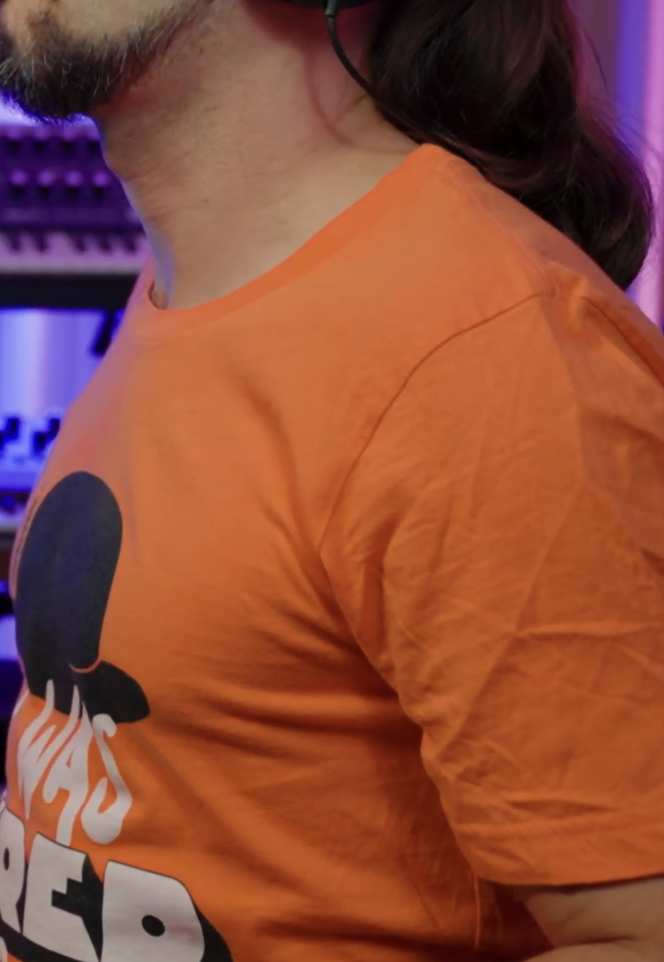
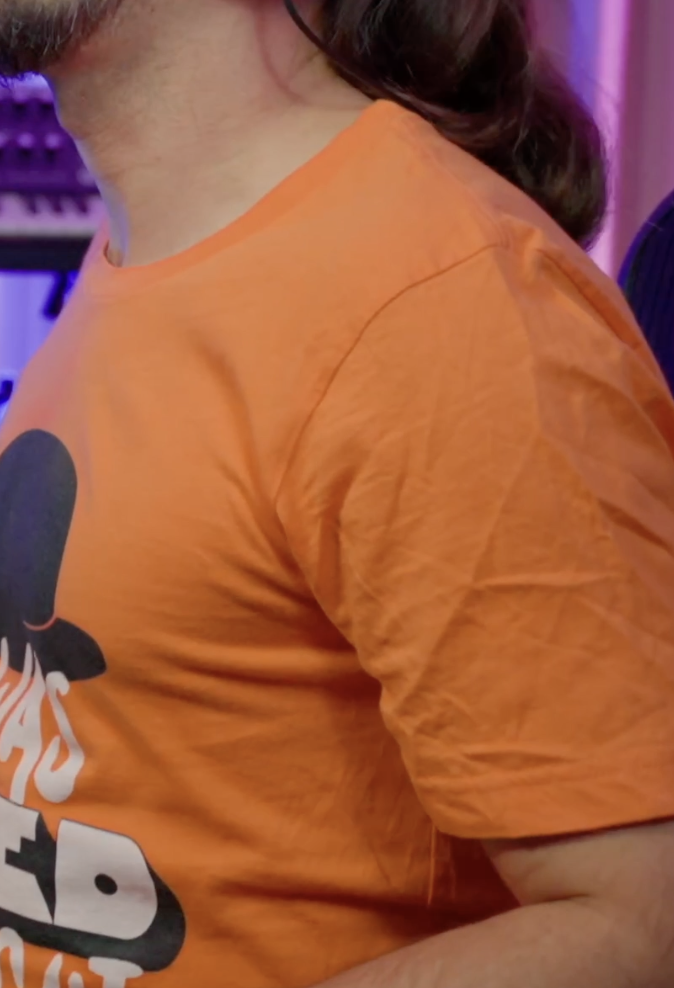
I have attached some images for comparison- pay attention to the oranges and the skintones.
In case you ask, exporting the file again from FCP also creates a file that's washed out and the difference is clear in Quicktime player.
I still wanted to do some work in Final Cut though.
Here's the issue:
I exported an H264 file from Resolve that looks great and it looks beautiful on everything (Quicktime, other players, Mac Preview).
But once I drop this file into a Final Cut timeline (Rec709), the contrast is definitely off. The skin tones look a bit more washed out and in general looks like there's a bit more exposure and less saturation. (maybe less contrast too). The image is a bit more washed out and less punchy.
I have tried many different things but I cannot figure out why this is happening. There aren't that many options for colour profiles in Final Cut anyway.
One thing is for sure, the issue lies in the way that FCP interprets the footage because the it plays with the correct colour anywhere else- plus when you upload it on YouTube.
Does anyone have an idea on what might be going on here?
I have attached some images for comparison- pay attention to the oranges and the skintones.
In case you ask, exporting the file again from FCP also creates a file that's washed out and the difference is clear in Quicktime player.
Last edit: 17 Dec 2022 12:17 by Domscillator.
Please Log in to join the conversation.


17 Dec 2022 16:43 #123338
by joema
A common cause of this is Resolve defaults to gamma 2.4. If you set the Resolve project settings, color management tab to Rec. 709-A for timeline and output color space. Try that, re-export it, import to FCP and see if it makes any difference.
Another possible cause (if using Sony SLog3) is by definition that uses "data levels", not "legal levels". Some NLEs don't interpret that correctly.
Replied by joema on topic Change of contrast/saturation when importing H264 files from DaVinci
...I had to edit and colour grade my latest project in DaVinci Resolve...I exported an H264 file from Resolve that looks great and it looks beautiful on everything (Quicktime, other players, Mac Preview)....But once I drop this file into a Final Cut timeline (Rec709), the contrast is definitely off. The skin tones look a bit more washed out and in general looks like there's a bit more exposure and less saturation. (maybe less contrast too). The image is a bit more washed out and less punchy...
A common cause of this is Resolve defaults to gamma 2.4. If you set the Resolve project settings, color management tab to Rec. 709-A for timeline and output color space. Try that, re-export it, import to FCP and see if it makes any difference.
Another possible cause (if using Sony SLog3) is by definition that uses "data levels", not "legal levels". Some NLEs don't interpret that correctly.
Please Log in to join the conversation.

17 Dec 2022 16:51 #123339
by VTC
Replied by VTC on topic Change of contrast/saturation when importing H264 files from DaVinci
A couple of thoughts here... Instead of sending out an actual file from Resolve, export an XML & import the XML into a new FCP project & see how that gets interpreted. The other thought being export a ProRes file from Resolve instead of a 264 file then throw THAT into FCP.
A ProRes 442 file weighs in at 1.1GB/min whereas a 264 file is around 15% of that, meaning you have 85% less data to work with. Been my experience exporting a 264 file takes around 3x longer to export as it does a ProRes 442 file. That extended 264 export was busy throwing away a lot of information in the translation giving you less data to work with in FCP.
A ProRes 442 file weighs in at 1.1GB/min whereas a 264 file is around 15% of that, meaning you have 85% less data to work with. Been my experience exporting a 264 file takes around 3x longer to export as it does a ProRes 442 file. That extended 264 export was busy throwing away a lot of information in the translation giving you less data to work with in FCP.
Please Log in to join the conversation.

17 Dec 2022 17:14 #123340
by DaveM
Replied by DaveM on topic Change of contrast/saturation when importing H264 files from DaVinci
Please Log in to join the conversation.
- Domscillator
-
Topic Author
- Offline
- Senior Member
-
Less
More
- Posts: 54
- Thank you received: 0
17 Dec 2022 23:48 - 18 Dec 2022 00:15 #123341
by Domscillator
Thank you so much for the response, you're definitely on to something!
I tried the following:
-Exporting by changing the Color Space Tag and the Gamma Tag. This made a difference but not in the direction I was hoping for. More specifically, it resulted in a H264 file with the exact washed out look like the file looks when imported in FCP.
-Changing the settings to Rec709. In this case I created a brand new project as I needed a completely different colour transform settings set. On export, the result was the same like above. DaVinci exported the file but it looks washed out, not only in FCP but also on preview and all players.
Yes, the files are indeed S-Log3 but that shouldn't matter after being rendered in DaVinci am I wrong?
Replied by Domscillator on topic Change of contrast/saturation when importing H264 files from DaVinci
...I had to edit and colour grade my latest project in DaVinci Resolve...I exported an H264 file from Resolve that looks great and it looks beautiful on everything (Quicktime, other players, Mac Preview)....But once I drop this file into a Final Cut timeline (Rec709), the contrast is definitely off. The skin tones look a bit more washed out and in general looks like there's a bit more exposure and less saturation. (maybe less contrast too). The image is a bit more washed out and less punchy...
A common cause of this is Resolve defaults to gamma 2.4. If you set the Resolve project settings, color management tab to Rec. 709-A for timeline and output color space. Try that, re-export it, import to FCP and see if it makes any difference.
Another possible cause (if using Sony SLog3) is by definition that uses "data levels", not "legal levels". Some NLEs don't interpret that correctly.
Thank you so much for the response, you're definitely on to something!
I tried the following:
-Exporting by changing the Color Space Tag and the Gamma Tag. This made a difference but not in the direction I was hoping for. More specifically, it resulted in a H264 file with the exact washed out look like the file looks when imported in FCP.
-Changing the settings to Rec709. In this case I created a brand new project as I needed a completely different colour transform settings set. On export, the result was the same like above. DaVinci exported the file but it looks washed out, not only in FCP but also on preview and all players.
Yes, the files are indeed S-Log3 but that shouldn't matter after being rendered in DaVinci am I wrong?
Last edit: 18 Dec 2022 00:15 by Domscillator.
Please Log in to join the conversation.
- Domscillator
-
Topic Author
- Offline
- Senior Member
-
Less
More
- Posts: 54
- Thank you received: 0
18 Dec 2022 01:00 #123342
by Domscillator
Replied by Domscillator on topic Change of contrast/saturation when importing H264 files from DaVinci
Thank you everyone for your responses.
For anyone who's interested, here's what worked over here. This is the only setting that did the trick (the output settings of it):
Also, this video is brilliant for anyone who's interested:
For anyone who's interested, here's what worked over here. This is the only setting that did the trick (the output settings of it):
Also, this video is brilliant for anyone who's interested:
Please Log in to join the conversation.
18 Dec 2022 18:15 - 18 Dec 2022 18:16 #123347
by joema
Yes that video is probably the best explanation I've seen. This recent article from Iain Anderson is also good: www.provideocoalition.com/understanding-color-management/
It is a very confusing area. One key item to remember is the recorded luma & gamma as shown on a waveform monitor may be more trustworthy vs than the visually display (say due to a monitor color profile). Because of all the varying behaviors with NLEs, playback apps, monitors, display profiles, legal vs data levels and color tags, you can't totally trust the visual appearance.
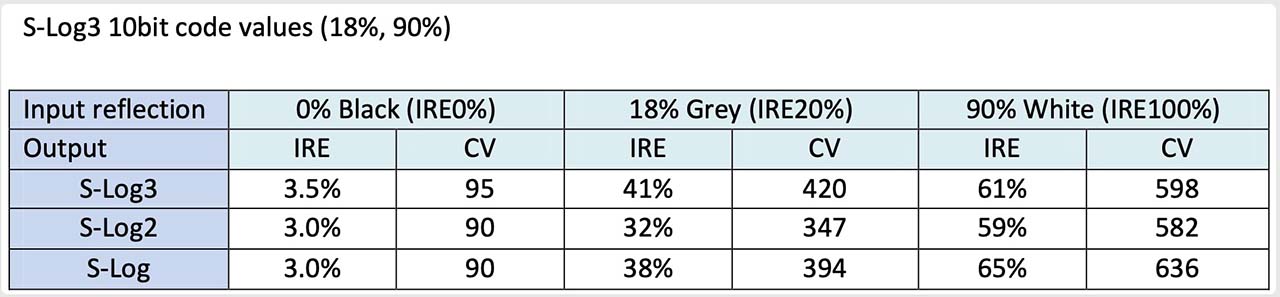
To get a more consistent understanding of your situation, it's often best to record a color card at the camera manufacturer's recommended exposure. For Sony SLog3 that is 61% IRE on a 90% reflective white card. Then play that in the NLE *without* any LUT or color space transform, while examining the waveform monitor. If you recorded SLog3 at 61% on white (as shown when recording on a camera or monitor's waveform scope), then in the NLE the waveform there should also be 61% if all LUTs and transforms are disabled.
What I see in some cases is the waveform shows 61% in the NLE for various encodings from Resolve, but when played in Quicktime it may show a slightly different gamma. In some cases there is a difference between how the NLE's viewer (both FCP and Resolve) is interpreting the NLC tags vs how the Quicktime player app is interpreting that. But at least shooting a color card at the mfg. recommended exposure lets you see whether it was recorded properly and whether the playback is a display issue or a data issue.
See attached Sony-recommended exposure levels for various SLog versions.
Replied by joema on topic Change of contrast/saturation when importing H264 files from DaVinci
...Also, this video is brilliant for anyone who's interested...
Yes that video is probably the best explanation I've seen. This recent article from Iain Anderson is also good: www.provideocoalition.com/understanding-color-management/
It is a very confusing area. One key item to remember is the recorded luma & gamma as shown on a waveform monitor may be more trustworthy vs than the visually display (say due to a monitor color profile). Because of all the varying behaviors with NLEs, playback apps, monitors, display profiles, legal vs data levels and color tags, you can't totally trust the visual appearance.
To get a more consistent understanding of your situation, it's often best to record a color card at the camera manufacturer's recommended exposure. For Sony SLog3 that is 61% IRE on a 90% reflective white card. Then play that in the NLE *without* any LUT or color space transform, while examining the waveform monitor. If you recorded SLog3 at 61% on white (as shown when recording on a camera or monitor's waveform scope), then in the NLE the waveform there should also be 61% if all LUTs and transforms are disabled.
What I see in some cases is the waveform shows 61% in the NLE for various encodings from Resolve, but when played in Quicktime it may show a slightly different gamma. In some cases there is a difference between how the NLE's viewer (both FCP and Resolve) is interpreting the NLC tags vs how the Quicktime player app is interpreting that. But at least shooting a color card at the mfg. recommended exposure lets you see whether it was recorded properly and whether the playback is a display issue or a data issue.
See attached Sony-recommended exposure levels for various SLog versions.
Last edit: 18 Dec 2022 18:16 by joema.
Please Log in to join the conversation.

20 Dec 2022 03:37 #123365
by Redifer
Replied by Redifer on topic Change of contrast/saturation when importing H264 files from DaVinci
The video with the Polish fellow's explanation was decent, but I find that the export is a tinge more saturated in Quicklook/Quicktime/Final Cut Pro than it is in Resolve. This was in ProRes.
Youtube is also almost always slightly different from a FCP/Compressor export as well, and it even depends on which browser you play it in. It's almost enough for me to toss my hands up and say "good enough" when it comes to color because it won't be represented how I see it on anyone else's screen in the world.
Youtube is also almost always slightly different from a FCP/Compressor export as well, and it even depends on which browser you play it in. It's almost enough for me to toss my hands up and say "good enough" when it comes to color because it won't be represented how I see it on anyone else's screen in the world.
Please Log in to join the conversation.
