




- Posts: 42
- Thank you received: 1
3 Post Moderation Rule for New Boarders (25 Jan 2021)
New boarders will have their posts moderated - Don't worry if you cannot see your post immediately.
Why is my project stalling so much? The spinning wheel...
09 Aug 2022 20:18 #121767
by Goldfalme
Replied by Goldfalme on topic Why is my project stalling so much? The spinning wheel...
Re Partition Map
I'm in Disk Utility and I can't see anywhere to check if it is in GUID.
When I formatted the disk it didn't give any options for setting partition either.
Where do I find this info? In the info pane, it just says Partition Number 2.
I'm in Disk Utility and I can't see anywhere to check if it is in GUID.
When I formatted the disk it didn't give any options for setting partition either.
Where do I find this info? In the info pane, it just says Partition Number 2.
Please Log in to join the conversation.


09 Aug 2022 21:07 #121771
by dmetz
Replied by dmetz on topic Why is my project stalling so much? The spinning wheel...
With the app open, in the upper left corner there's a View menu next to the name - select "Show All Devices" and you'll see the device hierarchy.
Please Log in to join the conversation.
10 Aug 2022 08:40 - 10 Aug 2022 12:25 #121787
by Goldfalme
Replied by Goldfalme on topic Why is my project stalling so much? The spinning wheel...
Hi Joema, I didn’t address your post properly.. I’m just getting a bit overwhelmed. I’ll take more time out to plan my course of action.
Yes I wanted to leave files in place initially, but couldn’t figure out how to do that. Which is pretty annoying, as I knew that would be better! Still have to figure out how to do that for next time. Perhaps the Edit Ready will help that?
Re your post:
"All my footage should have unique file names" - it does as far as I know. I haven’t done any copying - I only imported the footage to the library. So just that one ‘copy to library’
Re the wrapping of mp4 altering the interpretation of the first frame timecode value, that’s pretty annoying, that must cause a lot of problems for people.
..however I did do a ‘test restore from back up’ about a month ago and I had no problems.So that would indicate it wasn’t rewrapping the files in a problematic way?
Next time use I’ll EditReady on all the footage. Thanks for that recommendation.
Any thoughts on the relink searching for .mov instead of .mp4 if there’s any workaround for that? It didn’t do that last time. Why is it now looking for .mov files? Did it change my .mp4 files to .mov files when creating proxies? I may have moved the footage to a new hard drive since I did that back-up restore, would that be impacting the relinking?
I’m tempted to create a copy of the footage and just change .mp4 files to .mov files & see if that works for a few clips as a possible way forward. I try one clip later.
Meanwhile I’l be starting on solving the disc problem. Thanks for clarifying that issue.
I’ll start with First Aid on the discs - I've done the Target drive and it's fine.
I will do it on source drive when I know it's safe to do? ... and it won't interfere with my FCPX library in any way?
(if some of this has already been explained to me, apologies, I’m trying to to do a process of elimination from the information I’ve received and two parallel tasks - problem solve the backup restore & problem solve copying the library to a new drive) Many Thanks
Yes I wanted to leave files in place initially, but couldn’t figure out how to do that. Which is pretty annoying, as I knew that would be better! Still have to figure out how to do that for next time. Perhaps the Edit Ready will help that?
Re your post:
"All my footage should have unique file names" - it does as far as I know. I haven’t done any copying - I only imported the footage to the library. So just that one ‘copy to library’
Re the wrapping of mp4 altering the interpretation of the first frame timecode value, that’s pretty annoying, that must cause a lot of problems for people.
..however I did do a ‘test restore from back up’ about a month ago and I had no problems.So that would indicate it wasn’t rewrapping the files in a problematic way?
Next time use I’ll EditReady on all the footage. Thanks for that recommendation.
Any thoughts on the relink searching for .mov instead of .mp4 if there’s any workaround for that? It didn’t do that last time. Why is it now looking for .mov files? Did it change my .mp4 files to .mov files when creating proxies? I may have moved the footage to a new hard drive since I did that back-up restore, would that be impacting the relinking?
I’m tempted to create a copy of the footage and just change .mp4 files to .mov files & see if that works for a few clips as a possible way forward. I try one clip later.
Meanwhile I’l be starting on solving the disc problem. Thanks for clarifying that issue.
I’ll start with First Aid on the discs - I've done the Target drive and it's fine.
I will do it on source drive when I know it's safe to do? ... and it won't interfere with my FCPX library in any way?
(if some of this has already been explained to me, apologies, I’m trying to to do a process of elimination from the information I’ve received and two parallel tasks - problem solve the backup restore & problem solve copying the library to a new drive) Many Thanks
Last edit: 10 Aug 2022 12:25 by Goldfalme.
Please Log in to join the conversation.
10 Aug 2022 11:20 - 10 Aug 2022 11:31 #121788
by Goldfalme
Replied by Goldfalme on topic Why is my project stalling so much? The spinning wheel...
Re GUID. DMetz
Thank you for the recommendation. I’ve done that now but I see nothing about GUID, it just displays the following in the left hand column..
Source drive:
WD My Passport 2672 Media
September 2021 Footage
Target drive:
La Cie Rugged USB-C Media
La Cie
Thank you for the recommendation. I’ve done that now but I see nothing about GUID, it just displays the following in the left hand column..
Source drive:
WD My Passport 2672 Media
September 2021 Footage
Target drive:
La Cie Rugged USB-C Media
La Cie
Last edit: 10 Aug 2022 11:31 by Goldfalme.
Please Log in to join the conversation.

10 Aug 2022 12:52 - 10 Aug 2022 12:58 #121789
by DaveM
Replied by DaveM on topic Why is my project stalling so much? The spinning wheel...
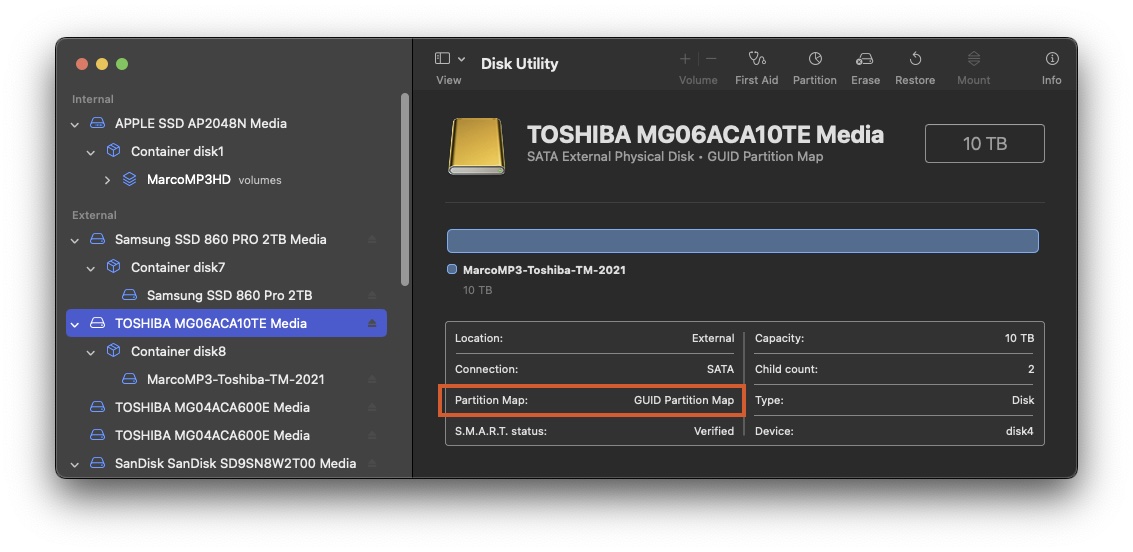
If you select (one at a time) the items in the list in the lefthand column/sidebar with "Media" at the end of the name, then look in the main part of the window, you should see a table with one entry being the Partition Map (see attached screenshot).
In your case, you'd want to select each of this and look at the Partition Map entry in the table:
WD My Passport 2672 Media
La Cie Rugged USB-C Media
In your case, you'd want to select each of this and look at the Partition Map entry in the table:
WD My Passport 2672 Media
La Cie Rugged USB-C Media
Last edit: 10 Aug 2022 12:58 by DaveM.
Please Log in to join the conversation.

10 Aug 2022 13:44 - 10 Aug 2022 14:13 #121790
by joema
When you import media files to FCP, whether those are imported using "leave files in place" or "copy to library", it will "uniqueify" duplicate filenames by appending a suffix. You can check if you have imported any duplicate filenames by right-click on the library package in Finder and examining the filenames in each event folder. That should be safe provided you don't move, delete or modify any files. However exercise caution.
If you see *any* files with a suffix of (fcp1), (fcp2), etc, that means you imported some duplicate filenames.
Re copy to library vs "in place", if you don't know which files were imported which way, if the file is inside the library it was imported via copy to library. If Finder shows the file as an icon with an arrow, that is a symlink and it was imported "in place".
Final Cut Library Manager has an optional feature which can export a .csv list of every pathname to each media file in the library. That is a good way to verify the location of each one.
In the future it is very important to not import any files with duplicate names. Often it will not cause problems but in some cases (such as certain relink scenarios or when loading certain XMLs) it can. This can easily be avoided by simply appending a 5-digit incrementing serial number to each file, but there are also other methods. You can batch rename files to add that using Finder. See MacMost #1651:
That depends on what the "test restore" was. This problem arises when relinking files. Did your test restore relink to original media files?
Yes that would prevent that problem. It also allows *safe* import using "leave files in place". By contrast you can sometimes copy the "bare" media files out of the camera folder tree and import with "leave files in place" but that may cause problems later. The sidecar files may contain metadata needed for certain operations such as clip spanning, color profile, etc. You can often get away with it but you never know. Externally rewrapping the files before import avoids that.
Even if you are not syncing on timecode, importing "bare" MP4 or MTS media files from a camera folder tree can later cause problems when relinking, because FCP does a timecode check to validate the relink. Some camera formats present altered timecode (from the standpoint of FCP) if imported one way vs the other. The way to avoid that is rewrap (not transcode) all tree-oriented media with EditReady before import.
FCP has some limited ability to relink to renamed files. It appears if the end of the filename is changed and all other relink criteria are met it will relink. IF any renaming is done after ingest, this implies a "trailing filename" renaming scheme might be possible. See item 5 on the page "Relink clips to media files in Final Cut Pro". The details of the behavior are not documented. Obviously relink on renamed files should be well tested before committing anything. support.apple.com/guide/final-cut-pro/re...iles-ver26f5c8c9/mac
In some cases if relink fails with "no shared media range" you can use a feature of EditReady to enable the relink. This is by importing the clip to EditReady, then selecting menu Clip>Set Metadata for Flagged>Timecode, and entering 00:00:00:00 or whatever timecode value it is looking for. If you don't know the timecode value the only way to find out is export the clip XML. If starting clip timecode is 00:00:00:00 that will be shown as start=0s. If it is non-zero, it will be shown as a fractional number divided by 30,000. See attached.
There is never any guarantee of that, however normally First Aid is fairly safe. It can be run on external drives with MacOS booted in normal mode, but to run it on the system drive MacOS should ideally be in recovery mode. Otherwise First Aid on the system drive is read only -- it cannot make any changes. That is OK if you just want a report. To boot in recovery mode, use the appropriate procedure for your machine type.
Intel-based Mac: support.apple.com/guide/mac-help/use-mac...mac-mchl338cf9a8/mac
Apple Silicon Mac: support.apple.com/guide/mac-help/macos-r...con-mchl82829c17/mac
Many of these issues you've encountered are not really your fault. I have worked with IT experts who came from another NLE who encountered the same problems. These areas are not well documented, possibly because they are considered quirks or artifacts of FCP media management. If you understand and apply these methods it will proactively avoid lots of problems. But these are not documented prominently (if at all) in Apple publications or any FCP media management tutorial I've seen.
Replied by joema on topic Why is my project stalling so much? The spinning wheel...
"All my footage should have unique file names" - it does as far as I know. I haven’t done any copying - I only imported the footage to the library. So just that one ‘copy to library’
When you import media files to FCP, whether those are imported using "leave files in place" or "copy to library", it will "uniqueify" duplicate filenames by appending a suffix. You can check if you have imported any duplicate filenames by right-click on the library package in Finder and examining the filenames in each event folder. That should be safe provided you don't move, delete or modify any files. However exercise caution.
If you see *any* files with a suffix of (fcp1), (fcp2), etc, that means you imported some duplicate filenames.
Re copy to library vs "in place", if you don't know which files were imported which way, if the file is inside the library it was imported via copy to library. If Finder shows the file as an icon with an arrow, that is a symlink and it was imported "in place".
Final Cut Library Manager has an optional feature which can export a .csv list of every pathname to each media file in the library. That is a good way to verify the location of each one.
In the future it is very important to not import any files with duplicate names. Often it will not cause problems but in some cases (such as certain relink scenarios or when loading certain XMLs) it can. This can easily be avoided by simply appending a 5-digit incrementing serial number to each file, but there are also other methods. You can batch rename files to add that using Finder. See MacMost #1651:
...however I did do a ‘test restore from back up’ about a month ago and I had no problems.So that would indicate it wasn’t rewrapping the files in a problematic way?..
That depends on what the "test restore" was. This problem arises when relinking files. Did your test restore relink to original media files?
..Next time use I’ll EditReady on all the footage. Thanks for that recommendation. (.. would that solve the issue I encountered of the media being in a camera folder structure? )
Yes that would prevent that problem. It also allows *safe* import using "leave files in place". By contrast you can sometimes copy the "bare" media files out of the camera folder tree and import with "leave files in place" but that may cause problems later. The sidecar files may contain metadata needed for certain operations such as clip spanning, color profile, etc. You can often get away with it but you never know. Externally rewrapping the files before import avoids that.
Even if you are not syncing on timecode, importing "bare" MP4 or MTS media files from a camera folder tree can later cause problems when relinking, because FCP does a timecode check to validate the relink. Some camera formats present altered timecode (from the standpoint of FCP) if imported one way vs the other. The way to avoid that is rewrap (not transcode) all tree-oriented media with EditReady before import.
...Any thoughts on the relink searching for .mov instead of .mp4 if there’s any workaround for that? It didn’t do that last time. Though I may have moved the footage to a new hard drive since I did that back-up restore...
FCP has some limited ability to relink to renamed files. It appears if the end of the filename is changed and all other relink criteria are met it will relink. IF any renaming is done after ingest, this implies a "trailing filename" renaming scheme might be possible. See item 5 on the page "Relink clips to media files in Final Cut Pro". The details of the behavior are not documented. Obviously relink on renamed files should be well tested before committing anything. support.apple.com/guide/final-cut-pro/re...iles-ver26f5c8c9/mac
In some cases if relink fails with "no shared media range" you can use a feature of EditReady to enable the relink. This is by importing the clip to EditReady, then selecting menu Clip>Set Metadata for Flagged>Timecode, and entering 00:00:00:00 or whatever timecode value it is looking for. If you don't know the timecode value the only way to find out is export the clip XML. If starting clip timecode is 00:00:00:00 that will be shown as start=0s. If it is non-zero, it will be shown as a fractional number divided by 30,000. See attached.
...I’ll start with First Aid on the discs - I've done the Target drive and it's fine. I will do it on source drive when I know it's safe to do? ... and it won't interfere with my FCPX library in any way?
There is never any guarantee of that, however normally First Aid is fairly safe. It can be run on external drives with MacOS booted in normal mode, but to run it on the system drive MacOS should ideally be in recovery mode. Otherwise First Aid on the system drive is read only -- it cannot make any changes. That is OK if you just want a report. To boot in recovery mode, use the appropriate procedure for your machine type.
Intel-based Mac: support.apple.com/guide/mac-help/use-mac...mac-mchl338cf9a8/mac
Apple Silicon Mac: support.apple.com/guide/mac-help/macos-r...con-mchl82829c17/mac
Many of these issues you've encountered are not really your fault. I have worked with IT experts who came from another NLE who encountered the same problems. These areas are not well documented, possibly because they are considered quirks or artifacts of FCP media management. If you understand and apply these methods it will proactively avoid lots of problems. But these are not documented prominently (if at all) in Apple publications or any FCP media management tutorial I've seen.

Last edit: 10 Aug 2022 14:13 by joema.
Please Log in to join the conversation.
10 Aug 2022 17:46 #121793
by Goldfalme
Replied by Goldfalme on topic Why is my project stalling so much? The spinning wheel...
Thanks Dave, sorry was having a sleepy moment there!!
Yes checked that now, all my drives say GUID Partition map.
That's one thing eliminated
Yes checked that now, all my drives say GUID Partition map.
That's one thing eliminated
Please Log in to join the conversation.
10 Aug 2022 18:46 - 10 Aug 2022 18:51 #121796
by Goldfalme
Replied by Goldfalme on topic Why is my project stalling so much? The spinning wheel...
Thanks so much Joema. Yes I did a lot of reading to try and set myself off correctly on the project, but I found none of this information. Thanks for that, it’s encouraging, as I tried pretty hard to avoid all this.
The plus side is, I'm learning lots along the way, and I finally have an answer for how I'll be able to ingest footage with leave files in place next time.
To respond to your points:
1: I looked in the package contents, nervously, and didn’t change anything. Yes I do have some duplicate files. Not many though.
Can I resolve duplicates within FCPX or within the Final Cut Library Manager?
I remember when I was importing the main media, it was taking ages because I’d ticked the ‘create proxy’ during the import. I discovered this was causing it to be really slow. So I had to start again (this time with create proxy unticked and I transcoded afterwards) - but forgot to delete what had already imported. So I probably then tried to avoid duplicates by deleting files within FCPX at that time. I seem to have done a fair job, however..
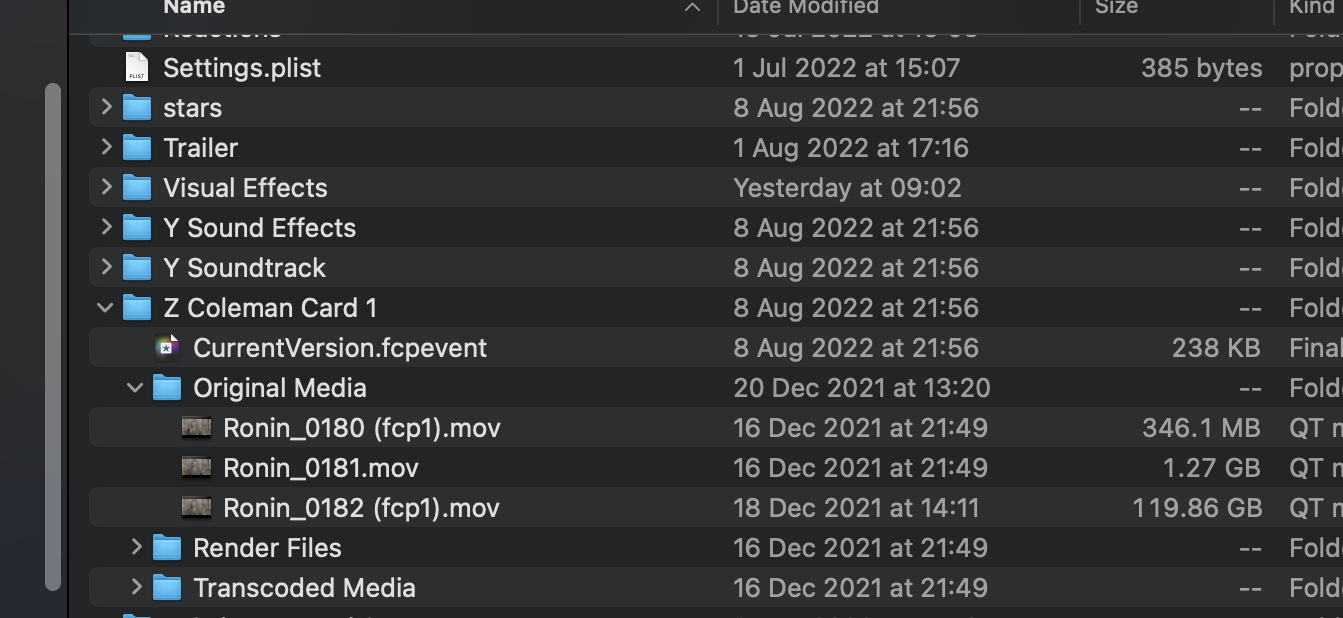
I have files (see screenshot attached below) that are suffixed as copies, but there is no accompany original file. This probably happened at that time. I could just delete all that footage and reimport? it’s a tiny part of the project.
Also I noticed a curious thing, in the original media - the footage of my interviews that are mp4 in my original footage folders back-up from the day of filming, are .mov files in FCPX package content. Yet my GV's which were also .mp4, have remained as .mp4.
This explains why during the relinking process FCPX is looking for .mov files. Somehow that footage became .mov and I don't know why. I don't know why the other footage didn't.
2 I Imported everything to library originally.
However at one point, to save space, as far as I remember I created a new library and moved events containing footage I wasn’t using and I located that library on an external hard drive. Hopefully that was a safe thing to do. It made sense at the time.. meaning I could just open it again and move events back in to the main library if I needed to. I don't think that's causing any issues though. But possibly I am linking to a file there. But linking to a file externally is ok right?
3 It’s the slow external WD Passport Drive I want to do first aid on, not my laptop. Just concerned it would effect the FCPX library, which is currently my only working copy. I guess the answer is the same for that - I think I’ll hold off on First Aid on the disk and try eliminate other problems first.
4 I’ll look at the relinking issue, after I’ve sorted this duplicates issue. If I’ve missed anything else I’ll get back to it.
The plus side is, I'm learning lots along the way, and I finally have an answer for how I'll be able to ingest footage with leave files in place next time.
To respond to your points:
1: I looked in the package contents, nervously, and didn’t change anything. Yes I do have some duplicate files. Not many though.
Can I resolve duplicates within FCPX or within the Final Cut Library Manager?
I remember when I was importing the main media, it was taking ages because I’d ticked the ‘create proxy’ during the import. I discovered this was causing it to be really slow. So I had to start again (this time with create proxy unticked and I transcoded afterwards) - but forgot to delete what had already imported. So I probably then tried to avoid duplicates by deleting files within FCPX at that time. I seem to have done a fair job, however..
I have files (see screenshot attached below) that are suffixed as copies, but there is no accompany original file. This probably happened at that time. I could just delete all that footage and reimport? it’s a tiny part of the project.
Also I noticed a curious thing, in the original media - the footage of my interviews that are mp4 in my original footage folders back-up from the day of filming, are .mov files in FCPX package content. Yet my GV's which were also .mp4, have remained as .mp4.
This explains why during the relinking process FCPX is looking for .mov files. Somehow that footage became .mov and I don't know why. I don't know why the other footage didn't.
2 I Imported everything to library originally.
However at one point, to save space, as far as I remember I created a new library and moved events containing footage I wasn’t using and I located that library on an external hard drive. Hopefully that was a safe thing to do. It made sense at the time.. meaning I could just open it again and move events back in to the main library if I needed to. I don't think that's causing any issues though. But possibly I am linking to a file there. But linking to a file externally is ok right?
3 It’s the slow external WD Passport Drive I want to do first aid on, not my laptop. Just concerned it would effect the FCPX library, which is currently my only working copy. I guess the answer is the same for that - I think I’ll hold off on First Aid on the disk and try eliminate other problems first.
4 I’ll look at the relinking issue, after I’ve sorted this duplicates issue. If I’ve missed anything else I’ll get back to it.
Last edit: 10 Aug 2022 18:51 by Goldfalme.
Please Log in to join the conversation.
11 Aug 2022 13:49 #121803
by Goldfalme
Replied by Goldfalme on topic Why is my project stalling so much? The spinning wheel...
I’m away today. Some of that may already have been answered..
I’ll look back through previous posts when I get time.
I’ll look back through previous posts when I get time.
Please Log in to join the conversation.
11 Aug 2022 23:15 #121813
by joema
If it's just a few I would probably not worry about it.
Those are the rewrapped files FCP copied to the library. They were (1) Rewrapped (2) Given a .mov suffix and (3) Renamed where needed to avoid a filename conflict.
I don't know of an easy reliable way to undo that except by deleting them, renaming them to be unique, and re-importing using "leave files in place". That would not preserve edits done with the original files.
The camera files are .mp4. When FCP imports using copy to library it will often rewrap the files to have a Quicktime header, then change the suffix to .mov.
Off the top of my head, I can't remember the behavior of when FCP rewraps the files and changes the suffix to .mov and when it does not. My team never, ever imports with copy to library, so I have little practical experience with it.
There are several possible permutations based on your description. The two libraries could have all internal media, a mix of internal/external media, could refer to media in the other library's media tree, could refer to other media inside the library, etc. If the two libraries are on the same volume FCP will use "hard links" where possible for references to managed media which reduces duplication of physical files.
I recommend you get the Ripple Training tutorial on FCP media management: www.rippletraining.com/products/final-cu...ent-in-fcp-x-10-4-9/
Replied by joema on topic Why is my project stalling so much? The spinning wheel...
...Yes I do have some duplicate files. Not many though...Can I resolve duplicates within FCPX or within the Final Cut Library Manager?
If it's just a few I would probably not worry about it.
..I have files (see screenshot attached below) that are suffixed as copies, but there is no accompany original file. This probably happened at that time. I could just delete all that footage and reimport? it’s a tiny part of the project...
Those are the rewrapped files FCP copied to the library. They were (1) Rewrapped (2) Given a .mov suffix and (3) Renamed where needed to avoid a filename conflict.
I don't know of an easy reliable way to undo that except by deleting them, renaming them to be unique, and re-importing using "leave files in place". That would not preserve edits done with the original files.
Also I noticed a curious thing, in the original media - the footage of my interviews that are mp4 in my original footage folders back-up from the day of filming, are .mov files in FCPX package content. Yet my GV's which were also .mp4, have remained as .mp4.
The camera files are .mp4. When FCP imports using copy to library it will often rewrap the files to have a Quicktime header, then change the suffix to .mov.
..This explains why during the relinking process FCPX is looking for .mov files. Somehow that footage became .mov and I don't know why. I don't know why the other footage didn't.
Off the top of my head, I can't remember the behavior of when FCP rewraps the files and changes the suffix to .mov and when it does not. My team never, ever imports with copy to library, so I have little practical experience with it.
... I created a new library and moved events containing footage I wasn’t using and I located that library on an external hard drive... But possibly I am linking to a file there. But linking to a file externally is ok right?
There are several possible permutations based on your description. The two libraries could have all internal media, a mix of internal/external media, could refer to media in the other library's media tree, could refer to other media inside the library, etc. If the two libraries are on the same volume FCP will use "hard links" where possible for references to managed media which reduces duplication of physical files.
I recommend you get the Ripple Training tutorial on FCP media management: www.rippletraining.com/products/final-cu...ent-in-fcp-x-10-4-9/
Please Log in to join the conversation.

11 Aug 2022 23:58 #121814
by TerryB
Replied by TerryB on topic Why is my project stalling so much? The spinning wheel...
+1 on Ripple Training's media management tutorial
Please Log in to join the conversation.
12 Aug 2022 19:45 #121826
by dmetz
I'm curious about this part, as the phrasing is ambiguous - are you opening the library packages in Finder, and copying events that way? Or are you opening both libraries in FCP and moving events within the app?
Replied by dmetz on topic Why is my project stalling so much? The spinning wheel...
I created a new library and moved events containing footage I wasn’t using and I located that library on an external hard drive. Hopefully that was a safe thing to do. It made sense at the time.. meaning I could just open it again and move events back in to the main library if I needed to.
I'm curious about this part, as the phrasing is ambiguous - are you opening the library packages in Finder, and copying events that way? Or are you opening both libraries in FCP and moving events within the app?
Please Log in to join the conversation.
13 Aug 2022 13:58 - 13 Aug 2022 14:17 #121833
by Goldfalme
Replied by Goldfalme on topic Why is my project stalling so much? The spinning wheel...
Hi Joema,
I understood if even one file had a duplicate - it could be causing the code 36 error? I was about to go through the package contents and make a note of every duplicate file, then go back into FCXP and find and delete the duplicates from their original media folders. Not necessary?
I realise I don't have any external links, as I created that extra library specifically for footage I wasn't using.
Thanks for the course recommendation. Sounds like it would be good for me.
Right, now I'll look back through the posts, on what I need to do next to try solve this code 36 error.
As a safety measure, I I did an export of my project timeline video, so if for any reason things go awry I can edit it from the original footage again, which I now inside out by now!
I understood if even one file had a duplicate - it could be causing the code 36 error? I was about to go through the package contents and make a note of every duplicate file, then go back into FCXP and find and delete the duplicates from their original media folders. Not necessary?
I realise I don't have any external links, as I created that extra library specifically for footage I wasn't using.
Thanks for the course recommendation. Sounds like it would be good for me.
Right, now I'll look back through the posts, on what I need to do next to try solve this code 36 error.
As a safety measure, I I did an export of my project timeline video, so if for any reason things go awry I can edit it from the original footage again, which I now inside out by now!
Last edit: 13 Aug 2022 14:17 by Goldfalme.
Please Log in to join the conversation.
13 Aug 2022 14:17 - 13 Aug 2022 14:33 #121835
by Goldfalme
Replied by Goldfalme on topic Why is my project stalling so much? The spinning wheel...
DMetz - within FCPX - I created a new library, located it externally, moved events to it within FCPX, thinking I could just close that library and open it up again with all those events and footage in it if I ever needed it. A way to get rid of clutter and I thought potentially reduce using up unnecessary storage on my main external drive.It's not something I read about anywhere, just an idea I had I thought I'd experiment with, as I was sure I wouldn't need any of it for this project.
Anyway I just opened it now to check. Yes it works.
I just open that extra library - drag and drop the event that I want - back into the main library and it opens fine.
However I'm afraid doing this practice might mess up my libraries. I just did Command Shift R - the original footage for the newly moved event (Mountain Fire) seems to have travelled into another event folder 'Mountain GVs' though it remains a separate event in my library. Hmm maybe it's just not the recommended approach.
Maybe this idea, is not best practice?
Is there a way to move footage that has for whatever reason become stored in the wrong location inside the FCPX library? Obviously I don't want to go near package contents.
Anyway I just opened it now to check. Yes it works.
I just open that extra library - drag and drop the event that I want - back into the main library and it opens fine.
However I'm afraid doing this practice might mess up my libraries. I just did Command Shift R - the original footage for the newly moved event (Mountain Fire) seems to have travelled into another event folder 'Mountain GVs' though it remains a separate event in my library. Hmm maybe it's just not the recommended approach.
Maybe this idea, is not best practice?
Is there a way to move footage that has for whatever reason become stored in the wrong location inside the FCPX library? Obviously I don't want to go near package contents.
Last edit: 13 Aug 2022 14:33 by Goldfalme.
Please Log in to join the conversation.
13 Aug 2022 14:44 - 13 Aug 2022 14:46 #121837
by joema
No that is not necessary -- concerning error 36 when copying a library using Finder. That error has nothing to do with FCP -- the fact it happens when copying a FCP library is purely coincidental. It means Finder cannot read or write a file. It could be a bug in Finder, a disk problem, a file-level permissions problem, etc.
Reasons for avoiding duplicate disk filenames *before* importing to FCP:
1 - It is inherently confusing as project sizes scale upward, when working with archival data sets and when collaborating with other people.
2 - There are limitations with the FCP media management whereby duplicate filenames may interfere with relink.
3 - There are limitations with FCP XML whereby loading XML may cause spurious duplicate clips
Finder is generally not the optimal way to copy a complex, large folder tree. The FCP library *looks* like a single object but it is actually a folder tree containing many (sometimes thousands) of files. As previously mentioned it's best to use a specialized utility for copying things like that.
A good utility for comparing, copying and verifying folders is Beyond Compare. It can also do a file-level "diff" or comparison between PDF, CSV or other files, highlighting the differences in color. It can do search for "orphaned" files which exist in one folder tree but not the other. It has several options for comparison which trade off speed vs accuracy: www.scootersoftware.com
The grsyncx utility is a MacOS GUI front-end for the underlying command-line rsync command. It has a rudimentary interface but seems to work well. Unlike Finder it can do a verified copy: apps.apple.com/us/app/grsyncx/id1506997025?mt=12
But if Finder is having a problem copying files, it is often for a reason. The above utilities will not always make that work, but they will (a) give more information about the failure and (b) if no error ensure a reliable copy.
It is not the best practice if you aren't fully conversant with how FCP media management works. I have lots of experience but I only import media using "leave files in place", never copy to library. I try to avoid copying media between libraries. It's not always obvious when FCP copies the actual media vs a symlink vs a hard link. There are other non-obvious issues when copying clips and projects between libraries:
Sam Mestman discusses some of these from 06:30 to 11:00 in the below video. He demonstrates this on a Lumaforge NAS but it's not unique to a NAS. "Final Cut Pro X Virtual User Group #7":
Replied by joema on topic Why is my project stalling so much? The spinning wheel...
...I understood if even one file had a duplicate - it could be causing the code 36 error? I was about to go through the package contents and make a note of every duplicate file, then go back into FCXP and find and delete the duplicates from their original media folders. Not necessary?
No that is not necessary -- concerning error 36 when copying a library using Finder. That error has nothing to do with FCP -- the fact it happens when copying a FCP library is purely coincidental. It means Finder cannot read or write a file. It could be a bug in Finder, a disk problem, a file-level permissions problem, etc.
Reasons for avoiding duplicate disk filenames *before* importing to FCP:
1 - It is inherently confusing as project sizes scale upward, when working with archival data sets and when collaborating with other people.
2 - There are limitations with the FCP media management whereby duplicate filenames may interfere with relink.
3 - There are limitations with FCP XML whereby loading XML may cause spurious duplicate clips
Finder is generally not the optimal way to copy a complex, large folder tree. The FCP library *looks* like a single object but it is actually a folder tree containing many (sometimes thousands) of files. As previously mentioned it's best to use a specialized utility for copying things like that.
A good utility for comparing, copying and verifying folders is Beyond Compare. It can also do a file-level "diff" or comparison between PDF, CSV or other files, highlighting the differences in color. It can do search for "orphaned" files which exist in one folder tree but not the other. It has several options for comparison which trade off speed vs accuracy: www.scootersoftware.com
The grsyncx utility is a MacOS GUI front-end for the underlying command-line rsync command. It has a rudimentary interface but seems to work well. Unlike Finder it can do a verified copy: apps.apple.com/us/app/grsyncx/id1506997025?mt=12
But if Finder is having a problem copying files, it is often for a reason. The above utilities will not always make that work, but they will (a) give more information about the failure and (b) if no error ensure a reliable copy.
...I just open that extra library, drag and drop the event 'Mountain Fire' that I want - back into the main library. However I'm afraid doing this might mess things up. I just did Command Shift R and the original footage seems to have gone into another event folder 'Mountain GVs'. So maybe this idea, is not best practice?
It is not the best practice if you aren't fully conversant with how FCP media management works. I have lots of experience but I only import media using "leave files in place", never copy to library. I try to avoid copying media between libraries. It's not always obvious when FCP copies the actual media vs a symlink vs a hard link. There are other non-obvious issues when copying clips and projects between libraries:
Sam Mestman discusses some of these from 06:30 to 11:00 in the below video. He demonstrates this on a Lumaforge NAS but it's not unique to a NAS. "Final Cut Pro X Virtual User Group #7":
Last edit: 13 Aug 2022 14:46 by joema.
Please Log in to join the conversation.
13 Aug 2022 15:54 - 13 Aug 2022 16:03 #121839
by Goldfalme
Replied by Goldfalme on topic Why is my project stalling so much? The spinning wheel...
Thanks Joema.
The video excerpt is good. That explains it. Great.
I do understand that explanation of finder and it makes so much sense that something more would be needed to copy a large project..
I've had an idea, which may solve nothing, but before delving into apps and software, which feels rather intimidating to me and a lot for me to get my head around. . I'm going to see if using time machine will work.
So I've set Time Machine to back-up the WD Passport drive with the project on it, to my now properly formatted LaCie drive. Unless Time Machine functions via Finder.. when renders my idea pointless!
If that doesn't work.. I'll look at the options you have suggested then
The video excerpt is good. That explains it. Great.
I do understand that explanation of finder and it makes so much sense that something more would be needed to copy a large project..
I've had an idea, which may solve nothing, but before delving into apps and software, which feels rather intimidating to me and a lot for me to get my head around. . I'm going to see if using time machine will work.
So I've set Time Machine to back-up the WD Passport drive with the project on it, to my now properly formatted LaCie drive. Unless Time Machine functions via Finder.. when renders my idea pointless!
If that doesn't work.. I'll look at the options you have suggested then
Last edit: 13 Aug 2022 16:03 by Goldfalme.
Please Log in to join the conversation.
13 Aug 2022 16:09 - 15 Aug 2022 17:03 #121840
by Goldfalme
Replied by Goldfalme on topic Why is my project stalling so much? The spinning wheel...
Meanwhile I'm also interested in recommendations for iCloud storage backing up.
Currently I just want to back up this one project.
I'm on Mac already have iCloud so I'm considering the Apple iCloud 2TB which I think is 120euro per year.
Same question here, will it need to navigate finder to back up my FCPX library?
Actually that won't really matter once I get off this slow hard drive.
So leave all this with me and I'll report back when I've made some more progress
Currently I just want to back up this one project.
I'm on Mac already have iCloud so I'm considering the Apple iCloud 2TB which I think is 120euro per year.
Same question here, will it need to navigate finder to back up my FCPX library?
Actually that won't really matter once I get off this slow hard drive.
So leave all this with me and I'll report back when I've made some more progress
Last edit: 15 Aug 2022 17:03 by Goldfalme.
Please Log in to join the conversation.
16 Aug 2022 13:57 #121865
by joema
Time Machine is a great utility and I use it myself. However it does not do a verified backup, and there is no way to validate a TM backup. E.g, it issues I/O commands to read from the source drive and write to the destination. If an individual command fails you will know that. However there is no source/destination file-level verification.
After a TM backup is done, it cannot be logically verified. You can run Disk Utility First Aid, but that only checks for filesystem errors, not errors within the files. Disk Utility also does not check for disk read errors. E.g, you could do a TM backup, get no errors, then two months later try to restore that backup. For a full disk restore the first step is reformat the destination drive. At that moment you are *totally* dependent on the integrity of the TM backup. If the TM restore fails with a bad disk block, you are in bad shape. These problems are not very common but they can happen.
Possible issues with any cloud-based backup is (1) Whether your ISP has a data cap (2) Whether it preserves all the Mac file attributes. E.g, are Finder tags preserved. (3) Similar to a TM backup, is there end-to-end checking of the file integrity. In general cloud backup is more likely to encounter disruptions than to a local disk. Therefore it's more important to have assurance the backup completely succeeded. (4) Whether your upstream/downstream provisioned rate is sufficient for practical backup and recovery in a useful timeframe.
E.g, if it takes several days to recover backed up data, that may not be practically useful. The actual real-world recovery time should always be evaluated and tested.
For important data I usually have three copies: (1) Time Machine (2) Carbon Copy Cloner (which does a verified backup) (3) Offsite backup of original media files. Those backups take plenty of disk space but that's the cost of doing business. You have to evaluate what would be the cost of losing the entire production due to media failure or database corruption.
Replied by joema on topic Why is my project stalling so much? The spinning wheel...
...I'm going to see if using time machine will work...
Time Machine is a great utility and I use it myself. However it does not do a verified backup, and there is no way to validate a TM backup. E.g, it issues I/O commands to read from the source drive and write to the destination. If an individual command fails you will know that. However there is no source/destination file-level verification.
After a TM backup is done, it cannot be logically verified. You can run Disk Utility First Aid, but that only checks for filesystem errors, not errors within the files. Disk Utility also does not check for disk read errors. E.g, you could do a TM backup, get no errors, then two months later try to restore that backup. For a full disk restore the first step is reformat the destination drive. At that moment you are *totally* dependent on the integrity of the TM backup. If the TM restore fails with a bad disk block, you are in bad shape. These problems are not very common but they can happen.
..Meanwhile I'm also interested in recommendations for iCloud storage backing up...
Possible issues with any cloud-based backup is (1) Whether your ISP has a data cap (2) Whether it preserves all the Mac file attributes. E.g, are Finder tags preserved. (3) Similar to a TM backup, is there end-to-end checking of the file integrity. In general cloud backup is more likely to encounter disruptions than to a local disk. Therefore it's more important to have assurance the backup completely succeeded. (4) Whether your upstream/downstream provisioned rate is sufficient for practical backup and recovery in a useful timeframe.
E.g, if it takes several days to recover backed up data, that may not be practically useful. The actual real-world recovery time should always be evaluated and tested.
For important data I usually have three copies: (1) Time Machine (2) Carbon Copy Cloner (which does a verified backup) (3) Offsite backup of original media files. Those backups take plenty of disk space but that's the cost of doing business. You have to evaluate what would be the cost of losing the entire production due to media failure or database corruption.
Please Log in to join the conversation.
16 Aug 2022 15:49 #121866
by Goldfalme
Replied by Goldfalme on topic Why is my project stalling so much? The spinning wheel...
Dang just wrote a reply while I didn't realise it logged me out and posted it and lost it : (
Will get back to it.
Will get back to it.
Please Log in to join the conversation.
16 Aug 2022 19:34 - 16 Aug 2022 19:40 #121867
by Goldfalme
Replied by Goldfalme on topic Why is my project stalling so much? The spinning wheel...
Thanks for that Joema. Carbon Copy seems like a good idea.
Update: So time machine back up didn't work, it ejected the HD it was copying from mid way. That's ok, another possibility ticked off the list anyway.
So I took a new tack, suggested earlier in the thread.
I copied my main timeline into a new library on my now correctly formatted LaCie drive.
(there was no media to consolidate as all my footage is in the library and *I used the file menu - Copy to New Library, not drag and drop, as advised. I understand that when I copy using the file menu, I won’t create duplicates..)
That all worked fine, timeline looks good, everything there. Very happy!! My main stress now gone! This library is 600GB so I’ll easily be able to transfer it to a 1TB SSD drive when I can afford one.
Now to finish the task, I’m copying my Interviews and GVs to two separate libraries. I’m at my fine cut stage, so I’ll only need a limited number of clips to finish the project. I’ll copy these into my main project library as I need to. My IV library is 625GB and my GV library is 200GB and counting as I add events.
Does this all sound ok?
4 clips in total are ‘missing file’ even though the originals were in the original library and are still there when I checked. I’ve worked around this by just re-importing them and deleting the missing file clips.
Final Cut Library Manager however seems very odd and is telling me I have 133 internal media missing and 5 external. ?? Despite everything seeming to be there.. So I’m not sure Final Cut Library Manager is functioning properly.
Update: So time machine back up didn't work, it ejected the HD it was copying from mid way. That's ok, another possibility ticked off the list anyway.
So I took a new tack, suggested earlier in the thread.
I copied my main timeline into a new library on my now correctly formatted LaCie drive.
(there was no media to consolidate as all my footage is in the library and *I used the file menu - Copy to New Library, not drag and drop, as advised. I understand that when I copy using the file menu, I won’t create duplicates..)
That all worked fine, timeline looks good, everything there. Very happy!! My main stress now gone! This library is 600GB so I’ll easily be able to transfer it to a 1TB SSD drive when I can afford one.
Now to finish the task, I’m copying my Interviews and GVs to two separate libraries. I’m at my fine cut stage, so I’ll only need a limited number of clips to finish the project. I’ll copy these into my main project library as I need to. My IV library is 625GB and my GV library is 200GB and counting as I add events.
Does this all sound ok?
4 clips in total are ‘missing file’ even though the originals were in the original library and are still there when I checked. I’ve worked around this by just re-importing them and deleting the missing file clips.
Final Cut Library Manager however seems very odd and is telling me I have 133 internal media missing and 5 external. ?? Despite everything seeming to be there.. So I’m not sure Final Cut Library Manager is functioning properly.
Last edit: 16 Aug 2022 19:40 by Goldfalme.
Please Log in to join the conversation.
