


3 Post Moderation Rule for New Boarders (25 Jan 2021)
New boarders will have their posts moderated - Don't worry if you cannot see your post immediately.
Need Help Creating a FCP Sound Library Macro in Automator


28 Jul 2022 15:06 #121615
by CMessineo
I have a very large royalty free music library with over 30,000 tracks. To access the library inside FCP I create an alias that points to it and then I place that alias in the following folder: Library/Audio/Apple Loops/Apple/Final Cut Pro Sound Effects
This works, but because the library is so large it takes a long time to open the Sound Library inside FCP. So, lately I have been moving the the Alias in and out of the folder depending on whether or not I intend to work with the music files or just sound effects.
What I want is to create two macros. One that copies the Alias into the folder and one that removes it. Then I can just run the appropriate macro before starting FCP. Maybe the macro could even start FCP after doing the copy.
I figure there has to be a simple way to do this and I suspect it might be using the Automator app, but I have no experience using it.
Can anyone confirm if this would work and do you have any suggestions/guidance on how to do it? Are there tutorials out there for doing this sort of thing?
Thanks in advance,
Chris
This works, but because the library is so large it takes a long time to open the Sound Library inside FCP. So, lately I have been moving the the Alias in and out of the folder depending on whether or not I intend to work with the music files or just sound effects.
What I want is to create two macros. One that copies the Alias into the folder and one that removes it. Then I can just run the appropriate macro before starting FCP. Maybe the macro could even start FCP after doing the copy.
I figure there has to be a simple way to do this and I suspect it might be using the Automator app, but I have no experience using it.
Can anyone confirm if this would work and do you have any suggestions/guidance on how to do it? Are there tutorials out there for doing this sort of thing?
Thanks in advance,
Chris
Please Log in to join the conversation.

28 Jul 2022 17:15 #121617
by TerryB
Replied by TerryB on topic Need Help Creating a FCP Sound Library Macro in Automator
There are plenty of Automator and AppleScript tutorials out there, but you could always just do this with aliases on your Desktop. Create an alias of /Library/Audio/Apple Loops/Apple/Final Cut Pro Sound Effects on your Desktop (Command Option drag), then create an alias of your custom sound library folder on your desktop. Move that custom sound library alias in and out of the /Library/Audio/Apple Loops/Apple/Final Cut Pro Sound Effects alias folder on your desktop before launching FCP.
Please Log in to join the conversation.


28 Jul 2022 17:19 - 28 Jul 2022 18:44 #121618
by DaveM
Replied by DaveM on topic Need Help Creating a FCP Sound Library Macro in Automator
Chris, this is sort of straightforward, but includes a couple of gotchas.
The permissions for the "Final Cut Pro Sound Effects" folder need to be changed to allow read and write permissions by your user account (you can use the Get Info window). If you manually create the alias, as you do now, you have to enter your password each time you move it into the destination folder.
In Automator, it's non-trivial to include a dialog to authorize this, so I've suggested the above "fix" (changing the folder permissions).
Make two Automator workflows/applications (applications will run as standalone):
1. In a new Automator workflow session, choose Files & Folders from the left column under Library. This should display a list of actions.
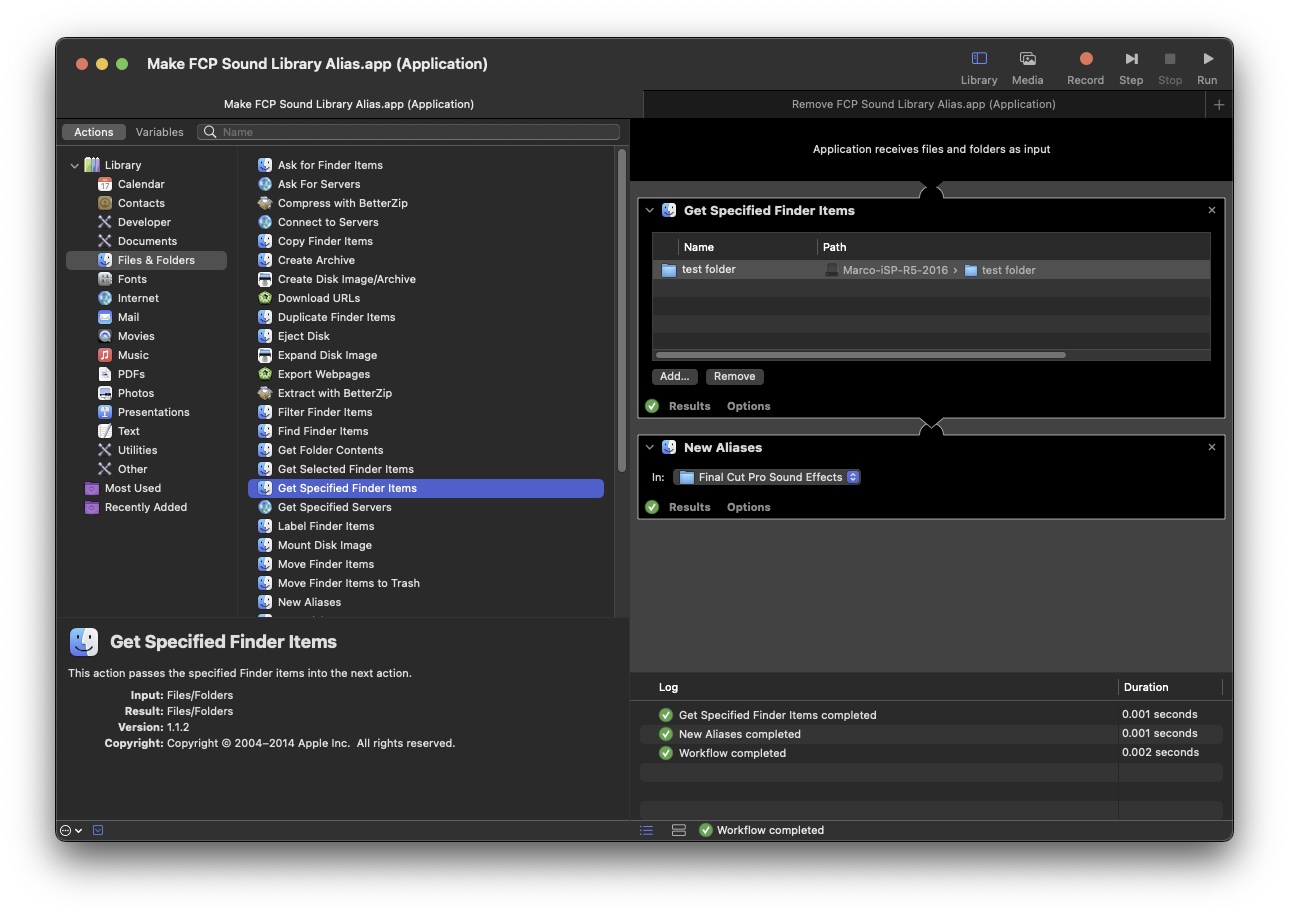
2. Select and drag the "Get Specified Finder Items" action to the main workflow area. Using "Add..." you can select the source folder for your sound library.
3. Drag the "New Alias" action underneath the first acton. Use the pop-up menu to choose the Final Cut Pro Sound Effects folder.
4. That's it. You can click run to test that it is working. Then, save as an Automator application.
5. Creating the second script is a bit tricky, in that using "Move Finder Items to Trash" will actually move the original folder to the Trash, which isn't what we want.
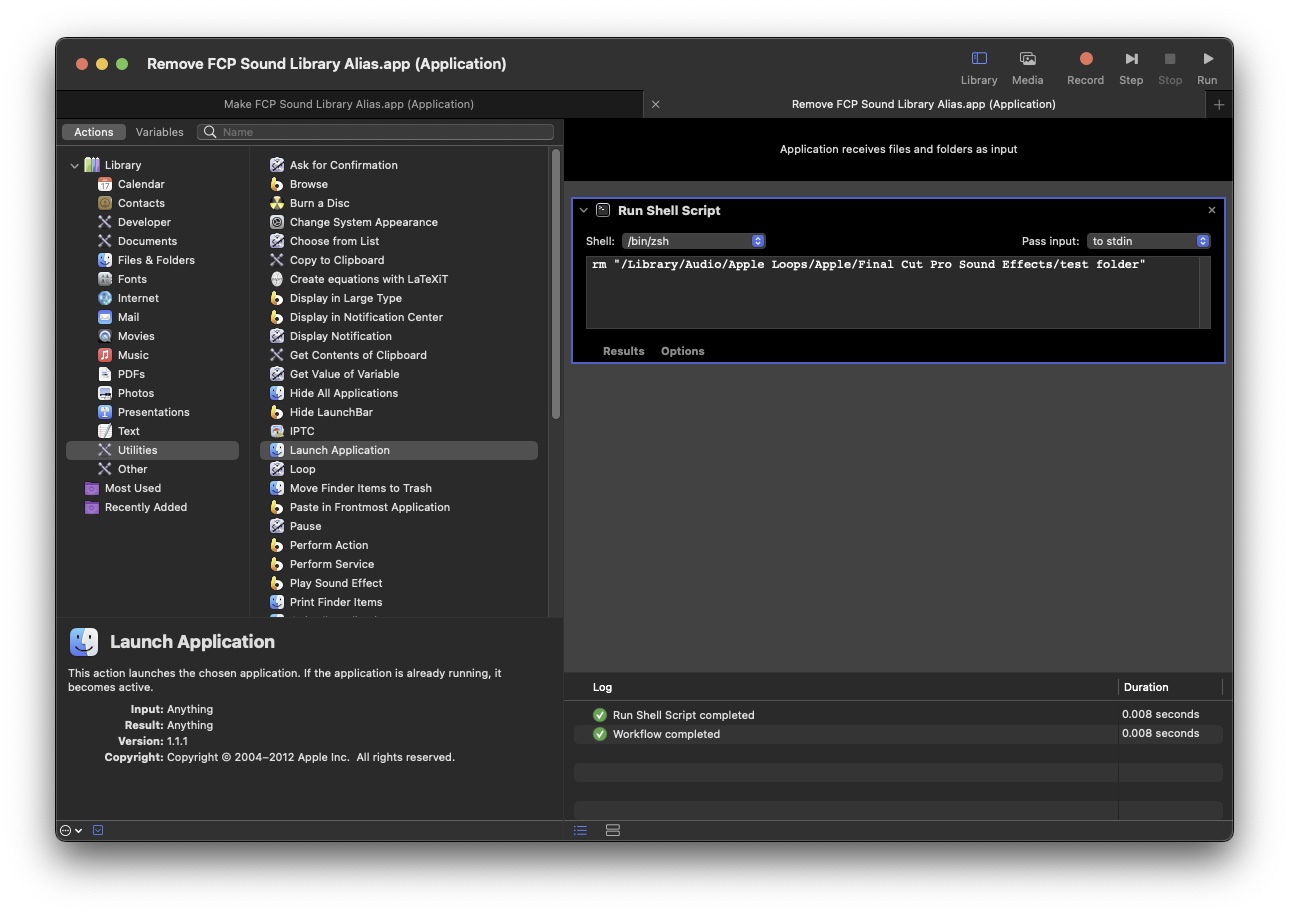
6. Instead, we will use "Run Shell Script" (under the Utilites category). After dragging the action to the main workflow pane, you enter "rm" (no quotes) followed by a space and the full path to the alias in the Final Cut Pro Sound Effects" folder (the full path should have quotes around it --- see the attached screenshot). The "rm" command will delete the alias and not the original folder. Save as an application after you do a test run.
So, now you have two Automator applications...
As a bonus, you can add "Launch Application" (in the Utilities category) at the end of both workflows to have them launch FCP.
The attached screenshots show an overview of the two workflows as they appear on my system.
Cheers.
The permissions for the "Final Cut Pro Sound Effects" folder need to be changed to allow read and write permissions by your user account (you can use the Get Info window). If you manually create the alias, as you do now, you have to enter your password each time you move it into the destination folder.
In Automator, it's non-trivial to include a dialog to authorize this, so I've suggested the above "fix" (changing the folder permissions).
Make two Automator workflows/applications (applications will run as standalone):
1. In a new Automator workflow session, choose Files & Folders from the left column under Library. This should display a list of actions.
2. Select and drag the "Get Specified Finder Items" action to the main workflow area. Using "Add..." you can select the source folder for your sound library.
3. Drag the "New Alias" action underneath the first acton. Use the pop-up menu to choose the Final Cut Pro Sound Effects folder.
4. That's it. You can click run to test that it is working. Then, save as an Automator application.
5. Creating the second script is a bit tricky, in that using "Move Finder Items to Trash" will actually move the original folder to the Trash, which isn't what we want.
6. Instead, we will use "Run Shell Script" (under the Utilites category). After dragging the action to the main workflow pane, you enter "rm" (no quotes) followed by a space and the full path to the alias in the Final Cut Pro Sound Effects" folder (the full path should have quotes around it --- see the attached screenshot). The "rm" command will delete the alias and not the original folder. Save as an application after you do a test run.
So, now you have two Automator applications...
As a bonus, you can add "Launch Application" (in the Utilities category) at the end of both workflows to have them launch FCP.
The attached screenshots show an overview of the two workflows as they appear on my system.
Cheers.
Last edit: 28 Jul 2022 18:44 by DaveM.
Please Log in to join the conversation.
28 Jul 2022 19:39 #121620
by CMessineo
Replied by CMessineo on topic Need Help Creating a FCP Sound Library Macro in Automator
Dave,
That was so incredibly helpful. Thank you so much!
I'm also now realizing how powerful Automator is and how many other cool tasks I can use it for.
You're the best.
Chris
That was so incredibly helpful. Thank you so much!
I'm also now realizing how powerful Automator is and how many other cool tasks I can use it for.
You're the best.
Chris
Please Log in to join the conversation.
