


- Posts: 3
- Thank you received: 0
3 Post Moderation Rule for New Boarders (25 Jan 2021)
New boarders will have their posts moderated - Don't worry if you cannot see your post immediately.
Shortcut to group videos together
- linusmorris
-
 Topic Author
- Offline
- New Member
-

Less
More
28 Jul 2022 11:21 #121614
by linusmorris
Shortcut to group videos together was created by linusmorris
Hi there,
I was wondering if there was a quick and simple way to group videos together that are spaced out over your timeline?
This would be a big help. Please have a look at the video example for a clearer idea of what I mean > streamable.com/l3cgk1
Many thanks,
Linus
I was wondering if there was a quick and simple way to group videos together that are spaced out over your timeline?
This would be a big help. Please have a look at the video example for a clearer idea of what I mean > streamable.com/l3cgk1
Many thanks,
Linus
Please Log in to join the conversation.


29 Jul 2022 13:15 - 29 Jul 2022 13:36 #121628
by DaveM
Replied by DaveM on topic Shortcut to group videos together
After watching your video snippet (thanks for that), one way comes to mind...
1. Select all of the clips (or everything in the timeline and deselect the gap clip on the primary storyline (as I show in the linked video below).
2. Use "Overwrite to Primary Storyline" (control-click, then choose that item or use comand-option-downarrow).
3. Open the timeline index, make sure "Clips" is selected, then enter "gap" (no quotes) in the search field. Select all gap clips and hit delete. All of the clips should be together at the beginning of the timeline.
4. (optional) If you want the clips converted back to to connected clips you can use command-option-uparrow, and shift-command-G to break the clips apart (if you want).
Here's a video, showing this way of doing what (I believe) you want:
Group Clips Together
1. Select all of the clips (or everything in the timeline and deselect the gap clip on the primary storyline (as I show in the linked video below).
2. Use "Overwrite to Primary Storyline" (control-click, then choose that item or use comand-option-downarrow).
3. Open the timeline index, make sure "Clips" is selected, then enter "gap" (no quotes) in the search field. Select all gap clips and hit delete. All of the clips should be together at the beginning of the timeline.
4. (optional) If you want the clips converted back to to connected clips you can use command-option-uparrow, and shift-command-G to break the clips apart (if you want).
Here's a video, showing this way of doing what (I believe) you want:
Group Clips Together
Last edit: 29 Jul 2022 13:36 by DaveM.
Please Log in to join the conversation.
- linusmorris
-
Topic Author
- Offline
- New Member
-
Less
More
- Posts: 3
- Thank you received: 0
29 Jul 2022 23:01 #121644
by linusmorris
Replied by linusmorris on topic Shortcut to group videos together
This is so good! Thank you so much. It is exactly what I was looking for and I very much appreciate it.
Have a great weekend
Have a great weekend
Please Log in to join the conversation.

30 Jul 2022 18:23 - 30 Jul 2022 20:20 #121646
by VTC
Replied by VTC on topic Shortcut to group videos together
Here's a suggestion somewhat along these lines... I'll take all my raw video (213 clips in this shoot) and insert a 1 sec gap clip between the takes and render out a single file.

I can load this into Davinci Resolve and use DETECT SCENE CUTS or SCENE CUT DETECTOR and it will reliably chop that single file back into 213 separate clips. The black gap sets a dramatic difference particularly in low contrast LOG shots that Resolve sometimes has problems detecting accurately.

If nothing else I can also load that one shot back into FCP and can deconstruct it into the individual clips once again blading from the originals if I no longer have them.
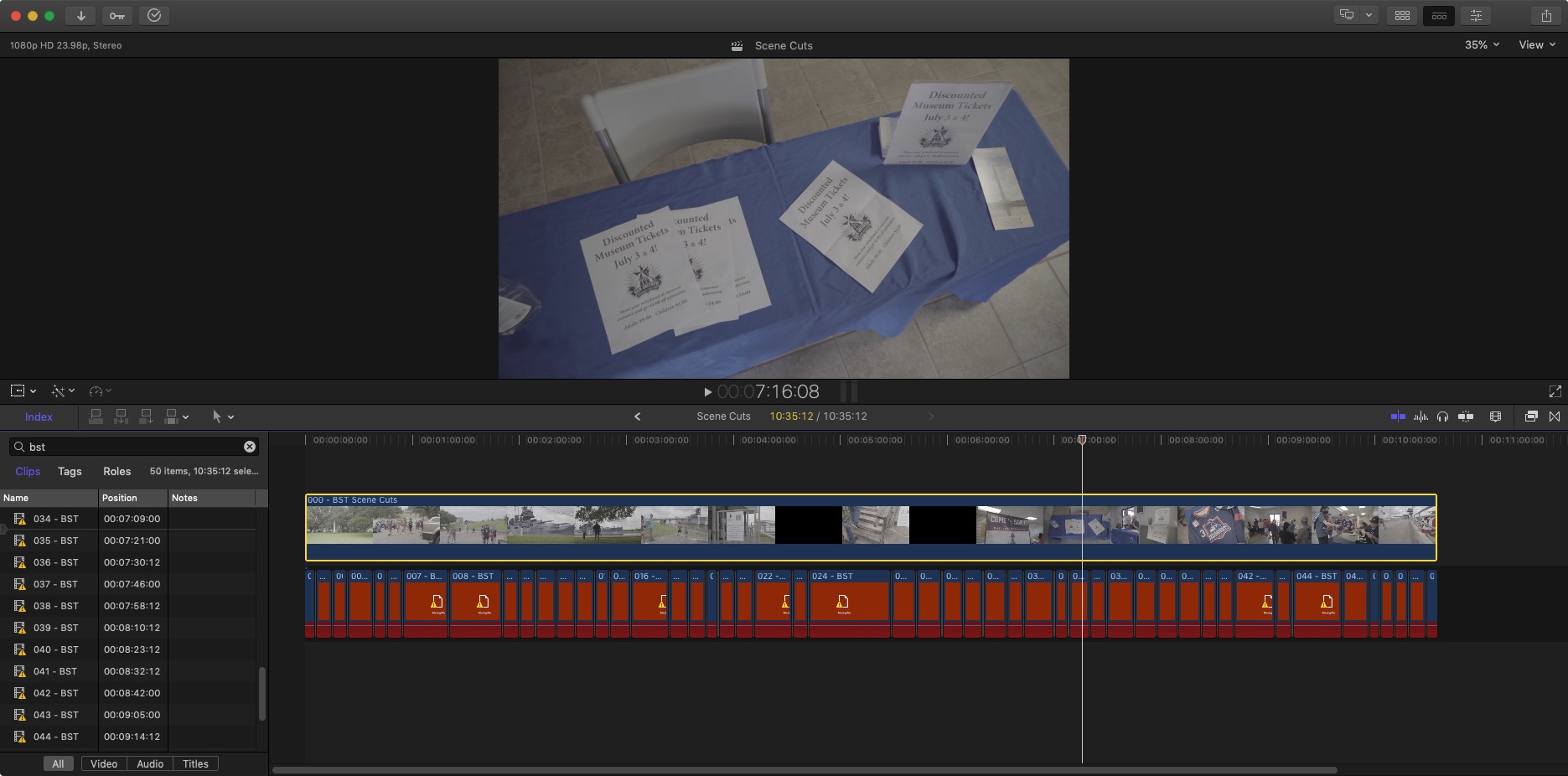
I also export a 'current state' XML tagged with date-time (073022-1316) of the current project before quit just in case it won't open next time. (I see a lot of 'library doesn't open' problems here I'd like to avoid.)
I can load this into Davinci Resolve and use DETECT SCENE CUTS or SCENE CUT DETECTOR and it will reliably chop that single file back into 213 separate clips. The black gap sets a dramatic difference particularly in low contrast LOG shots that Resolve sometimes has problems detecting accurately.
If nothing else I can also load that one shot back into FCP and can deconstruct it into the individual clips once again blading from the originals if I no longer have them.
I also export a 'current state' XML tagged with date-time (073022-1316) of the current project before quit just in case it won't open next time. (I see a lot of 'library doesn't open' problems here I'd like to avoid.)
Last edit: 30 Jul 2022 20:20 by VTC.
Please Log in to join the conversation.

