


- Posts: 1080
- Thank you received: 106
3 Post Moderation Rule for New Boarders (25 Jan 2021)
New boarders will have their posts moderated - Don't worry if you cannot see your post immediately.
FCP inserting black frames in video for no reason
15 Jul 2022 03:54 - 15 Jul 2022 03:54 #121417
by Redifer
Replied by Redifer on topic FCP inserting black frames in video for no reason
I've noticed nothing but trouble since I started capturing with the Mac OS itself. One of my ProRes video that I just recorded is missing a ton of frames and skips ahead every second. The files I recorded before and after are fine. I don't think this is a reliable way to capture video. Gonna have to go back to the Elgato.
Last edit: 15 Jul 2022 03:54 by Redifer.
Please Log in to join the conversation.
17 Jul 2022 02:34 #121446
by Redifer
Replied by Redifer on topic FCP inserting black frames in video for no reason
Just an update:
I believe the errors were happening due to file corruption and not anything Compressor did or the way the original was. I encountered the same error (black frames) on a video clip in the Library that I've been using since 2015. I imported that same clip from a different Library and it ended up working fine. I think things got corrupted when I moved the Library from My SanDisk SSD to my Samsung SSD. The SanDisk was giving me issues with 30mbps second write speeds, etc. I moved the Library and rebooted the computer. SanDisk write speed is back where it should be now.
I believe the errors were happening due to file corruption and not anything Compressor did or the way the original was. I encountered the same error (black frames) on a video clip in the Library that I've been using since 2015. I imported that same clip from a different Library and it ended up working fine. I think things got corrupted when I moved the Library from My SanDisk SSD to my Samsung SSD. The SanDisk was giving me issues with 30mbps second write speeds, etc. I moved the Library and rebooted the computer. SanDisk write speed is back where it should be now.
Please Log in to join the conversation.

17 Jul 2022 03:58 - 17 Jul 2022 04:02 #121447
by DaveM
Replied by DaveM on topic FCP inserting black frames in video for no reason
This topic and the one about jittery or re-ordered frames leads me to believe that some part of the issue may be due to macOS I/O issues (disk drivers, Thunderbolt, USB, etc.), at least in part.
Also, I'd suggest that anyone who copies any data of any real importance between volumes or drives should use something like ChronoSync, which offers verified copies (the Finder is unreliable for larger file transfer operations and doesn't verify things).
Other reports about issues towards the end of files suggests something to do with data buffering, drive I/O, etc. A memory leak could build up over time and cause issues. Issues with drives themselves (chipsets, cables, heat, old firmware, etc.) could lead to I/O errors after some amount of time. A flaky SSD can work fine at the beginning of I/O and go bad after some time.
It may be that some part of the jittery and re-ordered frames is due to drive I/O issues, either within FCP or macOS itself, so any report to Apple should suggest this as a possible part of the problems people are having. In other words, the issue could possibly have more to do with drive I/O rather than something in FCP, Neat Video, etc. (though, you could consider drive I/O operations from within FCP as an FCP issue).
Redifer's report about his SanDisk drive's issues reinforces these thoughts. The SanDisk shouldn't get slower and then get better after a reboot if there wasn't an issue with the drive, macOS itself, etc.
Also, I'd suggest that anyone who copies any data of any real importance between volumes or drives should use something like ChronoSync, which offers verified copies (the Finder is unreliable for larger file transfer operations and doesn't verify things).
Other reports about issues towards the end of files suggests something to do with data buffering, drive I/O, etc. A memory leak could build up over time and cause issues. Issues with drives themselves (chipsets, cables, heat, old firmware, etc.) could lead to I/O errors after some amount of time. A flaky SSD can work fine at the beginning of I/O and go bad after some time.
It may be that some part of the jittery and re-ordered frames is due to drive I/O issues, either within FCP or macOS itself, so any report to Apple should suggest this as a possible part of the problems people are having. In other words, the issue could possibly have more to do with drive I/O rather than something in FCP, Neat Video, etc. (though, you could consider drive I/O operations from within FCP as an FCP issue).
Redifer's report about his SanDisk drive's issues reinforces these thoughts. The SanDisk shouldn't get slower and then get better after a reboot if there wasn't an issue with the drive, macOS itself, etc.
Last edit: 17 Jul 2022 04:02 by DaveM.
Please Log in to join the conversation.
17 Jul 2022 05:18 #121455
by Redifer
Replied by Redifer on topic FCP inserting black frames in video for no reason
Very interesting.
I tried the demo version of ChronoSync and it doesn't allow copying of FCP Libraries very well. It takes everything out of the package. All I need is a way to verify copies and if that exists in ChronoSync I can't find it in the dearth of features it offers.
I tried the demo version of ChronoSync and it doesn't allow copying of FCP Libraries very well. It takes everything out of the package. All I need is a way to verify copies and if that exists in ChronoSync I can't find it in the dearth of features it offers.
Please Log in to join the conversation.
17 Jul 2022 14:50 - 17 Jul 2022 15:27 #121461
by DaveM
Replied by DaveM on topic FCP inserting black frames in video for no reason
ChronoSync actually has a surfeit of features... 
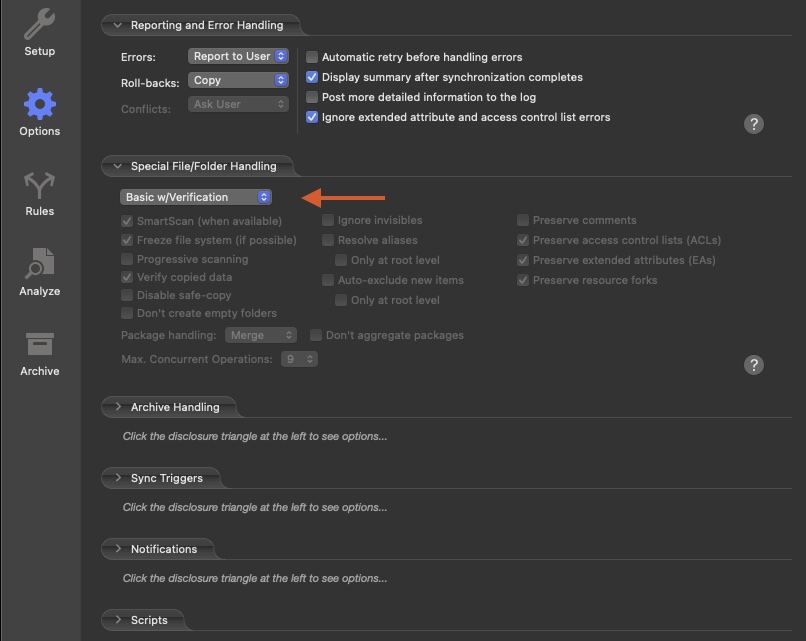
If you create a new synchronizer "document" and select Options there is a setting to turn on verification (see attached screenshot).
ChronoSync is a very powerful tool, but it takes a little bit of time to study how it works, which is well worth the effort. There is an informative and interesting interview with the 1st Asst. Editor for "Mank", in which he discusses their use of ChronoSync.
I've never had problems with ChronoSync and FCP libraries. I used ChronoSync daily for automated backups, etc.
"Copy That" might be more to your liking (or you could always dive into the Terminal):
software.owcdigital.com/copy-that/
If you create a new synchronizer "document" and select Options there is a setting to turn on verification (see attached screenshot).
ChronoSync is a very powerful tool, but it takes a little bit of time to study how it works, which is well worth the effort. There is an informative and interesting interview with the 1st Asst. Editor for "Mank", in which he discusses their use of ChronoSync.
I've never had problems with ChronoSync and FCP libraries. I used ChronoSync daily for automated backups, etc.
"Copy That" might be more to your liking (or you could always dive into the Terminal):
software.owcdigital.com/copy-that/
Last edit: 17 Jul 2022 15:27 by DaveM.
Please Log in to join the conversation.


17 Jul 2022 15:14 #121462
by deweyt44
Replied by deweyt44 on topic FCP inserting black frames in video for no reason
Just tested the footage myself on my m1 Mac mini, and when I play the video in QuickTime, there is definitely a glitch near the end, and when I import the footage without transcoding, the video does intermittently drop to black so often. The moment I transcode the footage to Prores in Final Cut Pro, the problem goes away, so it's definitely to do with the creation of the Hevc file as already mentioned by a few people here.
Please Log in to join the conversation.

17 Jul 2022 16:39 - 17 Jul 2022 16:40 #121463
by joema
I am absolutely positive the mainstream "jittery/re-ordered frame" issue is not I/O hardware or data transfer corruption. This is because I've tested it on multiple M1 Max and M1 Ultra machines with all media on the internal SSD. Also the problem goes away if you run those tests on 10.6.1 on the exact same machine.
I definitely agree that it's important to verify important data copies between drives and especially if across a network. There are various ways: ChronoSync, Carbon Copy, Hedge, IntegrityChecker, etc. I sometimes just use Finder then verify the copy using Beyond Compare, although it has various modes with different performance: www.scootersoftware.com
Integrity Checker: diglloydtools.com/integritychecker.html
Hedge: hedge.video/hedge
I think the "black frame" issue arose with media that had been digitized and sequentially double captured by two devices using custom FPGAs. It was first digitized from analog component video to HDMI via a RetroTINK 5X-Pro: www.retrotink.com/product-page/5x-pro
Then it was converted from HDMI to USB by a Magewell Gen 2 device: www.amazon.com/dp/B00I16VQOY/
Quicktime Player read the Magewell device which appeared as a virtual camera and recorded that. Then the ProRes output of Quicktime was transcoded to HEVC via Compressor. The final result of that chain had black frames, but it's unclear where the underlying issue actually began.
If it were a disk I/O problem it should be possible to place a similar "known good" ProRes file on that same machine and disk, transcode to HEVC with Compressor and see the problem. I think the unique pedigree and metadata of that file is more likely related to the black frame issue.
It might be possible to use ffprobe, ffmpeg or other utilities to edit the video header of a normal ProRes file from FCP with similar fractional frame rates and see if that triggers the behavior by Compressor. It could be a bug in the Quicktime capture or Compressor since it doesn't happen on Intel, or it could be a non-legit encoding which is handled differently by various software. E.g, there may be no standard (or it's a grey area) if the header claims it's CBR but the file is actually VBR, or vice versa. I doubt the encoding spec defines every possible permutation of inconsistent metadata vs actual encoding.
Replied by joema on topic FCP inserting black frames in video for no reason
...the one about jittery or re-ordered frames leads me to believe that some part of the issue may be due to macOS I/O issues (disk drivers, Thunderbolt, USB, etc.), at least in part.
I am absolutely positive the mainstream "jittery/re-ordered frame" issue is not I/O hardware or data transfer corruption. This is because I've tested it on multiple M1 Max and M1 Ultra machines with all media on the internal SSD. Also the problem goes away if you run those tests on 10.6.1 on the exact same machine.
... I'd suggest that anyone who copies any data of any real importance between volumes or drives should use something like ChronoSync, which offers verified copies (the Finder is unreliable for larger file transfer operations and doesn't verify things).
I definitely agree that it's important to verify important data copies between drives and especially if across a network. There are various ways: ChronoSync, Carbon Copy, Hedge, IntegrityChecker, etc. I sometimes just use Finder then verify the copy using Beyond Compare, although it has various modes with different performance: www.scootersoftware.com
Integrity Checker: diglloydtools.com/integritychecker.html
Hedge: hedge.video/hedge
...Redifer's report about his SanDisk drive's issues reinforces these thoughts. The SanDisk shouldn't get slower and then get better after a reboot if there wasn't an issue with the drive, macOS itself, etc...
I think the "black frame" issue arose with media that had been digitized and sequentially double captured by two devices using custom FPGAs. It was first digitized from analog component video to HDMI via a RetroTINK 5X-Pro: www.retrotink.com/product-page/5x-pro
Then it was converted from HDMI to USB by a Magewell Gen 2 device: www.amazon.com/dp/B00I16VQOY/
Quicktime Player read the Magewell device which appeared as a virtual camera and recorded that. Then the ProRes output of Quicktime was transcoded to HEVC via Compressor. The final result of that chain had black frames, but it's unclear where the underlying issue actually began.
If it were a disk I/O problem it should be possible to place a similar "known good" ProRes file on that same machine and disk, transcode to HEVC with Compressor and see the problem. I think the unique pedigree and metadata of that file is more likely related to the black frame issue.
It might be possible to use ffprobe, ffmpeg or other utilities to edit the video header of a normal ProRes file from FCP with similar fractional frame rates and see if that triggers the behavior by Compressor. It could be a bug in the Quicktime capture or Compressor since it doesn't happen on Intel, or it could be a non-legit encoding which is handled differently by various software. E.g, there may be no standard (or it's a grey area) if the header claims it's CBR but the file is actually VBR, or vice versa. I doubt the encoding spec defines every possible permutation of inconsistent metadata vs actual encoding.
Last edit: 17 Jul 2022 16:40 by joema.
Please Log in to join the conversation.
17 Jul 2022 18:23 #121464
by DaveM
Replied by DaveM on topic FCP inserting black frames in video for no reason
joema, I probably wasn't clear enough, but most of my thoughts about drives, I/O, etc. had to do with people reporting that near the end of recordings/files there were issues with frames.
My comments also refer to people's reports of inconsistent drive performance, how speeds drop over time but regain "normal" operation after reboots.
It seems likely that all of the issues are related to some of the M1 computers.
And, to be clear, all of these recently-reported issues could be related, in part, or different issues. Even the test you provided isn't really scientific or objective, due to variations between any given system that runs the test (besides Intel vs. M1 Ultra/Max). Things like viewer settings (better performance, or higher quality), Project/timeline frame rate, and other settings could affect the results of the test.
My questions that so far no one has really focused on are: (1) What would cause a file to be corrupted near the end and not throughout?; and (2) Why would drive performance degrade over a session of use, yet improve after a reboot. To me, these are more indicative of failing drives, bad cables, or possible OS-level issues with Thunderbolt/USB, etc. These issues may be completely separate from the more clearly identified jittery/re-ordered frames, or could be the root cause. There may be differences in macOS for the affected M1 Macs that could be causing or contributing to the issues. Or not...
My comments also refer to people's reports of inconsistent drive performance, how speeds drop over time but regain "normal" operation after reboots.
It seems likely that all of the issues are related to some of the M1 computers.
And, to be clear, all of these recently-reported issues could be related, in part, or different issues. Even the test you provided isn't really scientific or objective, due to variations between any given system that runs the test (besides Intel vs. M1 Ultra/Max). Things like viewer settings (better performance, or higher quality), Project/timeline frame rate, and other settings could affect the results of the test.
My questions that so far no one has really focused on are: (1) What would cause a file to be corrupted near the end and not throughout?; and (2) Why would drive performance degrade over a session of use, yet improve after a reboot. To me, these are more indicative of failing drives, bad cables, or possible OS-level issues with Thunderbolt/USB, etc. These issues may be completely separate from the more clearly identified jittery/re-ordered frames, or could be the root cause. There may be differences in macOS for the affected M1 Macs that could be causing or contributing to the issues. Or not...
Please Log in to join the conversation.
17 Jul 2022 18:42 - 17 Jul 2022 18:44 #121465
by Redifer
Replied by Redifer on topic FCP inserting black frames in video for no reason
I tried the Basic w/ Verification in ChronoSync. That only makes sure all of the files are copied, not that they are bit-for-bit replicas. Doesn't really matter anyway since it destroys the FCP Package when copying if I choose to copy only the package.
The problem doesn't "go away" it's skipped over. It just removed the black frames. Listen to the music and watch the "flames" before and after. It will skip after you transcode it. It's a file corruption issue.deweyt44 wrote: The moment I transcode the footage to Prores in Final Cut Pro, the problem goes away, so it's definitely to do with the creation of the Hevc file as already mentioned by a few people here.
Last edit: 17 Jul 2022 18:44 by Redifer.
Please Log in to join the conversation.
17 Jul 2022 19:35 - 17 Jul 2022 19:43 #121466
by DaveM
Oops, sorry... there is a separate "Validate" command that you can use to do a byte by byte comparison.
I just did a test with a folder containing two FCP Library files/packages and media. Used ChronoSync to "Backup Left-to-right" and have no issues using the copied Libraries in FCP. They look fine in the Finder, too.
You must be trying to select a Library file/package as a source and destination. That's a clear no-no. If you do so, it treats the Library as a regular folder, not as a package. In the selection dialog window you can turn off the option to allow for choosing packages. This is a gotcha. Create a folder at the source and destination. At the source, put the Library in that folder. Things should work fine, now...
Replied by DaveM on topic FCP inserting black frames in video for no reason
I tried the Basic w/ Verification in ChronoSync. That only makes sure all of the files are copied, not that they are bit-for-bit replicas. Doesn't really matter anyway since it destroys the FCP Package when copying if I choose to copy only the package.
Oops, sorry... there is a separate "Validate" command that you can use to do a byte by byte comparison.
I just did a test with a folder containing two FCP Library files/packages and media. Used ChronoSync to "Backup Left-to-right" and have no issues using the copied Libraries in FCP. They look fine in the Finder, too.
You must be trying to select a Library file/package as a source and destination. That's a clear no-no. If you do so, it treats the Library as a regular folder, not as a package. In the selection dialog window you can turn off the option to allow for choosing packages. This is a gotcha. Create a folder at the source and destination. At the source, put the Library in that folder. Things should work fine, now...
Last edit: 17 Jul 2022 19:43 by DaveM.
Please Log in to join the conversation.
17 Jul 2022 19:37 #121467
by Redifer
Replied by Redifer on topic FCP inserting black frames in video for no reason
I guess maybe the trick is to copy a folder with the Library inside of it instead of just the library by itself.
Please Log in to join the conversation.
17 Jul 2022 20:06 - 17 Jul 2022 20:08 #121469
by DaveM
Replied by DaveM on topic FCP inserting black frames in video for no reason
This may be a totally separate issue or it may help inform why things are different between M1 Ultra/Max Macs and other Macs. Interesting (?) that my observations differ from others...
Intel 2019 Mac Pro, FCP 10.6.3, macOS 12.4
When I view the original posted file "Unititled2.mov" I only see distorted frames (no black frames). I ran Shutter Encoder's "black detection" and it doesn't report anything.
- It should be noted that the Untitled2.mov file is 60 fps, not 59.94 fps, as reported by Invisor and as shown in the FCP inspector.
- I see the same behavior with and without using optimized media.
In the Browser, when played back, I see 3 spots where there are distorted frames, as well as when Untitled2.mov is edited into 60 fps or 59.94 fps Projects. The glitches occur at:
Glitch 1: 01:38 - 02:05
Glitch 2: 14:53
Glitch 3: 25:24 - 25:35
When Untitled2.mov is edited into a 30 fps or 29.97 fps Projects, glitches occur at:
Glitch 1: 1:19 - 2:02
Glitch 2: none
Glitch 3: 25:12 - 25:17
For the four test Projects, a Rate Conform item shows up in the inspector with Frame Sampling set to Floor, except the 60 fps Project.
It seems clear that the 30 fps and 29.97 fps Project don't have the 2nd glitch due to the Frame Sampling being used (with the glitch being one frame long at 60 fps).
I wonder why this behavior differs from other reports...
Intel 2019 Mac Pro, FCP 10.6.3, macOS 12.4
When I view the original posted file "Unititled2.mov" I only see distorted frames (no black frames). I ran Shutter Encoder's "black detection" and it doesn't report anything.
- It should be noted that the Untitled2.mov file is 60 fps, not 59.94 fps, as reported by Invisor and as shown in the FCP inspector.
- I see the same behavior with and without using optimized media.
In the Browser, when played back, I see 3 spots where there are distorted frames, as well as when Untitled2.mov is edited into 60 fps or 59.94 fps Projects. The glitches occur at:
Glitch 1: 01:38 - 02:05
Glitch 2: 14:53
Glitch 3: 25:24 - 25:35
When Untitled2.mov is edited into a 30 fps or 29.97 fps Projects, glitches occur at:
Glitch 1: 1:19 - 2:02
Glitch 2: none
Glitch 3: 25:12 - 25:17
For the four test Projects, a Rate Conform item shows up in the inspector with Frame Sampling set to Floor, except the 60 fps Project.
It seems clear that the 30 fps and 29.97 fps Project don't have the 2nd glitch due to the Frame Sampling being used (with the glitch being one frame long at 60 fps).
I wonder why this behavior differs from other reports...
Last edit: 17 Jul 2022 20:08 by DaveM.
Please Log in to join the conversation.
17 Jul 2022 22:08 - 17 Jul 2022 22:09 #121471
by Redifer
Replied by Redifer on topic FCP inserting black frames in video for no reason
Just for fun here's another corrupted clip where you can see motion better. At about 8 seconds, it will freeze for half a second in Quicktime while the audio continues to play in real time. In Final Cut Pro, black frames are inserted while the audio continues. If you optimize the clip, it cuts the video out to remove the affected area. Audio is not adjusted and is now out of sync.
drive.google.com/file/d/1qQtNifnBdfFxblP...0By/view?usp=sharing
drive.google.com/file/d/1qQtNifnBdfFxblP...0By/view?usp=sharing
Last edit: 17 Jul 2022 22:09 by Redifer.
Please Log in to join the conversation.
17 Jul 2022 22:47 #121473
by DaveM
Replied by DaveM on topic FCP inserting black frames in video for no reason
Again, strange... I get no black frames... A couple of QA tools show no black frames.
These applications played every frame, and the audio was in sync after the bad frames around 8 seconds in:
QuckTime Player, CinePlay, Switch, Screen, Movist, and VLC.
In both Resolve 17 Studio and FCP, there are no black frames and audio stays in sync after the visual glitches ("gun" fire has correctly timed audio).
These applications played every frame, and the audio was in sync after the bad frames around 8 seconds in:
QuckTime Player, CinePlay, Switch, Screen, Movist, and VLC.
In both Resolve 17 Studio and FCP, there are no black frames and audio stays in sync after the visual glitches ("gun" fire has correctly timed audio).
Please Log in to join the conversation.
17 Jul 2022 22:51 #121474
by Redifer
Replied by Redifer on topic FCP inserting black frames in video for no reason
Very strange indeed. On my Resolve Studio 17 it says "Media Offline" at that section. The audio appears in sync for me too afterwards after it is OPtimized in FCP, but there is one more gunfire sound after the shooting has stopped towards the end.
Please Log in to join the conversation.
17 Jul 2022 23:09 - 17 Jul 2022 23:12 #121475
by DaveM
Replied by DaveM on topic FCP inserting black frames in video for no reason
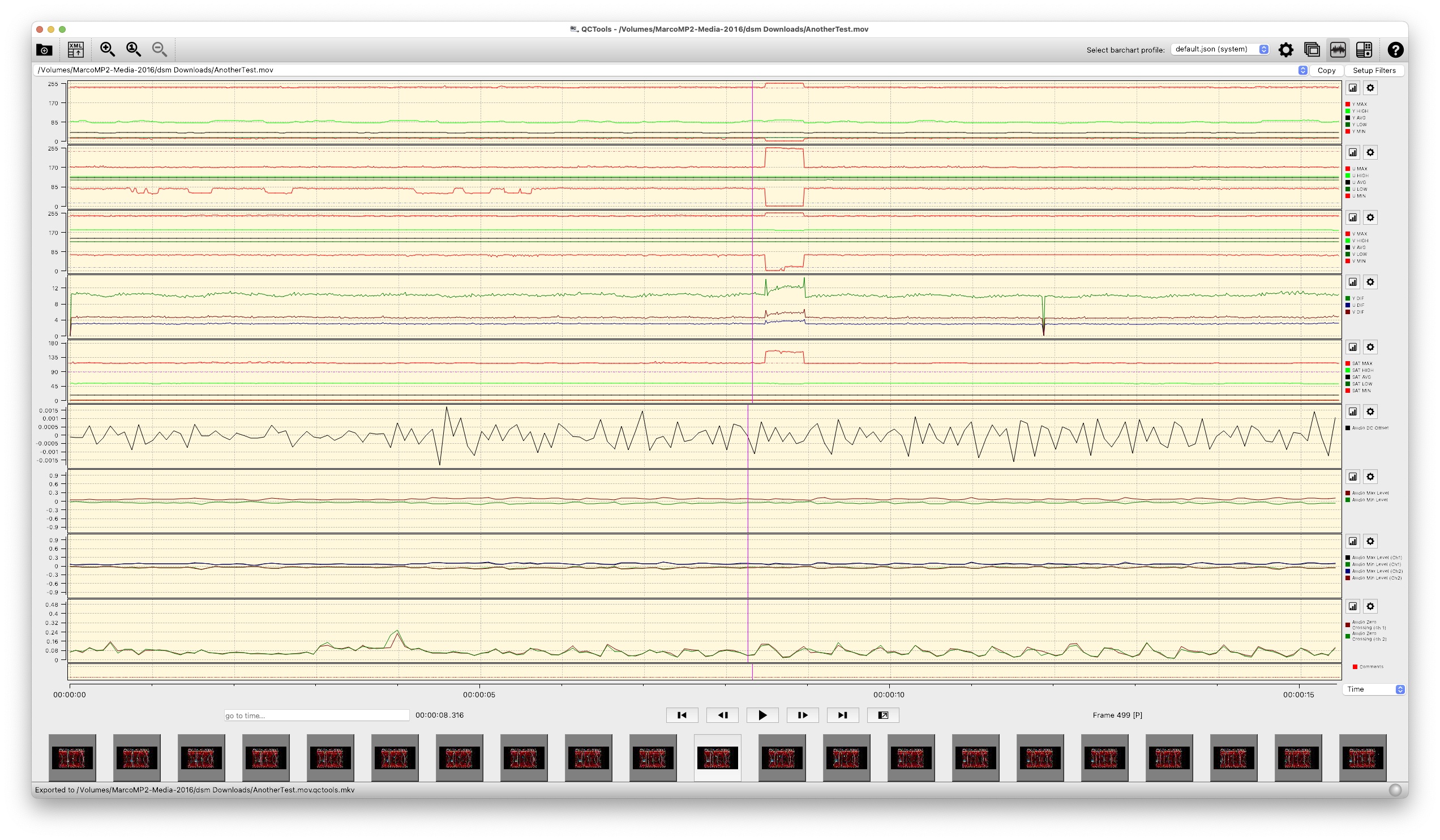
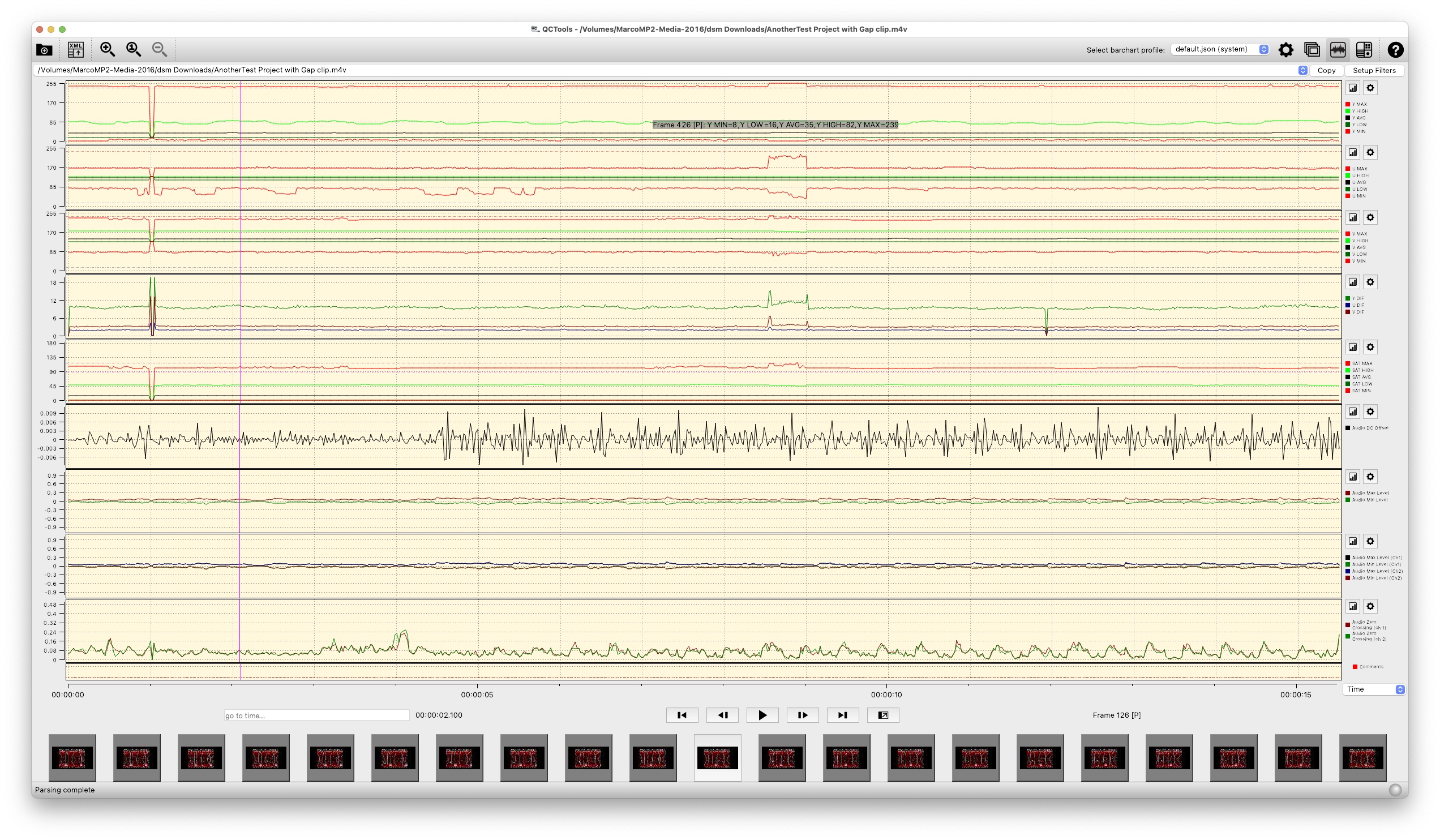
I'll say emphatically that there are no black frames in AnotherTry.mov. Look at the two screenshots I've attached. They show the standard interface of QCTools with default graphs (Y luma, U and V chroma, etc.). In the second one I've inserted a 3 frame gap clip (at 60.000 fps) in AnotherTry.mov so you can see what an actual black frame looks like. The black frame is at 1 second into the clip.
There's got to be an issue with H.265/HEVC decoding on some Macs, if not other codecs, too...
There's got to be an issue with H.265/HEVC decoding on some Macs, if not other codecs, too...
Last edit: 17 Jul 2022 23:12 by DaveM.
Please Log in to join the conversation.
17 Jul 2022 23:13 #121476
by DaveM
Replied by DaveM on topic FCP inserting black frames in video for no reason
I also get the same behavior whether or not I optimize the clip in FCP.
Please Log in to join the conversation.
17 Jul 2022 23:24 #121477
by Redifer
Replied by Redifer on topic FCP inserting black frames in video for no reason
Extremely interesting. What happens when you open AnotherTest.mov in Quicktime and try to export it (1080p either H.264 or HEVC)? On mine it will start, then quickly give me a message stating "Cannot Decode The media data could not be decoded. It may be damaged."
Please Log in to join the conversation.
17 Jul 2022 23:37 - 17 Jul 2022 23:39 #121478
by Redifer
Replied by Redifer on topic FCP inserting black frames in video for no reason
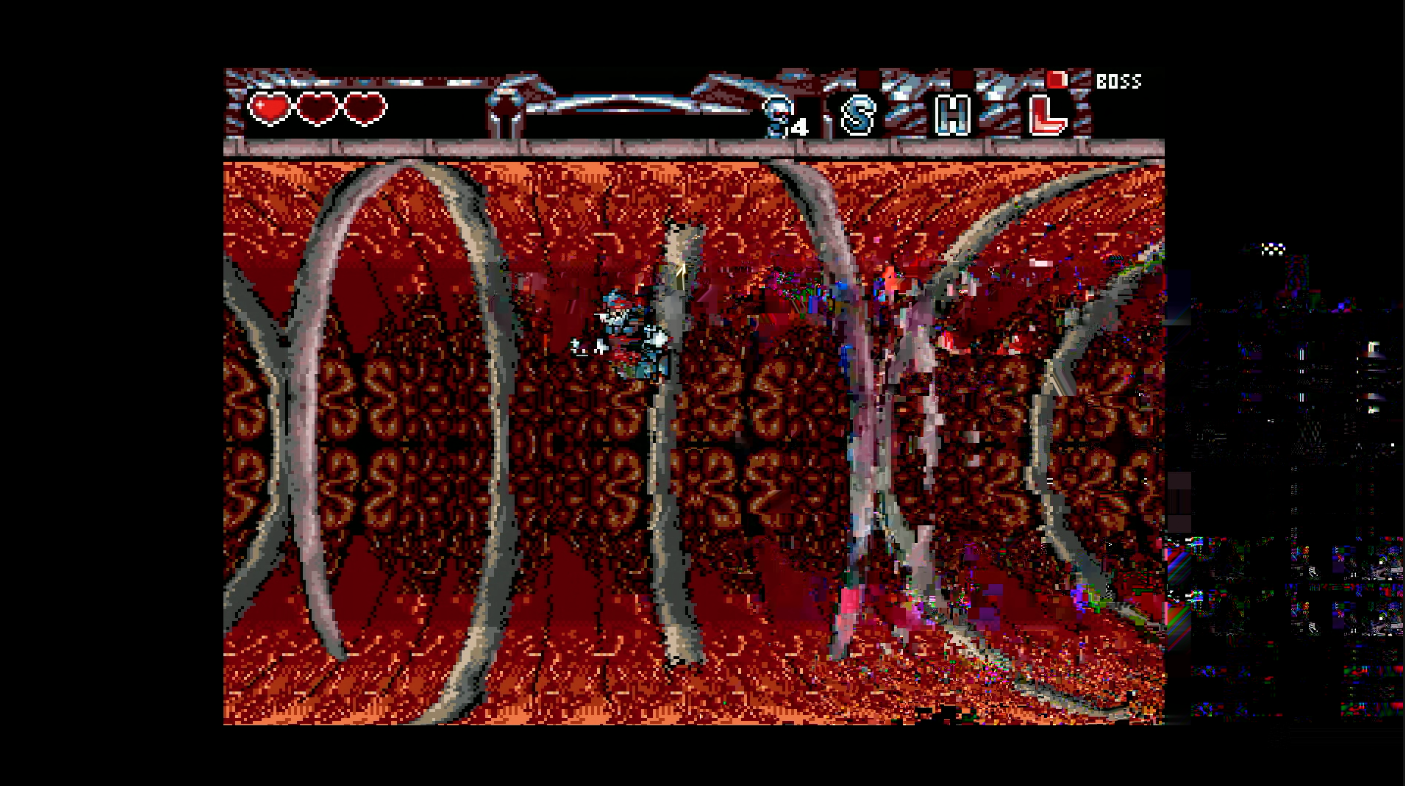
OK can confirm, works differently on different machines. My 2013 Mac Pro plays every frame in Quicktime, Final Cut Pro, etc etc. However there is a glitch at the affected spot (pictured below). This HEVC was encoded by Compressor on the Mac Studio.
Starting to think the Mac Studio is just trash.
Someone should write an article. That's the only thing that gets Apple's attention.
Starting to think the Mac Studio is just trash.
Someone should write an article. That's the only thing that gets Apple's attention.
Last edit: 17 Jul 2022 23:39 by Redifer.
Please Log in to join the conversation.
