


- Posts: 3
- Thank you received: 0
3 Post Moderation Rule for New Boarders (25 Jan 2021)
New boarders will have their posts moderated - Don't worry if you cannot see your post immediately.
Title - fade in sound with no video, then fade in video
- Mitcherooney
-
 Topic Author
- Offline
- New Member
-

Less
More
01 Jun 2022 15:24 #120790
by Mitcherooney
Greetings
I'm very much a newbie to FCP. And I'm old! What I have is some footage of a jazz band that I recorded. I would like to have a title with the initial sound of the band playing, then to fade into video plus audio. I have had a look round various youtube sites with no luck.
Any help appreciated. Thanks
I'm very much a newbie to FCP. And I'm old! What I have is some footage of a jazz band that I recorded. I would like to have a title with the initial sound of the band playing, then to fade into video plus audio. I have had a look round various youtube sites with no luck.
Any help appreciated. Thanks
Please Log in to join the conversation.
- Tom Wolsky
-

- Offline
- Moderator
-

01 Jun 2022 16:24 #120792
by Tom Wolsky
Replied by Tom Wolsky on topic Title - fade in sound with no video, then fade in video
There is a button at the beginning and end of every audio clip that lets you create a fade.
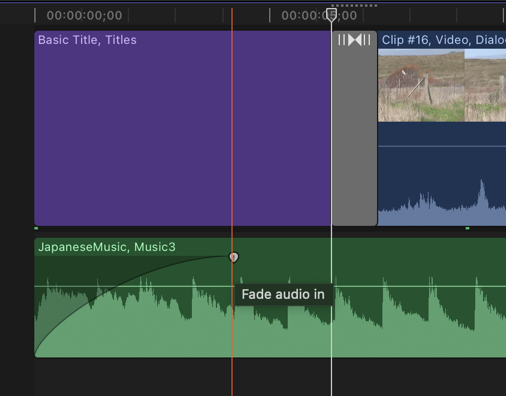
You can also use Modify>Adjust Audio Fades>Fade In. This basically moves the fade button based on the audio preference setting, which by default is half a second.
You can also use Modify>Adjust Audio Fades>Fade In. This basically moves the fade button based on the audio preference setting, which by default is half a second.
Please Log in to join the conversation.
- Mitcherooney
-
Topic Author
- Offline
- New Member
-
Less
More
- Posts: 3
- Thank you received: 0
01 Jun 2022 16:35 #120793
by Mitcherooney
Replied by Mitcherooney on topic Title - fade in sound with no video, then fade in video
Thanks for that. Appreciated. However it's the 'masking' of the video when the title is on-screen that I'm having the issue with. I just want the initial part of the first tune to play behind the title, which will then fade in to continue with both audio and video. Sorry that I didn't make that clear.
Cheers
Cheers
Please Log in to join the conversation.


01 Jun 2022 16:56 - 02 Jun 2022 01:47 #120794
by DaveM
Replied by DaveM on topic Title - fade in sound with no video, then fade in video
Method 1:
Create a new project. Add a gap generator clip (option-W) to the beginning of the project timeline.
Select the gap clip and change its duration (control-D). In the timecode display, you would type "10." (no quotes but with the "." included) for a 10-second duration. Hit Return to finish.
Now, add the video clip with the music (assuming it's a single clip with audio and video) to the timeline, after the gap clip.
Double-click the lower portion of the a-v clip in the timeline to "expand audio" (separate the audio from the video). Or, use Clip -> Expand Audio (control-S).
Select just the audio part of the clip, or with nothing selected, go to the beginning of the audio part of the clip and drag the beginning to the beginning of the timeline. Now, the audio starts at the beginning and the video after 10 seconds.
Add the fade-in to the audio, as desired. You could collapse the audio and video back together now if you wish (control-S).
Add the title to the gap clip and use a transition at the edit point where the gap clip ends. Adjust the width of the video transition and you're done.
Method 2:
Drop the jazz band clip into a timeline. With the clip selected, expand the audio (control-S). Switch to the position tool (tap the "P" key) and move the cursor to the beginning of the video for the clip and drag the beginning of the clip to the right the amount you'd like to have just music playing (for the title). This "rolls' the video beginning down the timeline, leaving a gap clip in the remaining space. Switch back to the select tool, add a fade-in to the beginning of the audio, a transition at the end of the newly created gap clip (beginning of the video), and a title over the gap clip to finish things...
Cheers.
Create a new project. Add a gap generator clip (option-W) to the beginning of the project timeline.
Select the gap clip and change its duration (control-D). In the timecode display, you would type "10." (no quotes but with the "." included) for a 10-second duration. Hit Return to finish.
Now, add the video clip with the music (assuming it's a single clip with audio and video) to the timeline, after the gap clip.
Double-click the lower portion of the a-v clip in the timeline to "expand audio" (separate the audio from the video). Or, use Clip -> Expand Audio (control-S).
Select just the audio part of the clip, or with nothing selected, go to the beginning of the audio part of the clip and drag the beginning to the beginning of the timeline. Now, the audio starts at the beginning and the video after 10 seconds.
Add the fade-in to the audio, as desired. You could collapse the audio and video back together now if you wish (control-S).
Add the title to the gap clip and use a transition at the edit point where the gap clip ends. Adjust the width of the video transition and you're done.
Method 2:
Drop the jazz band clip into a timeline. With the clip selected, expand the audio (control-S). Switch to the position tool (tap the "P" key) and move the cursor to the beginning of the video for the clip and drag the beginning of the clip to the right the amount you'd like to have just music playing (for the title). This "rolls' the video beginning down the timeline, leaving a gap clip in the remaining space. Switch back to the select tool, add a fade-in to the beginning of the audio, a transition at the end of the newly created gap clip (beginning of the video), and a title over the gap clip to finish things...
Cheers.
Last edit: 02 Jun 2022 01:47 by DaveM.
Please Log in to join the conversation.
- Mitcherooney
-
Topic Author
- Offline
- New Member
-
Less
More
- Posts: 3
- Thank you received: 0
01 Jun 2022 18:32 #120796
by Mitcherooney
Replied by Mitcherooney on topic Title - fade in sound with no video, then fade in video
Perfect. Thank you very much! Just what I needed and I am extremely grateful. All I have to do is remember the method for future projects. Once gain, many thanks. Mitch
Please Log in to join the conversation.

02 Jun 2022 14:31 - 02 Jun 2022 14:50 #120801
by dmetz
Replied by dmetz on topic Title - fade in sound with no video, then fade in video
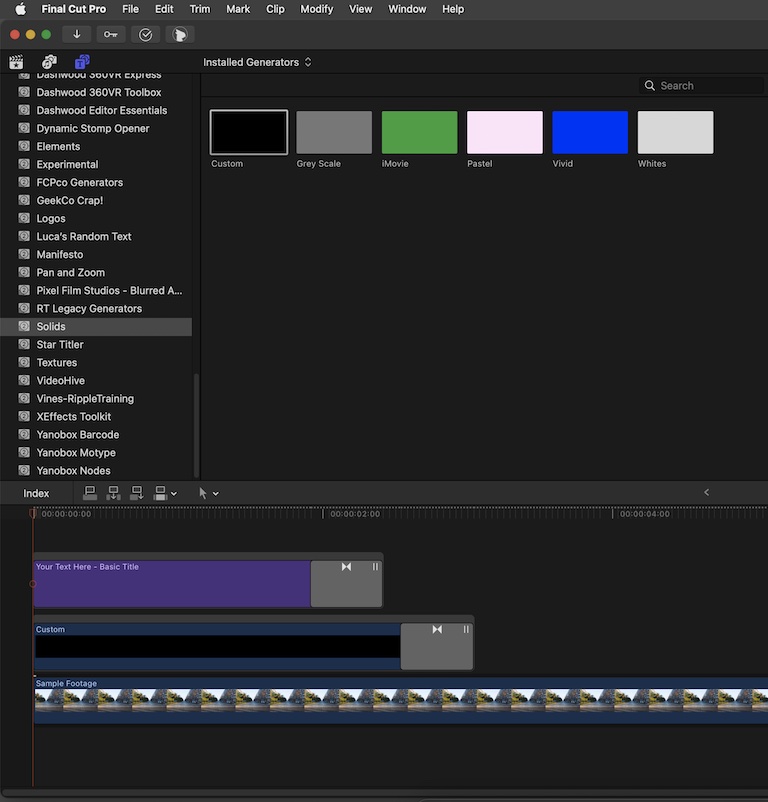
Method 3:
- Place footage in the timeline
- Open the Titles/Generators tab in the browser, select Solids group
- With playhead at the beginning of the footage, select the Custom solid and press 'Q'
- Add dissolve transition to the end of the Custom generator
- Place text over the solid, adjust as needed:
- Place footage in the timeline
- Open the Titles/Generators tab in the browser, select Solids group
- With playhead at the beginning of the footage, select the Custom solid and press 'Q'
- Add dissolve transition to the end of the Custom generator
- Place text over the solid, adjust as needed:
Last edit: 02 Jun 2022 14:50 by dmetz.
Please Log in to join the conversation.
