




- Posts: 4
- Thank you received: 0
3 Post Moderation Rule for New Boarders (25 Jan 2021)
New boarders will have their posts moderated - Don't worry if you cannot see your post immediately.
M1 Ultra and FCP - 2009 Cheese Grader is Faster?
31 May 2022 02:22 #120772
by chizzer
M1 Ultra and FCP - 2009 Cheese Grader is Faster? was created by chizzer
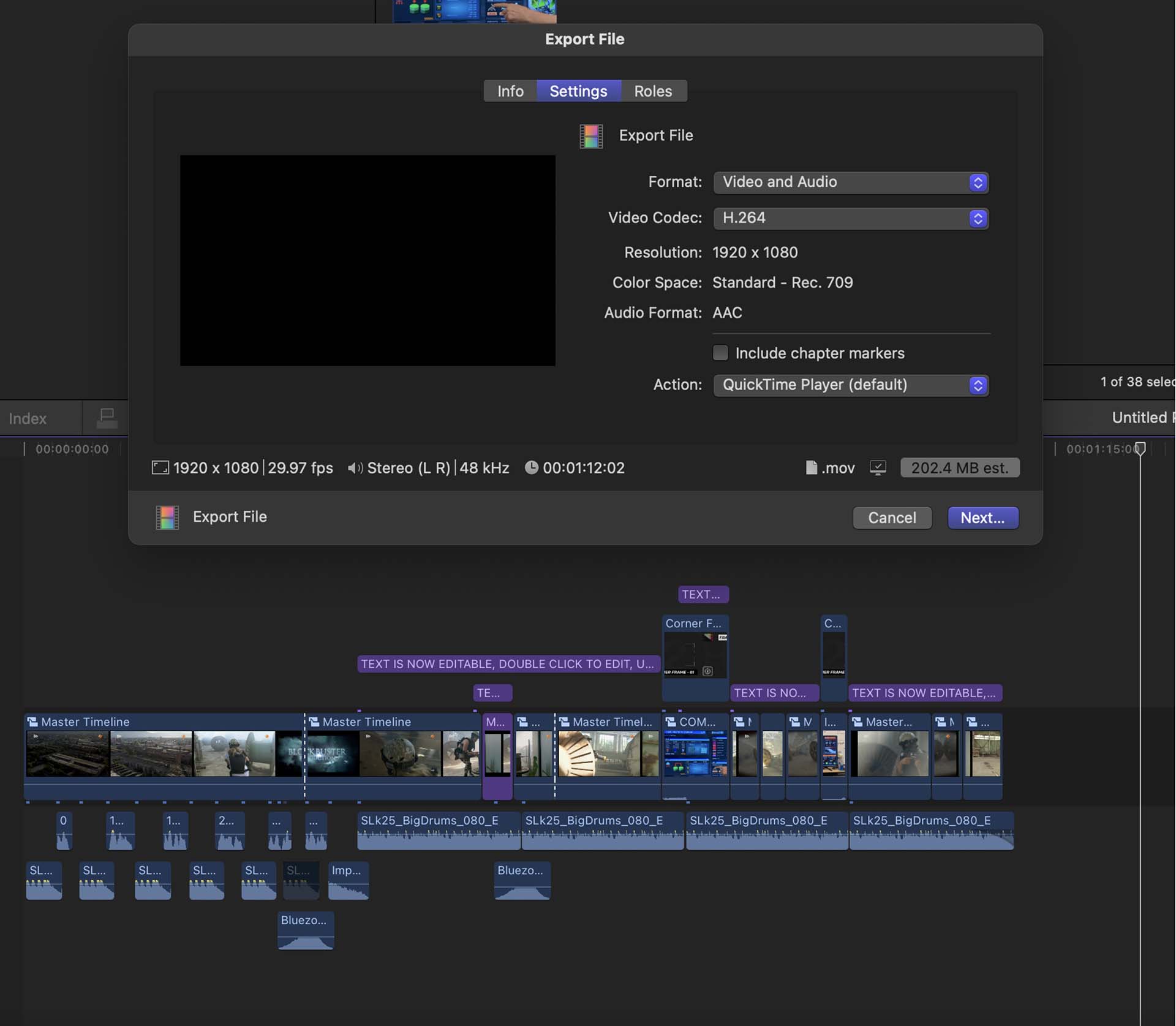
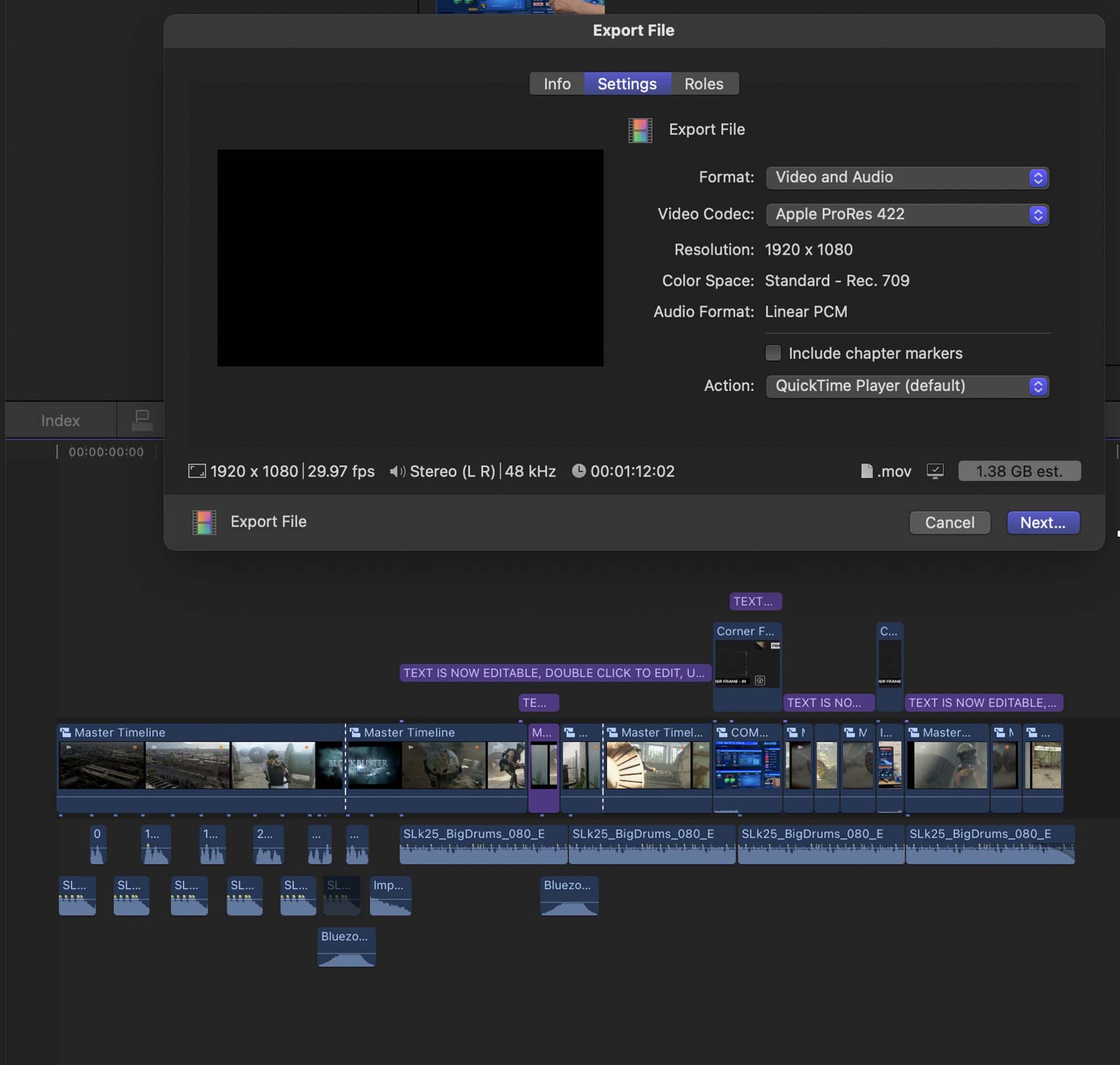
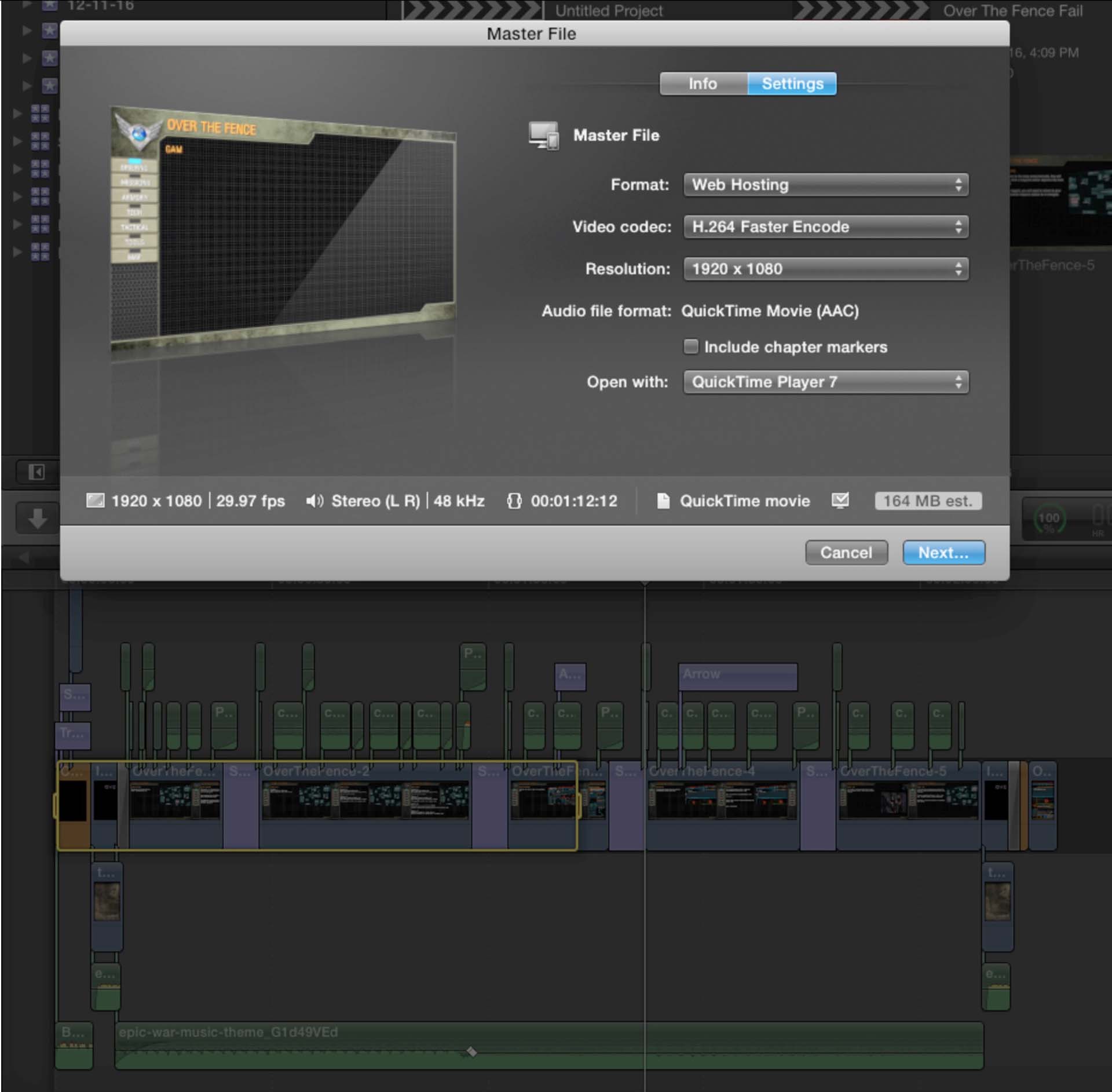
Greetings.I admit I am a digital hack... know enough to make myself miserably functional inside 40 different apps, but not enough to be qualified at any of them. With that said, I am hoping user ignorance is at play, and someone here with a bit more qualified experience could help me analyze my issue.. When it comes to FCP, I am having severe buyers remorse over this $8,500 M1 Ultra purchase (with monitor). A simple 1:12 video is taking up to 3:01 to export, and while I can not replicate the 'exact' timeline/content on my 2009 PRO Tower with FCP 10.2... it's doing a very similar 1:12 video export in 1:11 mins.This is the setup for the M1:https://discussions.apple.com/content/attachment/04780437-2137-492e-9c51-2b39d7f86120 https://discussions.apple.com/content/attachment/41757670-89f1-4d1f-9871-297ab431b807ProRes 422 = 3:01 mins. exportMp4 = 2:39 mins. exportHere is the setup for MacPro:https://discussions.apple.com/content/attachment/6b8b2edf-8ff7-41e9-8d60-9eb52a0a03eaMp4 = 1:11 mins. exportBoth machines have rendered completely in the timeline before exporting.* Video content for the M1 is on a USB connected external drive (imported to Library), exporting to the desktop. Content for the MacPro is on the internal drive imported to Library.I realize there is difference in content - but 13 yrs old vs. $6,500 new, fastest bla bla bla... marketing - this doesn't compute for me. Thanks in advance for time and assistance.
Please Log in to join the conversation.


31 May 2022 06:50 - 31 May 2022 06:53 #120774
by Redifer
Replied by Redifer on topic M1 Ultra and FCP - 2009 Cheese Grader is Faster?
#1 - Why are you rendering before export, especially on the new machine? That just adds time.
#2 - I have an M1 Ultra Mac Studio and a 2013 Mac Pro trash can. Some things on the new machine don't seem hugely improved, like Optical Flow analyzing, for example. However other things are immensely improved. Like Hawaiki Keyer. My 2013 Mac Pro can't play that in real time at all... not even close. Gotta be rendered. My Mac Studio can play it at real time at full frame rate in Better Quality mode (I never use Better Performance I need to see what I am getting). So some things will be way better, other things not quite as much.
#3 - Your drives have a HUGE impact on export speeds. No idea what USB drive you have, if it is USB 2 or 3, or how fast it's spinning or if it's an SSD. Also no idea what format you're exporting to on each machine. Exporting to H.264 and H.265 on my Mac Studio is the speed of light compared to my 2013 Mac Pro. The Mac Pro would probably take 200x as long to export HEVC. Not kidding.
#4 - Your links don't work and make your post difficult to read.
#2 - I have an M1 Ultra Mac Studio and a 2013 Mac Pro trash can. Some things on the new machine don't seem hugely improved, like Optical Flow analyzing, for example. However other things are immensely improved. Like Hawaiki Keyer. My 2013 Mac Pro can't play that in real time at all... not even close. Gotta be rendered. My Mac Studio can play it at real time at full frame rate in Better Quality mode (I never use Better Performance I need to see what I am getting). So some things will be way better, other things not quite as much.
#3 - Your drives have a HUGE impact on export speeds. No idea what USB drive you have, if it is USB 2 or 3, or how fast it's spinning or if it's an SSD. Also no idea what format you're exporting to on each machine. Exporting to H.264 and H.265 on my Mac Studio is the speed of light compared to my 2013 Mac Pro. The Mac Pro would probably take 200x as long to export HEVC. Not kidding.
#4 - Your links don't work and make your post difficult to read.
Last edit: 31 May 2022 06:53 by Redifer.
Please Log in to join the conversation.

31 May 2022 14:21 #120777
by joema
I downloaded and resized your in-line images and attached them for easier access by other viewers.
I have an M1 Ultra, M1 Max and just got rid of a 10-core Vega 64 iMac Pro which has a Xeon CPU like your 2009 Mac Pro. I formerly had a 12-core D700 "trash can" Mac Pro. I also have a 2017 top-spec i7 iMac 27. I've run many performance benchmarks on them. In general the M1 Max/Ultra machines are vastly faster than the iMac Pro, and much quieter.
However performance consists of elements: timeline playback performance at 1x, 4x or 8x speed, responsiveness to keyboard input such as JKL to switch directions from fast forward to fast reverse, skimmer responsiveness (which uses a different software code path than timeline playback), how all of the above vary based on various codecs, esp. the many different flavors of H264 and HEVC, render performance to timeline cache, export performance in cached and non-cached cases, how export performance varies with codec, and how all of the above varies with built-in and 3rd-party effects and titles. Which performance aspect is important to a given user can vary.
If you don't think your M1 Ultra is that fast, try importing some 4k 10-bit 4:2:2 XAVC-S material from a Sony mirrorless camera, don't add any Fx or create any proxies or optimized media, then skim that and compare to the responsiveness of your 2009 Mac Pro. Then take that one clip and do a timed export from the M1 Ultra using File>Share>Export File>Settings, pick Format: Computer, Video Codec: H.264 Faster Encode, Resolution: 4k.
Then repeat that same test on the 2009 Mac Pro and see the difference in time. Use the internal drive on each one. I predict the M1 Ultra will be at least 10x faster.
Do this test: import a 5 min. 4k/23.98 ProRes 422 clip, right-click on it in the Browser, and pick "Transcode Media", select 50% ProRes Proxy, and time that. Do the same on the 2009 Mac Pro. Use the internal drive on each machine. I predict the M1 Ultra will be about 10x faster than the 2009 Mac Pro.
Your timeline shows some 3rd party Fx, maybe from Pixel Film Studios. Apparently you have different 3rd-party Fx on the 2009 Mac Pro vs the M1 Ultra. You can slow down any machine with certain Fx. If you doubt this put Neat Video on the Mac Pro timeline and on the M1 Ultra use FCP built-in video noise reduction. The Mac Pro will be vastly slower at rendering or exporting that, simply because Neat Video is much slower than FCP noise reduction -- even though they are doing superficially similar tasks.
Re fully rendering the timeline to cache before export, there are some issues with FCP whereby it will unpredictably fail to use that render cache and recompute all timeline Fx during export. This can vary based on specific Fx or the order of those in the Fx stack. So you can't compare vaguely similar timelines on two machines.
The Motion runtime engine underlies most built-in FCP effects, titles and template-based 3rd-party Fx. By contrast some sophisticated 3rd-party Fx like Digital Anarchy Flicker Free, Neat Video, Imagenomic Portraiture, etc are written in Objective-C or Swift using the Apple's FxPlug 4 framework. So when evaluating performance you must also consider which Fx are being used.
Aside from the issue of sometimes not using render cache to expedite export, there are apparently cases where certain Motion-based Fx are not optimally accelerated by Apple Silicon. I haven't had time to further pursue this. Discussion in a previous thread: fcp.co/forum/article-comments/36498-fina...nchmark-tests#119430
Replied by joema on topic M1 Ultra and FCP - 2009 Cheese Grader is Faster?
....I am having severe buyers remorse over this $8,500 M1 Ultra purchase... A simple 1:12 video is taking up to 3:01 to export, and while I can not replicate the 'exact' timeline/content on my 2009 PRO Tower with FCP 10.2... it's doing a very similar 1:12 video export in 1:11 mins....Both machines have rendered completely in the timeline before exporting....I realize there is difference in content - but 13 yrs old vs. $6,500 new, fastest...
I downloaded and resized your in-line images and attached them for easier access by other viewers.
I have an M1 Ultra, M1 Max and just got rid of a 10-core Vega 64 iMac Pro which has a Xeon CPU like your 2009 Mac Pro. I formerly had a 12-core D700 "trash can" Mac Pro. I also have a 2017 top-spec i7 iMac 27. I've run many performance benchmarks on them. In general the M1 Max/Ultra machines are vastly faster than the iMac Pro, and much quieter.
However performance consists of elements: timeline playback performance at 1x, 4x or 8x speed, responsiveness to keyboard input such as JKL to switch directions from fast forward to fast reverse, skimmer responsiveness (which uses a different software code path than timeline playback), how all of the above vary based on various codecs, esp. the many different flavors of H264 and HEVC, render performance to timeline cache, export performance in cached and non-cached cases, how export performance varies with codec, and how all of the above varies with built-in and 3rd-party effects and titles. Which performance aspect is important to a given user can vary.
If you don't think your M1 Ultra is that fast, try importing some 4k 10-bit 4:2:2 XAVC-S material from a Sony mirrorless camera, don't add any Fx or create any proxies or optimized media, then skim that and compare to the responsiveness of your 2009 Mac Pro. Then take that one clip and do a timed export from the M1 Ultra using File>Share>Export File>Settings, pick Format: Computer, Video Codec: H.264 Faster Encode, Resolution: 4k.
Then repeat that same test on the 2009 Mac Pro and see the difference in time. Use the internal drive on each one. I predict the M1 Ultra will be at least 10x faster.
Do this test: import a 5 min. 4k/23.98 ProRes 422 clip, right-click on it in the Browser, and pick "Transcode Media", select 50% ProRes Proxy, and time that. Do the same on the 2009 Mac Pro. Use the internal drive on each machine. I predict the M1 Ultra will be about 10x faster than the 2009 Mac Pro.
Your timeline shows some 3rd party Fx, maybe from Pixel Film Studios. Apparently you have different 3rd-party Fx on the 2009 Mac Pro vs the M1 Ultra. You can slow down any machine with certain Fx. If you doubt this put Neat Video on the Mac Pro timeline and on the M1 Ultra use FCP built-in video noise reduction. The Mac Pro will be vastly slower at rendering or exporting that, simply because Neat Video is much slower than FCP noise reduction -- even though they are doing superficially similar tasks.
Re fully rendering the timeline to cache before export, there are some issues with FCP whereby it will unpredictably fail to use that render cache and recompute all timeline Fx during export. This can vary based on specific Fx or the order of those in the Fx stack. So you can't compare vaguely similar timelines on two machines.
The Motion runtime engine underlies most built-in FCP effects, titles and template-based 3rd-party Fx. By contrast some sophisticated 3rd-party Fx like Digital Anarchy Flicker Free, Neat Video, Imagenomic Portraiture, etc are written in Objective-C or Swift using the Apple's FxPlug 4 framework. So when evaluating performance you must also consider which Fx are being used.
Aside from the issue of sometimes not using render cache to expedite export, there are apparently cases where certain Motion-based Fx are not optimally accelerated by Apple Silicon. I haven't had time to further pursue this. Discussion in a previous thread: fcp.co/forum/article-comments/36498-fina...nchmark-tests#119430
Please Log in to join the conversation.
31 May 2022 20:07 #120782
by chizzer
Replied by chizzer on topic M1 Ultra and FCP - 2009 Cheese Grader is Faster?
Hey there.... thanks for the reply, much appreciated. First time poster so did not realize html and so on would be an issue with my post... copied from the apple forums and unable to find it/edit it after I posted 
Regarding your Comments:
#1 - I am not purposefully rendering before export, it just appears to be what FCP does with the timeline when edits are made. That little wheel up in the left spins...
#2 Yes, I understand that.
#3 I think the attached images indicated I was exporting in H.264. A response to my Apple forums post, suggested that the MacPro is using a lower data rate - and thanks to Joema - "File>Share>Export File>Settings, pick Format: Computer, Video Codec: H.264 Faster Encode.".... was found and created a 0:43 second export. Thank you Joema.
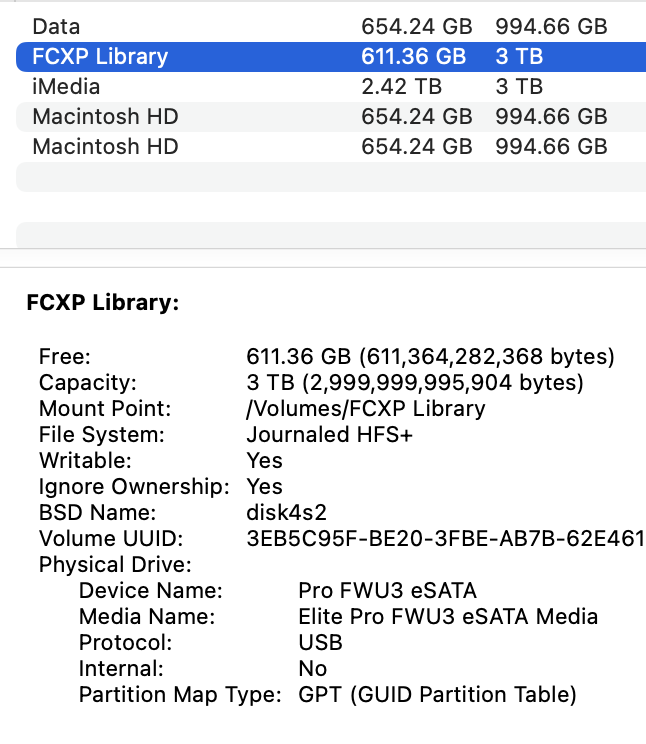
For your review, I have attached a screenshot of the external USB-2 drive. But I am importing that media to the Library... does that not create a local copy from which to edit/export? And I am exporting to the desktop, eliminating, I think - the external from the equation.
Thanks kindly for your time.
Regarding your Comments:
#1 - I am not purposefully rendering before export, it just appears to be what FCP does with the timeline when edits are made. That little wheel up in the left spins...
#2 Yes, I understand that.
#3 I think the attached images indicated I was exporting in H.264. A response to my Apple forums post, suggested that the MacPro is using a lower data rate - and thanks to Joema - "File>Share>Export File>Settings, pick Format: Computer, Video Codec: H.264 Faster Encode.".... was found and created a 0:43 second export. Thank you Joema.
For your review, I have attached a screenshot of the external USB-2 drive. But I am importing that media to the Library... does that not create a local copy from which to edit/export? And I am exporting to the desktop, eliminating, I think - the external from the equation.
Thanks kindly for your time.
Please Log in to join the conversation.
31 May 2022 20:16 #120783
by chizzer
Replied by chizzer on topic M1 Ultra and FCP - 2009 Cheese Grader is Faster?
Hi Joema.... thanks for your reply as well, really appreciate your time and lengthy discussion.
I am not much of a ProRes, photographer, fancy input device user, just a simple web guy looking to make a few quick YT videos.
As I mentioned above, for this export issue... the missing piece was "File>Share>Export File>Settings, pick Format: Computer, Video Codec: H.264 Faster Encode..." I was simply using the wrong export settings. Duh.
With that, my Ultra exported the video in 0:43 almost twice as fast as the MacPro.
Nice, thank you.
I am not much of a ProRes, photographer, fancy input device user, just a simple web guy looking to make a few quick YT videos.
As I mentioned above, for this export issue... the missing piece was "File>Share>Export File>Settings, pick Format: Computer, Video Codec: H.264 Faster Encode..." I was simply using the wrong export settings. Duh.
With that, my Ultra exported the video in 0:43 almost twice as fast as the MacPro.
Nice, thank you.
Please Log in to join the conversation.
31 May 2022 21:34 #120784
by joema
For most cases the M1 Ultra will not required a rendered timeline for good editing performance. You can disable background rendering in FCP Preferences>Playback>Background Render. Where required you can select timeline clips or a group of them and render to cache via CTRL+R. To delete unneeded cache files, select the library in the left sidebar, then use File>Delete Generated Library Files>Delete Render Files>All.
If using multicam you normally will not need optimized or proxy media on an M1 Ultra. You can disable auto-generation of opt. media for multicam in FCP Preferences>Playback>Create optimized media for multicam clips.
If you are importing via copy to library, yes the external drive is not needed. In fact in can be unplugged after the import.
However as a general practice most editors find it better to import using "leave files in place". For drag/drop importing, that is selected in FCP Preferences>Import>Leave Files in Place. For import using the FCP import dialog, the option is presented in the dialog. The "in place" media files can be on an internal drive or fast external drive. That prevents the library from growing to a huge unwieldy size. If media and cache are stored outside the library it is very easy in Finder to duplicate the library for another type of backup.
OTOH putting all the media in the library provides a single storage area, but it can become very large.
Replied by joema on topic M1 Ultra and FCP - 2009 Cheese Grader is Faster?
... I am not purposefully rendering before export, it just appears to be what FCP does with the timeline when edits are made. That little wheel up in the left spins...
For most cases the M1 Ultra will not required a rendered timeline for good editing performance. You can disable background rendering in FCP Preferences>Playback>Background Render. Where required you can select timeline clips or a group of them and render to cache via CTRL+R. To delete unneeded cache files, select the library in the left sidebar, then use File>Delete Generated Library Files>Delete Render Files>All.
If using multicam you normally will not need optimized or proxy media on an M1 Ultra. You can disable auto-generation of opt. media for multicam in FCP Preferences>Playback>Create optimized media for multicam clips.
...For your review, I have attached a screenshot of the external USB-2 drive. But I am importing that media to the Library... does that not create a local copy from which to edit/export? And I am exporting to the desktop, eliminating, I think - the external from the equation...
If you are importing via copy to library, yes the external drive is not needed. In fact in can be unplugged after the import.
However as a general practice most editors find it better to import using "leave files in place". For drag/drop importing, that is selected in FCP Preferences>Import>Leave Files in Place. For import using the FCP import dialog, the option is presented in the dialog. The "in place" media files can be on an internal drive or fast external drive. That prevents the library from growing to a huge unwieldy size. If media and cache are stored outside the library it is very easy in Finder to duplicate the library for another type of backup.
OTOH putting all the media in the library provides a single storage area, but it can become very large.
Please Log in to join the conversation.
31 May 2022 21:38 #120785
by Redifer
Replied by Redifer on topic M1 Ultra and FCP - 2009 Cheese Grader is Faster?
Where is the Library located? The screenshot appears that the USB drive itself is called the Library? If the Library is on another drive, then yes JoeMa is right... the USB drive can be unplugged.
Please Log in to join the conversation.
31 May 2022 21:41 - 31 May 2022 21:42 #120786
by joema
I'm actually surprised it's not 5x or 10x faster. The 2009 Mac Pro has no H264 acceleration of any kind. My 2017 4-core iMac 27 (which had Intel's Quick Sync accelerator) was much faster on H264 export than my 12-core D700 "trash can" Mac Pro (which like all Xeons had no Quick Sync).
Fast as the M1 Ultra is, I believe it is held back by some software issues. There is apparently some bottleneck in the Motion runtime engine that prevents expected multicore and GPU scalability on certain effects. Also the quad H264/HEVC decode/encode units are not being used in parallel on a single stream. In theory that should be possible so there is a hope the M1 Ultra may get significantly faster when those things are addressed. In the meantime it's still quite fast.
Replied by joema on topic M1 Ultra and FCP - 2009 Cheese Grader is Faster?
...the missing piece was "File>Share>Export File>Settings, pick Format: Computer, Video Codec: H.264 Faster Encode..." I was simply using the wrong export settings...With that, my Ultra exported the video in 0:43 almost twice as fast as the MacPro...
I'm actually surprised it's not 5x or 10x faster. The 2009 Mac Pro has no H264 acceleration of any kind. My 2017 4-core iMac 27 (which had Intel's Quick Sync accelerator) was much faster on H264 export than my 12-core D700 "trash can" Mac Pro (which like all Xeons had no Quick Sync).
Fast as the M1 Ultra is, I believe it is held back by some software issues. There is apparently some bottleneck in the Motion runtime engine that prevents expected multicore and GPU scalability on certain effects. Also the quad H264/HEVC decode/encode units are not being used in parallel on a single stream. In theory that should be possible so there is a hope the M1 Ultra may get significantly faster when those things are addressed. In the meantime it's still quite fast.
Last edit: 31 May 2022 21:42 by joema.
Please Log in to join the conversation.
31 May 2022 22:15 #120787
by chizzer
As am I.
Other than startup in 13 seconds and apps loading faster, the marginal gain in speed so far experienced, is not worth the $6500 bones (less monitor) spent.
I am an old fart. Hopefully over the years the Ultra architecture keeps pace .... and like the MacPro before it, I might get the next 10-12 years use out of this thing and be the last major computer purchase I make. A similar investment in the two 27" cinema displays I bought with the MacPro, pixel perfect still today and almost able to keep pace next to the new studio monitor. That said I am eagerly awaiting the arrival of a new apple silicon Mac Pro
Thanks again for your time... I am glad to have found this resource
PS... I am not certain if I am quoting posts correctly or how to, so forgive me if I am making a mess of the thread.
Replied by chizzer on topic M1 Ultra and FCP - 2009 Cheese Grader is Faster?
...the missing piece was "File>Share>Export File>Settings, pick Format: Computer, Video Codec: H.264 Faster Encode..." I was simply using the wrong export settings...With that, my Ultra exported the video in 0:43 almost twice as fast as the MacPro...
I'm actually surprised it's not 5x or 10x faster. The 2009 Mac Pro has no H264 acceleration of any kind. My 2017 4-core iMac 27 (which had Intel's Quick Sync accelerator) was much faster on H264 export than my 12-core D700 "trash can" Mac Pro (which like all Xeons had no Quick Sync).
As am I.
Other than startup in 13 seconds and apps loading faster, the marginal gain in speed so far experienced, is not worth the $6500 bones (less monitor) spent.
I am an old fart. Hopefully over the years the Ultra architecture keeps pace .... and like the MacPro before it, I might get the next 10-12 years use out of this thing and be the last major computer purchase I make. A similar investment in the two 27" cinema displays I bought with the MacPro, pixel perfect still today and almost able to keep pace next to the new studio monitor. That said I am eagerly awaiting the arrival of a new apple silicon Mac Pro
Thanks again for your time... I am glad to have found this resource
PS... I am not certain if I am quoting posts correctly or how to, so forgive me if I am making a mess of the thread.
Please Log in to join the conversation.
