



- Posts: 1
- Thank you received: 0
3 Post Moderation Rule for New Boarders (25 Jan 2021)
New boarders will have their posts moderated - Don't worry if you cannot see your post immediately.
clip duration question
05 Feb 2022 03:05 #118805
by Jinwww
clip duration question was created by Jinwww
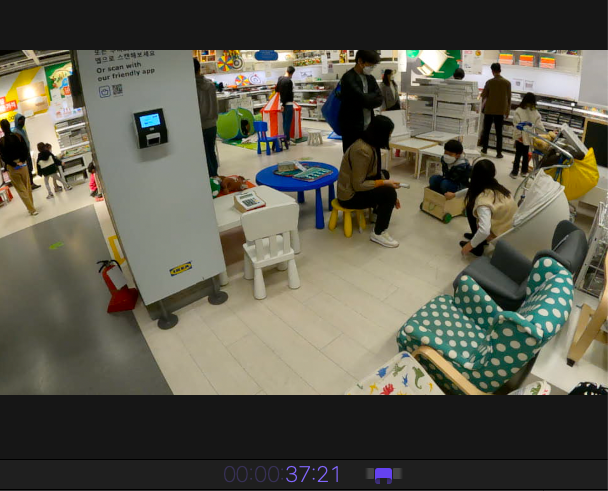
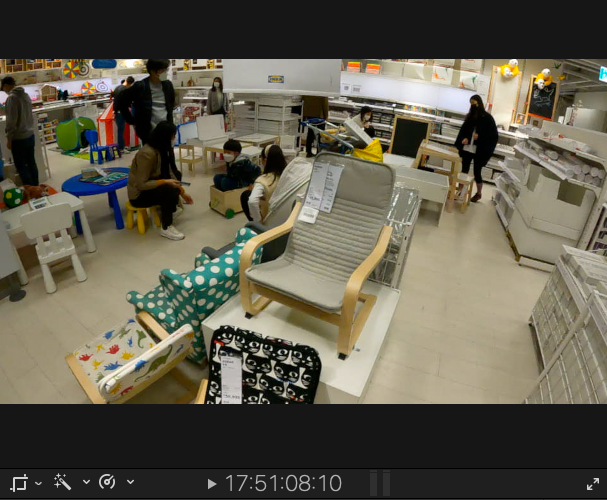
I have a questio as to why the clip length under my edited video is so high, When I look at the clips themseleves and click on them they are only 17 seconds or 20 seconds, but when i hover my mouse away the clipduratio is suddenly: "17:51:08:10"
Woud love to hear your answers!
thank you,
Woud love to hear your answers!
thank you,
Please Log in to join the conversation.
- Tom Wolsky
-

- Offline
- Moderator
-

05 Feb 2022 12:28 #118807
by Tom Wolsky
Replied by Tom Wolsky on topic clip duration question
Not sure exactly what you’re doing but the second image looks look the project duration.
Please Log in to join the conversation.


05 Feb 2022 13:50 - 05 Feb 2022 13:51 #118809
by JoeEditor
Replied by JoeEditor on topic clip duration question
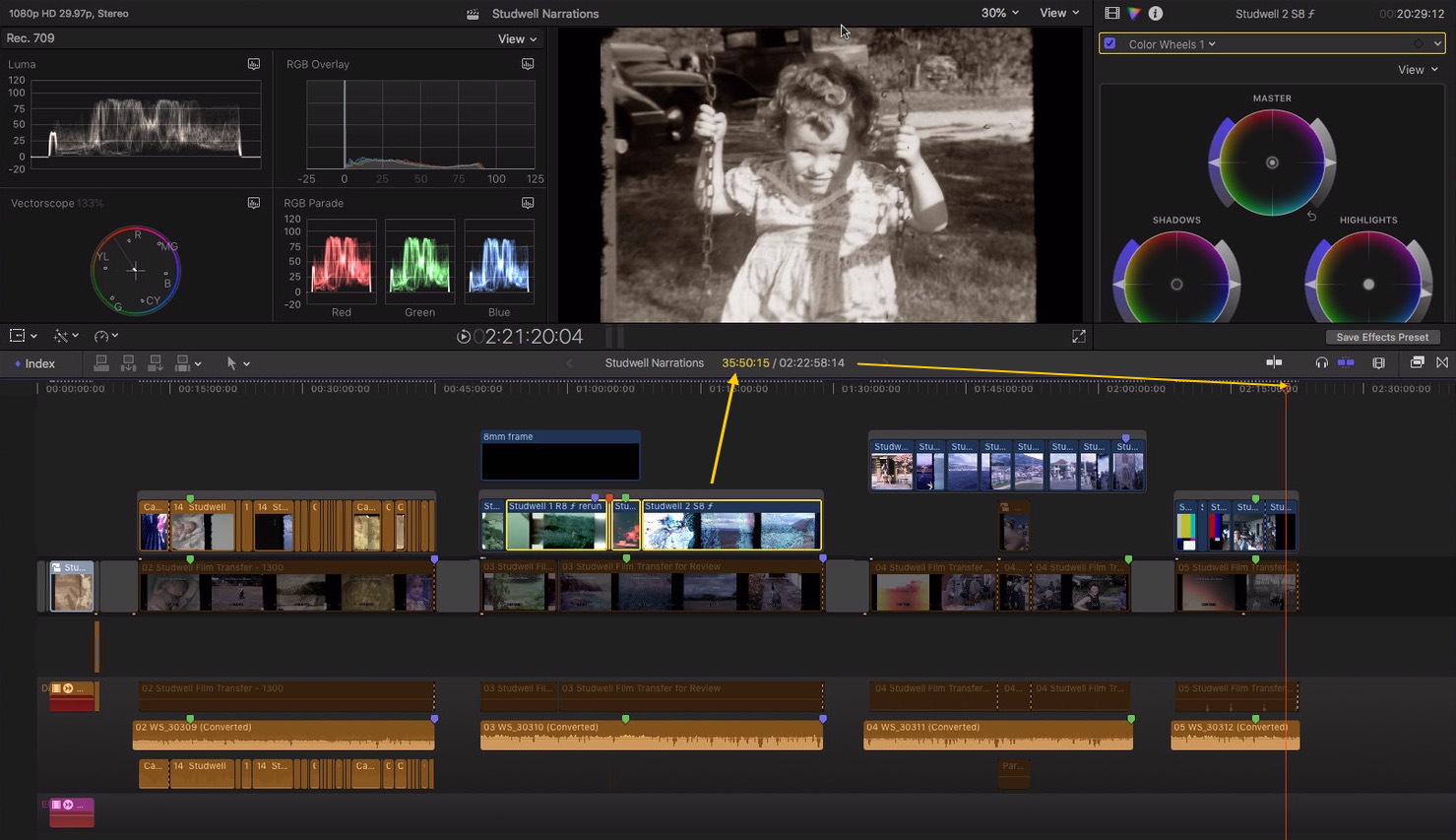
To better tell what you're doing in the Project's timeline, look at the Timeline's timecode readout, it states project duration at all times, then shows highlighted media duration in yellow.

Last edit: 05 Feb 2022 13:51 by JoeEditor.
Please Log in to join the conversation.


05 Feb 2022 16:17 #118812
by joema
There are two types of timecode, source (aka clip) timecode and project (aka timeline) timecode. You can add the built-in FCP "timecode" effect to each clip twice if you want to simultaneously monitor both timecode values. Just select "Source" for one and "Project" for the other, and drag one so it's in a different on-screen position.
If you have clip skimming enabled (View>Clip Skimming) in FCP and skim on top of a timeline clip, you'll see a short red skimmer bar. It will show clip or source timecode below the viewer. If you position the cursor above the timeline, you'll see a tall red skimmer bar. In that case the timecode below the viewer is project timecode. If you have two instances of the timecode effect on the clip you can see both timecodes as a "burn in" effect.
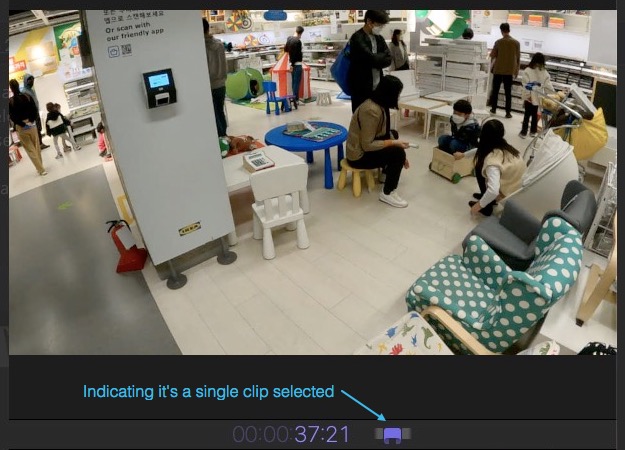
If you click directly on the clip in the timeline to select it, you'll see in yellow numbers below the viewer the clip duration. If you want to see duration of multiple clips, do SHIFT+select. If you want to see the duration of an arbitrary range in the timeline, press and hold the R (range) key, click and drag across the clip range you want to measure. The duration of the range will be shown in yellow numbers below the viewer.
Replied by joema on topic clip duration question
... when i hover my mouse away the clipduratio is suddenly: "17:51:08:10"...
There are two types of timecode, source (aka clip) timecode and project (aka timeline) timecode. You can add the built-in FCP "timecode" effect to each clip twice if you want to simultaneously monitor both timecode values. Just select "Source" for one and "Project" for the other, and drag one so it's in a different on-screen position.
If you have clip skimming enabled (View>Clip Skimming) in FCP and skim on top of a timeline clip, you'll see a short red skimmer bar. It will show clip or source timecode below the viewer. If you position the cursor above the timeline, you'll see a tall red skimmer bar. In that case the timecode below the viewer is project timecode. If you have two instances of the timecode effect on the clip you can see both timecodes as a "burn in" effect.
If you click directly on the clip in the timeline to select it, you'll see in yellow numbers below the viewer the clip duration. If you want to see duration of multiple clips, do SHIFT+select. If you want to see the duration of an arbitrary range in the timeline, press and hold the R (range) key, click and drag across the clip range you want to measure. The duration of the range will be shown in yellow numbers below the viewer.
Please Log in to join the conversation.
