


- Posts: 49
- Thank you received: 0
3 Post Moderation Rule for New Boarders (25 Jan 2021)
New boarders will have their posts moderated - Don't worry if you cannot see your post immediately.
Assigning individual tracks to channels
28 Jan 2022 13:47 #118669
by BeatGirl
Assigning individual tracks to channels was created by BeatGirl
FCP 10.6.1
I need to assign individual tracks to each channel in a 5.1 mix. All I'm seeing is roles, which does not actually move the track to the correct channel. Has something changed over the last few updates, I have done this before and it was much easier. Thanks.
I need to assign individual tracks to each channel in a 5.1 mix. All I'm seeing is roles, which does not actually move the track to the correct channel. Has something changed over the last few updates, I have done this before and it was much easier. Thanks.
Please Log in to join the conversation.

29 Jan 2022 23:45 - 29 Jan 2022 23:50 #118680
by Redifer
Replied by Redifer on topic Assigning individual tracks to channels
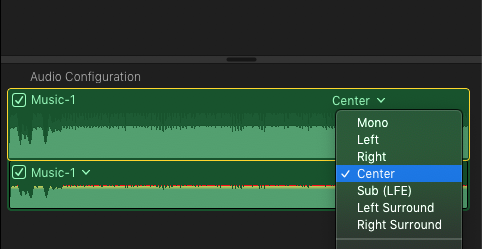
You can only really do this if your track is in mono, but in the Inspector for the audio file you can select it here. This is the ONLY way you can assign Subwoofer (LFE) sound by the way.
Another way is simply to steer it with the Basic Surround mode in the PAN settings, also in the Inspector, but if you have a stereo track it will collapse. Don't bother with the AMOUNT slider, it's useless. You cannot steer or assign Subwoofer tracks using this method. Apple's panner sucks because it's round when it should be rectangular, so panning from speaker to speaker won't be correct unless you add a bunch of keyframes to keep the puck along the edge as it moves.
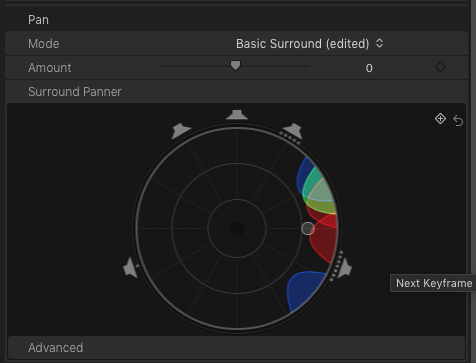
Another way is simply to steer it with the Basic Surround mode in the PAN settings, also in the Inspector, but if you have a stereo track it will collapse. Don't bother with the AMOUNT slider, it's useless. You cannot steer or assign Subwoofer tracks using this method. Apple's panner sucks because it's round when it should be rectangular, so panning from speaker to speaker won't be correct unless you add a bunch of keyframes to keep the puck along the edge as it moves.
Last edit: 29 Jan 2022 23:50 by Redifer.
Please Log in to join the conversation.
30 Jan 2022 12:23 - 30 Jan 2022 12:26 #118681
by BeatGirl
Replied by BeatGirl on topic Assigning individual tracks to channels
I'm not seeing an option to assign tracks to channels, and I have the project set up as surround. Are you suggesting the change the p[roject to Mono? Will give it a try.

Last edit: 30 Jan 2022 12:26 by BeatGirl.
Please Log in to join the conversation.
- Tom Wolsky
-

- Offline
- Moderator
-

30 Jan 2022 12:33 #118682
by Tom Wolsky
Replied by Tom Wolsky on topic Assigning individual tracks to channels
There are no tracks in the interface. Clips can be assigned roles, and the roles can be grouped into layers.
Please Log in to join the conversation.
30 Jan 2022 12:34 - 30 Jan 2022 12:37 #118684
by BeatGirl
Replied by BeatGirl on topic Assigning individual tracks to channels
I'm sure there used to be a simple option to assign each track to a particular channel.
This video from 20212 shows what I remember:
This video from 20212 shows what I remember:
Last edit: 30 Jan 2022 12:37 by BeatGirl.
Please Log in to join the conversation.
- Tom Wolsky
-
- Offline
- Moderator
-
30 Jan 2022 12:53 #118685
by Tom Wolsky
Replied by Tom Wolsky on topic Assigning individual tracks to channels
Those are roles. In that video they’re just laid out that way. In recent versions roles are grouped using the roles section of the timeline inspector.
The application has never had tracks that define the content as other video applications do.
The application has never had tracks that define the content as other video applications do.
Please Log in to join the conversation.
30 Jan 2022 23:29 #118689
by Redifer
Replied by Redifer on topic Assigning individual tracks to channels
Looks like you have a single audio file with 10 tracks. That won't work. You need individual mono tracks to do this. Your Final Cut Pro project needs to be SURROUND.
So you can do this, which is annoying, but it'll work:
Uncheck all of the boxes except for Dialog 1 (you can leave the topmost box checked at all times.
Now export a MONO track and just call it track 1 or whatever.
Now go and TURN ON Dialog 2, and TURN OFF Dialog 1
Export another MONO track and call it track 2.
Keep doing this for all 10 tracks.
Import the 10 tracks and assign each where they need to go, and remove the clip that has 10 tracks bundled from the timeline.
Bundled audio clips like that are absolutely useless for surround in FCP's current state of being. I do believe that each track in a bundled audio clip should be assignable and panable on its own but sadly FCP doesn't work that way.
So you can do this, which is annoying, but it'll work:
Uncheck all of the boxes except for Dialog 1 (you can leave the topmost box checked at all times.
Now export a MONO track and just call it track 1 or whatever.
Now go and TURN ON Dialog 2, and TURN OFF Dialog 1
Export another MONO track and call it track 2.
Keep doing this for all 10 tracks.
Import the 10 tracks and assign each where they need to go, and remove the clip that has 10 tracks bundled from the timeline.
Bundled audio clips like that are absolutely useless for surround in FCP's current state of being. I do believe that each track in a bundled audio clip should be assignable and panable on its own but sadly FCP doesn't work that way.
Please Log in to join the conversation.
- Carsten Orlt
-

- Offline
- Platinum Member
-

Less
More
- Posts: 422
- Thank you received: 82
31 Jan 2022 03:18 #118696
by Carsten Orlt
Replied by Carsten Orlt on topic Assigning individual tracks to channels
To simplify the export into individual tracks you have 2 options:
If it is a WAV file you can use Sound Devices 'Wave Agent' software which allows you to export a multitrack file as individual tracks.
Or
Create an empty project and add your complete multitrack file into it. Choose to export the project via the default 'Export File' setting. In the dialogue choose audio only export and go to the Roles tap and select 'Separate Files' from the 'Role as' menu. Delete the video track and export.
The rest as Redifer says
If it is a WAV file you can use Sound Devices 'Wave Agent' software which allows you to export a multitrack file as individual tracks.
Or
Create an empty project and add your complete multitrack file into it. Choose to export the project via the default 'Export File' setting. In the dialogue choose audio only export and go to the Roles tap and select 'Separate Files' from the 'Role as' menu. Delete the video track and export.
The rest as Redifer says
Please Log in to join the conversation.


23 Oct 2022 15:59 #122572
by NicMal
Replied by NicMal on topic Assigning individual tracks to channels
You don't need to export individual audio tracks.
1 Create a Coumpond Clip of your file
2 Separate individual audio tracks from video with the "Clip/Break Apart Clip Item" command
3 From the Inspector, assign the destination to each single track: L, R, C, LSE, LS, RS
1 Create a Coumpond Clip of your file
2 Separate individual audio tracks from video with the "Clip/Break Apart Clip Item" command
3 From the Inspector, assign the destination to each single track: L, R, C, LSE, LS, RS
Please Log in to join the conversation.
