




- Posts: 1
- Thank you received: 0
3 Post Moderation Rule for New Boarders (25 Jan 2021)
New boarders will have their posts moderated - Don't worry if you cannot see your post immediately.
Render settings for Youtube help - Final Cut Pro X


25 May 2021 00:36 - 25 May 2021 00:37 #114647
by JoeEditor
Replied by JoeEditor on topic Render settings for Youtube help - Final Cut Pro X
I work with 1080 and 4K daily that goes to YouTube and never have quality issues exporting as H.264. Now, if you playback YouTube and expand it to full screen size, you're actually playing back larger than the original, so it's not the video itself, you've blown it up too large on your screen. Let's verify you're not doing that.
Plus, let's verify you're giving YouTube a chance to render the full resolution files for playback, it's not instantaneous upon upload.
Plus, let's verify you're giving YouTube a chance to render the full resolution files for playback, it's not instantaneous upon upload.
Last edit: 25 May 2021 00:37 by JoeEditor.
Please Log in to join the conversation.


25 May 2021 03:57 #114648
by Larrie
Replied by Larrie on topic Render settings for Youtube help - Final Cut Pro X
The upload screen on YT will show you when the video is fully rendered by displaying a HD icon. I believe it is on the right side below the video.
Please Log in to join the conversation.
- Karsten Schlüter
-

- Offline
- Moderator
-

Less
More
- Posts: 3790
- Thank you received: 718
25 May 2021 09:00 #114649
by Karsten Schlüter
Replied by Karsten Schlüter on topic Render settings for Youtube help - Final Cut Pro X
just to feed my curiosity....
any reason, you 'do video without any light'?
The attached screen grabs are dark, no DR, plus blurry/out of focus...
dare to say, any codec has difficulties to encode such material…
follow Ben's advice, give YT a chance for converting
sorry for ranting, but such a beast of camera and no light - makes me sad
any reason, you 'do video without any light'?
The attached screen grabs are dark, no DR, plus blurry/out of focus...
dare to say, any codec has difficulties to encode such material…
follow Ben's advice, give YT a chance for converting
sorry for ranting, but such a beast of camera and no light - makes me sad
Please Log in to join the conversation.

25 May 2021 15:14 #114661
by VTC
Replied by VTC on topic Render settings for Youtube help - Final Cut Pro X
Bear in mind if the viewer doesn't know to change the default YT playback setting from 360 to something higher then everything looks like the splendot that is VHS.
My Compressor settings are 19546 max bitrate for 1080 h264 and really never output to 4k because there's little to gain if people don't adjust playback settings to accommodate it. Besides YT compression does a number on any video sent it.
And yes, I hope that dark and grim image isn't what you expect the viewer to sit through longer that 12 seconds.
My Compressor settings are 19546 max bitrate for 1080 h264 and really never output to 4k because there's little to gain if people don't adjust playback settings to accommodate it. Besides YT compression does a number on any video sent it.
And yes, I hope that dark and grim image isn't what you expect the viewer to sit through longer that 12 seconds.
Please Log in to join the conversation.

25 May 2021 17:01 #114663
by joema
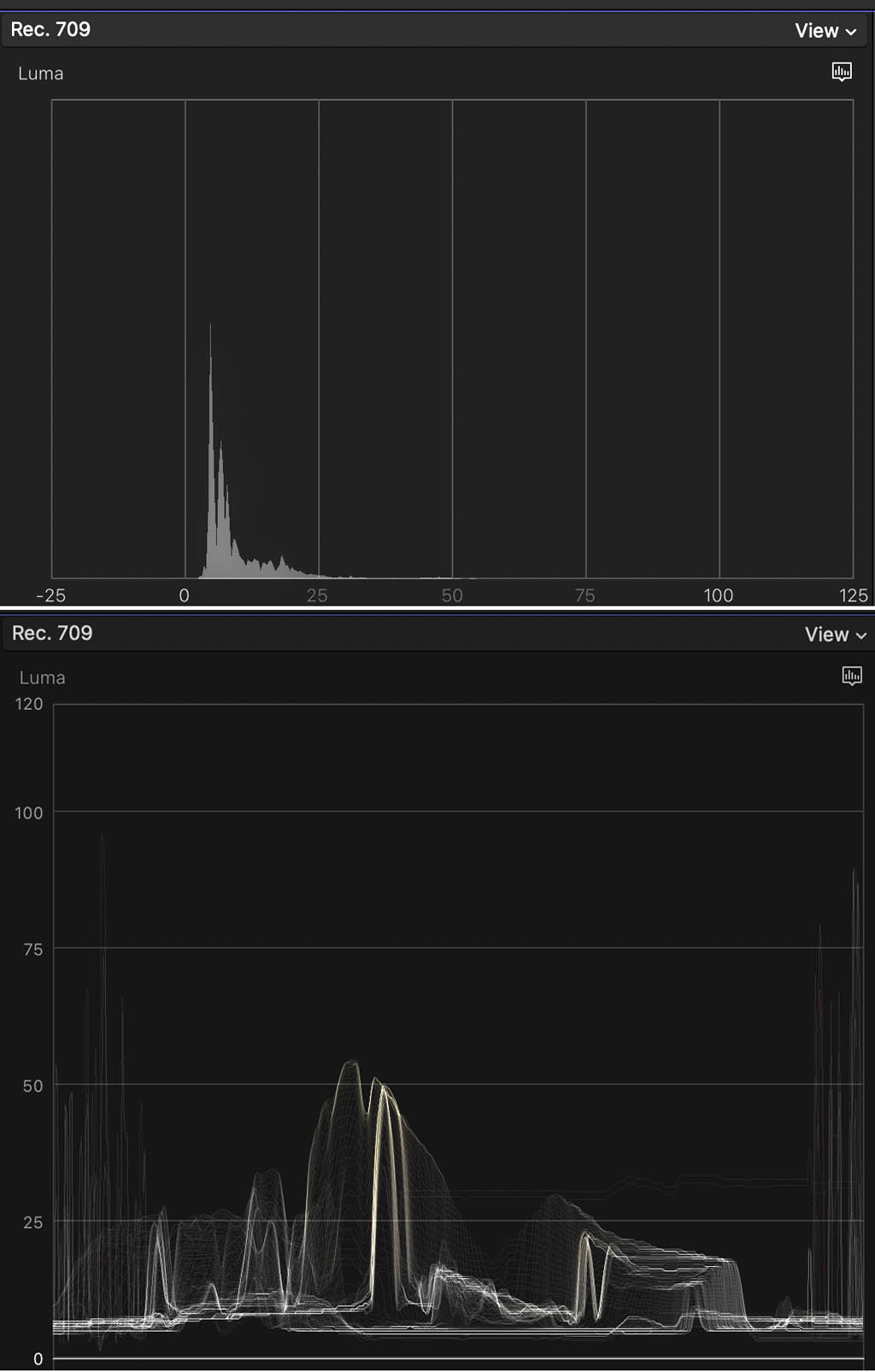
I only see one attached screen shot. It appears to be severely underexposed -- see attached waveform and histogram. Is it SLog3? If so it should be exposed much brighter than that.
If you underexpose a flat profile such as SLog2 or esp. SLog3, and if the shot includes dark gradients such as the corners falling off to black, it's common to see banding issues. If the material is 10-bit 4:2:2 that reduces it but if it's transcoded to an 8-bit codec, you will often see banding.
Suggestions:
- Use the camera built-in histogram and "Expose To The Right" (ETTR). You don't want to see the histogram bunched up on the left (or dark) side. If you want the final edited shot to be moody or dark, do that in post.
- If you want certain lighting in the background but you don't want that blown out, you'll have to add some light to the subject or subtract light from the background. Controlling light is an essential part of videography.
- I don't remember if Youtube uses 10-bit HEVC, but you could try that export format. Unfortunately FCP on all x86 platforms is very slow at 10-bit HEVC export. It's fast on Apple Silicon. If your'e on x86, a workaround is export as ProRes 422 then transcode to 10-bit HEVC using Handbrake.
- If you are using SLog2 (PP7) or SLog3 (PP8), FCP will automatically assign a built-in camera LUT to "de-flatten" that. However that LUT assumes the image is exposed properly. LUTs also assume the image is white balanced properly. If your SLog2/3 exposure is high or low, one solution is use Alister Chapman's free Sony LUTs which have various exposure compensations built in: www.xdcam-user.com/2018/08/new-venice-lo...fs5-fs7-f55-a7s-a7r/
- If using a 3rd-party camera LUT, be sure to disable any FCP auto-assigned LUT, else it will stack the corrections.
- If you are not shooting SLog2/3, it can still be beneficial to expose to the right a bit, depending on the circumstances.
- The latest A7SIII firmware gives S-Cinetone on PP11, so you could try that. It's good for darker interior shots and exhibits increased contrast as the exposure goes down. So ETTR would not normally be used on Cinetone. The tradeoff is modestly less (but still good) dynamic range, and it's less gradeable in post.
- On the A7SIII you must always remain aware of the low and high base ISO values, which vary based on your color profile. For SLog3 it's 640 and 12,800, I think for S-Cinetone I think it's 320 and 5000. You don't want to shoot within two stops below the high base ISO. IOW for SLog3 don't shoot from 3200 through 10,000, and for S-Cinetone don't shoot from 1250 through 4000. Rather if you need those ISO ranges, go to the high base ISO and decrease the exposure via other methods such as smaller aperture or neutral density filter. This also applies to the Sony FX6, except it's low base ISO on SLog3 is 800.
Replied by joema on topic Render settings for Youtube help - Final Cut Pro X
Poppalong wrote: ...I've purchased a Sony A7S iii and I'm new to shooting in 100M 10bit 4:2:2 and others like that. When editing in Final Cut and playing back, the quality is great and when it's rendered out, it's great. However, I've tried so many different render settings and I keep getting the same result.
Every time I upload a video to Youtube, the quality is awful! 1080p looks like 360p and 4K doesn't look great either, there's a lot of banding and pixelation and I have no idea how to fix it! I'll show you an example.
I only see one attached screen shot. It appears to be severely underexposed -- see attached waveform and histogram. Is it SLog3? If so it should be exposed much brighter than that.
If you underexpose a flat profile such as SLog2 or esp. SLog3, and if the shot includes dark gradients such as the corners falling off to black, it's common to see banding issues. If the material is 10-bit 4:2:2 that reduces it but if it's transcoded to an 8-bit codec, you will often see banding.
Suggestions:
- Use the camera built-in histogram and "Expose To The Right" (ETTR). You don't want to see the histogram bunched up on the left (or dark) side. If you want the final edited shot to be moody or dark, do that in post.
- If you want certain lighting in the background but you don't want that blown out, you'll have to add some light to the subject or subtract light from the background. Controlling light is an essential part of videography.
- I don't remember if Youtube uses 10-bit HEVC, but you could try that export format. Unfortunately FCP on all x86 platforms is very slow at 10-bit HEVC export. It's fast on Apple Silicon. If your'e on x86, a workaround is export as ProRes 422 then transcode to 10-bit HEVC using Handbrake.
- If you are using SLog2 (PP7) or SLog3 (PP8), FCP will automatically assign a built-in camera LUT to "de-flatten" that. However that LUT assumes the image is exposed properly. LUTs also assume the image is white balanced properly. If your SLog2/3 exposure is high or low, one solution is use Alister Chapman's free Sony LUTs which have various exposure compensations built in: www.xdcam-user.com/2018/08/new-venice-lo...fs5-fs7-f55-a7s-a7r/
- If using a 3rd-party camera LUT, be sure to disable any FCP auto-assigned LUT, else it will stack the corrections.
- If you are not shooting SLog2/3, it can still be beneficial to expose to the right a bit, depending on the circumstances.
- The latest A7SIII firmware gives S-Cinetone on PP11, so you could try that. It's good for darker interior shots and exhibits increased contrast as the exposure goes down. So ETTR would not normally be used on Cinetone. The tradeoff is modestly less (but still good) dynamic range, and it's less gradeable in post.
- On the A7SIII you must always remain aware of the low and high base ISO values, which vary based on your color profile. For SLog3 it's 640 and 12,800, I think for S-Cinetone I think it's 320 and 5000. You don't want to shoot within two stops below the high base ISO. IOW for SLog3 don't shoot from 3200 through 10,000, and for S-Cinetone don't shoot from 1250 through 4000. Rather if you need those ISO ranges, go to the high base ISO and decrease the exposure via other methods such as smaller aperture or neutral density filter. This also applies to the Sony FX6, except it's low base ISO on SLog3 is 800.
Please Log in to join the conversation.

26 May 2021 02:02 #114666
by DaveMaine
Replied by DaveMaine on topic Render settings for Youtube help - Final Cut Pro X
Export to a H264 video on your PC, and see if that looks ok. Then upload to YT, and see if the video changes.
If there is a big difference between YT and your PC, your monitor may need calibration. Your screen grab is very flat and underexposed. Follow other's suggestion and use the histogram tool to isolate your exposure problem. Getting the exposure right in the beginning is the first step in making high quality video.
If there is a big difference between YT and your PC, your monitor may need calibration. Your screen grab is very flat and underexposed. Follow other's suggestion and use the histogram tool to isolate your exposure problem. Getting the exposure right in the beginning is the first step in making high quality video.
Please Log in to join the conversation.
