




- Posts: 51
- Thank you received: 1
3 Post Moderation Rule for New Boarders (25 Jan 2021)
New boarders will have their posts moderated - Don't worry if you cannot see your post immediately.
Fade To Color without affecting layers below?
12 May 2021 19:40 #114462
by Yarrow
Fade To Color without affecting layers below? was created by Yarrow
I am trying to make a slideshow over a background image, using the Fade To Color transition between slides. What's driving me nuts is that it affects the background image also. My understanding is that this is normal, but that if the slides are contained in their own Compound Clip this should not be happening. I've tried putting both the slides & the background into their own CCs, to no avail. I even exported the slideshow with no background image as Pro Res 4444, re-imported it & put it over the background image, but it has the same effect.
Is this expected behavior or a bug? If expected, is there a trick that will let me use FTC without affecting the lower layers, or is there a better way to do it? (Hopefully as quickly as selecting all the slides & double-clicking the transition on want across all of them 😉 )
Thanks for any insights.
FCP 10.5.2
macOS Big Sur 11.2.3
2017 27" 5k i7 iMac 48gb
Is this expected behavior or a bug? If expected, is there a trick that will let me use FTC without affecting the lower layers, or is there a better way to do it? (Hopefully as quickly as selecting all the slides & double-clicking the transition on want across all of them 😉 )
Thanks for any insights.
FCP 10.5.2
macOS Big Sur 11.2.3
2017 27" 5k i7 iMac 48gb
Please Log in to join the conversation.
- Tom Wolsky
-

- Offline
- Moderator
-

12 May 2021 19:51 #114464
by Tom Wolsky
Replied by Tom Wolsky on topic Fade To Color without affecting layers below?
Make the compound clip of the slides only, not the background layer. Leave it separate.
Please Log in to join the conversation.
12 May 2021 20:05 #114466
by Yarrow
That is exactly what I did. And I tried it both with the background layer on the main Story line with the slideshow CC above it, and slideshow CC on main storyline with background connected below it. Also tried making the background layer into its own CC.
Replied by Yarrow on topic Fade To Color without affecting layers below?
Tom Wolsky wrote: Make the compound clip of the slides only, not the background layer. Leave it separate.
That is exactly what I did. And I tried it both with the background layer on the main Story line with the slideshow CC above it, and slideshow CC on main storyline with background connected below it. Also tried making the background layer into its own CC.
Please Log in to join the conversation.
- Tom Wolsky
-
- Offline
- Moderator
-
12 May 2021 20:29 #114468
by Tom Wolsky
Replied by Tom Wolsky on topic Fade To Color without affecting layers below?
I understand. Compound won't work in this situation. The fade to color transition would need to be rebuilt. Someone could probably make a transition that does what you want in Motion, or there may already be a third party plugin for it. You could also make a project the size of your clips, apply your transitions, and then export a master file to place on top of your background.
Please Log in to join the conversation.
- Tom Wolsky
-
- Offline
- Moderator
-
12 May 2021 20:35 - 12 May 2021 20:36 #114470
by Tom Wolsky
Replied by Tom Wolsky on topic Fade To Color without affecting layers below?
You could also build it like this.
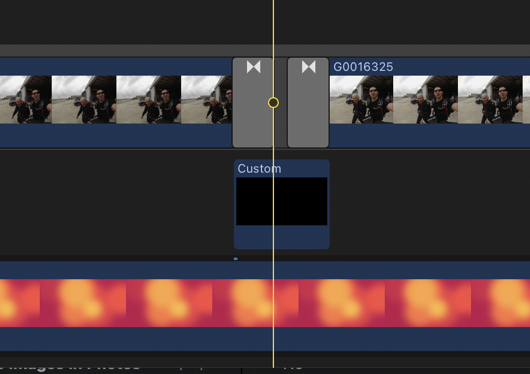
There is a black generator the size of the still images, which are separated by a gap with a cross dissolve in and out.
There is a black generator the size of the still images, which are separated by a gap with a cross dissolve in and out.
Last edit: 12 May 2021 20:36 by Tom Wolsky.
Please Log in to join the conversation.
12 May 2021 20:57 #114471
by Yarrow
I believe that is essentially what I did when I exported just the slideshow with no background as a ProRes 4444. But when I brought it back in and put it over the background image it still caused it to fade with the slides.
Replied by Yarrow on topic Fade To Color without affecting layers below?
Tom Wolsky wrote: You could also make a project the size of your clips, apply your transitions, and then export a master file to place on top of your background.
I believe that is essentially what I did when I exported just the slideshow with no background as a ProRes 4444. But when I brought it back in and put it over the background image it still caused it to fade with the slides.
Please Log in to join the conversation.
12 May 2021 20:58 #114472
by Yarrow
Thank you for the idea. That is probably what I will end up doing, although it seems unnecessarily tedious.
Replied by Yarrow on topic Fade To Color without affecting layers below?
Tom Wolsky wrote: There is a black generator the size of the still images, which are separated by a gap with a cross dissolve in and out.
Thank you for the idea. That is probably what I will end up doing, although it seems unnecessarily tedious.
Please Log in to join the conversation.
- Tom Wolsky
-
- Offline
- Moderator
-
12 May 2021 21:02 #114473
by Tom Wolsky
Replied by Tom Wolsky on topic Fade To Color without affecting layers below?
Sounds like you’re exporting the still project the same size as the master project and counting on transparency to mask the black. The project with the stills has to be the dimensions of the stills, assuming they’re all the same size, smaller than the master file. If the stills are different sizes you can’t do it exporting a composite to bring into the master.
Please Log in to join the conversation.
12 May 2021 21:14 #114474
by Yarrow
Replied by Yarrow on topic Fade To Color without affecting layers below?
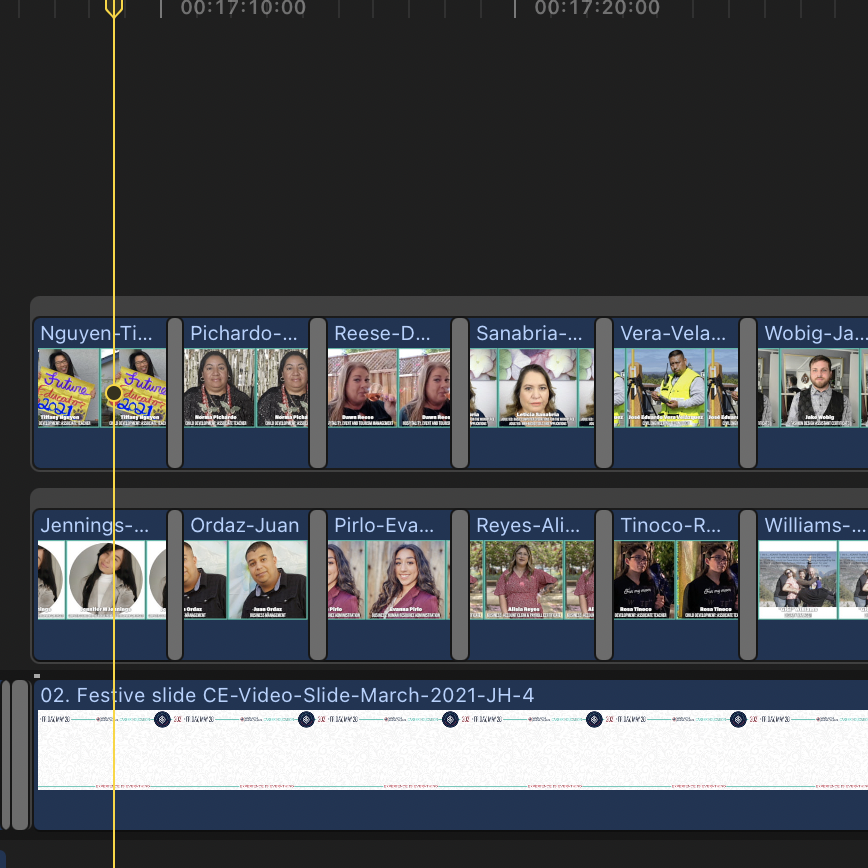
Yes, you are right. The reason I tried to do it that way is that I have two images side by side for each slide. I want them to fade in & out together, over the background image.

Please Log in to join the conversation.
- Tom Wolsky
-
- Offline
- Moderator
-
12 May 2021 21:37 #114475
by Tom Wolsky
Replied by Tom Wolsky on topic Fade To Color without affecting layers below?
So you want each of the images to transition to another image in the same space as if each was a separate stack of images that goes to black and then reveals another image in the same place. I’d build them, each stack, as a separate project. Export them and place them on top of the background.
Please Log in to join the conversation.
13 May 2021 16:40 #114488
by Yarrow
Thanks for this suggestion! In the end, that was what I did: a new project & separate render for each side (L+R), with a custom canvas size of the image dimensions. Imported & applied the same Transform parameters for positioning. Worked perfectly.
I am curious, though- I have read in several places that making the slideshow into its own compound clip should have made it so the FTC transition did not affect layers below. Were these posts simply incorrect, has this changed, or is there a bug with the current version of FCP, or simply something bunged-up with my own install?
Replied by Yarrow on topic Fade To Color without affecting layers below?
Tom Wolsky wrote: I’d build them, each stack, as a separate project. Export them and place them on top of the background.
Thanks for this suggestion! In the end, that was what I did: a new project & separate render for each side (L+R), with a custom canvas size of the image dimensions. Imported & applied the same Transform parameters for positioning. Worked perfectly.
I am curious, though- I have read in several places that making the slideshow into its own compound clip should have made it so the FTC transition did not affect layers below. Were these posts simply incorrect, has this changed, or is there a bug with the current version of FCP, or simply something bunged-up with my own install?
Please Log in to join the conversation.
- Tom Wolsky
-
- Offline
- Moderator
-
13 May 2021 17:41 #114490
by Tom Wolsky
Replied by Tom Wolsky on topic Fade To Color without affecting layers below?
All the transitions are built differently. The compound technique works for most transitions that interact with the background. I don’t know why this transition works differently.
Please Log in to join the conversation.
- Carsten Orlt
-

- Offline
- Platinum Member
-

Less
More
- Posts: 422
- Thank you received: 82
14 May 2021 00:50 #114494
by Carsten Orlt
Replied by Carsten Orlt on topic Fade To Color without affecting layers below?
You can actually do it all in the same project.
The thing you have to do is to reframe (or better create as a still) the 'black' solid between your images to the same size as the image.
(the reason the 'fade to colour' or using a not modified 'colour solid' affecting the whole BG is that they are actually generated in the size of the project and because they are auto generated that size will always cover the whole frame, no matter what size your project is)
Lets say you have two images in the same size. Place them both in a secondary and size and position them over your BG. Now create a black still the same size as your images, place that still between your two images and copy and paste the resize and positioning from one of the images to your black still. Make your black still 1 sec long, select it and double click on the normal dissolve transition to place it on both sides of the black frame. If your images are all the same size this process should be done very quickly and you do not need to export any precomps.
The thing you have to do is to reframe (or better create as a still) the 'black' solid between your images to the same size as the image.
(the reason the 'fade to colour' or using a not modified 'colour solid' affecting the whole BG is that they are actually generated in the size of the project and because they are auto generated that size will always cover the whole frame, no matter what size your project is)
Lets say you have two images in the same size. Place them both in a secondary and size and position them over your BG. Now create a black still the same size as your images, place that still between your two images and copy and paste the resize and positioning from one of the images to your black still. Make your black still 1 sec long, select it and double click on the normal dissolve transition to place it on both sides of the black frame. If your images are all the same size this process should be done very quickly and you do not need to export any precomps.
Please Log in to join the conversation.
