


- Posts: 6
- Thank you received: 0
3 Post Moderation Rule for New Boarders (25 Jan 2021)
New boarders will have their posts moderated - Don't worry if you cannot see your post immediately.
Distorted images when importing PSD-file into FCPx
02 Dec 2020 08:15 #111163
by JVL15
Distorted images when importing PSD-file into FCPx was created by JVL15
Hello,
I hope someone can give me advice on the following. I'm trying to do some animations on a painting using a .psd-file and animating the different layers. I've used the mask effect from FCPx before but the background figures are to much visible, so I used the Photoshop approach. However, when I import the .psd-file it gives distortion or digital noise on the layers that I've worked on in Photoshop. The photoshopfile is a large file but I need to zoom in on the picture so i can't reduce it.
Does anyone know what is going on here and how to fix it, so I can animate the layers?
Thx
J
I hope someone can give me advice on the following. I'm trying to do some animations on a painting using a .psd-file and animating the different layers. I've used the mask effect from FCPx before but the background figures are to much visible, so I used the Photoshop approach. However, when I import the .psd-file it gives distortion or digital noise on the layers that I've worked on in Photoshop. The photoshopfile is a large file but I need to zoom in on the picture so i can't reduce it.
Does anyone know what is going on here and how to fix it, so I can animate the layers?
Thx
J


Please Log in to join the conversation.
02 Dec 2020 12:52 #111168
by JVL15
Replied by JVL15 on topic Distorted images when importing PSD-file into FCPx
Is there a limited resolution for the stills you import in FCPx?
Please Log in to join the conversation.


03 Dec 2020 00:38 #111193
by JoeEditor
Replied by JoeEditor on topic Distorted images when importing PSD-file into FCPx
You are having major issues, that's not how it should ever look, NEVER. There's a serious problem there.
First, go to the preferences and turn off background rendering.
Then select the Library in the browser, go to the File menu, in there is Delete All Generated Library Files.
In there, delete ALL render files.
Then quit, relaunch, see how it works.
Also, don't make the images you import too big. If they get too large (in dimension and file size) you can have problems.
First, go to the preferences and turn off background rendering.
Then select the Library in the browser, go to the File menu, in there is Delete All Generated Library Files.
In there, delete ALL render files.
Then quit, relaunch, see how it works.
Also, don't make the images you import too big. If they get too large (in dimension and file size) you can have problems.
Please Log in to join the conversation.
03 Dec 2020 19:43 #111222
by JVL15
Replied by JVL15 on topic Distorted images when importing PSD-file into FCPx
Thank you Ben, your instructions helped a lot. There's less distortion now. I've used smaller files and it gave less to no distortion. I think I'll have a workaround and cut certain parts from the picture then zoom in on that because I still need to zoom in big time on the background and keep te quality.
The picture I used before was 9600x5400 (I saw somewhere that if you want to zoom in you need 2,5x the resolution of the project), that's a pretty big fella but it's necessary to keep the quality when I zoom in.
Would it work better with a stronger computer, with more RAM or a better videocard or is it just a Final Cut Pro limit?
Thx
The picture I used before was 9600x5400 (I saw somewhere that if you want to zoom in you need 2,5x the resolution of the project), that's a pretty big fella but it's necessary to keep the quality when I zoom in.
Would it work better with a stronger computer, with more RAM or a better videocard or is it just a Final Cut Pro limit?
Thx
Please Log in to join the conversation.
03 Dec 2020 20:54 #111226
by JoeEditor
Replied by JoeEditor on topic Distorted images when importing PSD-file into FCPx
Well, that brings up other issues. That noise and distortion should never show up like that. What are the specifications of your images? PNG, TIFF, JPEG? 8-bit or 16-bit?
Please Log in to join the conversation.
04 Dec 2020 07:57 #111242
by JVL15
Replied by JVL15 on topic Distorted images when importing PSD-file into FCPx
I've tried different things:
- I imported the whole .psd-file (679,3MB / 7970 × 4490 / RGB 8-bit) in final cut. Project settings were 1920x1080/25p, ProRess 422.
- I tried to use only the backgound layer of the photoshop file, so exported only that layer from Photoshop and imported it in FCPx as a psd-file. Exported the other layers as .PNG-files and imported them in FCPx, and put them on top off the backgroundlayer, same result.
-Used only the mask tool from FCPx but figures on the background are still visible when you animate them because of scaling and transforming
- Changed the Project settings to 4K 60p and imported the whole .psd-file (9600x5400)
- Changed the project to 1920x1080/25p, ProRess 4444 and imported the .psd-file as CMYK 8-bit and also RGB 8-bit
- and a bunch of other stuff
All gave more or less the same results, first it looks good and after a few seconds the images in the viewer start to give distortion and greenish noise.
What works for now is putting Project settings of FCPx in 1080/25p, ProRess422, import the original file, cut out the figures using the maskTool, import a large background .JPEGfile (figures are photoshopped out of the original file), putting this background layer in the Timeline of FCPx and deleting the original background that was used for the masking. This works but I can't zoom in that deep.
I hope it's clear what I'm doing and maybe what I'm doing wrong.
- I imported the whole .psd-file (679,3MB / 7970 × 4490 / RGB 8-bit) in final cut. Project settings were 1920x1080/25p, ProRess 422.
- I tried to use only the backgound layer of the photoshop file, so exported only that layer from Photoshop and imported it in FCPx as a psd-file. Exported the other layers as .PNG-files and imported them in FCPx, and put them on top off the backgroundlayer, same result.
-Used only the mask tool from FCPx but figures on the background are still visible when you animate them because of scaling and transforming
- Changed the Project settings to 4K 60p and imported the whole .psd-file (9600x5400)
- Changed the project to 1920x1080/25p, ProRess 4444 and imported the .psd-file as CMYK 8-bit and also RGB 8-bit
- and a bunch of other stuff
All gave more or less the same results, first it looks good and after a few seconds the images in the viewer start to give distortion and greenish noise.
What works for now is putting Project settings of FCPx in 1080/25p, ProRess422, import the original file, cut out the figures using the maskTool, import a large background .JPEGfile (figures are photoshopped out of the original file), putting this background layer in the Timeline of FCPx and deleting the original background that was used for the masking. This works but I can't zoom in that deep.
I hope it's clear what I'm doing and maybe what I'm doing wrong.
Please Log in to join the conversation.
04 Dec 2020 15:18 #111244
by JoeEditor
Replied by JoeEditor on topic Distorted images when importing PSD-file into FCPx
From your original post, those images suggest something is wrong with the hardware or deep in the OS, not with FCPX. I'd love to get a copy of your original layered PSD and try it myself.
Please Log in to join the conversation.
04 Dec 2020 21:14 #111247
by JVL15
Replied by JVL15 on topic Distorted images when importing PSD-file into FCPx
This is the file I was working on.
we.tl/t-FklZxT6fc6
... and the laptopspecs in the attachments. So I tried it on the macbook Pro 2011 first and then on the macbookPro 2019 but got the same results.
we.tl/t-FklZxT6fc6
... and the laptopspecs in the attachments. So I tried it on the macbook Pro 2011 first and then on the macbookPro 2019 but got the same results.

Please Log in to join the conversation.
- Tom Wolsky
-

- Offline
- Moderator
-

04 Dec 2020 23:06 #111253
by Tom Wolsky
Replied by Tom Wolsky on topic Distorted images when importing PSD-file into FCPx
What FCP version is in High Sierra? The same version can't be on the 2019 MBP. What are the specs of the 2019 machine? That's an incredibly large file size for a still image. It's larger than the available VRAM in the 2011 machine. Do you need all the layers? Collapsed the file is 135 MB.
Please Log in to join the conversation.
05 Dec 2020 01:41 - 05 Dec 2020 01:44 #111254
by JoeEditor
Replied by JoeEditor on topic Distorted images when importing PSD-file into FCPx
OK, yeah, way oversized. But yes, I see some digital interference, not nearly as bad as you, though. I assigned it sRGB color space, verified it was 8-bit, and resized it to UHD frame size, 72dpi, and it worked fairly OK. Not sure all the layers are translating properly... hhhhmmm...
Last edit: 05 Dec 2020 01:44 by JoeEditor.
Please Log in to join the conversation.
07 Dec 2020 21:01 #111310
by JVL15
Replied by JVL15 on topic Distorted images when importing PSD-file into FCPx
Hello Ben,
Thank you for your instructions, changing it to 72dpi did a lot... But I'm not quite there yet
In my search for a solution I came upon a text that Larry Jordan wrote (attachment 1) in which he describes that you can also import a big .psd file in a 4K FCPx-project.
tinyurl.com/yysalcfy (=book of Larry Jordan)
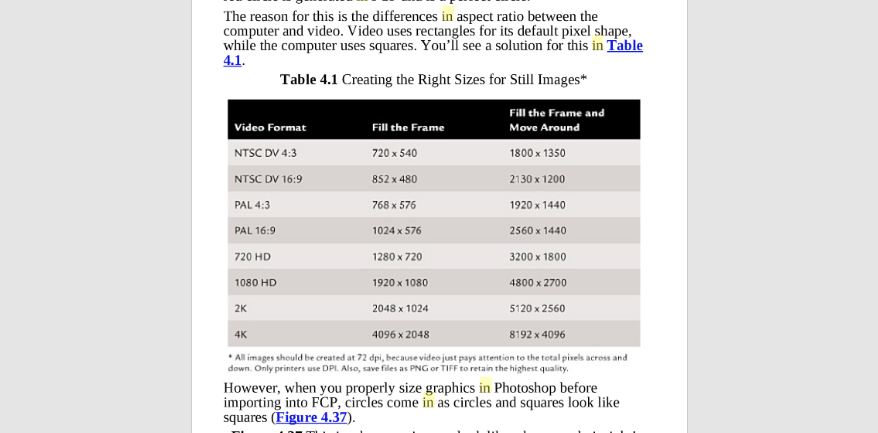
I did your approach first and it worked pretty good, no distortion, no greenish noise. But I need to be able to zoom in into the right backgound and then there are too much visible pixels (attachment 2), when I zoom in on the 8K psd.file (8192x4096, 72dpi) there are less visible pixels (which is obvious)(attachment 3). So i did the approach of Larry Jordan (4K FCPx-project and import 8K .psd-file) because I want to zoom in more and had the same result as before (green noise). (attachment 4)
.....
Another thing is when i'm in the 1080p project and drag a clip (.psd-file) in the timeline I can use the Ken Burns-effect on it when it's a whole clip, when unfold it however and i want to tweek the layers separately, the Ken Burns-effect is different on each layer. I don't quite get this issue, it seems like it forgets what the whole clip is doing and creates some new KenBurnseffect on each layer (attachment 5a, b, c, d)
How can you make small adjustments to each layer without changing to much?
Here you can see what I want to achieve...
we.tl/t-i6O1PggoZy
I did this with the masktool from FCPx, but as I said before when you do this the background figures become visible because you enlarge the mask. Therefore i need to photoshop them out first.
Look forward to your response.
Grtz
J
Thank you for your instructions, changing it to 72dpi did a lot... But I'm not quite there yet
In my search for a solution I came upon a text that Larry Jordan wrote (attachment 1) in which he describes that you can also import a big .psd file in a 4K FCPx-project.
tinyurl.com/yysalcfy (=book of Larry Jordan)
I did your approach first and it worked pretty good, no distortion, no greenish noise. But I need to be able to zoom in into the right backgound and then there are too much visible pixels (attachment 2), when I zoom in on the 8K psd.file (8192x4096, 72dpi) there are less visible pixels (which is obvious)(attachment 3). So i did the approach of Larry Jordan (4K FCPx-project and import 8K .psd-file) because I want to zoom in more and had the same result as before (green noise). (attachment 4)
.....
Another thing is when i'm in the 1080p project and drag a clip (.psd-file) in the timeline I can use the Ken Burns-effect on it when it's a whole clip, when unfold it however and i want to tweek the layers separately, the Ken Burns-effect is different on each layer. I don't quite get this issue, it seems like it forgets what the whole clip is doing and creates some new KenBurnseffect on each layer (attachment 5a, b, c, d)
How can you make small adjustments to each layer without changing to much?
Here you can see what I want to achieve...
we.tl/t-i6O1PggoZy
I did this with the masktool from FCPx, but as I said before when you do this the background figures become visible because you enlarge the mask. Therefore i need to photoshop them out first.
Look forward to your response.
Grtz
J


Please Log in to join the conversation.
