


- Posts: 1
- Thank you received: 0
3 Post Moderation Rule for New Boarders (25 Jan 2021)
New boarders will have their posts moderated - Don't worry if you cannot see your post immediately.
Display source TC and file name
25 May 2020 18:07 #107453
by Eddie W.
Display source TC and file name was created by Eddie W.
Hey everybody,
25-years-Avid-but-first-time-FC-user here with a few questions regarding timecode burn-in.
I helped out editing a feature film for a fellow colleague who unfortunately (but not severly ) became ill before finishing the project. Due to Corona they couldn’t find an FC-editor on such short notice and therefore asked me. Long story short: Thanks to this forum and YouTube I pretty much learned on the fly, everything went well, the movie has been approved and all that’s left to do are the final exports for grading, VFX etc.
One export needs to have Master-TC, Source-TC and original camera filenames burnt in. What I (think to) have understood - and from here on I can’t say for sure whether user or software is the problem, so feel free to correct me at any point - is:
- If applied as a separate layer, the built-in TC generator can only display the Master-TC.
- If applied to a clip (and copy-pasted to all other clips), it can also show Source-TC.
- Source-TC comes with the clip name, which cannot be deactivated separately.
- The file name cannot be displayed by the built-in TC generator.
Thanks to fcp.co I found out about the plugin from CoreMelt. While apparently perfect for what I need, there were two issues I couldn’t solve:
1) The displayed Source-TC was sort of multiplied by two. For example 15:11:xx:xx became something like 30:22:xx:xx? Has anyone seen (and solved) this behaviour?
2) As a workaround I replaced the CoreMelt Source-TC with the FC Source-TC, which was correct. (I still had to keep the plugin for the display of the file names.) But when I then tried to finally export, I got errors that were caused, as it turned out, by corrupt renderings of the CoreMelt plugin. Re-inserting and/or extracting the affected clips from the primary storyline seemed to help at first but eventually errors came back.
For now I gave up on the CoreMelt plugin as I assume that the rendering problems are somehow media related and therefore need further examination.
But there is one other major question left: Both ways, with or without the plugin, require the TC generator to be put directly onto individual clips. Any transformation of that clip (zoom, position etc.) will by default affect the timecode display as well. Is there a way to move the TC generator to the end of the „effect pipeline“? It seems as if the order of „optional“ effects could be rearranged but never below (referring visually to the inspector window) the „hard wired“ effects.
Any hint or help would and will be gratefully appreciated.
Oh, FC version is 10.4.8, media is ProRes 422 Proxy.
25-years-Avid-but-first-time-FC-user here with a few questions regarding timecode burn-in.
I helped out editing a feature film for a fellow colleague who unfortunately (but not severly
) became ill before finishing the project. Due to Corona they couldn’t find an FC-editor on such short notice and therefore asked me. Long story short: Thanks to this forum and YouTube I pretty much learned on the fly, everything went well, the movie has been approved and all that’s left to do are the final exports for grading, VFX etc.One export needs to have Master-TC, Source-TC and original camera filenames burnt in. What I (think to) have understood - and from here on I can’t say for sure whether user or software is the problem, so feel free to correct me at any point - is:
- If applied as a separate layer, the built-in TC generator can only display the Master-TC.
- If applied to a clip (and copy-pasted to all other clips), it can also show Source-TC.
- Source-TC comes with the clip name, which cannot be deactivated separately.
- The file name cannot be displayed by the built-in TC generator.
Thanks to fcp.co I found out about the plugin from CoreMelt. While apparently perfect for what I need, there were two issues I couldn’t solve:
1) The displayed Source-TC was sort of multiplied by two. For example 15:11:xx:xx became something like 30:22:xx:xx? Has anyone seen (and solved) this behaviour?
2) As a workaround I replaced the CoreMelt Source-TC with the FC Source-TC, which was correct. (I still had to keep the plugin for the display of the file names.) But when I then tried to finally export, I got errors that were caused, as it turned out, by corrupt renderings of the CoreMelt plugin. Re-inserting and/or extracting the affected clips from the primary storyline seemed to help at first but eventually errors came back.
For now I gave up on the CoreMelt plugin as I assume that the rendering problems are somehow media related and therefore need further examination.
But there is one other major question left: Both ways, with or without the plugin, require the TC generator to be put directly onto individual clips. Any transformation of that clip (zoom, position etc.) will by default affect the timecode display as well. Is there a way to move the TC generator to the end of the „effect pipeline“? It seems as if the order of „optional“ effects could be rearranged but never below (referring visually to the inspector window) the „hard wired“ effects.
Any hint or help would and will be gratefully appreciated.
Oh, FC version is 10.4.8, media is ProRes 422 Proxy.
Please Log in to join the conversation.


26 May 2020 13:43 - 26 May 2020 13:44 #107470
by JoeEditor
Replied by JoeEditor on topic Display source TC and file name
Easer way to solve corrupt render file issues is to select the Library in the browser, go to the File menu, select Delete All Generated Library Files, then delete ALL render files.
In the Effects browser, in the Basics category, there is a Timecode effect that will accurately show either source or project TV, and allow you to turn clip name on or off. It even has an offset parameter if needed. I'd simply apply two of those, one for source, one for the project, and position them to the left and right of each other. Copy that clip, Select All, Paste Attributes.
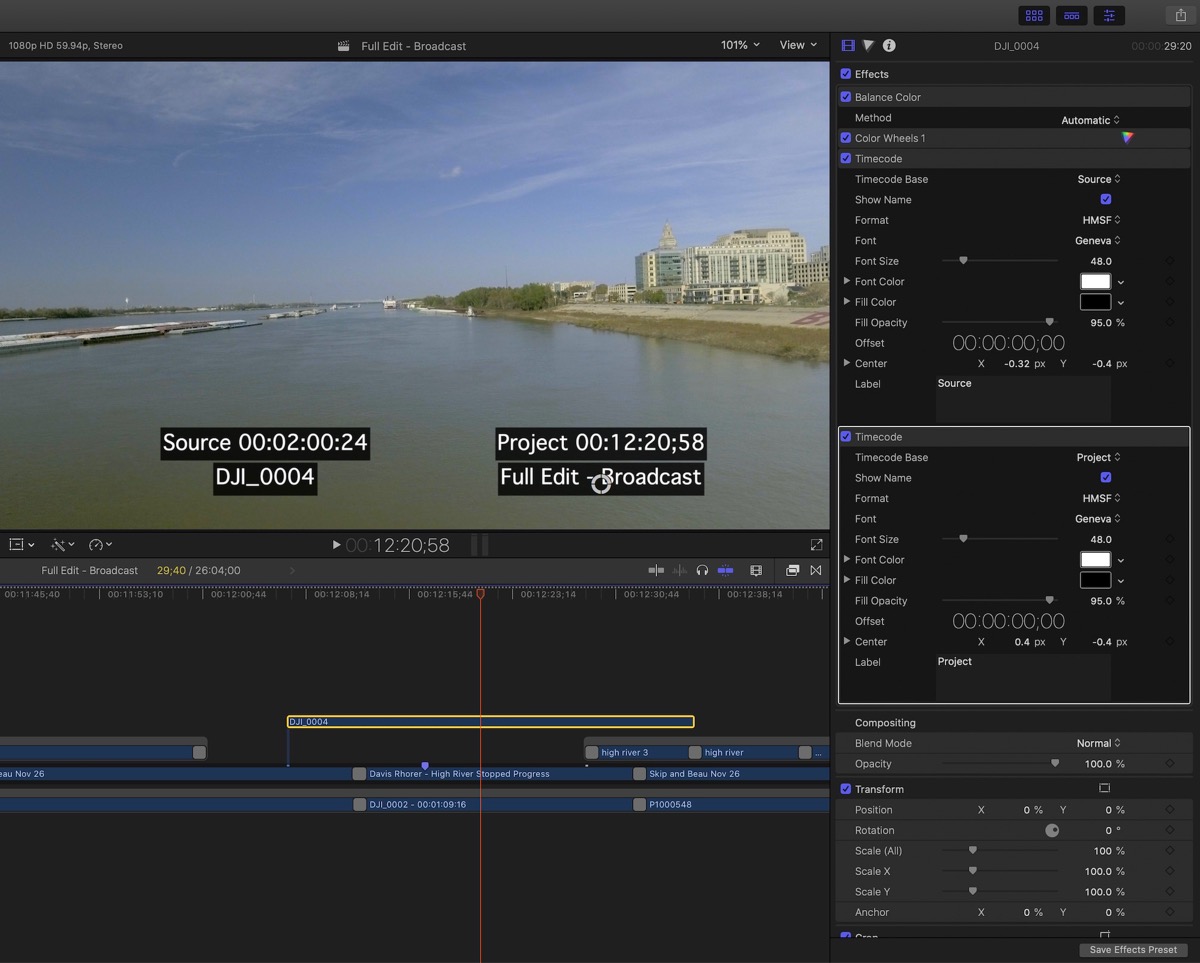
In the Effects browser, in the Basics category, there is a Timecode effect that will accurately show either source or project TV, and allow you to turn clip name on or off. It even has an offset parameter if needed. I'd simply apply two of those, one for source, one for the project, and position them to the left and right of each other. Copy that clip, Select All, Paste Attributes.
Last edit: 26 May 2020 13:44 by JoeEditor.
Please Log in to join the conversation.
