- Posts: 2
- Thank you received: 0
3 Post Moderation Rule for New Boarders (25 Jan 2021)
New boarders will have their posts moderated - Don't worry if you cannot see your post immediately.
MXF import problem
27 Feb 2020 09:48 #104974
by ivom
MXF import problem was created by ivom
Hey Guys- need some help. Trying to import .mxf files into FCPX. Pro Video Formats 2.1.1. installed. MXF files play fine in VLC, yet cannot be imported to FCP or opened in Compressor.
Any advice highly appreciated! Thanks so much -
ivo
Any advice highly appreciated! Thanks so much -
ivo
Please Log in to join the conversation.


01 Mar 2020 12:25 #105065
by JoeEditor
Replied by JoeEditor on topic MXF import problem
What camera are these from?
Please Log in to join the conversation.
01 Mar 2020 14:52 #105071
by ivom
Replied by ivom on topic MXF import problem
Hey FCPX.guru, These are form Arri Alexa Mini LF. In the meantime I have managed to start a transcode in DaVinci Resolve... but that. is not really working either. It reads the files, incl audio - which I need. It transcodes actually but then randomly stops and messages 'Failed at'. No further info. Have tried numerous things - but in vain.
Obviously I'd prefer importing in FCPX, round proxies, do my edit and play out from the raw. Any idea what seems to be the issue? I understand there's different types of MXF, although I wouldn't see how or why.
Any help appreciated - thanks much!
Obviously I'd prefer importing in FCPX, round proxies, do my edit and play out from the raw. Any idea what seems to be the issue? I understand there's different types of MXF, although I wouldn't see how or why.
Any help appreciated - thanks much!
Please Log in to join the conversation.
- ronny courtens
-

- Offline
- Moderator
-

Less
More
- Posts: 4455
- Thank you received: 962
02 Mar 2020 17:44 - 02 Mar 2020 17:46 #105107
by ronny courtens
Replied by ronny courtens on topic MXF import problem
Hi Ivo, welcome to the forums.
The Arri Alexa Mini LF can record 2 different codecs in the MXF wrapper: ProRes and Arriraw. It this would be ProRes in an MXF wrapper, you would have no issues whatsoever using these in FCP X. So my guess is that your footage has been recorded in Arriraw, which is a real pain to work with in any NLE. That's why Arriraw usually gets converted into a more edit-friendly format, and ARRI has developed a special application just for this. So, if your footage is indeed Arriraw, this is what you should do.
Warning: this looks complex when I explain it in full detail but it's actually a very straightforward process
- Download the Arriraw converter here: www.arri.com/en/learn-help/learn-help-ca...ls/arriraw-converter
- In the download options, select the version that corresponds with your current OS. For Catalina, this would be ARRIRAW Converter GUI 4.2.4 for macOS 10.15 (CPU and GPU).
1. Install and launch the Arriraw converter, then click the Browse tab, locate your Arriraw files in the File System browser and drag them onto the Project File browser:

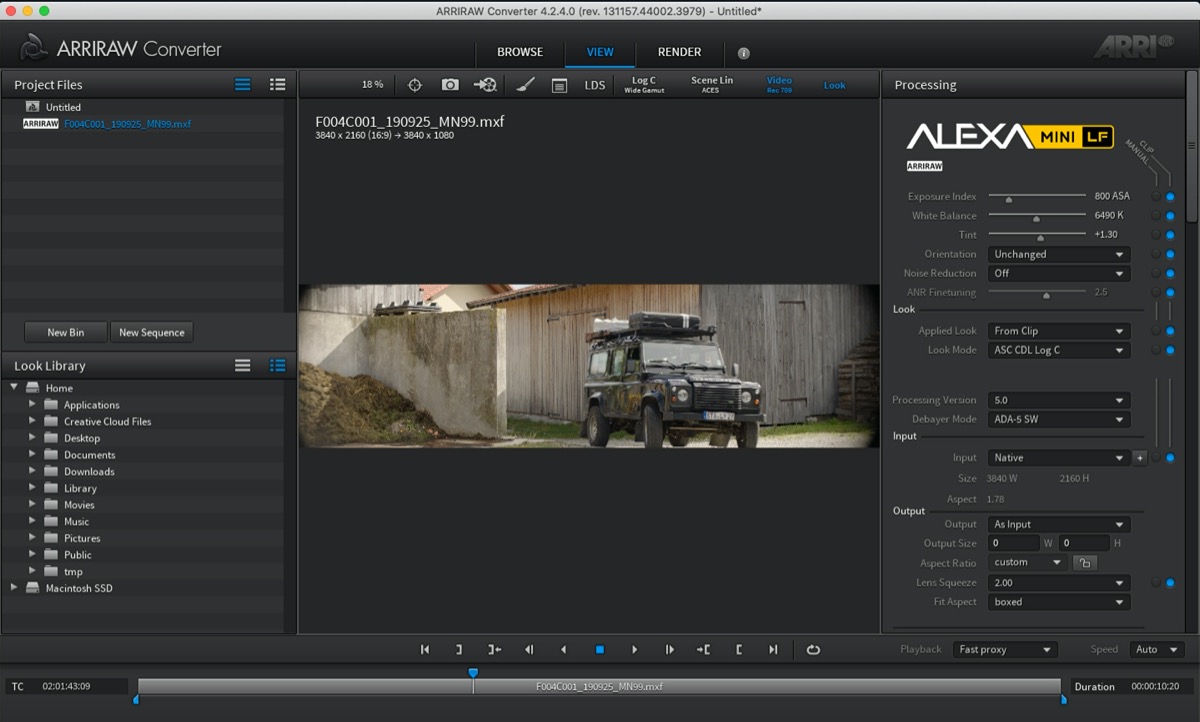
2. Click the View tab to play and view any of your Arriraw files. You also can modify the raw data here, but that's not relevant for this task:
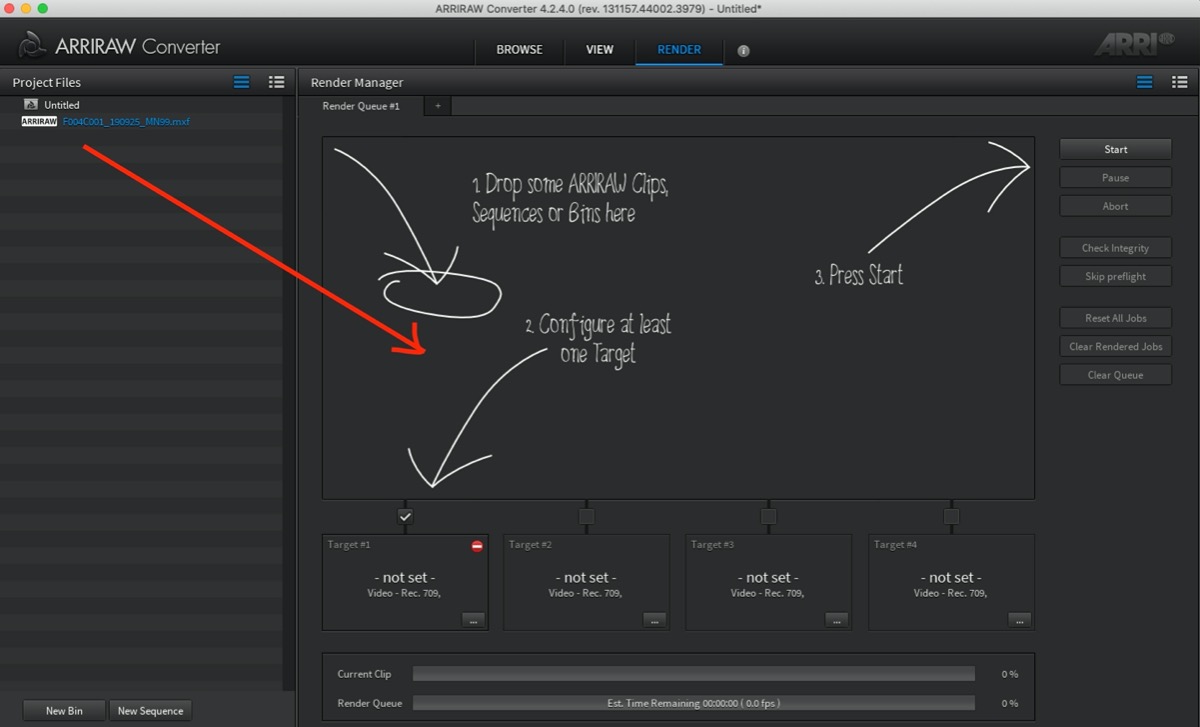
3. Click the Render tab and drag all your Arriraw clips from the Project Files browser onto the Render window:
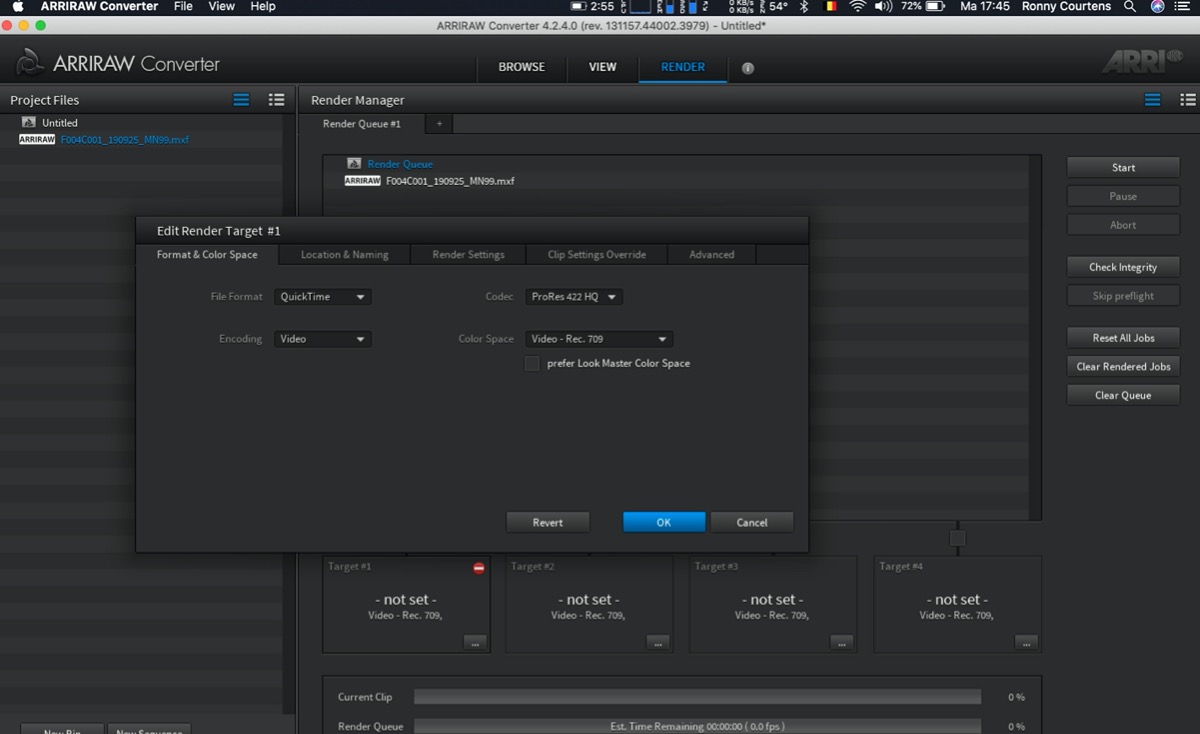
4. Now click the Edit Render Target #1 box to enter the settings for your converted files. Click the Format&Color Space tab and set File Format to Quicktime and Codec to ProRes 422 HQ. This is a good sweet spot if you want to preserve the quality of the Arri footage without getting extremely huge file sizes. If your project is for cinema distribution and will require heavy grading or VFX, you might want to convert to ProRes 4444 XQ instead:
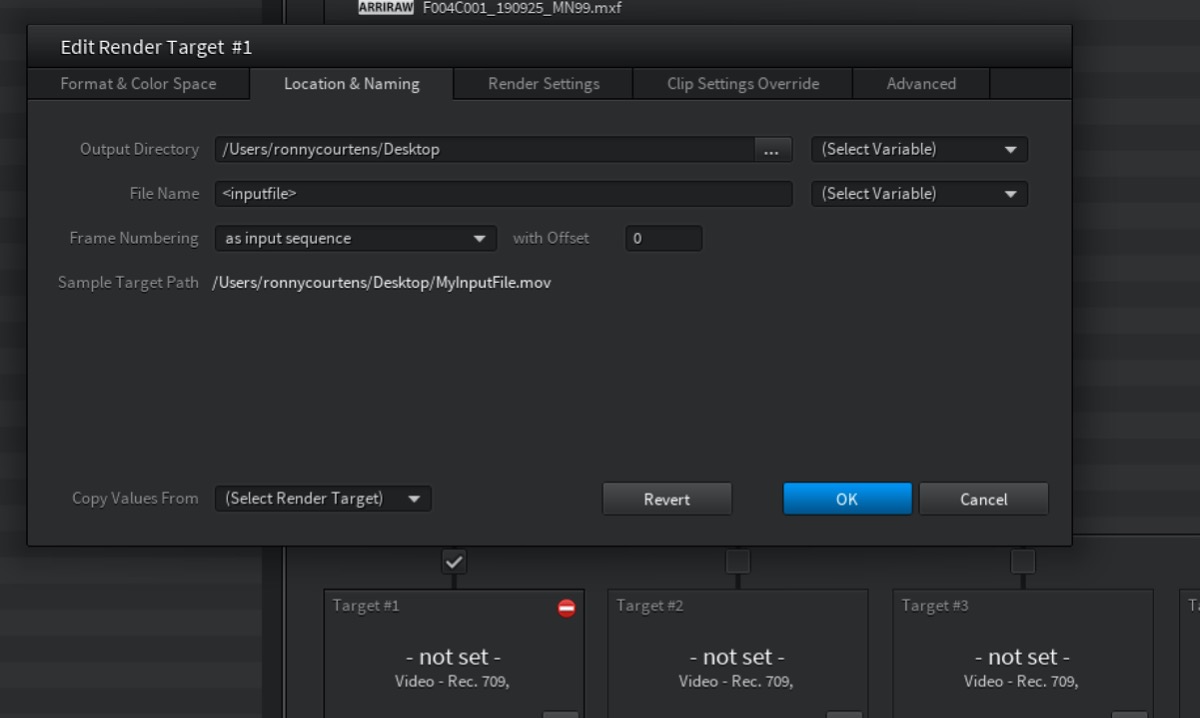
5. One final thing you should not forget is to click the Location & Naming tab to set a destination for your converted files:
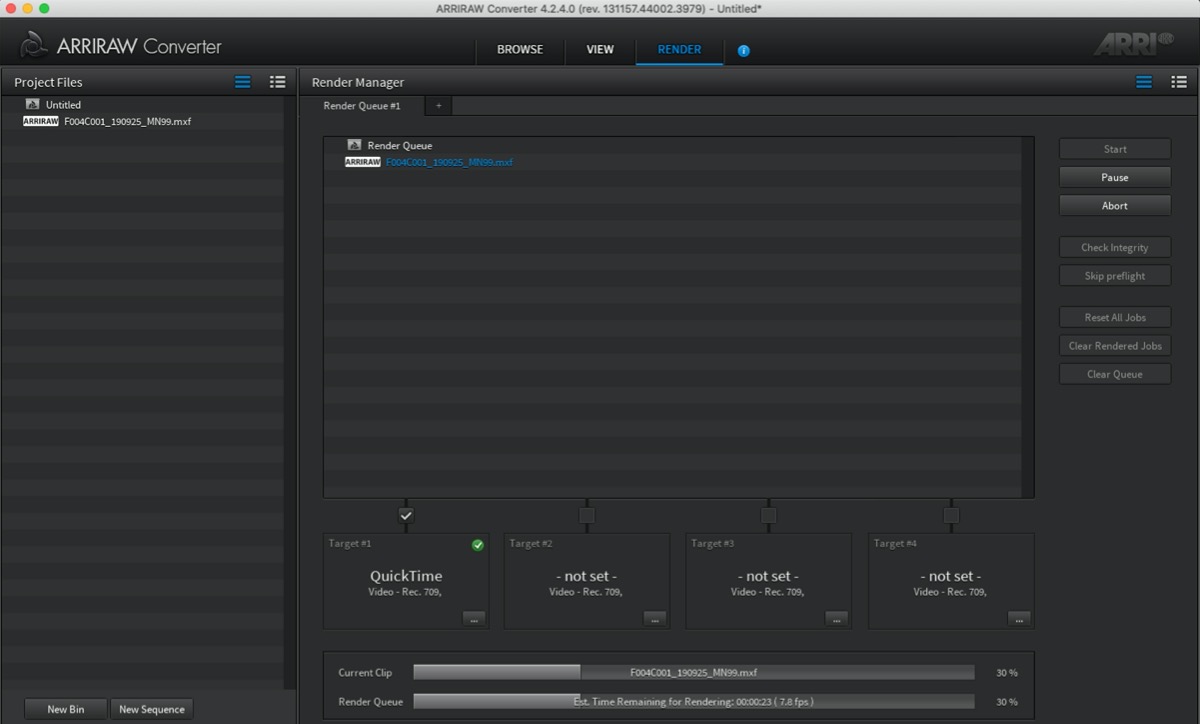
6. Click the Start button to convert all your Arriraw clips to your preferred editing format. Depending on your computer, this might take quite some time:
The converted files will import and play perfectly in FCP X. Depending on your computer, you won't have to create any proxy media to edit the clips. BUT there's a caveat: the converted files won't have audio (welcome to the wonderful world of Arriraw).
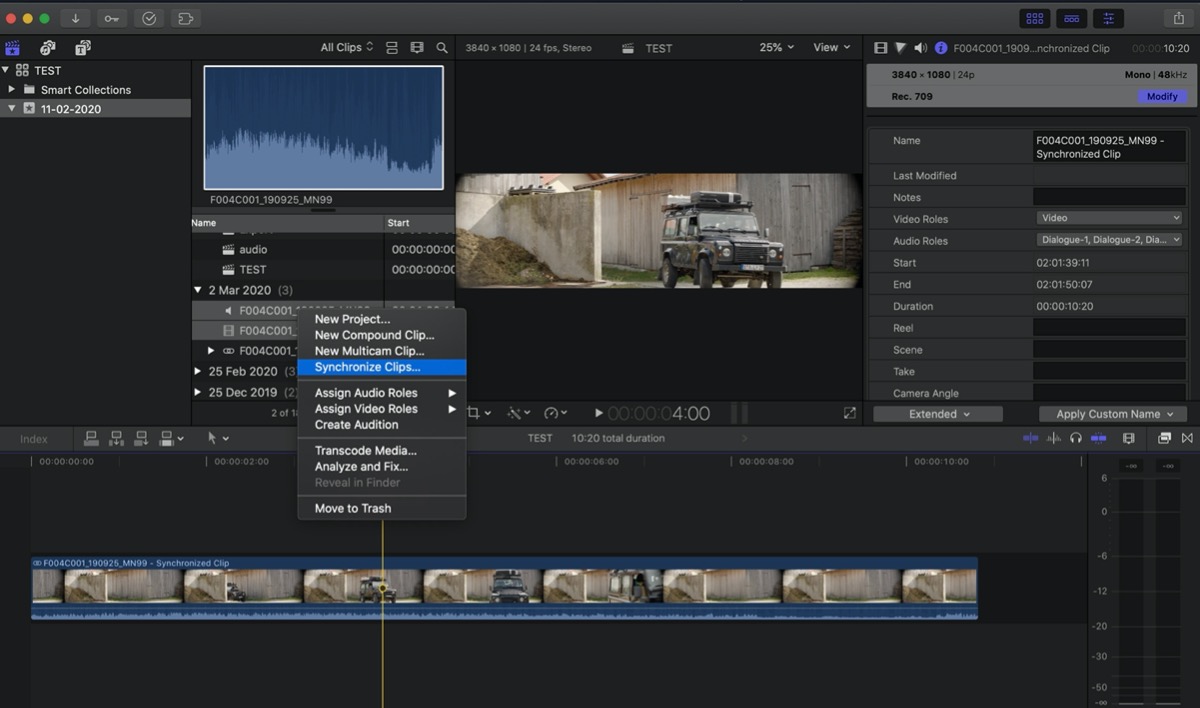
Fortunately, you can import the original Arriraw files in FCP X. You only will get the audio but that's exactly what we need at this point. So the next thing you do is import all your original Arriraw MXF files in FCP X and use the Multicam or Synchronized Clips functions to synch the video clips with their corresponding audio clips:
- Ronny
The Arri Alexa Mini LF can record 2 different codecs in the MXF wrapper: ProRes and Arriraw. It this would be ProRes in an MXF wrapper, you would have no issues whatsoever using these in FCP X. So my guess is that your footage has been recorded in Arriraw, which is a real pain to work with in any NLE. That's why Arriraw usually gets converted into a more edit-friendly format, and ARRI has developed a special application just for this. So, if your footage is indeed Arriraw, this is what you should do.
Warning: this looks complex when I explain it in full detail but it's actually a very straightforward process
- Download the Arriraw converter here: www.arri.com/en/learn-help/learn-help-ca...ls/arriraw-converter
- In the download options, select the version that corresponds with your current OS. For Catalina, this would be ARRIRAW Converter GUI 4.2.4 for macOS 10.15 (CPU and GPU).
1. Install and launch the Arriraw converter, then click the Browse tab, locate your Arriraw files in the File System browser and drag them onto the Project File browser:
2. Click the View tab to play and view any of your Arriraw files. You also can modify the raw data here, but that's not relevant for this task:
3. Click the Render tab and drag all your Arriraw clips from the Project Files browser onto the Render window:
4. Now click the Edit Render Target #1 box to enter the settings for your converted files. Click the Format&Color Space tab and set File Format to Quicktime and Codec to ProRes 422 HQ. This is a good sweet spot if you want to preserve the quality of the Arri footage without getting extremely huge file sizes. If your project is for cinema distribution and will require heavy grading or VFX, you might want to convert to ProRes 4444 XQ instead:
5. One final thing you should not forget is to click the Location & Naming tab to set a destination for your converted files:
6. Click the Start button to convert all your Arriraw clips to your preferred editing format. Depending on your computer, this might take quite some time:
The converted files will import and play perfectly in FCP X. Depending on your computer, you won't have to create any proxy media to edit the clips. BUT there's a caveat: the converted files won't have audio (welcome to the wonderful world of Arriraw).
Fortunately, you can import the original Arriraw files in FCP X. You only will get the audio but that's exactly what we need at this point. So the next thing you do is import all your original Arriraw MXF files in FCP X and use the Multicam or Synchronized Clips functions to synch the video clips with their corresponding audio clips:
- Ronny
Last edit: 02 Mar 2020 17:46 by ronny courtens.
Please Log in to join the conversation.