


- Posts: 46
- Thank you received: 0
3 Post Moderation Rule for New Boarders (25 Jan 2021)
New boarders will have their posts moderated - Don't worry if you cannot see your post immediately.
Markers, Dots, and Beats - Why is this doing that??
27 May 2017 12:19 #88376
by talonhead
Markers, Dots, and Beats - Why is this doing that?? was created by talonhead
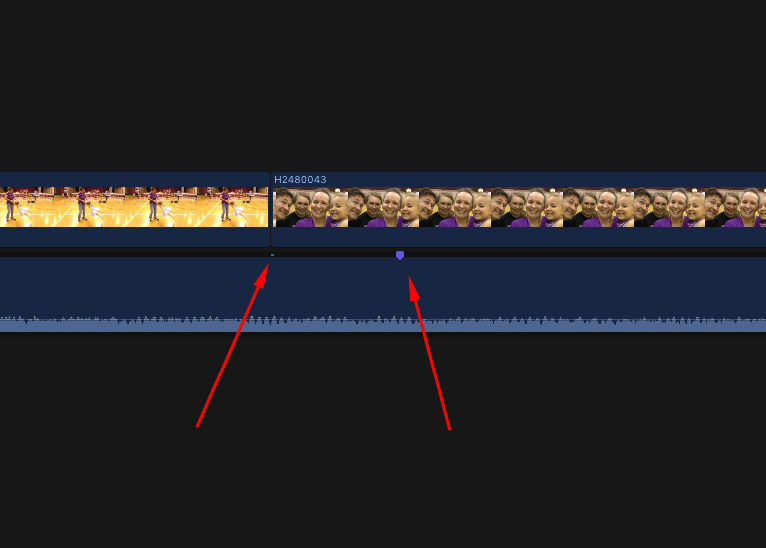
Hello. I've been editing to the beat on a project, and placing markers where the cuts will be. All is fine with that, but when I decided to do some tweaking to the markers, by deleting an old marker to replace with a new marker closer to the beat I want, there is a little "dot" left where the old one once was.
It is that little "dot" that my clips keep snapping to....not the marker I just made.
Any thoughts on this? Does it happen to do that my newly placed markers are inside a single frame and not ON the frame's beginning? I really don't know. I wouldn't think that restriction would exist being as all music will not have its "beat" land at the beginning of a frame each and every time. See attached screenshot.
Any help with this folks? Many thanks. Running 10.3.3
It is that little "dot" that my clips keep snapping to....not the marker I just made.
Any thoughts on this? Does it happen to do that my newly placed markers are inside a single frame and not ON the frame's beginning? I really don't know. I wouldn't think that restriction would exist being as all music will not have its "beat" land at the beginning of a frame each and every time. See attached screenshot.
Any help with this folks? Many thanks. Running 10.3.3
Please Log in to join the conversation.


27 May 2017 12:29 - 27 May 2017 12:32 #88377
by JoeEditor
Replied by JoeEditor on topic Markers, Dots, and Beats - Why is this doing that??
That is a connection point where the Connected Clip above the Primary Timeline is attached to the clip inside the Primary Timeline. You may have just happened to put a marker at the same place.
To verify, grab that connected clip, and pull it straight up (hold Shift to restraint it from going left or right). You'll see the connection stem stretch from that connection point.
To verify, grab that connected clip, and pull it straight up (hold Shift to restraint it from going left or right). You'll see the connection stem stretch from that connection point.
Last edit: 27 May 2017 12:32 by JoeEditor.
Please Log in to join the conversation.
27 May 2017 12:38 #88380
by talonhead
Replied by talonhead on topic Markers, Dots, and Beats - Why is this doing that??
Nope. Nothing connected. It's pretty clear that I have dots placed close to the markers (to designate the old marker positions). This is on every marker that I deleted and replaced at a slightly different spot within the beat of the song...not just with one marker. Crazy stuff.
Bear in mind, this is zoomed in quite close as well. But snapping at the wrong place is still snapping at the wrong place.
Bear in mind, this is zoomed in quite close as well. But snapping at the wrong place is still snapping at the wrong place.
Please Log in to join the conversation.

27 May 2017 15:46 #88384
by VidGreg
Replied by VidGreg on topic Markers, Dots, and Beats - Why is this doing that??
Hey Talon
Did you try turning "Snapping" off? Press the "N" key or hold it down while moving clip/marker. Holding down is a temporary activation, while press and release is toggle.
If you control(right) click a marker you can cut the marker and then move to new position and paste it. You can also move marker one frame at a time by using control + (.) or (,) {period / comma}
Control plus apostrophe / semi-colon moves forward and back by markers.
Also note that while you can do sub frame edits to the Audio (up to 1/80th of a frame) you can only do the video portion by whole frames. So video edit is based on frame rate.
You can move at subframe level by using the command key + the left or right arrow keys.
Think this may be what you are experiencing. Audio subframe, video whole frame only.
Not sure this answers your question.
Hope this helps, Greg
Did you try turning "Snapping" off? Press the "N" key or hold it down while moving clip/marker. Holding down is a temporary activation, while press and release is toggle.
If you control(right) click a marker you can cut the marker and then move to new position and paste it. You can also move marker one frame at a time by using control + (.) or (,) {period / comma}
Control plus apostrophe / semi-colon moves forward and back by markers.
Also note that while you can do sub frame edits to the Audio (up to 1/80th of a frame) you can only do the video portion by whole frames. So video edit is based on frame rate.
You can move at subframe level by using the command key + the left or right arrow keys.
Think this may be what you are experiencing. Audio subframe, video whole frame only.
Not sure this answers your question.
Hope this helps, Greg
Please Log in to join the conversation.
28 May 2017 11:57 #88394
by talonhead
Replied by talonhead on topic Markers, Dots, and Beats - Why is this doing that??
It helps quite a bit actually.
So by what you just said, no matter what, I will only be able to snap to the closest frame (to the marker) in video but can snap within 1/80 of a frame with the audio. Correct?
I just *knew* it had something to do with the video frame rate and not being able to split it high enough to match where the marker is on the audio track.
So that said, what does the little "dot" technically mean and why does it appear? To let you know the closest frame (to the placed marker) your edit will snap to perhaps? Where the frame lies in the video?
So by what you just said, no matter what, I will only be able to snap to the closest frame (to the marker) in video but can snap within 1/80 of a frame with the audio. Correct?
I just *knew* it had something to do with the video frame rate and not being able to split it high enough to match where the marker is on the audio track.
So that said, what does the little "dot" technically mean and why does it appear? To let you know the closest frame (to the placed marker) your edit will snap to perhaps? Where the frame lies in the video?
Please Log in to join the conversation.
28 May 2017 13:33 #88397
by JoeEditor
Replied by JoeEditor on topic Markers, Dots, and Beats - Why is this doing that??
IF that's not a clip connection, it is a bug. Did you update to 10.3.4 to see if that fixes it?
Please Log in to join the conversation.
28 May 2017 13:36 #88398
by talonhead
Replied by talonhead on topic Markers, Dots, and Beats - Why is this doing that??
It's not a bug I believe. I think Greg has nailed it.
Please Log in to join the conversation.
28 May 2017 13:38 - 28 May 2017 13:40 #88400
by JoeEditor
Replied by JoeEditor on topic Markers, Dots, and Beats - Why is this doing that??
That doesn't explain why that dot is there, it shouldn't be.
Also, I've never seen a Marker move with the < and > keys. Trying it now, not working.
Also, I've never seen a Marker move with the < and > keys. Trying it now, not working.
Last edit: 28 May 2017 13:40 by JoeEditor.
Please Log in to join the conversation.
28 May 2017 13:43 - 28 May 2017 13:43 #88401
by talonhead
Replied by talonhead on topic Markers, Dots, and Beats - Why is this doing that??
Hmm....I have no clue about that as I have nothing to compare to. But I will say it makes perfect sense to me if my guess is correct on why it is there.
So you're saying that you can NOT duplicate my issue with your version (I'm assuming you have 10.3.4)? I haven't updated to try.
So you're saying that you can NOT duplicate my issue with your version (I'm assuming you have 10.3.4)? I haven't updated to try.
Last edit: 28 May 2017 13:43 by talonhead.
Please Log in to join the conversation.
28 May 2017 15:12 - 28 May 2017 18:08 #88404
by JoeEditor
Replied by JoeEditor on topic Markers, Dots, and Beats - Why is this doing that??
That dot IS a Connected Clip point. If you have no connected clips, it shouldn't be there, that's a bug. There is no other reason for FCPX to put a "dot" like that on top of a clip. I tested on 10.3.3 and today on 10.3.4 after updating, was unable to replicate this issue on either version.
Last edit: 28 May 2017 18:08 by JoeEditor.
Please Log in to join the conversation.
28 May 2017 15:27 #88407
by talonhead
Replied by talonhead on topic Markers, Dots, and Beats - Why is this doing that??
So again in not so many words, the dot IS there in 10.3.3...and NOT in 10.3.4?
Please Log in to join the conversation.
28 May 2017 15:39 #88408
by VidGreg
Replied by VidGreg on topic Markers, Dots, and Beats - Why is this doing that??
Hey Talon
A couple of things…
Yes, you can do sub frame edits to audio, but video clip portion is always whole frames.
IMHO Truth be told, being off on a beat cut in a rolling video will never be noticed at normal frame rates. Or perhaps it is just my slow brain, but off by at most 1/2 second as the clip changes just doesn't really register. Where subframe editing comes in handy is in cutting out minor hiccups, changing audio channels and avoiding a pop (zero cross over point cut) and a few other minor things.
I think Ben has it right, the little blue dot represents the default connection point. By default, FCPX always places the connection point at the beginning of the first frame of the clip. This is automatic when you add a connected clip to a Timeline. Looks like your audio is in the Timeline and you are adding clips to it. You can test by either moving the connection point by holding down the command and option keys and clicking in a different position in the connected clip (Video in this case) the blue dot should move. You can also hold down the "`/~" (grave accent/tilde) key and moving the video clip over or up and over or lengthening the clip, now the clip connection point should stay where it is.
Try it, really think Ben is right about this.
Ben, here is the FCPX user manual on moving markers via key commands…
“Nudge a marker one frame at a time
Click a marker to select it.
Do one of the following:
Nudge the marker one frame to the right: Choose Mark > Markers > Nudge Marker Right, or press Control-Period (.).
Nudge the marker one frame to the left: Choose Mark > Markers > Nudge Marker Left, or press Control-Comma (,).
Move between markers
You can move quickly from marker to marker in the timeline or the browser.
Go to the next marker: Choose Mark > Next > Marker, or press Control-Apostrophe (’).
Go to the previous marker: Choose Mark > Previous > Marker, or press Control-Semicolon ( .”
Excerpt From: Apple Inc. “Final Cut Pro X User Guide.” iBooks. itun.es/us/rrsm6.l
If you re-read what I wrote, the arrow keys along with the Command key moves the "Audio" at sub frames. I apologize as I should have been more clear. This moves the Playhead in the audio clip so that it becomes easier to precisely place the Marker. Just trying to help out the OP for moving Markers in both the video portion and the audio portion.
Me bad in xplainin :oops:
Didn't even mention using the Timeline index and filter tool to navigate. Lots of options.
Hope this helps, Greg
A couple of things…
Yes, you can do sub frame edits to audio, but video clip portion is always whole frames.
IMHO Truth be told, being off on a beat cut in a rolling video will never be noticed at normal frame rates. Or perhaps it is just my slow brain, but off by at most 1/2 second as the clip changes just doesn't really register. Where subframe editing comes in handy is in cutting out minor hiccups, changing audio channels and avoiding a pop (zero cross over point cut) and a few other minor things.
I think Ben has it right, the little blue dot represents the default connection point. By default, FCPX always places the connection point at the beginning of the first frame of the clip. This is automatic when you add a connected clip to a Timeline. Looks like your audio is in the Timeline and you are adding clips to it. You can test by either moving the connection point by holding down the command and option keys and clicking in a different position in the connected clip (Video in this case) the blue dot should move. You can also hold down the "`/~" (grave accent/tilde) key and moving the video clip over or up and over or lengthening the clip, now the clip connection point should stay where it is.
Try it, really think Ben is right about this.
Ben, here is the FCPX user manual on moving markers via key commands…
“Nudge a marker one frame at a time
Click a marker to select it.
Do one of the following:
Nudge the marker one frame to the right: Choose Mark > Markers > Nudge Marker Right, or press Control-Period (.).
Nudge the marker one frame to the left: Choose Mark > Markers > Nudge Marker Left, or press Control-Comma (,).
Move between markers
You can move quickly from marker to marker in the timeline or the browser.
Go to the next marker: Choose Mark > Next > Marker, or press Control-Apostrophe (’).
Go to the previous marker: Choose Mark > Previous > Marker, or press Control-Semicolon (
.”Excerpt From: Apple Inc. “Final Cut Pro X User Guide.” iBooks. itun.es/us/rrsm6.l
If you re-read what I wrote, the arrow keys along with the Command key moves the "Audio" at sub frames. I apologize as I should have been more clear. This moves the Playhead in the audio clip so that it becomes easier to precisely place the Marker. Just trying to help out the OP for moving Markers in both the video portion and the audio portion.
Me bad in xplainin :oops:
Didn't even mention using the Timeline index and filter tool to navigate. Lots of options.
Hope this helps, Greg
Please Log in to join the conversation.
28 May 2017 15:46 #88409
by talonhead
Replied by talonhead on topic Markers, Dots, and Beats - Why is this doing that??
Correct Greg. it isn't noticed when editing down to that fine of resolution. I just wanted to know what was up with the snapping to something I didn't want it to.
The dot does move with the clip. I just tried that. So FWIW. It is connected.
Still, I haven't gotten clarification if this is a "bug" or not. As Ben says, it apparently goes away with the update. I have no clue because I don't ever jump on the update bandwagon that quickly. Especially during a project.
But nonetheless, thanks guys for your input. It has been most helpful.
The dot does move with the clip. I just tried that. So FWIW. It is connected.
Still, I haven't gotten clarification if this is a "bug" or not. As Ben says, it apparently goes away with the update. I have no clue because I don't ever jump on the update bandwagon that quickly. Especially during a project.
But nonetheless, thanks guys for your input. It has been most helpful.
Please Log in to join the conversation.
28 May 2017 18:07 #88414
by JoeEditor
Replied by JoeEditor on topic Markers, Dots, and Beats - Why is this doing that??
I am unable to replicate this in any version.
Please Log in to join the conversation.
29 May 2017 11:26 #88426
by talonhead
Replied by talonhead on topic Markers, Dots, and Beats - Why is this doing that??
I suppose if I had understood the term "connection point" a bit better, then the term "bug" wouldn't had come up.
To me, the dot will quickly tell me where the beginning of the video frame lands as opposed to where my marker really is within the audio track (as that's where I always place my markers). For whatever reason the dots are really there, and how FCPX handles connected clips, I'm just extracting different information from them than intended I suppose. Ehhh...whatever works.
Honestly, I'm more used to editing at the subframe level (because of being a Logic user), where "connection points" don't even make it into the conversation in this capacity. You are always editing audio zoomed in quite a bit when doing seamless editing...or as you had even said Greg, removing pops/hiccups from audio. So that said, imagine my wonderment when I couldn't snap exactly to my markers!
But thanks to you guys, I have a better understanding now between "dots" and "markers" within the scope of FCPX as well as resolution of audio to video placing markers (1/80 of a frame vs whole frame rate). And this is good.
Thanks again guys. I really appreciate it.
To me, the dot will quickly tell me where the beginning of the video frame lands as opposed to where my marker really is within the audio track (as that's where I always place my markers). For whatever reason the dots are really there, and how FCPX handles connected clips, I'm just extracting different information from them than intended I suppose. Ehhh...whatever works.
Honestly, I'm more used to editing at the subframe level (because of being a Logic user), where "connection points" don't even make it into the conversation in this capacity. You are always editing audio zoomed in quite a bit when doing seamless editing...or as you had even said Greg, removing pops/hiccups from audio. So that said, imagine my wonderment when I couldn't snap exactly to my markers!
But thanks to you guys, I have a better understanding now between "dots" and "markers" within the scope of FCPX as well as resolution of audio to video placing markers (1/80 of a frame vs whole frame rate). And this is good.
Thanks again guys. I really appreciate it.
Please Log in to join the conversation.
