


- Posts: 254
- Thank you received: 9
3 Post Moderation Rule for New Boarders (25 Jan 2021)
New boarders will have their posts moderated - Don't worry if you cannot see your post immediately.
Multicam Timecode Issue
13 Apr 2017 02:58 #87149
by screendor
Multicam Timecode Issue was created by screendor
Hey folks.
So working with a two camera multicam clips. Cam A had sync timecode; Cam B has an irrelevant timecode--i.e., continuous but not the same as Cam A.
Working with client notes that reference Cam A timecode.
Problem is, the generated Multicam clips all have Cam B timecode, which don't match client notes. Any way I can change the preference of which timecode the Multicam clips reference? Cam A is the top clip, and also selected in the viewer. Would think that would naturally mean that the Multicam clip would reference it.
Can't seem to find a way around this--and of course bad luck that FCPX chose the wrong time code source. Any thoughts?
So working with a two camera multicam clips. Cam A had sync timecode; Cam B has an irrelevant timecode--i.e., continuous but not the same as Cam A.
Working with client notes that reference Cam A timecode.
Problem is, the generated Multicam clips all have Cam B timecode, which don't match client notes. Any way I can change the preference of which timecode the Multicam clips reference? Cam A is the top clip, and also selected in the viewer. Would think that would naturally mean that the Multicam clip would reference it.
Can't seem to find a way around this--and of course bad luck that FCPX chose the wrong time code source. Any thoughts?
Please Log in to join the conversation.


13 Apr 2017 11:11 #87156
by JoeEditor
Replied by JoeEditor on topic Multicam Timecode Issue
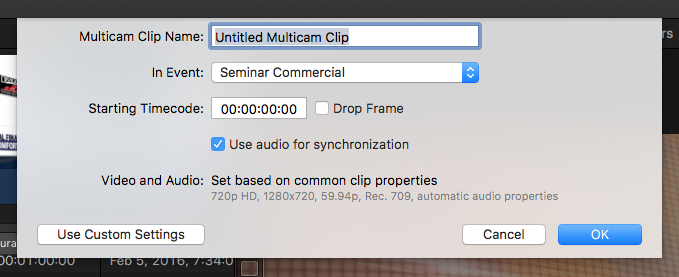
When you first create a Multicam, you have the option to set the starting timecode. After it is created I think that gets locked in and can't be changed.
Please Log in to join the conversation.
13 Apr 2017 11:27 #87158
by screendor
Replied by screendor on topic Multicam Timecode Issue
Yes, thanks. I guess I could have manually entered in the first timecode from the first frame of the clip I wanted to be dominant time code. Odd that there's no way to select the angle you want to the multicam clip to reference.
Thanks!
Thanks!
Please Log in to join the conversation.
13 Apr 2017 15:38 #87162
by screendor
Replied by screendor on topic Multicam Timecode Issue
A number of good solutions. Thanks folks! Also, here's one from CreativeCow that seems the most simple:
I have worked around this problem by removing the Timecode effect from the Multicam container, opening the master Multicam clip from the browser, then in the angle editor, apply the Timecode effect directly to the angle you want. When you're done with the rough, go back into the master clip and either delete the effect or simply toggle it off.
Doug Metz
Anode
I have worked around this problem by removing the Timecode effect from the Multicam container, opening the master Multicam clip from the browser, then in the angle editor, apply the Timecode effect directly to the angle you want. When you're done with the rough, go back into the master clip and either delete the effect or simply toggle it off.
Doug Metz
Anode
Please Log in to join the conversation.
