


- Posts: 16
- Thank you received: 0
3 Post Moderation Rule for New Boarders (25 Jan 2021)
New boarders will have their posts moderated - Don't worry if you cannot see your post immediately.
Are there no custom columns in list view?
- davíð alexander.corno
-
 Topic Author
- Offline
- New Member
-

Less
More
17 Nov 2016 18:15 #82906
by davíð alexander.corno
Are there no custom columns in list view? was created by davíð alexander.corno
Having searched far and wide for a way to do this – Is there no option to add custom columns to the browser "List view" ? Preferably columns referencing custom metadata fields...
It just seems like too much hassle to enter metadata such as "slate number" "focal length" etc. if you can't view it at a glance in the list view, to compare it to other clips, find the one that sticks out etc.
Maybe this is a long standing feature request – if so, I co-sign it.
It just seems like too much hassle to enter metadata such as "slate number" "focal length" etc. if you can't view it at a glance in the list view, to compare it to other clips, find the one that sticks out etc.
Maybe this is a long standing feature request – if so, I co-sign it.
Please Log in to join the conversation.

18 Nov 2016 16:42 #82962
by VidGreg
Replied by VidGreg on topic Are there no custom columns in list view?
Hi David
Welcome to the forums.
In List View you can right (control) click in a blank area of the column heading area to add additional columns and you can drag the columns sideways to position the order of columns. This is just like in many Apple apps, iTunes,etc….
Page 222 of FCPX 10.3 User Guide says… “Customize list view
Choose what type of information is displayed in list view: Control-click a column heading in the browser, then choose a type of information to display.
Rearrange columns in list view: In the browser, drag a column heading to move the column to a new position.
Sort clips in list view by a category: Click a column heading in the browser to sort clips by that category.
View an item’s keywords or rating in list view: Click the disclosure triangle to the left of the clip’s name.”
Excerpt From: Apple Inc. “Final Cut Pro X User Guide.” iBooks. itun.es/us/rrsm6.l
You can also create Smart Collections and Keywords for Metadata organization. Meta data usage is definitely one of FCPX strong points.
Hope this helps, Greg
Welcome to the forums.
In List View you can right (control) click in a blank area of the column heading area to add additional columns and you can drag the columns sideways to position the order of columns. This is just like in many Apple apps, iTunes,etc….
Page 222 of FCPX 10.3 User Guide says… “Customize list view
Choose what type of information is displayed in list view: Control-click a column heading in the browser, then choose a type of information to display.
Rearrange columns in list view: In the browser, drag a column heading to move the column to a new position.
Sort clips in list view by a category: Click a column heading in the browser to sort clips by that category.
View an item’s keywords or rating in list view: Click the disclosure triangle to the left of the clip’s name.”
Excerpt From: Apple Inc. “Final Cut Pro X User Guide.” iBooks. itun.es/us/rrsm6.l
You can also create Smart Collections and Keywords for Metadata organization. Meta data usage is definitely one of FCPX strong points.
Hope this helps, Greg
Please Log in to join the conversation.

18 Nov 2016 20:06 #82972
by JoeEditor
Replied by JoeEditor on topic Are there no custom columns in list view?
That also works in the Import window and the Timeline Index.
Please Log in to join the conversation.
- davíð alexander.corno
-
Topic Author
- Offline
- New Member
-
Less
More
- Posts: 16
- Thank you received: 0
19 Nov 2016 15:08 - 20 Nov 2016 08:20 #82989
by davíð alexander.corno
Replied by davíð alexander.corno on topic Are there no custom columns in list view?
Thank you for the warm welcome Greg.
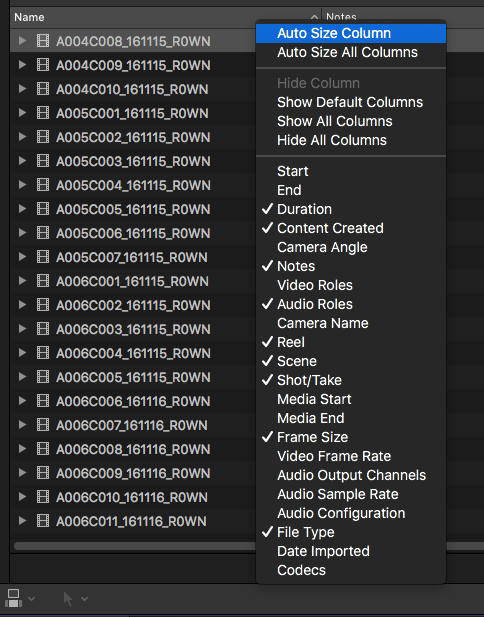
My question wasn't clear enough. I was aware that I could rearrange the columns by simply dragging, and that I could add columns by right-clicking/ctrl-clicking – but only from a set list of 22 criteria. What I was wondering was whether I could add metadata fields to the set list somehow (like you can in the inspector info pane). Preferably the metadata fields I've created myself (in the info pane in the inspector).
I basically want more than this:
My question wasn't clear enough. I was aware that I could rearrange the columns by simply dragging, and that I could add columns by right-clicking/ctrl-clicking – but only from a set list of 22 criteria. What I was wondering was whether I could add metadata fields to the set list somehow (like you can in the inspector info pane). Preferably the metadata fields I've created myself (in the info pane in the inspector).
I basically want more than this:
Last edit: 20 Nov 2016 08:20 by davíð alexander.corno. Reason: spelling error
Please Log in to join the conversation.
20 Nov 2016 17:42 #83017
by VidGreg
Replied by VidGreg on topic Are there no custom columns in list view?
Hi David
If you are asking if you can create custom fields to be added to the 22 listed, I don't think so. Anyone else know if it can be done?
However, lots of ways to organize metadata depending on your workflow and where in process you wish to be able to create the metadata.
Starting with location shooting, you can use 3rd party logging software and create metadata for tags, keywords, notes etc… that will get imported into FCPX. Check out Intelligent Assistant for one such app.
If your workflow includes working in the Finder to organize media, you can assign Tags that will get imported. You can also create Folder(s) in the Finder and drag the folder into FCPX Browser List View. You can also drag files and folders into Keyword collections and organize that way.
Inside of FCPX you can create Keywords for your Meta data, and add those keywords to any media files or portions of. You can also drag and drop any clips into keyword collections to tag them.
I would suggest you create a smart collection with keywords that reflect your meta data and then any media added to the library with that keyword will be added to the Smart Collection. Tags in the Finder works the same way.
You could "hi-jack" one of the existing "fields" and use that as your organization. For example, if you don't use the "Reel" category, add your meta-data name there for example.
You can always add notes.
Personally I think Smart Collections are a great way to organize as new imports will be automatically added to the collection list.
The Search toolbar will also quickly find and create lists for you. You can even turn the search results into a Smart Collection. Search is now across the entire Library.
So not knowing exactly what your workflow is and how you need to organize/use the meta-data these are the best suggestions off the top of my head. Otherwise, use the the Apple Feedback to request the feature.
Hope this helps, Greg
If you are asking if you can create custom fields to be added to the 22 listed, I don't think so. Anyone else know if it can be done?
However, lots of ways to organize metadata depending on your workflow and where in process you wish to be able to create the metadata.
Starting with location shooting, you can use 3rd party logging software and create metadata for tags, keywords, notes etc… that will get imported into FCPX. Check out Intelligent Assistant for one such app.
If your workflow includes working in the Finder to organize media, you can assign Tags that will get imported. You can also create Folder(s) in the Finder and drag the folder into FCPX Browser List View. You can also drag files and folders into Keyword collections and organize that way.
Inside of FCPX you can create Keywords for your Meta data, and add those keywords to any media files or portions of. You can also drag and drop any clips into keyword collections to tag them.
I would suggest you create a smart collection with keywords that reflect your meta data and then any media added to the library with that keyword will be added to the Smart Collection. Tags in the Finder works the same way.
You could "hi-jack" one of the existing "fields" and use that as your organization. For example, if you don't use the "Reel" category, add your meta-data name there for example.
You can always add notes.
Personally I think Smart Collections are a great way to organize as new imports will be automatically added to the collection list.
The Search toolbar will also quickly find and create lists for you. You can even turn the search results into a Smart Collection. Search is now across the entire Library.
So not knowing exactly what your workflow is and how you need to organize/use the meta-data these are the best suggestions off the top of my head. Otherwise, use the the Apple Feedback to request the feature.
Hope this helps, Greg
Please Log in to join the conversation.
20 Nov 2016 17:46 #83018
by JoeEditor
Replied by JoeEditor on topic Are there no custom columns in list view?
No, you can't add categories to the list of column headers.
But there's always smart collections.
But there's always smart collections.
Please Log in to join the conversation.
