


- Posts: 44
- Thank you received: 0
3 Post Moderation Rule for New Boarders (25 Jan 2021)
New boarders will have their posts moderated - Don't worry if you cannot see your post immediately.
A quick way to work out how much 4K content you have in your project?
15 Oct 2016 15:00 #80793
by obardain
Hi guys,
I'm just completing an edit for a TV series shot on Red cameras which uses various different resolutions (to allow for cropping/higher frame rates) and I wanted to check if I might be able to put the project through as a 4K project rather than HD. It needs to have 75%+ of 4K content to qualify but now I'm just wondering how I check. Will I need to match frame every clip in a 60 minute timeline to double check the source resolution or is there a short cut for doing this by producing an XML for example? I can't seem to find a way to view an XML in any logical way to check. Any advice greatly appreciated as this will either be super quick or a real long slog!
Many thanks!
Pete
I'm just completing an edit for a TV series shot on Red cameras which uses various different resolutions (to allow for cropping/higher frame rates) and I wanted to check if I might be able to put the project through as a 4K project rather than HD. It needs to have 75%+ of 4K content to qualify but now I'm just wondering how I check. Will I need to match frame every clip in a 60 minute timeline to double check the source resolution or is there a short cut for doing this by producing an XML for example? I can't seem to find a way to view an XML in any logical way to check. Any advice greatly appreciated as this will either be super quick or a real long slog!
Many thanks!
Pete
Please Log in to join the conversation.

15 Oct 2016 15:11 - 15 Oct 2016 15:11 #80795
by EditorGuy
Replied by EditorGuy on topic A quick way to work out how much 4K content you have in your project?
Create a new Smart Collection.
Configure it to show "Used Media".
Open your Project into the Timeline pane, as that smart collection shows the clips used in the currently active timeline.
Select the newly created "Used Media" Smart Collection.
In the Browser, you see all used clips in that timeline.
Right-click the header in list mode, be sure to show Frame Size and Duration.
Click on the Frame Size header, you'll sort by this and can run through all the 4K files quickly.
Add up the Durations, subtract that from your timeline duration.
There's no automatic way to so this I'm aware of. And as long winded as the above sounds, it actually is pretty quick and easy when you actually do it.
Configure it to show "Used Media".
Open your Project into the Timeline pane, as that smart collection shows the clips used in the currently active timeline.
Select the newly created "Used Media" Smart Collection.
In the Browser, you see all used clips in that timeline.
Right-click the header in list mode, be sure to show Frame Size and Duration.
Click on the Frame Size header, you'll sort by this and can run through all the 4K files quickly.
Add up the Durations, subtract that from your timeline duration.
There's no automatic way to so this I'm aware of. And as long winded as the above sounds, it actually is pretty quick and easy when you actually do it.
Last edit: 15 Oct 2016 15:11 by EditorGuy.
Please Log in to join the conversation.
16 Oct 2016 08:06 #80807
by obardain
Replied by obardain on topic A quick way to work out how much 4K content you have in your project?
That's great! Thanks very much. I followed your instructions and it worked. I now know how much 4K originated footage there is in the project!
The only thing I now need to account for is scaling shots in the timeline and also image stabilisation. I take it I will need to go through every shot in the timeline to do this or does anyone know of a quicker way?
Thanks again!
The only thing I now need to account for is scaling shots in the timeline and also image stabilisation. I take it I will need to go through every shot in the timeline to do this or does anyone know of a quicker way?
Thanks again!
Please Log in to join the conversation.
16 Oct 2016 11:08 #80810
by EditorGuy
Replied by EditorGuy on topic A quick way to work out how much 4K content you have in your project?
Why do you need to know how much footage got stabilization and scaling? Just curious.
Please Log in to join the conversation.
16 Oct 2016 11:21 #80811
by obardain
Replied by obardain on topic A quick way to work out how much 4K content you have in your project?
Because when zooming 4K acquired footage by scaling or stabilisation it will no longer resolve 4K resolution. In order to hit my 4K delivery requirement, strictly speaking I need to make sure that 75% + of the timeline is 4K so those things could make the difference.
Please Log in to join the conversation.


16 Oct 2016 12:18 #80813
by joema
There is a slightly easier way to check:
When creating Smart Collection to show Used Media, simply add one more filter item for the resolution:
- Add Format Info
- Select Frame Size Includes
- Enter one frame dimension, e.g, 4096, 3840, 1920 or 1280
The Smart Collection will only show used media which matches that criteria.
You can also do this for non-used media, in case you wanted a tally of how much 4k vs 1080 content you shot. After applying the filter, if you do a CTRL-A in the Event Browser it will show at the bottom the number of clips and total running time of the group you filtered on.
Re image stabilization and scaling multiple clips: you can stabilize multiple clips by selecting them in the timeline and enabling stabilization in the Inspector. However this is not generally recommended because:
- Stabilization is extremely CPU intensive and time consuming to run
- Stabilization often produces artifacts which must be individually adjusted with the controls
- Some stabilizers work better for some cases than others. I often try all three on each clip needing stabilization: FCPX, Coremelt's Lock-n-Load, and the new CrumblePop stabilizer (all tested on the current front page of this web site). This trial-and-error method is at odds with just applying stabilization to a batch of clips.
You can scale a bunch of clips in the timeline by selecting them and applying scale. Or you can scale one, do Edit>Copy, then select all the other target clips and do Edit>Paste Attributes.
Replied by joema on topic A quick way to work out how much 4K content you have in your project?
obardain wrote: ...wanted to check if I might be able to put the project through as a 4K project rather than HD...
There is a slightly easier way to check:
When creating Smart Collection to show Used Media, simply add one more filter item for the resolution:
- Add Format Info
- Select Frame Size Includes
- Enter one frame dimension, e.g, 4096, 3840, 1920 or 1280
The Smart Collection will only show used media which matches that criteria.
You can also do this for non-used media, in case you wanted a tally of how much 4k vs 1080 content you shot. After applying the filter, if you do a CTRL-A in the Event Browser it will show at the bottom the number of clips and total running time of the group you filtered on.
Re image stabilization and scaling multiple clips: you can stabilize multiple clips by selecting them in the timeline and enabling stabilization in the Inspector. However this is not generally recommended because:
- Stabilization is extremely CPU intensive and time consuming to run
- Stabilization often produces artifacts which must be individually adjusted with the controls
- Some stabilizers work better for some cases than others. I often try all three on each clip needing stabilization: FCPX, Coremelt's Lock-n-Load, and the new CrumblePop stabilizer (all tested on the current front page of this web site). This trial-and-error method is at odds with just applying stabilization to a batch of clips.
You can scale a bunch of clips in the timeline by selecting them and applying scale. Or you can scale one, do Edit>Copy, then select all the other target clips and do Edit>Paste Attributes.
Please Log in to join the conversation.
16 Oct 2016 19:27 #80823
by obardain
Replied by obardain on topic A quick way to work out how much 4K content you have in your project?
That's great! Thank you very much. That'll speed things up a lot.
That's really interesting about the stabilisation. I'll check out the other plugins. Thanks!
The only problem I'm finding now is that the durations of the clips in Smart Collections don't reflect any of my applied speed effects. How on Earth I account for those I have no idea!
Thanks again.
That's really interesting about the stabilisation. I'll check out the other plugins. Thanks!
The only problem I'm finding now is that the durations of the clips in Smart Collections don't reflect any of my applied speed effects. How on Earth I account for those I have no idea!
Thanks again.
Please Log in to join the conversation.
17 Oct 2016 19:34 #80861
by obardain
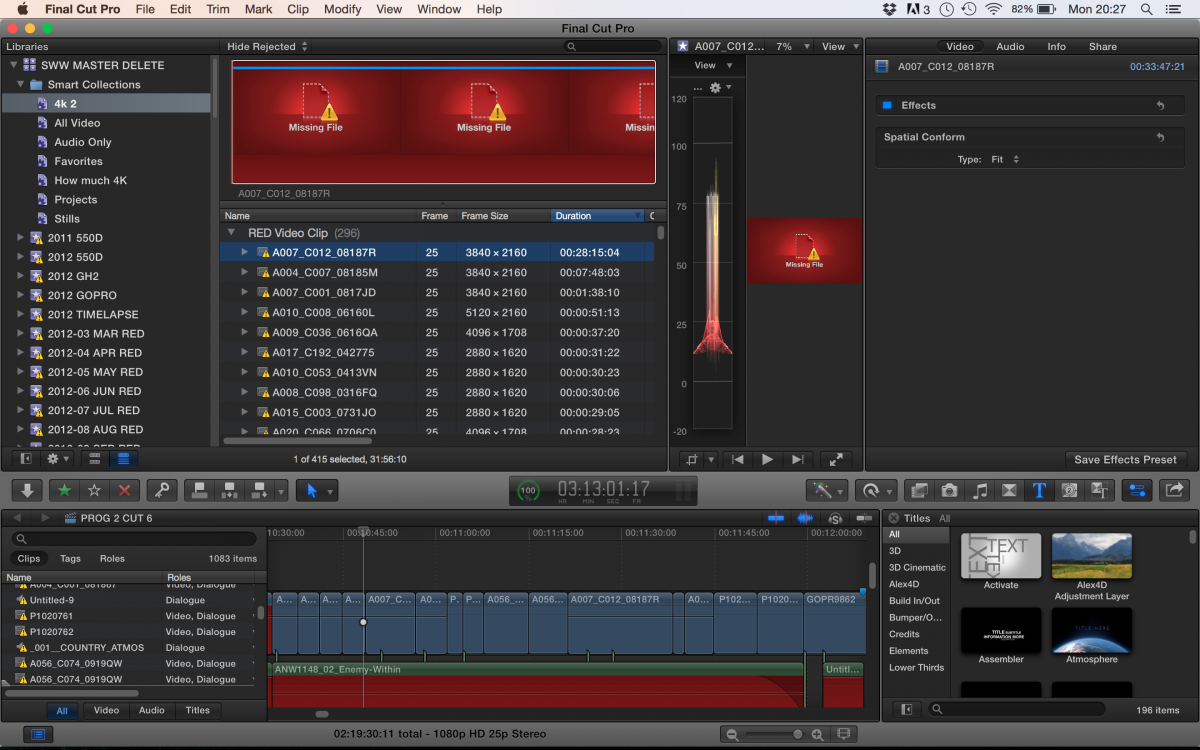
Hey guys,
I'm a little confused here. If you look at the screenshot it shows a duration of 00:28:15:04 on the clip selected. But down below that it says the clip is 31:56:10. I am totally baffled about why these durations are different. Any ideas?
Thanks!
Replied by obardain on topic A quick way to work out how much 4K content you have in your project?
Hey guys,
I'm a little confused here. If you look at the screenshot it shows a duration of 00:28:15:04 on the clip selected. But down below that it says the clip is 31:56:10. I am totally baffled about why these durations are different. Any ideas?
Thanks!
Please Log in to join the conversation.
18 Oct 2016 00:31 #80865
by joema
The number at bottom can be the currently selected range (which could be the range of the keyworded region) whereas the Duration column is the clip length of the file. It doesn't look like that clip or the range is selected, but I'm not sure.
On my libraries, they are always the same -- provided the entire clip is selected and not a range within the clip. Can you do a Reveal In Finder and do a Get Info on the file itself to double-check duration? I see it's disconnected from the file right now -- this assumes you can get to the file.
It would also be interesting to enable skimmer info via View>Show Skimmer Info, which produces a pop-up of the duration at the current skimmer point, then skim that clip from end to end and see where it deviates from the clip duration.
Replied by joema on topic A quick way to work out how much 4K content you have in your project?
obardain wrote: ...If you look at the screenshot it shows a duration of 00:28:15:04 on the clip selected. But down below that it says the clip is 31:56:10. I am totally baffled about why these durations are different. Any ideas?...
The number at bottom can be the currently selected range (which could be the range of the keyworded region) whereas the Duration column is the clip length of the file. It doesn't look like that clip or the range is selected, but I'm not sure.
On my libraries, they are always the same -- provided the entire clip is selected and not a range within the clip. Can you do a Reveal In Finder and do a Get Info on the file itself to double-check duration? I see it's disconnected from the file right now -- this assumes you can get to the file.
It would also be interesting to enable skimmer info via View>Show Skimmer Info, which produces a pop-up of the duration at the current skimmer point, then skim that clip from end to end and see where it deviates from the clip duration.
Please Log in to join the conversation.
