


- Posts: 4
- Thank you received: 0
3 Post Moderation Rule for New Boarders (25 Jan 2021)
New boarders will have their posts moderated - Don't worry if you cannot see your post immediately.
Advanced Audio Compression Help Needed
21 Jul 2016 08:56 - 25 Jul 2016 08:42 #78777
by Cynicle
Advanced Audio Compression Help Needed was created by Cynicle
Hi there,
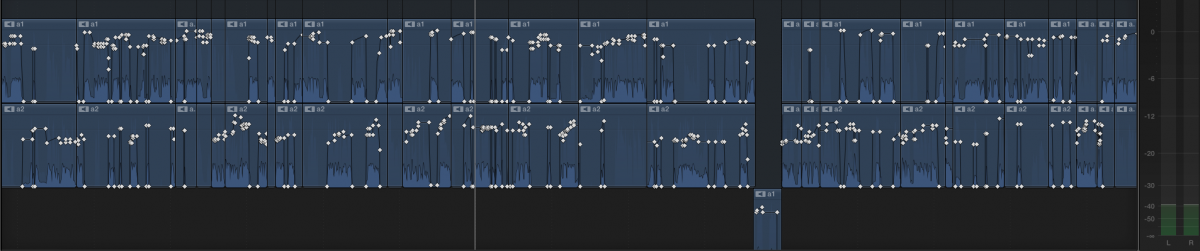
I'm editing a TV show for broadcast in FCP X and have been told to edit the audio by manually going through and raising the audio and then bringing the peaks down so they don't exceed -12dB. This is a very laborious and monotonous process with a minute of audio taking just under an hour of editing time. I'm almost certain there's a better way to be doing this but haven't had too much luck getting the effects to recreate it. I've tried limiters and compressors but they don't seem to be doing much to my output.
My colleague says they originally tried mucking around with compressors but couldn't get the dialogue to sound natural and the background noise was raised. None of us are FCPX experts though so I thought'd I'd post on here to see if anyone does have a solution. So basically I'm after a plug in that says; if sound is below ~20dB leave it alone, if it's between -20 and -12 raise it closer to -12 and if it's above -12 strictly bring it down to -12 (which is what I thought a limiter was sposed to do).
Thanks Kindly
TLDR: Effect that if sound > ~20dB leave it alone, -20dB - -12dB raise it, < -12 strictly bring it down to -12.
I'm editing a TV show for broadcast in FCP X and have been told to edit the audio by manually going through and raising the audio and then bringing the peaks down so they don't exceed -12dB. This is a very laborious and monotonous process with a minute of audio taking just under an hour of editing time. I'm almost certain there's a better way to be doing this but haven't had too much luck getting the effects to recreate it. I've tried limiters and compressors but they don't seem to be doing much to my output.
My colleague says they originally tried mucking around with compressors but couldn't get the dialogue to sound natural and the background noise was raised. None of us are FCPX experts though so I thought'd I'd post on here to see if anyone does have a solution. So basically I'm after a plug in that says; if sound is below ~20dB leave it alone, if it's between -20 and -12 raise it closer to -12 and if it's above -12 strictly bring it down to -12 (which is what I thought a limiter was sposed to do).
Thanks Kindly
TLDR: Effect that if sound > ~20dB leave it alone, -20dB - -12dB raise it, < -12 strictly bring it down to -12.
Last edit: 25 Jul 2016 08:42 by Cynicle. Reason: For respect to my colleagues.
Please Log in to join the conversation.
- JarrodMFay
-

- Offline
- Elite Member
-

Less
More
- Posts: 172
- Thank you received: 34
21 Jul 2016 16:02 #78784
by JarrodMFay
Replied by JarrodMFay on topic Advanced Audio Compression Help Needed
I can get you started in the right direction and then maybe a dedicated audio tech can fill in the gaps (or tell me I'm crazy).
What you are trying to do (i.e. raise all of the audio and then pull down the peaks to an acceptable level) is exactly what a compressor does. There is no benefit that I can think of to do it manually. Here's how I would approach it with the FCPX tools at hand.
Start by making sure your audio peak levels are close to where you want them. Then add the basic FCPX compressor to your first clip. Open the visual compressor controls. Slide the Ratio slider to close to 4:1 (that's a pretty standard compression ratio for dialogue). If your overall a levels are too hot now, adjust the gain slider to compensate. Now adjust the Compressor Threshold slider to tweak the intensity of the compression. This will help the voices sound normal. You can back it off as much as you need.
As far as the background noise getting louder... yes it will. You are increasing all of your volume. The first thing I do is add Background Noise Removal from the FCPX Audio Enhancements tab. For natural sounding dialogue, you'll probably want to start with the default amount and then slide it back to the left until your happy with the general background noise level and the dialogue still sounds natural. Any louder background sounds will still be jarring, so you may have to do some manual level lowering in places. If these techniques don't fully do the job then you may have to consider using IZotope or a similar more professional audio tool.
Anyway, I hope this at least gets you started and saves you some time.
---> Jarrod
What you are trying to do (i.e. raise all of the audio and then pull down the peaks to an acceptable level) is exactly what a compressor does. There is no benefit that I can think of to do it manually. Here's how I would approach it with the FCPX tools at hand.
Start by making sure your audio peak levels are close to where you want them. Then add the basic FCPX compressor to your first clip. Open the visual compressor controls. Slide the Ratio slider to close to 4:1 (that's a pretty standard compression ratio for dialogue). If your overall a levels are too hot now, adjust the gain slider to compensate. Now adjust the Compressor Threshold slider to tweak the intensity of the compression. This will help the voices sound normal. You can back it off as much as you need.
As far as the background noise getting louder... yes it will. You are increasing all of your volume. The first thing I do is add Background Noise Removal from the FCPX Audio Enhancements tab. For natural sounding dialogue, you'll probably want to start with the default amount and then slide it back to the left until your happy with the general background noise level and the dialogue still sounds natural. Any louder background sounds will still be jarring, so you may have to do some manual level lowering in places. If these techniques don't fully do the job then you may have to consider using IZotope or a similar more professional audio tool.
Anyway, I hope this at least gets you started and saves you some time.
---> Jarrod
Please Log in to join the conversation.
21 Jul 2016 16:32 - 21 Jul 2016 16:32 #78785
by canelson
--
Matias Canelson
www.canelson.us
Replied by canelson on topic Advanced Audio Compression Help Needed
I usually use Soundness Soundsoap, I think it has all the tools you are looking for and it's super easy to use.
www.soundness-llc.com/products.html
(The version in the Mac App Store does NOT include the FCPX plugin!)
www.soundness-llc.com/products.html
(The version in the Mac App Store does NOT include the FCPX plugin!)
--
Matias Canelson
www.canelson.us
Last edit: 21 Jul 2016 16:32 by canelson. Reason: typo
Please Log in to join the conversation.

21 Jul 2016 18:10 #78787
by VidGreg
Replied by VidGreg on topic Advanced Audio Compression Help Needed
Hi Cynicle,
Welcome to the forums.
Doing good audio is important. It can indeed take time, but 1 hour per minute is too much, especially in a Television environment.
You have left out lots of info that would help in giving you some good advice.
Where is this taking place? In Studio or on location? How many mics, what type, how many total audio channels.
Is there lots of background noise and/or hum that needs attention?
So making lots of assumptions this might be my workflow.
Let's say there are multiple microphones happening like in an interview. 2 lav mics on talent, 2 camera mics on 2 cameras, and maybe even a boom mic.
Put them all in a compound clip and sync the angles. I would make one of the camera clips as master for syncing.
Now go thru and select which track(audio channel) sounds best for each clip. Do this in the Inspector pane>Audio tab.
Turn off the other audio channels.
You can try the various auto presets like Background Removal or Hum Removal tools, but this only works sometimes.
Then I would go through and set general levels and I use "Ranges" in the Audio timeline and to cut or boost problem areas while setting general volume. I do this very early in edit. Then use Audio Effects to refine overall.
Apply the Logic Channel EQ to all the clips from the Effects Browser > Audio > EQ. The Logic Channel EQ has lots of extras that can be very helpful, much more so than the default EQ.
FYI, when you apply an effect like EQ, the default setting is flat, so you will not hear anything until you use a preset or adjust the controls. This is just like applying Color Correction, nothing happens until you change something.
Select a clip and then open up the Channel EQ graphic pane(click on the icon), click on the "Analyzer" button and play the clip. You will see a real time waveform appear. If you have problem frequencies, you can attenuate (cut) those frequencies. This can be especially helpful when you have a steady frequency that needs removal. Try to find part of the clip or sometimes in the pre-roll where you can isolate the noise and work to eliminate only those frequencies.
There are lots of presets you can try.
You can see the effect of what you are doing by selecting the "Post EQ" button for the viewer.
Add a low frequency filter, you most likely do not need to hear "rumble" on the low end.
If you find a particular frequency you need to adjust, you can use one of the corresponding freq filters and then adjust it up and down and the "Q" parameter controls the width of affected frequencies.
You can also use the EQ and analyzer to match mic tones. Say you have to use the boom/camera when the talent touches their lav mic, so you want to color the sound the same to match microphones. Watch for patterns in frequencies in the main mic you want to match and then boost or cut the respective frequencies in the second mic till the clips sound the same.
You may also want to color the vocals using the EQ or one of the presets.
Once you have the EQ down for the specific mic, you can save this as a preset. Then you can apply this to all other clips using same mic and location.
Now I would most likely add the Logic Compressor to the clips.
In Compressor there are several controls.
Yes a compressor will compress the "Dynamic Range" by boosting the low volume sections and attenuate(cut) the high volume sections. The controls will set the parameters.
Doing this from memory so might forget something or mess it up.
You have controls like, Attack, Release, Threshold, Ratio, Gain, and a Limiter. Many of these have presets.
Attack is how quickly the compression will occur.
Release how long after a transient to apply the compressor.
Ratio, how much compression to apply.
Threshold when to apply
Gain mostly affects low volume.
The Limiter is off by default, but if memory serves me right, it has a -12dB preset. I typically use a separate Limiter for better control, but give this a whirl.
Play with the controls while looping the clip. Watch your meters.
Add a separate Limiter if you need and you should be all set.
There are some other helpful effects like a "Noise Gate", "Gain" but only use what you need.
Again, user presets are your time saving friend here. Do it well once, create presets, apply as needed. Might have to tweak a couple of clips, but for the most part, enhancing audio is only a few clicks.
Lots more to say and learn, but just doing it and listening to develop "Ears" is the best long term solution.
Yes, many people speak highly of third party solutions like Sound Soap or iZotope but I mostly get by using builtin effects or by exporting to Logic Pro X.
Hope this helps, Greg
Welcome to the forums.
Doing good audio is important. It can indeed take time, but 1 hour per minute is too much, especially in a Television environment.
You have left out lots of info that would help in giving you some good advice.
Where is this taking place? In Studio or on location? How many mics, what type, how many total audio channels.
Is there lots of background noise and/or hum that needs attention?
So making lots of assumptions this might be my workflow.
Let's say there are multiple microphones happening like in an interview. 2 lav mics on talent, 2 camera mics on 2 cameras, and maybe even a boom mic.
Put them all in a compound clip and sync the angles. I would make one of the camera clips as master for syncing.
Now go thru and select which track(audio channel) sounds best for each clip. Do this in the Inspector pane>Audio tab.
Turn off the other audio channels.
You can try the various auto presets like Background Removal or Hum Removal tools, but this only works sometimes.
Then I would go through and set general levels and I use "Ranges" in the Audio timeline and to cut or boost problem areas while setting general volume. I do this very early in edit. Then use Audio Effects to refine overall.
Apply the Logic Channel EQ to all the clips from the Effects Browser > Audio > EQ. The Logic Channel EQ has lots of extras that can be very helpful, much more so than the default EQ.
FYI, when you apply an effect like EQ, the default setting is flat, so you will not hear anything until you use a preset or adjust the controls. This is just like applying Color Correction, nothing happens until you change something.
Select a clip and then open up the Channel EQ graphic pane(click on the icon), click on the "Analyzer" button and play the clip. You will see a real time waveform appear. If you have problem frequencies, you can attenuate (cut) those frequencies. This can be especially helpful when you have a steady frequency that needs removal. Try to find part of the clip or sometimes in the pre-roll where you can isolate the noise and work to eliminate only those frequencies.
There are lots of presets you can try.
You can see the effect of what you are doing by selecting the "Post EQ" button for the viewer.
Add a low frequency filter, you most likely do not need to hear "rumble" on the low end.
If you find a particular frequency you need to adjust, you can use one of the corresponding freq filters and then adjust it up and down and the "Q" parameter controls the width of affected frequencies.
You can also use the EQ and analyzer to match mic tones. Say you have to use the boom/camera when the talent touches their lav mic, so you want to color the sound the same to match microphones. Watch for patterns in frequencies in the main mic you want to match and then boost or cut the respective frequencies in the second mic till the clips sound the same.
You may also want to color the vocals using the EQ or one of the presets.
Once you have the EQ down for the specific mic, you can save this as a preset. Then you can apply this to all other clips using same mic and location.
Now I would most likely add the Logic Compressor to the clips.
In Compressor there are several controls.
Yes a compressor will compress the "Dynamic Range" by boosting the low volume sections and attenuate(cut) the high volume sections. The controls will set the parameters.
Doing this from memory so might forget something or mess it up.
You have controls like, Attack, Release, Threshold, Ratio, Gain, and a Limiter. Many of these have presets.
Attack is how quickly the compression will occur.
Release how long after a transient to apply the compressor.
Ratio, how much compression to apply.
Threshold when to apply
Gain mostly affects low volume.
The Limiter is off by default, but if memory serves me right, it has a -12dB preset. I typically use a separate Limiter for better control, but give this a whirl.
Play with the controls while looping the clip. Watch your meters.
Add a separate Limiter if you need and you should be all set.
There are some other helpful effects like a "Noise Gate", "Gain" but only use what you need.
Again, user presets are your time saving friend here. Do it well once, create presets, apply as needed. Might have to tweak a couple of clips, but for the most part, enhancing audio is only a few clicks.
Lots more to say and learn, but just doing it and listening to develop "Ears" is the best long term solution.
Yes, many people speak highly of third party solutions like Sound Soap or iZotope but I mostly get by using builtin effects or by exporting to Logic Pro X.
Hope this helps, Greg
Please Log in to join the conversation.
22 Jul 2016 01:34 #78790
by Cynicle
Replied by Cynicle on topic Advanced Audio Compression Help Needed
Thank you both so much for your detailed replies! I really appreciate it. 
I'm going to mess around with the plugins again and failing that will try out the sound programs that have been listed.
Just in case someone else has a brilliant idea I'll answer Greg's questions:
Filming is taking place on location, it is basically a documentary style reality show.
How many mics, what type, how many total audio channels. There are a varying amount of mics, usually between one and three that end up usable. In total we end up with sometimes 8 audio channels because we leave the camera audio on during filming and generally remove the audio track in FCPX. They are all lapel mics. I assume that we'll always need to go through manually and turn certain mics on and off depending on who's talking in the different scenes to get the best outcome.
Is there lots of background noise and/or hum that needs attention? Certain scenes, like interviewing during a car trip have background noise that we try and cut down with graphic equalisers and BGnoise removal plugins/effects.
Side note: There may be the possibility of a paid job (over the internet) if someone really wants to get into this and can teach our crew.
I'm going to mess around with the plugins again and failing that will try out the sound programs that have been listed.
Just in case someone else has a brilliant idea I'll answer Greg's questions:
Filming is taking place on location, it is basically a documentary style reality show.
How many mics, what type, how many total audio channels. There are a varying amount of mics, usually between one and three that end up usable. In total we end up with sometimes 8 audio channels because we leave the camera audio on during filming and generally remove the audio track in FCPX. They are all lapel mics. I assume that we'll always need to go through manually and turn certain mics on and off depending on who's talking in the different scenes to get the best outcome.
Is there lots of background noise and/or hum that needs attention? Certain scenes, like interviewing during a car trip have background noise that we try and cut down with graphic equalisers and BGnoise removal plugins/effects.
Side note: There may be the possibility of a paid job (over the internet) if someone really wants to get into this and can teach our crew.
Please Log in to join the conversation.
22 Jul 2016 16:41 #78805
by VidGreg
Replied by VidGreg on topic Advanced Audio Compression Help Needed
You are welcome. Hope some is valuable.
A few follow up thoughts / clarifications.
You say you remove the audio from the on board camera mics. I would advise caution if indeed you detach the audio and trash it. Just turn it off in the audio inspector pane. Most of the time, I only use the camera mic for syncing and use mics that are closer to talent, Lavs or boom, for actual audio. Sometimes the camera mic is a savior for what ever reason. You can also use it as a visual reference to other audio. Just turning it off is good enough.
In terms of order of plug-ins, the order they are applied affects the results.
I recommend the Channel EQ first to remove offensive frequencies. I would also apply other plug-ins like noise gates and then add compression. If you compress first, then you are carrying those frequencies throughout the audio chain, and separating problem frequencies becomes harder. You almost (but don"t) want an expander to widen the frequencies. Know others approach differently, but this is how I roll, and Logic default is wrong in audio chain. IMHO
Speaking of isolating frequencies, there is a button in the Channel EQ that allows you to go from a 10 band to a 31 band EQ. I often go with the 31 band and set multiple narrow (notch) filters. There is also the ability to "Sweep" that notch across the frequencies. If you are having trouble finding the exact frequency that is a problem you can sweep an exaggerated boosted notch filter across suspected ranges to find the exact frequency, man will it stand out, then cut that specific frequency. Apply only as much boost or cut in final mix as needed or risk coloring the sound. The waveforms also help here.
Always recheck the total audio clip that you are not introducing weird tone to the rest of the audio. If you are cutting certain frequencies, then the talent vocals may become distorted. You can create presets for each talents vocals for color.
I miss Sound Track Pro for its ability to analyze sound and remove issues. If I remember correctly, it not only could apply EQ settings, but it also could analyze cyclical patterns and apply an 180 out of phase signal to remove certain sounds. ICBWAT I think this is what iZotope RX does too, but have no experience with it. If you have the budget, worth investigating. You can do it manually, but a pain.
If you are using Lapel mics, then this aids in BG removal due to proximity effect, mostly. This is where BG Removal and some of the "Vocal Enhancement" settings can work. Pick up patterns of the mics matter a lot here.
Finally check out the "Multi-Pressor". This divides up the range of frequencies into separate groups where you can set different compression ratios/thresholds/gain. I might use this late in chain.
Wish FCPX had virtual mixers, and ability to apply effects to a Master and Sub mixes. Role mixing would be nice too. Next version hopefully.
Best of Luck, Greg
A few follow up thoughts / clarifications.
You say you remove the audio from the on board camera mics. I would advise caution if indeed you detach the audio and trash it. Just turn it off in the audio inspector pane. Most of the time, I only use the camera mic for syncing and use mics that are closer to talent, Lavs or boom, for actual audio. Sometimes the camera mic is a savior for what ever reason. You can also use it as a visual reference to other audio. Just turning it off is good enough.
In terms of order of plug-ins, the order they are applied affects the results.
I recommend the Channel EQ first to remove offensive frequencies. I would also apply other plug-ins like noise gates and then add compression. If you compress first, then you are carrying those frequencies throughout the audio chain, and separating problem frequencies becomes harder. You almost (but don"t) want an expander to widen the frequencies. Know others approach differently, but this is how I roll, and Logic default is wrong in audio chain. IMHO
Speaking of isolating frequencies, there is a button in the Channel EQ that allows you to go from a 10 band to a 31 band EQ. I often go with the 31 band and set multiple narrow (notch) filters. There is also the ability to "Sweep" that notch across the frequencies. If you are having trouble finding the exact frequency that is a problem you can sweep an exaggerated boosted notch filter across suspected ranges to find the exact frequency, man will it stand out, then cut that specific frequency. Apply only as much boost or cut in final mix as needed or risk coloring the sound. The waveforms also help here.
Always recheck the total audio clip that you are not introducing weird tone to the rest of the audio. If you are cutting certain frequencies, then the talent vocals may become distorted. You can create presets for each talents vocals for color.
I miss Sound Track Pro for its ability to analyze sound and remove issues. If I remember correctly, it not only could apply EQ settings, but it also could analyze cyclical patterns and apply an 180 out of phase signal to remove certain sounds. ICBWAT I think this is what iZotope RX does too, but have no experience with it. If you have the budget, worth investigating. You can do it manually, but a pain.
If you are using Lapel mics, then this aids in BG removal due to proximity effect, mostly. This is where BG Removal and some of the "Vocal Enhancement" settings can work. Pick up patterns of the mics matter a lot here.
Finally check out the "Multi-Pressor". This divides up the range of frequencies into separate groups where you can set different compression ratios/thresholds/gain. I might use this late in chain.
Wish FCPX had virtual mixers, and ability to apply effects to a Master and Sub mixes. Role mixing would be nice too. Next version hopefully.
Best of Luck, Greg
Please Log in to join the conversation.
25 Jul 2016 09:27 #78827
by Cynicle
Replied by Cynicle on topic Advanced Audio Compression Help Needed
Thanks once again Greg!
Unfortunately though my colleague and I can't seem to get the audio to do what we're after following your instructions. It makes total sense to us in theory but we don't understand why it's not translating practically.
For example setting the limiter to -10dB doesn't always limit the audio to -10dB! It can go over -10! None of the limiters seem to go to -12dB so I thought I could limit all the audio to -10 and then lower the whole clip by 2dB but seeing as I can't even get the limiter to limit I'm stumped. The soft audio (below say -17dB) also isn't being brought up that much. I thought it would be simple to tell a program, reduce the volume of anything over 12dB to peak at 12dB but can't seem to find a setting to do so. Some of our limiter plugins don't even seem to have a control to choose what the limit is! (see the AUPeakLimiter and Adaptive limiter in screenshot) I'm so confused and think I don't even understand what is going on.
I've taken a screenshot of the compressor with the settings used, and all the limiters we have available at the moment. If anyone out there has any idea on how to set these plugins up so they reduce peaks to 12dB that would be HUGELY appreciated.
In the compressor the Auto gain has a -12dB option but that doesn't seem to help us.
If it is not possible to do this in FCPX, program recommendations would be appreciated. Although if it ends up quicker to manually "fix" all the audio then maybe we'll keep spending around 40 hours an episode doing it that way.
Unfortunately though my colleague and I can't seem to get the audio to do what we're after following your instructions. It makes total sense to us in theory but we don't understand why it's not translating practically.
For example setting the limiter to -10dB doesn't always limit the audio to -10dB! It can go over -10! None of the limiters seem to go to -12dB so I thought I could limit all the audio to -10 and then lower the whole clip by 2dB but seeing as I can't even get the limiter to limit I'm stumped. The soft audio (below say -17dB) also isn't being brought up that much. I thought it would be simple to tell a program, reduce the volume of anything over 12dB to peak at 12dB but can't seem to find a setting to do so. Some of our limiter plugins don't even seem to have a control to choose what the limit is! (see the AUPeakLimiter and Adaptive limiter in screenshot) I'm so confused and think I don't even understand what is going on.
I've taken a screenshot of the compressor with the settings used, and all the limiters we have available at the moment. If anyone out there has any idea on how to set these plugins up so they reduce peaks to 12dB that would be HUGELY appreciated.
In the compressor the Auto gain has a -12dB option but that doesn't seem to help us.
If it is not possible to do this in FCPX, program recommendations would be appreciated. Although if it ends up quicker to manually "fix" all the audio then maybe we'll keep spending around 40 hours an episode doing it that way.
Please Log in to join the conversation.
25 Jul 2016 09:30 #78828
by Cynicle

Replied by Cynicle on topic Advanced Audio Compression Help Needed
Please Log in to join the conversation.
- JarrodMFay
-
- Offline
- Elite Member
-
Less
More
- Posts: 172
- Thank you received: 34
25 Jul 2016 13:42 #78831
by JarrodMFay
Replied by JarrodMFay on topic Advanced Audio Compression Help Needed
First, turn off the other 2 limiter effects. Then click the radio button under the limiter slider on the compressor window. That will engage the limiter there and you should be able to set it to max out at -12dB.
---> Jarrod
---> Jarrod
Please Log in to join the conversation.
- JarrodMFay
-
- Offline
- Elite Member
-
Less
More
- Posts: 172
- Thank you received: 34
25 Jul 2016 13:45 #78832
by JarrodMFay
Replied by JarrodMFay on topic Advanced Audio Compression Help Needed
Correction, it will just go to -10dB. You're right. It seems like the AU Peak Limiter will go lower though?
---> Jarrod
---> Jarrod
Please Log in to join the conversation.
- JarrodMFay
-
- Offline
- Elite Member
-
Less
More
- Posts: 172
- Thank you received: 34
25 Jul 2016 14:12 #78833
by JarrodMFay
Replied by JarrodMFay on topic Advanced Audio Compression Help Needed
Although... now that I think about it...
As part of your adjusting the compression, you'll be tweaking the overall level of the dialogue audio. I doubt you'll have trouble keeping the peaks below -12dB. I would compress (as I described earlier) add some limiter, but really adjust the compressed audio's level so that it stays below -12dB. Since it's compressed, the bulk of the sound should be clumped pretty tightly and your quiet parts shouldn't be too low at that point.
I hope that made sense.
---> Jarrod
As part of your adjusting the compression, you'll be tweaking the overall level of the dialogue audio. I doubt you'll have trouble keeping the peaks below -12dB. I would compress (as I described earlier) add some limiter, but really adjust the compressed audio's level so that it stays below -12dB. Since it's compressed, the bulk of the sound should be clumped pretty tightly and your quiet parts shouldn't be too low at that point.
I hope that made sense.
---> Jarrod
Please Log in to join the conversation.

25 Jul 2016 17:50 #78837
by Sefanzed
Replied by Sefanzed on topic Advanced Audio Compression Help Needed
Hi,
I do a lot of "finalizing" audio for broadcast. A couple of tips that have worked for me.
First, make sure all of your audio clips, especially those in compound clips, are set to the same audio spec as your main project. For example, you may have mixed surround Sfx, stereo and mono clips in the same sequence. I have typically made a compound clip of all the audio after making sure that all sub-tracks are set to either mono or stereo. Most stereo plugins (compressors) won't work properly if there is surround audio somewhere in the sequence, which is why you may see levels above what you've set.
I also recommend the L2 limiter/compressor from waves, or Final Mix from Izotrope. Both allow you to set a ceiling and adjust the compression so that dynamic range is narrower overall.
Good luck!
I do a lot of "finalizing" audio for broadcast. A couple of tips that have worked for me.
First, make sure all of your audio clips, especially those in compound clips, are set to the same audio spec as your main project. For example, you may have mixed surround Sfx, stereo and mono clips in the same sequence. I have typically made a compound clip of all the audio after making sure that all sub-tracks are set to either mono or stereo. Most stereo plugins (compressors) won't work properly if there is surround audio somewhere in the sequence, which is why you may see levels above what you've set.
I also recommend the L2 limiter/compressor from waves, or Final Mix from Izotrope. Both allow you to set a ceiling and adjust the compression so that dynamic range is narrower overall.
Good luck!
Please Log in to join the conversation.
25 Jul 2016 20:08 #78838
by VidGreg
Replied by VidGreg on topic Advanced Audio Compression Help Needed
Hi again Cynicle
After seeing what your production demands are, and from seeing how little is known about audio, my very best advice to you is to hire someone who can come on location and help with capturing audio and who has post audio experience. You folks really need it. Sorry for being so critical, but given what you are trying to do, hire in someone if you can. Just doing audio for a single already limited production is very different from attempting to do production for television. That is my absolute best advice.
The settings in your screen shots are showing me that no one understands post production audio. Threshold is totally off, and so many other things.
Even if I can help in some aspects, there are so many small subtle things that do take a certain skill level to really work. The fact that you don't have the fundamentals down and can't get a limiter to work, suggest that you really need on site help.
If you really want to pursue this, go watch Lots of YouTube videos.
There are vids on using Audio in FCPX including Ripple Training, Larry Jordan and so many others.
You should also look at vids on using Logic Pro X plug-ins. Most of the "Audio Effects" in FCPX come from or are included in LPX.
Check out the vids posted by this guy… www.youtube.com/user/MusicTechHelpGuy
So many others.
Okay, sorry not to be of better help, but I really think you all need more help than can be provided via a forum. Given the amount of time per minute of finished clips just for the audio, it is money well spent to hire.
Best of Luck, Greg
After seeing what your production demands are, and from seeing how little is known about audio, my very best advice to you is to hire someone who can come on location and help with capturing audio and who has post audio experience. You folks really need it. Sorry for being so critical, but given what you are trying to do, hire in someone if you can. Just doing audio for a single already limited production is very different from attempting to do production for television. That is my absolute best advice.
The settings in your screen shots are showing me that no one understands post production audio. Threshold is totally off, and so many other things.
Even if I can help in some aspects, there are so many small subtle things that do take a certain skill level to really work. The fact that you don't have the fundamentals down and can't get a limiter to work, suggest that you really need on site help.
If you really want to pursue this, go watch Lots of YouTube videos.
There are vids on using Audio in FCPX including Ripple Training, Larry Jordan and so many others.
You should also look at vids on using Logic Pro X plug-ins. Most of the "Audio Effects" in FCPX come from or are included in LPX.
Check out the vids posted by this guy… www.youtube.com/user/MusicTechHelpGuy
So many others.
Okay, sorry not to be of better help, but I really think you all need more help than can be provided via a forum. Given the amount of time per minute of finished clips just for the audio, it is money well spent to hire.
Best of Luck, Greg
Please Log in to join the conversation.
- simon.a.billington
-
- Offline
- Elite Member
-
Less
More
- Posts: 179
- Thank you received: 10
28 Jul 2016 08:07 - 28 Jul 2016 08:25 #78886
by simon.a.billington
Replied by simon.a.billington on topic Advanced Audio Compression Help Needed
Unfortunately treating the dynamics isn't as simple as say setting an threshold and limiting above that.
It's of course possible, you just need a Brickwall Limiter that also maybe takes Inter Sample Peaks in to account. The trouble is thats how you can really damage the peaks of the audio, introduce distortion and even takeaway from its intelligibility. Ultimately making your production sounding really amateurish.
Nothing comes for free, as they say.
You may find that it even works for the most part, setting a limiter than raising the audio until you get a decent level, but there are going to be moments within a scene, or maybe when you introduce music or effects, thats when things are going to be "not as simple".
Dialogue tracks are a tricky subject.
You can't compress them too much or they will bring up the background noise and you can't souly rely on using a limiter to maximise your levels either.
In an ideal world, I would treat a dialogue track something like this...
I would first do a bit of noise removal, nothing too brutal. Next I would use a gain riding plugin like the Waves Vocal Rider, to smooth out much of the dynamics transparently. I'd use a soft-knee compressor with very fast attack and release times, but a low ratio of under 1.6:1 and set the threshold to reduce about 6 or so dB off your peaks. Admittedly that's a lot, but because its a very low ratio and you are just targeting the peaks with it the effect is quite transparent. It works very much in a similar way to what tape compression does.
Following the soft-knee compressor I would then address removing some unwanted ugliness by using some subtractive eq techniques to get rid of any boomy or muddy frequencies. Following that I would add some subtle harmonic saturation, just a little, very subtle. It's only to add a bit of weight to the sound, but without enhancing the noise too much. Fro there I'd do some very light compression, this with slower attack times and more medium release. The ratio should be around 2-3:1 and you are really only looking applying 1-2dB of gain reduction.
From there i might do a tiny bit of eq sweetening, boosting the weight of the voice and maybe enhance the intelligibility. I'd then apply a second denoiser to remove some of thee excess noise that the processing has brought out in the track.
...Then finally LIMIT. Just so its catching the odd peaks, or maybe little more than that.
Now I realise this is a lot to take in and it isn't exactly for newcomers. I just wanted to give you a broad idea of what many professionals have to do to get their dialogue tracks sounding right. It wont always be quite that elaborate as what I just mentioned, but its definitely an approach you would see from the likes of those working on Hollywood productions. Unless they are doing ADR, where the approach might be slightly different.
So back to the real world...
I'd still suggest in investing in Vocal Rider or some gain riding plugin like that. I'd also suggest investing in another plugin called MV2, also by Waves.
MV2 acts like a broad brush stroke for compression and limiting with it's own unique approach to it. It can help you tame the peaks and increase the overall body of the track with just a couple of simple controls. However, you probably can't expect to bring up too much of the low volume audio without bringing up the noise as well, but you might be a able to tease a little volume increase out of it.
Unfortunately FCPX or even Logic don't really have any plugins that can do the same thing, so I can't even suggest anything that is similar there.
It's of course possible, you just need a Brickwall Limiter that also maybe takes Inter Sample Peaks in to account. The trouble is thats how you can really damage the peaks of the audio, introduce distortion and even takeaway from its intelligibility. Ultimately making your production sounding really amateurish.
Nothing comes for free, as they say.
You may find that it even works for the most part, setting a limiter than raising the audio until you get a decent level, but there are going to be moments within a scene, or maybe when you introduce music or effects, thats when things are going to be "not as simple".
Dialogue tracks are a tricky subject.
You can't compress them too much or they will bring up the background noise and you can't souly rely on using a limiter to maximise your levels either.
In an ideal world, I would treat a dialogue track something like this...
I would first do a bit of noise removal, nothing too brutal. Next I would use a gain riding plugin like the Waves Vocal Rider, to smooth out much of the dynamics transparently. I'd use a soft-knee compressor with very fast attack and release times, but a low ratio of under 1.6:1 and set the threshold to reduce about 6 or so dB off your peaks. Admittedly that's a lot, but because its a very low ratio and you are just targeting the peaks with it the effect is quite transparent. It works very much in a similar way to what tape compression does.
Following the soft-knee compressor I would then address removing some unwanted ugliness by using some subtractive eq techniques to get rid of any boomy or muddy frequencies. Following that I would add some subtle harmonic saturation, just a little, very subtle. It's only to add a bit of weight to the sound, but without enhancing the noise too much. Fro there I'd do some very light compression, this with slower attack times and more medium release. The ratio should be around 2-3:1 and you are really only looking applying 1-2dB of gain reduction.
From there i might do a tiny bit of eq sweetening, boosting the weight of the voice and maybe enhance the intelligibility. I'd then apply a second denoiser to remove some of thee excess noise that the processing has brought out in the track.
...Then finally LIMIT. Just so its catching the odd peaks, or maybe little more than that.
Now I realise this is a lot to take in and it isn't exactly for newcomers. I just wanted to give you a broad idea of what many professionals have to do to get their dialogue tracks sounding right. It wont always be quite that elaborate as what I just mentioned, but its definitely an approach you would see from the likes of those working on Hollywood productions. Unless they are doing ADR, where the approach might be slightly different.
So back to the real world...
I'd still suggest in investing in Vocal Rider or some gain riding plugin like that. I'd also suggest investing in another plugin called MV2, also by Waves.
MV2 acts like a broad brush stroke for compression and limiting with it's own unique approach to it. It can help you tame the peaks and increase the overall body of the track with just a couple of simple controls. However, you probably can't expect to bring up too much of the low volume audio without bringing up the noise as well, but you might be a able to tease a little volume increase out of it.
Unfortunately FCPX or even Logic don't really have any plugins that can do the same thing, so I can't even suggest anything that is similar there.
Last edit: 28 Jul 2016 08:25 by simon.a.billington.
Please Log in to join the conversation.
- peter_john
-
- Offline
- New Member
-

Less
More
- Posts: 1
- Thank you received: 0
28 Mar 2018 17:10 - 20 Apr 2018 19:28 #94881
by peter_john
Replied by peter_john on topic Advanced Audio Compression Help Needed
Hi...i am a new user here. As per my knowledge If your overall a levels are too hot now, adjust the gain slider to compensate. Now adjust the Compressor Threshold slider to tweak the intensity of the compression. This will help the voices sound normal. You can back it off as much as you need.
turnkey pcb quote
turnkey pcb quote
Last edit: 20 Apr 2018 19:28 by peter_john.
Please Log in to join the conversation.
