


- Posts: 6
- Thank you received: 0
3 Post Moderation Rule for New Boarders (25 Jan 2021)
New boarders will have their posts moderated - Don't worry if you cannot see your post immediately.
Crazy amount of GB taken up by FCP. Help!
04 Jun 2016 04:51 #77444
by ecurquha
Crazy amount of GB taken up by FCP. Help! was created by ecurquha
Hi all,
I began a trial of FCP today. I had about 70 GB free drive space before I began editing a 30 minute video (with background render on).
I noticed that FCP had eaten up ALL of this space and was asking for more. What the heck!?
Then I stopped background render and finished my edits. When I went to share as a master file, it showed me that for my 26 final video to be exported, it would be 130GB in size. There's just no way that's right!
Does anybody know what's going on? It seems crazy to me that this many GB are required for any part of editing or export. I played around with a similar video in Adobe Premiere that was recorded at the same quality and length and was under 10GB.
Help?
I began a trial of FCP today. I had about 70 GB free drive space before I began editing a 30 minute video (with background render on).
I noticed that FCP had eaten up ALL of this space and was asking for more. What the heck!?
Then I stopped background render and finished my edits. When I went to share as a master file, it showed me that for my 26 final video to be exported, it would be 130GB in size. There's just no way that's right!
Does anybody know what's going on? It seems crazy to me that this many GB are required for any part of editing or export. I played around with a similar video in Adobe Premiere that was recorded at the same quality and length and was under 10GB.
Help?
Please Log in to join the conversation.

04 Jun 2016 05:42 #77445
by Ben G
Replied by Ben G on topic Crazy amount of GB taken up by FCP. Help!
I'm probably not the one to walk you through a full tutorial of FCPX, that covers the several concepts covered in your question, but I may be able to help some. My first question is, what is the format/codec of the media your are editing? And how much space does this original media take up before even being in FCPX?
Please Log in to join the conversation.
- Tom Wolsky
-

- Offline
- Moderator
-

04 Jun 2016 06:02 #77447
by Tom Wolsky
Replied by Tom Wolsky on topic Crazy amount of GB taken up by FCP. Help!
Good questions from Ken. To add, did you optimize your media? That makes high quality, large ProRes files? Did you export a master file in ProRes, high quality and large. Video takes a lot of space. For a half hour project that's not bad. Think about big, fast external storage.
Please Log in to join the conversation.
- ronny courtens
-

- Offline
- Moderator
-
Less
More
- Posts: 4455
- Thank you received: 962
04 Jun 2016 06:03 - 04 Jun 2016 06:05 #77448
by ronny courtens
Replied by ronny courtens on topic Crazy amount of GB taken up by FCP. Help!
Hi Caven, welcome to the forums.
As Ken and Tom said, working with optimized media will take up a lot of drive space. And so will render files.
When you have Background Rendering turned on, FCP X will create new render files every time you make any changes to any clip that has already been rendered. The old render files don't get automatically deleted, which allows you to Undo any edit actions without losing any of your renders. The downside to this is that all these render files can take up a lot of space over time.
The solution is easy.
You really don't need to render constantly at all while you are editing. FCP X is powerful enough to play your video including color correction and many effects and titles without rendering. That's why most of us turn Background Rendering off, and we only render something when we really want to.
If you have been constantly rendering and re-rendering and your drive is getting full, you can easily delete all your render files or just your old render files right from within FCP X. There are two ways you can do this:
1. Select your Project in the FCP X browser and choose File > Delete Generated Project files.
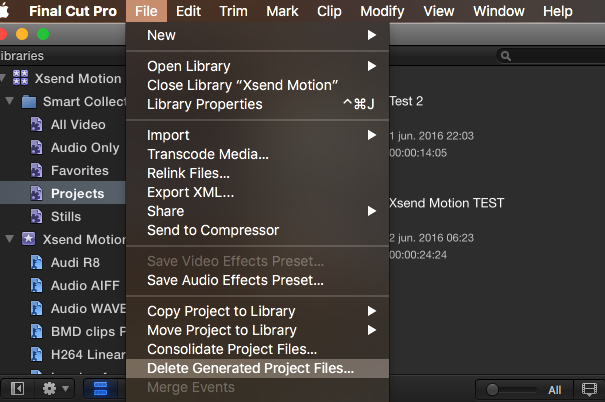
A new window will pop up. In this window, put a checkmark next to "Delete Render Files" and press OK. This will delete ALL the existing render files for the selected Project and you will get all your drive space back.
2. Select your Library in the FCP X browser and choose File > Delete Generated Library files. A new window will pop up. In this window, put a checkmark next to "Delete Render Files", then check "Unused Only".

This will delete all the UNUSED render files for every Project in your Library. Only the render files that are currently active will be preserved.
Glad to hear you are trying out FCP X. I am sure you will like what you see. If you have any questions, we are here to assist you whenever you wish.
- Ronny
As Ken and Tom said, working with optimized media will take up a lot of drive space. And so will render files.
When you have Background Rendering turned on, FCP X will create new render files every time you make any changes to any clip that has already been rendered. The old render files don't get automatically deleted, which allows you to Undo any edit actions without losing any of your renders. The downside to this is that all these render files can take up a lot of space over time.
The solution is easy.
You really don't need to render constantly at all while you are editing. FCP X is powerful enough to play your video including color correction and many effects and titles without rendering. That's why most of us turn Background Rendering off, and we only render something when we really want to.
If you have been constantly rendering and re-rendering and your drive is getting full, you can easily delete all your render files or just your old render files right from within FCP X. There are two ways you can do this:
1. Select your Project in the FCP X browser and choose File > Delete Generated Project files.
A new window will pop up. In this window, put a checkmark next to "Delete Render Files" and press OK. This will delete ALL the existing render files for the selected Project and you will get all your drive space back.
2. Select your Library in the FCP X browser and choose File > Delete Generated Library files. A new window will pop up. In this window, put a checkmark next to "Delete Render Files", then check "Unused Only".
This will delete all the UNUSED render files for every Project in your Library. Only the render files that are currently active will be preserved.
Glad to hear you are trying out FCP X. I am sure you will like what you see. If you have any questions, we are here to assist you whenever you wish.
- Ronny
Last edit: 04 Jun 2016 06:05 by ronny courtens.
Please Log in to join the conversation.
04 Jun 2016 16:43 #77453
by ecurquha
Hi Ben,
The format/codec is an mp4 file H.264, AAC. The original file size is a little over 5GB.
Replied by ecurquha on topic Crazy amount of GB taken up by FCP. Help!
ben.gibson wrote: I'm probably not the one to walk you through a full tutorial of FCPX, that covers the several concepts covered in your question, but I may be able to help some. My first question is, what is the format/codec of the media your are editing? And how much space does this original media take up before even being in FCPX?
Hi Ben,
The format/codec is an mp4 file H.264, AAC. The original file size is a little over 5GB.
Please Log in to join the conversation.
04 Jun 2016 16:45 #77454
by ecurquha
Hi Tom,
I'm not sure if I did optimize the video. I do know that renders were set to ProRes.
I had looked at exporting a master file with the ProRes stats. That was 130GB. I just need to export for YouTube at 4K, 30fps, best quality. I tried sharing to YT through the program, but the render failed for some reason.
My original file is under 6GB, so I'm not sure why the background render had been taking over 60GB of space.
Replied by ecurquha on topic Crazy amount of GB taken up by FCP. Help!
Tom Wolsky wrote: Good questions from Ken. To add, did you optimize your media? That makes high quality, large ProRes files? Did you export a master file in ProRes, high quality and large. Video takes a lot of space. For a half hour project that's not bad. Think about big, fast external storage.
Hi Tom,
I'm not sure if I did optimize the video. I do know that renders were set to ProRes.
I had looked at exporting a master file with the ProRes stats. That was 130GB. I just need to export for YouTube at 4K, 30fps, best quality. I tried sharing to YT through the program, but the render failed for some reason.
My original file is under 6GB, so I'm not sure why the background render had been taking over 60GB of space.
Please Log in to join the conversation.
04 Jun 2016 16:53 #77455
by ecurquha
Replied by ecurquha on topic Crazy amount of GB taken up by FCP. Help!
Hi Ronny,
Thank you so much for this tip. I have taken care of that side of things
Any suggestions for exporting an mp4 file at 4K without sharing directly to YouTube? I'm having trouble finding a way to do that.
Thanks!
Thank you so much for this tip. I have taken care of that side of things
Any suggestions for exporting an mp4 file at 4K without sharing directly to YouTube? I'm having trouble finding a way to do that.
Thanks!
Please Log in to join the conversation.
- Tom Wolsky
-
- Offline
- Moderator
-
04 Jun 2016 18:06 #77457
by Tom Wolsky
Replied by Tom Wolsky on topic Crazy amount of GB taken up by FCP. Help!
Select s clip and in the info inspector scroll to the bottom to see what versions are available, original, optimized, or proxy. A green dot means you have the file. You can use delete generated media to remove optimized files.
Please Log in to join the conversation.
- Tom Wolsky
-
- Offline
- Moderator
-
04 Jun 2016 18:08 - 04 Jun 2016 18:10 #77458
by Tom Wolsky
Replied by Tom Wolsky on topic Crazy amount of GB taken up by FCP. Help!
Is your media 4K or are you trying to up the resolution? The application will only export up to the size of the project not larger. Most settle bugs allow 4K export if the project is 4K.
Last edit: 04 Jun 2016 18:10 by Tom Wolsky.
Please Log in to join the conversation.
04 Jun 2016 18:18 #77459
by ecurquha
Replied by ecurquha on topic Crazy amount of GB taken up by FCP. Help!
Looks like I only have the green dot for original.
My original media is 4K
My original media is 4K
Please Log in to join the conversation.
- ronny courtens
-
- Offline
- Moderator
-
Less
More
- Posts: 4455
- Thank you received: 962
04 Jun 2016 18:24 - 04 Jun 2016 18:24 #77460
by ronny courtens
Replied by ronny courtens on topic Crazy amount of GB taken up by FCP. Help!
The issue was with your render files.
FCP X always renders in ProRes 422 by default in order to give you the best render quality.
If your original file is H.264, you are running out of drive space and you absolutely want to render, you can change the render format of your Project to ProRes LT. This will make your render files much smaller.
To change the render format of your Project: select the Project in the browser and in the Inspector, click the Modify Settings button. The Project Settings window will open, and here you can change the Render Format.
As to sharing to YouTube:
If direct sharing to YT does not work for you, you can export a master file from your Project and upload this file to YouTube from your YT account. As you say your ProRes 422 master file is 130 GB, I doubt you will be able to upload a file that size without any issues.
But there is another way. Instead of exporting a ProRes 422 master file, export an H.264 file instead. Click the Share button and select Master File. Then, in the settings tab of the export window, choose Format: Computer, Video Codec: Better Quality, and Resolution: 4K or whatever is the highest resolution you can select.
This will export a high-quality H.264 file that will be much smaller than a ProRes 422 file and that will be much easier for you to upload to YT.
- Ronny
FCP X always renders in ProRes 422 by default in order to give you the best render quality.
If your original file is H.264, you are running out of drive space and you absolutely want to render, you can change the render format of your Project to ProRes LT. This will make your render files much smaller.
To change the render format of your Project: select the Project in the browser and in the Inspector, click the Modify Settings button. The Project Settings window will open, and here you can change the Render Format.
As to sharing to YouTube:
If direct sharing to YT does not work for you, you can export a master file from your Project and upload this file to YouTube from your YT account. As you say your ProRes 422 master file is 130 GB, I doubt you will be able to upload a file that size without any issues.
But there is another way. Instead of exporting a ProRes 422 master file, export an H.264 file instead. Click the Share button and select Master File. Then, in the settings tab of the export window, choose Format: Computer, Video Codec: Better Quality, and Resolution: 4K or whatever is the highest resolution you can select.
This will export a high-quality H.264 file that will be much smaller than a ProRes 422 file and that will be much easier for you to upload to YT.
- Ronny
Last edit: 04 Jun 2016 18:24 by ronny courtens.
Please Log in to join the conversation.
