


- Posts: 256
- Thank you received: 48
3 Post Moderation Rule for New Boarders (25 Jan 2021)
New boarders will have their posts moderated - Don't worry if you cannot see your post immediately.
Managing Footage - How to Find All Clips That Contain a Range Selection
- MarkNelsonMovies
-

- Offline
- Elite Member
-

Less
More
13 Apr 2016 16:32 #75317
by MarkNelsonMovies
Replied by MarkNelsonMovies on topic Managing Footage - How to Find All Clips That Contain a Range Selection
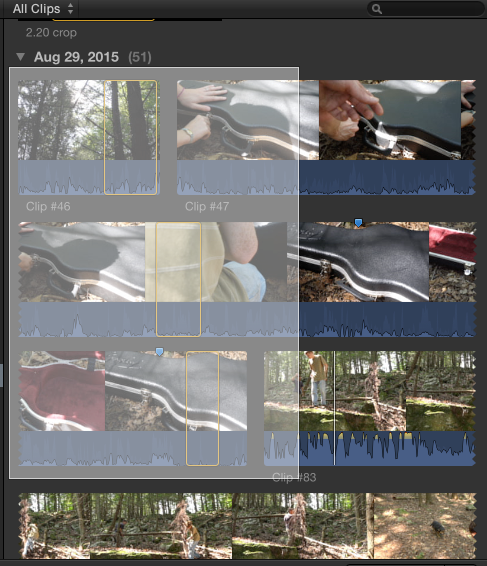
This may help clarify what we are talking about
Please Log in to join the conversation.

13 Apr 2016 16:32 #75318
by BenB
Replied by BenB on topic Managing Footage - How to Find All Clips That Contain a Range Selection
"The process of going through my entire library and hunting for ranges seems firstly, like I might miss some...
I see what you're doing, you're just making ranges on everything first. Not correct workflow. Tag them as you make the ranges in the first place. As Justine said, when you first drag out a range on a clip, hit F, or give it a keyword. Move on to the next range or clip. Just selecting a range is just that, selecting a range, and the first step of a process. Second step, do something with it: drop it into a timeline, tag it, keyword it, etc. I think you're going about things a little backwards.
I see what you're doing, you're just making ranges on everything first. Not correct workflow. Tag them as you make the ranges in the first place. As Justine said, when you first drag out a range on a clip, hit F, or give it a keyword. Move on to the next range or clip. Just selecting a range is just that, selecting a range, and the first step of a process. Second step, do something with it: drop it into a timeline, tag it, keyword it, etc. I think you're going about things a little backwards.
Please Log in to join the conversation.
Less
More
- Posts: 971
- Thank you received: 46
13 Apr 2016 16:36 #75319
by MsJustine
Replied by MsJustine on topic Managing Footage - How to Find All Clips That Contain a Range Selection
Dragging a range, then not doing anything, then dragging a range is telling the database to ignore the first range, that was a mistake, you need as Ben says do something with the range, F, delete key, keyword, or hold the CMD key, if you dont do anything, the database will just ignore the first range until you do something..
Multiple ranges require input from you, the CMD tells FCPX to accept multiple ranges.
Multiple ranges require input from you, the CMD tells FCPX to accept multiple ranges.
Please Log in to join the conversation.
- david.bryan
-
Topic Author
- Offline
- New Member
-

Less
More
- Posts: 14
- Thank you received: 0
13 Apr 2016 17:04 - 13 Apr 2016 17:07 #75320
by david.bryan
Replied by david.bryan on topic Managing Footage - How to Find All Clips That Contain a Range Selection
Right, thanks guys. I now understand the mistake I've made buy only selecting ranges. I see that I now need to give those ranges an identifier that's meaningful to the database.
Take a look at the video below, I clarify exactly what I'm looking to do at this point:
Take a look at the video below, I clarify exactly what I'm looking to do at this point:
Last edit: 13 Apr 2016 17:07 by david.bryan.
Please Log in to join the conversation.
Less
More
- Posts: 971
- Thank you received: 46
13 Apr 2016 17:12 #75321
by MsJustine
Replied by MsJustine on topic Managing Footage - How to Find All Clips That Contain a Range Selection
As you see in the video, hold the CMD key, then press the ranges you have selected, then press the F key, the keyword key, as long as you hold down the CMD first before selecting any range, the ranges will highlight in yellow, the CMD key tells FCPX to accept multiple ranges, but you have to after CMD+select range, press a key, F, delete to reject, or the small key in blue to enter in a keyword, then a keyword collection will be automatically corrected.
Justine
Justine
Please Log in to join the conversation.
Less
More
- Posts: 971
- Thank you received: 46
13 Apr 2016 17:13 #75322
by MsJustine
Replied by MsJustine on topic Managing Footage - How to Find All Clips That Contain a Range Selection
Hi David, would a skype call help?
Justine
Justine
Please Log in to join the conversation.
- david.bryan
-
Topic Author
- Offline
- New Member
-
Less
More
- Posts: 14
- Thank you received: 0
13 Apr 2016 17:46 #75324
by david.bryan
Replied by david.bryan on topic Managing Footage - How to Find All Clips That Contain a Range Selection
I'm out the rest of the day, but if I don't figure it out by tomorrow I'll PM you. Thanks for the offer.
Please Log in to join the conversation.
- MarkNelsonMovies
-
- Offline
- Elite Member
-
Less
More
- Posts: 256
- Thank you received: 48
13 Apr 2016 17:55 - 13 Apr 2016 17:56 #75326
by MarkNelsonMovies
Replied by MarkNelsonMovies on topic Managing Footage - How to Find All Clips That Contain a Range Selection
Here's what I would do,
Set the browser time zoom level (I'm not sure exactly what its called, and can't find a name in the manual) to 'all', then press Command>A to select all ranges,
then Command click all clips that don't have IO ranges set to deselect them.
After that you can favorite or apply a keyboard and work from there.
Set the browser time zoom level (I'm not sure exactly what its called, and can't find a name in the manual) to 'all', then press Command>A to select all ranges,
then Command click all clips that don't have IO ranges set to deselect them.
After that you can favorite or apply a keyboard and work from there.
Last edit: 13 Apr 2016 17:56 by MarkNelsonMovies.
Please Log in to join the conversation.
- MarkNelsonMovies
-
- Offline
- Elite Member
-
Less
More
- Posts: 256
- Thank you received: 48
13 Apr 2016 18:57 #75329
by MarkNelsonMovies
Replied by MarkNelsonMovies on topic Managing Footage - How to Find All Clips That Contain a Range Selection
One other thing, you may be able to use smart collections to group the footage by camera or date, letting you go through it in smaller chunks at at time, leaving less room for error.
Please Log in to join the conversation.
- Carsten Orlt
-

- Offline
- Platinum Member
-

Less
More
- Posts: 422
- Thank you received: 82
13 Apr 2016 21:53 - 13 Apr 2016 23:48 #75337
by Carsten Orlt
Replied by Carsten Orlt on topic Managing Footage - How to Find All Clips That Contain a Range Selection
You have one chance to convert all your in-out selections to favourite ranges quickly.
If your select projects (reels) contain exactly those current in-out ranges in your clips than you're in luck.
Create a new Smart Collection on Library level (select the library on top and right click new Smart Collection)
Double click the Smart Collection and from the + menu select 'Media Used'. The Browser display will instantly change showing the clip ranges used in the current project loaded into the timeline.
Now all you have to do is load the Select Projects one by one (or make a new Project and copy all Select Projects into that one) and go back to the Browser and select the new Smart Collection for used media. To make sure you don't have any in-out ranges on the used ranges > Select all> option-x to delete any in-out ranges> Select all again and press F to favourite. Repeat for all if you haven't done the one Project combining all Select Projects and you're done.
As said this will only convert the in-out ranges that are in Projects. Any other you have to do one by one
Happy editing
Carsten
If your select projects (reels) contain exactly those current in-out ranges in your clips than you're in luck.
Create a new Smart Collection on Library level (select the library on top and right click new Smart Collection)
Double click the Smart Collection and from the + menu select 'Media Used'. The Browser display will instantly change showing the clip ranges used in the current project loaded into the timeline.
Now all you have to do is load the Select Projects one by one (or make a new Project and copy all Select Projects into that one) and go back to the Browser and select the new Smart Collection for used media. To make sure you don't have any in-out ranges on the used ranges > Select all> option-x to delete any in-out ranges> Select all again and press F to favourite. Repeat for all if you haven't done the one Project combining all Select Projects and you're done.
As said this will only convert the in-out ranges that are in Projects. Any other you have to do one by one
Happy editing
Carsten
Last edit: 13 Apr 2016 23:48 by Carsten Orlt.
Please Log in to join the conversation.
- david.bryan
-
Topic Author
- Offline
- New Member
-
Less
More
- Posts: 14
- Thank you received: 0
14 Apr 2016 01:15 - 14 Apr 2016 01:31 #75340
by david.bryan
Replied by david.bryan on topic Managing Footage - How to Find All Clips That Contain a Range Selection
@cofe, you nailed it. That will actually save me quite a bit of time.
Next question:
This is about the way FCP shows my clips in the events browser when working with ranges.
Here's what a clip with mutliple favorited ranges looks like when I have the event filter set to "All Clips" or "Hide Rejected"

Switch the filter menu over to "Favorites" and this is how exact same clip is shown.

Personally I prefer the first view because it shows more meaningful information, where your ranges are in relation to each other, how much heads and tails you have between your favorited sections, and I like to clearly see that it is only one clip without having to check the file names.
I suppose a solution to this would be set all non favorited clips as rejected and use the "Hide Rejected" filter. Does any one have similar feelings about these views, or am I on my own here?
Next question:
This is about the way FCP shows my clips in the events browser when working with ranges.
Here's what a clip with mutliple favorited ranges looks like when I have the event filter set to "All Clips" or "Hide Rejected"
Switch the filter menu over to "Favorites" and this is how exact same clip is shown.
Personally I prefer the first view because it shows more meaningful information, where your ranges are in relation to each other, how much heads and tails you have between your favorited sections, and I like to clearly see that it is only one clip without having to check the file names.
I suppose a solution to this would be set all non favorited clips as rejected and use the "Hide Rejected" filter. Does any one have similar feelings about these views, or am I on my own here?
Last edit: 14 Apr 2016 01:31 by david.bryan.
Please Log in to join the conversation.
- Carsten Orlt
-
- Offline
- Platinum Member
-
Less
More
- Posts: 422
- Thank you received: 82
14 Apr 2016 03:49 #75341
by Carsten Orlt
Replied by Carsten Orlt on topic Managing Footage - How to Find All Clips That Contain a Range Selection
Cool happy that works.
Re your follow up question: Not sure I agree
If the view you showed works for you than use it
Rating the non favourite parts with reject doesn't do anything because when you filter 'hide rejected' you get your favourites again.
Two things to think about:
You can select a favourite range in your view by clicking on the green bar on top
or
when placing the playhead in a clip you can jump from favourite to favourite range back and forth by pressing ; or ' on the keyboard (got to previous edit/go to next edit)
Happy editing
Carsten
Re your follow up question: Not sure I agree
If the view you showed works for you than use it
Rating the non favourite parts with reject doesn't do anything because when you filter 'hide rejected' you get your favourites again.
Two things to think about:
You can select a favourite range in your view by clicking on the green bar on top
or
when placing the playhead in a clip you can jump from favourite to favourite range back and forth by pressing ; or ' on the keyboard (got to previous edit/go to next edit)
Happy editing
Carsten
Please Log in to join the conversation.
14 Apr 2016 12:42 - 14 Apr 2016 12:49 #75381
by BenB
Replied by BenB on topic Managing Footage - How to Find All Clips That Contain a Range Selection
Remember, if you keyword/tag ranges, and set a filter in one of the several ways to do that, you only see the sections tagged/keyworded as sub-clips. Thus, think about what you do and don't want to see.
So, you want to only see clips that have Favorite rages, AND see the whole clip, from what I understand. HHMmm... Then you'd want to select the clips you do NOT want to see ever again, and tag them as Rejected, then set the Browser's clip filter menu to Hide Rejected.
So, you want to only see clips that have Favorite rages, AND see the whole clip, from what I understand. HHMmm... Then you'd want to select the clips you do NOT want to see ever again, and tag them as Rejected, then set the Browser's clip filter menu to Hide Rejected.
Last edit: 14 Apr 2016 12:49 by BenB.
Please Log in to join the conversation.
