


- Posts: 12
- Thank you received: 1
3 Post Moderation Rule for New Boarders (25 Jan 2021)
New boarders will have their posts moderated - Don't worry if you cannot see your post immediately.
This Video Is About...
- chrisfreeman804
-
 Topic Author
- Offline
- New Member
-

Less
More
16 May 2015 06:35 #64569
by chrisfreeman804
This Video Is About... was created by chrisfreeman804
Every time I export from FCPX (10.1.4), it puts a description in the video ("This video is about x.") I never want that description in my export because it shows up in random places like across the top title bar when playing the video later in QuickTime. Is there a way to turn that off for every event and project that I'll ever create now and into the future? I see it in the "Share" field under individual project properties, but how do I make it global for everything ever?
I've probably wasted a month of my life triple clicking and hitting delete in that field every time I've exported from FCPX over the last 4 years.
I've probably wasted a month of my life triple clicking and hitting delete in that field every time I've exported from FCPX over the last 4 years.
Please Log in to join the conversation.
- Tom Wolsky
-

- Offline
- Moderator
-

16 May 2015 06:56 #64570
by Tom Wolsky
Replied by Tom Wolsky on topic This Video Is About...
The first panel of the export dialog displays the tagging information. It can be deleted or changed there.
Please Log in to join the conversation.

16 May 2015 07:51 #64573
by Overturf
Replied by Overturf on topic This Video Is About...
I hear ya, Chris. This so sucks!
Please Log in to join the conversation.
- ronny courtens
-

- Offline
- Moderator
-
Less
More
- Posts: 4455
- Thank you received: 962
16 May 2015 09:19 - 16 May 2015 09:25 #64577
by ronny courtens
Replied by ronny courtens on topic This Video Is About...
It's easy to change this. But first let me explain why you are getting these fields.
When you export a timeline FCP X adds 4 default metadata fields to your file:
- Title
- Description
- Creator
- Tags
These default metadata fields are always part of any exported file, so they will always appear in the export dialog and there is no way you can change this. But this does not mean the fields need to contain any information, except for the Title.
The Title field is mandatory because you cannot export a movie without a name (which seems obvious). So you can modify the Title field, but you cannot leave it empty. If you leave it empty you won't be able to export anymore, the Export button will be grayed out.
Description, Creator and Tags fields are always displayed, but they are not mandatory. This means you can leave them blank and you will still be able to export the timeline.
Now back to your question.
As Tom said, you can modify or delete the contents of the default metadata fields in the first panel of the export dialog. But this means you have to do this for every single project you export. If you never need to include any of the information displayed in these fields (except for the title), I understand that it can be frustrating having to delete the information every time you want to export a timeline. So here's how you can avoid this:
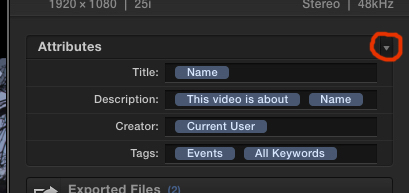
1. Select a Project (any Project) in the browser and go to the Inspector > Share tab. In the Share tab you will see the attributes that are included with each default metadata field. Click the little white triangle to reveal the Share Attributes pop-up menu:
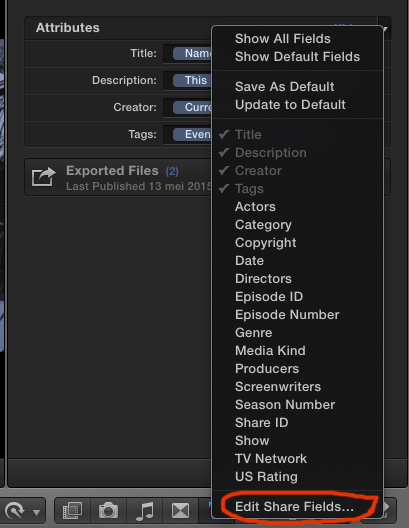
2. In the pop-up menu select Edit Share Fields:
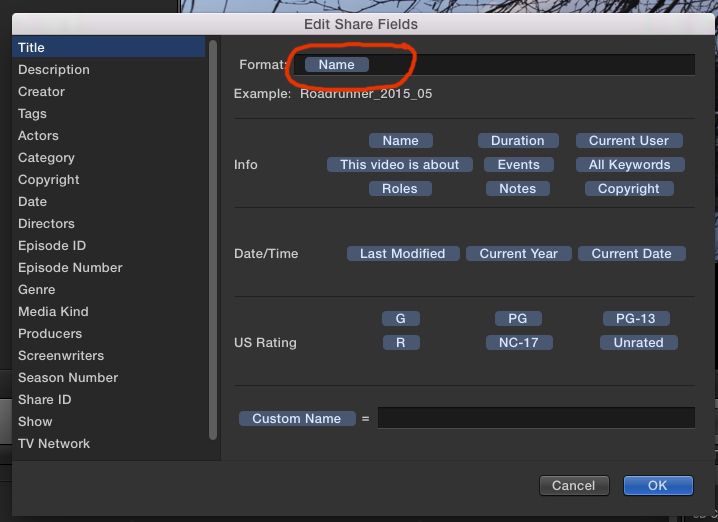
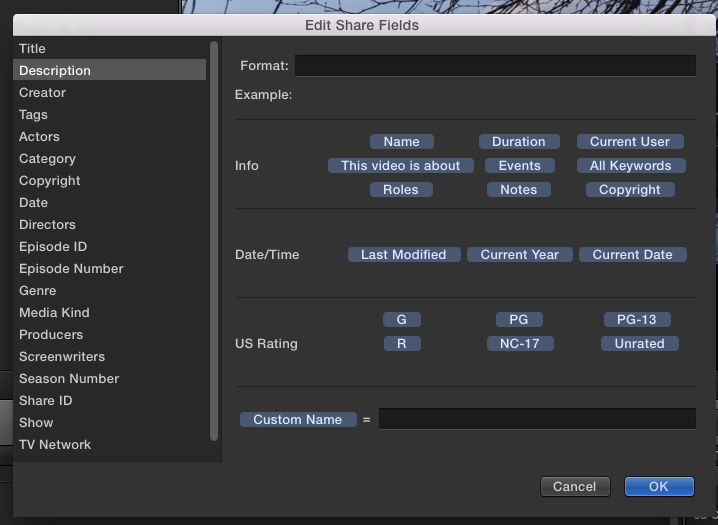
3. Now you can modify the attributes for each Share field. Click on "Title" and you will see it has a "Name" attribute in the format window. As every shared file needs to have a name it is best to leave this as it is. This means the name of the Title field will be the same as the name of the Project you export:
4. The other fields can be left empty if you don't want them. So click on "Description" and delete the "This video is about" attribute and the "Name" attribute in the Format window (don't press OK yet):
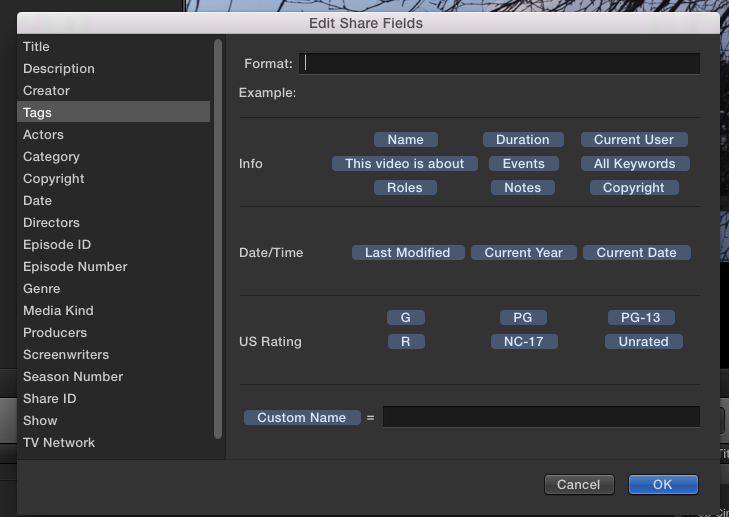
5. Do the same for the Creator and the Tags fields, then press OK:
6. Now the most important part: open the Share Attributes window again and select "Save as Default":
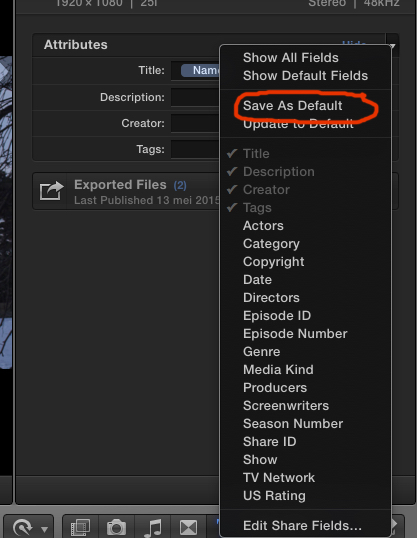
From now on, every new Project you create will only have the mandatory Title metadata in the Share dialog, the other fields will be empty:
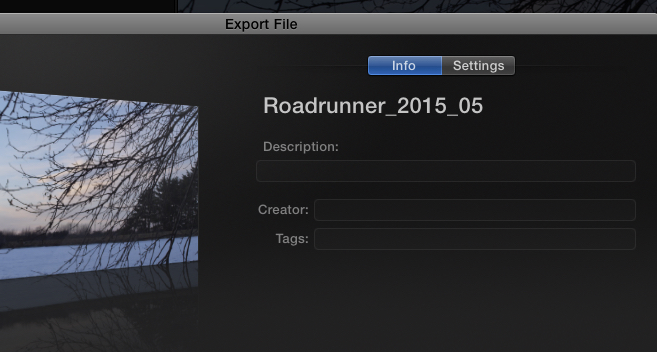
So the next question is: what if I want to export existing Projects that still have all those metadata fields I don't want?
Easy. Whenever you need to export an older Project, select it and in the Inspector > Share tab open the Share Attributes window and select "Update to Default":
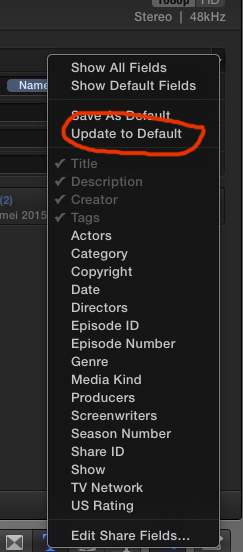
This will remove the unwanted attributes from the metadata of your exported file.
- Ronny
When you export a timeline FCP X adds 4 default metadata fields to your file:
- Title
- Description
- Creator
- Tags
These default metadata fields are always part of any exported file, so they will always appear in the export dialog and there is no way you can change this. But this does not mean the fields need to contain any information, except for the Title.
The Title field is mandatory because you cannot export a movie without a name (which seems obvious). So you can modify the Title field, but you cannot leave it empty. If you leave it empty you won't be able to export anymore, the Export button will be grayed out.
Description, Creator and Tags fields are always displayed, but they are not mandatory. This means you can leave them blank and you will still be able to export the timeline.
Now back to your question.
As Tom said, you can modify or delete the contents of the default metadata fields in the first panel of the export dialog. But this means you have to do this for every single project you export. If you never need to include any of the information displayed in these fields (except for the title), I understand that it can be frustrating having to delete the information every time you want to export a timeline. So here's how you can avoid this:
1. Select a Project (any Project) in the browser and go to the Inspector > Share tab. In the Share tab you will see the attributes that are included with each default metadata field. Click the little white triangle to reveal the Share Attributes pop-up menu:
2. In the pop-up menu select Edit Share Fields:
3. Now you can modify the attributes for each Share field. Click on "Title" and you will see it has a "Name" attribute in the format window. As every shared file needs to have a name it is best to leave this as it is. This means the name of the Title field will be the same as the name of the Project you export:
4. The other fields can be left empty if you don't want them. So click on "Description" and delete the "This video is about" attribute and the "Name" attribute in the Format window (don't press OK yet):
5. Do the same for the Creator and the Tags fields, then press OK:
6. Now the most important part: open the Share Attributes window again and select "Save as Default":
From now on, every new Project you create will only have the mandatory Title metadata in the Share dialog, the other fields will be empty:
So the next question is: what if I want to export existing Projects that still have all those metadata fields I don't want?
Easy. Whenever you need to export an older Project, select it and in the Inspector > Share tab open the Share Attributes window and select "Update to Default":
This will remove the unwanted attributes from the metadata of your exported file.
- Ronny
Last edit: 16 May 2015 09:25 by ronny courtens.
Please Log in to join the conversation.
- chrisfreeman804
-
Topic Author
- Offline
- New Member
-
Less
More
- Posts: 12
- Thank you received: 1
16 May 2015 09:53 #64578
by chrisfreeman804
Replied by chrisfreeman804 on topic This Video Is About...
Thanks! I was so close in the Share pane, I just didn't see "Save as Default."
Please Log in to join the conversation.
- ronny courtens
-
- Offline
- Moderator
-
Less
More
- Posts: 4455
- Thank you received: 962
16 May 2015 11:08 #64582
by ronny courtens
Replied by ronny courtens on topic This Video Is About...
My pleasure. This example really shows how different users have different needs.
While you don't want to see any of the metadata included in the file, we actually add more metadata than the default ones. We create custom tags that are automatically added to the file metadata when exporting, saving us lots of time compared to having to type everything manually for every program. So this feature does not "suck" at all, it's actually very useful and powerful.
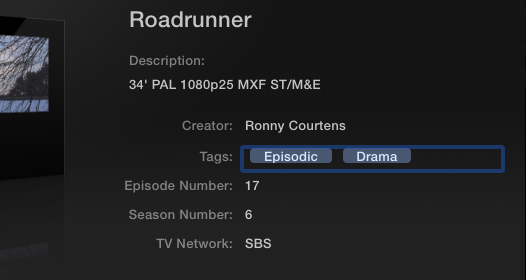
- Ronny
While you don't want to see any of the metadata included in the file, we actually add more metadata than the default ones. We create custom tags that are automatically added to the file metadata when exporting, saving us lots of time compared to having to type everything manually for every program. So this feature does not "suck" at all, it's actually very useful and powerful.
- Ronny
Please Log in to join the conversation.
- craig.russill-roy
-
- Offline
- New Member
-
Less
More
- Posts: 9
- Thank you received: 1
27 Mar 2016 09:00 #74685
by craig.russill-roy
Replied by craig.russill-roy on topic This Video Is About...
hey Ronny,
great explanation, what if you want to add or change the edit share fields templates ... ? I am assuming they took a lot of Final Cut Server into FCPX and I am trying to extract those fields for bespoke exporting of files, I currently have a workaround where I add the data to the Clountdown and then export a sidecar xml with the data, I am keen on doing this on a Project base not clip base
So I do this on a clip
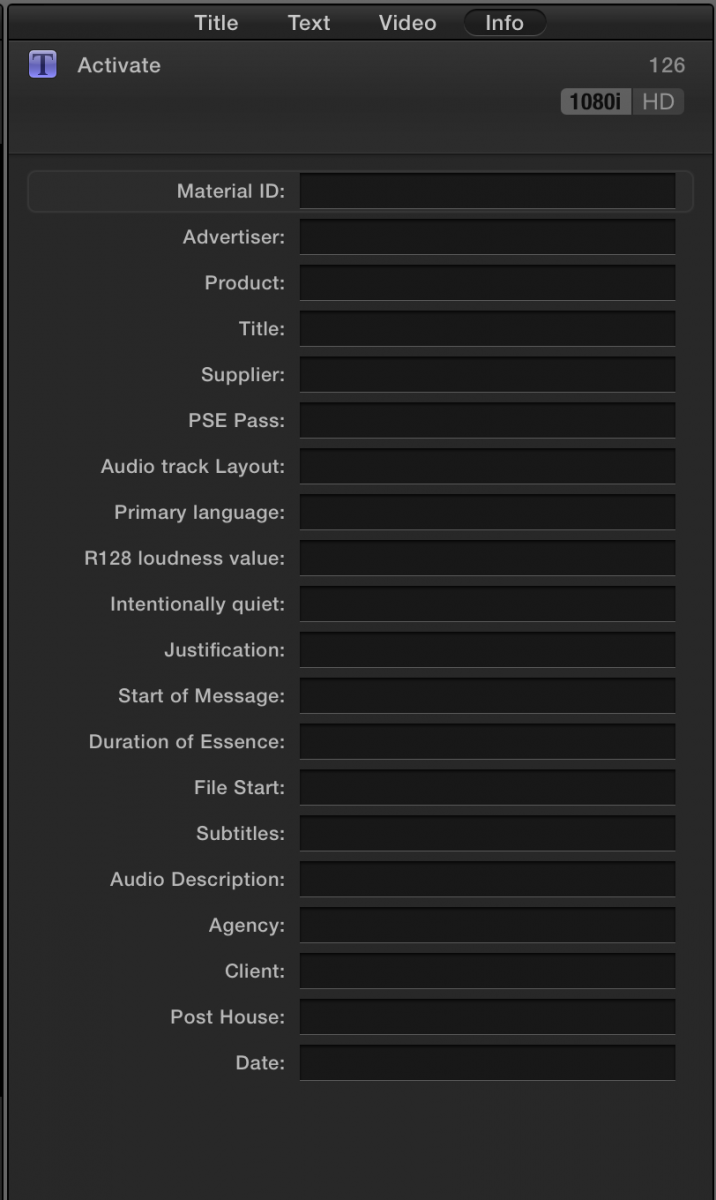
and wanting to do that in here
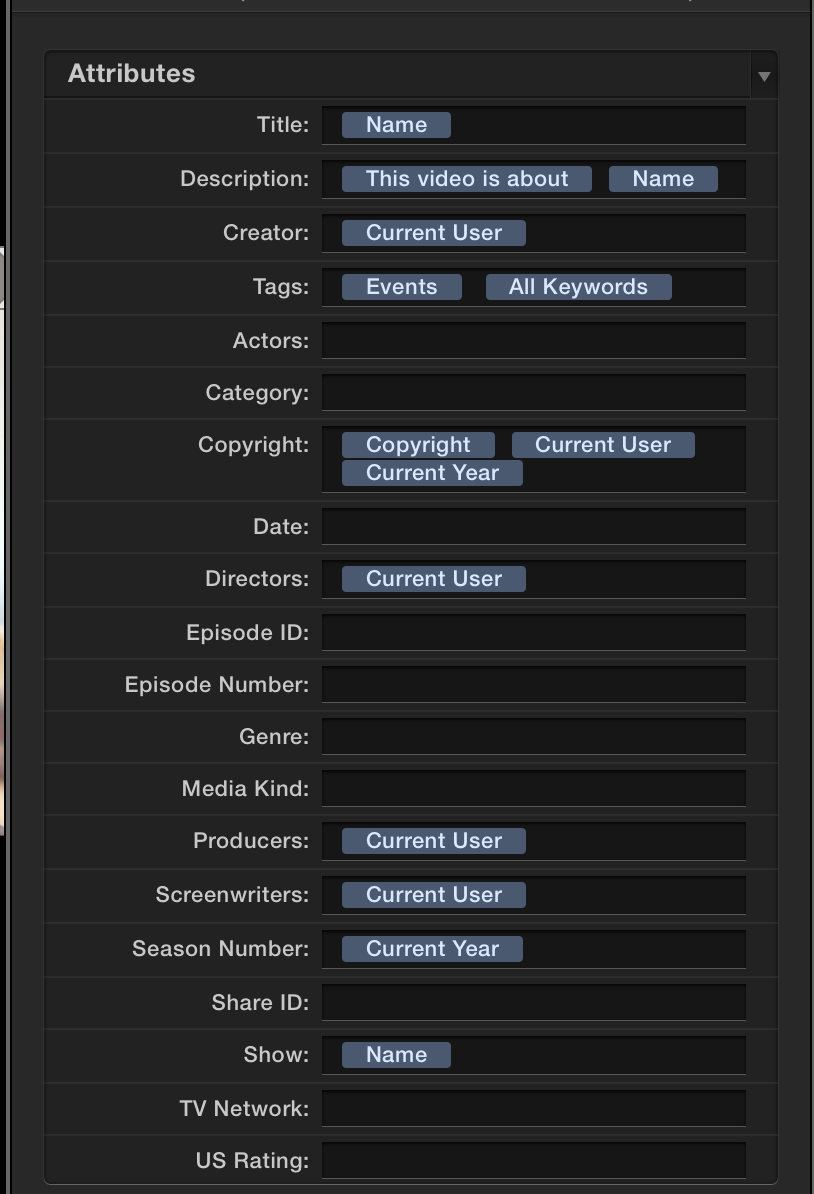
Any advice on where these are kept ?
Cheers !
great explanation, what if you want to add or change the edit share fields templates ... ? I am assuming they took a lot of Final Cut Server into FCPX and I am trying to extract those fields for bespoke exporting of files, I currently have a workaround where I add the data to the Clountdown and then export a sidecar xml with the data, I am keen on doing this on a Project base not clip base
So I do this on a clip
and wanting to do that in here
Any advice on where these are kept ?
Cheers !
Please Log in to join the conversation.
