


- Posts: 5
- Thank you received: 0
3 Post Moderation Rule for New Boarders (25 Jan 2021)
New boarders will have their posts moderated - Don't worry if you cannot see your post immediately.
Need help with the typewriter effect
25 Mar 2015 03:29 #61847
by totoro
Need help with the typewriter effect was created by totoro
Hi All,
I just started learning how to use FCPX and so please bear with me if this question is too elementary:
I'm trying to make a photo slideshow with a song as the background music. About 30 seconds of the song is a rap, during which I’d like to show on screen a poem, with the effect of each letter being typed on screen at the rhythm of the rap. The rhythm varies. I know there is a “typewriter” effect under “Title” in FCPX, but if I simply drag and drop the effect over the frame where the poem shows, the typing speed goes way too fast and at the same speed only. I need the typing speed to vary at the rhythm of the rap, not only in different lines but within the same line of the text.
I tried to adjust the speed in “Inspector” of the typewriter effect, but even its maximum value is too fast. Also, any adjustment made applies to the entire frame of the multiple-line poem, which is not what I want.
Does anyone know how to solve this issue? Basically, I’d like to have a type-on effect that can vary its speed according to the beat of music in different parts of a text on one single frame.
Thanks much for any advice you guys can provide!
I just started learning how to use FCPX and so please bear with me if this question is too elementary:
I'm trying to make a photo slideshow with a song as the background music. About 30 seconds of the song is a rap, during which I’d like to show on screen a poem, with the effect of each letter being typed on screen at the rhythm of the rap. The rhythm varies. I know there is a “typewriter” effect under “Title” in FCPX, but if I simply drag and drop the effect over the frame where the poem shows, the typing speed goes way too fast and at the same speed only. I need the typing speed to vary at the rhythm of the rap, not only in different lines but within the same line of the text.
I tried to adjust the speed in “Inspector” of the typewriter effect, but even its maximum value is too fast. Also, any adjustment made applies to the entire frame of the multiple-line poem, which is not what I want.
Does anyone know how to solve this issue? Basically, I’d like to have a type-on effect that can vary its speed according to the beat of music in different parts of a text on one single frame.
Thanks much for any advice you guys can provide!
Please Log in to join the conversation.
- ronny courtens
-

- Offline
- Moderator
-

Less
More
- Posts: 4455
- Thank you received: 962
25 Mar 2015 12:24 #61852
by ronny courtens
Replied by ronny courtens on topic Need help with the typewriter effect
Hi Totoro, welcome to the forum.
There is no template for what you would like to achieve, nor can anyone create anything like this. Why? Because there is no way anyone can know where you want the typewriting to slow down or to go faster. And even if you could do this, this template would be useless to anyone else because it would need to be different for every other project.
But you can easily achieve what you want by splitting up the text in different parts and using different Typewriter titles on top of each other whenever you need the text to go slower or faster. This way you can perfectly customize each part of the text so it runs in sync with the rapper. If one of the titles needs to run even slower than you can set it in the inspector, just put the title in a compound clip, select the CC on the timeline and adjust its speed (press R and drag to modify the speed, or enter a specific value).
- Ronny
There is no template for what you would like to achieve, nor can anyone create anything like this. Why? Because there is no way anyone can know where you want the typewriting to slow down or to go faster. And even if you could do this, this template would be useless to anyone else because it would need to be different for every other project.
But you can easily achieve what you want by splitting up the text in different parts and using different Typewriter titles on top of each other whenever you need the text to go slower or faster. This way you can perfectly customize each part of the text so it runs in sync with the rapper. If one of the titles needs to run even slower than you can set it in the inspector, just put the title in a compound clip, select the CC on the timeline and adjust its speed (press R and drag to modify the speed, or enter a specific value).
- Ronny
Please Log in to join the conversation.
25 Mar 2015 15:01 #61858
by totoro
Replied by totoro on topic Need help with the typewriter effect
Hi Ronny,
Thanks so much for the reply! Because I'm really new to FCPX, I need a bit more handhelding here :blush:
How can I split up the text in different parts and use different Typewriter titles on top of each other? Let's say the poem consists of 10 lines of text. I want the poem to start being typed on from the top left of the screen. Each line has different typing speed according to the music. Can you please give me a step-by-step instruction? Thank you!!
Thanks so much for the reply! Because I'm really new to FCPX, I need a bit more handhelding here :blush:
How can I split up the text in different parts and use different Typewriter titles on top of each other? Let's say the poem consists of 10 lines of text. I want the poem to start being typed on from the top left of the screen. Each line has different typing speed according to the music. Can you please give me a step-by-step instruction? Thank you!!
Please Log in to join the conversation.
- ronny courtens
-
- Offline
- Moderator
-
Less
More
- Posts: 4455
- Thank you received: 962
25 Mar 2015 16:38 #61871
by ronny courtens
Replied by ronny courtens on topic Need help with the typewriter effect
Okay, no problem.
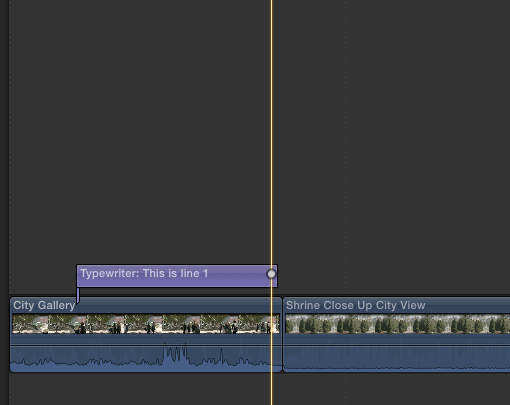
1. Add the typewriter template onto the timeline. Put the start of the title clip where you want the first line to start and drag the right side of the title clip to where you want the first line to end:
2. Select the title clip on the timeline and in the Inspector > Text tab type the first line of the text. Then drag in the Baseline numeric field to move the title up or down in the Viewer:

3. Finally click the Title tab in the Inspector and adjust the Duration until the typewriter animation stops exactly at the end of the title clip:

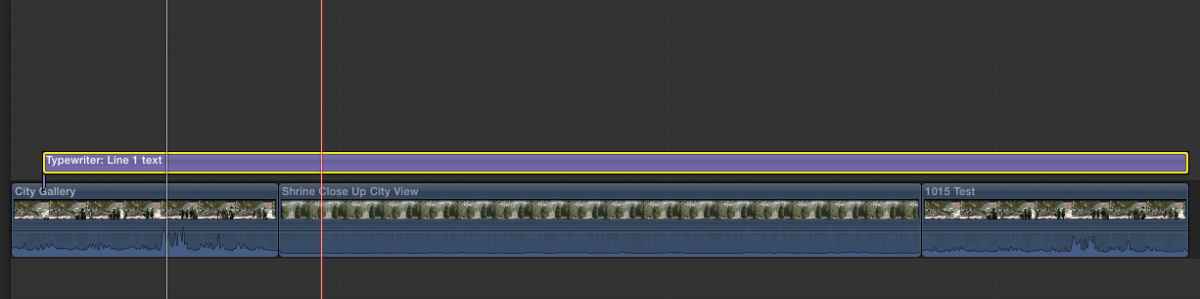
4. Your first line is animated, now drag the end of the first title clip until it reaches the end of the rap part. This will ensure that the first line stays on screen until the end of your complete text:
5. Add a second typewriter template onto the timeline. Put the start of the second title clip where you want the second line to start and drag the right side of the title clip to where you want the second line to end:

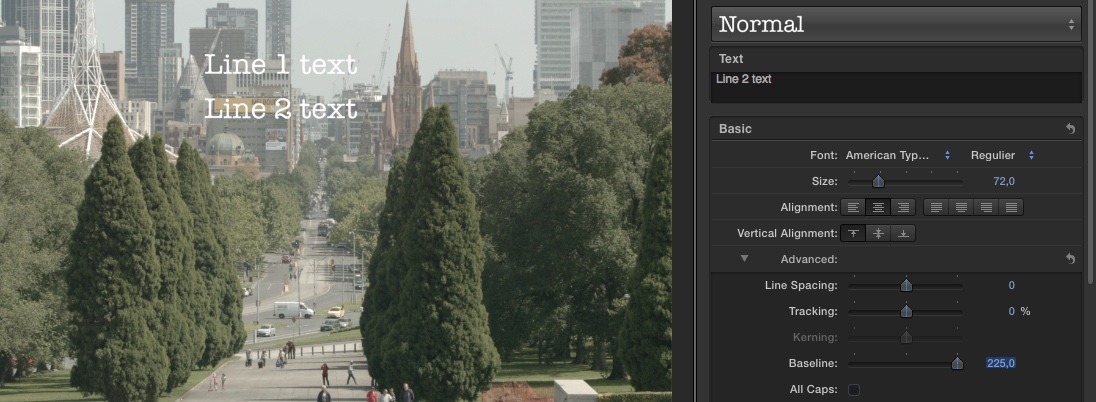
6. Type your second line, adjust Baseline to move the second line under the first one and adjust Duration to make the animation end at the correct spot:
7. Add all the following text lines using the same procedure until your complete text is on screen:

- Ronny
1. Add the typewriter template onto the timeline. Put the start of the title clip where you want the first line to start and drag the right side of the title clip to where you want the first line to end:
2. Select the title clip on the timeline and in the Inspector > Text tab type the first line of the text. Then drag in the Baseline numeric field to move the title up or down in the Viewer:
3. Finally click the Title tab in the Inspector and adjust the Duration until the typewriter animation stops exactly at the end of the title clip:
4. Your first line is animated, now drag the end of the first title clip until it reaches the end of the rap part. This will ensure that the first line stays on screen until the end of your complete text:
5. Add a second typewriter template onto the timeline. Put the start of the second title clip where you want the second line to start and drag the right side of the title clip to where you want the second line to end:
6. Type your second line, adjust Baseline to move the second line under the first one and adjust Duration to make the animation end at the correct spot:
7. Add all the following text lines using the same procedure until your complete text is on screen:
- Ronny
Please Log in to join the conversation.
26 Mar 2015 01:29 #61909
by totoro
Replied by totoro on topic Need help with the typewriter effect
Thank you SO MUCH, Ronny!! You can't imagine how much time I've spent trying to figure this out. All the pro friends I asked told me that they only know how to do it in After Effects. They all seemed to look on FCPX as an amateurish app that's not versatile enough for their needs. One of them suggested that I might try use Keynote to create this part of the video. Another suggested me to look into Motion 5, which seems to offer infinite options for animation but the learning curve was too steep for me.
Some follow-up questions on minor issues:
1. I'd like the poem to show up as white fonts on black background. In this case, should I first create the background by using the solid black background under "Generator," and then add the Typewriter effect?
2. Can I move the lines of text further to the left and the top?
3. If I want to have two different typing speeds in the same line, I suppose I should make two titles? How do I ensure a precise positioning of the text in the second title so that it aligns with the text in the first title?
Many thanks again!
Some follow-up questions on minor issues:
1. I'd like the poem to show up as white fonts on black background. In this case, should I first create the background by using the solid black background under "Generator," and then add the Typewriter effect?
2. Can I move the lines of text further to the left and the top?
3. If I want to have two different typing speeds in the same line, I suppose I should make two titles? How do I ensure a precise positioning of the text in the second title so that it aligns with the text in the first title?
Many thanks again!
Please Log in to join the conversation.
- Andreas Kiel
-

- Offline
- Platinum Member
-

Less
More
- Posts: 1077
- Thank you received: 189
26 Mar 2015 05:40 #61922
by Andreas Kiel
Replied by Andreas Kiel on topic Need help with the typewriter effect
Hi Totoro,
If you are a good "keyboard typer" you can do it real time.
You need TextEdit head phones and a good screen capture software.
Create a new TextEdit document (RTF) with black background and white font.
Start capture, play the sound file and type as you listen.
Once done import your screen recording into FCPX and set the mode to "Screen".
A did a little app for "natural typewriter effects" several years ago - was for a friend who searched the web over and over, but didn't find one.
dl.dropboxusercontent.com/u/63959366/SequenceMoreLines.mov
- Andreas
If you are a good "keyboard typer" you can do it real time.
You need TextEdit head phones and a good screen capture software.
Create a new TextEdit document (RTF) with black background and white font.
Start capture, play the sound file and type as you listen.
Once done import your screen recording into FCPX and set the mode to "Screen".
A did a little app for "natural typewriter effects" several years ago - was for a friend who searched the web over and over, but didn't find one.
dl.dropboxusercontent.com/u/63959366/SequenceMoreLines.mov
- Andreas
Please Log in to join the conversation.
- ronny courtens
-
- Offline
- Moderator
-
Less
More
- Posts: 4455
- Thank you received: 962
26 Mar 2015 07:27 #61923
by ronny courtens
Replied by ronny courtens on topic Need help with the typewriter effect
Ho Totoro,
1. Yes, that's how you would do it.
2. To move titles to the right or left: click the Video tab in the Inspector and change the x position.
If you want to align the titles Left or Right: click the Text tab and click the Left or Right alignment buttons.
If you want to align two titles for the same line: do it either manually using the x and y position tools in the Video tab, or note the values (Baseline, x or y) for the first title and enter the same values for the second title.
I have not used the app Andreas has made, but I know he's very good at making title apps. So you might want to check it out.
- Ronny
1. Yes, that's how you would do it.
2. To move titles to the right or left: click the Video tab in the Inspector and change the x position.
If you want to align the titles Left or Right: click the Text tab and click the Left or Right alignment buttons.
If you want to align two titles for the same line: do it either manually using the x and y position tools in the Video tab, or note the values (Baseline, x or y) for the first title and enter the same values for the second title.
I have not used the app Andreas has made, but I know he's very good at making title apps. So you might want to check it out.
- Ronny
Please Log in to join the conversation.
