


- Posts: 1
- Thank you received: 0
3 Post Moderation Rule for New Boarders (25 Jan 2021)
New boarders will have their posts moderated - Don't worry if you cannot see your post immediately.
Moving clips video + music
29 Nov 2014 13:16 #56635
by joaculo
Moving clips video + music was created by joaculo
Hi there, Im new to FcpX and IM having a hard time with a simple thing: moving video clips in the storyline. I have amusic file on the storyline, and when I move a clip, the music file moves with it instead of staying at its posiion. Its like they are linked. Its driving me crazy. How do I fix this, so if I move the video clip the audio clip remains the same position?
Please Log in to join the conversation.
- Tom Wolsky
-

- Offline
- Moderator
-

29 Nov 2014 13:32 #56636
by Tom Wolsky
Replied by Tom Wolsky on topic Moving clips video + music
Everything in the timeline is connected to something in the primary storyline. That's basic to the way to the application works.
There are a couple of different ways to do what you're doing. One very common method of building music videos is to put the music on the primary storyline and connect everything to that. Another way is to put a small gap clip at the head of the primary storyline and connect the audio to it, so the audio is pegged to the beginning of the timeline rather than to anything else on the primary storylines.
There are a couple of different ways to do what you're doing. One very common method of building music videos is to put the music on the primary storyline and connect everything to that. Another way is to put a small gap clip at the head of the primary storyline and connect the audio to it, so the audio is pegged to the beginning of the timeline rather than to anything else on the primary storylines.
Please Log in to join the conversation.

29 Nov 2014 15:38 #56639
by BenB
Replied by BenB on topic Moving clips video + music
If you do need to move clips in the Primary Storyline, holding down the Tilde or Grave key (just left of the 1 key, top left of the keyboard), overrides the connection, and connected clips stay where they are. The symbols typed out by this key are ` and ~ which are printed on the key. When you hold this key down, you'll see a "Connection Override" symbol.
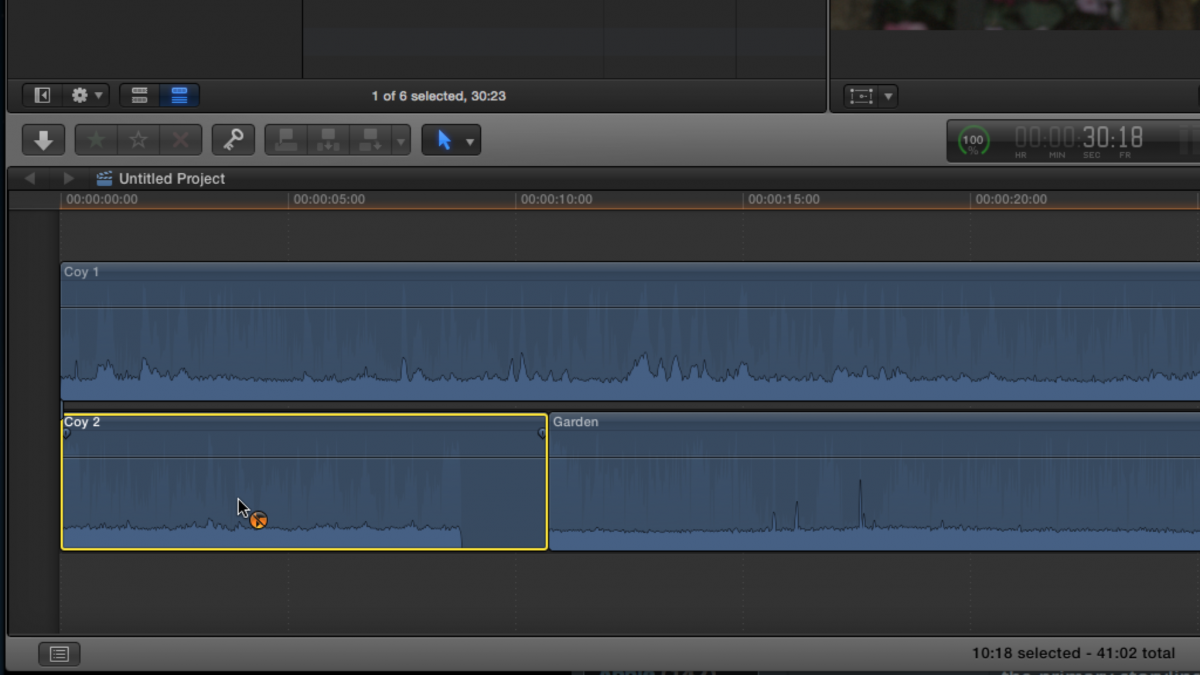
Hit P to get the Position tool, which basically turns off the magnetic characteristics of the Primary Storyline, and when you move clips, nothing else moves, and you overwrite. You know you have the Position tool activated, as the mouse cursor is an arrow with no tail.
Remember A is the shortcut to get back to your Arrow (or Selection) tool, which is the default. It looks like an arrow with a tail.
Hit P to get the Position tool, which basically turns off the magnetic characteristics of the Primary Storyline, and when you move clips, nothing else moves, and you overwrite. You know you have the Position tool activated, as the mouse cursor is an arrow with no tail.
Remember A is the shortcut to get back to your Arrow (or Selection) tool, which is the default. It looks like an arrow with a tail.
Please Log in to join the conversation.
- Jonathan Levin
-

- Offline
- Platinum Member
-

Less
More
- Posts: 786
- Thank you received: 21
29 Nov 2014 22:25 - 29 Nov 2014 22:26 #56656
by Jonathan Levin
Replied by Jonathan Levin on topic Moving clips video + music
I could be wrong, but another way to move stuff from the primary is to use the "Lift from primary Storyline" command any or all the clips you want to move independently from say your music track without that going all over the place.
I've just recently started to think differently about "Lift from primary Storyline" and actually use it.
Jonathan
I've just recently started to think differently about "Lift from primary Storyline" and actually use it.
Jonathan
Last edit: 29 Nov 2014 22:26 by Jonathan Levin.
Please Log in to join the conversation.
