


- Posts: 18
- Thank you received: 0
3 Post Moderation Rule for New Boarders (25 Jan 2021)
New boarders will have their posts moderated - Don't worry if you cannot see your post immediately.
full startup disk
09 Oct 2014 19:33 #53901
by rawprod
full startup disk was created by rawprod
Hi, i have a problem. My startup disk is full. I can't continue working on my project. What can I do. Is it possible to copy my project to external disk and work on external disk or is it possible to delete any render files?
Thank you
Thank you
Please Log in to join the conversation.
- Tom Wolsky
-

- Offline
- Moderator
-

09 Oct 2014 19:38 #53905
by Tom Wolsky
Replied by Tom Wolsky on topic full startup disk
What version are you using?
Please Log in to join the conversation.
09 Oct 2014 19:40 #53906
by rawprod
Replied by rawprod on topic full startup disk
FCPX 10.1.3
Please Log in to join the conversation.
- ronny courtens
-

- Offline
- Moderator
-
Less
More
- Posts: 4455
- Thank you received: 962
09 Oct 2014 19:45 - 09 Oct 2014 19:45 #53908
by ronny courtens
Replied by ronny courtens on topic full startup disk
You will need to make space on your startup disk before you can do anything else. Even when you copy files or projects over to an external drive your system needs space on the startup drive to store the intermediate cache files.
So don't do anything before you have created sufficient space on your system drive, or you might risk damaging the drive.
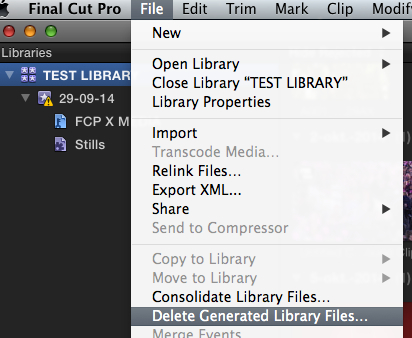
Yes, one thing you can do to create some space is to delete all your render files. If you are running 10.1.3 select your Library and choose File > Delete Generated Library Files. If your startup drive is really full you should delete as many files as you possibly can. You can delete all Render files and if you have created Optimized or Proxy media delete these as well, you can always regenerate those when you have copied the project over to your external drive.
When the startup drive has enough available space (which should always be at least 15 to 20% of its total capacity) you can move your Library to an external drive. If you have any doubts on how to do this, post back.
- Ronny
So don't do anything before you have created sufficient space on your system drive, or you might risk damaging the drive.
Yes, one thing you can do to create some space is to delete all your render files. If you are running 10.1.3 select your Library and choose File > Delete Generated Library Files. If your startup drive is really full you should delete as many files as you possibly can. You can delete all Render files and if you have created Optimized or Proxy media delete these as well, you can always regenerate those when you have copied the project over to your external drive.
When the startup drive has enough available space (which should always be at least 15 to 20% of its total capacity) you can move your Library to an external drive. If you have any doubts on how to do this, post back.
- Ronny
Last edit: 09 Oct 2014 19:45 by ronny courtens.
Please Log in to join the conversation.
09 Oct 2014 19:56 #53911
by rawprod
Replied by rawprod on topic full startup disk
Hi,
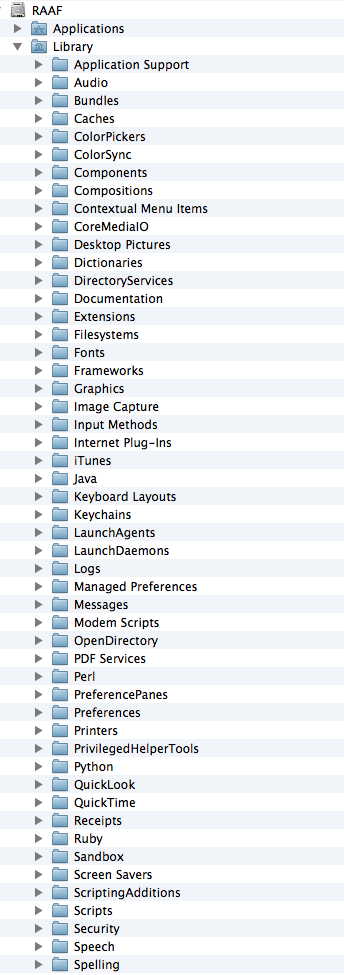
thank you for quick reply. Which files I should delete? I can find folder, which you described...
Thank you
thank you for quick reply. Which files I should delete? I can find folder, which you described...
Thank you
Please Log in to join the conversation.
- ronny courtens
-
- Offline
- Moderator
-
Less
More
- Posts: 4455
- Thank you received: 962
09 Oct 2014 20:00 #53912
by ronny courtens
Replied by ronny courtens on topic full startup disk
I meant your FCP X Library. It's better not to mess with FCP X files in Finder.
Can you launch FCP X and open your project, or cannot launch FCP X anymore with the full drive?
- Ronny
Can you launch FCP X and open your project, or cannot launch FCP X anymore with the full drive?
- Ronny
Please Log in to join the conversation.
09 Oct 2014 20:05 #53913
by rawprod
Replied by rawprod on topic full startup disk
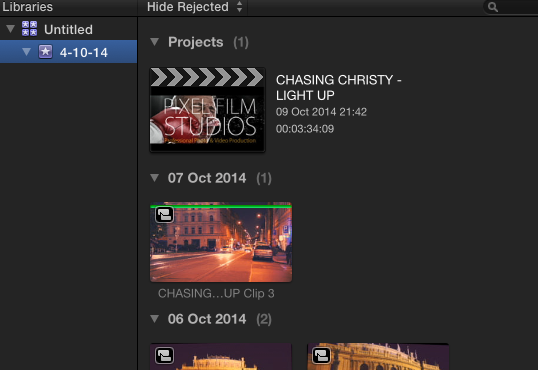
Yes, I can lauch fcpx. You mean these libraries on the left side on print screen?
Please Log in to join the conversation.
- ronny courtens
-
- Offline
- Moderator
-
Less
More
- Posts: 4455
- Thank you received: 962
09 Oct 2014 20:09 - 09 Oct 2014 20:10 #53914
by ronny courtens
Replied by ronny courtens on topic full startup disk
Yes, that's it.
Select the Library (the icon with four stars named "Untitled") and choose File > Delete Generated Library Files
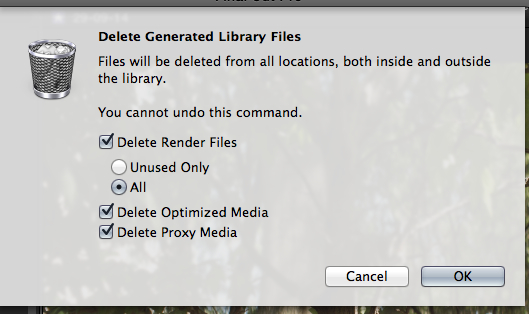
You will get a window asking you which files you wish to delete. Delete them all.
- Ronny
Select the Library (the icon with four stars named "Untitled") and choose File > Delete Generated Library Files
You will get a window asking you which files you wish to delete. Delete them all.
- Ronny
Last edit: 09 Oct 2014 20:10 by ronny courtens.
Please Log in to join the conversation.
09 Oct 2014 20:14 #53915
by rawprod
Replied by rawprod on topic full startup disk
But I don't delete my project? :-DD
Please Log in to join the conversation.
09 Oct 2014 20:18 #53916
by rawprod
Replied by rawprod on topic full startup disk
Which data I deleted with this step? My project will be still Ok?
Please Log in to join the conversation.
- ronny courtens
-
- Offline
- Moderator
-
Less
More
- Posts: 4455
- Thank you received: 962
09 Oct 2014 20:20 #53917
by ronny courtens
Replied by ronny courtens on topic full startup disk
This will not delete your project, it just will delete all the render files and any optimized or proxy media you have created for this project. You can regenerate these anytime you wish.
- Ronny
- Ronny
Please Log in to join the conversation.
09 Oct 2014 20:48 #53920
by rawprod
Replied by rawprod on topic full startup disk
You are the best! Thank you so much!
Please Log in to join the conversation.
- ronny courtens
-
- Offline
- Moderator
-
Less
More
- Posts: 4455
- Thank you received: 962
09 Oct 2014 20:52 #53921
by ronny courtens
Replied by ronny courtens on topic full startup disk
You are very welcome.
If you have deleted your generated media, check your startup drive. Make sure the available space is at least 15 to 20% of the total capacity of your drive. If it isn't you will have to move more files to your external drive until you have a comfortable amount of available drive space.
If you have a decent external drive it is always best to put your FCP X projects on that drive and not on your startup drive.
- Ronny
If you have deleted your generated media, check your startup drive. Make sure the available space is at least 15 to 20% of the total capacity of your drive. If it isn't you will have to move more files to your external drive until you have a comfortable amount of available drive space.
If you have a decent external drive it is always best to put your FCP X projects on that drive and not on your startup drive.
- Ronny
Please Log in to join the conversation.
- marvinberry
-

- Offline
- New Member
-

Less
More
- Posts: 8
- Thank you received: 0
27 Jun 2016 13:04 #78160
by marvinberry
May I just ask about this topic as well please?
I edit with all projects on 1TB external hard drives. But now I am getting a Full Start Up Disk warning. As I have 800GB remaining on my external hard drive I know this is referring my Mac's internal hard drive space.
Firstly, how do I free up space so I can continue editing please?
And secondly, how can I ensure in future that these render files or cache files are never stored on my internal hard drive again (external only)? I don't see any mention of it in FCPX preferences. I am using FCPX 10.2.3
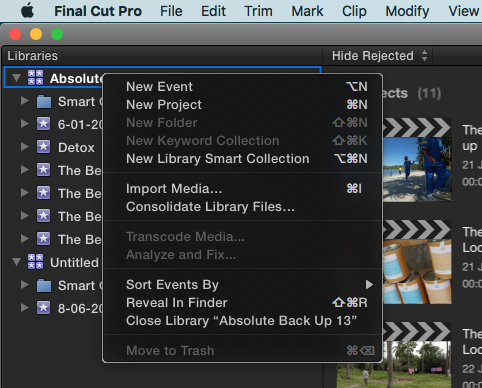
Unfortunately I don't see the option to delete these files either when I right-click on the library folder. Please see screen grab attachment.
Thanks in advance!
James
Replied by marvinberry on topic full startup disk
May I just ask about this topic as well please?
I edit with all projects on 1TB external hard drives. But now I am getting a Full Start Up Disk warning. As I have 800GB remaining on my external hard drive I know this is referring my Mac's internal hard drive space.
Firstly, how do I free up space so I can continue editing please?
And secondly, how can I ensure in future that these render files or cache files are never stored on my internal hard drive again (external only)? I don't see any mention of it in FCPX preferences. I am using FCPX 10.2.3
Unfortunately I don't see the option to delete these files either when I right-click on the library folder. Please see screen grab attachment.
Thanks in advance!
James
Please Log in to join the conversation.
- Tom Wolsky
-
- Offline
- Moderator
-
28 Jun 2016 11:38 #78198
by Tom Wolsky
Replied by Tom Wolsky on topic full startup disk
It's not in the shortcut menu; it's in the File menu.
Please Log in to join the conversation.
- ronny courtens
-
- Offline
- Moderator
-
Less
More
- Posts: 4455
- Thank you received: 962
29 Jun 2016 06:32 #78239
by ronny courtens
Replied by ronny courtens on topic full startup disk
Hi James,
As Tom says, you need to select your Library in the Browser and then you choose File > Delete Generated Library Files. This will delete any render files you may have stored inside your Library.
If you keep your FCP X Libraries stored on your system drive but you want to prevent that Render files and Cache files also get stored on your system drive:
1. Select the Library in the Browser
2. Go to the Inspector and click the Modify Settings button. The storage location window will open.
3. In the storage locations window, click on the bar next to "Cache" and select Choose. Then choose your external drive, click Choose again to confirm and then OK to close the window.
From here on, no matter where your Library is stored, your render files will always be stored on your external drive. You need to do this for every new Library you create.
- Ronny
As Tom says, you need to select your Library in the Browser and then you choose File > Delete Generated Library Files. This will delete any render files you may have stored inside your Library.
If you keep your FCP X Libraries stored on your system drive but you want to prevent that Render files and Cache files also get stored on your system drive:
1. Select the Library in the Browser
2. Go to the Inspector and click the Modify Settings button. The storage location window will open.
3. In the storage locations window, click on the bar next to "Cache" and select Choose. Then choose your external drive, click Choose again to confirm and then OK to close the window.
From here on, no matter where your Library is stored, your render files will always be stored on your external drive. You need to do this for every new Library you create.
- Ronny
Please Log in to join the conversation.
- marvinberry
-
- Offline
- New Member
-
Less
More
- Posts: 8
- Thank you received: 0
04 Jul 2016 08:56 #78351
by marvinberry
Replied by marvinberry on topic full startup disk
Thank you so much Tom And Ronny. Understood and it's full steam ahead now. Much appreciated!
James
James
Please Log in to join the conversation.
