


- Posts: 16
- Thank you received: 1
3 Post Moderation Rule for New Boarders (25 Jan 2021)
New boarders will have their posts moderated - Don't worry if you cannot see your post immediately.
Clip Timecode
- ktc@conwaycorp.net
-
 Topic Author
- Offline
- New Member
-

Less
More
04 Sep 2014 15:52 #52190
by ktc@conwaycorp.net
Clip Timecode was created by ktc@conwaycorp.net
I've placed the timecode generator on an interview. I did this by clicking Open Clip in Timeline and applying it there so the timecode generated will display the time of day when it was shot (Canon C100) That worked great. Here is the problem.
When I set an in and out point on the clip and put it into my project, the time code changes to the project timecode. Not ideal, but it wouldn't be a problem if I could turn it off. I can't. The effect is not available in the inspector to turn off. If I navigate back to the clip in it's own timeline and turn the effect off there, it stays on in the project. That has to be a bug.
I need a solution that temporarily burns the CLIP TIMECODE in the clip... so when I put part of that clip in a project, what is displayed is the CLIP timecode, not the PROJECT timecode. And I need to be able to turn it off when I'm ready to export.
Anyone had any luck w. this? I've also tried the Timecode reader by LeoHans. It acts the same way.
Kevin
When I set an in and out point on the clip and put it into my project, the time code changes to the project timecode. Not ideal, but it wouldn't be a problem if I could turn it off. I can't. The effect is not available in the inspector to turn off. If I navigate back to the clip in it's own timeline and turn the effect off there, it stays on in the project. That has to be a bug.
I need a solution that temporarily burns the CLIP TIMECODE in the clip... so when I put part of that clip in a project, what is displayed is the CLIP timecode, not the PROJECT timecode. And I need to be able to turn it off when I'm ready to export.
Anyone had any luck w. this? I've also tried the Timecode reader by LeoHans. It acts the same way.
Kevin
Please Log in to join the conversation.


04 Sep 2014 16:32 #52191
by smg669
Replied by smg669 on topic Clip Timecode
This is not currently possible as there is no pathway between the embedded timecode of a source clip and the effects engine of FCPX.
I'm assuming your doing some sort of rough/approval cut. If so, a good workaround is to manually create proxy media of all your project source clips using the encoder of your choice that supports TC burn for QT embedded timecode (I prefer Squeeze, but it can be cone in Compressor with a bit of messing about).
I'm assuming your doing some sort of rough/approval cut. If so, a good workaround is to manually create proxy media of all your project source clips using the encoder of your choice that supports TC burn for QT embedded timecode (I prefer Squeeze, but it can be cone in Compressor with a bit of messing about).
Please Log in to join the conversation.
- ronny courtens
-

- Offline
- Moderator
-

Less
More
- Posts: 4455
- Thank you received: 962
04 Sep 2014 18:34 - 04 Sep 2014 18:35 #52193
by ronny courtens
Replied by ronny courtens on topic Clip Timecode
Hi Kevin, and welcome to the forum.
This is how you can do what you want:
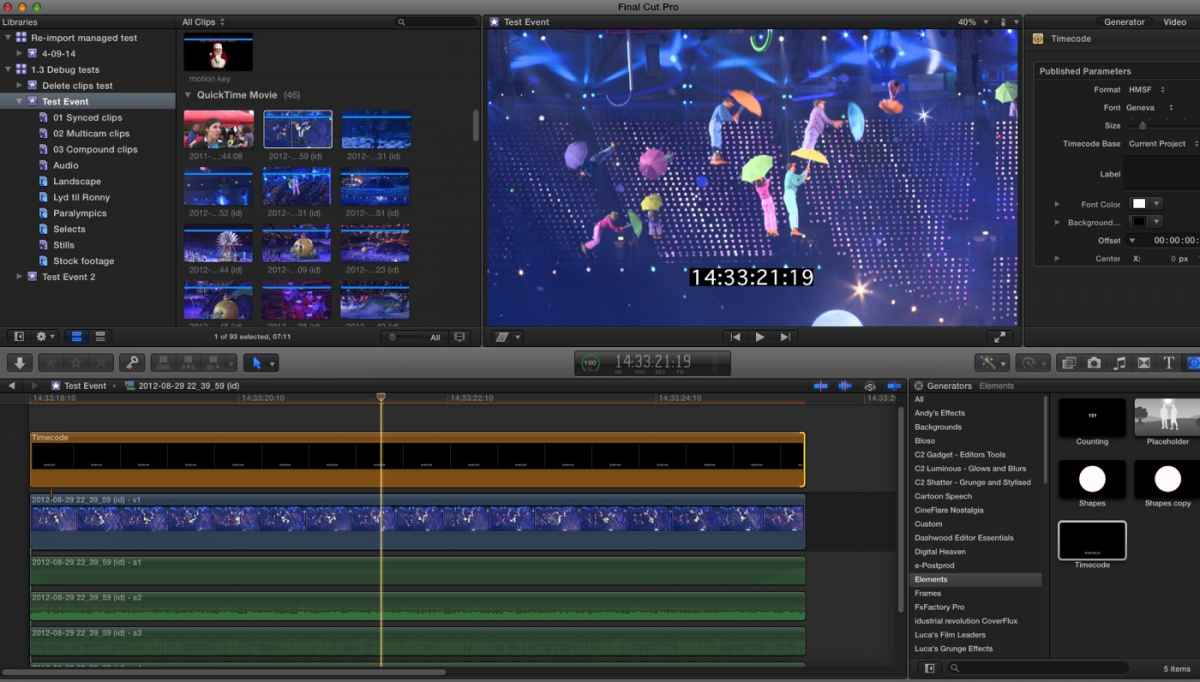
1. Open your interview clip in its own timeline and add the Generators > Elements > Timecode generator on top of your video:
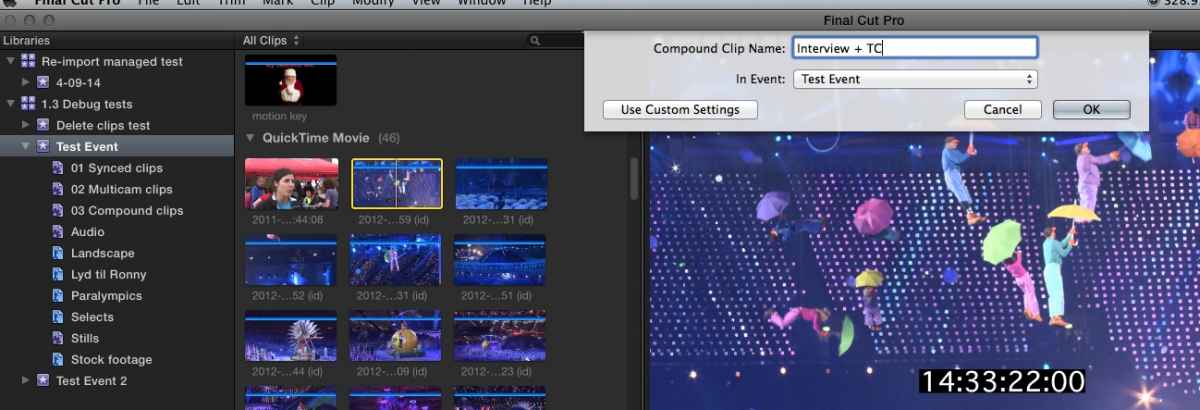
2. Select the interview clip in the browser and press ALT+G to make a Compound Clip from the clip:
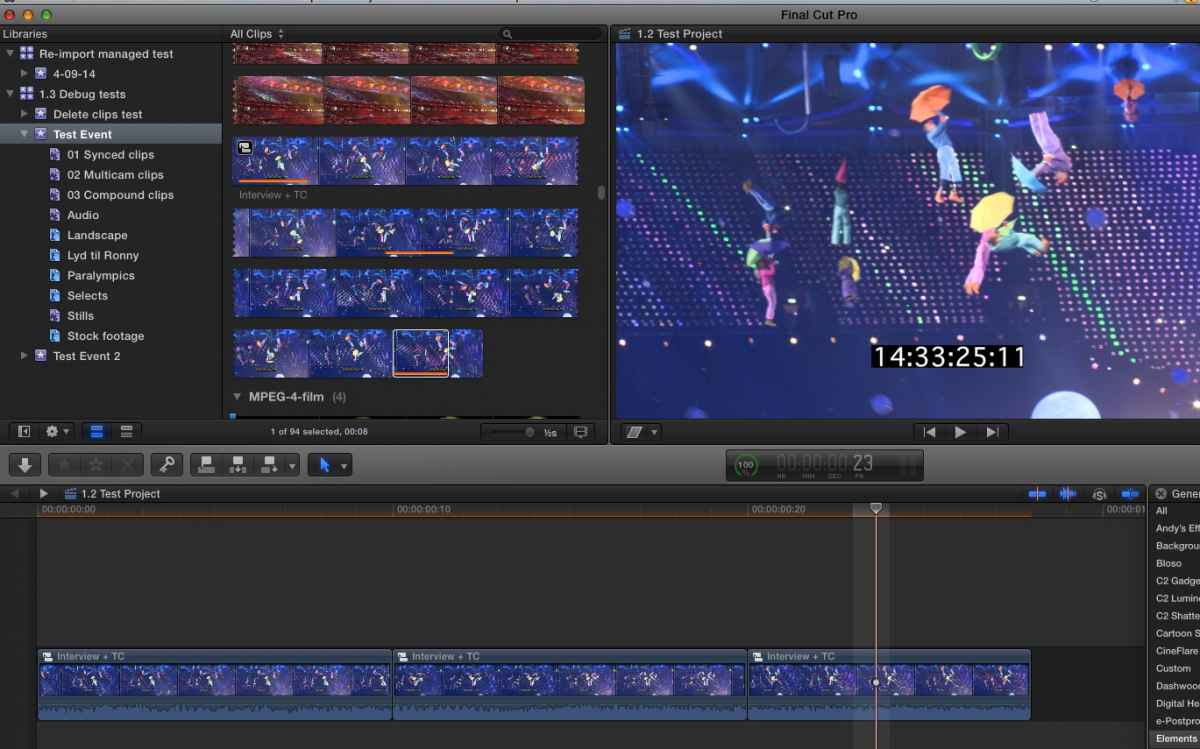
3. Cut the interview Compound Clip in the Project timeline. Each cut will show the correct source time code:
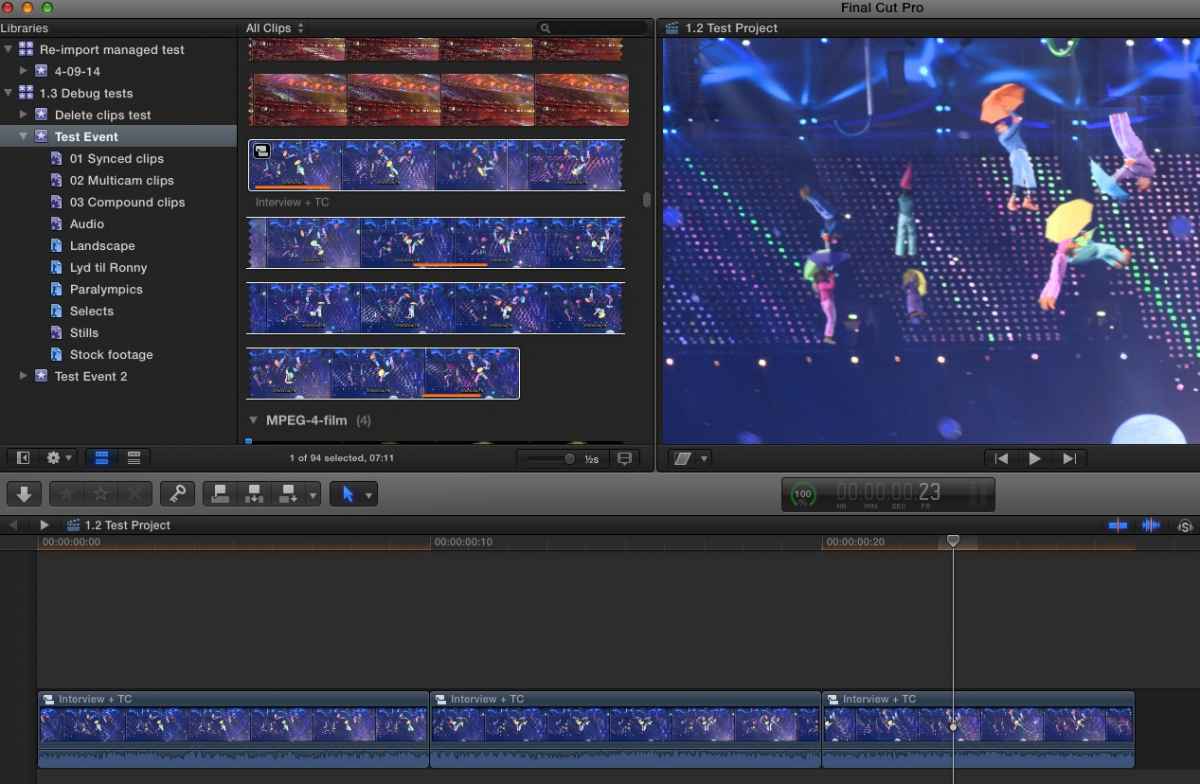
4. When you want to export your edit without time code: open the interview CC in its timeline, open the clip inside in its timeline and remove the time code generator. When you return to the Project timeline your edits will not show the source tc anymore and you can export your project:
It takes much longer to explain this than to do it
- Ronny
This is how you can do what you want:
1. Open your interview clip in its own timeline and add the Generators > Elements > Timecode generator on top of your video:
2. Select the interview clip in the browser and press ALT+G to make a Compound Clip from the clip:
3. Cut the interview Compound Clip in the Project timeline. Each cut will show the correct source time code:
4. When you want to export your edit without time code: open the interview CC in its timeline, open the clip inside in its timeline and remove the time code generator. When you return to the Project timeline your edits will not show the source tc anymore and you can export your project:
It takes much longer to explain this than to do it
- Ronny
Last edit: 04 Sep 2014 18:35 by ronny courtens.
Please Log in to join the conversation.
- ktc@conwaycorp.net
-
Topic Author
- Offline
- New Member
-
Less
More
- Posts: 16
- Thank you received: 1
10 Sep 2014 21:06 #52519
by ktc@conwaycorp.net
Replied by ktc@conwaycorp.net on topic Clip Timecode
Ronny. Wow. Impressive. Thank you. I was not doing the last step of opening in the timeline the clip that was in the CC.
My sincere appreciation.
Kevin
My sincere appreciation.
Kevin
Please Log in to join the conversation.
