


- Posts: 37
- Thank you received: 3
3 Post Moderation Rule for New Boarders (25 Jan 2021)
New boarders will have their posts moderated - Don't worry if you cannot see your post immediately.
the handling of "B roll" still photos in a vertical aspect ratio (as connected clips)
01 Aug 2014 22:22 - 01 Aug 2014 22:25 #50854
by jvasey
the handling of "B roll" still photos in a vertical aspect ratio (as connected clips) was created by jvasey
I'm using the primary storyline as the spine of my short video…which contains dialogue and some music. I was building groups of connected clips and/or secondary storyline clips "in the lane" just above my primary storyline. And they will "cover up" the picture from the "A roll"…the primary storyline…and the audio from the primary storyline will be appropriate to the "B roll."
The idea, of course, is to dissolve in and out of the B roll when it's needed.
If my still photo fills the HD frame, it works fine. In some instances, I need to scale to "fill" if the photo has enough resolution.
But here is my question: there are some photos I have that are taken in a VERTICAL orientation, a group of people in front of a very tall building…and if you scale it up, you lose the building. So I want to keep that photo as "fit" with BLACK BARS on the left and right that FCPX automatically inserts.
However, when I take such a VERTICAL photo and insert it as a connected clip or put it in a secondary storyline ABOVE the primary storyline, the black borders of the photo "see through" to the video picture in the lane below. I'll be dealing with quite a number of these vertical photos with black on either side and want to PRESERVE THE BLACK BARS and avoid the bleed through I'm experiencing now.
I'm googled quite a bit but have not been able to find an answer as to how one could do this easily and efficiently. This is my first major paid FCPX project, though I've had 10 years of editing with FCP 7 with a lot of B roll material.
The possibilities here in FCPX seem to be:
1. Keyframe out the opacity of the primary storyline down to zero where needed.
2. Possibly the equivalent (?) of inserting some "black slug" in between the "connected" clip/"secondary storyline" and the primary storyline?
3. Is there some feature in the "Inspector" pane of the still photo that would help stop the bleed through?
Can anyone offer advice on a quick and easy workaround for this? (I would like to avoid running the stills through Photoshop, etc.)
Thanks in advance…John
The idea, of course, is to dissolve in and out of the B roll when it's needed.
If my still photo fills the HD frame, it works fine. In some instances, I need to scale to "fill" if the photo has enough resolution.
But here is my question: there are some photos I have that are taken in a VERTICAL orientation, a group of people in front of a very tall building…and if you scale it up, you lose the building. So I want to keep that photo as "fit" with BLACK BARS on the left and right that FCPX automatically inserts.
However, when I take such a VERTICAL photo and insert it as a connected clip or put it in a secondary storyline ABOVE the primary storyline, the black borders of the photo "see through" to the video picture in the lane below. I'll be dealing with quite a number of these vertical photos with black on either side and want to PRESERVE THE BLACK BARS and avoid the bleed through I'm experiencing now.
I'm googled quite a bit but have not been able to find an answer as to how one could do this easily and efficiently. This is my first major paid FCPX project, though I've had 10 years of editing with FCP 7 with a lot of B roll material.
The possibilities here in FCPX seem to be:
1. Keyframe out the opacity of the primary storyline down to zero where needed.
2. Possibly the equivalent (?) of inserting some "black slug" in between the "connected" clip/"secondary storyline" and the primary storyline?
3. Is there some feature in the "Inspector" pane of the still photo that would help stop the bleed through?
Can anyone offer advice on a quick and easy workaround for this? (I would like to avoid running the stills through Photoshop, etc.)
Thanks in advance…John
Last edit: 01 Aug 2014 22:25 by jvasey. Reason: clarification of scaling
Please Log in to join the conversation.
- Russ Haskell
-

- Offline
- Elite Member
-

Less
More
- Posts: 176
- Thank you received: 24
01 Aug 2014 23:54 #50859
by Russ Haskell
Replied by Russ Haskell on topic the handling of "B roll" still photos in a vertical aspect ratio (as connected clips)
What many people do is to layer a solid generator between the portrait photo and the primary storyline clios.
You can then choose the most appropriate color for the generator background/
Russ
You can then choose the most appropriate color for the generator background/
Russ
Please Log in to join the conversation.
02 Aug 2014 00:37 - 02 Aug 2014 00:44 #50860
by jvasey
Replied by jvasey on topic the handling of "B roll" still photos in a vertical aspect ratio (as connected clips)
Thanks, Russ, for the tip about the solid custom generator. It does work, but the one sticking point is this:
In my timeline (hopefully PNG attachment will show up below) I have on the top lane the secondary storyline with some vertical photos pillar boxed with black bars (with the custom generator of black underneath it)…with a series of photos within…separated with dissolves. And the dissolves within the body of it work well…except...
If I try to DISSOLVE into the BEGINNING of this secondary storyline by applying a cross dissolve to either the secondary storyline and/or the custom generator, I go from an interview subject then to "black" and then the secondary storyline fades up from black. Same on the tail end of the secondary storyline.
Any way to get around this aside from overwriting the secondary storyline to the primary storyline?
I know if it was straight cut going in and out of the secondary storyline I would not have the issue, but would prefer in this case to maintain the dissolves while preserving the black bars of the vertical B roll photograph provided via the custom generator.
Update: can't seem to upload the PNG file.
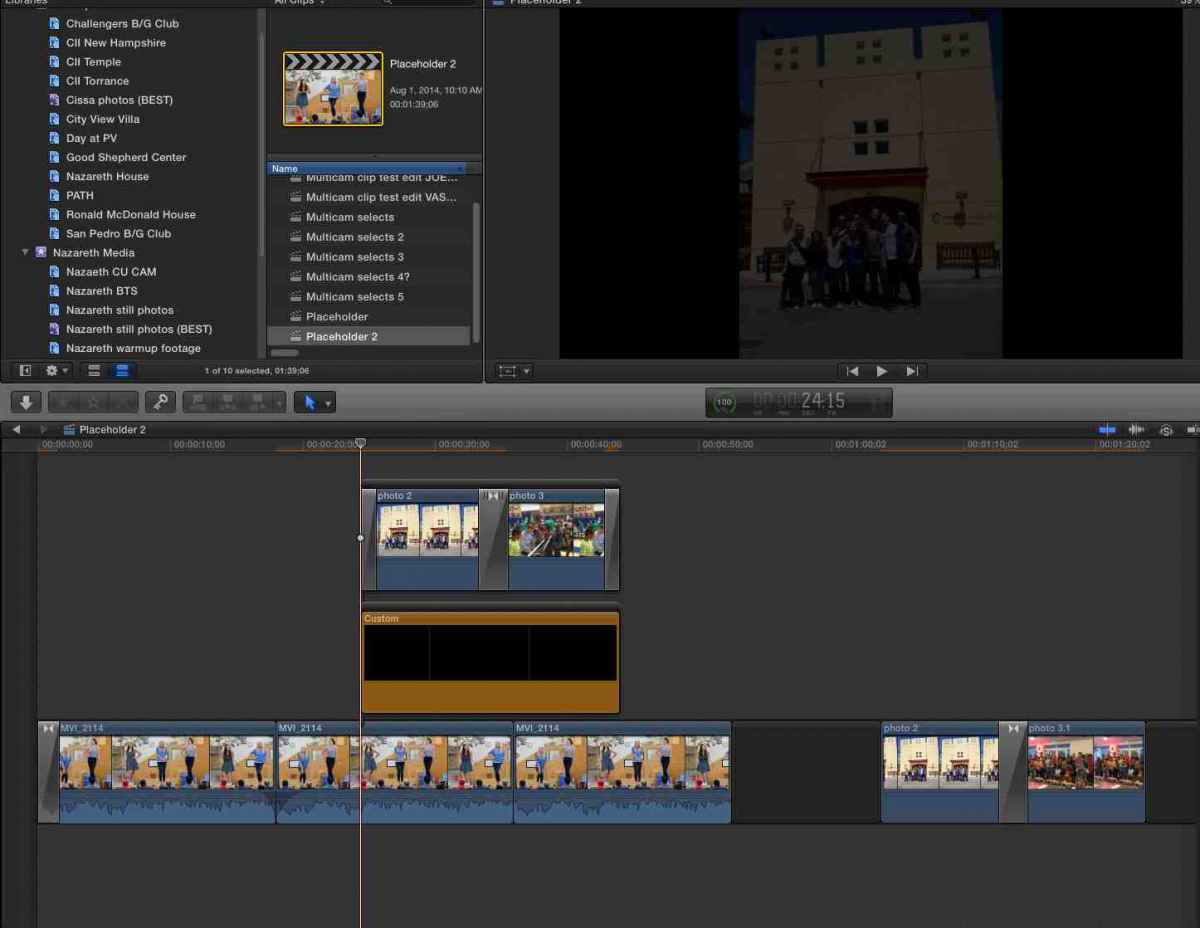
In my timeline (hopefully PNG attachment will show up below) I have on the top lane the secondary storyline with some vertical photos pillar boxed with black bars (with the custom generator of black underneath it)…with a series of photos within…separated with dissolves. And the dissolves within the body of it work well…except...
If I try to DISSOLVE into the BEGINNING of this secondary storyline by applying a cross dissolve to either the secondary storyline and/or the custom generator, I go from an interview subject then to "black" and then the secondary storyline fades up from black. Same on the tail end of the secondary storyline.
Any way to get around this aside from overwriting the secondary storyline to the primary storyline?
I know if it was straight cut going in and out of the secondary storyline I would not have the issue, but would prefer in this case to maintain the dissolves while preserving the black bars of the vertical B roll photograph provided via the custom generator.
Update: can't seem to upload the PNG file.
Last edit: 02 Aug 2014 00:44 by jvasey. Reason: trying to add attachment
Please Log in to join the conversation.
- ronny courtens
-

- Offline
- Moderator
-

Less
More
- Posts: 4455
- Thank you received: 962
02 Aug 2014 01:57 #50861
by ronny courtens
Replied by ronny courtens on topic the handling of "B roll" still photos in a vertical aspect ratio (as connected clips)
Hey John,
Of course overwriting the stills onto the primary storyline (ALT+CMD+down arrow) would be the easiest way to go. But if you want to keep the stills and the generator above the primary (which I can understand) there is a way to make both the stills and the generator dissolve in and out of the primary without getting a fade to black first.
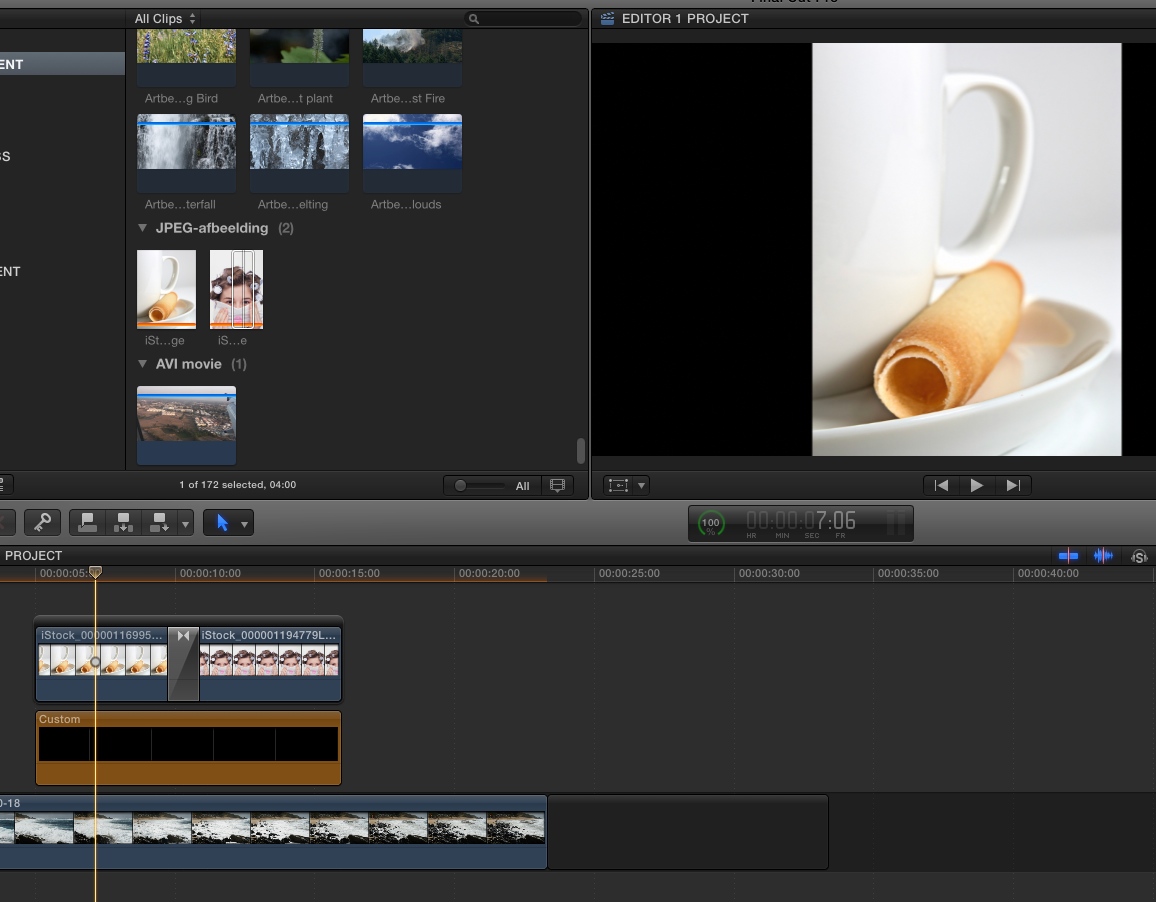
Here's two stills and a black generator connected to the primary. There is a cross-fade between the stills:
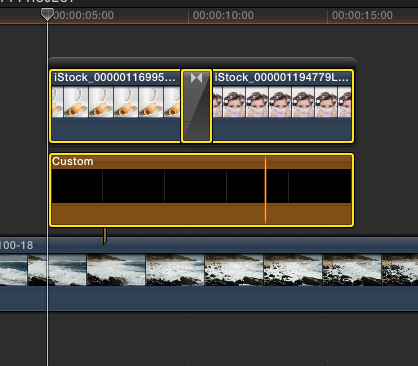
Group-select the stills and the generator:
Press ALT+G to turn the selection into a compound clip. I have named the CC "Stills over black":
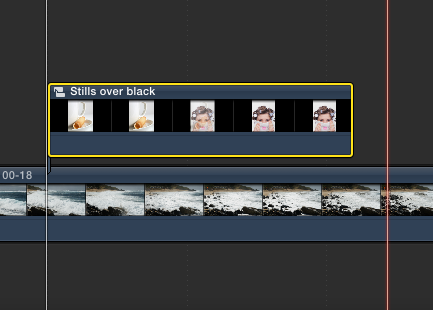
Now you just add a transition to the start and end of the CC and everything will smoothly dissolve in and out of the primary:
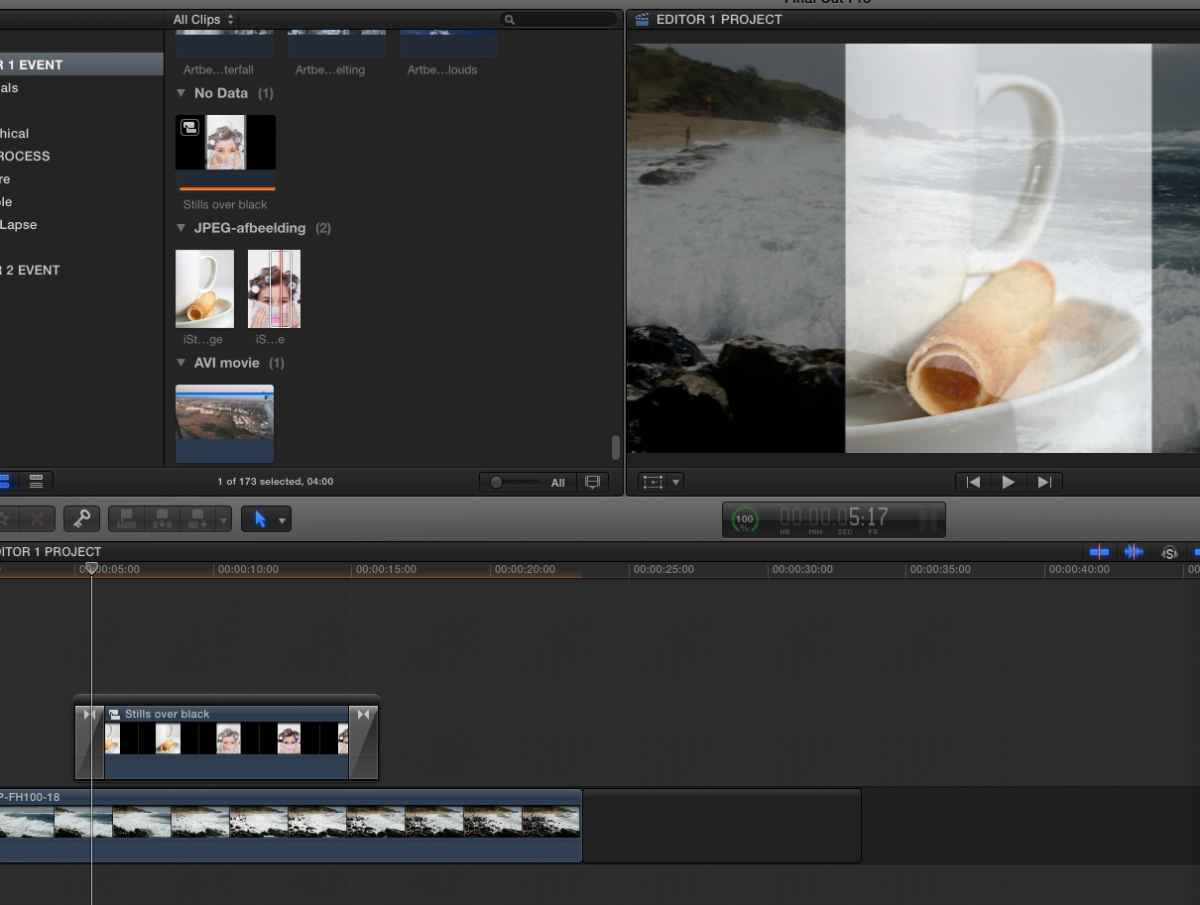
- Ronny
Of course overwriting the stills onto the primary storyline (ALT+CMD+down arrow) would be the easiest way to go. But if you want to keep the stills and the generator above the primary (which I can understand) there is a way to make both the stills and the generator dissolve in and out of the primary without getting a fade to black first.
Here's two stills and a black generator connected to the primary. There is a cross-fade between the stills:
Group-select the stills and the generator:
Press ALT+G to turn the selection into a compound clip. I have named the CC "Stills over black":
Now you just add a transition to the start and end of the CC and everything will smoothly dissolve in and out of the primary:
- Ronny
Please Log in to join the conversation.
02 Aug 2014 19:20 #50894
by jvasey
Replied by jvasey on topic the handling of "B roll" still photos in a vertical aspect ratio (as connected clips)
Thanks, Ronny, for the visual examples you provided in your answer. I followed these steps and this will work for me…creating a compound clip I can dissolve in and out of…and preserve the black bars of stills that don't fit the HD aspect ratio.
I probably will keep the stills in groups as "secondary story lines" until their order/length, etc., is not going to change much…then turn them into compound clips a bit later in the process. Keeping the stills in the lane above as you are still finessing their placement is helpful.
And even if I decide to go into the compound clip and later make changes, I can choose "Break Apart Clips" to visually see where those stills are in relationship to the interviews on the Primary Storyline. Re-edit as needed. And then create another Compound Clip if I need to dissolve in/out of that group of vertical stills.
Thanks again for the advice…this will help make my workflow go smoothly! John
I probably will keep the stills in groups as "secondary story lines" until their order/length, etc., is not going to change much…then turn them into compound clips a bit later in the process. Keeping the stills in the lane above as you are still finessing their placement is helpful.
And even if I decide to go into the compound clip and later make changes, I can choose "Break Apart Clips" to visually see where those stills are in relationship to the interviews on the Primary Storyline. Re-edit as needed. And then create another Compound Clip if I need to dissolve in/out of that group of vertical stills.
Thanks again for the advice…this will help make my workflow go smoothly! John
Please Log in to join the conversation.
- ronny courtens
-
- Offline
- Moderator
-
Less
More
- Posts: 4455
- Thank you received: 962
02 Aug 2014 20:15 #50895
by ronny courtens
Replied by ronny courtens on topic the handling of "B roll" still photos in a vertical aspect ratio (as connected clips)
Hi John,
Yes it's a good idea to only create the compound clips when you are pretty sure about the correct place and length of the stills. This is a good workflow you are planning.
- Ronny
Yes it's a good idea to only create the compound clips when you are pretty sure about the correct place and length of the stills. This is a good workflow you are planning.
- Ronny
Please Log in to join the conversation.
- Jonathan Levin
-

- Offline
- Platinum Member
-

Less
More
- Posts: 786
- Thank you received: 21
03 Aug 2014 03:31 #50899
by Jonathan Levin
Replied by Jonathan Levin on topic the handling of "B roll" still photos in a vertical aspect ratio (as connected clips)
If I'm reading what you would like to do, adding the desolve at the beginning and end of the generator as well as the B clip should also work for this.
Jonathan
Jonathan
Please Log in to join the conversation.
03 Aug 2014 23:24 #50918
by jvasey
Replied by jvasey on topic the handling of "B roll" still photos in a vertical aspect ratio (as connected clips)
Hi, Jonathan….I wish the solution were the way you described because it would be more efficient not having to do the extra step of creating the compound clip. But earlier I had tried two dissolves…one at the beginning of the B roll clip storyline and one dissolve directly underneath it on the custom black generator -- but the result did not have the desired outcome.
As the playhead travels across the A roll interview and then hits the two stacked dissolves, it goes black and than starts to fade up on the B roll picture.
So it appears that there are two ways to go: dissolving to a compound clip in the secondary storyline…or overwrite the B roll clips to the Primary storyline.
And to reiterate, this is in the case of using vertical B roll photos with black bars…and trying to eliminate seeing the A roll bleeding through where with the black bars were.
If I were using only fully scaled photos to the HD aspect ratio, I would not have to create a compound clip and could just dissolve direct to the Secondary Storyline (because in that case there are no black bars to bleed through).
Thanks for offering your advice…John
As the playhead travels across the A roll interview and then hits the two stacked dissolves, it goes black and than starts to fade up on the B roll picture.
So it appears that there are two ways to go: dissolving to a compound clip in the secondary storyline…or overwrite the B roll clips to the Primary storyline.
And to reiterate, this is in the case of using vertical B roll photos with black bars…and trying to eliminate seeing the A roll bleeding through where with the black bars were.
If I were using only fully scaled photos to the HD aspect ratio, I would not have to create a compound clip and could just dissolve direct to the Secondary Storyline (because in that case there are no black bars to bleed through).
Thanks for offering your advice…John
Please Log in to join the conversation.
- Jonathan Levin
-
- Offline
- Platinum Member
-
Less
More
- Posts: 786
- Thank you received: 21
04 Aug 2014 01:11 #50919
by Jonathan Levin
Replied by Jonathan Levin on topic the handling of "B roll" still photos in a vertical aspect ratio (as connected clips)
John,
How about a fade generator (in or out) instead of cross dissolve?
The other thing is to take the image into photoshop create a document 1920x1080 or whatever your video size and fill the black bars on left and right with black or anything else. You could even create a template. Though I think you mentioned you had lots of images. Maybe Create an "Action" in PS?
How about a fade generator (in or out) instead of cross dissolve?
The other thing is to take the image into photoshop create a document 1920x1080 or whatever your video size and fill the black bars on left and right with black or anything else. You could even create a template. Though I think you mentioned you had lots of images. Maybe Create an "Action" in PS?
Please Log in to join the conversation.
- Bretwilliams
-

- Offline
- Senior Member
-

Less
More
- Posts: 74
- Thank you received: 28
04 Aug 2014 04:05 #50920
by Bretwilliams
Replied by Bretwilliams on topic the handling of "B roll" still photos in a vertical aspect ratio (as connected clips)
You can also place the clips UNDER the primary and simply fade out the video of the primary (either by slicing and adding fades or keyframing opacity), revealing the stack beneath. Or copy the clip on the primary and drag it up above the 2 connected clips and dissolve it out to reveal the connected clips. That's the old FCP 7 method, and it works even better in X because the piece you've placed above stays connected to its dupe on the primary. But certainly the cleanest approach is a compound or placing the broll beneath the primary.
Please Log in to join the conversation.
05 Aug 2014 17:54 #50997
by jvasey
Replied by jvasey on topic the handling of "B roll" still photos in a vertical aspect ratio (as connected clips)
Hi, Jonathan…as you suggested, I tried the fade transition at the beginning of the still and on the solids generator below it, but it doesn't have the desired effect. As you note, I could treat the photo in Photoshop and add black bars there, but for this workflow the desire is to try to keep it as much of it "in house" without going to an outside app. Though I still use Photoshop quite a bit depending on the various needs of the video projects I'm working on…John
Please Log in to join the conversation.
05 Aug 2014 18:01 #50998
by jvasey
Replied by jvasey on topic the handling of "B roll" still photos in a vertical aspect ratio (as connected clips)
Hi, Brett…
I did spend a few minutes on your suggestions about inserting B roll clips under the PRIMARY…and alternatively, copying the clip on the PRIMARY and putting it above the Secondary Storyline ªcontaining B roll clipsº…and for both methods, keyframing opacity worked to achieve the desired result.
I had totally forgotten you could further manipulate the timeline this way and it may come in handy for the future.
For now, as you indicated, I'll probably keep the cleaner approach by simply making a compound clip.
But nice to know how "acrobatic" the timeline can be in FCPX!
Thanks for the tips, John
I did spend a few minutes on your suggestions about inserting B roll clips under the PRIMARY…and alternatively, copying the clip on the PRIMARY and putting it above the Secondary Storyline ªcontaining B roll clipsº…and for both methods, keyframing opacity worked to achieve the desired result.
I had totally forgotten you could further manipulate the timeline this way and it may come in handy for the future.
For now, as you indicated, I'll probably keep the cleaner approach by simply making a compound clip.
But nice to know how "acrobatic" the timeline can be in FCPX!
Thanks for the tips, John
Please Log in to join the conversation.
- Bretwilliams
-
- Offline
- Senior Member
-
Less
More
- Posts: 74
- Thank you received: 28
05 Aug 2014 19:55 #51002
by Bretwilliams
Replied by Bretwilliams on topic the handling of "B roll" still photos in a vertical aspect ratio (as connected clips)
It comes in handy especially if you're doing say a talking head, and you want to slide them over to the side (but not off) revealing a bullet list beneath, then slide them back. In that instance you're just key framing position and crop (trim).
Don't forget, you can also place all your audio above the primary. SFX can be place adjacent to the transition or video clip or graphic they actually pertain to.
Don't forget, you can also place all your audio above the primary. SFX can be place adjacent to the transition or video clip or graphic they actually pertain to.
Please Log in to join the conversation.
