


- Posts: 1
- Thank you received: 0
3 Post Moderation Rule for New Boarders (25 Jan 2021)
New boarders will have their posts moderated - Don't worry if you cannot see your post immediately.
Shared Project 2 Editor Workflow
- arndtbaier
-
 Topic Author
- Offline
- New Member
-

Less
More
16 Jul 2014 13:57 - 16 Jul 2014 13:58 #50080
by arndtbaier
Shared Project 2 Editor Workflow was created by arndtbaier
We are two editors and want to work on the same project via 2 hard drives containing the same original media. How can we include one project into the other?
Example: Editor 1 cuts the interview / Editor 2 selects the other images via Keywords ! Now Editor 1 wants to share the interview onto the library and harddrive of Editor 2 without replacing the whole library.
Is there any specific way to store or connect the files in the library?
Example: Editor 1 cuts the interview / Editor 2 selects the other images via Keywords ! Now Editor 1 wants to share the interview onto the library and harddrive of Editor 2 without replacing the whole library.
Is there any specific way to store or connect the files in the library?
Last edit: 16 Jul 2014 13:58 by arndtbaier.
Please Log in to join the conversation.
- ronny courtens
-

- Offline
- Moderator
-

Less
More
- Posts: 4455
- Thank you received: 962
16 Jul 2014 22:02 - 17 Jul 2014 05:48 #50109
by ronny courtens
Replied by ronny courtens on topic Shared Project 2 Editor Workflow
The only rule for collaborating on a production in different locations is to always keep Media and Caches outside of the Library ('external'). The latest update has made this very easy.
Here's an example of how 2 editors in different locations can work together.
Editor 1 created a Library on his Mac and he has imported his media from his external drive (EXT1). He has set the Library settings so that his Media and Cache files are not stored into the Library:

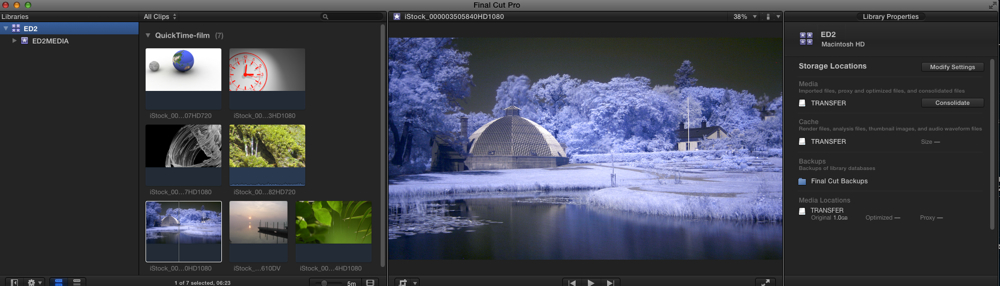
Editor 2 has created a Library on his Mac and he has imported his media from his external drive (TRANSFER). The media on the TRANSFER drive of editor 2 are of course exactly the same as the media on the EXT1 drive of editor 1. He has set the Library settings so that his Media and Cache files are not stored into the Library:
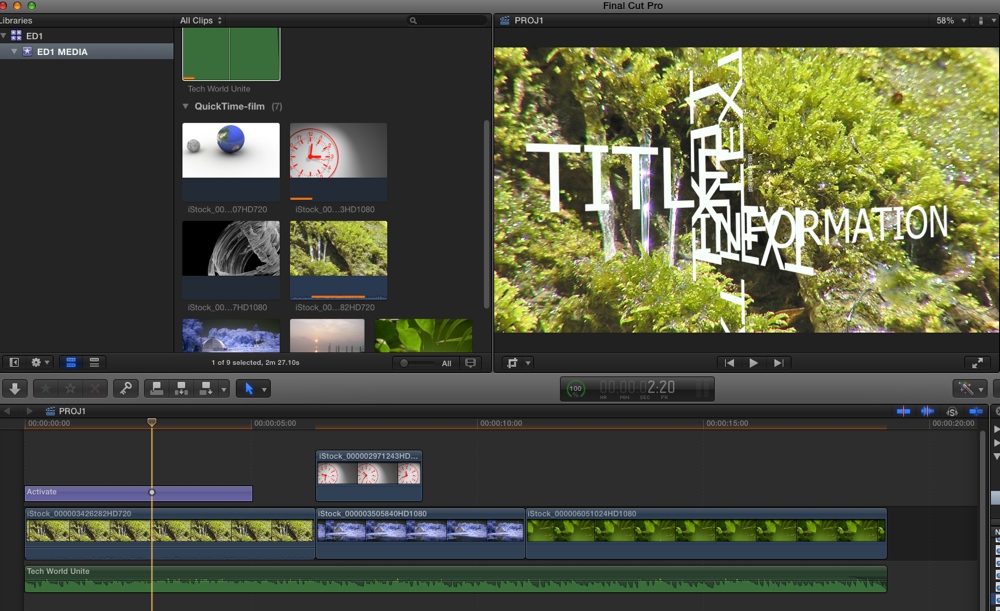
Then editor 1 creates a Project (PROJ1) and he starts editing, adding clips and titles and a music track to the timeline:
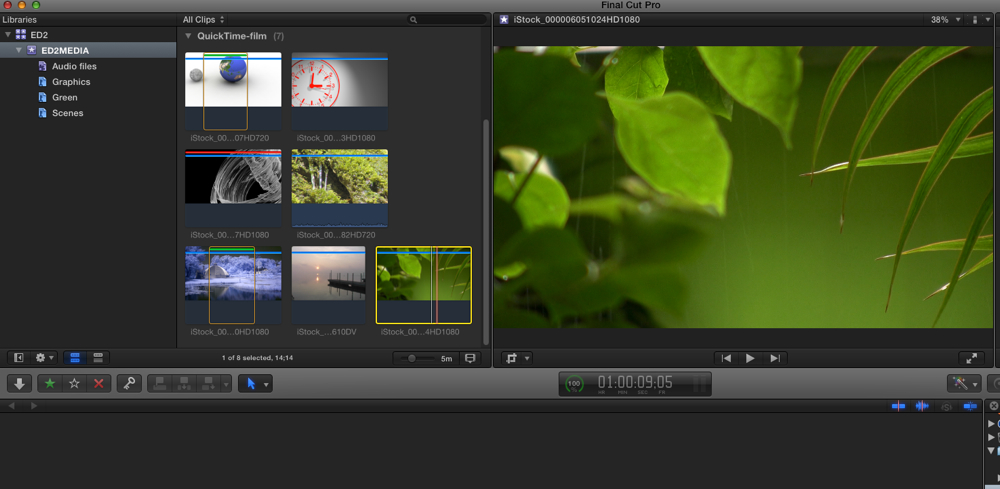
At the same time editor 2 starts organizing the clips in his Library, creating Smart Collections, Keyword Collection, Favorites etc...:
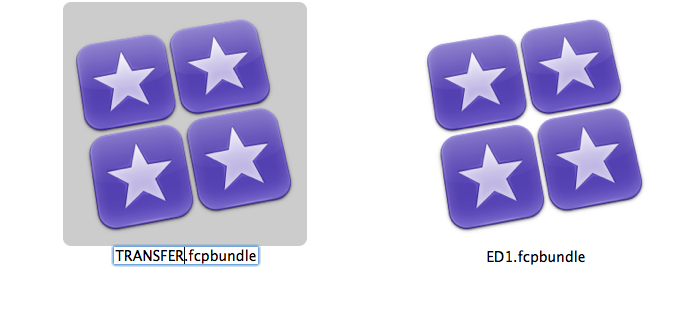
When editor 1 has finished his edit he goes to the location where his Library file is stored, he duplicates the file in Finder and renames the duplicate to e.g. TRANSFER:
Because no media or generated files are stored inside the Library the file is very small (600KB in this case), so editor 1 can e-mail the TRANSFER Library file to editor 2. Editor 2 puts the file on his external drive and double-clicks it to open it on his FCP X system.
When the TRANSFER Library opens all the clips in the Event of the TRANSFER Library will instantly link to the media on his external drive (no relinking is needed) and the Project of editor 1 will play on his system:
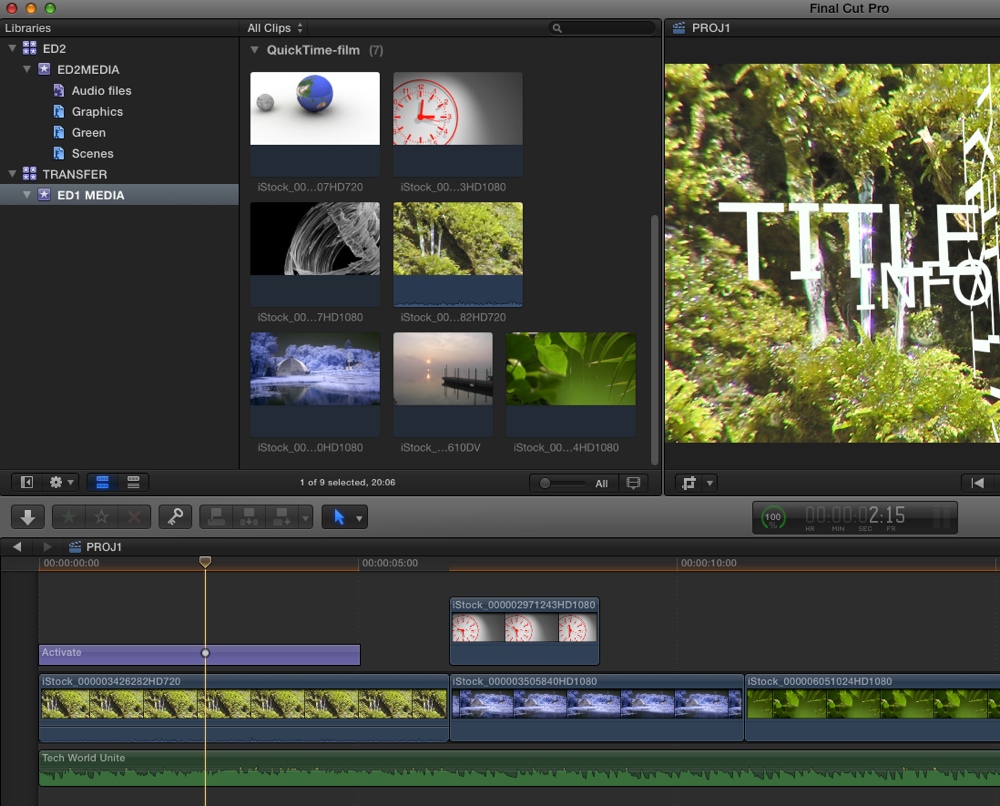
Editor 2 drags (= copies) the Project from the TRANSFER Library into his Library and starts modifying the Project, adding clips to the timeline and modifying the title:
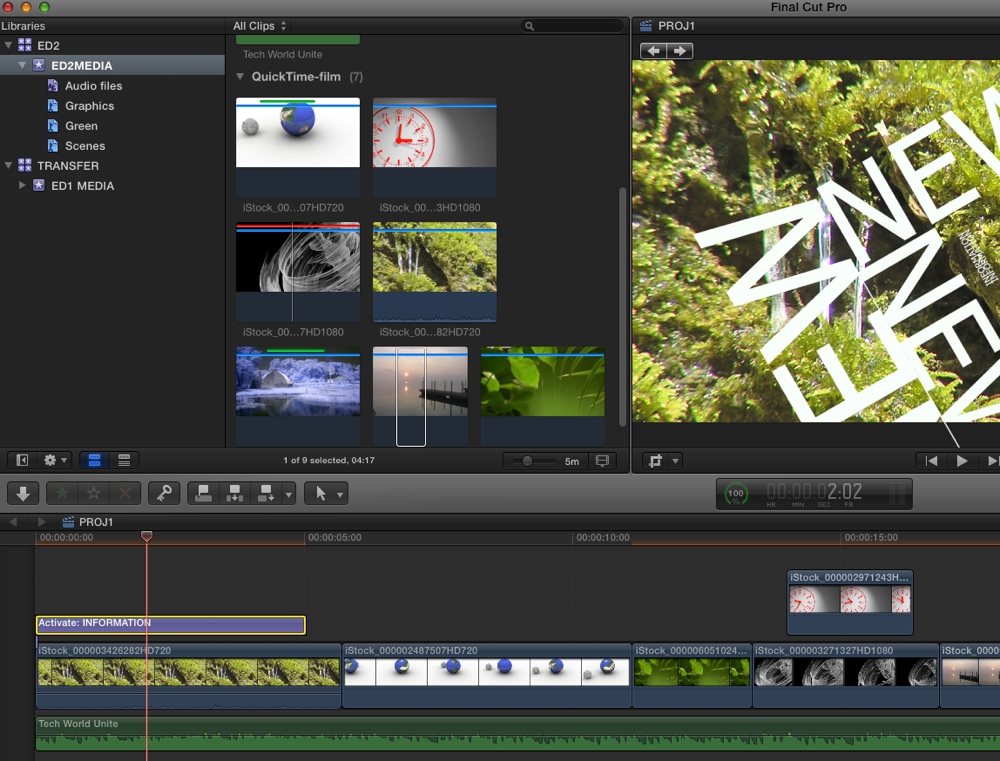
The he drags (= copies) his entire Event onto the TRANSFER Library and he renames the copied Event to e.g. LATEST UPDATE. The LATEST UPDATE Event in the TRANSFER Library now includes the latest version of the Project as well as all tags and keyword collections editor 2 had created:
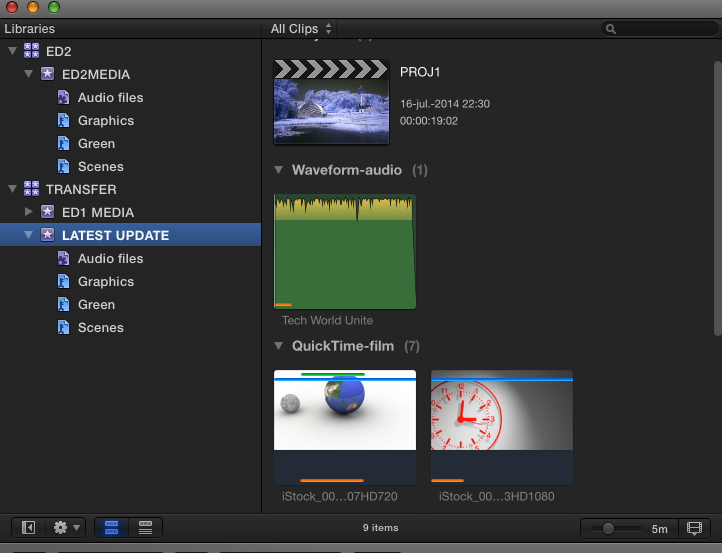
Editor 2 can now delete the old Event in the TRANSFER Library, duplicate the TRANSFER Library file in Finder, rename the duplicate file and send it back to editor 1. Etc...
We have used this collaborative workflow recently on quite a large project and it worked flawlessly. With large amounts of media and complex Projects the Library file can become too big to send it via e-mail. In such cases you can send it via DropBox, WeTransfer or the likes.
XML workflow:
Exchanging Event and Project information via XML export/import certainly offers a more streamlined workflow than duplicating Library files in Finder and sending them to the other editor(s). 10.1.2 allows us to export either an XML from an entire Library including all Events and Projects in the Library, or just from selected Events and selected Projects in a Library. That's great.
But depending on the kind of production you are working on XML may not be the most reliable solution yet.
FCPX XML is robust for Events, it carries over all metadata including keywords, collections, annotations a.s.o. If you only need to send updated information for one or more Events in your Library exporting an XML file and sending it to the other editor the easiest way to go.
FCPX XML is not perfect for Projects yet because not every modification of assets in your timeline may get translated correctly. But it gets better with every update
- Ronny
Here's an example of how 2 editors in different locations can work together.
Editor 1 created a Library on his Mac and he has imported his media from his external drive (EXT1). He has set the Library settings so that his Media and Cache files are not stored into the Library:
Editor 2 has created a Library on his Mac and he has imported his media from his external drive (TRANSFER). The media on the TRANSFER drive of editor 2 are of course exactly the same as the media on the EXT1 drive of editor 1. He has set the Library settings so that his Media and Cache files are not stored into the Library:
Then editor 1 creates a Project (PROJ1) and he starts editing, adding clips and titles and a music track to the timeline:
At the same time editor 2 starts organizing the clips in his Library, creating Smart Collections, Keyword Collection, Favorites etc...:
When editor 1 has finished his edit he goes to the location where his Library file is stored, he duplicates the file in Finder and renames the duplicate to e.g. TRANSFER:
Because no media or generated files are stored inside the Library the file is very small (600KB in this case), so editor 1 can e-mail the TRANSFER Library file to editor 2. Editor 2 puts the file on his external drive and double-clicks it to open it on his FCP X system.
When the TRANSFER Library opens all the clips in the Event of the TRANSFER Library will instantly link to the media on his external drive (no relinking is needed) and the Project of editor 1 will play on his system:
Editor 2 drags (= copies) the Project from the TRANSFER Library into his Library and starts modifying the Project, adding clips to the timeline and modifying the title:
The he drags (= copies) his entire Event onto the TRANSFER Library and he renames the copied Event to e.g. LATEST UPDATE. The LATEST UPDATE Event in the TRANSFER Library now includes the latest version of the Project as well as all tags and keyword collections editor 2 had created:
Editor 2 can now delete the old Event in the TRANSFER Library, duplicate the TRANSFER Library file in Finder, rename the duplicate file and send it back to editor 1. Etc...
We have used this collaborative workflow recently on quite a large project and it worked flawlessly. With large amounts of media and complex Projects the Library file can become too big to send it via e-mail. In such cases you can send it via DropBox, WeTransfer or the likes.
XML workflow:
Exchanging Event and Project information via XML export/import certainly offers a more streamlined workflow than duplicating Library files in Finder and sending them to the other editor(s). 10.1.2 allows us to export either an XML from an entire Library including all Events and Projects in the Library, or just from selected Events and selected Projects in a Library. That's great.
But depending on the kind of production you are working on XML may not be the most reliable solution yet.
FCPX XML is robust for Events, it carries over all metadata including keywords, collections, annotations a.s.o. If you only need to send updated information for one or more Events in your Library exporting an XML file and sending it to the other editor the easiest way to go.
FCPX XML is not perfect for Projects yet because not every modification of assets in your timeline may get translated correctly. But it gets better with every update
- Ronny
Last edit: 17 Jul 2014 05:48 by ronny courtens.
Please Log in to join the conversation.
- ronny courtens
-
- Offline
- Moderator
-
Less
More
- Posts: 4455
- Thank you received: 962
17 Jul 2014 09:06 #50131
by ronny courtens
Replied by ronny courtens on topic Shared Project 2 Editor Workflow
A little update.
I decided to try out the new Library XML on this little example.
On the Editor 2 system I made some further changes to the Project including audio keyframes, animation keyframes, generators etc... Then I select the TRANSFER Library without having anything selected in the Library browser and I choose Export > XML. The Source in the Export XML window shows that the entire Library will be exported as XML:
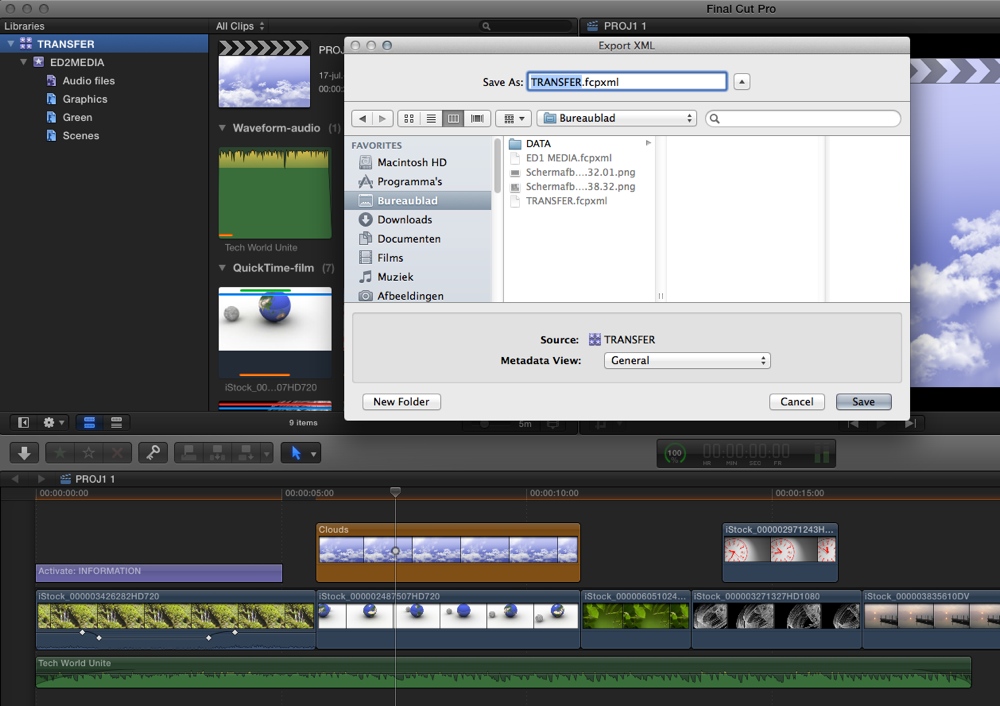
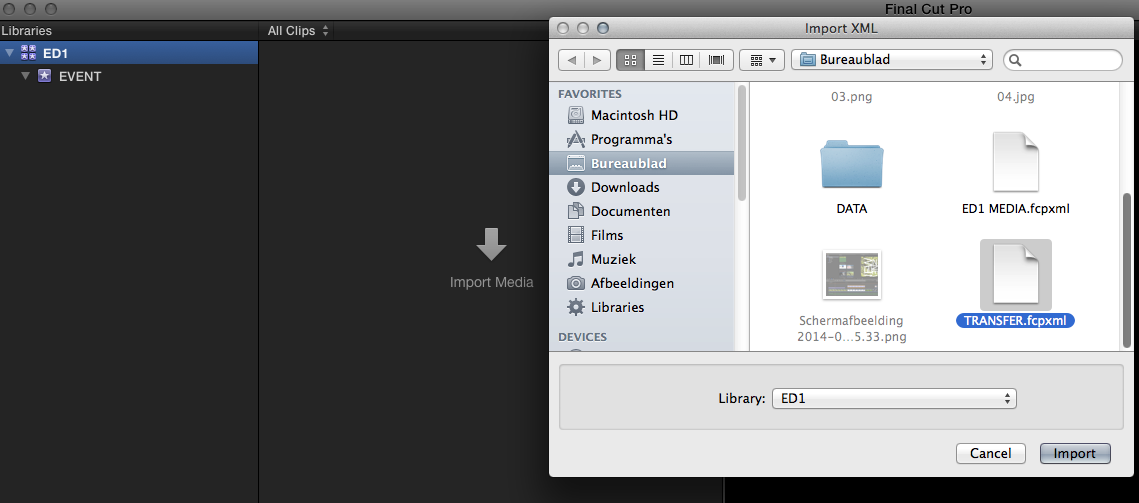
I send the Library XML via e-mail to the Editor 1 system (the XML file is only 18 KB). I create an empty Library with an empty Event on the Editor 1 system and I import the XML into that Library:
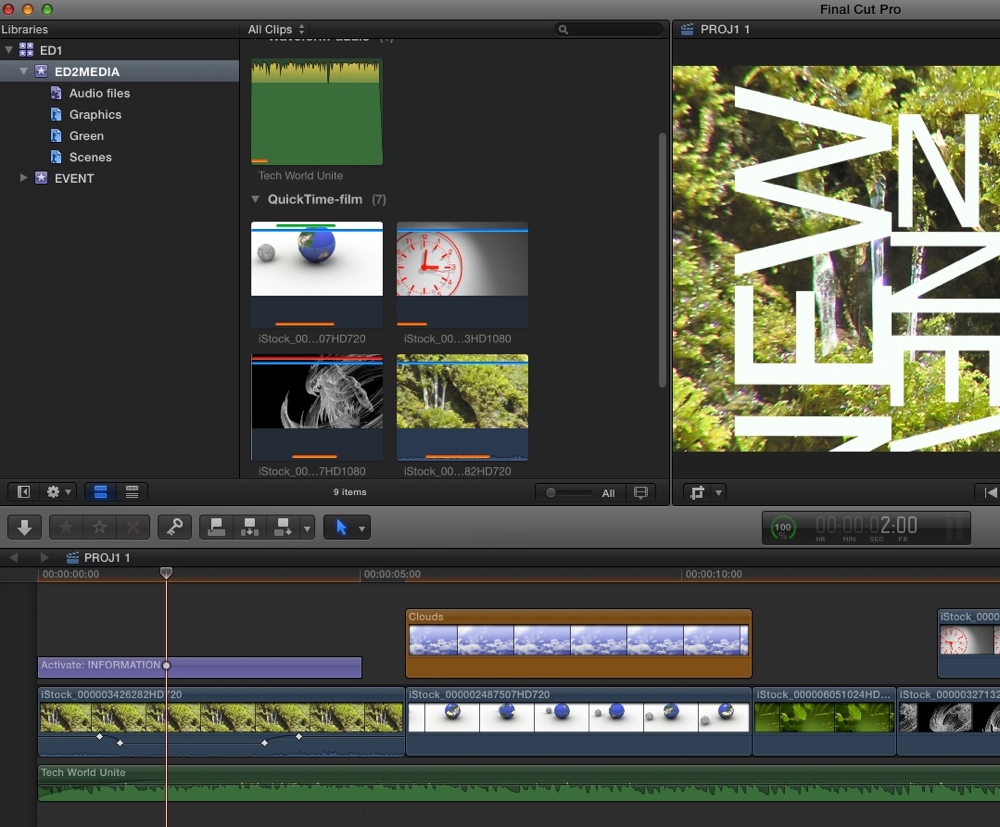
The Event of the TRANSFER Library gets added to the empty ED1 Library, all clips in the Event are immediately connected to the media on the drive of Editor 1, all keywords and whatnot are added to the clips in the Event and the Project opens exactly as I had saved it on the Editor 2 system including all keyframes, animations, title modifications:
I did further tests with compound clips and multicam and everything worked. So yes, it seems that the improved XML in 10.1.2 is much better than it ever was, and Library/Event/Project XML can be used to exchange projects between editors as long as the timelines don't get too complicated.
- Ronny
I decided to try out the new Library XML on this little example.
On the Editor 2 system I made some further changes to the Project including audio keyframes, animation keyframes, generators etc... Then I select the TRANSFER Library without having anything selected in the Library browser and I choose Export > XML. The Source in the Export XML window shows that the entire Library will be exported as XML:
I send the Library XML via e-mail to the Editor 1 system (the XML file is only 18 KB). I create an empty Library with an empty Event on the Editor 1 system and I import the XML into that Library:
The Event of the TRANSFER Library gets added to the empty ED1 Library, all clips in the Event are immediately connected to the media on the drive of Editor 1, all keywords and whatnot are added to the clips in the Event and the Project opens exactly as I had saved it on the Editor 2 system including all keyframes, animations, title modifications:
I did further tests with compound clips and multicam and everything worked. So yes, it seems that the improved XML in 10.1.2 is much better than it ever was, and Library/Event/Project XML can be used to exchange projects between editors as long as the timelines don't get too complicated.
- Ronny
Please Log in to join the conversation.
