




- Posts: 25
- Thank you received: 1
3 Post Moderation Rule for New Boarders (25 Jan 2021)
New boarders will have their posts moderated - Don't worry if you cannot see your post immediately.
Connecting clips w/ Cross Dissolve
14 Jul 2014 06:31 - 14 Jul 2014 06:39 #49845
by ShortyDK
Connecting clips w/ Cross Dissolve was created by ShortyDK
Hey 
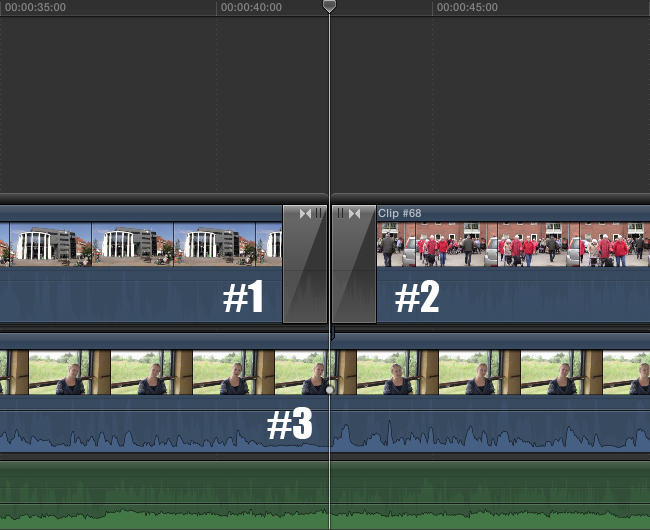
I'm fairly new at Final Cut Pro, so bear with me I attached a screenshot to help me explain... I am currently working on a project, where I have two clips (clip #1 and #2) that I would like to merge together with Cross Dissolve. As you can see on the screenshot, I also have an underlying clip (clip #3), where I am using the audio.
My problem is when I add the Cross Dissolve to clips #1 and #2. Clip #1 dissolves into the bottom clip for a split second, and then clip #2 is presented. Isn't there a way to use Cross Dissolve to kind of "merge" clips #1 and #2, so I don't get a glimpse of clip #3?
I realize, you can just move clip #2 on top of the clip #1, so the Cross Dissolves match, but I was just wondering if there isn't an easier way, where the clips can remain on the same line?
Thanks for your help!
Best regards,
ShortyDK
EDIT: It may be worth mentioning that the clips I am trying to merge with Cross Dissolve is not from the same event... I can see that clips from the same event naturally merges, when they are placed next to each other... That is not the case here
I'm fairly new at Final Cut Pro, so bear with me
I attached a screenshot to help me explain... I am currently working on a project, where I have two clips (clip #1 and #2) that I would like to merge together with Cross Dissolve. As you can see on the screenshot, I also have an underlying clip (clip #3), where I am using the audio.My problem is when I add the Cross Dissolve to clips #1 and #2. Clip #1 dissolves into the bottom clip for a split second, and then clip #2 is presented. Isn't there a way to use Cross Dissolve to kind of "merge" clips #1 and #2, so I don't get a glimpse of clip #3?
I realize, you can just move clip #2 on top of the clip #1, so the Cross Dissolves match, but I was just wondering if there isn't an easier way, where the clips can remain on the same line?
Thanks for your help!
Best regards,
ShortyDK
EDIT: It may be worth mentioning that the clips I am trying to merge with Cross Dissolve is not from the same event... I can see that clips from the same event naturally merges, when they are placed next to each other... That is not the case here
Last edit: 14 Jul 2014 06:39 by ShortyDK. Reason: Additional info
Please Log in to join the conversation.
- ronny courtens
-

- Offline
- Moderator
-

Less
More
- Posts: 4455
- Thank you received: 962
14 Jul 2014 07:13 #49850
by ronny courtens
Replied by ronny courtens on topic Connecting clips w/ Cross Dissolve
Hey Jesper, and welcome to the forum.
The problem is that your clips #1 and #2 are not in the same secondary storyline (they both have a separate black bar above them while they should be under the same black bar).
This is what you do:
Select the existing dissolves on clip #1 and clip #2 and delete them.
Then click on clip #2 and drag it next to clip #1. When you see a blue vertical line appear, drop clip #2.
Now both clips will be in the same storyline (one black bar) and you will be able to add a dissolve between them.
- Ronny
The problem is that your clips #1 and #2 are not in the same secondary storyline (they both have a separate black bar above them while they should be under the same black bar).
This is what you do:
Select the existing dissolves on clip #1 and clip #2 and delete them.
Then click on clip #2 and drag it next to clip #1. When you see a blue vertical line appear, drop clip #2.
Now both clips will be in the same storyline (one black bar) and you will be able to add a dissolve between them.
- Ronny
Please Log in to join the conversation.
14 Jul 2014 08:00 - 14 Jul 2014 08:23 #49852
by ShortyDK
Replied by ShortyDK on topic Connecting clips w/ Cross Dissolve
Thanks a lot, Ronny
That cleared everything right up! Now that I have a FCP-veteran, I have an additional question - hope you don't mind... I tried importing an image into my project, and it looks nice and sharp when the video is not playing, but once I start the video, the image gets all blurry in the preview-window.... any thoughts? ( i.imgur.com/XjvBt7S.png )
That cleared everything right up! Now that I have a FCP-veteran, I have an additional question - hope you don't mind... I tried importing an image into my project, and it looks nice and sharp when the video is not playing, but once I start the video, the image gets all blurry in the preview-window.... any thoughts? ( i.imgur.com/XjvBt7S.png )
Last edit: 14 Jul 2014 08:23 by ShortyDK. Reason: Link to screenshot
Please Log in to join the conversation.
- ronny courtens
-
- Offline
- Moderator
-
Less
More
- Posts: 4455
- Thank you received: 962
14 Jul 2014 08:30 #49853
by ronny courtens
Replied by ronny courtens on topic Connecting clips w/ Cross Dissolve
Everyone here is always happy to help someone who starts using FCP X
There are different ways you can make an image fill the Project frame size.
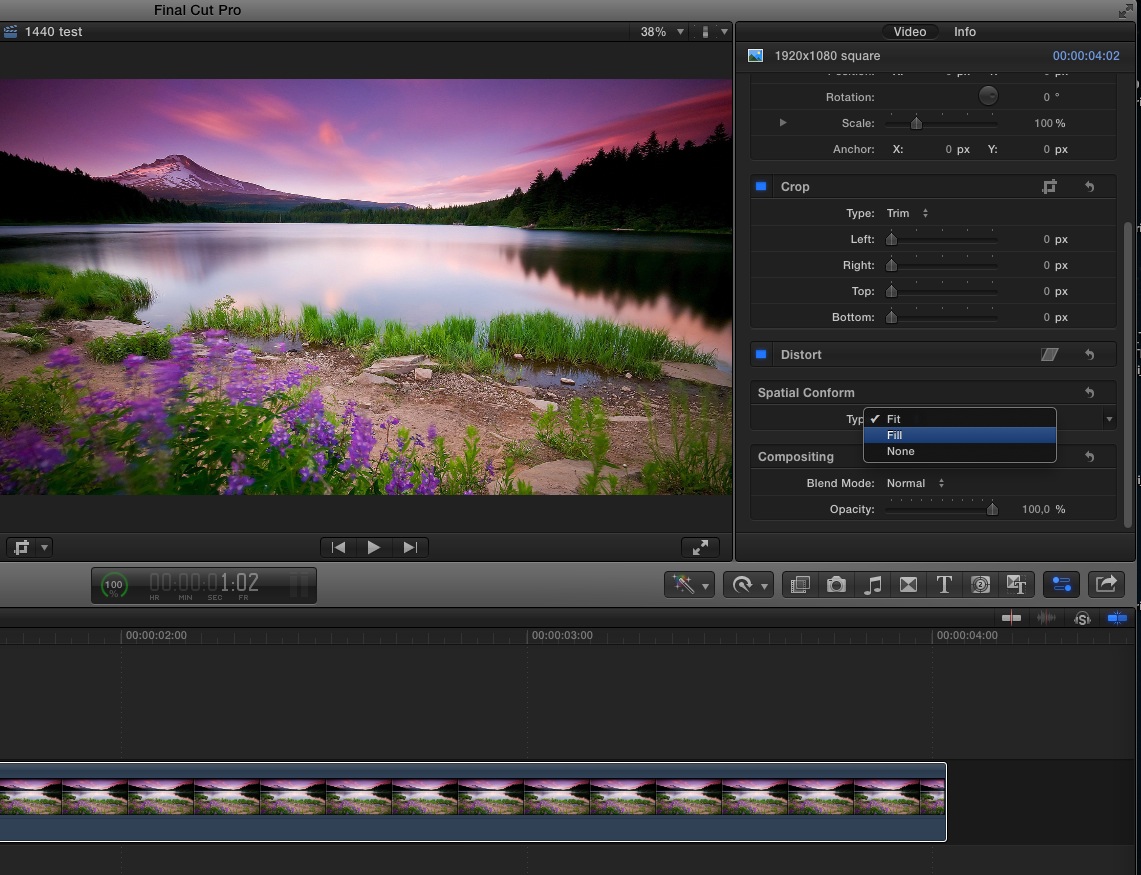
1. Drop the image on the timeline and select the image clip. Then go to the Inspector > Video tab and set the Spatial Conform type to "Fill". Your image should now completely fill the Viewer. You can use the Transform adjustments (Scale, Position...) to further adjust the image if you wish.
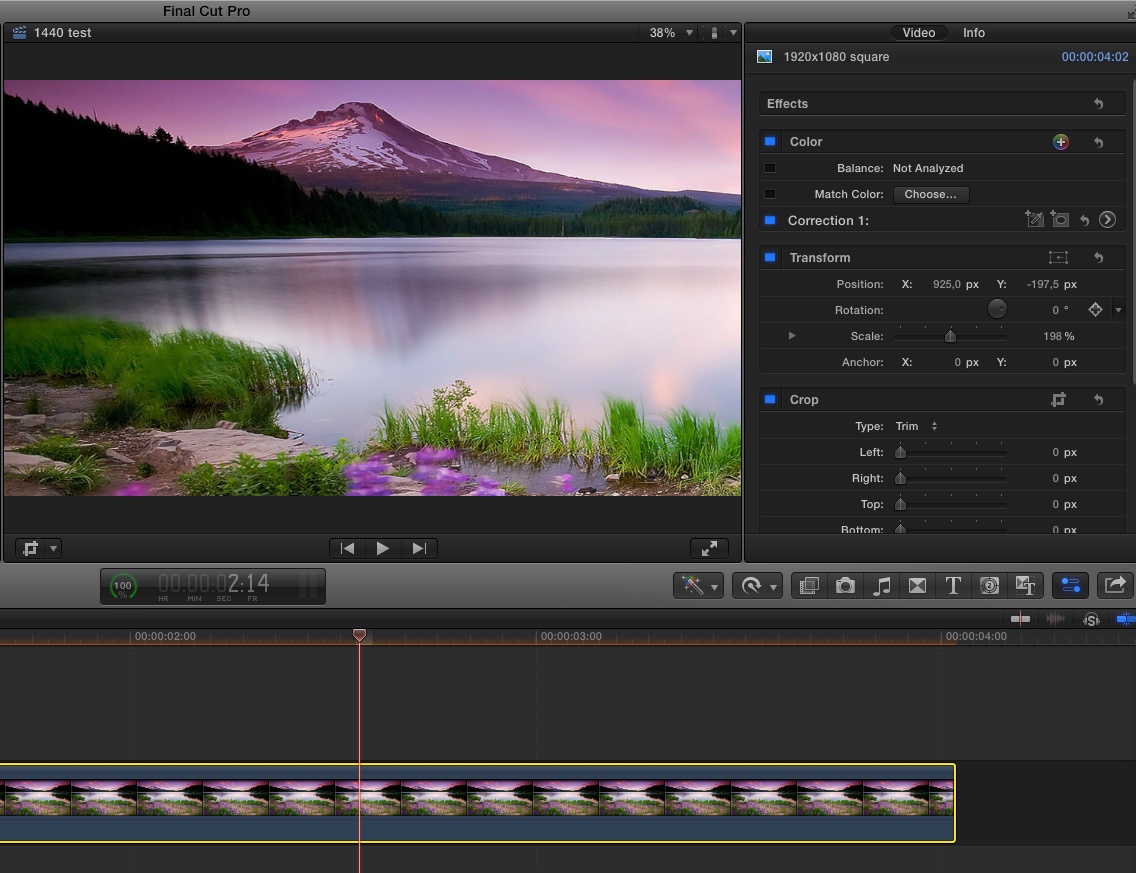
2. Leave the Spatial Conform type to "Fit" (which is the default setting) and just modify Scale and Position in the Inspector to make your image fill the screen.
If you have any further questions, feel free to ask.
- Ronny
There are different ways you can make an image fill the Project frame size.
1. Drop the image on the timeline and select the image clip. Then go to the Inspector > Video tab and set the Spatial Conform type to "Fill". Your image should now completely fill the Viewer. You can use the Transform adjustments (Scale, Position...) to further adjust the image if you wish.
2. Leave the Spatial Conform type to "Fit" (which is the default setting) and just modify Scale and Position in the Inspector to make your image fill the screen.
If you have any further questions, feel free to ask.
- Ronny
Please Log in to join the conversation.
- ronny courtens
-
- Offline
- Moderator
-
Less
More
- Posts: 4455
- Thank you received: 962
14 Jul 2014 08:34 #49854
by ronny courtens
Replied by ronny courtens on topic Connecting clips w/ Cross Dissolve
As to your next question:
To preview your video at the highest quality:
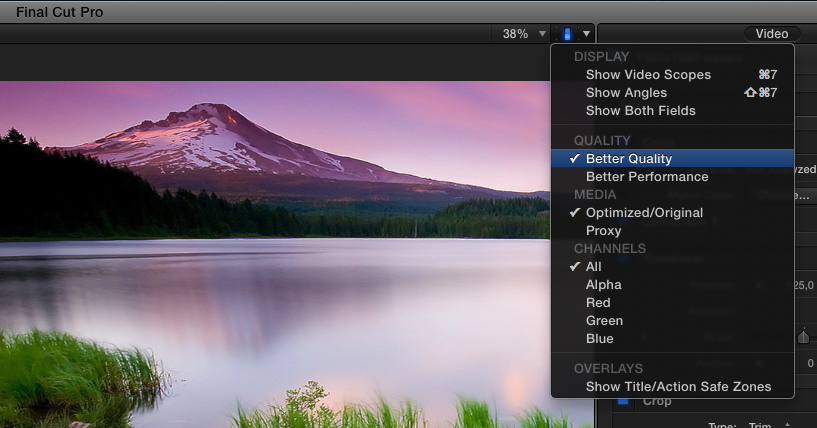
- Make sure your Playback settings are set to "Better quality"
- Render your timeline before playing the video
- Ronny
To preview your video at the highest quality:
- Make sure your Playback settings are set to "Better quality"
- Render your timeline before playing the video
- Ronny
Please Log in to join the conversation.
14 Jul 2014 08:41 #49855
by ShortyDK
Replied by ShortyDK on topic Connecting clips w/ Cross Dissolve
Thank you sooooooo much This is great! One last thing... You say I should render before playing the video... Where do I do that? I just thought it rendered the project automatically in the background?
This is great! One last thing... You say I should render before playing the video... Where do I do that? I just thought it rendered the project automatically in the background? Please Log in to join the conversation.
- ronny courtens
-
- Offline
- Moderator
-
Less
More
- Posts: 4455
- Thank you received: 962
14 Jul 2014 08:59 #49856
by ronny courtens
Replied by ronny courtens on topic Connecting clips w/ Cross Dissolve
IMO it is better to leave Background Rendering OFF and just render manually whenever you want. This will prevent any unnecessary re-rendering of modified clips and you will get better performance on your system. AFAIK most of us have Background Rendering turned off by default.
You can turn Background Rendering off in Final Cut Pro > Preferences > Playback tab
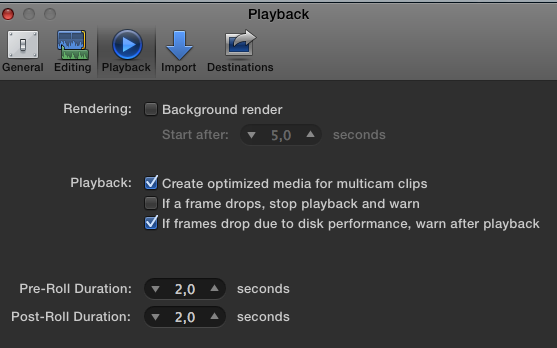
Whenever you want to manually render your timeline you go to Modify > Render All (or just press SHIFT+CTRL+R) and you wait for the timeline to render.
I you only want to render some clips on the timeline to improve playback quality you select the clips, then you go to Modify > Render Selection (or just press CTRL+R) and you wait for the clips to render.
- Ronny
You can turn Background Rendering off in Final Cut Pro > Preferences > Playback tab
Whenever you want to manually render your timeline you go to Modify > Render All (or just press SHIFT+CTRL+R) and you wait for the timeline to render.
I you only want to render some clips on the timeline to improve playback quality you select the clips, then you go to Modify > Render Selection (or just press CTRL+R) and you wait for the clips to render.
- Ronny
Please Log in to join the conversation.
14 Jul 2014 09:04 #49857
by ShortyDK
Replied by ShortyDK on topic Connecting clips w/ Cross Dissolve
Great, thanks a bunch! Quick and efficient help, I will definitely be using this site more! 
Please Log in to join the conversation.
- ronny courtens
-
- Offline
- Moderator
-
Less
More
- Posts: 4455
- Thank you received: 962
14 Jul 2014 09:12 #49859
by ronny courtens
Replied by ronny courtens on topic Connecting clips w/ Cross Dissolve
This the best place on Earth for all things FCP X
BTW where do you live in Denmark? I will be in Copenhagen on August 6th and 7th working with FCP X at Metronome Productions: www.metronome.dk
- Ronny
BTW where do you live in Denmark? I will be in Copenhagen on August 6th and 7th working with FCP X at Metronome Productions: www.metronome.dk
- Ronny
Please Log in to join the conversation.
14 Jul 2014 09:30 #49860
by ShortyDK
Replied by ShortyDK on topic Connecting clips w/ Cross Dissolve
Wow, that sounds really interesting! I live in Aalborg, which is pretty much as far away from Copenhagen as you can get (while still being in Denmark ) Have they asked you to give a presentation on the possibilities of FCP X?
) Have they asked you to give a presentation on the possibilities of FCP X? Please Log in to join the conversation.
- ronny courtens
-
- Offline
- Moderator
-
Less
More
- Posts: 4455
- Thank you received: 962
14 Jul 2014 09:56 #49861
by ronny courtens
Replied by ronny courtens on topic Connecting clips w/ Cross Dissolve
Actually they are already using FCP X intensively and they are very positive about it. I have been working with them for some time now, advising them on improving their workflows and their collaborative system setups. It's a really great team to work with. Very professional.
- Ronny
- Ronny
Please Log in to join the conversation.
14 Jul 2014 11:09 #49867
by ShortyDK
Replied by ShortyDK on topic Connecting clips w/ Cross Dissolve
Awesome that they've asked someone to improve their workflows instead of just teaching the employees the basics and letting them sink or swim Anyways, thanks a lot for your help!
Anyways, thanks a lot for your help! Please Log in to join the conversation.
- Karsten Schlüter
-

- Offline
- Moderator
-
Less
More
- Posts: 3790
- Thank you received: 718
14 Jul 2014 11:29 #49870
by Karsten Schlüter
... is there any good reason, why you do not add the two clips to the storyline, but in a secondary?
And, when you like to use audio-only of a clip, why you do not just use the audio of a clip?
I would add (keyboard E) the clips to your main story line, plus add as a connected clip (Q) the audio-only of some other clip (shift-3); click on border of 1+2, ctrl-T => done.
from here, it looks a lil' bit like you still think in 'tracks' ........ :woohoo:
Replied by Karsten Schlüter on topic Connecting clips w/ Cross Dissolve
ShortyDK wrote: ... have two clips (clip #1 and #2) that I would like to merge together with Cross Dissolve. As you can see on the screenshot, I also have an underlying clip (clip #3), where I am using the audio....
... is there any good reason, why you do not add the two clips to the storyline, but in a secondary?
And, when you like to use audio-only of a clip, why you do not just use the audio of a clip?
I would add (keyboard E) the clips to your main story line, plus add as a connected clip (Q) the audio-only of some other clip (shift-3); click on border of 1+2, ctrl-T => done.
from here, it looks a lil' bit like you still think in 'tracks' ........ :woohoo:
Please Log in to join the conversation.
14 Jul 2014 11:39 - 14 Jul 2014 11:46 #49872
by ShortyDK
Replied by ShortyDK on topic Connecting clips w/ Cross Dissolve
Karsten > In the original storyline I have the interviewee, which on occasion will be shown talking about the project, and in other occasions will be talking over other clips. Therefore, I have the overlying clips in a separate storyline and her interview in the original, giving me the option to fade into the interview with her picture and away again when I want to visualize a clip that relates to what she's talking about. (see screenshot:
i.imgur.com/ZSOJpqh.png
)
Don't know if that made sense, but there it is...
Don't know if that made sense, but there it is...
Last edit: 14 Jul 2014 11:46 by ShortyDK. Reason: Screenshot
Please Log in to join the conversation.
- Karsten Schlüter
-
- Offline
- Moderator
-
Less
More
- Posts: 3790
- Thank you received: 718
14 Jul 2014 11:56 - 14 Jul 2014 11:58 #49874
by Karsten Schlüter
perfect sense - cut-aways, in a single word
What I'm doing here (often, in my tiny soccer-reports, I like to add tons od cut-aways, showing the scene again from a diff.perspective, or in slowmo, or... while the crowd is keep yelling "goaaaal!") :
so, it's maybe a bit different workflow - by using the keyboard-shortcuts, it's super-fast.
Plus, your timeline isn't 'cluttered' = no 'tracks'
Replied by Karsten Schlüter on topic Connecting clips w/ Cross Dissolve
ShortyDK wrote: ... Don't know if that made sense, but there it is...
perfect sense - cut-aways, in a single word
What I'm doing here (often, in my tiny soccer-reports, I like to add tons od cut-aways, showing the scene again from a diff.perspective, or in slowmo, or... while the crowd is keep yelling "goaaaal!") :
- You have your interview-partner in the storyline
- You add 'on top' your cut-aways (as video-only).
- When timing is perfect, I select the top ones and hit cmd-alt-arrow down => this overwrites the video in your storyline by your cut-aways. And keeps automaticaly the original audio!
so, it's maybe a bit different workflow - by using the keyboard-shortcuts, it's super-fast.
Plus, your timeline isn't 'cluttered' = no 'tracks'
Last edit: 14 Jul 2014 11:58 by Karsten Schlüter.
Please Log in to join the conversation.
14 Jul 2014 12:04 #49875
by ShortyDK
Replied by ShortyDK on topic Connecting clips w/ Cross Dissolve
Ahh, that was a great idea Like I wrote I am relatively new at all this video editing, so my clips are somewhat limited - didn't really consider shooting in different angles... But I will definitely keep it in mind for the next time.
Like I wrote I am relatively new at all this video editing, so my clips are somewhat limited - didn't really consider shooting in different angles... But I will definitely keep it in mind for the next time. Please Log in to join the conversation.
- Karsten Schlüter
-
- Offline
- Moderator
-
Less
More
- Posts: 3790
- Thank you received: 718
14 Jul 2014 12:16 #49876
by Karsten Schlüter
years ago, a professional camera-man (me just hobbyist!), tought me the expression 'noddy shots': before/after an interview, you record a few takes, showing your interviewer silently nodding, 'making faces' ("interesting, you don't tell, ahaaaa, really, explain, more detail" ... etc).
You can use'em in edit to hide audio-cuts:
you have to, for example, cut a lengthy answer - you can not do so in 'on', otherwise the pic will 'jump'. plastering a noddy-shot over it, it will hide the imperfect video, while the edit in audio is unheared.....
cut-aways are an awesome 'trick'...
Replied by Karsten Schlüter on topic Connecting clips w/ Cross Dissolve
ShortyDK wrote: ... didn't really consider shooting in different angles....
years ago, a professional camera-man (me just hobbyist!), tought me the expression 'noddy shots': before/after an interview, you record a few takes, showing your interviewer silently nodding, 'making faces' ("interesting, you don't tell, ahaaaa, really, explain, more detail" ... etc).
You can use'em in edit to hide audio-cuts:
you have to, for example, cut a lengthy answer - you can not do so in 'on', otherwise the pic will 'jump'. plastering a noddy-shot over it, it will hide the imperfect video, while the edit in audio is unheared.....
cut-aways are an awesome 'trick'...
Please Log in to join the conversation.
14 Jul 2014 12:26 #49877
by ShortyDK
Replied by ShortyDK on topic Connecting clips w/ Cross Dissolve
Ahhh, clever! I will definitely use that later on... So far, if I have a clip that's a bit dull, I use the Ken Burns effect to liven it up a bit - works great
Please Log in to join the conversation.
