


- Posts: 377
- Thank you received: 9
3 Post Moderation Rule for New Boarders (25 Jan 2021)
New boarders will have their posts moderated - Don't worry if you cannot see your post immediately.
10.1.2 keyframes still not right
04 Jul 2014 16:52 #49190
by dkag7
10.1.2 keyframes still not right was created by dkag7
Hi All,
I still haven't tested this 100% yet, but I am finding this:
1. Scale or reposition a clip in the inspector and a keyframe gets automatically added.
Do the same in the viewer, and a keyframe does not automatically get added.
2. A keyframe will position itself in between 2 frames (video) when using the inspector (Scale, X, Y).
The keyframe will position itself correctly on the start of a frame when using the viewer. (in the viewer you have to click the keyframe button to add the keyframe. It will then go to the start of a frame)
3. Same ramp and s curve going on. However, it seems if you create your keyframes in the viewer, set everything to linear (still get an S curve), now go to the inspector and do the "add / delete" keyframe trick after the 1st keyframe (and/or before last keyframe), and sometimes this fixes linear to be correct. If you do the "add / delete" keyframe trick in the viewer, it seems to do nothing. Couldn't get this workaround to work by only using the inspector to do the keyframes.
Kurt
I still haven't tested this 100% yet, but I am finding this:
1. Scale or reposition a clip in the inspector and a keyframe gets automatically added.
Do the same in the viewer, and a keyframe does not automatically get added.
2. A keyframe will position itself in between 2 frames (video) when using the inspector (Scale, X, Y).
The keyframe will position itself correctly on the start of a frame when using the viewer. (in the viewer you have to click the keyframe button to add the keyframe. It will then go to the start of a frame)
3. Same ramp and s curve going on. However, it seems if you create your keyframes in the viewer, set everything to linear (still get an S curve), now go to the inspector and do the "add / delete" keyframe trick after the 1st keyframe (and/or before last keyframe), and sometimes this fixes linear to be correct. If you do the "add / delete" keyframe trick in the viewer, it seems to do nothing. Couldn't get this workaround to work by only using the inspector to do the keyframes.
Kurt
Please Log in to join the conversation.
- Tom Wolsky
-

- Offline
- Moderator
-

04 Jul 2014 18:44 #49193
by Tom Wolsky
Replied by Tom Wolsky on topic 10.1.2 keyframes still not right
Not seeing 1.
Please Log in to join the conversation.
- ronny courtens
-

- Offline
- Moderator
-
Less
More
- Posts: 4455
- Thank you received: 962
04 Jul 2014 19:57 - 05 Jul 2014 05:32 #49196
by ronny courtens
Replied by ronny courtens on topic 10.1.2 keyframes still not right
Hi Kurt,
Just tested this and this is what I'm seeing:
- Keyframes are automatically added, both in the Inspector and in the Viewer.
- Keyframes are always added on the frame, both in the Inspector and in the Viewer. Are you working with interlaced video?
- Default interpolation is smooth. When you change the interpolation to linear in the Viewer the animation path is perfectly linear, also when using multiple keyframes. No workarounds required.
So I think everything works as expected, unless you mean something different?
- Ronny
Just tested this and this is what I'm seeing:
- Keyframes are automatically added, both in the Inspector and in the Viewer.
- Keyframes are always added on the frame, both in the Inspector and in the Viewer. Are you working with interlaced video?
- Default interpolation is smooth. When you change the interpolation to linear in the Viewer the animation path is perfectly linear, also when using multiple keyframes. No workarounds required.
So I think everything works as expected, unless you mean something different?
- Ronny
Last edit: 05 Jul 2014 05:32 by ronny courtens.
Please Log in to join the conversation.
- Tom Wolsky
-
- Offline
- Moderator
-
04 Jul 2014 20:51 #49200
by Tom Wolsky
Replied by Tom Wolsky on topic 10.1.2 keyframes still not right
2 appears if you have the video animation editor open and zoomed into the timeline so the playhead is parked in mid frame. The viewer and the inspector produce different behaviors.
Please Log in to join the conversation.
- ronny courtens
-
- Offline
- Moderator
-
Less
More
- Posts: 4455
- Thank you received: 962
04 Jul 2014 21:25 #49201
by ronny courtens
Replied by ronny courtens on topic 10.1.2 keyframes still not right
Yes I can see that now. Adding a keyframe in he Viewer is accurate. That's why we always advise to use the Viewer overlays when doing keyframe animation. Much easier and more precise than using the Inspector.
- Ronny
- Ronny
Please Log in to join the conversation.

04 Jul 2014 23:19 #49208
by alex4D
Replied by alex4D on topic 10.1.2 keyframes still not right
When I'm animating in 'subframe' world (zoomed into samples) I tap the left- or right-arrow key to make sure I'm on a frame boundary before I change keyframe values.
@Alex4D
@Alex4D
Please Log in to join the conversation.
- ronny courtens
-
- Offline
- Moderator
-
Less
More
- Posts: 4455
- Thank you received: 962
05 Jul 2014 05:30 #49219
by ronny courtens
Replied by ronny courtens on topic 10.1.2 keyframes still not right
I always do that as well. But even when your playhead is on a frame boundary there is an inconsistency between setting a keyframe in the Viewer and setting the same keyframe in the Inspector.
Here's the playhead at the start boundary of frame 11:10
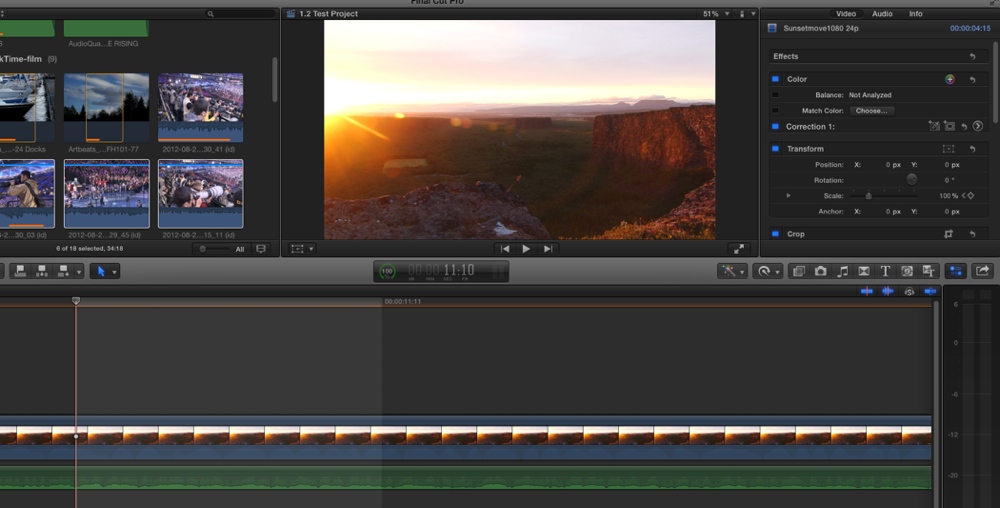
When you set a keyframe in the Viewer overlays the keyframe is set on the start boundary of frame 11:10, as expected
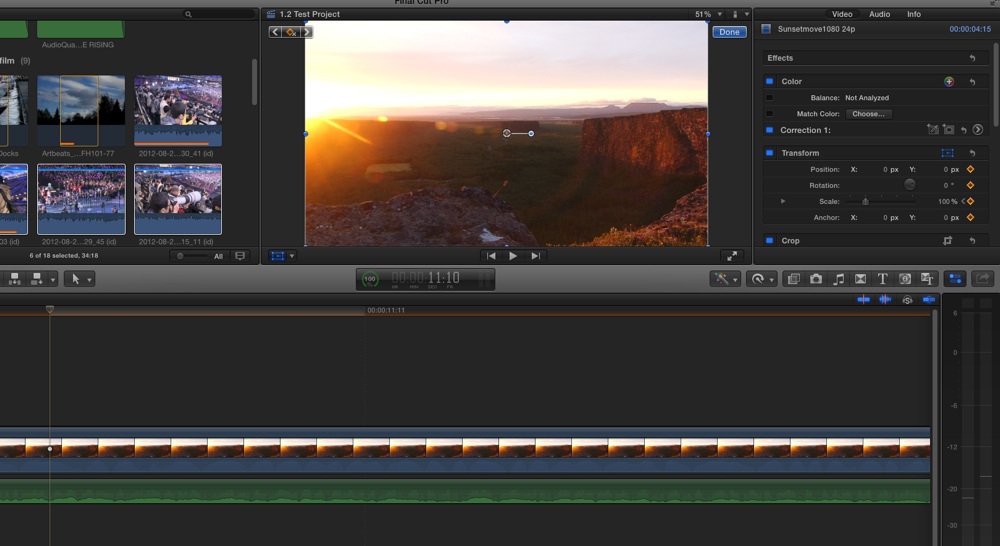
But when you set the same keyframe in the Inspector the playhead jumps to the end boundary of frame 11:09 and the keyframe is set on frame 11:09
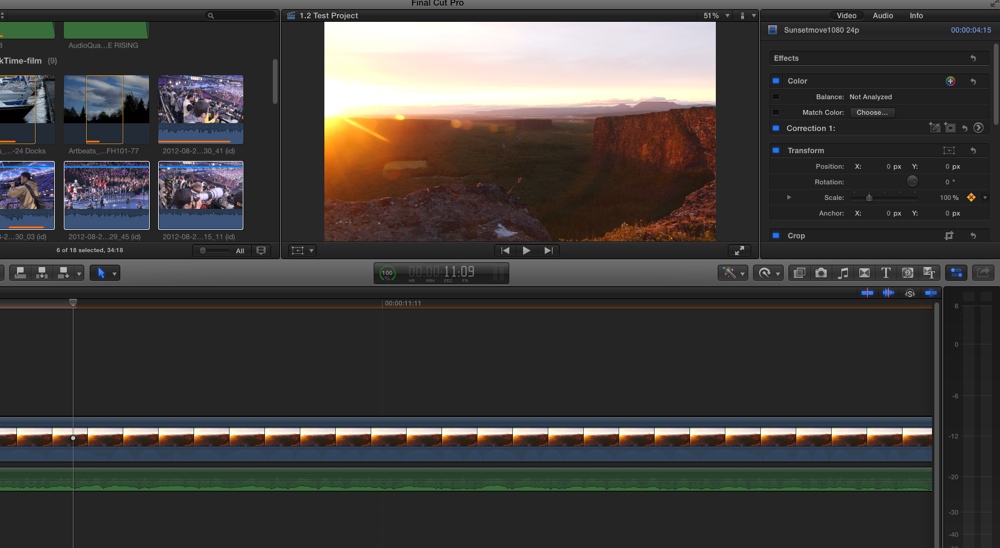
Of course this does not make any real difference, except when you want to add a keyframe at the very first frame of a clip: when you do this in the Inspector the playhead will jump to the end boundary of the preceding frame, which is on the preceding clip. So you won't be able to add a keyframe on the first frame of a clip when you use the Inspector.
Then again: there is no reason why you would want to add a keyframe on the very first frame of a clip, so this discussion is very theoretical.
- Ronny
Here's the playhead at the start boundary of frame 11:10
When you set a keyframe in the Viewer overlays the keyframe is set on the start boundary of frame 11:10, as expected
But when you set the same keyframe in the Inspector the playhead jumps to the end boundary of frame 11:09 and the keyframe is set on frame 11:09
Of course this does not make any real difference, except when you want to add a keyframe at the very first frame of a clip: when you do this in the Inspector the playhead will jump to the end boundary of the preceding frame, which is on the preceding clip. So you won't be able to add a keyframe on the first frame of a clip when you use the Inspector.
Then again: there is no reason why you would want to add a keyframe on the very first frame of a clip, so this discussion is very theoretical.
- Ronny
Please Log in to join the conversation.
05 Jul 2014 12:22 #49225
by dkag7
Replied by dkag7 on topic 10.1.2 keyframes still not right
I will try to make a video of this today because I can not zoom in on anything without wild S curves going on.
At one point I was able to zoom OUT without the S curves, but no longer. The more I work with this the more inconsistencies I am finding. Also No longer am I able to see the app automatically add a keyframe when moving a slider.
Ronny, What was happening to me is that the keyframe was added where the play head was. For example in the middle of a frame, not the start or end. This too now is not being reproduced.
But what i can always reproduce is not getting rid of S curves. Linear and Smooth do absolutely nothing.
Kurt
At one point I was able to zoom OUT without the S curves, but no longer. The more I work with this the more inconsistencies I am finding. Also No longer am I able to see the app automatically add a keyframe when moving a slider.
Ronny, What was happening to me is that the keyframe was added where the play head was. For example in the middle of a frame, not the start or end. This too now is not being reproduced.
But what i can always reproduce is not getting rid of S curves. Linear and Smooth do absolutely nothing.
Kurt
Please Log in to join the conversation.
05 Jul 2014 13:13 #49226
by dkag7
Replied by dkag7 on topic 10.1.2 keyframes still not right
Here is the video
Please let me know what I am doing wrong.
thanks
kurt
Please let me know what I am doing wrong.
thanks
kurt
Please Log in to join the conversation.
05 Jul 2014 13:41 #49227
by dkag7
Replied by dkag7 on topic 10.1.2 keyframes still not right
By re watching my video, the part that came out OK, this seems consistent for 2 keyframes:
Zoom 1st (I am zooming into the saw handle)
Then add the keyframes (scale and position)
Then move to opposite end of clip and set scale to 100 and X Y to zero in the inspector.
But.. Add a 3rd keyframe and it goes all haywire again
(I zoomed in the center of the clip, then add the keyframes towards the start and end of the clip back to its normal size. First section comes out OK, the second section, after the zoom keyframe, has the wild S curve again)
Kurt
Zoom 1st (I am zooming into the saw handle)
Then add the keyframes (scale and position)
Then move to opposite end of clip and set scale to 100 and X Y to zero in the inspector.
But.. Add a 3rd keyframe and it goes all haywire again
(I zoomed in the center of the clip, then add the keyframes towards the start and end of the clip back to its normal size. First section comes out OK, the second section, after the zoom keyframe, has the wild S curve again)
Kurt
Please Log in to join the conversation.
05 Jul 2014 14:51 #49229
by alex4D
Replied by alex4D on topic 10.1.2 keyframes still not right
The following isn't a direct solution to your problem, but might be useful in some situations.
A problem is that even if the scale and position keyframes are linear it is hard to time them so the video doesn't go off the edge while you move linearly.
One solution is to set the anchor point around which the clip scales to be other than 0,0.
For example if you set the position to be -25%, -50% and the anchor to be -25%, 50% and then scale up (without moving the position of the clip), the clip will seem to seem to zoom into a point other than its centre).
You could also use my free plugin that scales clips up and down around a point of your choice.
@Alex4D
A problem is that even if the scale and position keyframes are linear it is hard to time them so the video doesn't go off the edge while you move linearly.
One solution is to set the anchor point around which the clip scales to be other than 0,0.
For example if you set the position to be -25%, -50% and the anchor to be -25%, 50% and then scale up (without moving the position of the clip), the clip will seem to seem to zoom into a point other than its centre).
You could also use my free plugin that scales clips up and down around a point of your choice.
@Alex4D
Please Log in to join the conversation.
05 Jul 2014 15:05 #49230
by dkag7
Replied by dkag7 on topic 10.1.2 keyframes still not right
Thanks,
Yes your plugin works good for a '2 keyframe' animation.
Not too sure what you mean by the anchor points, but ill mess around with it.
You do see what I mean though, correct?
in one example it seemed to work linear, the rest were bad..
thanks
kurt
Yes your plugin works good for a '2 keyframe' animation.
Not too sure what you mean by the anchor points, but ill mess around with it.
You do see what I mean though, correct?
in one example it seemed to work linear, the rest were bad..
thanks
kurt
Please Log in to join the conversation.
05 Jul 2014 15:09 #49231
by dkag7
Replied by dkag7 on topic 10.1.2 keyframes still not right
In Motion, you can see all the workings of the keyframes in the timelines keyframe editor.
Getting all these controls into FCPX via a filter would solve the problem, but I dont think its possible..
Kurt
Getting all these controls into FCPX via a filter would solve the problem, but I dont think its possible..
Kurt
Please Log in to join the conversation.
05 Jul 2014 15:17 #49232
by dkag7
Replied by dkag7 on topic 10.1.2 keyframes still not right
By Using the anchor in conjunction with scale (if this is what you mean), I still get the S curve.
If I go into the viewer, the points can not be controlled... Also in the viewer you can not navigate correctly with the 'go to next keyframe' arrows. Seems to only work on the closest keyframe, then the arrow buttons will not navigate the playhead bar..
Kurt
If I go into the viewer, the points can not be controlled... Also in the viewer you can not navigate correctly with the 'go to next keyframe' arrows. Seems to only work on the closest keyframe, then the arrow buttons will not navigate the playhead bar..
Kurt
Please Log in to join the conversation.
05 Jul 2014 15:31 #49234
by dkag7
Replied by dkag7 on topic 10.1.2 keyframes still not right
I used your Scale X, Scale Y and Scale curve plugins (3 separate filters) to do the same animation (zoom in on the saw handle).
I never touched FCPX transform.
And I am still getting the S curve.
I have no idea why..
thanks
kurt
I never touched FCPX transform.
And I am still getting the S curve.
I have no idea why..
thanks
kurt
Please Log in to join the conversation.
