


- Posts: 299
- Thank you received: 10
3 Post Moderation Rule for New Boarders (25 Jan 2021)
New boarders will have their posts moderated - Don't worry if you cannot see your post immediately.
Organising projects
23 May 2014 09:55 - 23 May 2014 09:56 #46534
by robertdee
Organising projects was created by robertdee
Does anyone have any tips on doing this cleanly? In FCP7 I used to drop older sequences into a bin and always kept the most recent outside that for quick access and to save confusion for other editors.
As for multiple project/sequence jobs I've done in the past without this level of organisation there's bound to be confusion come along unnecessarily.
I do snapshots now (which I like) but I use those as internal autosaves. Ideally I'd like to be able to put the ones I'm not currently using in a folder or, even better, highlight the current project in the browser.
Anyone else's workflows would be appreciated.
As for multiple project/sequence jobs I've done in the past without this level of organisation there's bound to be confusion come along unnecessarily.
I do snapshots now (which I like) but I use those as internal autosaves. Ideally I'd like to be able to put the ones I'm not currently using in a folder or, even better, highlight the current project in the browser.
Anyone else's workflows would be appreciated.
Last edit: 23 May 2014 09:56 by robertdee.
Please Log in to join the conversation.

23 May 2014 10:58 #46538
by BenB
Replied by BenB on topic Organising projects
That's what keyword collections are for. Combined with Smart Collections, very powerful, very flexible, very fast, very easy. Bins suck.
First, I'd make a Smart Collection to group all of my Project timelines (there are no Sequences anymore, don't try to compare, it won't work).
Second, I'd assign keywords to those Projects, such as "Archive" and "Current".
Third, I'd make a Folder called "Project Timeilnes", and drop those Smart and Keyword collections for my Projects all inside of it.
Friendly word of advice in making the switch; what ever you do, do NOT get caught in the trap of comparing 7 workflow and terminology to X. It'll just confuse you and hold you back. Media management in X is so far beyond 7, there is simply no comparison. Don't try to call a Project a Sequence, it isn't the same thing, doesn't work the same, just don't go there.
First, I'd make a Smart Collection to group all of my Project timelines (there are no Sequences anymore, don't try to compare, it won't work).
Second, I'd assign keywords to those Projects, such as "Archive" and "Current".
Third, I'd make a Folder called "Project Timeilnes", and drop those Smart and Keyword collections for my Projects all inside of it.
Friendly word of advice in making the switch; what ever you do, do NOT get caught in the trap of comparing 7 workflow and terminology to X. It'll just confuse you and hold you back. Media management in X is so far beyond 7, there is simply no comparison. Don't try to call a Project a Sequence, it isn't the same thing, doesn't work the same, just don't go there.
Please Log in to join the conversation.
23 May 2014 11:03 #46539
by robertdee
Replied by robertdee on topic Organising projects
Ah, thanks Ben. That's perfect. For some reason I didn't think you could keyword projects but that does exactly what I need. Trying to force my brain into changing sequence to project but after a decade of a final cut project meaning a Project, that's difficult to do. Still, FCPX is my default and I only go back to 7 under duress.
Please Log in to join the conversation.
23 May 2014 11:41 - 23 May 2014 11:45 #46543
by BenB
Replied by BenB on topic Organising projects
And don't forget you can create a Project only Smart Collection.
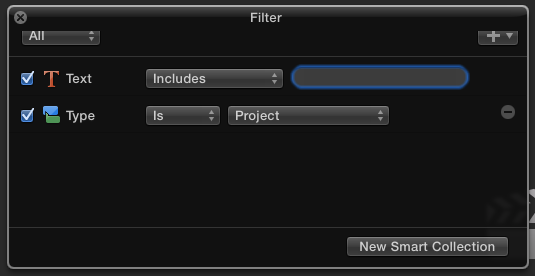
Plus using a Folder to put all of that in. I find using multiple methods to group things together works great.
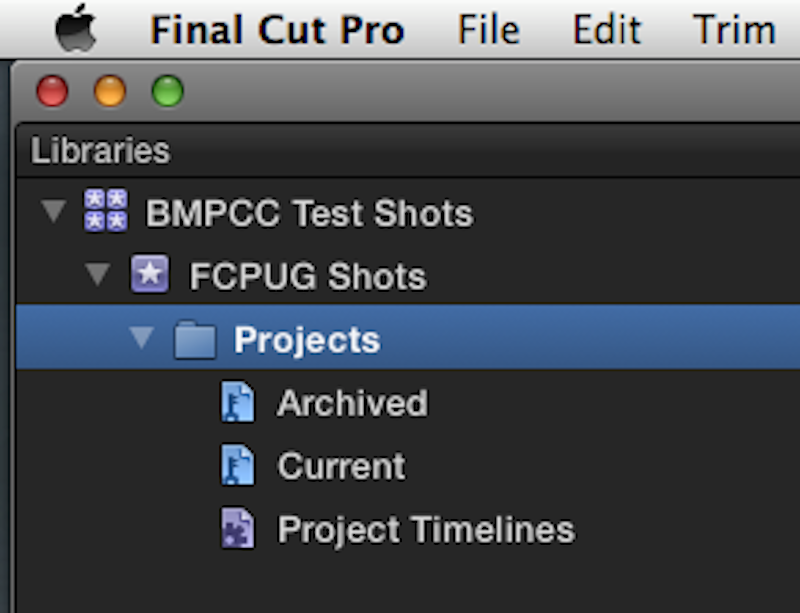
I'm an ACT, and in my classes I try to stress to my students from the very start, that everything in FCPX is a "timeline". A individual clip in the Browser is a specialized "timeline" of its own, which contains the video and audio portions of that clip (right-click, Open In Timeline). I have them refer to everything as a Timeline for the whole three days. Projects? Just a specialized type of Timeline. Multicilps? A different type of Timeline. Compound, Sync, etc. are all just specialty Timelines. That's all it is.
Plus using a Folder to put all of that in. I find using multiple methods to group things together works great.
I'm an ACT, and in my classes I try to stress to my students from the very start, that everything in FCPX is a "timeline". A individual clip in the Browser is a specialized "timeline" of its own, which contains the video and audio portions of that clip (right-click, Open In Timeline). I have them refer to everything as a Timeline for the whole three days. Projects? Just a specialized type of Timeline. Multicilps? A different type of Timeline. Compound, Sync, etc. are all just specialty Timelines. That's all it is.
Last edit: 23 May 2014 11:45 by BenB.
Please Log in to join the conversation.
23 May 2014 13:21 #46548
by robertdee
Replied by robertdee on topic Organising projects
I missed that in my haste - that's brilliant Ben. Thanks, you're a star.
Please Log in to join the conversation.

23 May 2014 13:22 - 23 May 2014 13:25 #46550
by Seanus
Sean Lander - Editing since 1982 - AVID 1991 - FCP 1999 - FCPX 2011
Replied by Seanus on topic Organising projects
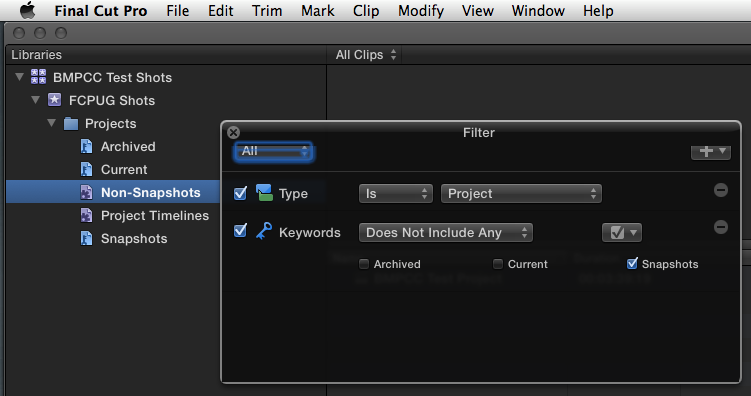
I usually create a smart collection that contains only Projects WITH the keyword SNAPSHOT
Funnily enough I call this "SNAPSHOTS"
Then I create a smart collection that contains only Projects WITHOUT the keyword SNAPSHOT
I call this EDITS
What's good about this is that when you create a Snapshot (I've mapped that to COMMAND OPTION S) you simply continue to edit knowing that there will be something waiting for you in the SNAPSHOTS collection if you need it. No version numbers nothing. JUST KEEP CUTTING!
I really do like Ben's workflow though. I may change.
Funnily enough I call this "SNAPSHOTS"
Then I create a smart collection that contains only Projects WITHOUT the keyword SNAPSHOT
I call this EDITS
What's good about this is that when you create a Snapshot (I've mapped that to COMMAND OPTION S) you simply continue to edit knowing that there will be something waiting for you in the SNAPSHOTS collection if you need it. No version numbers nothing. JUST KEEP CUTTING!
I really do like Ben's workflow though. I may change.
Sean Lander - Editing since 1982 - AVID 1991 - FCP 1999 - FCPX 2011
Last edit: 23 May 2014 13:25 by Seanus.
Please Log in to join the conversation.
23 May 2014 13:23 #46551
by robertdee
Replied by robertdee on topic Organising projects
I think I might use a bit of both - I was thinking to use 'snapshots' in a smart collection called 'archive'
Please Log in to join the conversation.
23 May 2014 15:25 - 23 May 2014 15:25 #46560
by BenB
Replied by BenB on topic Organising projects
Seanus, that is a GREAT idea. I never thought about that. But, I don't use Snapshots that much. But yes, build those two smart collections, add them into that folder. You see, this media management thing FCPX has going is mega flexible. Nice scheme with the snapshots. VERY cool.
But, the Smart Collection for Projects that have the "Snapshots" keyword in it would be redundant, since you have that in the Snapshots keyword collection already.
Just FYI as to how that would work (for those not familiar with how truly powerful Smart Collections can be):
But, the Smart Collection for Projects that have the "Snapshots" keyword in it would be redundant, since you have that in the Snapshots keyword collection already.
Just FYI as to how that would work (for those not familiar with how truly powerful Smart Collections can be):
Last edit: 23 May 2014 15:25 by BenB.
Please Log in to join the conversation.
