


- Posts: 2
- Thank you received: 0
3 Post Moderation Rule for New Boarders (25 Jan 2021)
New boarders will have their posts moderated - Don't worry if you cannot see your post immediately.
Importing .ai based logos w/o JAGGED boarders?!
26 Feb 2014 06:43 #41763
by bbechtel
Importing .ai based logos w/o JAGGED boarders?! was created by bbechtel
Thanks everyone..
So I have logos that I need to place over the into and outro and I cannot figure out how to import the logos with out them being of terrible resolution with jagged boarders.
Ive tried exporting as eps, pdf, png(in ps), save for web, resizing, everything...with no luck. I CAN import a high res logo when the background is solid (colored in AI) but when I have it over a translucent background its teeerrrrible.
Any advice is appreciated...thanks!
heres the video/logos im talking about.
So I have logos that I need to place over the into and outro and I cannot figure out how to import the logos with out them being of terrible resolution with jagged boarders.
Ive tried exporting as eps, pdf, png(in ps), save for web, resizing, everything...with no luck. I CAN import a high res logo when the background is solid (colored in AI) but when I have it over a translucent background its teeerrrrible.
Any advice is appreciated...thanks!
heres the video/logos im talking about.
Please Log in to join the conversation.
- ronny courtens
-

- Offline
- Moderator
-

Less
More
- Posts: 4455
- Thank you received: 962
26 Feb 2014 08:28 #41766
by ronny courtens
Replied by ronny courtens on topic Importing .ai based logos w/o JAGGED boarders?!
Yep, that's ugly. Very hard to know what's going on without actually seeing the original. Seeing the bleed on the edges I would suspect a false alpha interpretation. This can be solved by selecting the logo on your timeline and in the Inspector > Info tab > Settings window change the Alpha handling type.
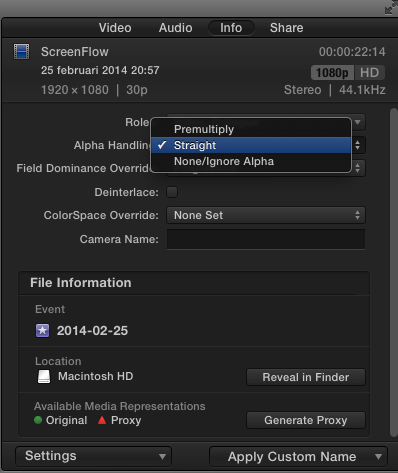
But the resolution is terrible as well, so there could be more than one problem.
If changing the alpha handling does not make it better, can you send me the "Quick and Dirty MTB" logo in its original AI format so I can tell you how to export it at the best quality for your project? I will also need to know what format your FCPX project is (720p, 1080p.....).
You can send the original logo to ronnycourtens(at)mac(dot)com
-Ronny
But the resolution is terrible as well, so there could be more than one problem.
If changing the alpha handling does not make it better, can you send me the "Quick and Dirty MTB" logo in its original AI format so I can tell you how to export it at the best quality for your project? I will also need to know what format your FCPX project is (720p, 1080p.....).
You can send the original logo to ronnycourtens(at)mac(dot)com
-Ronny
Please Log in to join the conversation.
- ronny courtens
-
- Offline
- Moderator
-
Less
More
- Posts: 4455
- Thank you received: 962
26 Feb 2014 22:35 - 26 Feb 2014 22:36 #41798
by ronny courtens
Replied by ronny courtens on topic Importing .ai based logos w/o JAGGED boarders?!
For anyone who is following this thread:
The issue was due to the fact that the Illustrator logo had been created at a relatively small size and had not been resized before importing it in FCPX. The jagged edges were due to severe upscaling of the raftered logo.
There are two ways to solve this:
1. If the file is just one single image (logo or text) and you don't need to modify anything in the graphic:
Drag the AI file onto the Photoshop application icon and in the import settings window that will pop up you can change the size of your imported image. Set the size slightly larger than your project dimensions, make sure to use 72dpi and open it in Photoshop.
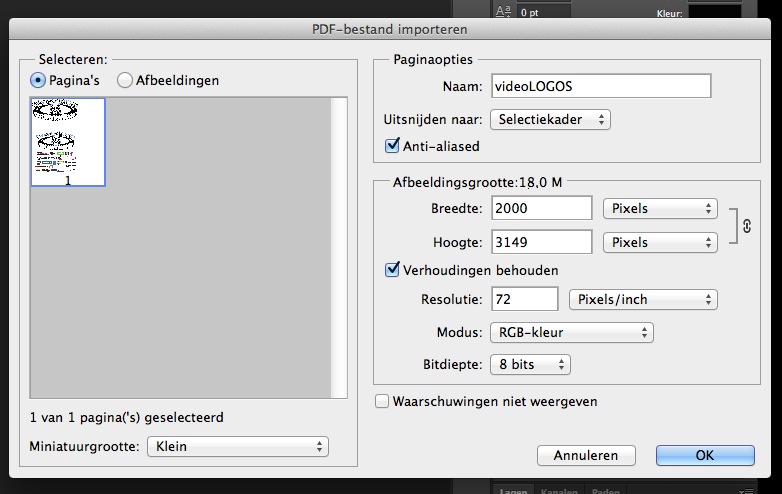
Once it has been opened the vector image is rastered, so you cannot change its dimensions anymore without losing some quality. Export the image as PNG and import the PNG in FCPX.
2. If the AI file consists of different images (as was the case here), or you need to modify the image (modify fonts, colors, add shadows or borders...):
Open the file with Illustrator, modify its size in AI and export as PNG. Here's a video on how to do this for an AI vector shape that needs to be keyed over video in a 1080p FCPX project:
vimeo.com/87706231
-Ronny
The issue was due to the fact that the Illustrator logo had been created at a relatively small size and had not been resized before importing it in FCPX. The jagged edges were due to severe upscaling of the raftered logo.
There are two ways to solve this:
1. If the file is just one single image (logo or text) and you don't need to modify anything in the graphic:
Drag the AI file onto the Photoshop application icon and in the import settings window that will pop up you can change the size of your imported image. Set the size slightly larger than your project dimensions, make sure to use 72dpi and open it in Photoshop.
Once it has been opened the vector image is rastered, so you cannot change its dimensions anymore without losing some quality. Export the image as PNG and import the PNG in FCPX.
2. If the AI file consists of different images (as was the case here), or you need to modify the image (modify fonts, colors, add shadows or borders...):
Open the file with Illustrator, modify its size in AI and export as PNG. Here's a video on how to do this for an AI vector shape that needs to be keyed over video in a 1080p FCPX project:
vimeo.com/87706231
-Ronny
Last edit: 26 Feb 2014 22:36 by ronny courtens.
Please Log in to join the conversation.
26 Feb 2014 23:29 #41802
by bbechtel
Replied by bbechtel on topic Importing .ai based logos w/o JAGGED boarders?!
Brilliant video...'covered every step with clarity.
Youre the man!!! Thanks for ALL of the effort
Youre the man!!! Thanks for ALL of the effort
Please Log in to join the conversation.
