


3 Post Moderation Rule for New Boarders (25 Jan 2021)
New boarders will have their posts moderated - Don't worry if you cannot see your post immediately.
Deleting Clips From Drive / Keeping Reference In FCPX
- WEP
-
 Topic Author
- Offline
- New Member
-

- "Someone once asked me what making a movie was like. I said it was like making a mosaic. Each setup is like a tiny tile. You color it, shape it, polish it as best you can. You’ll do six or seven hundred of these, maybe a thousand. (There can easily be t
Less
More
25 Feb 2014 20:14 #41737
by WEP
Deleting Clips From Drive / Keeping Reference In FCPX was created by WEP
Hello,
My workflow in FCP 7 and prior when a project was completed, was to highlight clips in the Browser and choose "Make Offline" which deleted the files from my hard drive but kept the clip name and info in the FCP 7 project. If I needed to come back to the project, I could open it, highlight all the clips I needed and choose "Batch Import"
Is there a way to do this in FCP X? Can I delete the clips off my drive from within FCP X or do I have to navigate out to my Finder and navigate to the Library folder, right click to show package contents, and then finally navigate where the clips are stored?
RELATED: Why, when I import my AVCHD files does it create two copies of the clip; "Original Media" and "Transcoded Media"? Why make a copy of the "Original Media" if FCP X doesn't use it? And I already have a copy of the original MTS file on my SDHC card which I copied to my computer. Can I prevent FCP X from making this unneeded "Original Media" copy?
Thank You!
My workflow in FCP 7 and prior when a project was completed, was to highlight clips in the Browser and choose "Make Offline" which deleted the files from my hard drive but kept the clip name and info in the FCP 7 project. If I needed to come back to the project, I could open it, highlight all the clips I needed and choose "Batch Import"
Is there a way to do this in FCP X? Can I delete the clips off my drive from within FCP X or do I have to navigate out to my Finder and navigate to the Library folder, right click to show package contents, and then finally navigate where the clips are stored?
RELATED: Why, when I import my AVCHD files does it create two copies of the clip; "Original Media" and "Transcoded Media"? Why make a copy of the "Original Media" if FCP X doesn't use it? And I already have a copy of the original MTS file on my SDHC card which I copied to my computer. Can I prevent FCP X from making this unneeded "Original Media" copy?
Thank You!
Please Log in to join the conversation.

25 Feb 2014 21:41 #41751
by BenB
Replied by BenB on topic Deleting Clips From Drive / Keeping Reference In FCPX
You can use the Consolidate command to move the Managed Media to be External Media, then delete it. You'd Re-Link Media like you did before.
Batch Import was tape based, and FCPX pretty much leaves tape behind, so it isn't the same. Can't remember the last time I touched an actual video tape (or DVD for that matter).
When you import from a camera card, and want to keep the original media, it is common to create a Camera Archive of the card, then import Optimized media into FCPX. I'm not sue under what situation you'd want to import both the original format AND Optimized both as managed media. I'd just keep the original as External Media if I were to keep the original for some reason.
Once you import the original files as Managed Media, again, you can use Consolidate to move them out as External Media, or do the old Show Package Contents trick.
Forget everything you did in v.7 and rethink your workflow from scratch in v.X. X is a very different animal, a whole different workflow.
Batch Import was tape based, and FCPX pretty much leaves tape behind, so it isn't the same. Can't remember the last time I touched an actual video tape (or DVD for that matter).
When you import from a camera card, and want to keep the original media, it is common to create a Camera Archive of the card, then import Optimized media into FCPX. I'm not sue under what situation you'd want to import both the original format AND Optimized both as managed media. I'd just keep the original as External Media if I were to keep the original for some reason.
Once you import the original files as Managed Media, again, you can use Consolidate to move them out as External Media, or do the old Show Package Contents trick.
Forget everything you did in v.7 and rethink your workflow from scratch in v.X. X is a very different animal, a whole different workflow.
Please Log in to join the conversation.
25 Feb 2014 22:52 - 25 Feb 2014 23:14 #41753
by WEP
EDIT: Regarding copying media, it looks like I found the answer: It's unavoidable. FCPX must think it's looking at a camera since I'm pointing it to a folder structure copied verbatim from the camera. FCPX can't tell that it isn't on a camera. And when FCPX needs to transcode from camera files it has to copy the file off the camera first. Bummer! FCP 7 didn't have to copy off the camera first!
Source: www.fcp.co/forum/4-final-cut-pro-x-fcpx/...d-on-import-fcp-10-1
Replied by WEP on topic Deleting Clips From Drive / Keeping Reference In FCPX
I did not know about this feature, I will look into it. Thank you."You can use the Consolidate command"
It was, but with SDHC cards it was still the way to re-capture files that had gone offline and whose only copies were the ones on the folder copied off from the camera."Batch Import was tape based"
Exactly! Me either! I don't know why, and thus I'd like to find a way for FCPX to only leave me with the Optimized (ProRes) version as opposed to both Optimized and Original which FCPX does every time I go to import from a SDHC card file residing on my hard drive."I'm not sue under what situation you'd want to import both the original format AND Optimized both as managed media."
EDIT: Regarding copying media, it looks like I found the answer: It's unavoidable. FCPX must think it's looking at a camera since I'm pointing it to a folder structure copied verbatim from the camera. FCPX can't tell that it isn't on a camera. And when FCPX needs to transcode from camera files it has to copy the file off the camera first. Bummer! FCP 7 didn't have to copy off the camera first!
Source: www.fcp.co/forum/4-final-cut-pro-x-fcpx/...d-on-import-fcp-10-1
Last edit: 25 Feb 2014 23:14 by WEP.
Please Log in to join the conversation.
26 Feb 2014 03:54 #41758
by BenB
Replied by BenB on topic Deleting Clips From Drive / Keeping Reference In FCPX
Like I said, make a Camera Archive of the card. Import as External Media from that.
Please Log in to join the conversation.
26 Feb 2014 05:11 #41762
by WEP
Replied by WEP on topic Deleting Clips From Drive / Keeping Reference In FCPX
When you say "Camera Archive" are you referring to "Create Archive" found on the bottom left of the import window? I've looked into that but would really prefer to keep my files the same was as they were in the camera; I don't know if FCP will change their workflow again or if I'll need to send the raw material to someone else with another editing program. I don't want to lock myself into FCP X's current idea of how best to archive my media if it isn't the same as everyone else and no one else can access it.
"Import External Media" is that different from the regular import window somehow? On 10.1.1 it seems that no matter where you import from; disk, camera, etc... it all happens through the Import Media window.
"Import External Media" is that different from the regular import window somehow? On 10.1.1 it seems that no matter where you import from; disk, camera, etc... it all happens through the Import Media window.
Please Log in to join the conversation.
26 Feb 2014 11:05 #41770
by BenB
Replied by BenB on topic Deleting Clips From Drive / Keeping Reference In FCPX
Camera Archive simply keeps your original camera card in tact, exactly as the camera created it. FCPX can read from them directly. You then import you clips directly from that archive, keeping them as External Media, or bringing them in as Managed Media.
help.apple.com/finalcutpro/mac/10.1/#verfdd5c590e
help.apple.com/finalcutpro/mac/10.1/#ver64e710fd
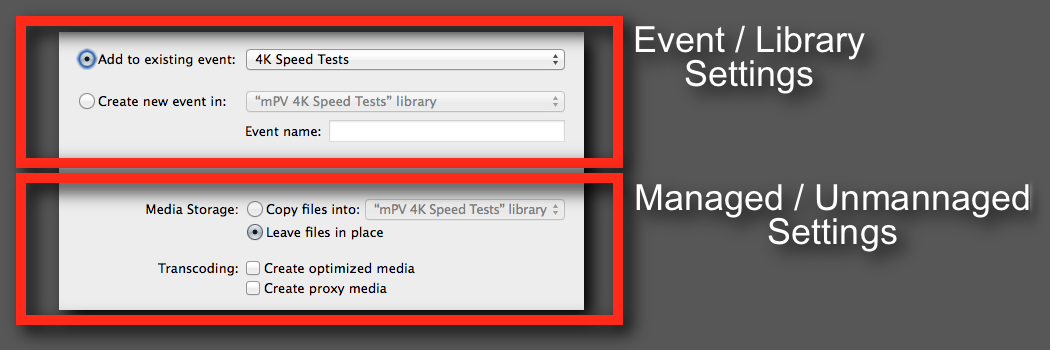
Basically, in the Import window, the top section simply lets you choose which Library/Event combo to store your media. The second section is where you decide between Managed Media and External Media. Storing media inside of the Library physically is Managed Media. Storing media outside of the Library physically is External Media, and your Library/Event only has Links to the original media, which physically resides outside of the Library/Event.
help.apple.com/finalcutpro/mac/10.1/#verfdd5c590e
help.apple.com/finalcutpro/mac/10.1/#ver64e710fd
Basically, in the Import window, the top section simply lets you choose which Library/Event combo to store your media. The second section is where you decide between Managed Media and External Media. Storing media inside of the Library physically is Managed Media. Storing media outside of the Library physically is External Media, and your Library/Event only has Links to the original media, which physically resides outside of the Library/Event.
Please Log in to join the conversation.
