


- Posts: 786
- Thank you received: 21
3 Post Moderation Rule for New Boarders (25 Jan 2021)
New boarders will have their posts moderated - Don't worry if you cannot see your post immediately.
Un-linking audio so it is independent.
- Jonathan Levin
-
 Topic Author
- Offline
- Platinum Member
-

Less
More
24 Feb 2014 18:22 #41655
by Jonathan Levin
Un-linking audio so it is independent. was created by Jonathan Levin
Hi all.
I have an issue that I know there is probably a simple solution.
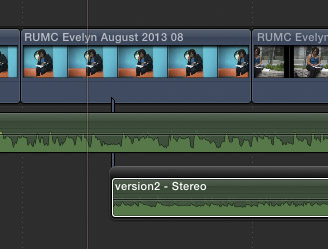
I have an audio track (music) below my main story line. In the storyline above that audio track I have some still images/clips and I want to delete one of them. When I do this, it also deletes the audio track.
So is there a way to "un-link" the audio so it stays where it's at when I go to delete something?
Thanks again.
Jonathan
I have an issue that I know there is probably a simple solution.
I have an audio track (music) below my main story line. In the storyline above that audio track I have some still images/clips and I want to delete one of them. When I do this, it also deletes the audio track.
So is there a way to "un-link" the audio so it stays where it's at when I go to delete something?
Thanks again.
Jonathan
Please Log in to join the conversation.
- Tom Wolsky
-

- Offline
- Moderator
-

24 Feb 2014 18:51 #41657
by Tom Wolsky
Replied by Tom Wolsky on topic Un-linking audio so it is independent.
Cmd-option-click on the secondary storyline shelf above a different shot so the secondary gets connected to a different clip on the primary. Or shift-delete the clip on the primary to replace it with a gap clip.
Please Log in to join the conversation.
- Jonathan Levin
-
Topic Author
- Offline
- Platinum Member
-
Less
More
- Posts: 786
- Thank you received: 21
24 Feb 2014 19:33 #41658
by Jonathan Levin
Replied by Jonathan Levin on topic Un-linking audio so it is independent.
Tom,
Thank you so much! That did it! Two more keyboard shortcuts I will remember.
Though it seems like there ought to be a way to make a clip un-connected.
Jonathan
Thank you so much! That did it! Two more keyboard shortcuts I will remember.
Though it seems like there ought to be a way to make a clip un-connected.
Jonathan
Please Log in to join the conversation.
- Tom Wolsky
-
- Offline
- Moderator
-
24 Feb 2014 19:51 #41660
by Tom Wolsky
Replied by Tom Wolsky on topic Un-linking audio so it is independent.
There are no tracks. Everything is always connected to the primary storyline.
Please Log in to join the conversation.
- Jonathan Levin
-
Topic Author
- Offline
- Platinum Member
-
Less
More
- Posts: 786
- Thank you received: 21
24 Feb 2014 19:55 - 24 Feb 2014 20:09 #41661
by Jonathan Levin
Replied by Jonathan Levin on topic Un-linking audio so it is independent.
Tom,
Actually one other question.
Is it possible to select a bunch of clips say from the middle of a project to the end, re-position all those clips to open a space up in the timeline without moving the audio below. I have three audio tracks that are "connected" to some of those selected clips that I'd like to move, just not the audio tracks. Kind of like the Select track Forward/Backward in 7. At least then you could command-click the tracks you didn't want to move using that tool.
I suppose I could add markers and after the move reposition the audio back to where I want it.
Best to you.
Jonathan
Actually one other question.
Is it possible to select a bunch of clips say from the middle of a project to the end, re-position all those clips to open a space up in the timeline without moving the audio below. I have three audio tracks that are "connected" to some of those selected clips that I'd like to move, just not the audio tracks. Kind of like the Select track Forward/Backward in 7. At least then you could command-click the tracks you didn't want to move using that tool.
I suppose I could add markers and after the move reposition the audio back to where I want it.
Best to you.
Jonathan
Last edit: 24 Feb 2014 20:09 by Jonathan Levin.
Please Log in to join the conversation.
- ronny courtens
-

- Offline
- Moderator
-
Less
More
- Posts: 4455
- Thank you received: 962
24 Feb 2014 20:14 #41662
by ronny courtens
Replied by ronny courtens on topic Un-linking audio so it is independent.
Adding to what Tom said: hold down the tilde key and press Backspace to delete the video clip. Instead of creating a gap clip this will delete the video clip and ripple your timeline without affecting the connected audio clip.
And I entirely agree with you: assuming that a connected clip always must be linked to a clip in the Primary storyline is a major flaw in the (otherwise excellent) Magnetic Timeline concept.
When you do a lot of scripted productions involving complex audio lanes this limitation makes you lose a lot of time. We should at least have an option to link any clip to any other clip we want, wether they are in the Primary or not and irrelevant of where they are placed in time. For music videos it is also imperative that we should be able to link secondary audio clips to secondary story lines and not to the primary one. There still are many ways the magnetic timeline concept can be improved. Feedback is your best friend.
-Ronny
And I entirely agree with you: assuming that a connected clip always must be linked to a clip in the Primary storyline is a major flaw in the (otherwise excellent) Magnetic Timeline concept.
When you do a lot of scripted productions involving complex audio lanes this limitation makes you lose a lot of time. We should at least have an option to link any clip to any other clip we want, wether they are in the Primary or not and irrelevant of where they are placed in time. For music videos it is also imperative that we should be able to link secondary audio clips to secondary story lines and not to the primary one. There still are many ways the magnetic timeline concept can be improved. Feedback is your best friend.
-Ronny
Please Log in to join the conversation.
- Tom Wolsky
-
- Offline
- Moderator
-
24 Feb 2014 20:15 #41663
by Tom Wolsky
Replied by Tom Wolsky on topic Un-linking audio so it is independent.
If you can change the audio connection point to something upstream of the point you want to move from. If not insert a gap clip, connect the audio to the and make the gap as long as you want.
But why do you want to move everything down the storyline? Can't you just insert whatever you want and then connect the audio to it?
But why do you want to move everything down the storyline? Can't you just insert whatever you want and then connect the audio to it?
Please Log in to join the conversation.
- Jonathan Levin
-
Topic Author
- Offline
- Platinum Member
-
Less
More
- Posts: 786
- Thank you received: 21
24 Feb 2014 21:01 #41667
by Jonathan Levin
Replied by Jonathan Levin on topic Un-linking audio so it is independent.
Thanks Ronny. I'll send Apple feedback, although I have to figure out how to say what I'm trying to do :S
Tom:
If I do an insert, the connected clips move with the primary. If everything just below the story line were to remain where they are, that's what I'm looking for.
I also gave the position tool a go, which will also open up a gap, but still moves everything below and or connected to the storyline.
Maybe it's just the way I'm working.
Jonathan
Tom:
If I do an insert, the connected clips move with the primary. If everything just below the story line were to remain where they are, that's what I'm looking for.
I also gave the position tool a go, which will also open up a gap, but still moves everything below and or connected to the storyline.
Maybe it's just the way I'm working.
Jonathan
Please Log in to join the conversation.
- ronny courtens
-
- Offline
- Moderator
-
Less
More
- Posts: 4455
- Thank you received: 962
24 Feb 2014 21:29 #41674
by ronny courtens
Replied by ronny courtens on topic Un-linking audio so it is independent.
Jonathan,
1. Select the clips you want to move.
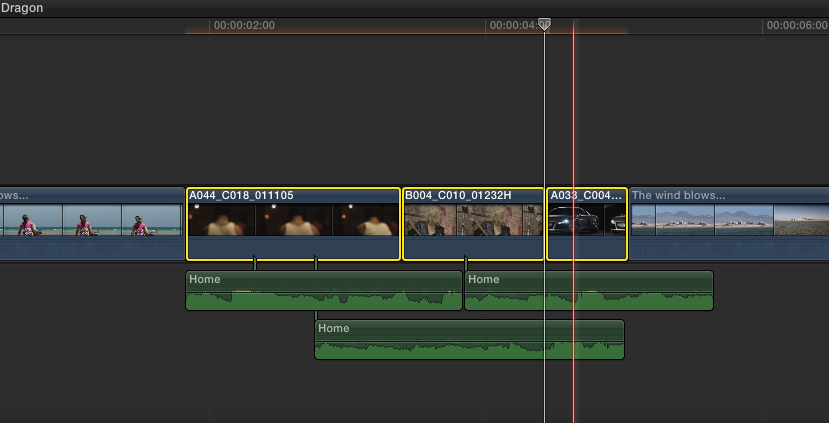
2. Press SHIFT+CMD+Up Arrow to lift the selection from the timeline. The clips will be lifted from the timeline (they will be automatically grouped in a secondary storyline) and a gap will be created. Your audio clips will stay connected to the gap clip.
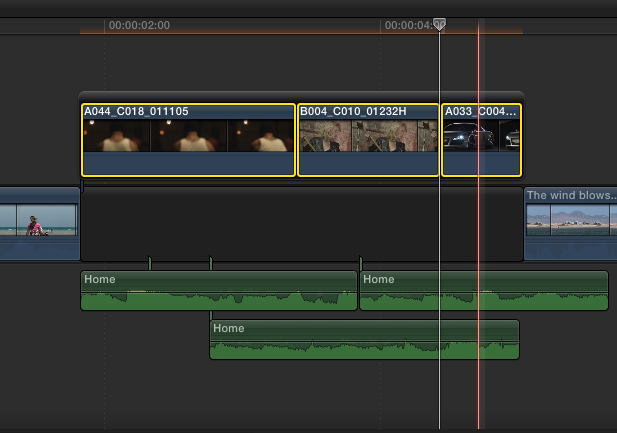
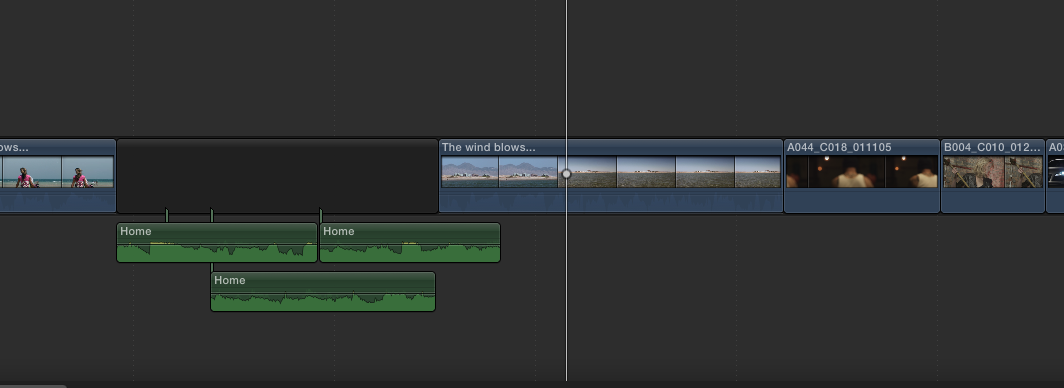
3. Grab the group of clips and move them to a different place in your edit. Your audio clips will stay connected to the gap clip and will not move.
-Ronny
1. Select the clips you want to move.
2. Press SHIFT+CMD+Up Arrow to lift the selection from the timeline. The clips will be lifted from the timeline (they will be automatically grouped in a secondary storyline) and a gap will be created. Your audio clips will stay connected to the gap clip.
3. Grab the group of clips and move them to a different place in your edit. Your audio clips will stay connected to the gap clip and will not move.
-Ronny
Please Log in to join the conversation.
- Jonathan Levin
-
Topic Author
- Offline
- Platinum Member
-
Less
More
- Posts: 786
- Thank you received: 21
24 Feb 2014 21:39 - 24 Feb 2014 21:43 #41675
by Jonathan Levin
Replied by Jonathan Levin on topic Un-linking audio so it is independent.
Ronny,
Thanks for that. That does work for video clips, but there is no option to do that with still images, I don't think.
Jonathan
Stop the presses: there is an option in the main Edit menu, just not in the right-click contextual menu. Oddly, the command-shift-up arrow don't work though.
Thanks for that. That does work for video clips, but there is no option to do that with still images, I don't think.
Jonathan
Stop the presses: there is an option in the main Edit menu, just not in the right-click contextual menu. Oddly, the command-shift-up arrow don't work though.
Last edit: 24 Feb 2014 21:43 by Jonathan Levin.
Please Log in to join the conversation.
- ronny courtens
-
- Offline
- Moderator
-
Less
More
- Posts: 4455
- Thank you received: 962
24 Feb 2014 21:46 #41676
by ronny courtens
Replied by ronny courtens on topic Un-linking audio so it is independent.
My bad, Jonathan. The command is: ALT+CMD+UP ARROW.
- Ronny
- Ronny
Please Log in to join the conversation.
- Tom Wolsky
-
- Offline
- Moderator
-
25 Feb 2014 14:41 #41718
by Tom Wolsky
Replied by Tom Wolsky on topic Un-linking audio so it is independent.
"Adding to what Tom said: hold down the tilde key and press Backspace to delete the video clip. Instead of creating a gap clip this will delete the video clip and ripple your timeline without affecting the connected audio clip."
You're using the Delete key next to I'm not getting that. The attached clip is deleting even with the grave key (tilde `) held.
You're using the Delete key next to
I'm not getting that. The attached clip is deleting even with the grave key (tilde `) held. Please Log in to join the conversation.


25 Feb 2014 15:35 #41722
by BenB
Replied by BenB on topic Un-linking audio so it is independent.
Pressing in order Tilde-Shift-Delete, works for me, does a lift edit and keeps the connected clip.
Please Log in to join the conversation.
- Tom Wolsky
-
- Offline
- Moderator
-
25 Feb 2014 15:44 #41724
by Tom Wolsky
Replied by Tom Wolsky on topic Un-linking audio so it is independent.
That's what shift-delete does. I don't think you need the grave key.
Please Log in to join the conversation.
25 Feb 2014 15:46 #41725
by BenB
Replied by BenB on topic Un-linking audio so it is independent.
You are correct, tilde not needed for a lift edit.
Please Log in to join the conversation.
- ronny courtens
-
- Offline
- Moderator
-
Less
More
- Posts: 4455
- Thank you received: 962
25 Feb 2014 20:59 - 25 Feb 2014 21:00 #41741
by ronny courtens
Replied by ronny courtens on topic Un-linking audio so it is independent.
Tom,
Try this: put three clips on your primary storyline. Connect one or more clips to the middle clip on the Storyline. Then select the middle clip, hold the tilde (grave) key and press Delete (Backspace key). The middle clip will be deleted and the Storyline will ripple, but the clips that were connected to the deleted clip will remain in place.
Here's a little video showing this:
vimeo.com/87604118
-Ronny
Try this: put three clips on your primary storyline. Connect one or more clips to the middle clip on the Storyline. Then select the middle clip, hold the tilde (grave) key and press Delete (Backspace key). The middle clip will be deleted and the Storyline will ripple, but the clips that were connected to the deleted clip will remain in place.
Here's a little video showing this:
vimeo.com/87604118
-Ronny
Last edit: 25 Feb 2014 21:00 by ronny courtens.
Please Log in to join the conversation.
- Tom Wolsky
-
- Offline
- Moderator
-
25 Feb 2014 21:12 #41743
by Tom Wolsky
Replied by Tom Wolsky on topic Un-linking audio so it is independent.
It doesn't work for me, but there seems to be quite a number of things in the application that are not working properly for me at the moment.
Please Log in to join the conversation.
- ronny courtens
-
- Offline
- Moderator
-
Less
More
- Posts: 4455
- Thank you received: 962
25 Feb 2014 21:13 - 25 Feb 2014 21:13 #41744
by ronny courtens
Replied by ronny courtens on topic Un-linking audio so it is independent.
Maybe refreshing the prefs might help?
-Ronny
-Ronny
Last edit: 25 Feb 2014 21:13 by ronny courtens.
Please Log in to join the conversation.
- Tom Wolsky
-
- Offline
- Moderator
-
25 Feb 2014 21:21 #41746
by Tom Wolsky
Replied by Tom Wolsky on topic Un-linking audio so it is independent.
There's a major prefs problem with the OS. Trashing them does not reset the application.
Please Log in to join the conversation.
- ronny courtens
-
- Offline
- Moderator
-
Less
More
- Posts: 4455
- Thank you received: 962
25 Feb 2014 21:24 #41747
by ronny courtens
Replied by ronny courtens on topic Un-linking audio so it is independent.
Please Log in to join the conversation.
